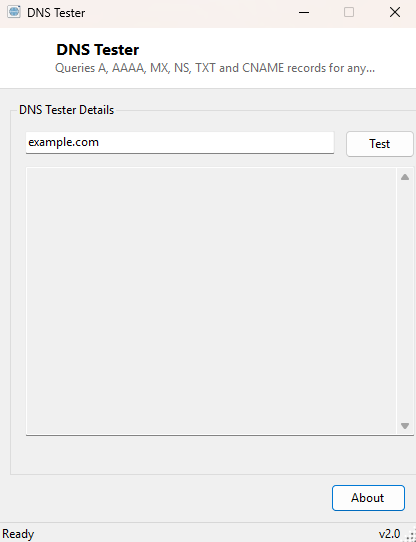
Overview
DNS Tester exists to answer one question that comes up constantly during domain setup,
email deliverability troubleshooting, and general network diagnosis: "what is actually
published in DNS for this domain right now, across every record type that matters?"
Rather than running nslookup six separate times from a command prompt and
manually switching the -type= flag each time, this tool runs all of the
common lookups in a single pass and lays the results out in one scrollable window,
grouped clearly by record type.
Key Features
- Queries A, AAAA, MX, NS, TXT and CNAME records in a single click
- Groups results under clear "--- TYPE records ---" section headers
- Runs each lookup asynchronously so the interface never freezes mid-query
- Uses your system's configured DNS resolver, matching what your PC actually sees
- No API keys, accounts or external DNS-lookup services required
Why You Might Need This Tool
Email deliverability problems are the single most common reason people reach for a
multi-type DNS tool. SPF and DKIM records live in TXT, the mail server itself lives in
MX, and a broken subdomain often shows up as a missing or stale CNAME — checking all
three by hand across three separate nslookup invocations is tedious and
error-prone. Domain migrations are the second common case: after pointing a domain at a
new host, DNS Tester lets you confirm the A record actually changed, the nameservers
(NS records) match the new registrar, and nothing was accidentally left behind pointing
at the old provider. Web developers also use it simply to confirm that a DNS change has
propagated before spending time debugging what turns out to be a caching issue instead
of a code issue.
How It Works
Rather than implementing a raw DNS protocol client, DNS Tester wraps the same
nslookup.exe binary that ships with every copy of Windows, invoking it
once per record type with -type=A, -type=AAAA,
-type=MX, -type=NS, -type=TXT and
-type=CNAME against the domain you enter. Each invocation runs on a
background thread via Task.Run so all six queries can be dispatched without
blocking the UI, and the tool then filters each command's raw text output down to the
lines that actually contain a record — internet address, nameserver, mail exchanger, or
text = entries — discarding the boilerplate header and footer lines nslookup always
prints. This approach means DNS Tester always resolves using exactly the same DNS server
configuration Windows itself is using, which is important: it reflects real-world
behavior rather than an idealized lookup against a public resolver you don't actually
use day to day.
How to Use It
Type a domain name into the input box — no http:// or trailing slash needed,
just the bare domain like example.com — and click Test.
Results stream in as each record type finishes resolving, appearing under its own
section header in the output box below. If a section shows "(no records found)", that
record type genuinely is not published for the domain, which is itself useful diagnostic
information (for example, a domain with no MX record cannot receive email at all).
System Requirements & Notes
Requires an active internet or network connection capable of reaching a DNS server; no administrator rights are needed since DNS resolution is a standard-user operation. Results reflect your system's currently configured DNS resolver and its cache, so a just-changed record may not appear until that cache expires — pair this with DNS Cache Flusher if you need to force a fresh lookup immediately.
Frequently Asked Questions
Why does a record show up here but not on a public "DNS checker" website?
Public DNS-checker sites usually query a specific external resolver directly, bypassing
your local cache and network. DNS Tester intentionally reflects what your own PC and its
configured DNS server currently see, which is what actually matters when the problem is
"why can't I reach this site."
Can it query less common record types like SRV or CAA?
Not currently — DNS Tester focuses on the six record types involved in the vast majority
of day-to-day domain and email troubleshooting. For a broader set of record types, see
DNSDataView, which adds SOA lookups in a tabular format.