Overview
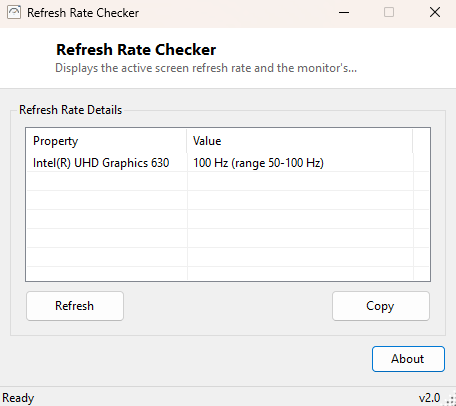
A monitor silently running at 60Hz when it is fully capable of 144Hz is one of the most common "why does this feel laggy" complaints in PC gaming, and it happens more often than most people expect — a driver update, a cable swap, connecting through a dock or KVM switch, or simply adding a second monitor to an existing setup can all reset the refresh rate back to a conservative default without any obvious on-screen notification that anything changed. Refresh Rate Checker reports the currently active refresh rate alongside the full range your hardware reports supporting, so a mismatch is visible in seconds rather than staying an unexplained feeling that "something's off."
Key Features
- Shows the currently active refresh rate for every graphics adapter
- Reports the adapter's minimum and maximum supported refresh rate range
- Updates immediately after you change display settings and hit Refresh
Why You Might Need This Tool
High-refresh-rate monitors are only worth their price premium if the refresh rate is actually being used, and Windows does not always make a mismatch obvious — especially after plugging into a different port, switching cables, or routing the connection through a KVM switch or docking station that silently negotiates a lower rate than the display and GPU could otherwise achieve together. Running this check after any change to your display setup confirms you are actually getting the performance you paid for, rather than discovering months later that a cable swap quietly capped you at 60Hz the whole time.
How It Works
The tool reads CurrentRefreshRate, MinRefreshRate and
MaxRefreshRate directly from Win32_VideoController through
WMI. These are the same underlying values Windows' own Advanced Display Settings
page reads when it populates its refresh rate dropdown menu, so the numbers shown
here match exactly what Windows itself believes the connected hardware supports at
this moment, with no separate estimation or guesswork layered on top.
How to Use It
Open the program and the current and supported refresh rate range appear immediately for each adapter. After changing a display setting in Windows, click Refresh to confirm the change actually applied rather than silently reverting.
System Requirements & Notes
Runs on 64-bit Windows 10/11 with no administrator rights required.
Frequently Asked Questions
Why does the max supported rate not match my monitor's advertised spec?
The reported range depends on the current cable and connection type — a display
capable of 144Hz over DisplayPort may be limited to 60Hz over an older HDMI cable or
a passive adapter that cannot carry the higher bandwidth required.
Can this tool change my refresh rate?
No, it is read-only reporting by design. Change the setting through Windows Display
Settings, then use this tool purely to confirm it took effect.
Does variable refresh rate (G-Sync/FreeSync) show up differently here?
The tool reports the fixed min/max range Windows exposes through WMI; the dynamic,
frame-by-frame behavior of variable refresh technologies happens below this
reporting layer and will not be visible as a changing number here.