Overview
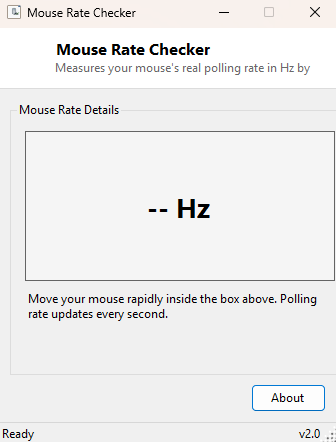
Mouse Rate Checker answers one very specific, very practical question: how many times per second is your mouse actually reporting its position to Windows right now? Gaming mice are typically marketed with polling rates of 125Hz, 500Hz, 1000Hz or higher, but the number on the box and the number your mouse actually delivers through a given USB port, driver configuration, or after a Windows update can quietly drift apart. This tool gives you a live, honest measurement rather than a manufacturer's claim.
Unlike heavier gaming-peripheral suites that require installing a vendor's full configuration software just to see a polling-rate graph, Mouse Rate Checker is a single window with one test surface and one number, and it works with any mouse from any manufacturer since it measures behavior Windows itself exposes rather than anything proprietary to a specific brand.
Key Features
- Live Hz readout that updates once per second
- Large dedicated test panel to move the mouse across for an accurate reading
- Works with any pointing device Windows recognizes — no vendor drivers required
- No configuration, calibration or setup step — open it and start moving the mouse
- Lightweight enough to leave running in a corner of the screen while testing other settings
Why You Might Need This Tool
Confirming actual polling rate matters most right after a change — a new mouse, a driver update, switching from a USB 2.0 port to a USB 3.0 one, or adjusting a setting in a manufacturer's configuration utility that claims to raise the polling rate but does not always visibly confirm it took effect. Competitive gamers and anyone doing precision work (CAD, photo retouching, digital art) both care about this for the same underlying reason: a lower actual polling rate than expected means more perceptible latency and less smooth on-screen tracking, even if the mouse itself is physically capable of more.
How It Works
The technique is intentionally simple and transparent. A dedicated panel on the form
counts every MouseMove event Windows delivers to it while the cursor is
inside that panel's bounds, incrementing a counter on each event. A one-second
interval timer reads that counter, displays it as the current Hz value, and resets it
to zero for the next second — a direct, real-time sample of how many move
notifications Windows actually generated for your mouse in the last second while it
was in motion. Because this counts genuine WM_MOUSEMOVE-derived events rather than
querying a driver-level setting, the number reflects what your applications are truly
receiving, not just what a control panel claims is configured.
How to Use It
Open Mouse Rate Checker and move the mouse continuously and briskly within the large test panel — small, slow movements under-sample the true rate, since Windows only generates a move event when the cursor position actually changes. Watch the Hz readout for a few seconds to let it stabilize; the number displayed each second is that second's actual event count, so brief pauses in movement will show a lower reading that is not a real fault, just a reflection of less mouse activity during that particular second.
System Requirements & Notes
Runs on 64-bit Windows 10 and Windows 11, requires no administrator rights, and works with any mouse, trackpad or pointing device Windows already recognizes — there is no dependency on a specific vendor's driver stack.
Frequently Asked Questions
Why does my reading fluctuate between, say, 480 and 520 rather than sitting
exactly at 500?
Small fluctuation is normal and expected — this measures real events during a
one-second window, and factors like how continuously you moved the mouse and normal
OS scheduling jitter both introduce a small amount of natural variance around the
true configured rate.
Can this tool change my mouse's polling rate?
No — it only measures, it never writes any setting. Changing polling rate is done
through your mouse manufacturer's own configuration software or, for some mice,
firmware-level DIP switches.
Does it work over Bluetooth mice the same way as wired ones?
Yes, the counting method works identically regardless of connection type, though
Bluetooth mice typically report meaningfully lower polling rates than wired or
USB-dongle gaming mice by design.