Overview
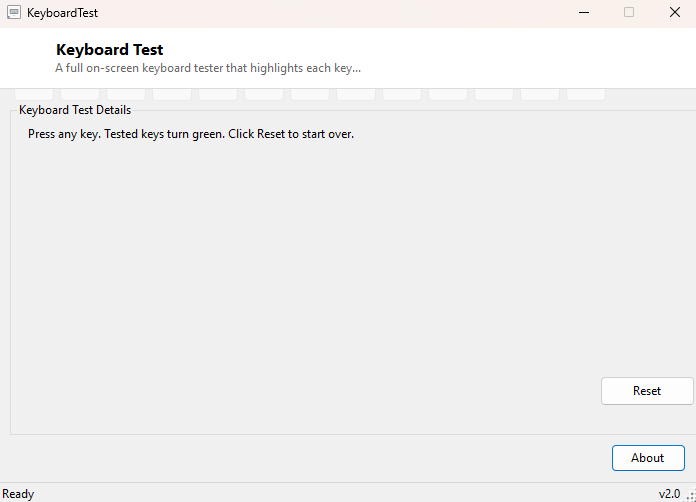
Keyboard Test draws a full on-screen keyboard — every letter, number, function key, modifier and navigation key laid out in its familiar physical position — and lights each key up green the instant you press it. It exists to answer one very specific question quickly and visually: does every single key on this keyboard actually register a keypress? A key that is dead, sticky, or intermittently unresponsive can be genuinely hard to notice during normal typing, especially for less-used keys like function keys, the right Ctrl, or number-pad keys, and this tool turns "does every key work" into a five-minute visual checklist instead of a guessing game.
This is especially useful right after buying a new or used mechanical keyboard, after a spill that has since dried out, or when troubleshooting a laptop's built-in keyboard before deciding whether it needs professional repair.
Key Features
- Draws a complete, correctly laid-out on-screen keyboard including function row and navigation cluster
- Highlights each key green the moment it is pressed, giving instant visual confirmation
- Covers letters, numbers, punctuation, modifiers, arrow keys and common special keys
- One-click Reset button to clear all highlights and start a fresh test pass
- No typing required in any text field — just press keys naturally
- Works with any physical or virtual keyboard Windows recognizes
Why You Might Need This Tool
Beyond verifying a new keyboard purchase before the return window closes, this comes up constantly for laptop keyboards after liquid damage, where a handful of keys may stop responding while the rest work perfectly, making the fault easy to miss during casual use. It is also a fast first diagnostic step before assuming a keyboard needs replacing — pressing every key methodically and watching for the ones that never light up green tells you immediately whether the problem is one dead key (often fixable by cleaning under the keycap) or a wider fault affecting whole rows or columns, which usually points to a failed key matrix or membrane and a more serious repair. It is also a handy quick check for gamers and touch typists who want to confirm keyboard rollover behavior — pressing several keys at once and watching which ones still light up green reveals how many simultaneous keypresses this particular keyboard's matrix can actually register.
How It Works
Keyboard Test builds its on-screen layout dynamically in code, generating a Button
control for each key and positioning it to mirror a standard keyboard's physical
rows, rather than loading a fixed image. Each button is mapped to the corresponding
value in the .NET Keys enumeration during setup. The form itself listens
for KeyDown events across the whole window (not just a single focused
control), and on each keypress it looks up the pressed key in that mapping and
changes the matching button's background color to light green. Because the mapping
is built from the same enumeration Windows itself uses to report which physical key
was pressed, the highlight is a direct, unambiguous confirmation that Windows
received that exact keystroke — not an approximation.
How to Use It
Open Keyboard Test and simply start pressing every key on your keyboard in turn, watching for each one to turn green. Work through methodically — letters, numbers, the function row, modifiers, and the arrow/navigation cluster — rather than randomly, so a missed key is easy to spot. Click Reset to clear all highlights and run the check again, useful for testing a repair or confirming a replacement keyboard is fully functional.
System Requirements & Notes
Keyboard Test runs on 64-bit Windows 10 and Windows 11 and requires no administrator
rights — it only reads standard keyboard input events the same way any text field
would. A very small number of specialty keys (some multimedia and vendor-specific
function keys) are not represented on the on-screen layout since they are outside
the standard Keys enumeration; the vast majority of typing, navigation
and function keys are fully covered.
Frequently Asked Questions
Does this test laptop-specific Fn-combo keys like brightness or volume?
Standalone multimedia keys are often intercepted by dedicated hardware or a vendor
driver before Windows sees them as a normal keystroke, so behavior varies by laptop
model; the standard alphanumeric, function and navigation keys are reliably tested.
My key lights up but doesn't type the right character — is that a fault?
Not usually — that typically points to an incorrect keyboard layout selected in
Windows rather than a hardware fault, since Keyboard Test matches on the physical
key code rather than the character it produces.
Can I use this to test a USB keyboard before returning it to a store?
Yes — plug it in, run through every row methodically, and confirm each key turns
green as pressed. This catches the two most common defects in a bad or refurbished
keyboard: keys that register no input at all, and keys that register intermittently
under light pressure.