Overview
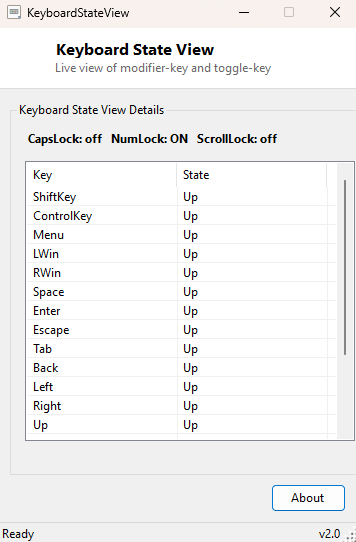
Keyboard State View shows the live, constantly-updating state of every modifier and toggle key on your keyboard — Shift, Ctrl, Alt, the Windows key, arrow keys, common letter keys, and the three toggle-lock indicators Caps Lock, Num Lock and Scroll Lock — refreshed several times a second in a simple table. Where Keyboard Test is about confirming every key eventually registers a press, Keyboard State View is about watching exactly which keys are down at this instant and what state the toggle locks are currently in, which is a different and genuinely useful diagnostic when a key seems to be "stuck" or when Caps Lock behavior is behaving unpredictably.
This tool is aimed squarely at troubleshooting rather than casual use: it exists for the moments when you need to see, with certainty, whether Windows currently believes a specific key is physically held down.
Key Features
- Live table of modifier key states (Shift, Ctrl, Alt, Windows key) updated continuously
- Tracks arrow keys and a set of common letter keys as a representative sample
- Shows Caps Lock, Num Lock and Scroll Lock toggle state clearly at the top
- Highlights each currently-pressed key in green in real time
- Updates roughly six times per second, fast enough to catch brief presses
- No typing focus required in any text box — works from anywhere in the window
Why You Might Need This Tool
Sticky or "phantom-pressed" keys are surprisingly hard to diagnose from normal typing alone — a key that is physically stuck down or a driver reporting a key as pressed when it is not can cause bizarre, hard-to-reproduce behavior across every application, and confirming that a specific key really is (or is not) held down according to Windows is the fastest way to separate a genuine hardware fault from an application bug. It is equally useful for confirming exactly what state Caps Lock or Num Lock is in when a laptop's status LEDs are hard to see, or when a keyboard shortcut is not firing as expected and you need to rule out a modifier key silently getting stuck from a previous key combination.
How It Works
Keyboard State View polls two related low-level Windows APIs from user32.dll
on a fast repeating timer. GetAsyncKeyState is queried once per watched
key on every tick; the high bit of its return value indicates whether that specific
key is physically down at the exact moment of the call, which is how the tool
distinguishes "currently pressed" from "was pressed since the last check." For the
three toggle locks, it instead calls GetKeyState with the corresponding
virtual-key codes (0x14 for Caps Lock, 0x90 for Num Lock, 0x91 for Scroll Lock) and
checks the low bit, which reflects the toggle's on/off state rather than whether a
key is currently held — this is the same distinction Windows itself uses internally
between a key being "down" and a lock being "on."
How to Use It
Simply open Keyboard State View and start pressing keys — no setup or focus is required. Watched keys turn green in the table the instant they are detected as pressed and revert the instant they are released, while the Caps/Num/Scroll Lock indicators at the top update immediately whenever you toggle them. Leave the window open alongside whatever you are troubleshooting to watch for unexpected state changes in real time.
System Requirements & Notes
Keyboard State View runs on 64-bit Windows 10 and Windows 11 and does not require
administrator rights — GetAsyncKeyState and GetKeyState are
both standard, unprivileged Win32 APIs. Because it polls on a timer rather than
hooking every keystroke system-wide, extremely brief presses (well under a hundred
milliseconds) may occasionally be missed between polling intervals; for confirming
that every key eventually registers at all, see Keyboard Test instead.
Frequently Asked Questions
Why does a key show as pressed even though I'm not touching it?
This usually indicates a genuinely stuck key, a driver-level issue with that specific
key, or in rare cases another application sending synthetic key-down events; seeing
it confirmed here rules out "it's just my imagination" and points clearly at a
hardware or driver problem.
Does this work for keys not shown in the table?
The table covers modifiers, arrows and a representative set of common letters
specifically because trying to display all 100+ possible keys at once would be
unreadable; for a full every-key check, use Keyboard Test's complete on-screen layout
instead.
Why would I need this instead of just looking at the keyboard's own lock LEDs?
Many modern laptop and low-cost keyboards omit physical Caps/Num/Scroll Lock
indicator LEDs entirely, or route them through a driver that doesn't reflect the
true OS-level state during a lag spike — reading the state directly from Windows
removes that ambiguity.