Overview
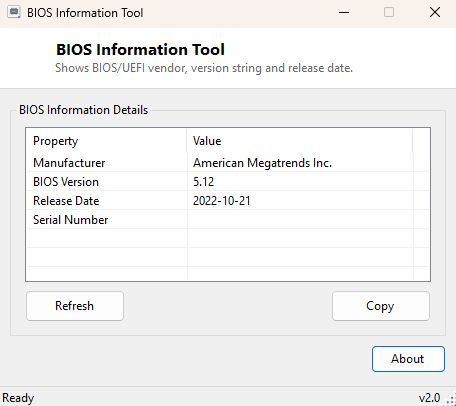
Firmware update instructions almost always start the same way: "first, check your current BIOS version." BIOS Information Tool answers that question in under a second, reading your motherboard's BIOS or UEFI firmware manufacturer, its exact version string, its release date and its serial number, and laying all four out in one small window — no rebooting into the firmware setup screen and squinting at a version string in the corner required.
This is one of the most frequently needed pieces of system information there is, and yet Windows buries it a few clicks deep inside System Information (msinfo32) rather than surfacing it anywhere obvious. This tool exists purely to shortcut that path.
Key Features
- Reports the BIOS/UEFI firmware manufacturer name
- Reports the exact SMBIOS BIOS version string, formatted exactly as needed for update-tool comparisons
- Reports the firmware release date, reformatted from raw SMBIOS date format into a readable YYYY-MM-DD
- Reports the system's BIOS-reported serial number where available
- One-click Copy button for the entire firmware identification block
- Zero configuration, instant startup, no installation required
Why You Might Need This Tool
The obvious use case is preparing for a firmware update — confirming your currently installed version before downloading a newer one from the manufacturer's site, so you can be certain you are actually upgrading rather than accidentally flashing an older or identical version. It is equally useful when troubleshooting hardware compatibility, since many component and driver compatibility lists specify a minimum required BIOS version, and when documenting a system's exact configuration for a support ticket, since technical support staff will very often ask for this information as one of their first diagnostic questions.
It is also worth running before installing a new CPU, GPU, or a large amount of new RAM on an older board — motherboard manufacturers regularly publish firmware updates specifically to add support for newer hardware, and a build that boots but behaves strangely with a fresh component is sometimes nothing more than firmware that predates that component's release. Knowing the exact currently-installed version before you start troubleshooting saves a round trip of downloading the wrong update or re-checking a version you had already confirmed.
How It Works
The tool queries the Win32_BIOS WMI class for the
Manufacturer, SMBIOSBIOSVersion, ReleaseDate
and SerialNumber properties. The release date arrives from WMI in the
CIM datetime string format (a fixed-width numeric string beginning
YYYYMMDD), so the tool extracts the first eight characters and reformats
them into a standard YYYY-MM-DD date for readability rather than
displaying the raw CIM timestamp string. All of this data originates from the SMBIOS
Type 0 (BIOS Information) structure that firmware populates during POST and hands off
to the operating system, the same underlying source used by Windows' own System
Information applet.
How to Use It
Launch the tool and every field populates immediately with no configuration needed. Use Copy to paste the complete firmware identification block into a manufacturer's update-tool comparison, a compatibility checklist, or a support request.
System Requirements & Notes
Runs on 64-bit Windows 10 and Windows 11 and requires no administrator privileges — reading BIOS identification through WMI is available to any standard user account. This tool only reads and reports firmware information; it does not perform BIOS updates or modify firmware settings. On systems where the firmware genuinely never populated a given SMBIOS field, the corresponding entry will read "N/A" rather than a blank value, so you can distinguish a real missing field from a tool malfunction.
Frequently Asked Questions
Can this tool update my BIOS for me?
No — it is strictly a read-only identification tool. BIOS updates must be performed
through your motherboard manufacturer's own official update utility or the firmware
setup screen itself.
Why does the serial number field show "N/A"?
Some OEM systems, particularly custom-built desktops, do not populate this optional
SMBIOS field at the factory.
Does this show whether Secure Boot or UEFI mode is enabled?
No — for that, see Secure Boot Checker and
UEFI Legacy Boot Checker, both dedicated
to firmware security-mode reporting.
The version string looks like a cryptic code, not a normal version number — is that right?
Yes, that is expected. Many motherboard and laptop manufacturers embed build dates,
internal revision letters, or vendor-specific codes directly into the SMBIOS BIOS
version string rather than a simple "1.20" style number. Compare the raw string this
tool reports directly against the version listed on the manufacturer's own download
page rather than trying to interpret it yourself.