Overview
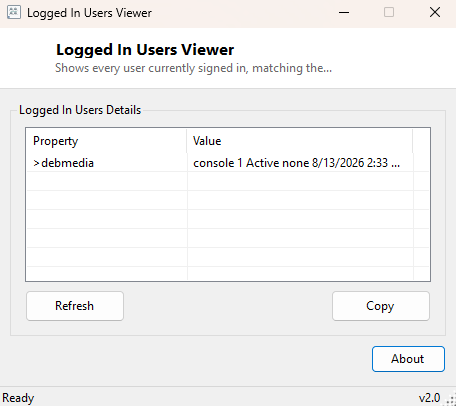
Logged In Users Viewer answers a very specific question that Task Manager's Users tab only partially covers: exactly who is signed into this machine right now, across every session, including sessions that have been disconnected rather than fully logged off. This distinction matters constantly on Remote Desktop servers and shared workstations, where a disconnected session can sit quietly consuming memory and holding file locks for hours or days without anyone realizing a user never actually signed out. This tool surfaces that state in the same format generations of Windows administrators already recognize from the command line.
It deliberately mirrors the output of a well-known built-in command rather than
inventing a new format, on the theory that a diagnostic tool should feel familiar
rather than clever. If you have ever typed query user into a command
prompt, this tool's output will be immediately recognizable — just without needing
to open a terminal first.
Key Features
- Lists every active and disconnected session on the machine
- Matches the classic
query usercommand's output format - Shows session state (Active vs. Disconnected) per user
- Falls back gracefully to the current user if the session enumeration API is unavailable
- Fast, single-window view with no command-line typing required
- Useful on both local machines and Remote Desktop / Terminal Services hosts
Why You Might Need This Tool
Remote Desktop Session Host administration is the primary use case — before rebooting a shared terminal server, confirming who is actually connected (and whether their session is active or just sitting disconnected) avoids kicking someone off mid-task without warning. On a single shared family or office PC, it answers the simpler but equally common question of "is someone else still logged in under a different account on this machine," which matters before you shut down or restart. It is also a handy first check when a machine feels sluggish for no obvious reason — an old disconnected session with several applications still running in the background is a frequent, easy-to-miss cause.
How It Works
Under the hood, the tool launches quser.exe, the built-in Windows
utility that enumerates sessions through the Terminal Services session API, and
captures its console output as text. That output is parsed line by line, skipping
the header row and splitting each remaining line on whitespace to extract the
username and the rest of the session detail (session name, ID, state, idle time
and logon time), which is then displayed as a clean list. If quser.exe
is unavailable or the query fails for any reason — which can happen on some locked-
down or non-RDS-enabled editions — the tool falls back to reporting simply the
current interactive user via Environment.UserName, so the window
never shows a blank, unexplained failure.
How to Use It
Open the tool and the session list populates immediately — there is nothing to configure. Click Refresh to re-run the query at any time, for example right after someone disconnects from a Remote Desktop session, to confirm Windows has registered the change.
System Requirements & Notes
Runs on 64-bit Windows 10 and Windows 11. Administrator rights are not required
to view your own session, but seeing other users' sessions on a machine typically
requires the querying account to have appropriate rights on that system — the
same permission model quser.exe itself follows, since this tool is a
thin wrapper around it rather than a separate privilege path.
Frequently Asked Questions
Can I log off or disconnect a user from this tool?
No, it is a viewer only. Use logoff, Task Manager's Users tab, or
Remote Desktop Services Manager to end a session.
Does this work on a plain desktop edition of Windows, not just Server?
Yes — quser.exe and session enumeration are present on desktop
editions too, though you will typically only see one or two sessions (your own,
plus any Fast User Switching accounts) rather than the dozens a busy RDS host
might show.
What does "Disconnected" mean exactly?
The user closed their Remote Desktop window (or it dropped) without formally
signing out, so Windows kept their session, running applications and file locks
alive in the background, waiting for them to reconnect.