Overview
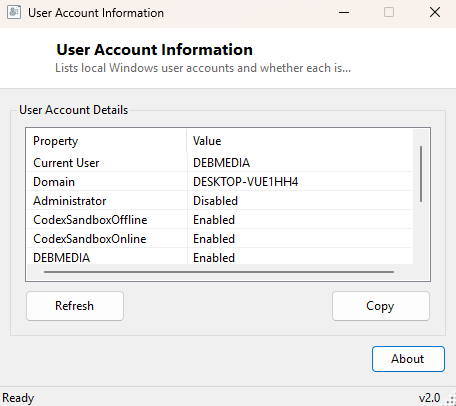
User Account Information gives you a complete, honest list of every local Windows account defined on a machine, along with whether each one is enabled or disabled — the same information buried several clicks deep inside Computer Management's Local Users and Groups snap-in, except surfaced instantly in a single window. It also shows the current user's name and domain at the top, which is a small detail that saves a trip to the Start menu when you are working across several remote sessions and momentarily lose track of which account you are actually signed in as.
This tool is purely a viewer. It does not create, delete, enable, disable, or
change the password of any account — for that level of control, Computer
Management or the net user command line remain the appropriate
tools. What this utility adds is speed and clarity: open it, and every local
account on the machine is listed with its status in under a second, no snap-in
load time involved.
Key Features
- Lists every local Windows user account on the machine
- Shows enabled/disabled status for each account clearly
- Displays the currently signed-in user and domain at the top
- Loads instantly with no snap-in or MMC console overhead
- One-click Copy to export the full account list as text
- Read-only by design — makes no changes to any account
Why You Might Need This Tool
Security audits are the clearest use case — confirming that no unexpected local accounts exist, and that accounts which should be disabled (a departed employee's login, a leftover guest account, a test account from setup) actually are, is a basic but essential hygiene check on any shared or business machine. Family and shared-computer administration benefits too: quickly seeing every account defined on a household PC, including ones that might have been created accidentally during a Windows setup flow, helps keep the account list intentional rather than accumulating clutter over years of use. It is also a fast first step when troubleshooting "who can log into this machine" questions during a handoff or a support call.
How It Works
The current user's identity comes from Environment.UserName and
Environment.UserDomainName, the same managed .NET properties every
Windows application uses to identify its running context. The full account list
comes from a WMI query against Win32_UserAccount filtered with
WHERE LocalAccount=True, which restricts results to accounts defined
directly on this machine rather than domain accounts that happen to have cached
profiles. For each account returned, the Disabled property is read
directly and translated into a plain "Enabled" or "Disabled" label rather than
Windows' internal boolean representation, keeping the output readable at a glance
without needing to interpret WMI semantics yourself.
How to Use It
Simply open the tool — the account list populates automatically with no setup required. Click Refresh after creating, deleting or changing an account elsewhere to see the update reflected here, since the list is a snapshot taken at load time rather than a live monitor. Use Copy to pull the full list into a report or audit document.
System Requirements & Notes
Runs on 64-bit Windows 10 and Windows 11 and does not require administrator rights to list accounts and their enabled state — this is standard-user readable information through WMI, the same level of access Computer Management grants to non-admin viewing.
Frequently Asked Questions
Can I enable or disable an account from this tool?
No — it is read-only. Use Computer Management, net user, or Settings
to change account state.
Does this show domain accounts too?
No, the query is deliberately filtered to local accounts only. Domain account
management belongs to Active Directory tools, not a local-machine utility like
this one.
Will this show the built-in Administrator and Guest accounts?
Yes, if they exist on the system (even disabled, which is their default state on
most modern Windows installs) they will appear in the list along with their
current status.