Overview
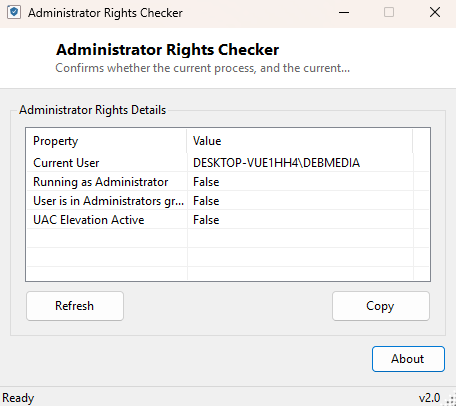
Administrator Rights Checker answers a question that trips up more troubleshooting sessions than it should: is this process actually running elevated right now? Windows' User Account Control model means simply being a member of the Administrators group is not the same as the current process holding administrator rights — a program launched normally, even by an admin account, runs with a standard token by default. This tool reports the real, current answer in one window rather than leaving you to guess from whether a shield icon happens to be showing somewhere.
Key Features
- Shows the currently signed-in Windows account name in full domain\\user form
- Reports whether the running process itself currently holds administrator rights
- Confirms whether the account is a member of the local Administrators group
- Distinguishes group membership from actual active elevation
- Instant, single-window result with no waiting
- Read-only — makes no changes and requests no elevation itself
Why You Might Need This Tool
Support scripts and troubleshooting guides constantly assume "run as administrator" was actually followed, and a surprising number of support tickets trace back to that assumption being wrong. Before debugging why an install failed or a registry change did not take effect, confirming elevation status in ten seconds saves a much longer detour later. Developers testing UAC-sensitive code paths also use this kind of check constantly to confirm which code branch should be running.
How It Works
The tool retrieves the current Windows identity through
System.Security.Principal.WindowsIdentity.GetCurrent(), wraps it in a
WindowsPrincipal, and calls
IsInRole(WindowsBuiltInRole.Administrator) — this is the same managed
.NET check that correctly reflects UAC's split-token behavior: it returns true
only when the current process is actually running with the elevated
administrator token active, not merely when the signed-in account happens to
belong to the Administrators group. The identity's Name property
supplies the displayed account name directly, with no additional registry or WMI
query required for this particular check.
How to Use It
Just run it. The window immediately shows your account name and a clear Yes/No for whether the current process is elevated. To test whether elevation genuinely changes anything for a specific scenario, right-click the tool's shortcut and choose "Run as administrator," then compare the result against a normal launch.
System Requirements & Notes
Runs on Windows 10 and 11 x64. It deliberately never requests elevation itself — doing so would defeat the point of honestly reporting the process's actual, unmodified privilege state.
Frequently Asked Questions
I'm logged in as an administrator but this shows "No" — is that a bug?
No — that is UAC working as designed. Being an administrator account and having
an elevated process token are different states; launch the tool via "Run as
administrator" to see the elevated result instead.
Can this tool grant me administrator rights?
No, it only reports the current state. Elevation itself is always handled by
Windows' own UAC prompt.