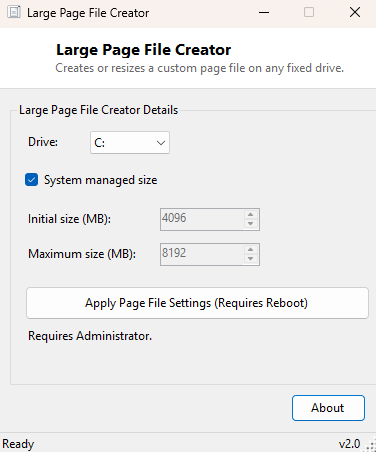
Overview
Large Page File Creator gives you direct, simple control over the size and location of your Windows page file — the on-disk overflow space Windows uses as virtual memory once physical RAM fills up. By default, Windows manages the page file size automatically, and for most everyday use that default is fine. It becomes a genuine limitation in a specific set of situations: certain memory-diagnostic and crash-dump-capturing scenarios need a page file sized to a precise minimum, some memory-hungry professional applications recommend a larger fixed page file than Windows' automatic sizing provides, and some users specifically want the page file moved off a small boot SSD and onto a larger secondary drive. This tool exists for exactly those cases.
Rather than digging through System Properties → Advanced → Performance Settings → Advanced → Virtual Memory — five dialogs deep in a menu structure that has barely changed since Windows XP — Large Page File Creator gets you to the same setting in one window.
Key Features
- Lists every fixed drive available as a page file location
- Switch between fully system-managed sizing or a custom initial/maximum size
- Set independent initial and maximum size values in megabytes
- Creates a new page file entry on a drive that doesn't already have one
- Modifies an existing page file's size if one is already configured on the chosen drive
- Clear on-screen confirmation, including the reminder that a reboot is required
Why You Might Need This Tool
The most common reason to reach for this tool is preparing a system for advanced memory diagnostics or full crash dump capture, both of which require a page file at least as large as installed physical RAM on the boot drive — a requirement Windows' automatic sizing does not always satisfy on systems with a lot of RAM and a small system drive. It is equally useful for anyone running memory-intensive creative or engineering software that explicitly recommends a larger, fixed-size page file for predictable performance under heavy load, or for freeing up space on a small boot SSD by relocating (or supplementing) the page file onto a larger secondary hard drive instead.
How It Works
Large Page File Creator manages the page file through Windows Management
Instrumentation rather than editing any file directly. To switch away from
system-managed sizing, it first sets AutomaticManagedPagefile to false
on the Win32_ComputerSystem class — this is a required step, since
Windows will otherwise silently override any custom size you set while automatic
management remains enabled. It then searches existing Win32_PageFileSetting
instances for one matching the chosen drive; if found, it updates that instance's
InitialSize and MaximumSize properties directly and commits
the change with Put(). If no page file setting exists yet on that drive,
it instead creates a brand-new instance through ManagementClass.CreateInstance,
populates the same size properties and the target path, and commits that instead —
the same underlying mechanism the Virtual Memory dialog in System Properties uses
internally.
How to Use It
Select the target drive from the dropdown. To let Windows manage the size automatically (the default and safest choice for most users), leave "System managed size" checked and click Apply. To set a custom size, uncheck that box, enter your desired initial and maximum size in megabytes, and click Apply. In either case, a reboot is required before the new page file configuration actually takes effect — Windows cannot resize a page file that is currently in active use.
System Requirements & Notes
Large Page File Creator runs on 64-bit Windows 10 and Windows 11 and requires administrator rights, since changing virtual memory configuration is a system-level setting. Setting an initial size larger than available free disk space on the target drive will fail — leave comfortable headroom, especially when sizing the page file to match a large amount of installed RAM for crash-dump purposes. On systems with multiple fixed drives, it is entirely valid to configure a page file on more than one drive at once, which some users do specifically to spread virtual-memory paging activity across drives rather than concentrating it on the system drive alone.
Frequently Asked Questions
Do I need to restart immediately after applying a change?
Not immediately, but the new size will not take effect until the next restart —
Windows continues using the previous page file configuration until then.
Is it safe to just leave the page file on "system managed"?
Yes, for the vast majority of users — Windows' automatic sizing is well-tuned for
normal use, and this tool is specifically for the smaller set of cases (memory
diagnostics, specific application requirements, drive-space management) where a
manual override genuinely helps.