Overview
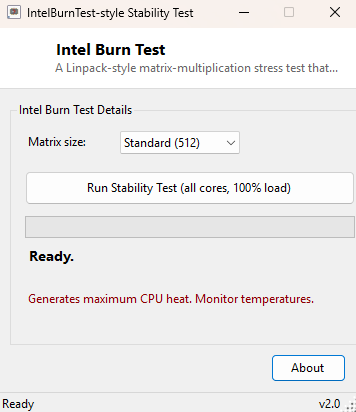
Intel Burn Test pushes every logical core on your CPU to sustained 100% load using a Linpack-style dense matrix multiplication workload, the same general category of test real Linpack-based stability tools use precisely because it maximizes both computational throughput and power draw simultaneously. Where a simple loop of arithmetic might leave some execution units idle, matrix multiplication saturates a CPU's floating-point pipelines fully, which makes it one of the more effective ways to surface marginal cooling, an unstable overclock, or a power delivery problem that a lighter workload would not expose.
The tool reports elapsed time and an estimated GFLOPS (billion floating-point operations per second) figure at the end of the run, giving you both a stability check and a rough comparable performance number.
Key Features
- Selectable matrix size — Small (256), Standard (512), or Large (1024)
- Spreads the workload across every logical processor simultaneously
- Reports elapsed time and an estimated GFLOPS score on completion
- Built-in on-screen warning about heat output before you start a run
- Simple one-button start with a busy-indicator progress bar during the test
Why You Might Need This Tool
The classic use case is confirming stability after an overclock or an undervolt — many instability issues at the edge of a CPU's stable range only appear under sustained, maximum-intensity load, and a system that seems perfectly fine in everyday use can crash or produce silent calculation errors under a workload like this one within minutes. Running it for ten or fifteen minutes while watching temperatures in a separate monitoring tool is a fast way to validate that a new setting is actually safe rather than just "seems fine so far." It is also useful as a worst-case thermal test after reapplying thermal paste or changing a cooler, since it reliably drives the CPU to its maximum sustained power draw faster than typical everyday workloads would.
How It Works
On start, the tool spawns one long-running task per logical processor
(Environment.ProcessorCount threads via
Task.Factory.StartNew with TaskCreationOptions.LongRunning, so
each gets its own dedicated OS thread rather than sharing the thread pool). Each thread
independently allocates three N×N matrices of random double-precision values (N being
256, 512, or 1024 depending on your selection) and performs a straightforward triple-loop
dense matrix multiplication — the classic i, k, j loop order used here for
reasonable cache locality on the inner loop. Once every thread's multiplication
completes, the tool computes total elapsed time and estimates GFLOPS using the standard
formula for dense matrix multiply floating-point operation count:
2 × N³ × thread_count operations divided by elapsed seconds, expressed in
billions.
How to Use It
Choose a matrix size — Standard is a reasonable default for most modern CPUs, Large for a longer and more thorough run on faster systems, Small for a quick sanity check. Click "Run Stability Test" and watch temperatures in a separate monitoring tool (such as CPU Temperature Monitor) while it runs. When it completes, the elapsed time and estimated GFLOPS figure appear; a crash, freeze, or unexpected error during the run itself is the real signal to watch for, not just the final number.
System Requirements & Notes
No administrator rights are required. This test will drive your CPU to its maximum sustained power draw and temperature — do not leave it running unattended on a system with marginal cooling, and stop it immediately if temperatures approach your CPU's throttle point.
Frequently Asked Questions
Is a higher GFLOPS score always better?
Generally yes for comparing similar hardware, but the primary purpose here is stability
validation — a completed run with no crash matters more than a marginally higher score.
How long should I run it for a meaningful stability check?
Ten to twenty minutes at Standard or Large size is a common baseline; longer runs catch
more marginal instabilities but also mean more sustained heat exposure.
Is this the same as the original IntelBurnTest / Linpack tool?
It uses the same category of workload (dense matrix multiplication) for the same reason
— maximum thermal and power stress — implemented independently as a straightforward
multi-threaded benchmark rather than a redistribution of Intel's MKL library.