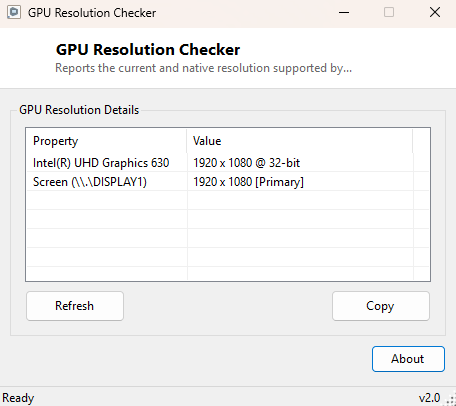
Overview
Between native panel resolution, the resolution currently applied by Windows, and whatever a stubborn full-screen application decided to force on launch, "what resolution is this display actually running" can get surprisingly murky, especially across a multi-monitor setup with mismatched panels of different sizes and native resolutions. GPU Resolution Checker reports exactly what each graphics adapter is currently driving alongside what every connected screen independently reports as its own bounds, side by side in one window rather than scattered across several different Windows settings pages.
Key Features
- Shows current horizontal and vertical resolution per graphics adapter
- Reports color depth (bits per pixel) alongside resolution
- Cross-references every connected screen's own reported bounds
- Flags the primary display among multiple connected monitors
Why You Might Need This Tool
Resolution mismatches cause a specific, immediately recognizable kind of frustration — a game or presentation looks blurry, stretched, or oddly cropped, and it is not always obvious whether the underlying problem is the display's native resolution, a Windows scaling setting, or an application that ignored the display entirely and rendered at some other fixed resolution regardless of what the monitor actually supports. Checking both the adapter-reported resolution and the OS-level screen bounds together in one place shortcuts straight past the guessing that normally involves opening three or four different settings panels one after another.
How It Works
The tool reads CurrentHorizontalResolution,
CurrentVerticalResolution and CurrentBitsPerPixel from
Win32_VideoController through WMI for the adapter-level view, then
separately enumerates Screen.AllScreens from the .NET Windows Forms API
to cross-check what Windows itself considers each monitor's bounds and which one is
currently marked primary — two genuinely independent sources reporting the same
underlying fact, shown together so that any discrepancy between them is immediately
visible rather than hidden behind a single averaged number.
How to Use It
Open the program and both the adapter-level and per-screen resolution tables populate immediately with no configuration needed. Re-open or hit Refresh after changing a display arrangement to confirm the new layout took effect correctly.
System Requirements & Notes
Runs on 64-bit Windows 10/11 with no administrator rights required, on any number of connected displays from a single laptop panel up to a large multi-monitor desk setup.
Frequently Asked Questions
Why do the adapter and screen numbers sometimes not match exactly?
On multi-GPU or multi-monitor systems the adapter-level WMI figures can lag slightly
behind a very recent resolution change until the next WMI refresh cycle; the
screen-level numbers sourced from Windows Forms are typically the more current of
the two in that situation.
Does it show native panel resolution as well as current?
It shows current, actively-applied resolution. For DPI and Windows scaling detail
alongside the current resolution, see
Display DPI Checker.
Can I use this to check a projector or TV connected as a second display?
Yes — any device Windows recognizes as a display, including projectors and TVs
connected over HDMI, appears in both the adapter and screen tables the same way a
regular monitor does.