Overview
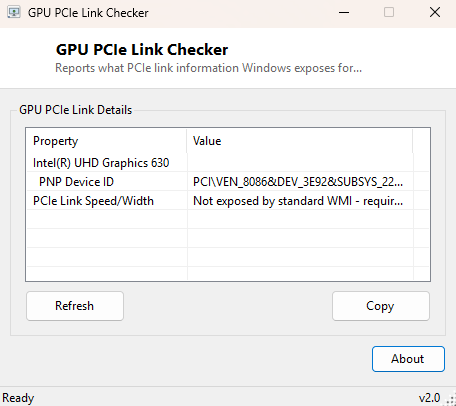
GPU PCIe Link Checker exists to answer a question that sounds simple but is surprisingly hard to get a straight answer to on Windows: what PCIe generation and lane width is your graphics card actually negotiated at right now — PCIe 3.0 x16, PCIe 4.0 x8, or something narrower than expected because of a loose card, a BIOS setting, or a motherboard slot that shares lanes with an NVMe drive. This tool identifies every video adapter Windows has enumerated and its underlying PNP Device ID, then honestly explains what is and is not available about its PCIe connection through standard Windows APIs.
It exists partly as a diagnostic starting point and partly as an education in what Windows genuinely does and does not expose about PCIe topology, since a surprising number of small utilities online claim to show "PCIe link speed" using nothing more than the same limited data source this tool reads honestly.
Key Features
- Lists every enumerated video adapter by name
- Shows each adapter's full PNP Device ID string, which encodes vendor ID, device ID and instance path
- Clearly states when PCIe link speed/width data is not available through standard WMI
- Zero configuration — launch and read
- Copy-to-clipboard support for pasting into a forum troubleshooting thread
Why You Might Need This Tool
The classic use case is suspecting a graphics card is running in a degraded PCIe mode — commonly caused by a card not fully seated in its slot, a motherboard BIOS that auto-negotiated down to a lower generation for stability, or a second PCIe device (an NVMe SSD or a second GPU) sharing lanes with the primary slot and forcing it to x8 instead of x16. Confirming this normally requires vendor-specific tools like GPU-Z, which read the PCIe link state directly from the GPU driver's private interface. This tool's PNP Device ID output is still useful on its own: the vendor and device ID portion of that string can be looked up against the PCI ID database to positively identify a card's exact silicon revision even when the friendly name Windows shows is generic or outdated.
How It Works
The tool queries Win32_VideoController for the Name,
DeviceID and PNPDeviceID fields. The PNP Device ID is the
same identifier string Device Manager uses internally — something like
PCI\VEN_10DE&DEV_2504&SUBSYS_... — and it is genuinely useful
for hardware identification, but it does not contain live PCIe link speed or lane
width. That information is negotiated dynamically between the PCIe root complex and
the device and is only exposed through the GPU vendor's own driver interface (NVIDIA
NVAPI or AMD ADL) rather than any general-purpose WMI class Microsoft documents
publicly. Rather than fabricate a plausible-looking "x16 Gen4" value from
unrelated data, the tool states this limitation directly in its output, consistent
with this catalog's policy of never presenting invented numbers as real
measurements.
How to Use It
Launch the tool and read the adapter name and PNP Device ID for each installed GPU. If you specifically need live PCIe link speed and width — for example to confirm a card dropped to x8 after installing a second NVMe drive — cross-reference this output with your motherboard vendor's own diagnostic utility or GPU-Z, both of which can read the vendor driver interface this tool intentionally does not attempt to access.
System Requirements & Notes
Runs on 64-bit Windows 10 and Windows 11, no administrator rights required for reading standard WMI adapter inventory data.
Frequently Asked Questions
Why doesn't this tool just show PCIe speed like GPU-Z does?
GPU-Z reads that data through NVIDIA's and AMD's private vendor driver interfaces,
which are proprietary and undocumented outside their own SDKs. This tool
intentionally sticks to Microsoft's publicly documented WMI classes rather than
reverse-engineering a vendor interface.
What can I actually do with the PNP Device ID?
The VEN_ and DEV_ segments are the PCI vendor and device
ID in hexadecimal — searching either against a PCI ID database (such as
pcidatabase.com or the Linux pci.ids project) will identify the exact
GPU silicon, even for rebranded or OEM-only card variants.