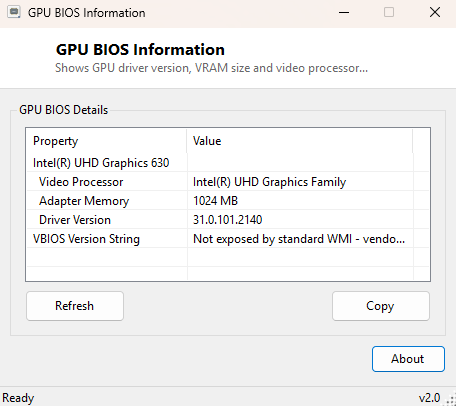
Overview
GPU BIOS Information is a compact identity panel for the graphics card (or cards) installed in your system. Despite the name, it does not extract the raw VBIOS ROM image the way a dedicated vendor flashing tool would — instead it gathers everything Windows itself is willing to report about each video adapter: its full product name, the video processor chip identification string, how much dedicated adapter memory is installed, and the currently loaded driver's version number. For most everyday troubleshooting — confirming which GPU Windows actually detected, checking whether a driver update actually took effect, or quickly grabbing the exact adapter name for a support ticket — this is faster than digging through Device Manager's properties dialog three clicks deep.
Key Features
- Lists every video adapter Windows has enumerated, including integrated and discrete GPUs together
- Shows the video processor chip string reported by the driver (e.g. the specific GPU die/model)
- Converts raw AdapterRAM bytes into a readable megabyte figure
- Displays the currently installed driver version for each adapter
- Honestly labels VBIOS version string as unavailable rather than guessing
- One-click Refresh and Copy-to-clipboard for quick reporting
Why You Might Need This Tool
The most frequent use is confirming exactly which GPU is currently active on a laptop with hybrid graphics — many laptops silently switch between an integrated Intel/AMD GPU and a discrete NVIDIA or AMD GPU depending on the running application, and seeing both listed side by side with their respective driver versions clears up confusion fast. It is equally handy right after installing a new graphics driver, since the driver version string here updates the moment the new driver is fully installed and Windows has re-enumerated the device, giving you a quick independent confirmation outside of the vendor's own control panel. A third common case is pre-troubleshooting before contacting support for a driver crash or display issue, where having the exact adapter name, VRAM size and driver version ready in one copy-pasteable block saves a round trip of "what GPU do you have?" follow-up questions.
How It Works
The tool queries Win32_VideoController through WMI, requesting the
Name, DriverVersion, DriverDate,
AdapterRAM and VideoProcessor fields for every adapter
Windows has enumerated. AdapterRAM is returned as a raw byte count and
is divided down to megabytes for readability. Notably, the tool does not attempt to
read the actual VBIOS firmware image or version string burned onto the card itself —
that data lives outside any standard WMI class and genuinely requires a vendor SDK
(NVIDIA's NVAPI or AMD's ADL) or a low-level tool like the classic GPU-Z to extract.
Rather than fake that field with a placeholder, the tool explicitly labels it "Not
exposed by standard WMI," which is a deliberate honesty choice carried through several
tools in this catalog rather than presenting invented data as real.
How to Use It
Open the tool and every detected video adapter appears immediately, one block per device, showing its name followed by video processor, adapter memory and driver version. On a system with both integrated and discrete graphics, you will see two separate entries — check the driver version line under the entry you actually care about, since laptops sometimes update only one of the two GPU drivers during a routine Windows Update pass. Click Copy to place the full listing on the clipboard for pasting into a forum post or support ticket.
System Requirements & Notes
Runs on 64-bit Windows 10 and Windows 11, no administrator rights needed — reading video adapter inventory through WMI is a standard-user operation available to any logged-in account.
Frequently Asked Questions
Why does my adapter memory show less than what's printed on the box?
AdapterRAM is a 32-bit field in the underlying WMI provider on some
driver versions, which can cause it to wrap or under-report on cards with 4GB or more
of VRAM — this is a known Windows/driver quirk, not a fault in this tool.
Can this tool update my graphics driver?
No — it only reads and reports the currently installed driver's version; updating
drivers should always go through Windows Update or the GPU vendor's own installer.