Overview
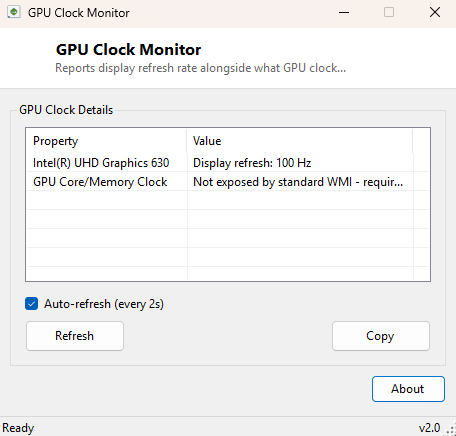
GPU Clock Monitor sits alongside GPU Temperature Viewer as another honest look at exactly what Windows' built-in Management Instrumentation can and cannot tell you about a graphics card's real-time behavior. Rather than fabricate a live core-clock or memory-clock reading — data that, like temperature, genuinely requires a vendor SDK such as NVAPI or ADL to obtain — this tool reports the one clock-adjacent figure Windows does expose reliably for every connected display: the current screen refresh rate, alongside a clear note about what GPU core/memory clock data is and is not available through standard APIs.
It is a deliberately small, focused tool built to save you the time of hunting through freeware that claims to show "GPU clock speed" but is either quietly reading a cached, stale value or not actually reading anything meaningful at all.
Key Features
- Reports the active refresh rate for every connected display, per adapter
- Clearly documents what GPU core/memory clock data standard WMI does not expose
- Auto-refresh toggle for catching display mode changes
- One-click Copy to clipboard
- Zero configuration, instant startup
- No vendor SDK, driver, or background service required
Why You Might Need This Tool
Refresh rate confusion is extremely common on multi-monitor setups and after Windows updates that occasionally reset a display back to 60Hz on a monitor capable of 144Hz or higher. Confirming what Windows currently believes the refresh rate to be — before assuming a cable, driver, or monitor setting is at fault — is often the fastest first diagnostic step, and this tool surfaces that number without opening the full Display Settings panel and hunting through per-monitor Advanced options.
How It Works
The tool queries Win32_VideoController for the
CurrentRefreshRate property, which Windows populates from the active
display mode negotiated with the monitor over DisplayPort, HDMI or DVI — the same
value the OS itself uses internally. This is a genuinely live, accurate reading,
unlike GPU core or memory clock speed, which are dynamically managed by the GPU's own
firmware in response to thermal and load conditions and are simply never surfaced
through Win32_VideoController or any other documented WMI class. The
tool is explicit about this gap rather than substituting refresh rate as a stand-in
for clock speed without explanation.
How to Use It
Launch the tool and it immediately lists each adapter's current refresh rate alongside the clock-data availability note. Click Refresh after changing a display mode in Windows Settings to confirm the new value took effect, or enable auto-refresh to watch for changes live.
System Requirements & Notes
Runs on 64-bit Windows 10 and 11 with no administrator rights required — refresh-rate data is available to any standard user account through WMI.
Frequently Asked Questions
Can this tell me my GPU's boost clock while gaming?
No — live GPU core/memory clock speed requires a vendor SDK this catalog intentionally
does not bundle. This tool reports display refresh rate only.
My monitor supports 144Hz but this shows 60Hz — why?
Windows is currently running the display at 60Hz regardless of the monitor's maximum
supported rate; check Settings → Display → Advanced display to select the higher
rate, then re-run this tool to confirm the change.