Overview
File Splitter solves a problem that predates broadband and still shows up regularly today: a single file that is too large for wherever you need to put it. Email attachment limits, older FAT32-formatted USB drives that cap individual files at 4GB, upload size limits on certain web forms, and archival workflows that expect a maximum chunk size all create the same need — break one large file into several smaller, sequentially numbered pieces that can be moved individually and reassembled later into an exact copy of the original.
The tool is intentionally simple: point it at a file, choose a chunk size in
megabytes, and it writes out numbered parts with a .001,
.002, .003 extension pattern in the same folder as the
source file. Its companion tool, File Merger,
reverses the process exactly, so the two are meant to be used as a pair — split
here, transfer the parts, merge there.
Key Features
- Splits any file into numbered parts of a chosen size in megabytes
- Simple numbered extension scheme (.001, .002, ...) that's easy to recognize and sort
- Live progress bar and status showing which part is currently being written
- Handles files of essentially any size, limited only by available disk space
- No compression — parts are raw byte slices, so reassembly is bit-for-bit exact
- Works entirely offline with no dependency on any archive format or library
Why You Might Need This Tool
Moving a large video file, database backup or disk image onto an old FAT32 USB stick is the single most common reason to reach for this tool, since FAT32's 4GB-per-file ceiling is a hard limit no amount of free space on the drive can work around. Emailing a large attachment through a provider that silently caps message size is another frequent case — splitting into parts under that ceiling and sending them as separate messages (or through separate upload sessions) gets around the restriction without needing a cloud storage account. It also comes in handy for staged transfers over an unreliable connection, where splitting a large file into pieces means a single failed transfer only needs one small part re-sent, not the entire file from scratch.
How It Works
The tool opens the source file for reading and processes it in 1MB memory buffer
chunks to keep memory usage low regardless of how large the source file is. For
each output part, it creates a new file named
<original filename>.NNN (zero-padded to three digits) and
writes buffer-sized reads from the source into it until either the chosen chunk
size is reached or the source file runs out of data, then moves on to the next
part number. Because every byte is copied exactly as-is with no encoding,
compression or transformation applied, concatenating the parts back together in
order reproduces the original file byte-for-byte — there is no format-specific
"container" to worry about, which is also why the reassembly logic in File Merger
can be so simple.
How to Use It
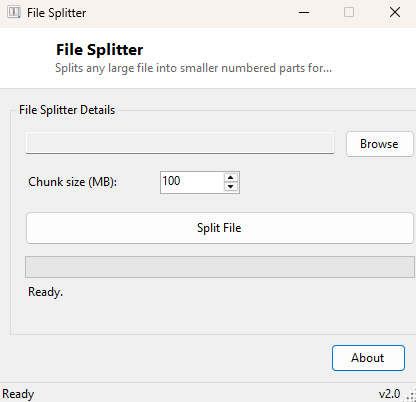
Click Browse and select the file you want to split, set the desired chunk size in megabytes, then click Split File. A progress bar tracks the operation, and the resulting numbered parts appear in the same folder as the original file, ready to be copied, emailed or uploaded individually. Keep every part together when transferring — File Merger needs all of them present in the same folder to rebuild the original.
System Requirements & Notes
Runs on 64-bit Windows 10 and Windows 11 and requires no administrator rights. You will need free disk space roughly equal to the size of the file being split, since the original is not deleted or modified — the numbered parts are additional files written alongside it.
Frequently Asked Questions
Does splitting compress the file to save space?
No — parts are raw, uncompressed slices of the original. The combined size of all
parts equals the original file's size, plus nothing extra.
Can I split into more than 999 parts?
The default three-digit numbering scheme covers up to 999 parts, which at even a
modest chunk size comfortably covers files well into the hundreds of gigabytes;
for typical use cases this ceiling is never reached.
What if I lose one of the numbered parts?
File Merger needs every part present and in sequence to rebuild the original
exactly — a missing part will produce an incomplete or corrupted result, so keep
the full set together during transfer.