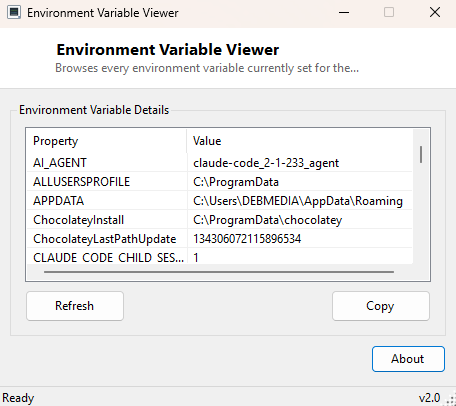
Overview
Environment variables are the quiet plumbing underneath almost everything a Windows program does — where temporary files go, which folders a command shell searches for executables, what a script assumes the username or computer name is, which folder a portable app should treat as "AppData." They are set at three different scopes (per-user, per-machine, and per-process), they can silently override each other, and Windows' built-in editor for them, buried three dialogs deep in System Properties, was never designed for actually browsing or searching the full set. Environment Variable Viewer strips all of that friction away: a single scrollable, searchable table of every variable currently visible to the process, with its value shown in full rather than truncated.
Key Features
- Lists every environment variable currently set, name and value together
- Sorted alphabetically for fast visual scanning
- Shows the full value even for long entries like PATH, with no truncation
- One-click copy of any row for pasting into a support ticket or script
- No editing capability by design — this is a safe, read-only inspector
- Refreshes instantly, useful for confirming a variable change took effect
Why You Might Need This Tool
Environment variables cause a specific, recognizable class of bug: a script or
installer behaves differently on one machine than another for no reason visible in
its own code, and the actual cause turns out to be a variable that is set, unset, or
holding an unexpected value on the affected machine. Confirming exactly what
TEMP, JAVA_HOME, PYTHONPATH or any custom
variable a piece of software depends on actually resolves to — right now, in the
exact process context you care about — is often the fastest way to either confirm
or rule out that class of problem. It is also simply useful documentation: capturing
a full environment snapshot before troubleshooting a "works on my machine" report
from a colleague, or verifying that a newly installed SDK actually added the
variables its installer promised to add.
How It Works
The tool calls the .NET Environment.GetEnvironmentVariables() method,
which returns every variable currently visible to the running process — this
reflects the merged result of machine-scope variables, user-scope variables, and
any variables set specifically for this process's launch, exactly the same
resolution order any other Windows application experiences when it reads an
environment variable. Each key/value pair is added to the results table and the
whole set is sorted alphabetically by name via LINQ's
OrderBy. Because this reads live process environment state rather than
a cached or registry-only view, it reflects exactly what a newly launched
application would see if it started right now — the same effective values, not a
theoretical or partially-applied one.
How to Use It
Launch the tool and the full variable list appears immediately, sorted alphabetically. Scroll or use your browser-style find shortcut inside the window to locate a specific variable by name. Select any row and use the copy button to place "Name: Value" on the clipboard, ready to paste into a bug report, a support ticket, or a script you are writing.
System Requirements & Notes
Environment Variable Viewer runs on 64-bit Windows 10 and 11 and requires no administrator rights — reading process environment variables is a standard operation available to any user account. It is intentionally read-only; it does not modify, add, or remove any variable, so it is safe to run without any risk of altering system behavior.
Frequently Asked Questions
Will this show variables set for a different user account?
No — it shows the environment as seen by the process it runs in, which reflects the
currently logged-in user's scope plus machine-wide variables, not another account's
separately configured user variables.
Can I edit a variable's value from here?
No, by design. This tool is a read-only inspector. For auditing PATH specifically
for missing folders or duplicates, see
Windows PATH Checker.