Overview
Anyone who has ever loaded an MP3 player, a car stereo's USB port, or a cheap voice-recorder gadget with music has probably run into a strange, frustrating quirk: the device plays your files in an order that has nothing to do with their filenames. Track 12 plays before track 3, an album plays out of sequence, and there is no "sort by name" setting anywhere on the device to fix it. Drive Sort exists to solve exactly that annoyance, and it does so with a deliberately simple, low-risk technique rather than the dangerous raw-disk manipulation that older versions of this idea used to rely on.
Key Features
- Rewrites a folder's files in alphabetical order to fix device playback sequence
- Works on any FAT-formatted removable drive — USB sticks, SD cards, MP3 players
- Uses a safe copy-out-and-back-in technique instead of raw directory-table editing
- Explicit confirmation prompt before touching anything, since it moves every file
- No special drivers or low-level disk access required
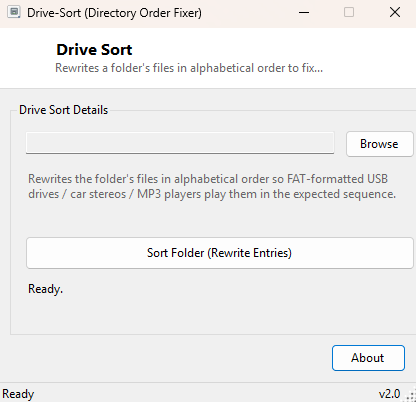
- Simple single-folder workflow — select a folder, confirm, done
Why You Might Need This Tool
The underlying cause is how the FAT and FAT32 filesystems store directory entries: files are listed in the order they were physically written to the disk, not alphabetically, and most car stereos, MP3 players and similar simple devices play files in that raw directory order rather than sorting by filename themselves the way a modern smartphone or computer would. If you copied your music in a different order than you want it played — or your computer's file manager copied files in an order that does not match their names — the device will faithfully play them in that original, unsorted order every time. Drive Sort fixes this without you needing to understand FAT directory internals at all.
How It Works
Older tools that solved this problem worked by directly editing the raw FAT directory
table sector-by-sector — technically effective, but risky, since a mistake in that raw
editing can corrupt the entire filesystem. Drive Sort takes a deliberately safer route
that achieves the identical practical result: it reads every file in the selected
folder, moves them all to a temporary staging folder, then copies them back into the
original folder one at a time in strict alphabetical order using .NET's standard
Directory.GetFiles and File.Move operations with an
OrderBy sort on filename. Because each file is written back fresh, in
sorted order, the FAT directory table ends up holding new entries in exactly that
order — the same practical outcome as raw sector editing, but using only standard,
well-tested file operations that cannot corrupt the filesystem structure itself.
How to Use It
Click Browse and select the folder on your USB drive, SD card or MP3 player containing the files whose play order you want fixed. Click Sort Folder (Rewrite Entries) and confirm the warning dialog, which explains that every file will be temporarily moved out and back in. The process finishes in seconds for typical folder sizes, after which the device should play files in alphabetical filename order.
System Requirements & Notes
Drive Sort runs on 64-bit Windows 10/11 and does not require administrator rights for a removable drive you have normal read/write access to. It works one folder at a time rather than an entire drive recursively, by design — most affected devices only need their top-level music folder resorted, and limiting scope reduces the time files spend in transit during the temporary move-out step.
Frequently Asked Questions
Will this work on NTFS or exFAT drives?
The playback-order quirk this tool fixes is specific to FAT/FAT32 devices; NTFS and
exFAT-formatted drives are typically read by smarter software that already sorts file
listings, so this tool is most relevant for classic FAT-formatted car stereos and MP3
players.
Is there any risk of losing files?
Files are moved, not deleted, and the process only completes the second copy-back step
after the first move-out step succeeds — if you interrupt the process mid-way, check
the temporary staging location mentioned in the status message for anything not yet
copied back.
Does it also rename files?
No — filenames are left completely untouched; only their order within the directory
table changes.