Overview
Check Disk GUI is a friendly, point-and-click front end for CHKDSK, the disk
integrity checker Windows has shipped for decades but still only exposes properly
through a command prompt. Everyone who has ever needed to run it has typed the same
handful of flags from memory or copy-pasted them from an old forum post —
chkdsk C: /f /r — without a clean way to pick the drive, review the
flags, and launch an elevated session without first opening a command line by hand.
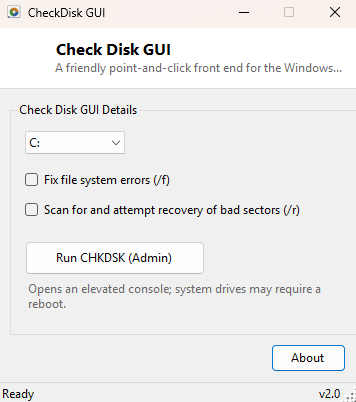
Check Disk GUI turns that into three clicks: choose the drive, tick the checkboxes
you want, click Run.
This is not a reimplementation of disk-checking logic — CHKDSK itself does all the real work of scanning the filesystem structure and, if asked, the underlying media. Check Disk GUI's entire job is assembling the correct command line for you and launching it in a proper elevated console window, exactly as if you had typed it yourself, minus the chance of a typo in the drive letter or a forgotten flag.
Key Features
- Dropdown list of every fixed and removable drive currently on the system
- Checkbox for
/f— fix file system errors found during the scan - Checkbox for
/r— locate bad sectors and attempt to recover readable data from them - Launches CHKDSK in a real, visible elevated console window so you see live progress
- Clear on-screen note that system drives may require a reboot to complete the scan
- No hidden flags or silent options — exactly what you selected is exactly what runs
Why You Might Need This Tool
CHKDSK is one of those utilities almost everyone eventually needs and almost no one remembers the exact syntax for on the day they need it — usually because a drive just started behaving oddly, Explorer reported a corruption warning, or a system event log entry pointed at file system errors. In that moment, hunting for the right flags is the last thing you want to do. Check Disk GUI removes that friction entirely: open it, pick the drive that is misbehaving, tick "fix errors" and, if you suspect physical bad sectors rather than just logical corruption, "scan for bad sectors" too, and let it run.
How It Works
Under the hood, Check Disk GUI builds a plain chkdsk <drive> [/f] [/r]
command line from your selections and launches it through
Process.Start with the process start info's Verb set to
"runas", which is what triggers the standard Windows User Account
Control elevation prompt — the same prompt you would see running CHKDSK from an
administrator command prompt directly. The tool intentionally does not attempt to
read or interpret CHKDSK's console output itself; it launches a genuine, visible
console window running the real Windows utility and gets out of the way, which
means every message, progress percentage and warning CHKDSK normally prints is
exactly what you see, with nothing filtered or reformatted in between.
How to Use It
Select the target drive from the dropdown. Tick Fix file system errors
(/f) if you want CHKDSK to actually repair problems it finds rather than
just report them, and tick Scan for and attempt recovery of bad sectors
(/r) if you also want a full surface scan (this implies /f and
takes considerably longer, since it reads every sector on the volume). Click
Run CHKDSK (Admin), approve the UAC prompt, and watch the elevated
console window that opens. If the target is the drive Windows is currently running
from, CHKDSK will typically report that it cannot lock the volume and will offer to
schedule the check for the next restart instead — accept that offer and reboot when
convenient.
System Requirements & Notes
Check Disk GUI itself requires no elevation just to open and select options — the
UAC prompt only appears at the moment you click Run, and only because CHKDSK itself
needs administrator rights to lock and scan a volume. Running with /r
on a large mechanical drive can take a long time, sometimes several hours, since it
physically reads the entire surface rather than just the file system metadata.
Frequently Asked Questions
Why does it want to schedule the scan instead of running immediately?
Windows cannot get exclusive access to a volume that is actively in use — including
the system drive Windows itself is booted from — so CHKDSK offers to run before
Windows fully loads on the next restart instead. This is standard CHKDSK behavior,
not something Check Disk GUI adds.
Is it safe to run /f on a healthy drive just to check?
Yes — if CHKDSK finds nothing wrong, /f has no effect. It only makes
changes when it actually detects file system inconsistencies to correct.
Can I cancel a scan once it starts?
You can close the console window, but an in-progress /r scan that has
already started writing repairs is best allowed to finish; interrupting a repair
mid-write carries more risk than letting it complete.