Overview
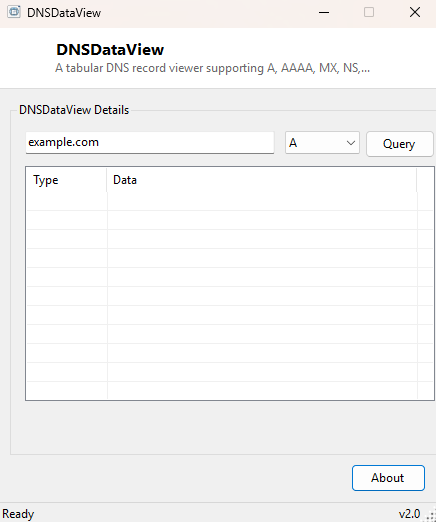
DNSDataView is a focused, tabular DNS record lookup tool — pick a record type from a
dropdown, type a domain, and get back a clean list of results instead of the raw,
dense text block nslookup produces at the command line. It supports the
seven record types most people actually need day to day: A, AAAA, MX, NS, TXT, CNAME
and SOA, covering everything from basic address resolution through mail routing,
authoritative name servers, arbitrary text records (commonly used for domain
verification and SPF/DKIM email authentication) and zone authority information.
Key Features
- Dropdown selection across seven common DNS record types
- Clean two-column Type/Data table instead of raw console output
- Queries live, authoritative DNS rather than relying on any local cache
- Handles domains with no records of the selected type gracefully
- Fast, single-purpose lookup with no history or bookmarking overhead to manage
Why You Might Need This Tool
DNS record lookups come up constantly during website and email setup — confirming an
A record points to the correct server after a hosting migration, checking that MX
records are correctly routing mail to a new provider, verifying a TXT record was
published correctly for domain ownership verification or SPF configuration, or simply
confirming which name servers a domain is actually delegated to before troubleshooting
a propagation issue. Doing this repeatedly through raw nslookup commands
means parsing a different, moderately verbose text format for every record type;
DNSDataView normalizes all of them into the same simple table so you can move quickly
between record types while investigating the same domain.
How It Works
Each lookup runs the Windows nslookup utility as a hidden background
process with the record type passed via its -type= parameter and the
output captured through redirected standard output. The tool then filters that raw
text for the lines that actually carry answer data — internet address lines, name
server lines, mail exchanger lines, text record lines and primary name server lines —
discarding the header and query-echo text nslookup always prints, and populates the
result table with just the type and the relevant data value from each matching line.
How to Use It
Type the domain you want to query, choose a record type from the dropdown (A is selected by default), and click Query. Switch the dropdown and click Query again to check a different record type for the same domain — there is no need to retype the domain name between lookups.
System Requirements & Notes
Runs on 64-bit Windows 10 and Windows 11 with no administrator rights required. An active internet connection is necessary, since every lookup queries live DNS infrastructure rather than a local cache.
Frequently Asked Questions
Does this show cached results or live DNS data?
Live data — each query goes out to DNS resolvers in real time, the same way
nslookup does, rather than reading anything from your PC's local
resolver cache.
Why does a domain show no results for a record type I expect it to have?
Not every domain publishes every record type — a domain with no configured mail
service, for instance, may have no MX records at all, which is a valid and common
configuration rather than an error.