Overview
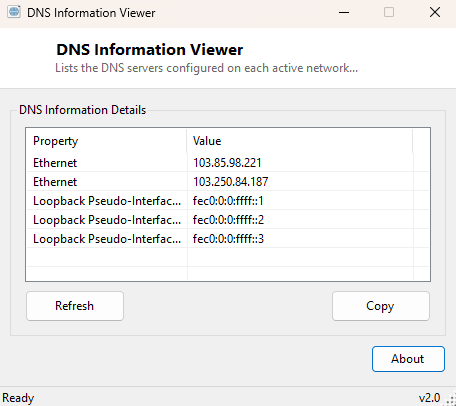
DNS Information Viewer answers one specific, frequently-needed question: which DNS servers is each of my network adapters actually configured to use right now? Whether those servers came from your router via DHCP or were set manually, Windows buries this information a few clicks deep in adapter properties, and it does not show you every adapter's configuration side by side. This tool lists every active adapter alongside every DNS server address it is currently pointed at, in one flat, easy-to-read table.
It is a read-only companion to DNS Changer — this tool tells you what is currently configured; DNS Changer is the one that lets you switch it.
Key Features
- Lists every active network adapter with its configured DNS servers
- Shows multiple DNS entries per adapter when more than one is configured
- Works for both DHCP-assigned and manually configured DNS settings
- Clearly reports when an adapter has no DNS servers configured
- One-click Refresh after changing network configuration
- Simple, single-purpose read-only reporting — no changes are ever made
Why You Might Need This Tool
DNS misconfiguration produces some of the most confusing network symptoms — intermittent website failures, one app resolving a hostname while another cannot, or a VPN connection silently leaving stale DNS servers configured after it disconnects. Confirming exactly which DNS servers each adapter is actually using, rather than which ones you think you set, is often the fastest way to rule out or confirm DNS as the cause. It is also useful simply for documentation purposes — recording a known-good DNS configuration before making changes, so you have something to compare against if a later change causes problems.
How It Works
The tool enumerates network interfaces using
System.Net.NetworkInformation.NetworkInterface.GetAllNetworkInterfaces(),
filtering to adapters currently reporting an Up operational status. For
each active adapter, it reads the DnsAddresses collection from that
adapter's IP properties — the same underlying configuration data
ipconfig /all displays at the command line, exposed here through the
managed .NET networking API instead of parsing console text output. Each configured
DNS address is listed as its own row against the adapter name, so an adapter with two
or three DNS servers configured shows all of them rather than only the first.
How to Use It
Launch the tool and every active adapter's DNS configuration appears immediately. If you change network settings — connecting to a different Wi-Fi network, applying a new static DNS configuration, connecting or disconnecting a VPN — click Refresh to see the updated state rather than restarting the tool.
System Requirements & Notes
Runs on 64-bit Windows 10 and Windows 11 without administrator rights — reading DNS configuration through the .NET networking API is a standard-user operation available to any account.
Frequently Asked Questions
Why do I see no DNS servers for an adapter?
Some adapters — particularly disabled or unused virtual adapters — legitimately have
no DNS servers configured; this is expected and not an error.
Does this show the DNS cache too?
No, this tool shows configured servers only. For cached DNS resolutions, see
DNS Cache Viewer elsewhere in this catalog.
Can I change my DNS servers from here?
No — this tool is read-only by design. Use DNS Changer
to switch an adapter to a public DNS preset or a custom pair.