Overview
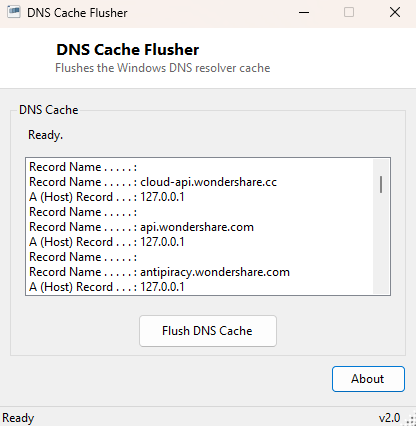
Windows caches DNS lookups locally so that repeated requests to the same hostname do not need a fresh round trip to a DNS server every time, which is normally a performance win invisible to the user — until a website's IP address changes and your PC keeps stubbornly connecting to the old one because the stale entry has not expired yet. DNS Cache Flusher clears that local resolver cache on demand and shows exactly what was cached immediately beforehand, giving you both the fix and a record of what got cleared.
Key Features
- Flushes the Windows DNS resolver cache with a single click
- Displays cached entries before clearing them, for reference
- Uses the same underlying mechanism as the classic ipconfig /flushdns command
Why You Might Need This Tool
A stale DNS cache entry is one of the most common causes of "the site works on my
phone but not on this PC" confusion, particularly right after a website migrates
hosting providers, a DNS record is updated, or you switch a domain between
development and production servers during testing. Rather than remembering and
typing the ipconfig /flushdns command from an elevated or regular
command prompt every time this comes up, this tool gives the same fix a single
clickable button, along with a look at what was cached right before the flush in
case that information itself is useful for diagnosis.
How It Works
The tool calls the DnsFlushResolverCache function exported by
dnsapi.dll directly through P/Invoke — this is the exact same
underlying API the command-line ipconfig /flushdns utility calls
internally, so the effect is identical. Before flushing, the tool separately shells
out to ipconfig /displaydns and parses its output to show a snapshot of
what host and record entries were cached at that moment, since the API itself does
not provide a way to enumerate cache contents directly.
How to Use It
Open the program to see the current DNS cache contents, then click Flush DNS Cache to clear it. The list refreshes automatically afterward, which will typically show an empty or near-empty cache immediately after flushing.
System Requirements & Notes
Runs on 64-bit Windows 10/11. Flushing the DNS cache does not require administrator
rights under normal Windows configurations, matching the behavior of the standard
ipconfig /flushdns command.
Frequently Asked Questions
Will flushing DNS disconnect me from the internet?
No — it only clears cached lookup results. Active connections are unaffected, and
the next time you visit any site, Windows simply performs a fresh DNS lookup instead
of using a cached one.
Does this also clear my browser's own DNS cache?
No — most modern browsers maintain a separate internal DNS cache independent of
Windows; you may need to clear that separately (often via a browser-specific
internal page) for a complete flush.
How often does Windows refresh cached DNS entries on its own?
Each entry expires according to its own TTL (time-to-live) value set by the domain's
DNS server, which can range from a few minutes to a full day or more depending on
how that domain is configured.