Overview
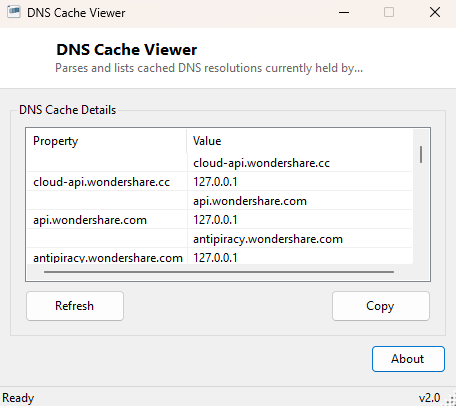
DNS Cache Viewer parses and lists every domain-to-IP resolution Windows is
currently holding in its local DNS resolver cache, in a readable window rather
than the raw text block ipconfig /displaydns dumps into a console.
Windows caches DNS lookups locally specifically to avoid re-querying a DNS server
for every single request to a site you have already visited recently — this cache
is normally invisible, and this tool exists purely to surface it.
Where DNS Cache Flusher (elsewhere in this catalog) is built around clearing the cache, this tool is built around reading it — the two are natural companions for understanding exactly what is cached before deciding whether flushing it would actually help with a problem you are troubleshooting.
Key Features
- Lists every cached domain name alongside its resolved IP address or CNAME target
- Parses the same data
ipconfig /displaydnsoutputs, in a scrollable window - Refresh button to recapture the cache's current state
- Handles both A (Host) record and CNAME record cache entries
- No command line or console window required
- Read-only — never modifies or clears the cache itself
Why You Might Need This Tool
The most direct use is confirming exactly what a specific domain currently resolves to according to your machine's own cache — useful when troubleshooting a site that seems to be loading from the wrong server, or verifying that a DNS change you made (updating a hosts file entry, switching DNS providers, or waiting out a DNS propagation delay) has actually taken effect locally rather than still being served from a stale cached entry. It is also a useful diagnostic when a site that used to work suddenly stops resolving — checking whether an entry is present but pointing somewhere unexpected, versus genuinely absent from the cache entirely, points troubleshooting in very different directions.
How It Works
The tool launches the built-in ipconfig.exe with the
/displaydns argument via Diagnostics.Process and captures
its full text output, the same command-line source DNS Cache Flusher uses to show
what was cached before a flush. It then walks through that output line by line,
tracking the most recently seen "Record Name" line as the current domain, and
whenever it encounters a line starting with "A (Host) Record" or "CNAME Record" it
pairs that resolved value with the tracked domain name and adds it to the display
list. Parsing the real ipconfig output directly, rather than querying
the cache through an undocumented API, guarantees the results always exactly match
what the command line tool itself would show for the same machine at the same
moment.
How to Use It
Launch the tool and the current cache contents populate automatically. Click Refresh after browsing to a new site, changing DNS settings, or flushing the cache with DNS Cache Flusher to see the resulting cache state. If the list comes back empty, the cache is genuinely empty at that moment — a state that is completely normal immediately after a flush or a fresh boot.
System Requirements & Notes
Runs on 64-bit Windows 10 and Windows 11 and does not require administrator
rights — reading the DNS cache via ipconfig /displaydns is available
to any standard user account, unlike flushing it, which does require elevation on
some Windows configurations. Entries naturally disappear from the cache once their
DNS-server-specified TTL (time to live) expires, so the list will shrink over time
on its own even without an explicit flush.
Frequently Asked Questions
Can I remove a single cached entry without flushing the whole cache?
No — this tool is read-only, and Windows itself does not offer a way to remove one
specific entry either; a flush always clears the entire cache at once.
Why is the cache empty even though I've been browsing?
Some entries are marked non-cacheable by the DNS server that answered them, and
very short TTL values can cause entries to expire almost as quickly as they are
added — an empty or sparse cache does not necessarily indicate a problem.
Does this tool show DNS queries in real time as they happen?
No — it shows a snapshot of the cache's current contents at the moment you click
Refresh, not a live query log.