Overview
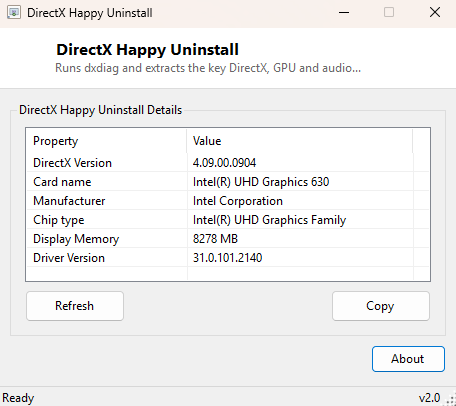
DirectX Happy Uninstall (Mini View) runs Windows' own dxdiag diagnostic tool
in the background and extracts just the handful of lines that actually matter day to day —
your graphics card name, driver version, display memory, and default sound device — sparing
you from opening dxdiag's own multi-tab window and hunting through it manually.
Key Features
- Reports installed DirectX version from the registry
- Extracts graphics card name, manufacturer, chip type and display memory from dxdiag
- Shows the currently installed graphics driver version
- Identifies the default sound playback device
- Runs dxdiag silently in text-report mode — no dxdiag window ever appears
Why You Might Need This Tool
Game and creative-software troubleshooting frequently starts with "what DirectX version and graphics driver are you running" — information dxdiag has always provided, but only after waiting for its window to load, clicking through to the Display tab, and reading past a lot of information you don't need for a quick check. This tool gets straight to that summary. It is also useful before installing new graphics-intensive software to confirm your driver version is current, or when following a troubleshooting guide that specifically asks for your "DxDiag" card name and driver string.
How It Works
The tool first reads the installed DirectX version directly from the registry at
HKLM\SOFTWARE\Microsoft\DirectX. It then launches
dxdiag.exe /t <tempfile> — dxdiag's own built-in text-report mode, which
writes a complete plain-text diagnostic report to the specified file without ever showing
its normal window — and waits up to 15 seconds for that process to finish. Once the report
file exists, the tool reads it line by line and searches for a specific set of known label
prefixes dxdiag always uses in its output — "Card name:", "Manufacturer:", "Chip type:",
"Display Memory:", "Driver Version:" and "Sound Device:" — extracting the value that follows
each one and discarding the rest of the (much longer) full report. The temporary report file
is deleted immediately after parsing, so nothing is left behind on disk.
How to Use It
Launch the tool; it automatically runs dxdiag in the background and populates the summary table within a few seconds — no interaction is needed beyond waiting for the brief report generation to finish. Click Refresh to regenerate the report, useful after installing a new graphics driver.
System Requirements & Notes
No administrator rights are required; dxdiag's text-report mode runs at standard user privilege. The tool depends on dxdiag being present, which it is on every standard Windows 10/11 installation by default.
Frequently Asked Questions
Why does report generation take a few seconds?
dxdiag itself queries a range of hardware and driver information as part of building its
report, the same brief delay you'd see opening dxdiag normally — this tool waits for that
same process to complete before parsing the result.
Can I see the full unfiltered dxdiag report instead of just the summary?
Not through this tool by design — it deletes the full temporary report after extracting the
summary fields. Run dxdiag.exe directly if you need the complete multi-page
report.