Overview
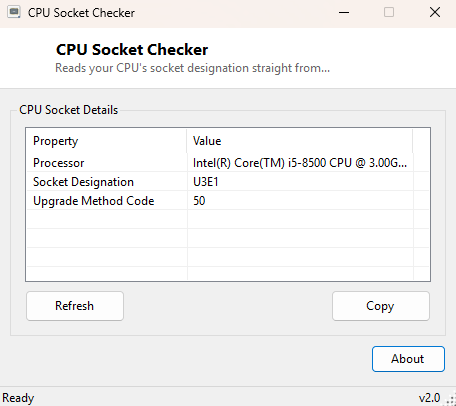
CPU Socket Checker reads your processor's socket designation directly from firmware — the physical socket family (for example LGA1700, AM5, or a specific BGA designation) that determines which motherboards your CPU can physically plug into. This is one of those facts that sounds like it should be obvious but frequently is not, particularly on laptops and prebuilt systems where the exact socket is never printed anywhere visible to the end user.
Key Features
- Shows the exact processor name as reported by firmware
- Displays the socket designation string (for example "LGA1700" or "Socket AM5")
- Reports the raw upgrade method code Windows associates with the socket
- No scanning delay — reads instantly from WMI on launch
- One-click copy of the full report to the clipboard
- Works identically on desktop and laptop systems
Why You Might Need This Tool
Planning a CPU upgrade, choosing a compatible replacement motherboard, or simply confirming exactly what socket family a system uses before shopping for parts are the most common reasons to reach for this tool. It removes the need to physically open the case and read a tiny silkscreen label on the motherboard, or to trust a system builder's spec sheet that may be incomplete or generic — the socket designation shown here comes directly from the processor's own firmware-reported identity.
How It Works
The tool queries Win32_Processor through WMI using a
System.Management.ManagementObjectSearcher, reading the
Name, SocketDesignation and UpgradeMethod
properties. SocketDesignation is populated by the system's SMBIOS/DMI
firmware table (the same low-level data the BIOS itself exposes to the operating
system at boot), which is why this value is reliable even when a manufacturer's
product page or spec sheet is vague or outdated. UpgradeMethod returns a
numeric code Microsoft's WMI schema associates with the socket family, shown here in
its raw form for reference alongside the more readable designation string.
How to Use It
Open the tool and the socket information populates immediately with no configuration needed. Use Copy to place the report on the clipboard when searching for a compatible replacement CPU or motherboard, or when submitting a support request that asks for exact socket details.
System Requirements & Notes
Runs on 64-bit Windows 10 and Windows 11 and needs no administrator rights, since processor identity information is readable by any standard user account through WMI.
Frequently Asked Questions
Why does my laptop show a generic or unusual socket string?
Many laptop and some low-power desktop processors are soldered directly to the
motherboard (BGA packaging) rather than socketed, and firmware sometimes reports a
generic or manufacturer-specific string in that case rather than a standard desktop
socket name — this is expected and does not indicate an error.
Does matching socket names guarantee CPU compatibility?
Not always — chipset generation, BIOS support and power delivery requirements can
still limit compatibility even between two motherboards sharing the same socket name,
so always cross-check a manufacturer's official CPU support list as well.
Is this the same as the socket type shown in motherboard specifications?
Yes — this tool reads the same socket designation your motherboard's own
documentation should list, sourced directly from firmware rather than a manual.