Overview
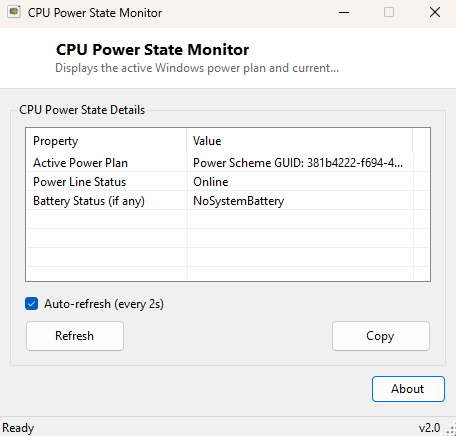
CPU Power State Monitor answers a question that Windows keeps surprisingly well hidden considering how much it affects real-world performance: which power plan is actually active right now, and is the machine currently running on AC power or battery. Windows ships with several built-in power plans — Balanced, Power Saver, and on many systems a High Performance or Best Performance option — and switching between them can be triggered by anything from unplugging a laptop to a manufacturer utility silently changing it in the background without asking. This tool reads the live state directly rather than making you dig through the Control Panel's Power Options applet, clicking through two more screens to find the plan name buried under "Additional power settings," and refreshes automatically so you can watch it change in real time as you plug and unplug a laptop or as a background process quietly switches it on you.
It exists because power plan state is one of those things that is trivially easy to check once you know where to look, but genuinely inconvenient to check quickly and repeatedly through the standard Windows UI — and repeated, quick checks are exactly what you need when you are trying to catch an intermittent problem in the act.
Key Features
- Reports the exact name of the currently active Windows power plan
- Shows whether the system is running on AC power or battery
- Reports battery charge status when a battery is present
- Auto-refreshes every three seconds with an on/off toggle
- No configuration required — reads live state the moment it opens
Why You Might Need This Tool
Power plans quietly control CPU boost behavior, USB selective suspend, display timeout and a dozen other settings that affect both performance and battery life. When a laptop suddenly feels sluggish after being unplugged, or a desktop that should always be on AC power somehow ends up on a battery-saving plan after a driver update or a manufacturer's "eco mode" utility runs in the background, the fastest way to confirm what is actually happening is to check the live plan name rather than assume. This tool is also useful when comparing benchmark results between runs — if one run happened on Balanced and another on High Performance, the numbers are not really comparable, and this window makes that obvious before you waste an afternoon chasing a phantom regression that was really just a power-plan mismatch. IT support staff troubleshooting "randomly slow" reports on fleets of laptops often reach for exactly this kind of quick check first, since a wrong power plan is a disproportionately common root cause for vague performance complaints.
How It Works
On each refresh, the tool launches powercfg.exe /getactivescheme as a
hidden child process and reads its standard output, which is the same command-line
method Windows' own power settings UI uses internally to report the active scheme
GUID and friendly name — there is no separate "get active power scheme" WMI class
exposed for this, so shelling out to the same tool Windows itself relies on is the
standard, supported approach. Alongside that, it reads
System.Windows.Forms.SystemInformation.PowerStatus, a managed .NET
property that wraps the Win32 GetSystemPowerStatus API, to report the
current power line status (AC or battery) and battery charge status without needing
any WMI query or elevated access. Both pieces of information are combined into a
single readout and refreshed on a three-second timer so state changes — plugging in
a charger, Windows silently switching plans — show up within a few seconds rather
than requiring you to manually click refresh and hope you catch the moment it
happens.
How to Use It
Launch the tool and the current power plan and power state appear immediately, with no setup needed. Leave it open in a corner of the screen while you plug and unplug power, or while you run a benchmark, to confirm the power state stayed constant throughout the whole test. There is nothing to configure — it is a pure read-only monitor, so closing it has no effect on the actual power plan Windows keeps using.
System Requirements & Notes
Runs on 64-bit Windows 10 and 11 and does not require administrator rights — reading the active power scheme and power status are both standard-user operations that do not touch protected system state. On desktop systems with no battery, the battery-specific fields simply report as not applicable rather than showing an error or a misleading zero.
Frequently Asked Questions
Can I change the power plan from this tool?
No — it is read-only by design. Use Windows' own Power Options control panel, or
powercfg /setactive from an elevated prompt, to switch plans.
Why does it show a GUID instead of a name for a custom plan?
Some third-party power plans register without a friendly display name; in that rare
case powercfg itself falls back to showing the scheme GUID, and this
tool simply passes that through unchanged rather than guessing at a label.
Will this tool drain a laptop battery faster by running continuously?
No — its three-second refresh timer and single command-line call are negligible
compared to normal background Windows activity, and it does not poll any
high-frequency hardware sensor.