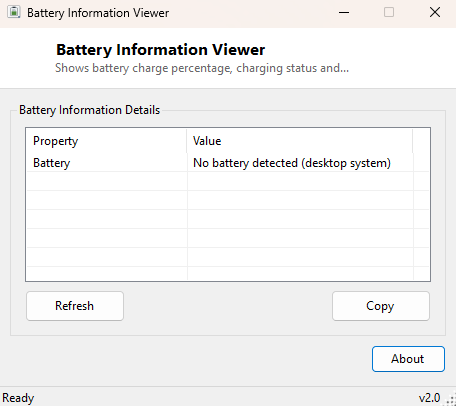
Overview
Battery Information Viewer gives laptop owners a fast, no-nonsense read on the one component nobody thinks about until it starts failing: the battery. Windows shows a percentage icon in the tray and not much else without digging into Settings, and even then the detail is thin. This tool pulls the numbers Windows actually has on file — current charge percentage, charging state, and the battery's design voltage — and lays them out in one simple window, refreshed on demand.
On a desktop PC with no battery installed, the tool says so plainly rather than showing a confusing blank or an error, which is itself a useful confirmation when you are trying to figure out whether a particular machine even has battery hardware reporting to Windows at all (some desktop UPS-backed systems and certain all-in-ones occasionally do).
Key Features
- Shows current estimated charge remaining as a percentage
- Reports live battery status — charging, discharging, fully charged, or a low/critical state
- Displays the battery's design voltage in millivolts
- Clearly reports "no battery detected" on desktop systems instead of an empty screen
- One-click Refresh to re-read current status
- No background polling — reads state only when you ask it to
Why You Might Need This Tool
The most common reason to reach for this tool is a battery that "feels wrong" — draining faster than it used to, refusing to show as charging even while plugged in, or reporting a percentage that jumps unexpectedly. Seeing the raw status value Windows itself is working from (rather than just the tray icon's simplified interpretation of it) is often the first step in figuring out whether the problem is the battery, the charging circuit, or just an aggressive power-saving setting. It is also a quick way to confirm design voltage when you are sourcing a replacement battery and want to be sure a compatible-looking part actually matches your laptop's electrical specification before you buy it.
How It Works
The tool queries WMI's Win32_Battery class for
EstimatedChargeRemaining, BatteryStatus and
DesignVoltage. The numeric BatteryStatus code Windows
returns (values like 1 for discharging, 2 for AC/on line, 6 for charging, and several
more for low, critical and partially-charged states) is translated into the plain
English label you see in the window, rather than showing you the raw undocumented
number. If the WMI query returns no battery instances at all, the tool reports that
the system has no detected battery rather than treating it as an error condition.
How to Use It
Open the tool and your battery's current status appears immediately. Click Refresh after plugging in or unplugging the charger to see the updated charging state, since the tool does not poll continuously in the background by design — it reads state once per request, the same way you would glance at a gauge rather than watch a live graph.
System Requirements & Notes
Runs on 64-bit Windows 10 and Windows 11 laptops and tablets, and gracefully reports "no battery" on desktop systems. No administrator rights are required — battery status through WMI is available to any standard user account.
Frequently Asked Questions
Why does design voltage matter if I just want to know the charge level?
It usually does not for day-to-day use, but it becomes important the moment you are
evaluating a replacement battery — a mismatched voltage rating is a sign the part is
not actually compatible, regardless of how it is advertised.
Does this tool show battery health or wear level?
Not this specific tool — see BatteryInfoView
elsewhere in this catalog, which reads deeper reliability data including design
capacity versus full-charge capacity for a wear estimate.
Will it work on a desktop with a UPS attached?
Only if Windows itself reports the UPS through the same Win32_Battery
class, which varies by UPS driver — many UPS units report through a separate power
management interface instead and will not appear here.