Overview
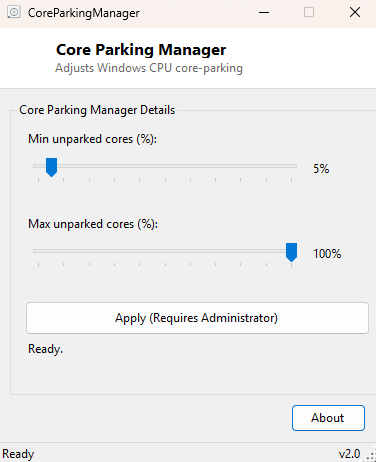
Core parking is one of the quieter power-management features Windows has carried since Windows 7 — under light load, the scheduler is allowed to put idle logical processors into a low-power "parked" state instead of spreading work thinly across every core, waking them back up only once demand rises. On modern high core-count CPUs this usually helps battery life and thermals without you ever noticing it. On some systems, particularly certain older AMD platforms and a handful of enthusiast setups chasing consistent low latency, aggressive parking can introduce a noticeable delay before all cores are actually available, and the built-in way to control it is buried three menus deep inside the Advanced Power Settings dialog under "Processor power management." Core Parking Manager surfaces the two numbers that actually matter — minimum and maximum unparked core percentage — on a single screen with two sliders, instead of making you hunt for them every time you want to experiment.
Key Features
- Two clearly labeled sliders for minimum and maximum unparked core percentage
- Applies the setting to both AC (plugged in) and DC (on battery) power states in one click
- Live percentage readout next to each slider as you drag it
- Applies changes immediately to the currently active power plan — no reboot needed
- No hidden defaults changed beyond the two values you explicitly adjust
Why You Might Need This Tool
Most people will never touch core parking and will never need to. The people who do reach for a tool like this tend to fall into two groups. The first is anyone troubleshooting inconsistent performance on a system where Task Manager clearly shows several logical processors sitting idle at 0% even under moderate load, which is sometimes a sign the parking thresholds are more conservative than the workload actually needs. The second is enthusiasts and reviewers who want every core immediately available for a benchmark run or a latency-sensitive task and would rather set the minimum unparked percentage to 100% for the duration of a test than dig through nested Control Panel dialogs each time. Setting the minimum to 100% effectively disables parking altogether; leaving it low lets Windows manage things exactly as it would by default.
How It Works
Core Parking Manager does not touch the registry directly. Instead it drives the
same official command-line surface Windows itself provides for this setting:
powercfg.exe with the SUB_PROCESSOR power subgroup and
the CPMINCORES / CPMAXCORES setting GUIDs. When you click
Apply, the tool launches four elevated powercfg calls in sequence —
/setacvalueindex and /setdcvalueindex for both the minimum
and maximum values against SCHEME_CURRENT, the currently active power
plan — followed by a final /setactive SCHEME_CURRENT to force Windows
to reload and apply the plan immediately rather than waiting for the next power
event. Each powercfg invocation runs with the runas verb,
which triggers the standard Windows UAC elevation prompt, since changing power
scheme values is an administrative operation even though reading them is not.
How to Use It
Drag the "Min unparked cores" and "Max unparked cores" sliders to the percentages you want — for example, setting minimum to 100% keeps every logical core awake at all times, while leaving both sliders at their defaults (roughly 5% minimum, 100% maximum) restores standard adaptive behavior. Click Apply, accept the UAC prompt, and the status label confirms the values that were written. There is no need to restart the machine; the change takes effect for new scheduling decisions immediately.
System Requirements & Notes
Requires Administrator privileges — each powercfg call elevates via a
UAC prompt when you click Apply, but simply opening the tool does not require
elevation. Works on any 64-bit Windows 10 or 11 system; the effect of parking
thresholds varies by CPU vendor and platform, so results are most noticeable on
systems where parking was already aggressive by default.
Frequently Asked Questions
Will this improve my gaming performance?
Rarely by a measurable amount on modern Intel and AMD platforms, where parking
logic is already well tuned. It is far more likely to matter on older or unusual
hardware configurations where you have already observed idle cores under load.
Does this change persist across reboots?
Yes — the values are written into the active power plan itself, the same place
Windows stores every other power setting, so they survive restarts until you change
them again or select a different power plan.
Can I undo this without remembering the original numbers?
Set both sliders back to their Windows-default values (minimum around 5%, maximum
100%) and click Apply again, or reset the active power plan to its default from
Windows' own Power Options if you want a guaranteed clean baseline.