Overview
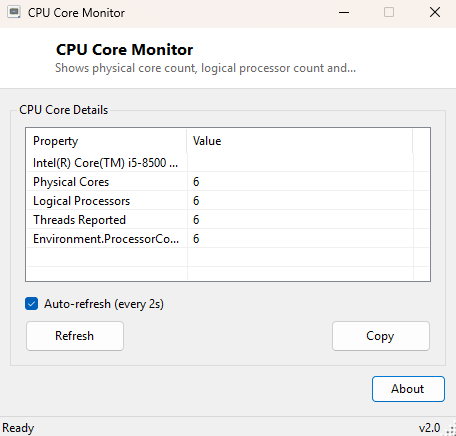
"How many cores does this CPU actually have?" sounds like it should have one simple answer, but modern processors make it surprisingly easy to get confused — physical cores, logical processors created by Hyper-Threading or SMT, and the thread count a scheduler sees are three related but distinct numbers, and marketing material, Task Manager and low-level system calls do not always agree on which one they are showing you. CPU Core Monitor exists to put all three numbers side by side in one place, sourced directly from Windows' own hardware inventory rather than a third-party database that might be out of date for a brand-new chip.
It is a small, focused reference tool rather than a live performance graph — the values it reports (core count, logical processor count, thread count) are fixed properties of the installed CPU and do not change while Windows is running, so there is nothing to "monitor" moment to moment; the name reflects its place in this catalog's family of CPU inspection tools rather than a live-updating display.
Key Features
- Reports physical core count directly from firmware-level hardware inventory
- Reports logical processor count, revealing how many hardware threads Hyper-Threading/SMT actually exposes
- Cross-checks against the .NET runtime's own view of processor count
- Shows the processor's full model name alongside the core breakdown
- One-click Copy button for pasting the full breakdown into a support request
- No installation, instant startup, no data collected or transmitted
Why You Might Need This Tool
This tool earns its keep whenever a "core count" question actually matters for a real decision — checking whether a CPU genuinely supports the number of threads a piece of software claims to use, confirming a virtual machine was actually allocated the number of virtual cores you configured in its settings, or simply settling an argument about whether "8 cores" on a product listing means 8 physical cores or 8 logical threads from 4 physical cores with Hyper-Threading. It is also useful when setting processor affinity for a demanding application and you need to know exactly how many logical processors are available to assign.
How It Works
The tool queries Win32_Processor via WMI for three properties in a
single call: NumberOfCores (physical silicon cores),
NumberOfLogicalProcessors (the count Windows' scheduler actually sees,
inflated by Hyper-Threading/SMT where present), and ThreadCount where
the firmware reports it separately. As a sanity check and a second data point, it
also reads the managed Environment.ProcessorCount property directly
from the .NET runtime, which reflects what the operating system has actually made
available to the current process — on most consumer systems this matches the WMI
logical processor count exactly, but on machines with processor group restrictions
or certain virtualization configurations, seeing these two numbers side by side can
reveal a mismatch worth investigating.
How to Use It
Launch the tool and every value appears immediately in the results list — there is no configuration and nothing to wait for, since this data is static hardware inventory rather than a live reading. Use the Refresh button only if you have changed a virtual machine's allocated core count or otherwise modified the hardware configuration since the tool was opened. Use Copy to grab the full breakdown as text.
System Requirements & Notes
Runs on 64-bit Windows 10 and Windows 11 and requires no administrator privileges — reading processor topology through WMI is available to any standard user account.
Frequently Asked Questions
Why do "Physical Cores" and "Logical Processors" show different numbers?
That is expected on any CPU with Hyper-Threading or SMT enabled — each physical core
presents itself to Windows as two logical processors, roughly doubling the second
number relative to the first.
Can this tool change my CPU's core count or disable cores?
No. It is strictly read-only. For adjusting how many cores Windows keeps active under
light load, see Core Parking Manager instead.
Will this show accurate numbers inside a virtual machine?
Yes — it reports whatever the hypervisor has presented to the guest OS, which is
exactly the number worth checking if you are troubleshooting a VM's allocated
resources.
My software says it needs "4 cores" — does that mean physical or logical?
It depends entirely on how the vendor phrased the requirement, which is exactly why
this tool is useful: run it, compare both numbers against the stated requirement, and
if the two figures differ (because Hyper-Threading is enabled) you can judge for
yourself which one the requirement most likely meant, or contact the vendor for
clarification with precise numbers in hand rather than a guess.