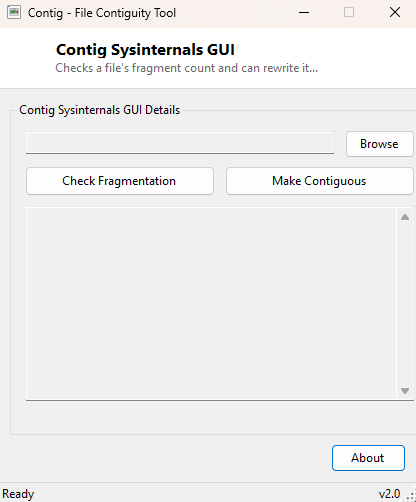
Overview
Modern SSDs have made whole-drive defragmentation largely irrelevant, but there is still one narrow scenario where file fragmentation genuinely matters: a single very large file — a database, a virtual machine disk image, a large video file being streamed and edited — that has been split into dozens or hundreds of separate physical fragments over time as free space filled in around it. Contig Sysinternals GUI brings back the classic, narrowly-scoped Sysinternals technique for exactly this situation: it checks how fragmented one specific file actually is, and can rewrite it as a single contiguous block on the same volume without needing a full drive defragmentation pass.
Key Features
- Reports the exact number of fragments a chosen file is currently split into
- Rewrites a fragmented file contiguous on the same volume with one click
- Uses the same low-level Windows filesystem query the original Sysinternals tool relies on
- Scoped to a single file at a time rather than a slow whole-drive operation
- Shows before-and-after fragment counts so you can confirm the improvement
- No scheduling, no background service — runs only when you explicitly ask it to
Why You Might Need This Tool
Heavily fragmented individual files show up most often on drives that have been in use for a long time with limited free space, where large files grow, shrink and get rewritten repeatedly — virtual machine disk images that expand over months of use are a textbook example, as are large database files and continuously-appended log files. A file split into hundreds of scattered fragments on a traditional spinning hard drive can genuinely slow down sequential read performance, since the drive head has to jump between many physical locations instead of reading one long continuous stretch. Even on SSDs, where fragmentation has a smaller performance impact, an extremely fragmented file's metadata overhead can still add up. Contig gives you a fast, targeted way to fix one specific problem file without running a full, time-consuming defragmentation pass across the entire drive.
How It Works
Checking fragmentation uses the FSCTL_GET_RETRIEVAL_POINTERS control code
sent via DeviceIoControl directly to a handle opened on the target file —
the same low-level NTFS query the original Sysinternals Contig tool and Windows'
internal defragmentation APIs both use. This call returns the file's extent count
directly from the filesystem's own allocation records, giving an exact fragment number
rather than an estimate. To actually reduce fragmentation, the tool takes a
deliberately simple and safe approach rather than manipulating NTFS cluster allocation
directly: it copies the file to a new name on the same volume, deletes the original,
and renames the copy back — because NTFS generally tries to allocate a fresh copy as
one contiguous run of clusters when enough free space is available, this rewrite
typically results in a dramatically lower fragment count, which the tool then verifies
by re-running the same FSCTL query and reporting the before-and-after comparison.
How to Use It
Click Browse and select the file you suspect is fragmented, then click Check Fragmentation to see its current fragment count. If the number is high enough to be worth fixing, click Make Contiguous; the tool rewrites the file and reports the new fragment count so you can confirm the improvement.
System Requirements & Notes
Contig Sysinternals GUI runs on 64-bit Windows 10/11 and requires enough free disk space on the same volume to temporarily hold a second copy of the file during the rewrite step. It does not require administrator rights for files you have normal write access to. This tool intentionally works on one file at a time rather than an entire drive — for whole-volume free-space defragmentation, Windows' own built-in Optimize Drives tool remains the appropriate choice.
Frequently Asked Questions
Does fragmentation matter on an SSD?
Much less than on a spinning hard drive, since SSDs have no moving head to reposition —
this tool is most valuable on traditional HDDs, though an extremely fragmented file's
metadata overhead can still be worth cleaning up on an SSD occasionally.
Is the rewrite-based approach as effective as raw cluster manipulation?
In practice, yes for the vast majority of cases — NTFS's own allocator strongly favors
contiguous placement for a fresh write when sufficient free space exists, which is
exactly the condition this technique relies on.
What if there isn't enough free space for the temporary copy?
The rewrite will fail cleanly with an error rather than partially completing — free up
space at least equal to the target file's size before retrying.