Overview
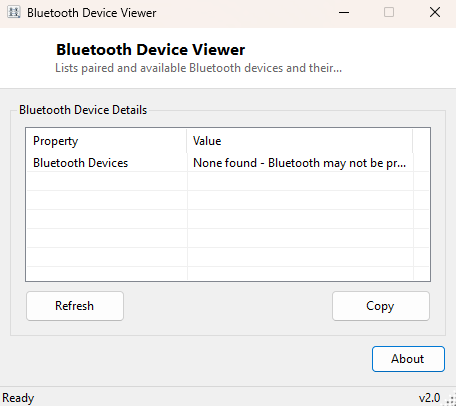
Bluetooth Device Viewer lists paired and currently recognized Bluetooth devices — headsets, keyboards, mice, speakers, phones bridged for file transfer — along with each device's Windows-reported status, without needing to open the full Bluetooth & devices settings page and click through its separate list-and-details layout. It exists for the same reason USB Device Viewer and PCI Device Viewer do: Windows already tracks this information internally, it is just spread across a settings UI that was designed for pairing new devices rather than quickly auditing what is already known.
Because Bluetooth radios and their paired peripherals are themselves exposed to Windows as Plug and Play devices, this tool can surface them using the exact same lightweight technique the rest of the device-viewer family uses, rather than needing a separate Bluetooth-specific API layer.
Key Features
- Lists paired and enumerated Bluetooth devices with their current Windows status
- Covers the Bluetooth radio/adapter itself alongside paired peripherals
- One-click Refresh after pairing, unpairing or reconnecting a device
- No pairing wizard, PIN entry, or device-management actions — pure read-only listing
- Copy-to-clipboard export for quick sharing or record-keeping
Why You Might Need This Tool
This is a fast way to sanity-check Bluetooth connectivity problems: confirming whether Windows still considers a headset "paired" after it silently disconnected, or whether the Bluetooth radio itself is being recognized correctly after a driver update. It also doubles as a quick device audit — useful before wiping or handing off a machine, to confirm exactly which paired devices are still remembered by Windows, since removing a Bluetooth device from Settings can be easy to forget compared to the more visible act of unplugging a USB cable.
How It Works
The tool queries Win32_PnPEntity through WMI, filtering with
WHERE PNPClass = 'Bluetooth' OR Name LIKE '%Bluetooth%'. Windows
classifies Bluetooth radios and many Bluetooth-connected peripherals under the
dedicated Bluetooth PnP class, but some devices — particularly certain
audio peripherals and older adapters — register under a more generic class while
still including "Bluetooth" in their friendly device name, so the query intentionally
checks both to avoid silently missing devices that fall into the second category.
Both the class-based match and the name-based fallback return the same
Name and Status fields the rest of the device-viewer family
uses, keeping the output format consistent across tools.
How to Use It
Launch the tool to see the current list immediately. If you have just paired, unpaired, or reconnected a Bluetooth device, click Refresh to re-query and pick up the change — Windows Bluetooth device state can take a moment to settle after a connection event, so if a device does not appear right away, wait a few seconds and refresh again.
System Requirements & Notes
Runs on 64-bit Windows 10 and Windows 11, requires no administrator rights, and needs a Bluetooth radio (built-in or USB dongle) present for there to be anything to list — on a machine with no Bluetooth hardware at all, the tool will simply report no devices found.
Frequently Asked Questions
Can I pair a new device with this tool?
No — it is intentionally read-only. Pairing still goes through Windows' own Bluetooth
& devices settings page; this tool is for viewing what is already known, not
managing connections.
Why does my phone show up even though it is not "connected" right now?
A previously paired device often still shows up with a status reflecting its last
known state even while out of range or powered off — pairing information persists
until you explicitly remove it in Windows settings.
Does it show battery level or signal strength for connected devices?
No — that level of detail depends on device-specific Bluetooth profiles Windows does
not expose through the generic PnP status field this tool reads.