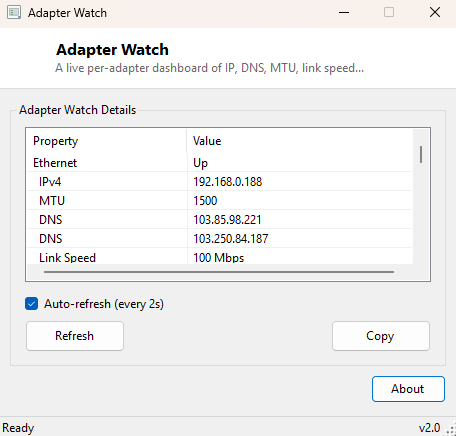
Overview
Adapter Watch is a live, auto-refreshing dashboard for every network adapter on your system, combining in one window a set of facts that Windows normally scatters across ipconfig output, the Network Connections control panel, and Task Manager's Performance tab. For each active adapter it shows operational status, assigned IPv4 address, MTU, configured DNS servers, negotiated link speed, and cumulative bytes sent and received — refreshed automatically every few seconds so you can watch a connection change state in real time rather than re-running a command over and over.
Where most network tools focus on one specific fact (an IP here, a DNS entry there), Adapter Watch's value is in the combination — seeing link speed, IP assignment and traffic counters for every adapter side by side makes it much faster to spot which interface is actually being used and whether it is behaving normally.
Key Features
- Per-adapter operational status (Up, Down, etc.)
- Assigned IPv4 address for every active adapter
- MTU value, useful for diagnosing VPN or tunnel-related fragmentation issues
- Configured DNS server list per adapter
- Negotiated link speed in Mbps
- Cumulative bytes sent and received, in kilobytes, since the interface last came up
- Auto-refresh checkbox with a configurable interval, on by default
Why You Might Need This Tool
Adapter Watch earns its place when you are actively trying to figure out which network path traffic is actually taking on a multi-adapter machine — a laptop with both Wi-Fi and a docked Ethernet connection active simultaneously, for example, where Windows' interface metric decides which one wins but does not make that decision visible anywhere convenient. Watching the byte counters tick up on one adapter and stay flat on the other confirms which connection is actually carrying traffic. It is equally useful while debugging a flaky connection: watching operational status flip between Up and Down in real time, or watching link speed unexpectedly drop from 1000 Mbps to 100 Mbps, points directly at a cabling or driver problem without needing to reproduce the issue while a command prompt is open and ready.
How It Works
Adapter Watch iterates
System.Net.NetworkInformation.NetworkInterface.GetAllNetworkInterfaces() on
every refresh tick, skipping loopback interfaces. For each remaining adapter it reads
OperationalStatus directly, pulls the bound unicast IPv4 address from
GetIPProperties().UnicastAddresses, reads the MTU via
GetIPv4Properties().Mtu, and lists every entry in
GetIPProperties().DnsAddresses. Link speed comes from the interface's
Speed property (reported in bits per second and divided down to Mbps for
display), and the traffic counters come from
GetIPv4Statistics().BytesSent and .BytesReceived — the same
cumulative counters Windows itself resets only when the adapter is disabled and
re-enabled or the machine reboots. A timer re-runs this entire collection loop on the
configured interval when auto-refresh is checked, rebuilding the display each time.
How to Use It
Launch Adapter Watch and every active adapter appears immediately with its current values. Leave Auto-refresh checked to watch values update live, or uncheck it and use Refresh manually to take single point-in-time snapshots without the display changing underneath you while you read it.
System Requirements & Notes
No administrator rights are required — every value Adapter Watch reads is available to a standard user through the public .NET networking APIs. Traffic counters reflect bytes since the adapter last came up, not since the tool was launched, so a freshly-opened Adapter Watch on a long-running connection will show large starting values immediately.
Frequently Asked Questions
Why does one of my adapters show no IP address?
An adapter with no bound IPv4 unicast address (disconnected, or IPv6-only) will show as
such — this reflects the adapter's real current state, not a bug.
Can I reset the traffic counters?
Not from within the tool — they are read directly from Windows' own interface
statistics, which reset only when the adapter is disabled/re-enabled or the system
reboots.
Does it show IPv6 addresses too?
This view focuses on IPv4 for clarity; see
IPv4/IPv6 Checker for a dual-stack breakdown per
adapter.