Voice ++
Record, mix and export vocals over music with professional presets, EQ and reverb
Voice++ is a desktop vocal recording and mixing studio for Windows. Import a music track, record your voice over it using any connected microphone, then shape your vocal sound with a built-in chain of professional processors: a 10-band parametric EQ, a reverb module with room size and decay controls, a compressor for consistent vocal level, a noise gate to cut background noise between phrases, a pitch corrector and a stereo delay for depth. Choose from built-in vocal presets — Studio, Booth, Hall, Radio, Rock, Pop and more — for an instant professional sound. Mix your vocal and music levels, monitor through headphones in real time and export the finished mix as MP3 or WAV. Voice++ brings professional vocal production to your desktop without the cost or complexity of a full DAW.
See Voice++ in Action
A clean, modern interface designed for real-world use.
Voiceplusplus screen 01 screenshot
What Is Voice++?
Voice++ is a Windows voice recording and mixing application that combines a backing track player with a microphone recorder and a suite of real-time voice effects into a single, streamlined workflow. Load any audio file as your backing track, record your voice over it through your microphone, apply professional voice processing, and export the finished mix as a WAV or MP3 file — all without needing a digital audio workstation or any audio engineering knowledge.
The application is built for anyone who wants to record vocals over music: vocalists layering a demo, podcasters adding music beds, content creators recording voiceovers, or karaoke enthusiasts capturing a performance. Voice++ handles the technical side of mixing so you can focus on the performance.
Screen-by-Screen Feature Walkthrough
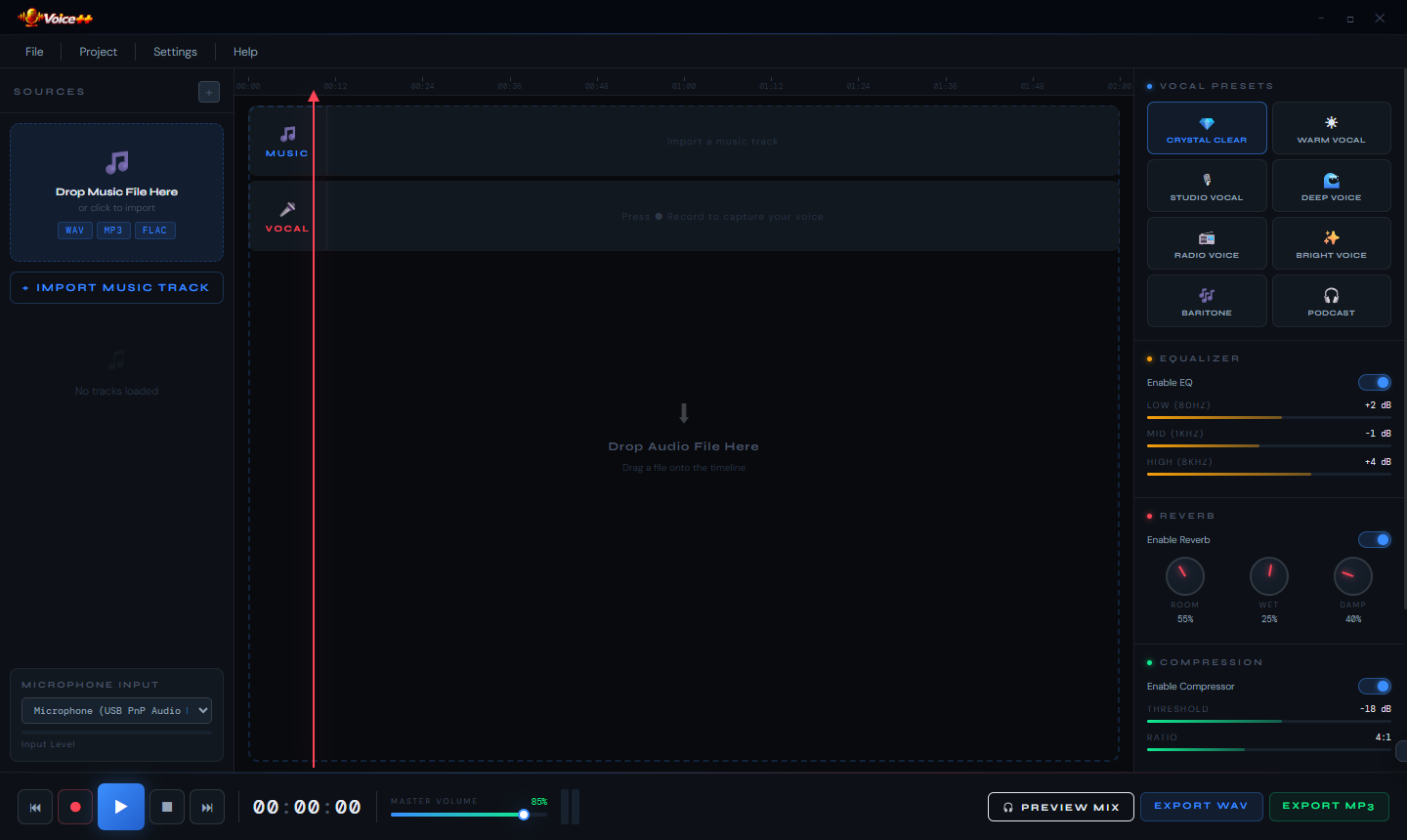
1. The Main Interface — Ready to Record
The Voice++ interface divides neatly into three zones. The left panel is the source manager: a drop zone and Import Audio Track button for loading a backing track, and a microphone selector with the connected input device (USB PnP Audio) displayed. The centre workspace is the waveform editor — currently showing the “Drop audio file here” prompt, this area will display the backing track waveform once a file is loaded. The right panel is the effects engine: five Voice Effect icons (Crystal Clear, Noise Removal, Equalizer, and two additional processors), a set of EQUALIZATION sliders, an Enable Reverb toggle, and a CHARACTERIZATION toggle. EXPORT MIX and EXPORT MP3 buttons sit at the bottom right. Playback controls run along the bottom with a timer showing the current position. This layout keeps recording controls, effects and export all visible simultaneously — there are no sub-menus to navigate during a recording session.
2. Backing Track Loaded — Waveform Visible
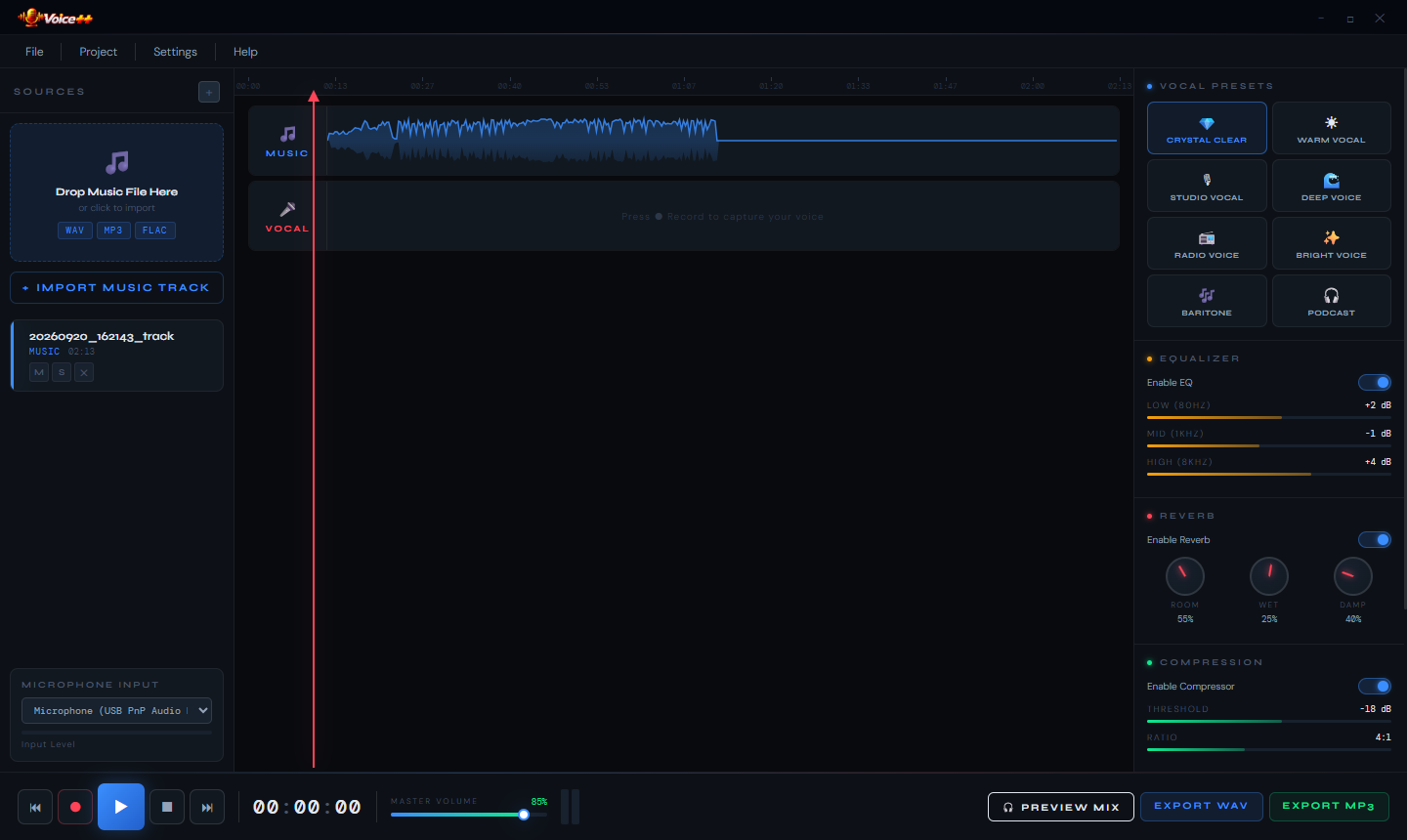
Once a backing track is imported, the centre workspace renders its waveform in teal, giving you a visual map of the audio’s energy and structure across its duration. The file name (“campaign_setup_music”) appears in the left panel confirming the track is loaded and ready. The waveform display lets you see where louder and quieter sections of the music occur — useful for timing your vocal entry points and anticipating dynamics before you begin recording. The entire waveform is clickable to seek to any position, and the playback controls at the bottom let you audition the backing track before recording begins.
3. Backing Track Ready for Performance
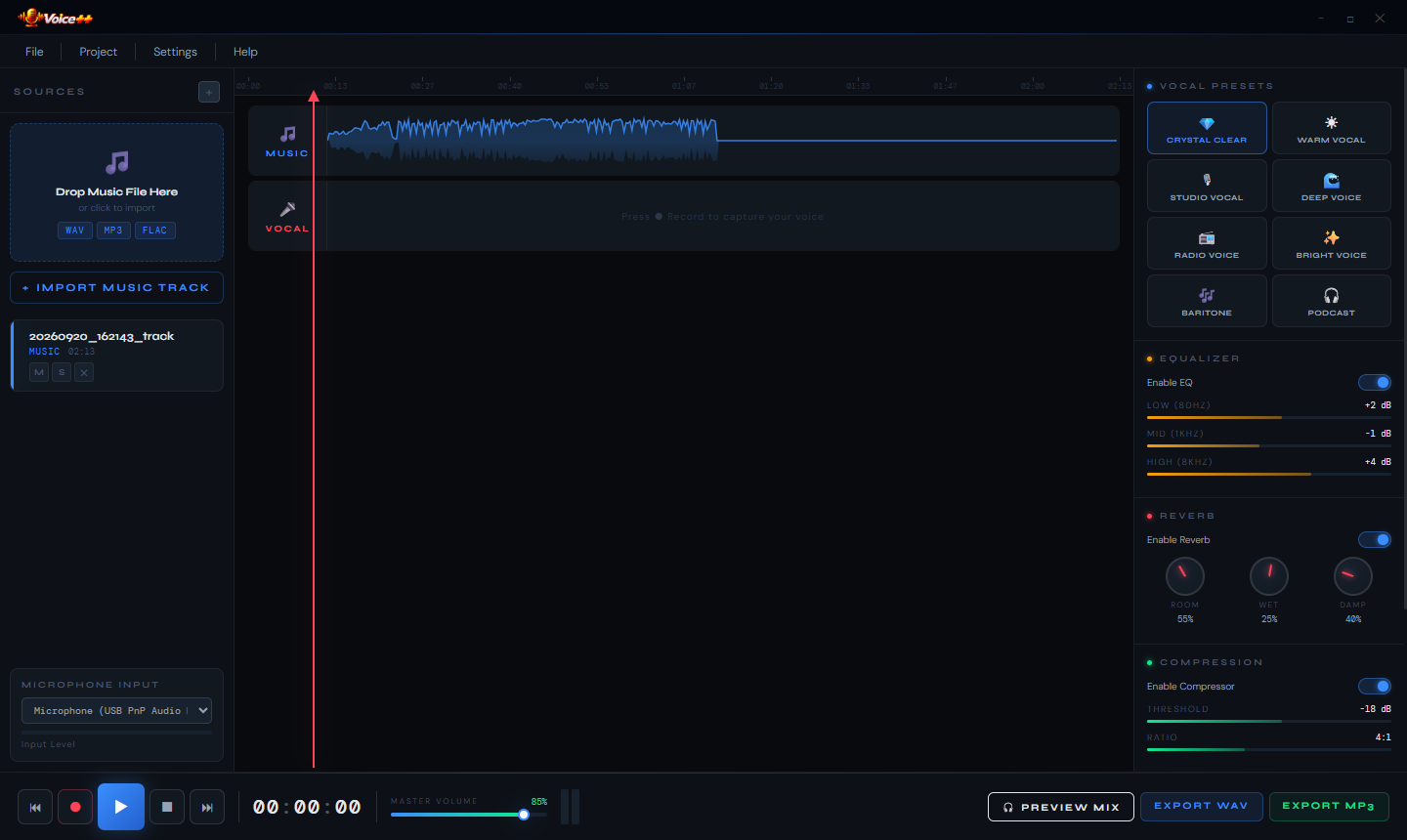
With the backing track loaded and visible in the waveform editor, you have full access to every effect parameter before the recording begins. The right panel’s equalization sliders can be tuned to your voice and the character of the backing track — boosting warmth in the low-mids, adding clarity in the upper range, or cutting muddiness. Reverb can be switched on to add room depth, and the Characterization toggle applies additional tonal shaping to distinguish your vocal from the music. Setting up effects before the first take means you hear exactly how the finished mix will sound as you sing — not a raw, unprocessed voice over polished production music.
4. Audio Export Settings
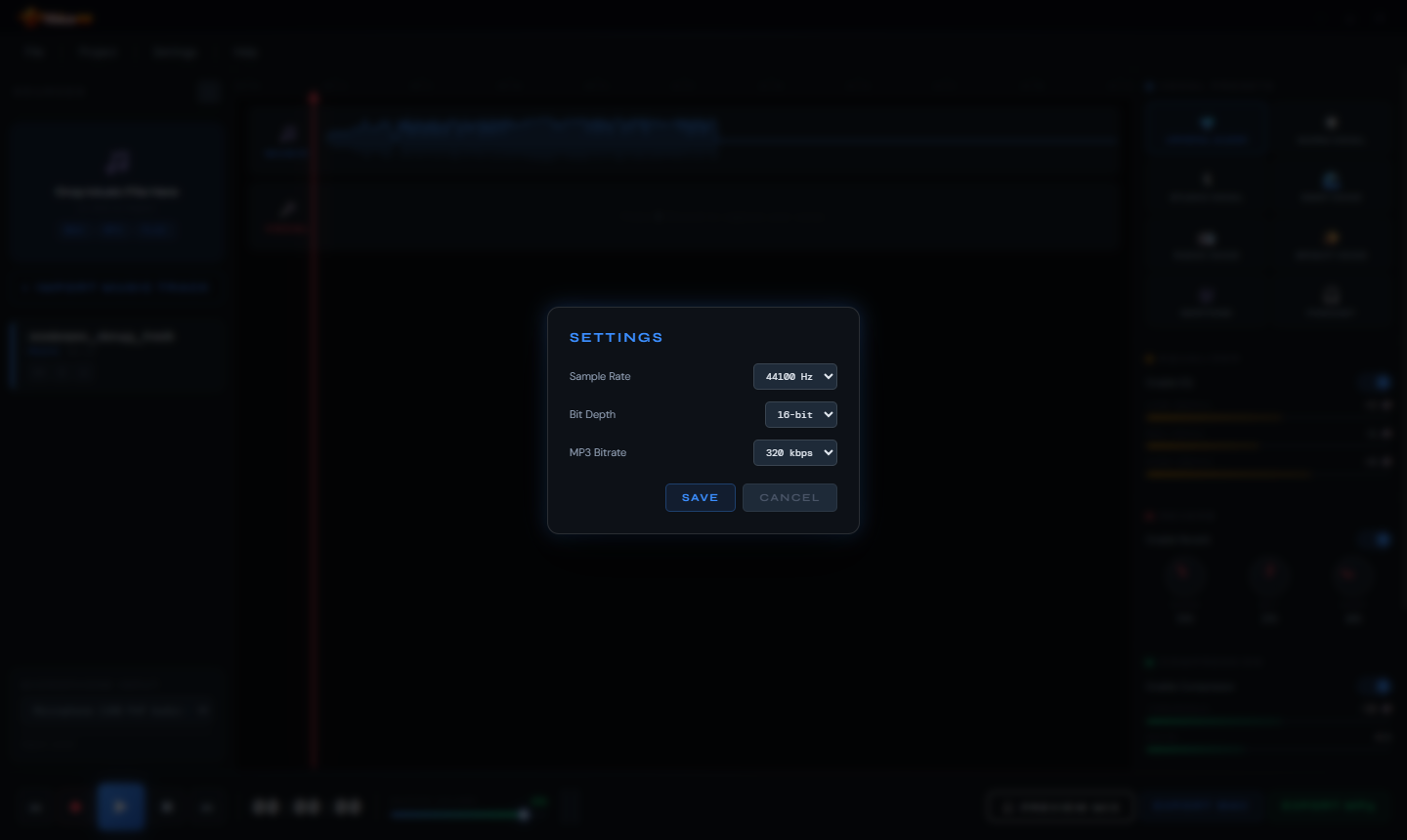
The Settings dialog controls the technical quality of the exported audio. Sample Rate is set to the CD-standard 44100 Hz, Bit Depth to 16-bit, and MP3 Bit Rate to 320 kbps — the highest common MP3 quality level, producing files that are perceptually indistinguishable from uncompressed audio to most listeners. These defaults are appropriate for music recordings and voiceover work. Save applies the settings immediately and they persist between sessions.
5. Export Quality — Professional Grade by Default
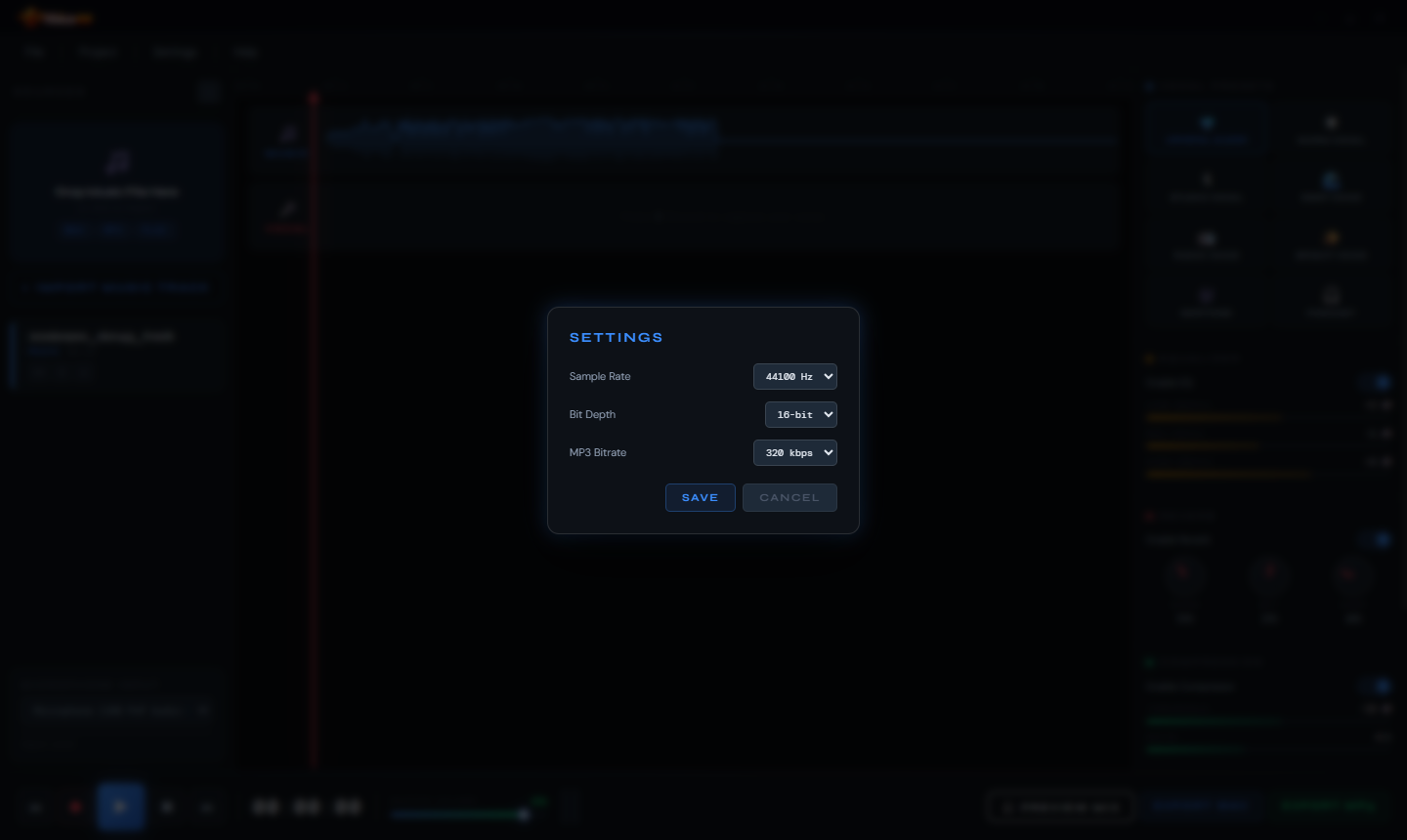
The same Settings dialog confirms the export quality configuration from a slightly different view. For vocalists and content creators who will post their recordings to streaming platforms, social media or podcasting hosts, 44100 Hz / 16-bit / 320 kbps produces output that meets or exceeds the quality requirements of every major platform. The settings are simple enough to understand at a glance — there are no complex codec parameters or bit-depth trade-offs to research.
6. Settings Confirmation
The Settings dialog shows the saved configuration one final time before closing. Cancel discards any unsaved changes and returns to the main interface. Save commits the settings. Once saved, every subsequent export uses these quality parameters without prompting again — the export workflow is always as fast as possible.
7. About Voice++
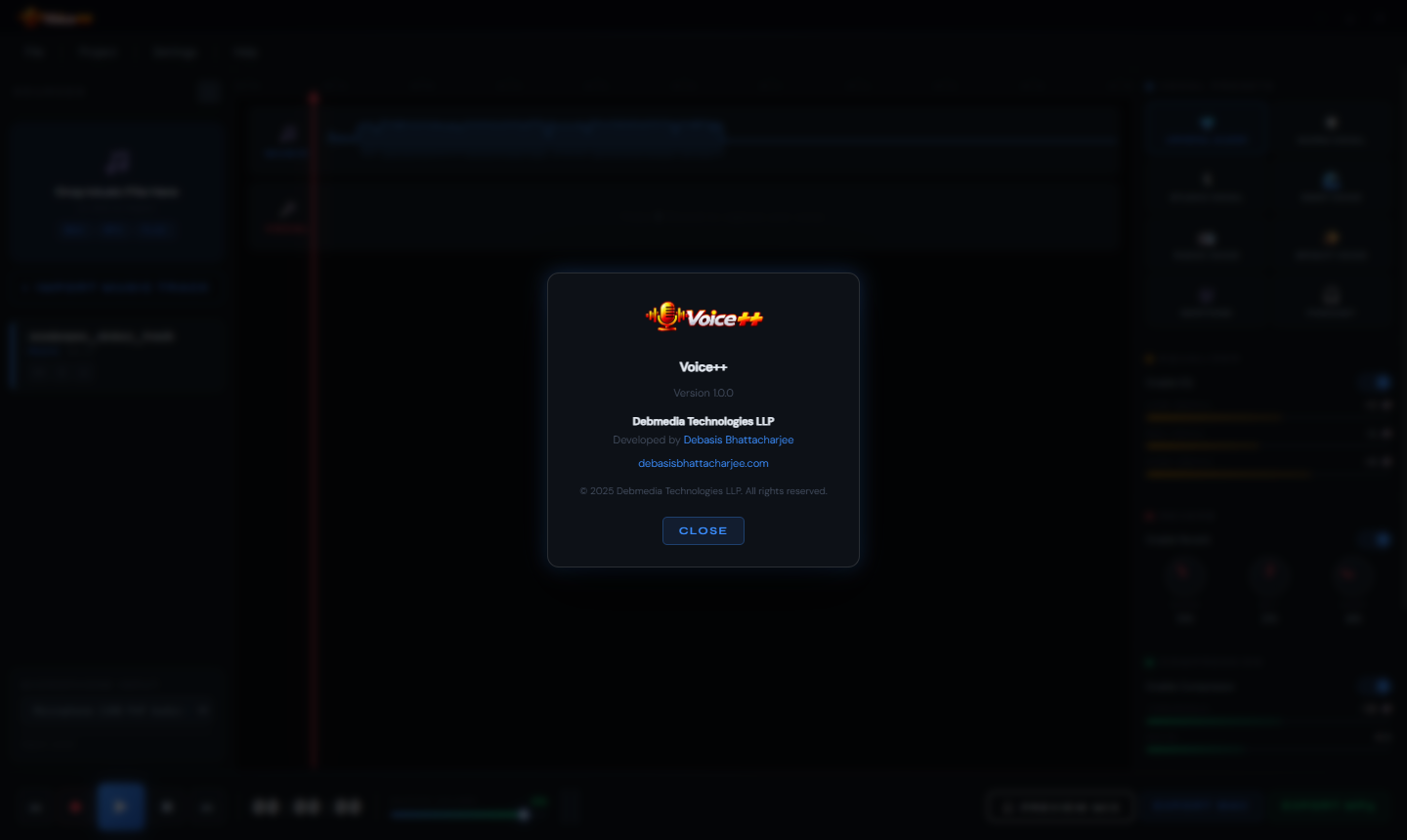
The About dialog identifies Voice++ and its creators. The Voice++ logo and name appear at the top, followed by Debmedia Technologies LLP and developer Debasis Bhattacharjee with a contact email address. The dialog is accessible from the main interface and confirms you are running the genuine, current version of the application.
8. Live Recording — Voice Over Music in Real Time
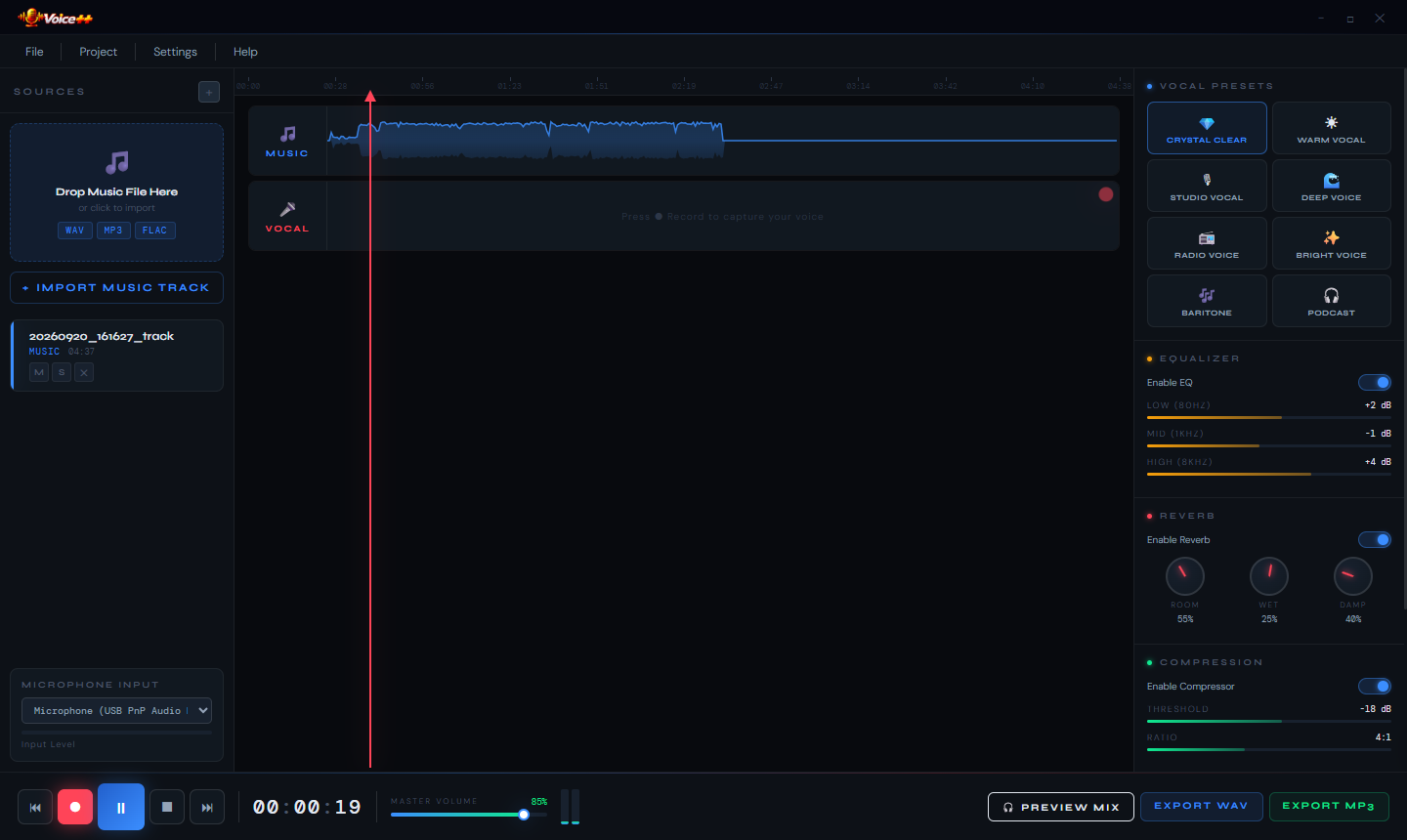
During an active recording, the backing track waveform remains visible in the workspace while the REC indicator glows at the bottom controls, confirming your microphone is live and capturing. The timer advances in real time — here at 19 seconds into the recording. Your voice is recorded in sync with the backing track’s timeline: when you export, the vocal and music tracks are automatically aligned to the moment you pressed record. All voice effects applied in the right panel process your microphone input in real time as you sing, so you hear the effected voice through your monitor or headphones and not the raw, unprocessed sound.
Who Is Voice++ For?
- Vocalists recording demos — Lay down vocal performances over instrumental backing tracks and export a shareable demo without setting up a full recording studio.
- Podcast hosts and narrators — Record a voiceover or commentary track directly over a music bed or ambient background audio and export a finished audio file.
- Content creators — Create sung or spoken content with professional voice processing for YouTube videos, Instagram Reels, TikTok audio or streaming platforms.
- Music students and hobbyists — Practice singing over backing tracks and record sessions to review timing, pitch and expression.
- Karaoke performers — Record a performance over a karaoke backing track and keep the finished mix as a personal recording.
System Requirements
- Operating System: Windows 10 (64-bit) or Windows 11
- Processor: Any modern x64 processor
- RAM: 4 GB minimum
- Audio: Any Windows-compatible microphone — USB microphones recommended
- Storage: 100 MB for the application (additional space for recordings)
- Display: 1280 × 720 minimum
- Internet: Not required — fully offline
Frequently Asked Questions
What backing track formats does Voice++ accept?
Voice++ accepts MP3, WAV, FLAC and OGG audio files as backing tracks. Any music file on your drive can serve as the basis for a recording session.
Can I apply different effects mid-recording?
Voice effects are applied in real time from the moment you start recording. Changing an effect toggle or slider during a recording immediately affects the processed sound — you can adjust equalization and reverb while performing if needed.
How is the voice balanced against the backing track in the final export?
Voice++ automatically balances the vocal and music levels during the mix export. The resulting file combines both tracks at a natural speech-over-music ratio. For more precise control, the volume of each source can be adjusted before export.
Can I re-record without losing the backing track?
Yes. Only the voice recording is discarded when you start a new take. The backing track remains loaded and in its current position until you explicitly remove it or load a different file.
Record. Process. Export. That Is Voice++.
Voice++ removes the barrier between having a voice, having music, and having a finished recording. Instead of a digital audio workstation with its hundreds of menus and routing options, Voice++ gives you three elements: a music track, a microphone, and a set of professional effects — combined into a single recording session with a single export at the end.
Whether you are building a vocal demo, recording a podcast, or just capturing a performance worth keeping, Voice++ makes the process immediate and the result professional. Download Voice++ now — your first recording session is free.
Download Voice++
Record, mix and export vocals over music with professional presets, EQ and reverb