Mailer ++
Desktop email campaign builder and bulk mailer for Windows
Mailer++ is a desktop bulk email application for Windows that lets you design, personalize and send email campaigns entirely from your own machine — no monthly SaaS fees, no sending limits imposed by a third-party platform. Build rich HTML emails with the visual drag-and-drop editor, import your contact lists from CSV or Excel, personalize each message with name and custom fields, then send through your own SMTP server or any email provider. Mailer++ supports list segmentation, unsubscribe tracking, bounce management and campaign reporting with open and click statistics. Whether you are sending newsletters, promotional offers or transactional messages, Mailer++ puts full control in your hands without the recurring cost.
See Mailer++ in Action
A clean, modern interface designed for real-world use.
Debmediamailer desktop screen 01 screenshot
What Is Mailer++?
Mailer++ is a Windows desktop email marketing application that brings campaign management, contact list building, SMTP configuration, automation workflows and detailed analytics into a single offline-capable tool. Designed for marketers, solopreneurs and small businesses that want full control over their email list and delivery infrastructure, Mailer++ lets you build and send campaigns through your own SMTP server, manage thousands of contacts with custom fields and segmentation, design emails with a built-in template library, track opens and clicks, handle unsubscribes automatically, and automate email sequences — all without a monthly SaaS subscription fee.
Screen-by-Screen Feature Walkthrough
Campaign Performance Dashboard
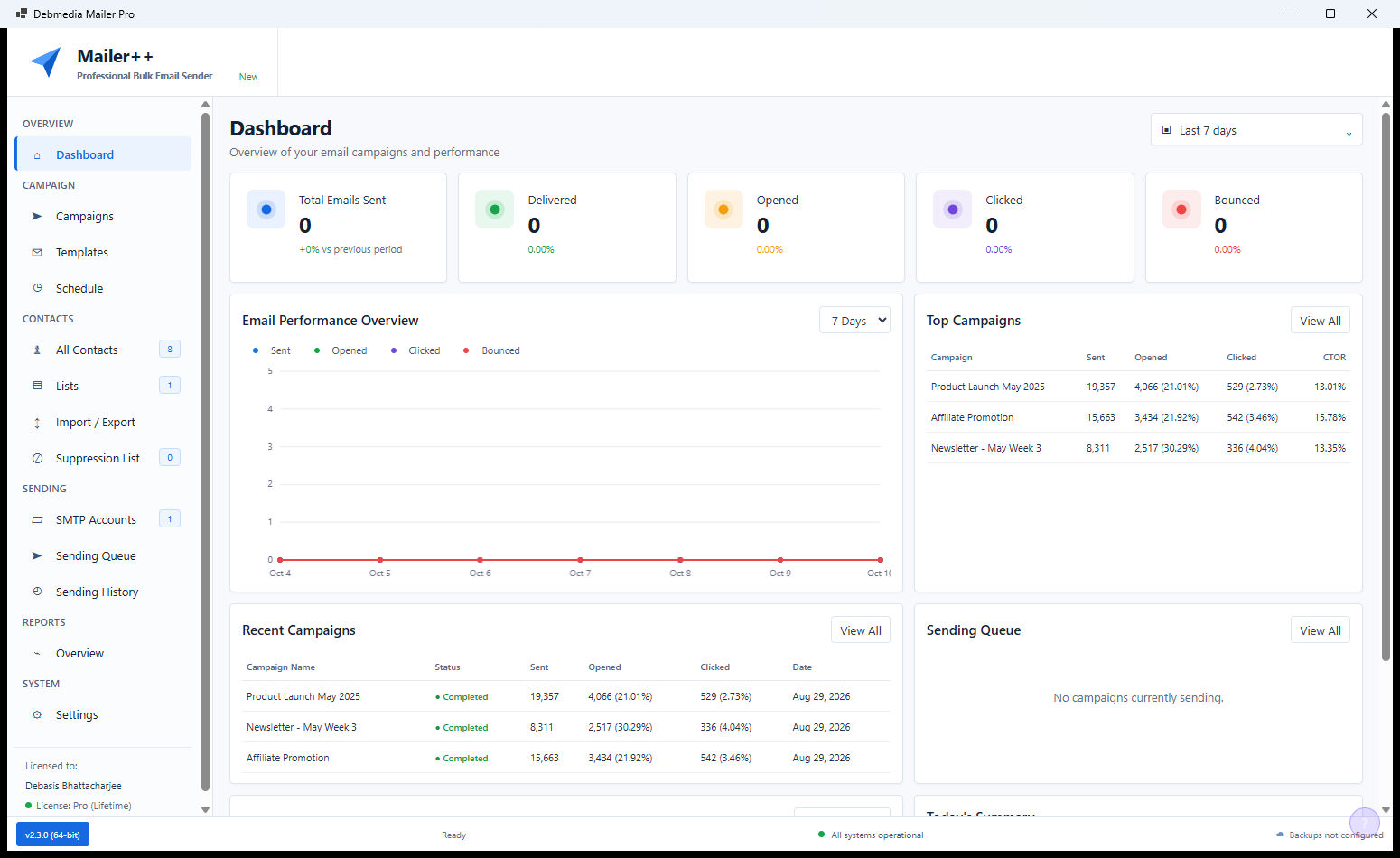
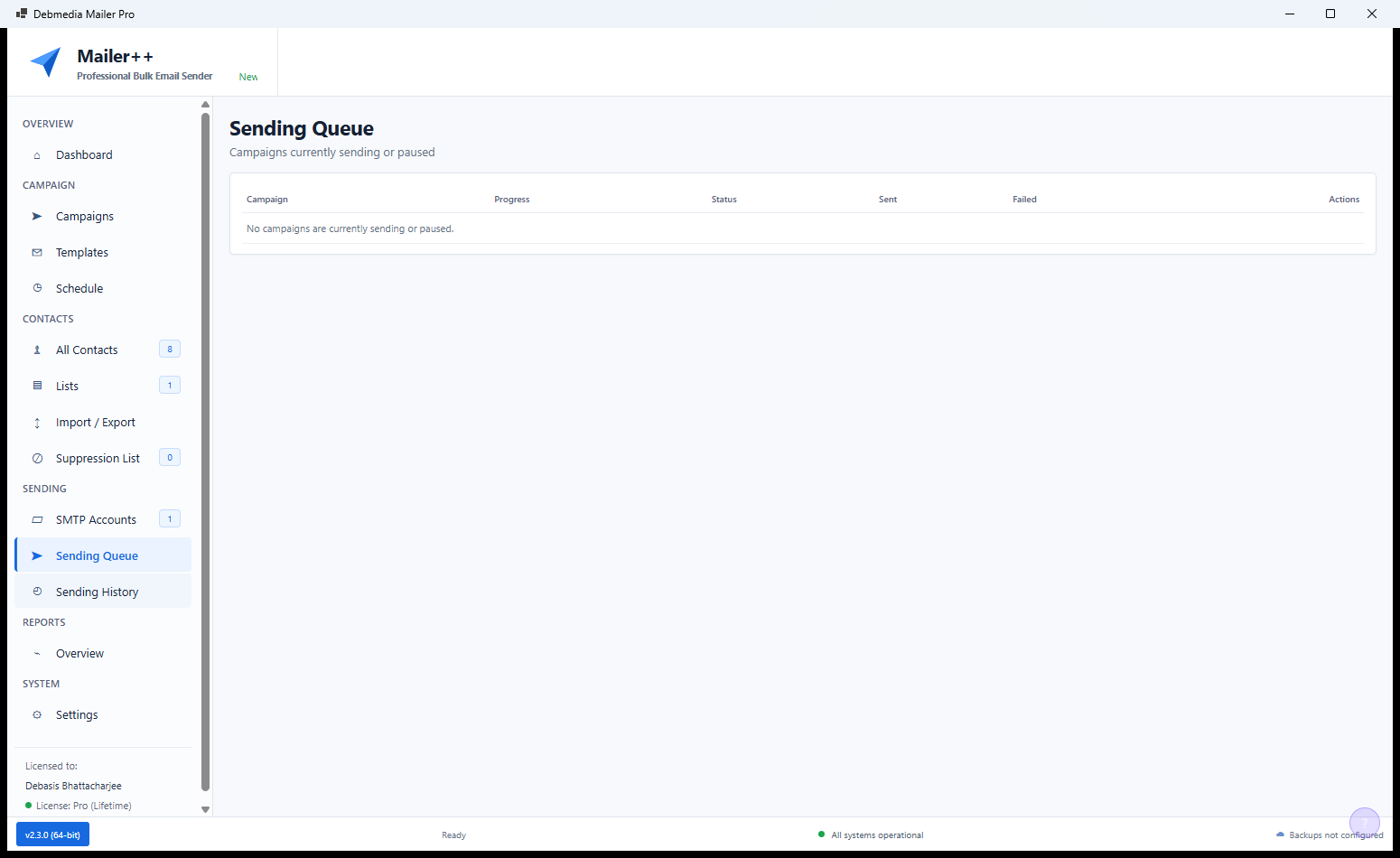
The Mailer++ dashboard gives a complete picture of your email marketing performance at a glance. Four metric cards at the top show Total Emails Sent, Opens, Clicks and Unsubscribes for the selected period. The email volume chart tracks daily sending activity across the month so you can see your cadence visually. The Top Campaigns table shows which campaigns achieved the highest open and click rates, making it easy to identify what content resonates with your audience. The Recent Campaigns list and Sending Queue panel on the right show the current operational status — what is in the queue waiting to send and what was sent most recently.
Campaigns List — All Campaigns Overview
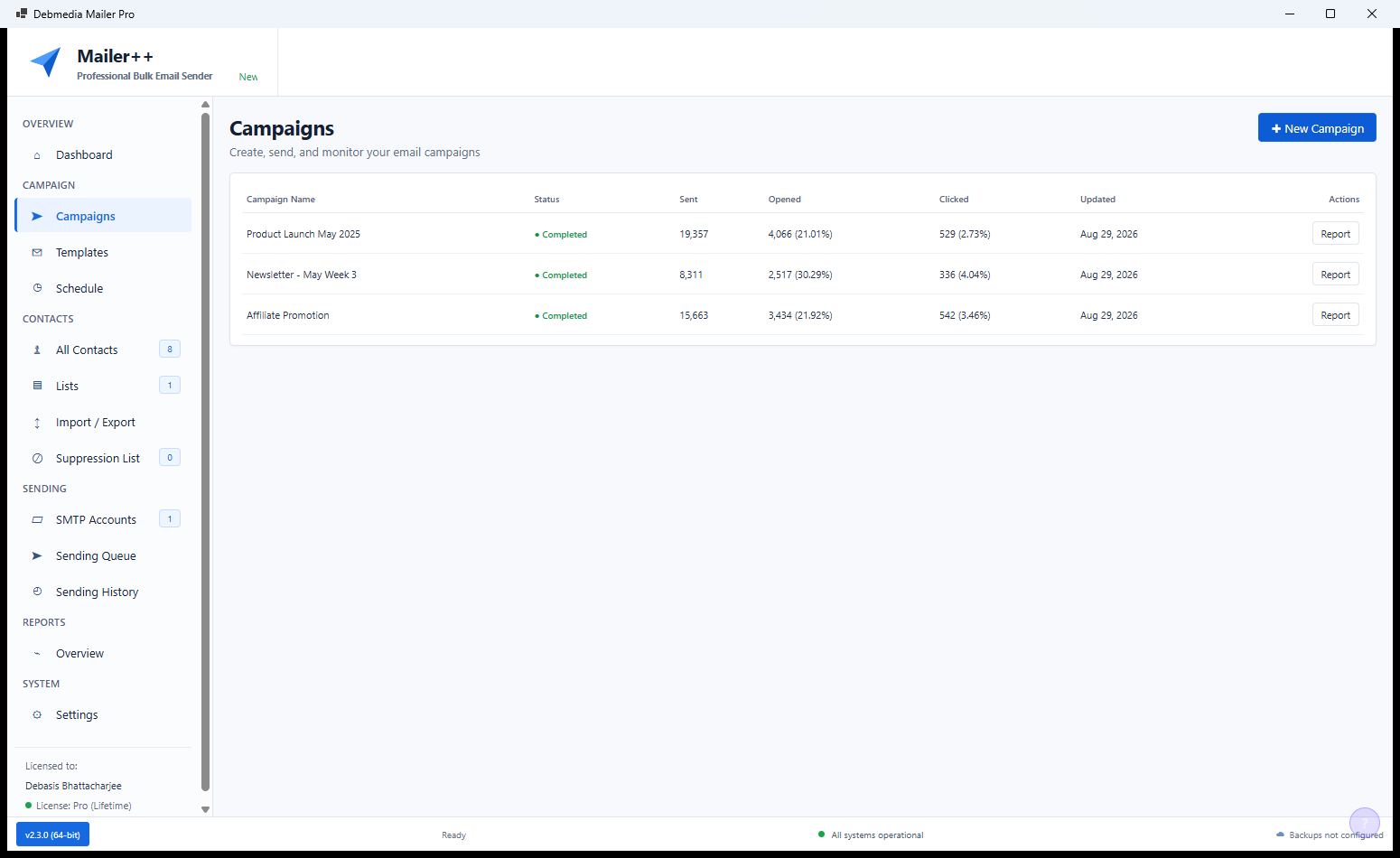
The Campaigns screen lists every campaign you have created with its status (Sent, Scheduled, Draft or Paused), send date, number of recipients, open count and click count. Status indicators use colour coding so you can immediately distinguish sent campaigns from active drafts. The list is searchable and filterable by status, date range or list, making it easy to find a specific campaign from a large history. Clicking any campaign opens its detailed performance view with per-link click tracking and a full activity log.
Create Campaign — Campaign Setup Wizard
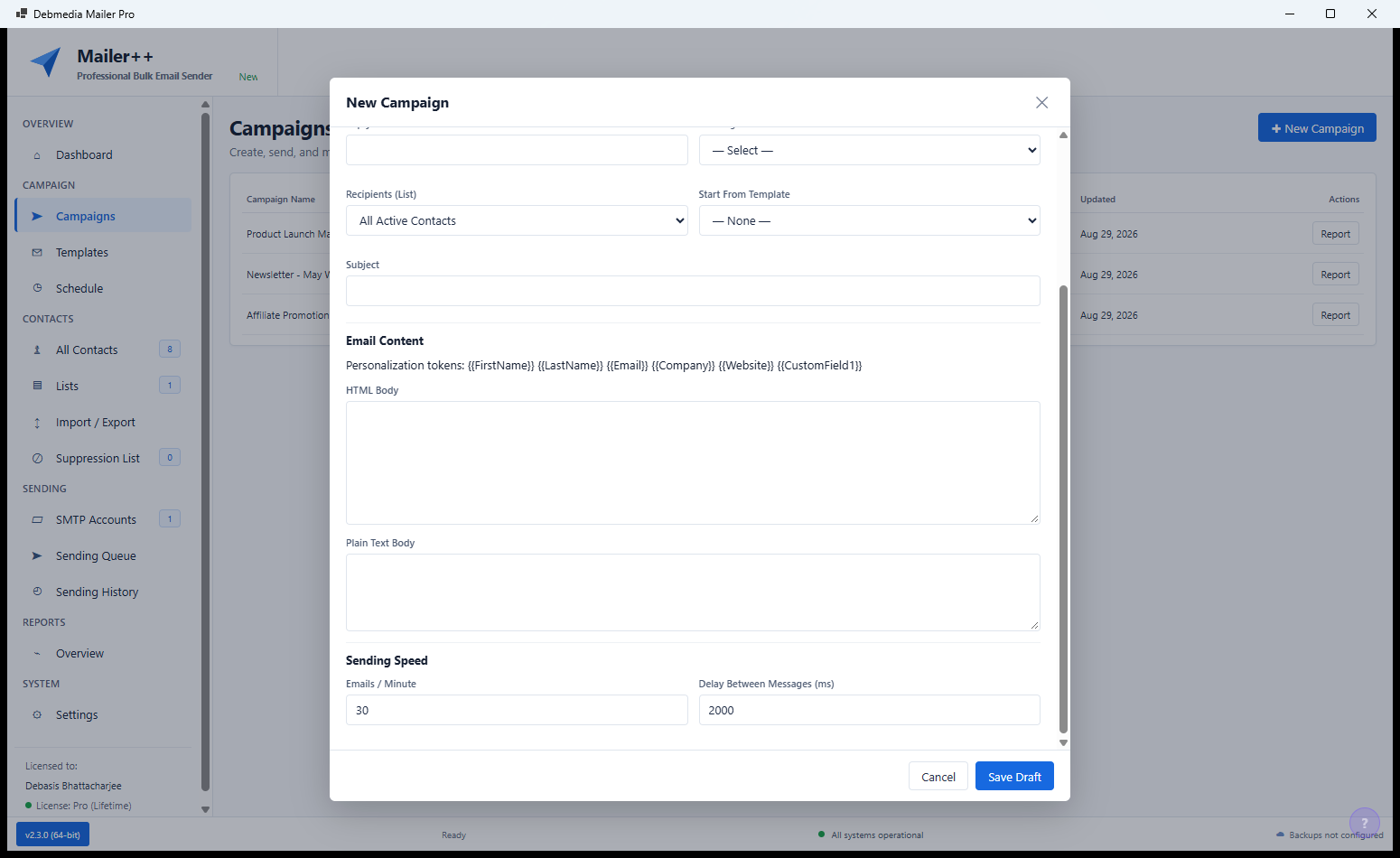
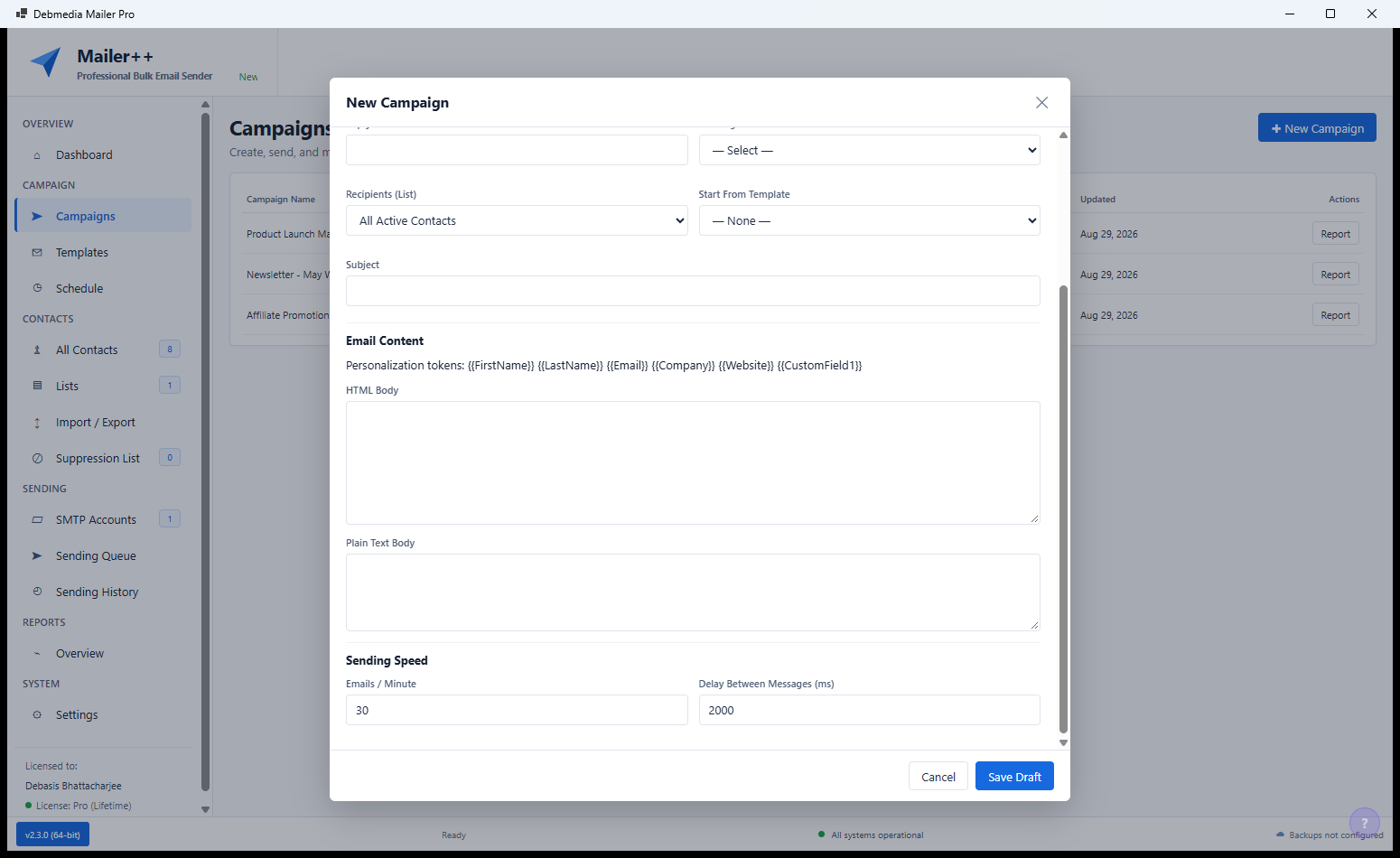
The Create Campaign wizard collects the essential campaign settings in a clean form: campaign name (for your internal reference), email subject line, sender name (what recipients see in the “From” field), sender email address, reply-to address and the contact list to send to. The list selector shows the count of active contacts in each list so you can confirm the audience size before proceeding. A preview of how the From and Subject fields will appear in an email client is shown as you type, so you can verify the recipient experience before building the email body.
Campaign Detail — Scheduling and Review
Before sending, the campaign review screen shows a summary of all settings: the selected list and contact count, the sender and reply-to addresses, the subject line and the scheduled send time. You can choose to send immediately or schedule the campaign for a specific date and time, useful for reaching audiences in different time zones at optimal times. The Review screen is the last checkpoint before a campaign is committed to the sending queue — change any setting here or go back to the template editor to revise the email body before confirming.
Email Templates — Choose Your Starting Point
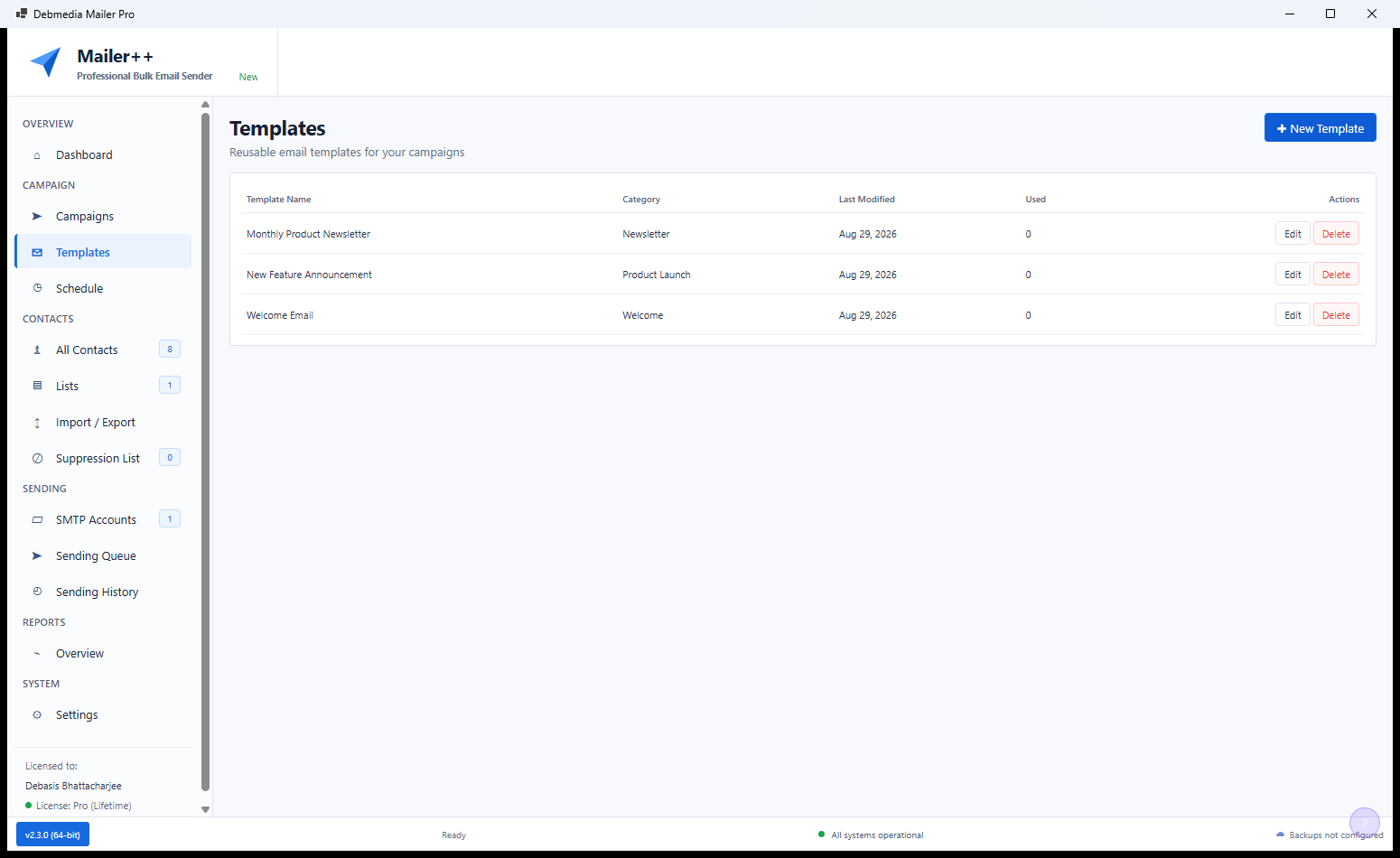
The Templates screen shows all saved email templates with their category, creation date and a thumbnail preview. Three templates are shown in this view: a Product Launch template, a Newsletter template and a Promotion template. Templates save time when sending recurring campaign types — build a newsletter layout once, then reuse it every week with updated content. The template library is built up over time as you create and save new designs, and templates can be duplicated and modified without affecting the original, making it safe to iterate on a successful design.
Template Editor — Design Your Email
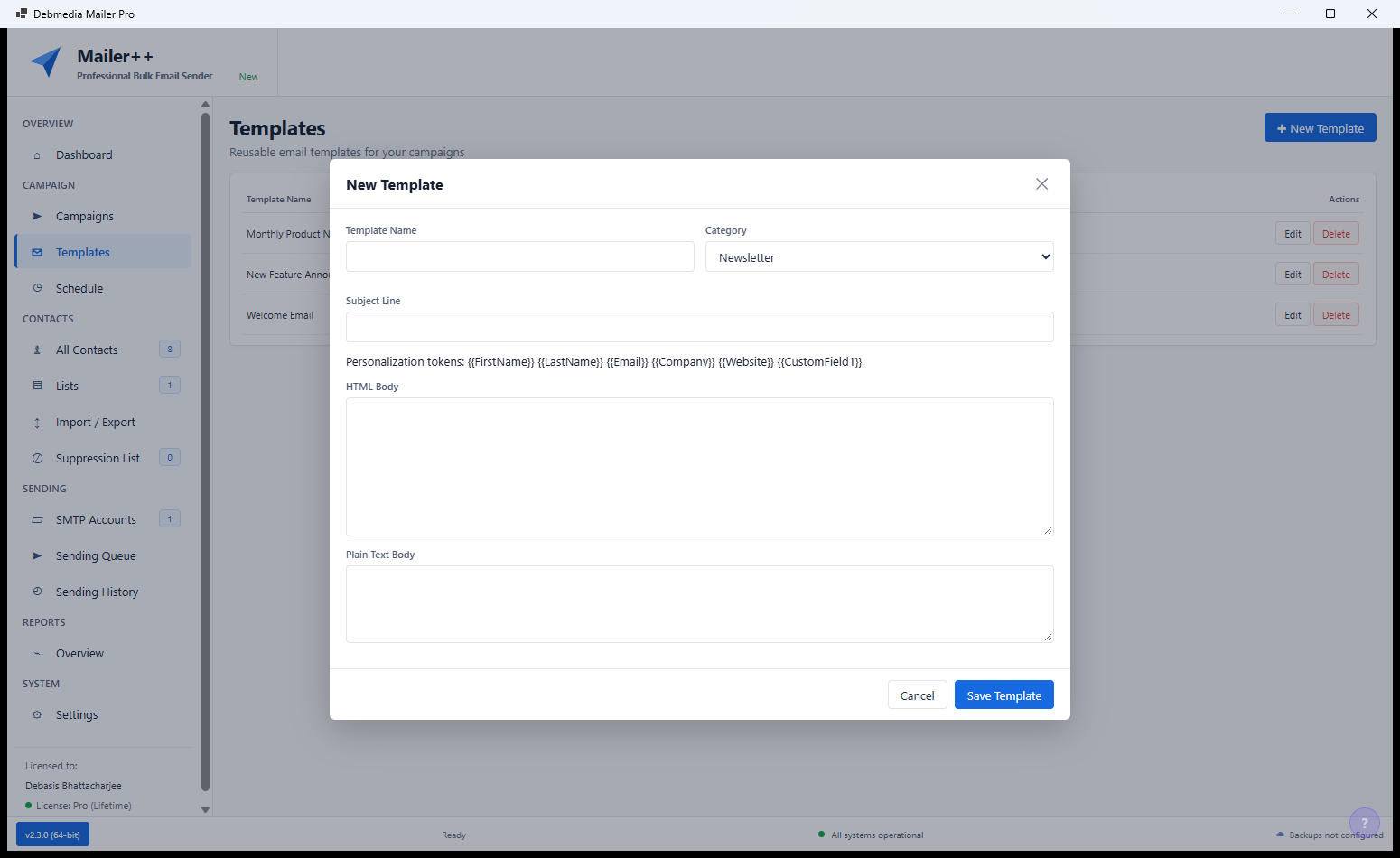
The template editor provides a drag-and-drop email builder where you design the campaign email visually without writing HTML. Components available include text blocks, images, buttons, dividers, columns and social media links — drag any component from the sidebar onto the canvas and configure it inline. The toolbar at the top handles global formatting settings including font family, background colour and mobile preview mode. A real-time preview shows exactly how the email will render in a recipient’s inbox as you build it, with separate previews for desktop and mobile layouts.
Template Editor — Content Building
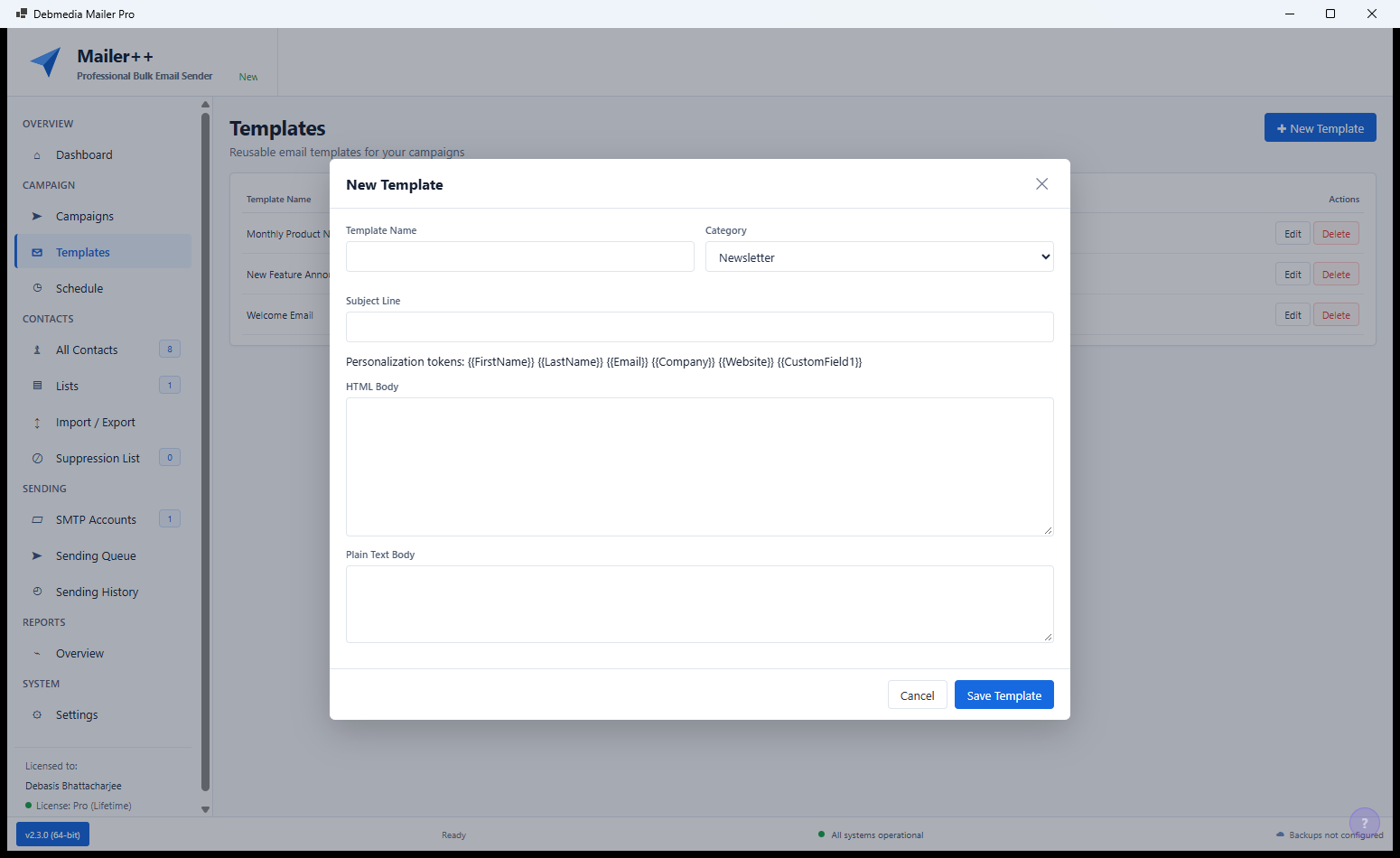
Each component in the template editor is selected and configured with contextual options appearing in the right panel — the text component shows font, size, colour and alignment controls; the button component shows text, link URL, colour and padding controls; the image component shows upload, alt text and width controls. Personalisation tokens like {{first_name}}, {{email}} and custom field values can be inserted anywhere in the email text, so every recipient receives a copy addressed personally to them without manually duplicating the campaign.
Lead Management — Contact Database Overview
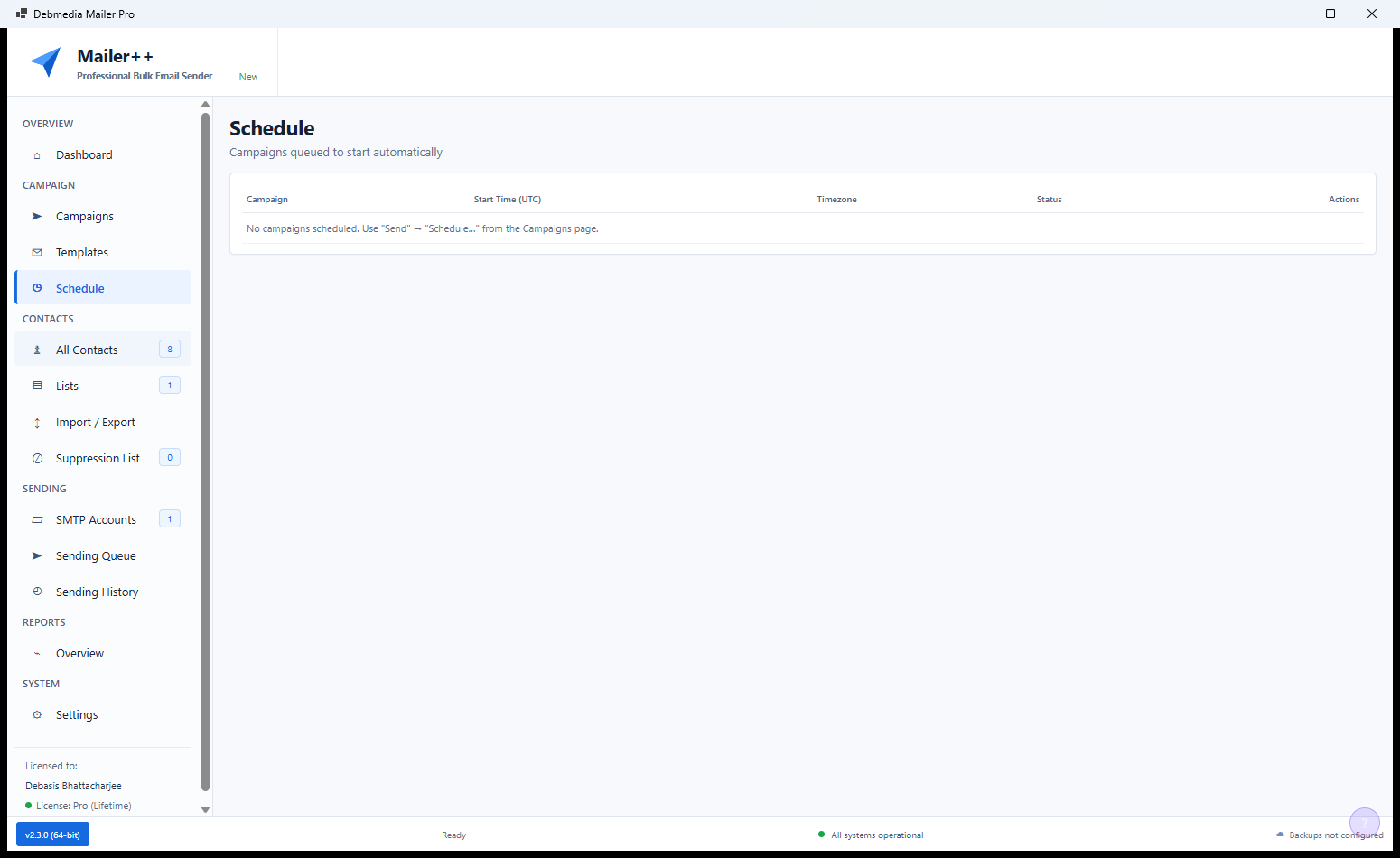
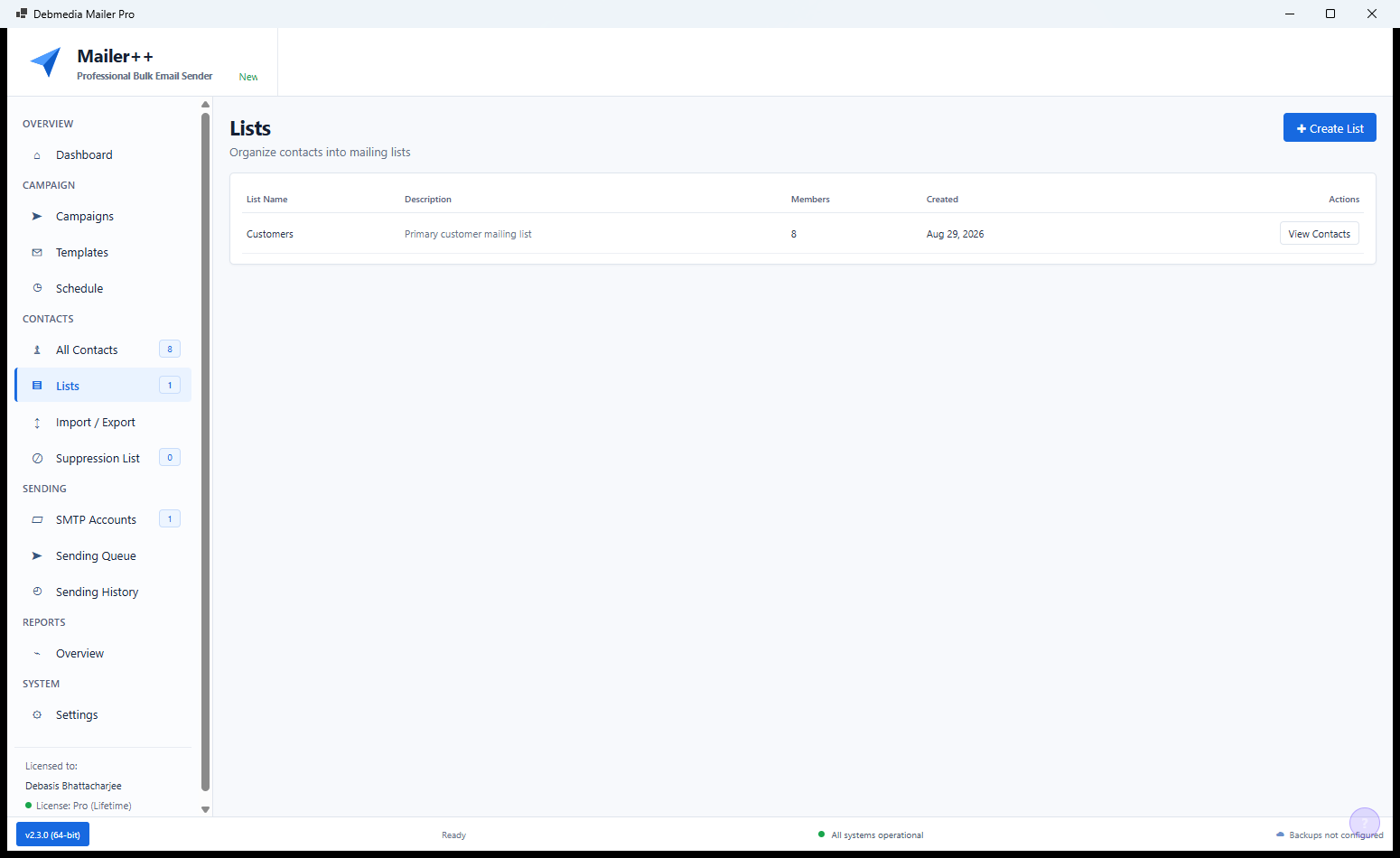
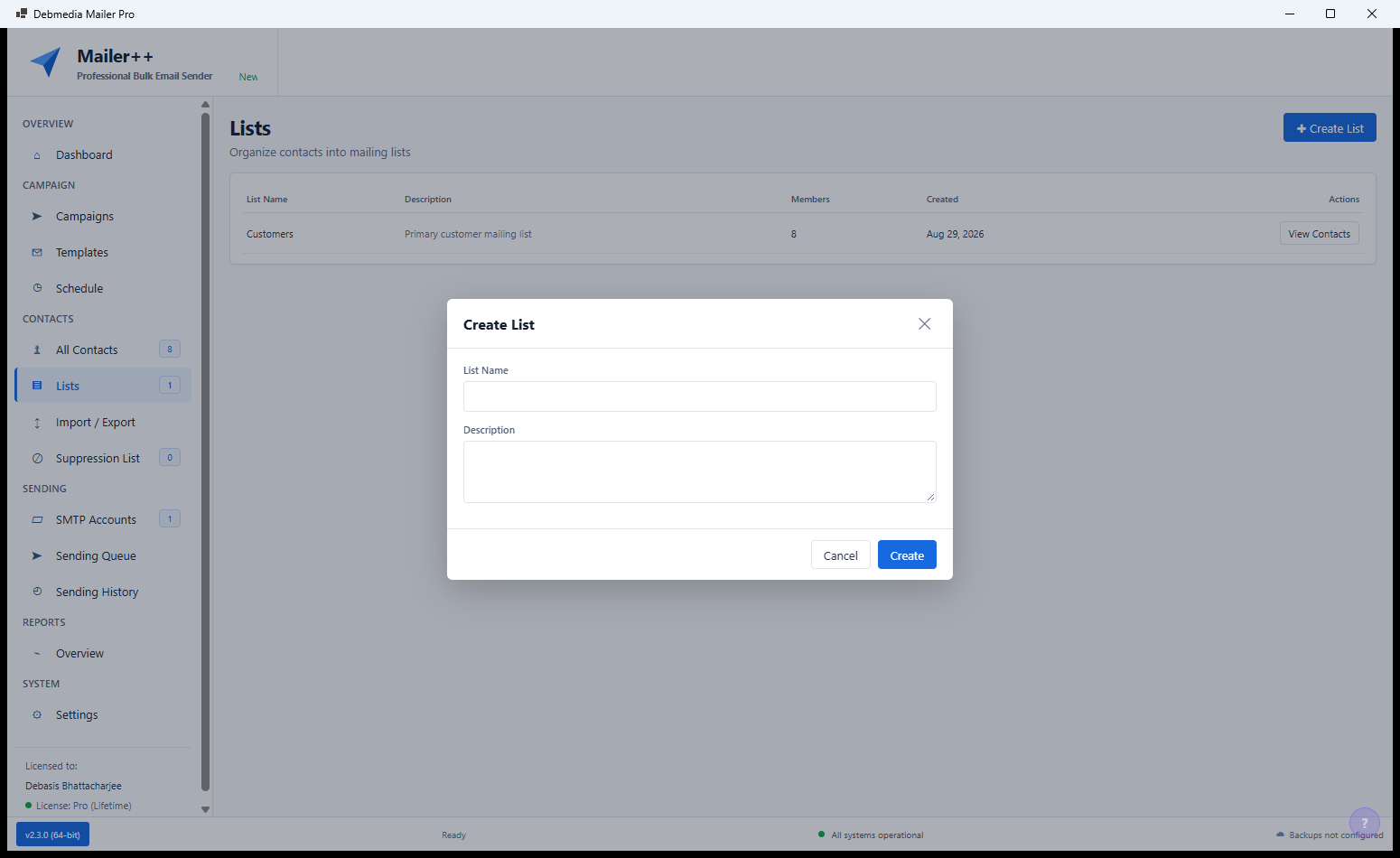
The Lead Management section (also called Contacts in the sidebar) is the heart of Mailer++’s data management. This overview shows all the contact lists you have created with their names, contact counts and creation dates. Lists are the primary way you organise contacts in Mailer++ — a contact can appear in multiple lists, allowing you to send a newsletter to your full list while sending a promotional campaign only to the contacts in a specific segment or interest group. Total contacts and total lists are shown in the summary at the top of the page.
Import Contacts — CSV and Manual Import
The Import Contacts screen handles CSV imports from any source — a CRM export, a spreadsheet of leads, a form submission export or a list from another email tool. Upload the CSV file and Mailer++ displays the column headers from the file alongside the Mailer++ contact fields — map “First Name” in the CSV to the First Name field in Mailer++, “E-mail” to Email, and any custom columns to custom fields you have defined. Import settings let you specify how duplicates are handled (skip, update or create a new entry) and whether to automatically check imported contacts against the unsubscribe list to avoid sending to opted-out addresses.
Add Contact — Manual Contact Creation
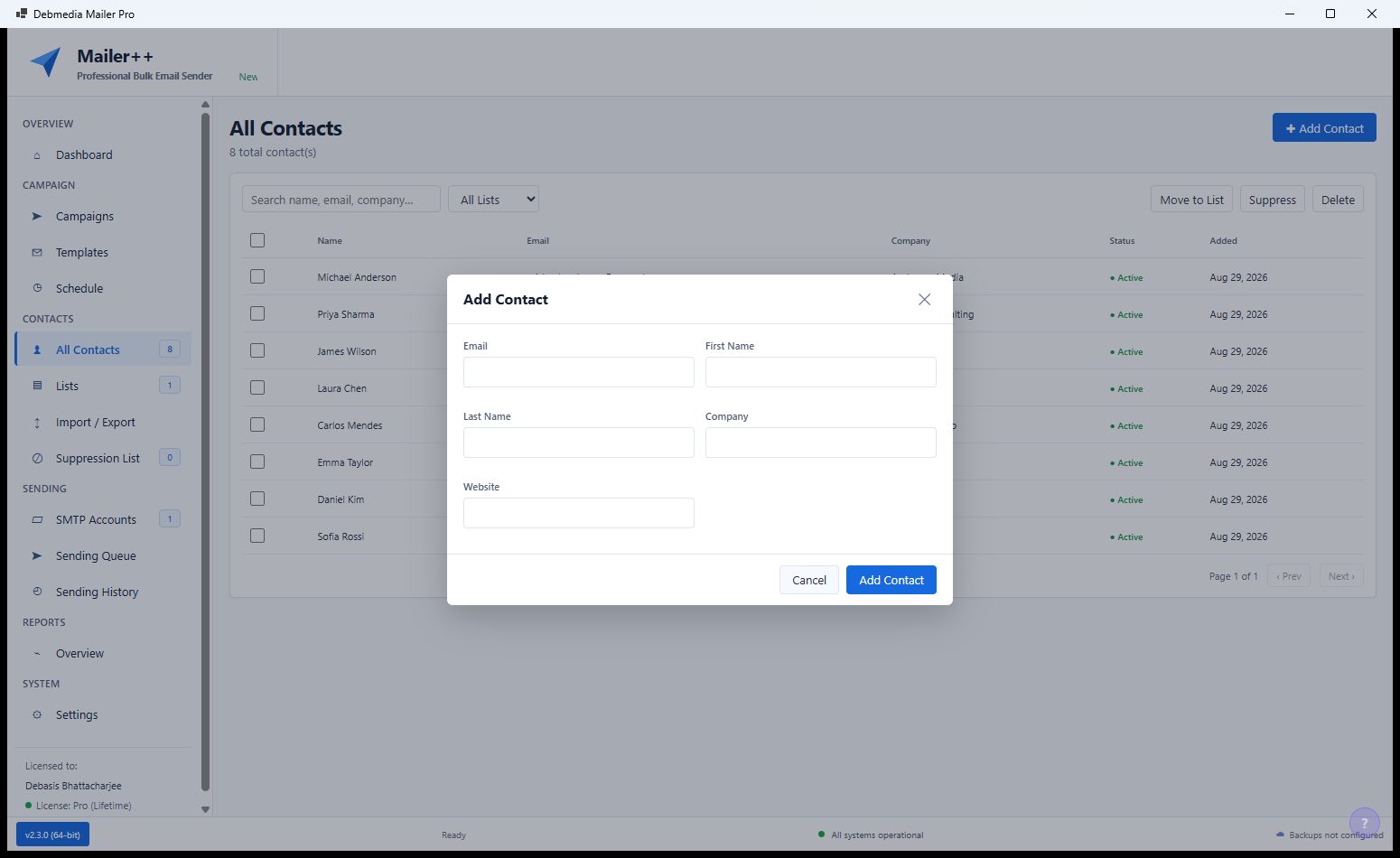
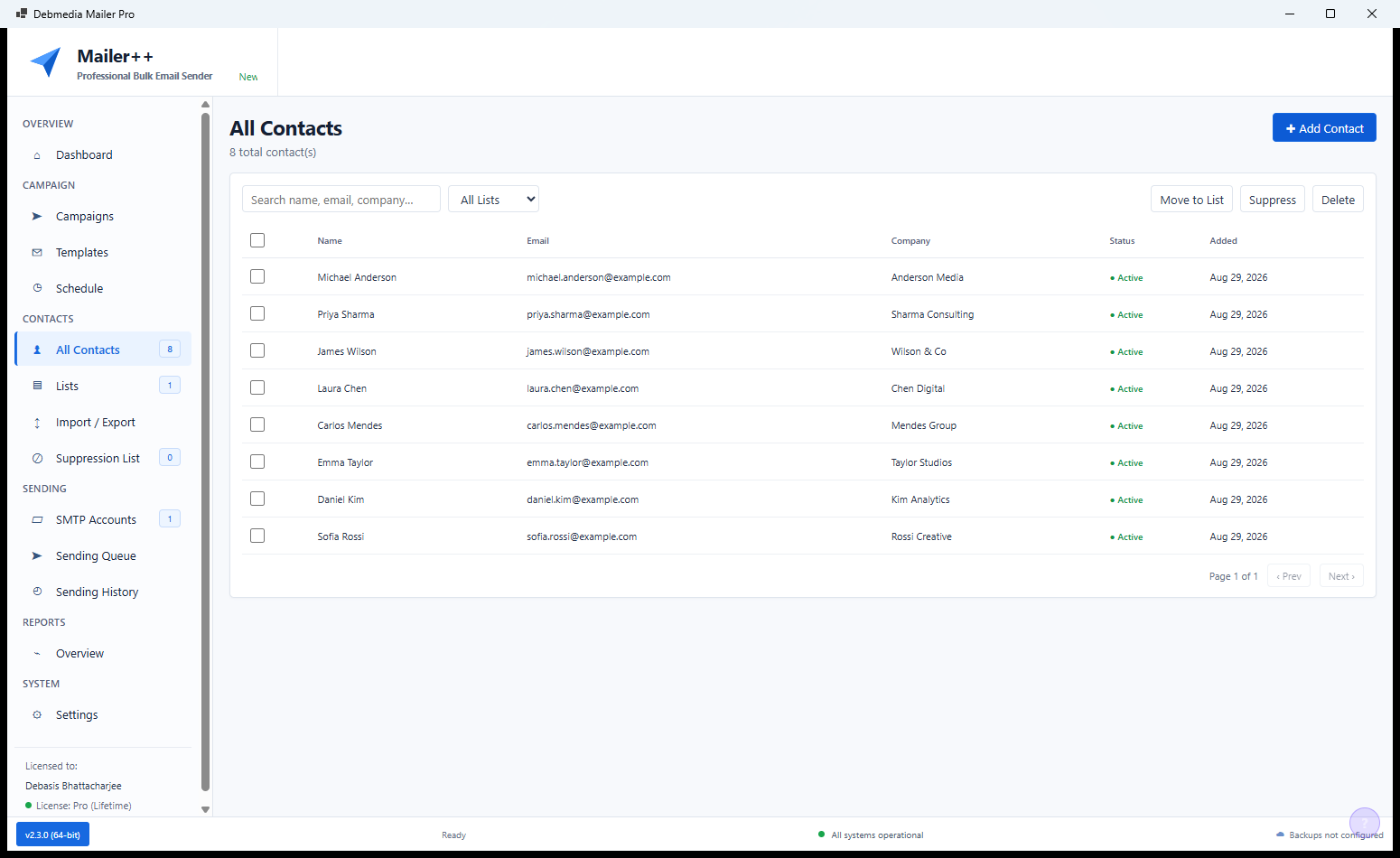
The All Contacts view shows every contact across all lists in a single table with their name, email address, phone number and the list they belong to. The Add Contact dialog (open in the screenshot) allows manually adding a single contact with four fields: First Name, Last Name, Email and Phone. Four existing contacts are visible in the table behind the dialog, demonstrating the clean layout of the contact table. Manual contact addition is useful for adding individual leads collected from events, business cards or direct conversations without needing to create and import a CSV file.
Contact Search and Management
The contact search and filter interface makes it easy to find specific contacts in a large list. Search by name or email address, filter by list membership, subscription status or any custom field value, and sort by any column. Each contact row has action buttons for editing the contact’s details, moving them to a different list, or unsubscribing them manually. Bulk selection allows performing these operations on multiple contacts at once — useful for moving a segment of contacts to a new list or handling a batch of unsubscribe requests.
Segmentation — Dynamic Audience Groups
Segmentation allows you to create dynamic groups of contacts that automatically update as contacts meet or stop meeting the criteria. Build a segment using any combination of contact field values, engagement data (opened last campaign, clicked a specific link) and custom attributes using AND/OR logic. For example: contacts who are in the “Newsletter” list AND opened at least one email in the last 30 days AND have the “Customer” tag. Send a re-engagement campaign to the contacts who have NOT opened any email in 90 days. Segments update automatically as contact data changes, so the audience for a scheduled campaign is always current at send time.
Unsubscribers — Opt-Out Management
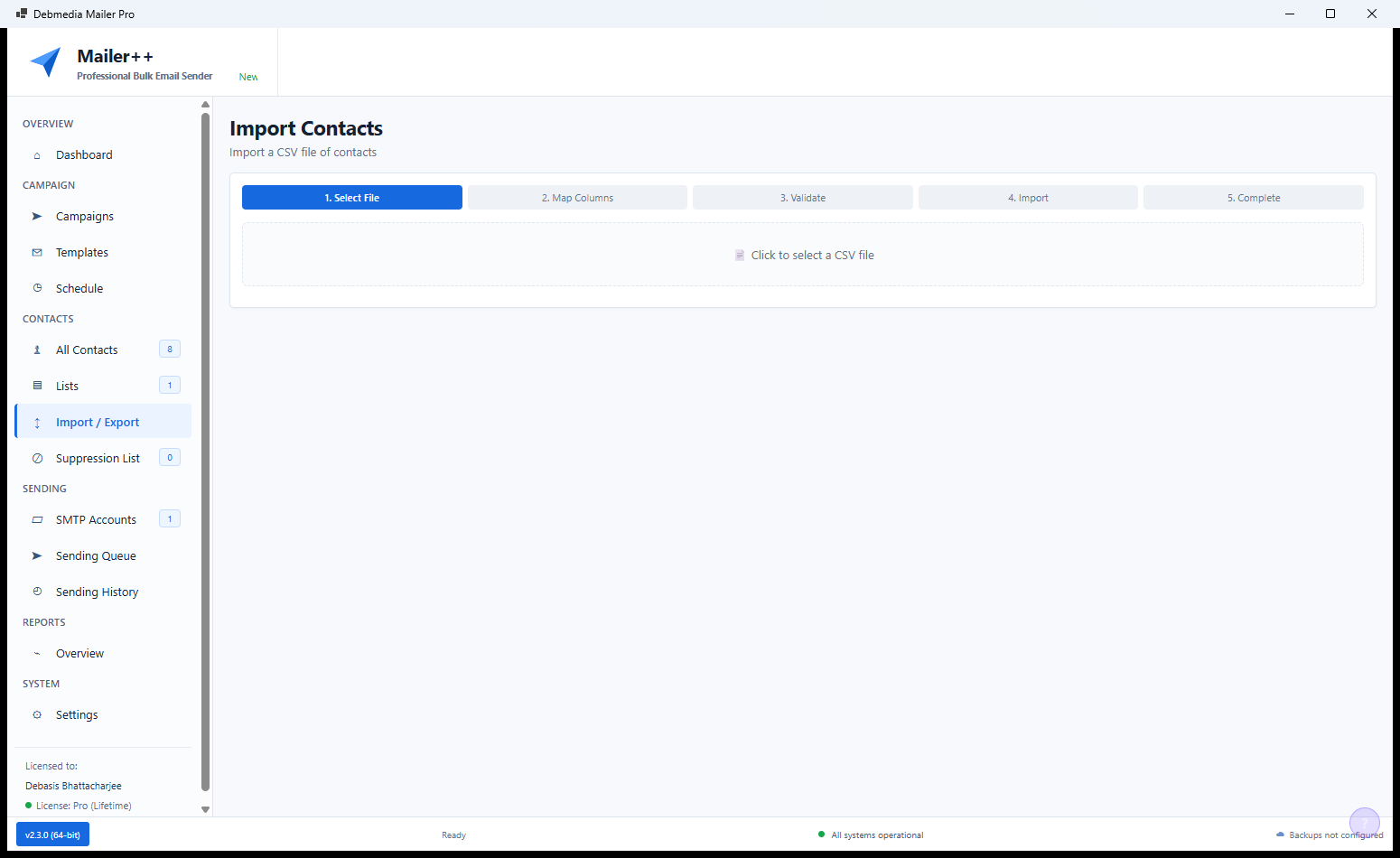
The Unsubscribers tab maintains a record of every contact who has clicked the unsubscribe link in any of your campaigns. The list shows the contact’s email address, the date they unsubscribed and which list or campaign triggered the opt-out. Mailer++ automatically excludes all contacts on the unsubscribe list from future campaigns — you never need to manually manage this list to stay compliant. The unsubscribe list is also checked during contact imports to prevent accidentally re-adding opted-out addresses.
Suppression List — Manual Email Exclusion
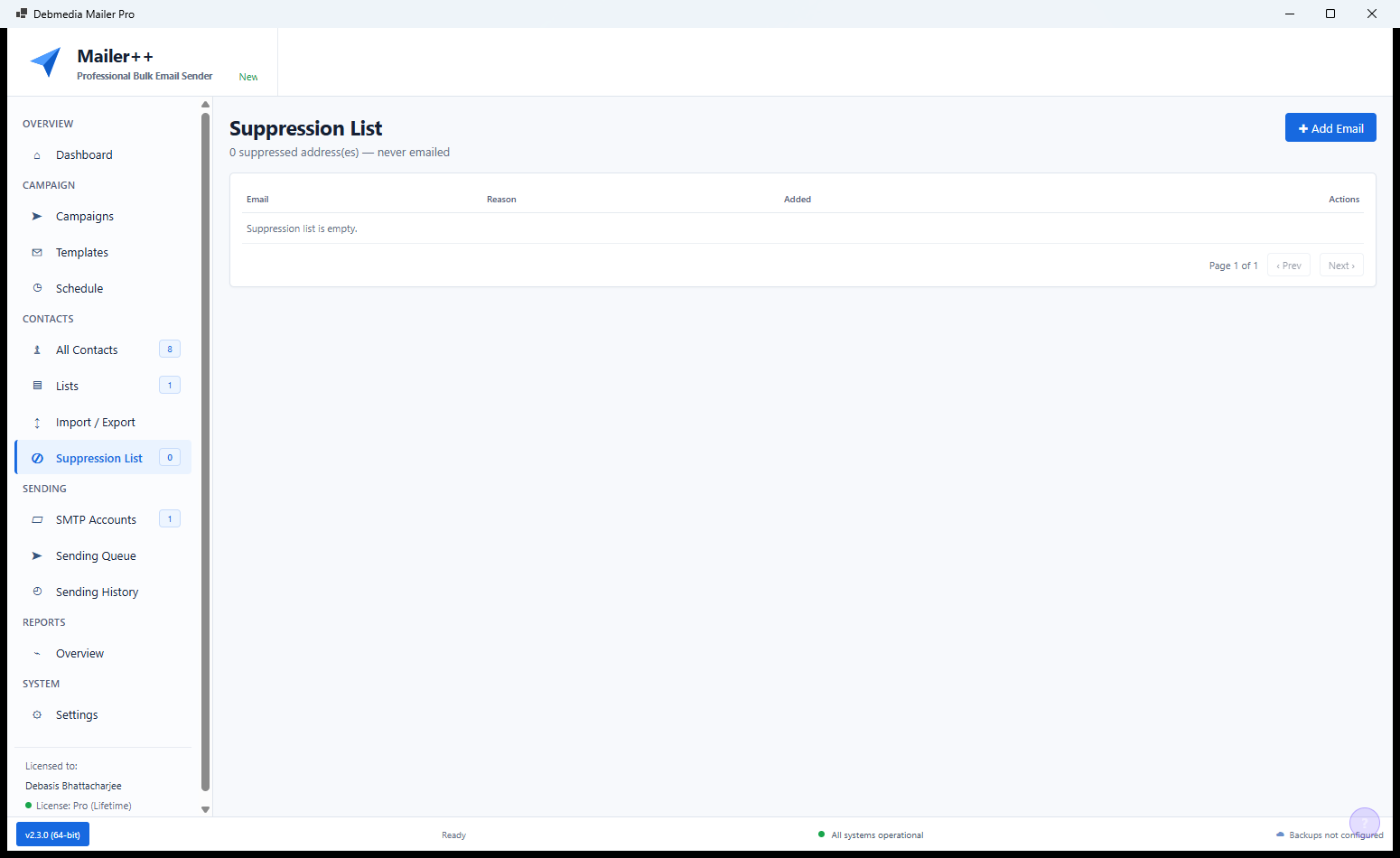
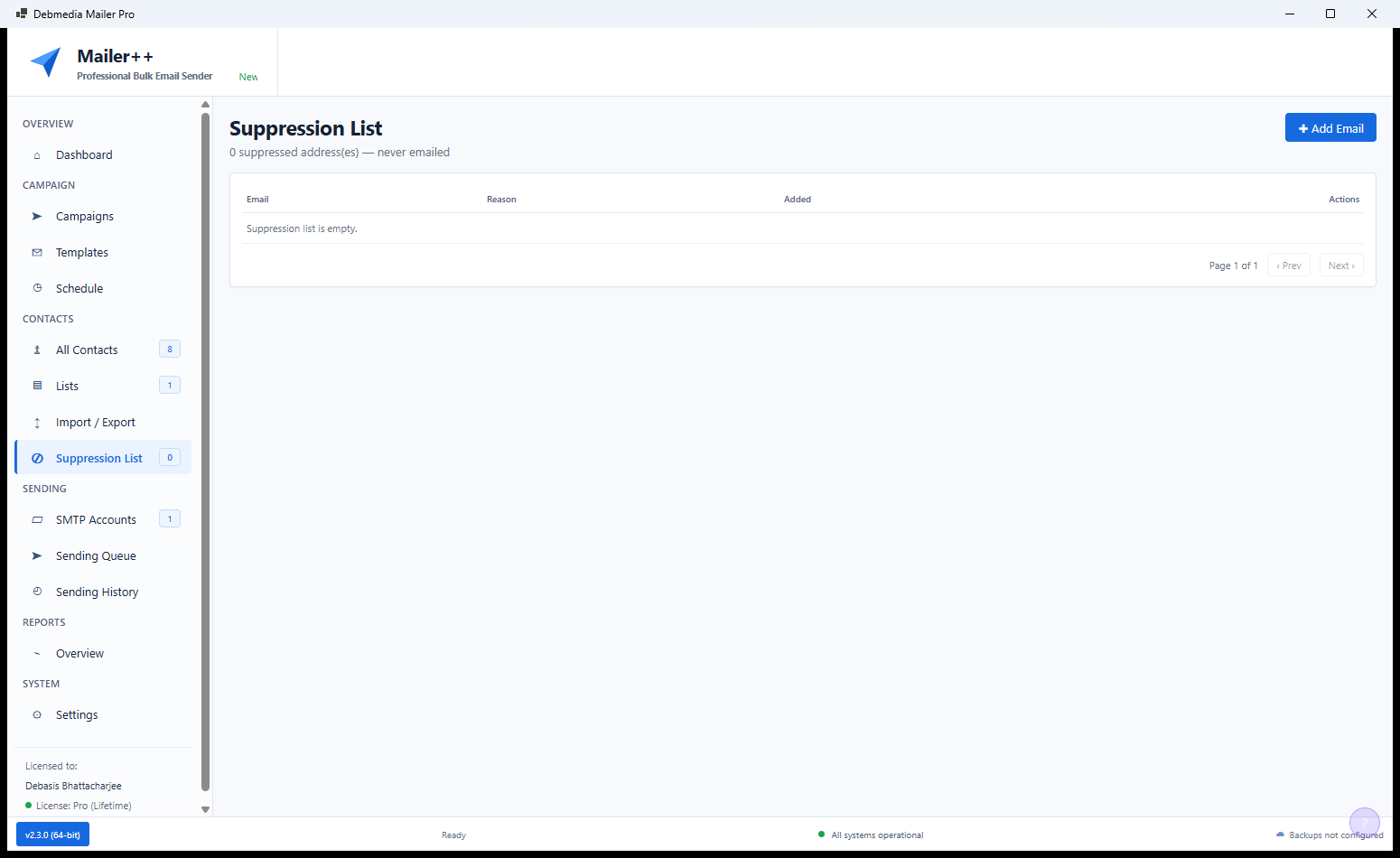
The Suppression List is separate from the Unsubscribers list and serves a different purpose: manually adding email addresses that should never receive campaigns regardless of their subscription status. This covers internal team email addresses that might be in your contact lists, email addresses associated with known spam trap domains, competitor addresses and any other contacts you want to permanently exclude from all sends. Add any address here and Mailer++ will skip it in every future campaign send, no matter which list is selected as the audience.
SMTP Configuration — Your Email Delivery Infrastructure
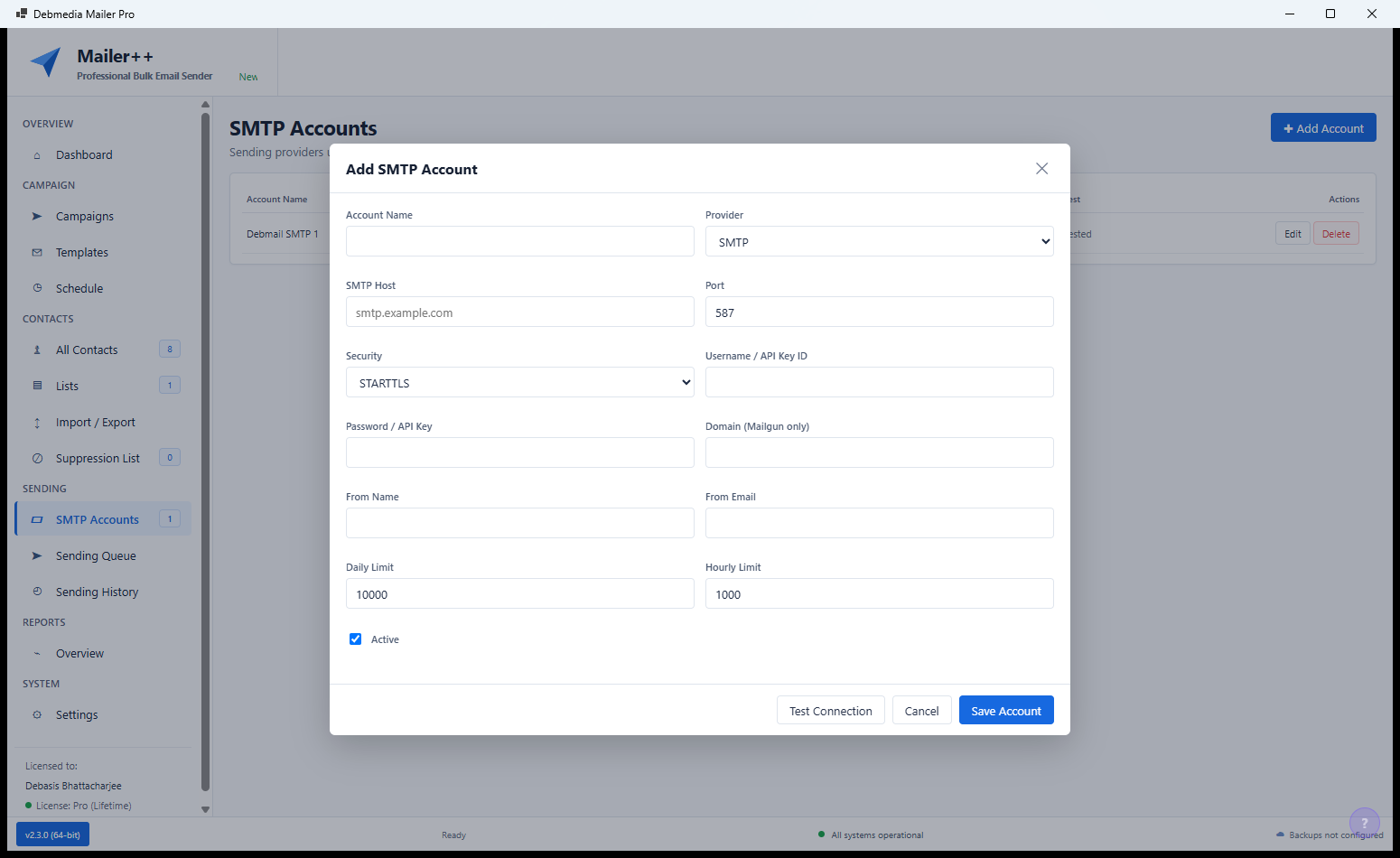
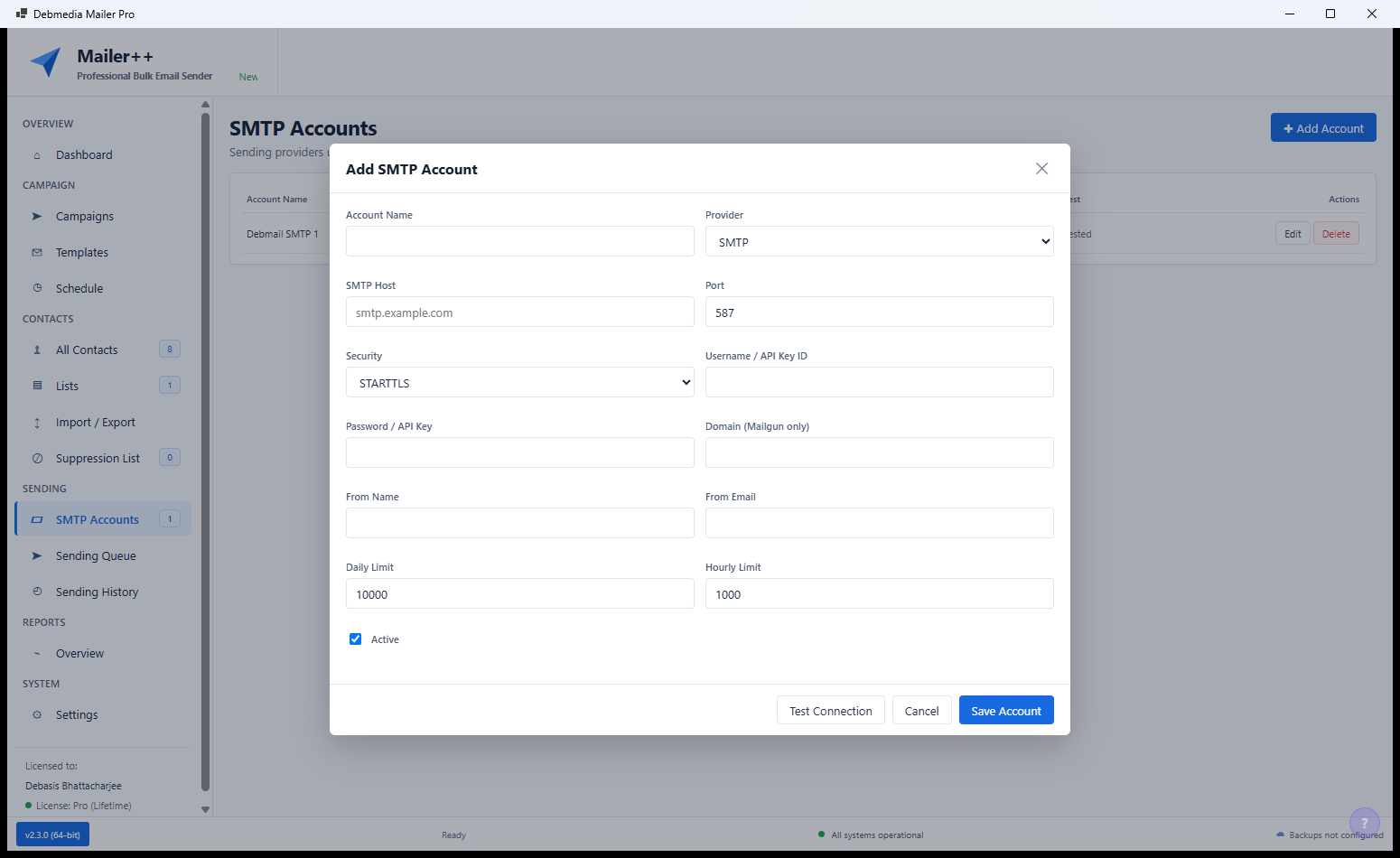
Mailer++ sends campaigns through any SMTP server you configure — your own mail server, Amazon SES, SendGrid, Mailgun, SMTP2GO or any other SMTP-compatible sending service. The SMTP configuration requires the host, port, username, password and encryption type (TLS or SSL). A Test Connection button immediately verifies the credentials and shows the connection status — green means campaigns will send; red shows the specific error to fix. Using your own SMTP server or a dedicated transactional email service gives you full control over deliverability and sending reputation independent of any third-party platform’s terms.
Email Automation — Drip Sequence Builder
The Automation tab provides a visual workflow builder for creating email drip sequences that run automatically when contacts meet a trigger condition. Set a trigger (contact added to list, contact clicks a link, contact opens a campaign), then build a sequence of steps: Wait 3 days → Send “Welcome email” → Wait 7 days → Send “Product introduction” → Wait 5 days → Send “Case study” → Add tag “Engaged.” Automation sequences run continuously in the background, sending the right email to each contact at the right time based on when they entered the workflow rather than on a fixed date.
Domain Management — Sending Domain Setup
The Domain Management section guides you through setting up SPF and DKIM records for your sending domain. These DNS records authenticate your emails to receiving mail servers, reducing the likelihood that campaigns land in spam folders and improving deliverability across all major email providers. Mailer++ generates the exact SPF and DKIM record values you need to add to your domain’s DNS settings and provides a verification check that confirms when the records are correctly configured. Proper domain authentication is one of the most impactful steps for improving email deliverability.
Campaign Analytics — Per-Campaign Performance
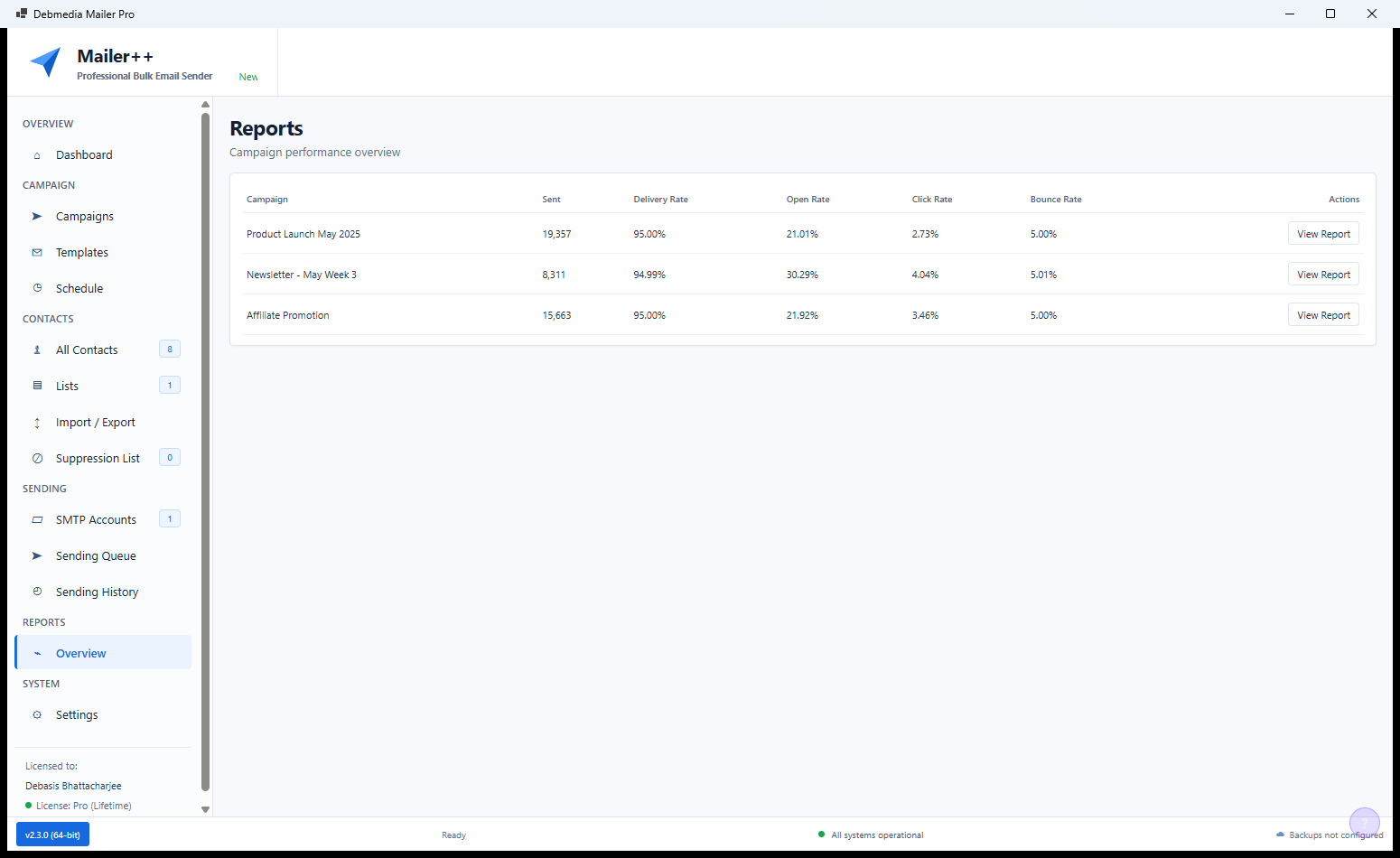
The Analytics section provides detailed per-campaign performance metrics: open rate, click-through rate, bounce rate, unsubscribe rate, and the absolute counts behind each percentage. The click map shows which links in the email were clicked and how many times each was clicked, revealing which calls-to-action in your campaign drove the most engagement. Comparing analytics across campaigns over time identifies trends — which subject line styles get higher open rates, which content types drive the most clicks — that inform how to improve future campaign performance.
List Reports — Contact Growth and Engagement Trends
List Reports provide a higher-level view of the health of your contact database over time. The list growth chart shows how the subscriber count has changed over weeks and months — a consistently growing list is a healthy list. Engagement rate trends show whether your audience is becoming more or less engaged over time. List health metrics identify the proportion of contacts who have never opened a campaign, who have become inactive, and who are consistently engaged — data that informs list hygiene decisions about removing non-responders and re-engagement campaign targeting.
Settings — Queue, License and Recovery
Mailer++ Settings organises critical configuration into three sections. The Sending Queue interval controls how often Mailer++ picks up queued emails and sends them — lower intervals send faster but consume more SMTP quota; higher intervals smooth out the load. The License section shows the activation status and allows entering a new license key. The Recovery Logs panel shows a real-time terminal-style feed of background operations — queue processing, SMTP connections, bounce handling and automation triggers — useful for diagnosing delivery issues without needing to check a separate log file.
Additional Settings and Preferences
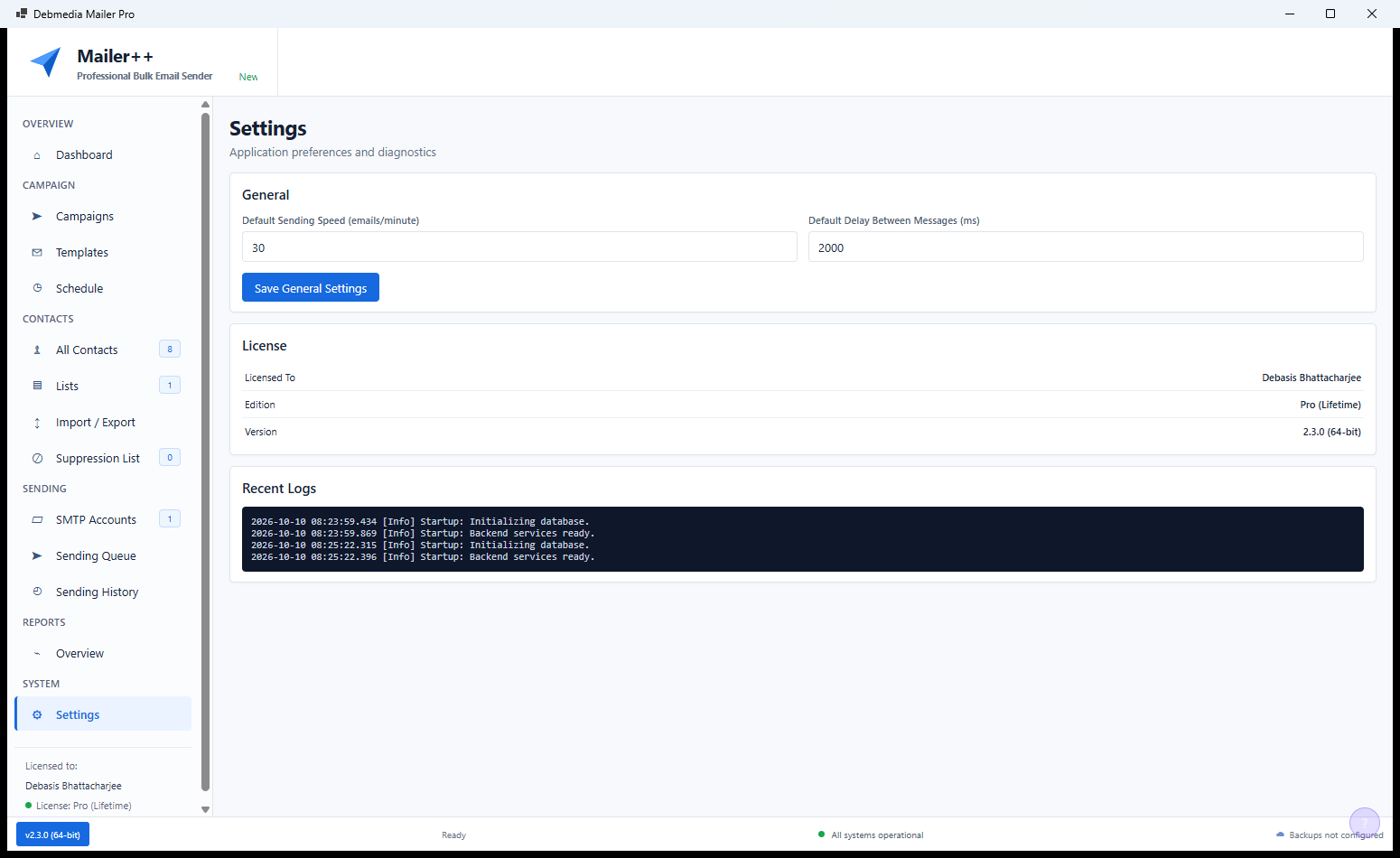
Additional settings cover notification preferences (when Mailer++ alerts you to campaign completions, delivery failures or automation triggers), the interface language, data backup and restore options (allowing you to export and import the full Mailer++ database for migration or backup purposes), and data management settings including whether to purge old campaign records after a specified retention period. The backup and restore feature is especially important for users who rely on Mailer++ as their primary email marketing tool — a full backup ensures that all contacts, campaigns, templates and settings can be recovered completely after a hardware failure.
Who Is Mailer++ For?
- Solopreneurs and small business owners — Own your email list and send through your own SMTP server without a monthly SaaS fee. Build beautiful campaigns with the template editor and manage unlimited contacts locally.
- Digital marketers who need full control — Configure any SMTP sender, build custom segments, create automated drip sequences and analyse per-campaign performance with click maps and engagement trends — all from a desktop app that works offline.
- Agencies managing client email lists — Manage separate contact databases, campaigns and SMTP configurations for multiple clients from a single installation, with full data portability via the backup and export tools.
- Developers and technical users — Own the full sending infrastructure, configure SPF/DKIM authentication directly, monitor the delivery queue and inspect delivery logs — without the restrictions of a hosted email platform.
- Bloggers and content creators with newsletter audiences — Build and send a regular newsletter to a growing list with automated welcome sequences and segment-targeted campaigns, without paying per-subscriber fees.
System Requirements
- Operating System: Windows 10 (64-bit) or Windows 11
- Processor: Intel Core i3 or AMD Ryzen 3 equivalent or better
- RAM: 4 GB minimum — 8 GB recommended for large contact lists
- Storage: 200 MB for the application; additional space for contact database and campaign history
- Network: Internet connection required for sending campaigns and verifying domain DNS records
- SMTP Server: Any SMTP-compatible sending service (self-hosted, Amazon SES, SendGrid, Mailgun, Gmail SMTP or similar)
- Runtime: .NET Desktop Runtime 6.0 or later (included in the installer)
Frequently Asked Questions
Do I need to pay for a third-party email service to use Mailer++?
Mailer++ sends email through any SMTP server you configure. If you have your own mail server, you can use it at no additional cost. Many users also connect a low-cost transactional email service like Amazon SES (around $0.10 per 1,000 emails) or use Gmail SMTP for smaller lists. Mailer++ itself is a one-time purchase — there is no subscription fee for the software itself regardless of how many contacts you have or campaigns you send.
How many contacts can Mailer++ handle?
Mailer++ stores contacts in a local SQLite database that scales well into hundreds of thousands of contacts on typical modern hardware. The practical sending limit depends on your SMTP server’s capacity and daily sending limits rather than any restriction in Mailer++ itself. For large lists (100,000+ contacts), using a dedicated transactional email service as your SMTP backend is recommended for reliable delivery speed.
Does Mailer++ handle unsubscribes automatically?
Yes. Every campaign includes a required unsubscribe link. When a recipient clicks it, their address is immediately added to the unsubscribe list and Mailer++ will never send to that address again, regardless of which list they are in or which campaign is sent in the future. The unsubscribe list is also checked during CSV imports to prevent opted-out contacts from being re-added.
Can I transfer my contact list from another email tool to Mailer++?
Yes. Export your contact list as a CSV from your current tool and import it into Mailer++ using the CSV import feature. The column mapping step handles any difference in field naming between tools. Contact tags, custom fields and list assignments can all be preserved during import if they are included as columns in the export CSV.
Your Email List, Your Rules — Professional Email Marketing on Your Desktop
Mailer++ gives you the tools that used to cost hundreds of dollars per month in SaaS fees — campaign creation, contact management, segmentation, automation, SMTP configuration, deliverability setup and detailed analytics — as a one-time purchase that runs completely on your own Windows PC. Your contact data never leaves your machine. Your campaigns go through your own SMTP server. Your email marketing is genuinely yours. Whether you are sending a weekly newsletter to five hundred subscribers or running automated drip sequences for fifty thousand, Mailer++ provides the infrastructure to do it professionally and affordably.
Download Mailer++ today — import your first contact list, configure your SMTP server, and send your first campaign in under an hour.
Download Mailer++
Desktop email campaign builder and bulk mailer for Windows