Karaoke Studio ++
Separate vocals from music and create karaoke tracks on your desktop
Karaoke Studio++ uses AI-powered vocal separation to remove vocals from any song and create instant karaoke backing tracks — entirely on your desktop, with no internet connection required. Load any MP3, WAV or FLAC file, run the vocal separation, and within seconds you have two files: the instrumental track and the isolated vocals. The built-in karaoke player lets you sing along to the instrumental while lyrics scroll in sync, with a microphone mixer so your voice blends naturally with the backing track. Karaoke Studio++ also lets you import LRC lyrics, adjust the pitch of the backing track to suit your vocal range, and record your performance to save or share. Everything stays on your machine — no uploads, no subscriptions.
See Karaoke Studio++ in Action
A clean, modern interface designed for real-world use.
Karaokestudio screen 01 screenshot
What Is Karaoke Studio++?
Karaoke Studio++ is a Windows desktop karaoke recording application that lets you sing over any backing track and capture the result as a polished mixed audio file. Unlike consumer karaoke apps that require an internet connection or a subscription library, Karaoke Studio++ works with your own music files — load any WAV, MP3 or audio file as the backing track, connect your microphone, choose a voice effect preset, and record. The finished mix combines both tracks into a single export-ready file you own completely.
The app features a neon-lit dark interface with a cyberpunk aesthetic, real-time waveform display on both tracks, and a one-click MIX workflow that blends your voice with the music at the right balance automatically.
Screen-by-Screen Feature Walkthrough
1. The Recording Studio — Ready to Perform
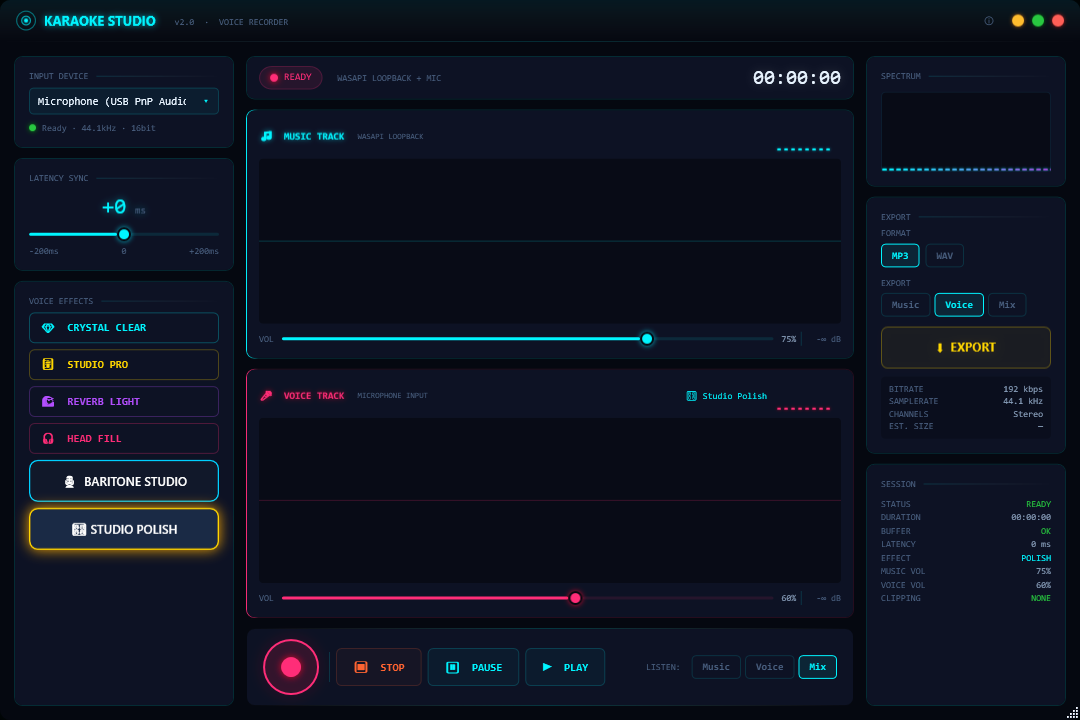
Before you sing a note, Karaoke Studio++ gives you complete control over your input. The left panel manages your microphone — select your input device (USB PnP Audio or any connected microphone), set the gain level with the slider (the screenshot shows +8), and choose from four built-in voice effects: Crystal Clear, Studio Mix, Studio Light, and What Fill. Below the effects list sit two professional presets — BARITONE STUDIO and STUDIO POLISH — which apply a complete chain of processing tuned for different vocal characters. STUDIO POLISH is the highlighted default, adding warmth and polish to any voice. The centre area shows the MUSIC TRACK and VOICE TRACK bars, both empty and awaiting content. The bottom transport row provides REC, STOP, PAUSE, PLAY and MIX controls. The right panel includes the EXPORT button for when you are ready to save the finished mix.
2. Recording in Progress — Music and Voice Together
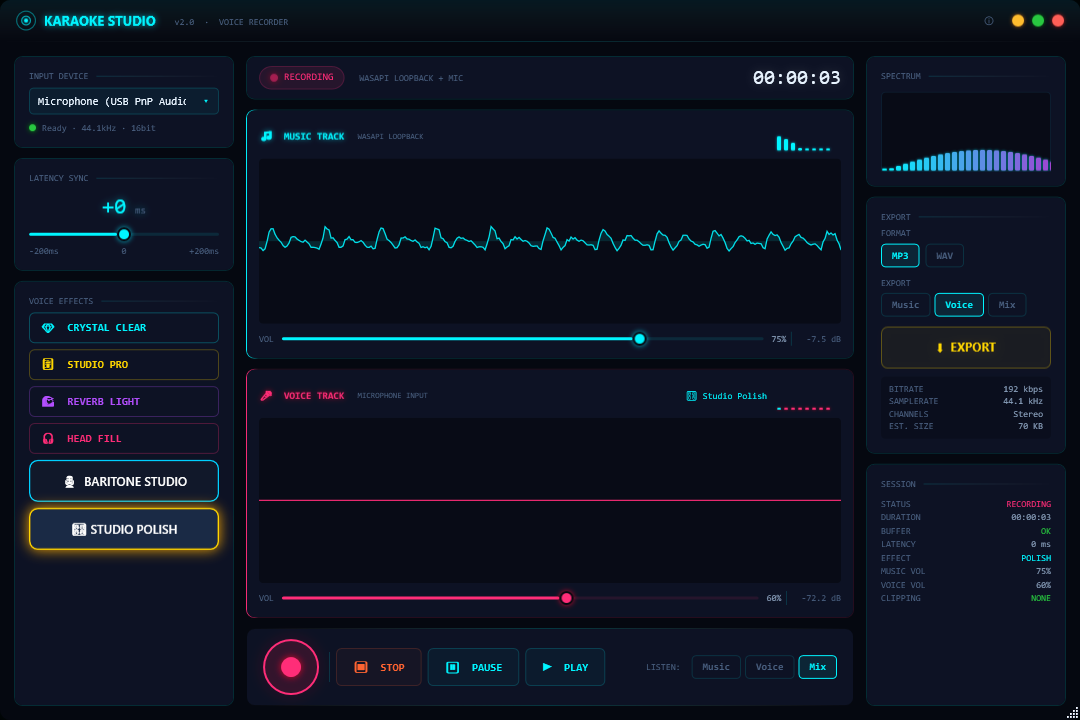
Once you load a backing track and press REC, the interface springs to life. The MUSIC TRACK bar fills with the waveform of the playing backing track, and the RECORDING indicator lights up at the top of the screen confirming your microphone is actively capturing your voice. The timer advances — at the moment of this screenshot, 3 seconds into the recording. Studio Polish preset remains active, processing your vocal input in real time. A spectrum analyser in the right panel gives you live visual feedback on the audio energy being captured. You can hear yourself through your speakers or headphones while recording without needing to configure any monitor routing — Karaoke Studio++ handles the mix-minus automatically.
3. Both Tracks Recorded — Ready to Mix and Export
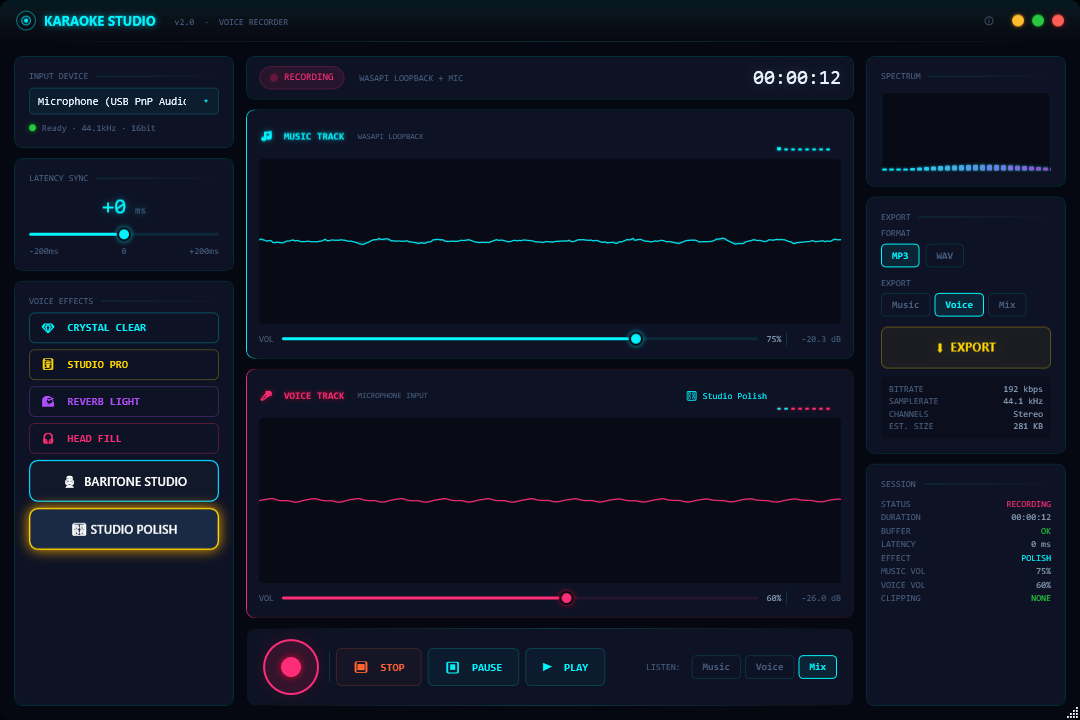
When recording is complete, both the MUSIC TRACK and VOICE TRACK bars display their respective waveforms side by side. The music track shows the backing track’s audio shape, and the voice track shows your vocal recording — you can see at a glance the timing and energy of your performance relative to the music. From here, pressing MIX blends the two tracks together at a balanced ratio. Once mixed, the EXPORT button saves the result as a shareable audio file. If you are not satisfied with the take, you can re-record the voice track without losing the backing music — it stays loaded until you replace it.
Who Is Karaoke Studio++ For?
- Karaoke enthusiasts at home — Turn your PC into a full recording studio. Sing over any backing track from your music library, not just a limited online catalogue.
- Aspiring vocalists and music students — Record practice sessions and listen back to evaluate your pitch, timing and tone in the context of real music.
- Content creators — Record vocal covers of songs for YouTube, TikTok, Instagram Reels or podcast intros and export them as finished audio files ready to upload.
- Families and event hosts — Run a home karaoke night where every performance is automatically saved — the recordings become a keepsake of the evening.
- Bedroom producers — Quickly capture reference vocal takes over instrumental tracks during the songwriting and arrangement process, without setting up a full DAW session.
System Requirements
- Operating System: Windows 10 (64-bit) or Windows 11
- Processor: Any modern x64 processor
- RAM: 4 GB minimum
- Audio: Any Windows-compatible microphone — USB microphones recommended for best quality
- Storage: 100 MB for the application (additional space for recordings)
- Display: 1280 × 720 minimum
- Internet: Not required — fully offline
Frequently Asked Questions
What audio formats can I use as a backing track?
Karaoke Studio++ accepts MP3, WAV, FLAC and OGG files as backing tracks. Any audio file you have on your drive can become a karaoke backing track.
What format are the exported recordings saved as?
Finished mixes are exported as WAV or MP3. WAV provides lossless quality for archiving; MP3 produces smaller files suitable for sharing online.
Can I adjust the volume balance between my voice and the music?
Yes. The MIX step includes a voice/music balance slider. You can boost or reduce your vocal level relative to the backing track before exporting, ensuring the final file sounds exactly how you want it.
Do I need a professional microphone?
No. Karaoke Studio++ works with any Windows-compatible microphone, including built-in laptop microphones and inexpensive headset mics. The built-in voice effects and presets improve the quality of your input regardless of the microphone used.
Can I re-record without losing the backing track?
Yes. Only the voice track is replaced when you record again. The backing track stays loaded until you explicitly remove it or load a different file.
Your Home Recording Studio, No Equipment Required
Karaoke Studio++ closes the gap between singing along to music and actually capturing a performance worth keeping. With professional voice presets, real-time waveform feedback, and a one-click mix and export workflow, the technical side of recording stays invisible — so you can focus entirely on the performance.
Load a track, sing, export. That is the entire process. Download Karaoke Studio++ now and start recording today.
Download Karaoke Studio++
Separate vocals from music and create karaoke tracks on your desktop