Deb Explorer
Fast, lightweight file manager with dual-pane view and folder comparison
Deb Explorer is a fast, lightweight Windows file manager with a dual-pane layout, tabbed browsing, folder size calculation, bulk rename, file comparison and archive management — designed for power users who outgrew File Explorer.
See Deb Explorer in Action
A clean, modern interface designed for real-world use.
Smartexplorer screen 01 screenshot
Deb Explorer is a modern Windows file manager that replaces the default Windows Explorer with a cleaner interface, smarter file information columns, and tools that Windows itself lacks — like real folder size calculation, a file preview panel, a folder depth indicator, and a detailed folder contents breakdown. It’s built for users who work with large file collections and need to understand exactly what’s on their drives without resorting to third-party utilities.
Screen 1 — Main File Browser
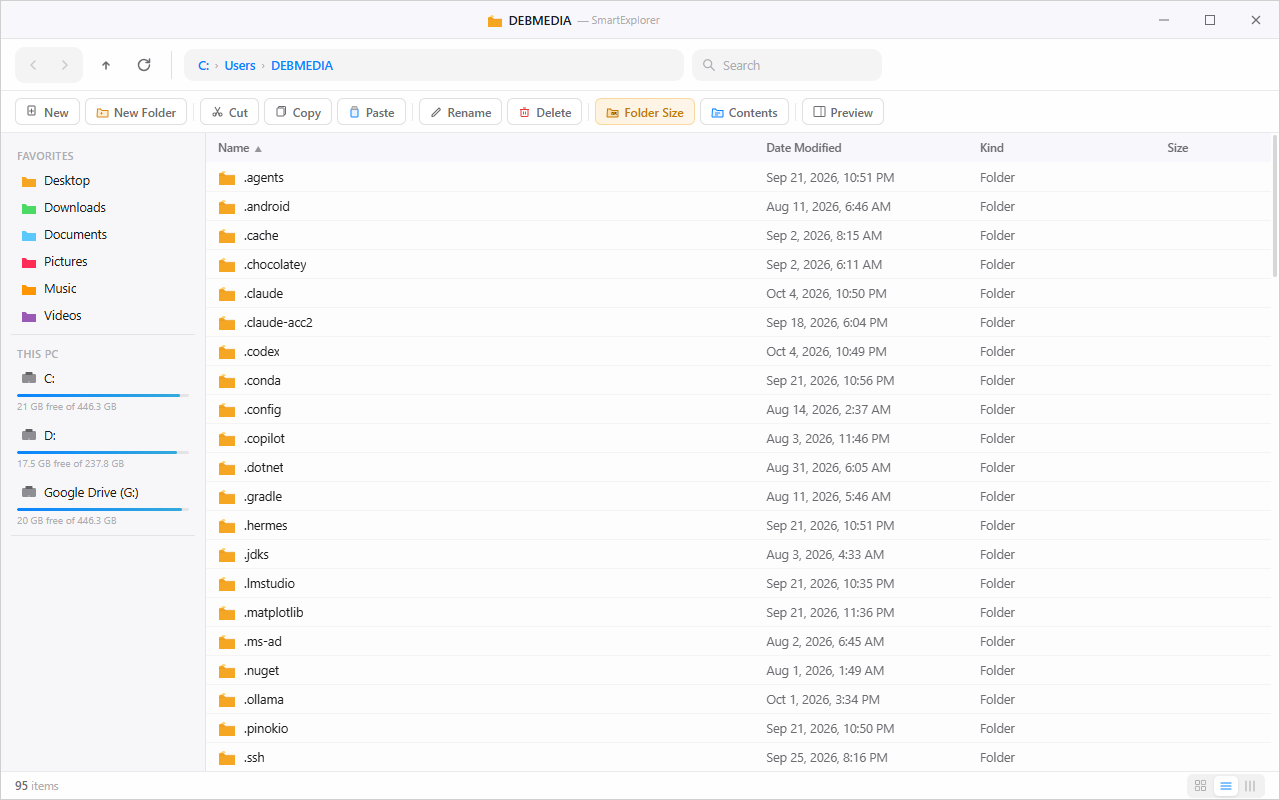
The main browser view of Deb Explorer shows the C:UsersDEBMEDIA folder with 95 items listed in a clean table view — Name, Date Modified, Kind, and Size columns visible. The breadcrumb address bar at the top lets you navigate your path directly. The left sidebar shows categorized quick access: Favorites (Desktop, Downloads, Documents, Pictures, Music, Videos) and This PC — with live disk space indicators for each drive (C: 21 GB free of 446.3 GB, D: 17.5 GB free, Google Drive G: 20 GB free). The top toolbar provides all standard operations (New, New Folder, Cut, Copy, Paste, Rename, Delete) plus three smart feature buttons: Folder Size, Contents, and Preview.
Screen 2 — Large Folder View
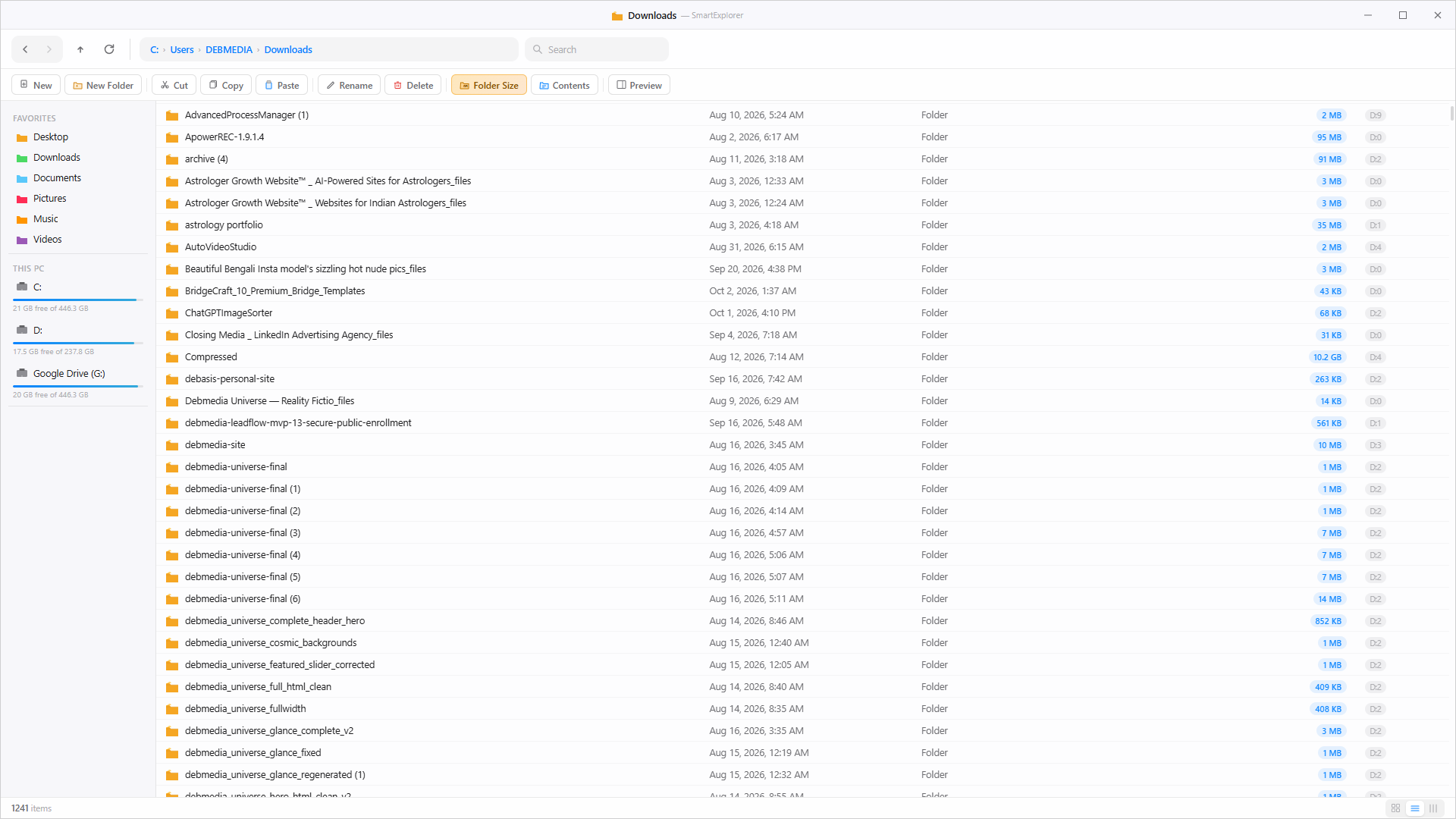
Deb Explorer handles large folders comfortably. Here, the Downloads folder with 1,241 items is displayed in full detail view. The Folder Size button is active — shown highlighted in the toolbar — and folder sizes are calculated and displayed in a dedicated column next to each entry. You can see at a glance that “Compressed” is 10.2 GB, “astrology portfolio” is 35 MB, and “ApowerREC-1.9.1.4” is 95 MB. Windows Explorer doesn’t show folder sizes by default; Deb Explorer makes them a first-class column.
Screen 3 — Folder Size & Depth Columns
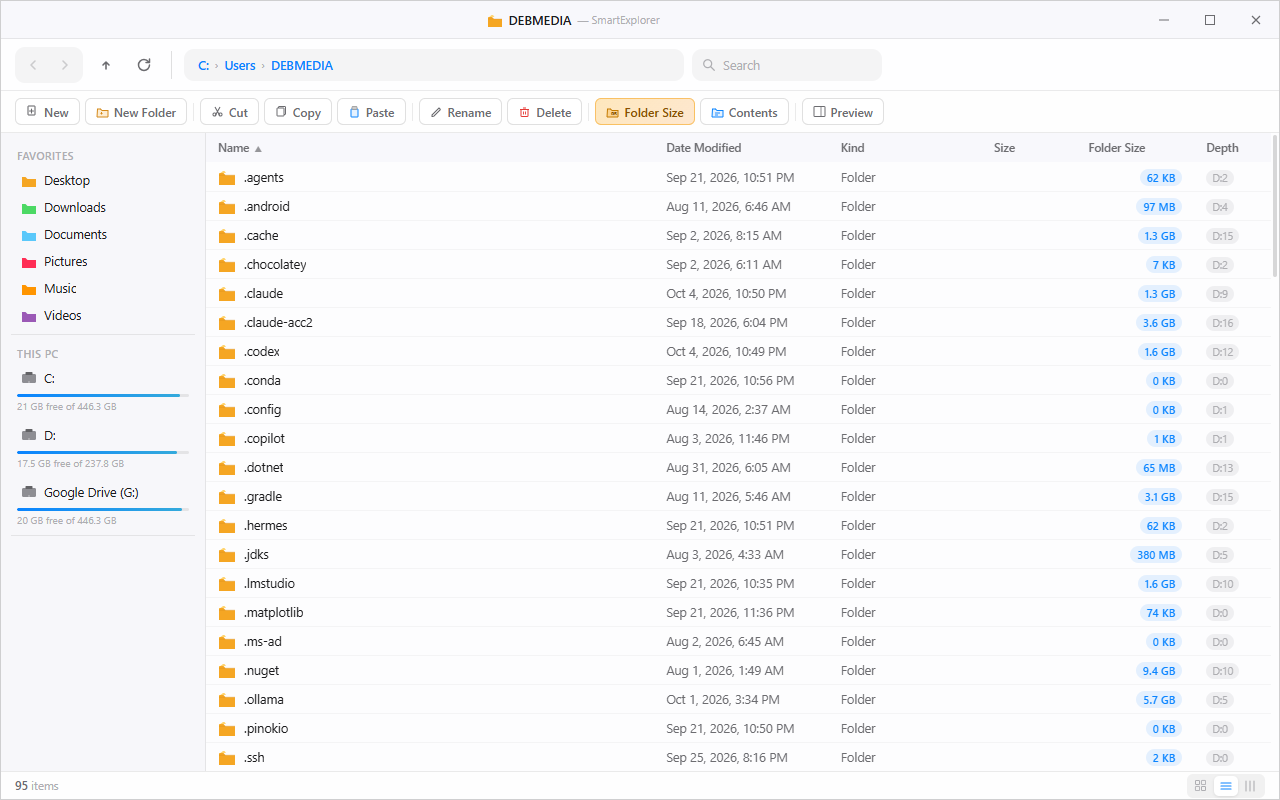
With Folder Size active on the DEBMEDIA home folder, every subfolder shows its true recursive size and a Depth (D:N) indicator — how many levels deep the folder hierarchy goes. For example: .android is 97 MB, depth D:4; .cache is 1.3 GB, depth D:15; .claude is 1.3 GB, D:9; .claude-acc2 is 3.6 GB, D:16; .nuget is 9.4 GB, D:10. The Depth column is unique to Deb Explorer — it instantly tells you whether a folder has a deep, complex structure or is relatively flat. Combined with size, it lets you pinpoint which nested folder trees are consuming the most disk space.
Screen 4 — Preview Panel
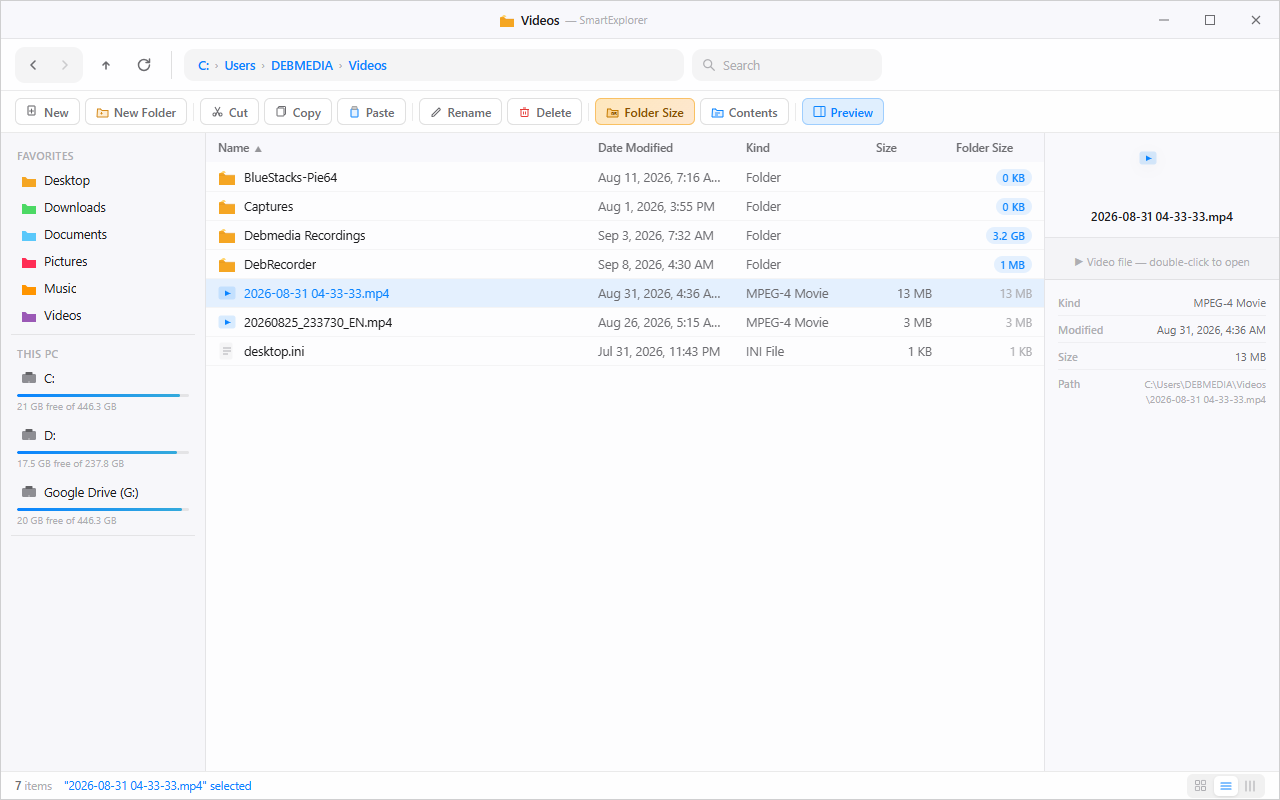
Clicking Preview in the toolbar opens a right-side panel that shows detailed metadata for any selected file. With a video file selected (“2026-08-31 04-33-33.mp4”), the Preview panel instantly shows: Kind (MPEG-4 Movie), Modified (Aug 31, 2026, 4:36 AM), Size (13 MB), and the full Path (C:UsersDEBMEDIAVideos…). The panel also notes “Video file — double-click to open.” The Folder Size column is still active, showing that the “Debmedia Recordings” folder contains 3.2 GB of video files. Preview works across all file types — images, documents, and media.
Screen 5 — Contents View
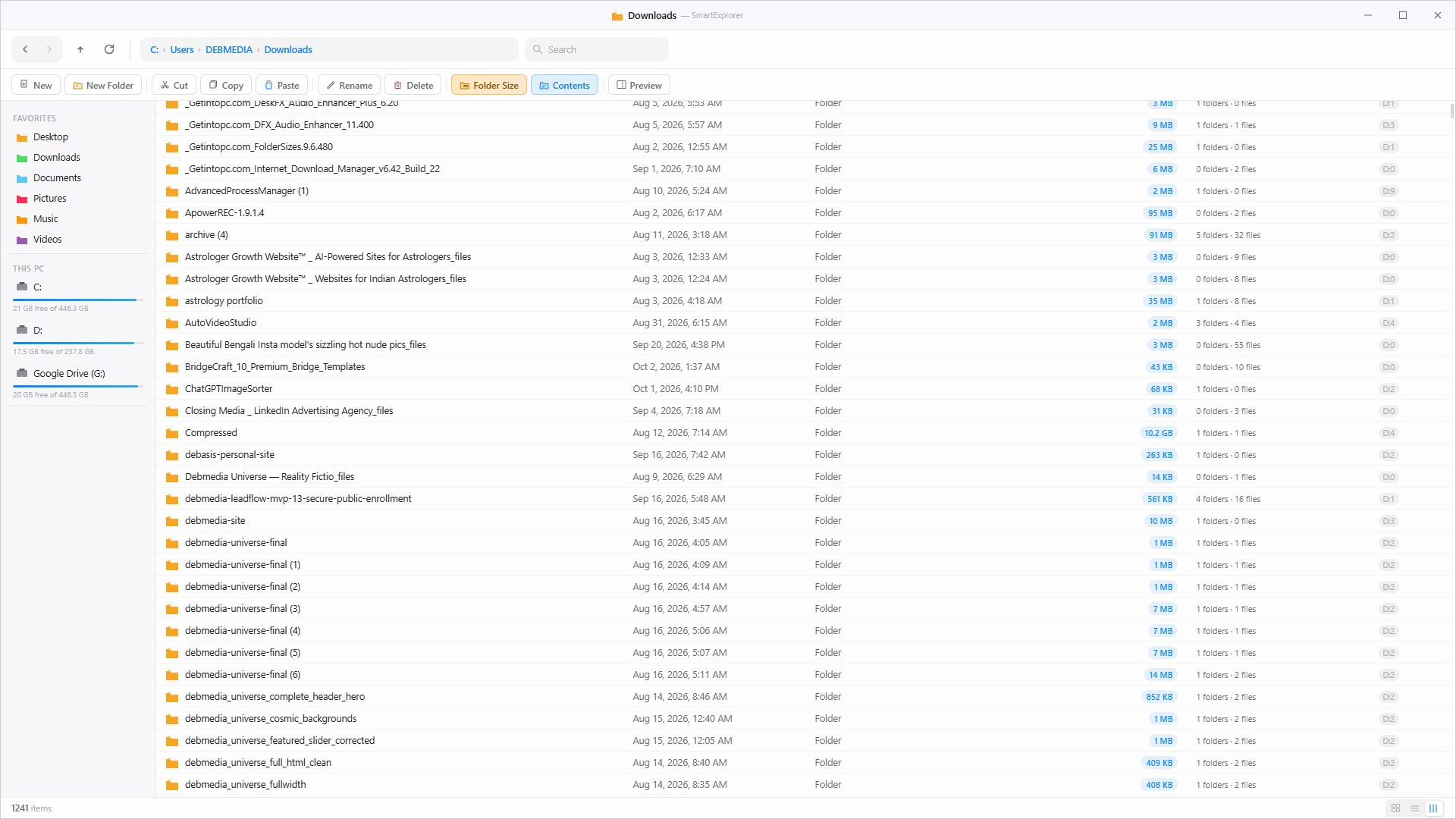
The Contents button switches the size column to show each folder’s internal structure as N folders · M files — without recursing into subfolders. The Downloads folder (1,241 items) shows entries like: archive (4) = 5 folders · 32 files; AutoVideoStudio = 3 folders · 4 files; Compressed = 1 folder · 1 file. This is useful when you want to understand what a folder contains at its top level before diving in — especially for managing large download directories where some folders are zip archives, some are full installations, and some are empty.
Screen 6 — Depth Column
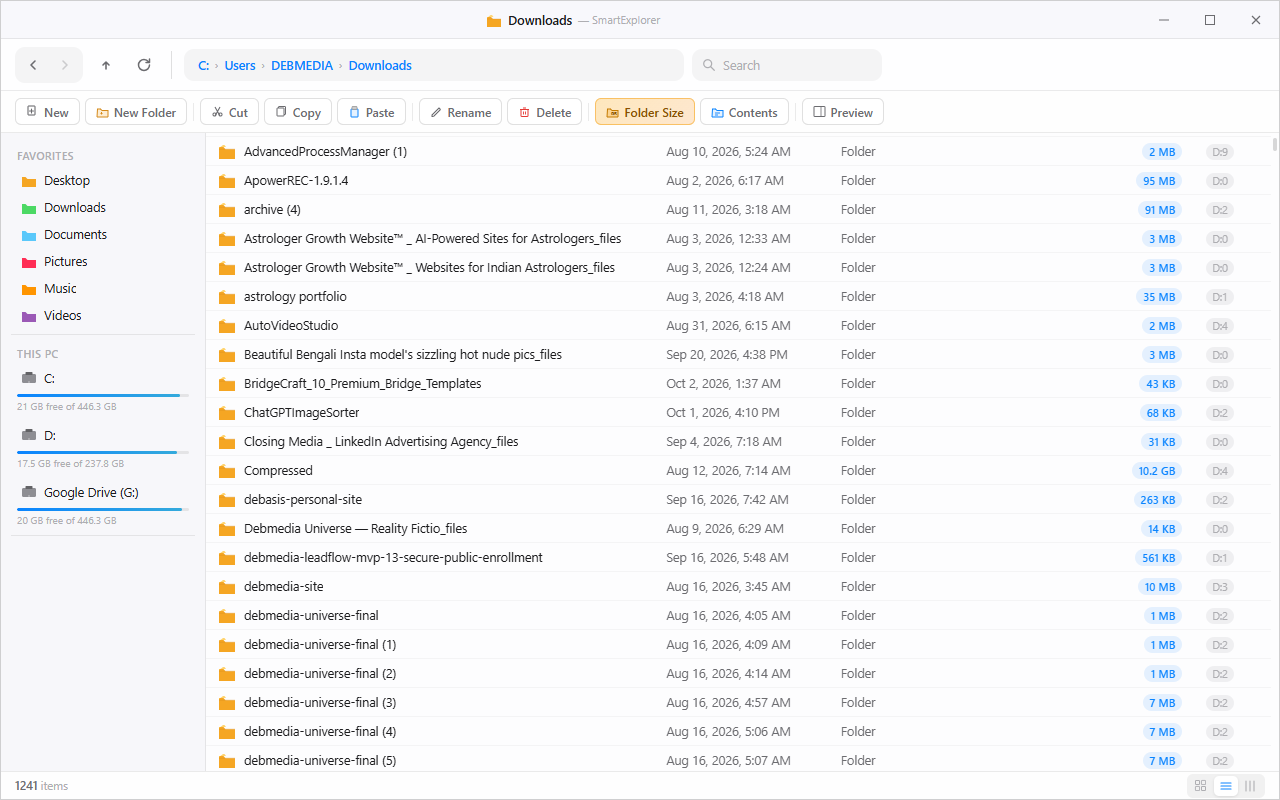
The final view shows the Downloads folder with both Folder Size and Depth columns visible together. The depth indicator (D0–D:N) maps the hierarchy depth of each subfolder. AdvancedProcessManager (1) is D:9 with 2 MB; archive (4) is D:2 with 91 MB; AutoVideoStudio is D:4 with 2 MB. Sorting by depth quickly surfaces the deeply nested folder trees that might be difficult to audit with a standard file manager. Together with Folder Size, it gives a complete spatial map of your Downloads folder without needing a separate disk analysis tool.
Key Features at a Glance
- Folder Size column — calculates true recursive folder sizes, not just file counts
- Depth indicator — shows how many levels deep each folder’s hierarchy goes
- Contents view — shows “N folders · M files” breakdown per directory
- Preview panel — instant metadata for any selected file without opening it
- Drive space indicators — live free/total display for each drive in the sidebar
- Breadcrumb navigation — click any level in the path to jump back instantly
- Search — real-time search box in the toolbar
- Multiple view modes — grid, list, and detail views
- Standard file operations — New, New Folder, Cut, Copy, Paste, Rename, Delete all built in
- Favorites sidebar — quick-access to common folders and drives
Who Is Deb Explorer For?
Deb Explorer is for Windows users who work with large, complex folder structures and want more than Windows Explorer offers. Power users, developers, content creators, and photographers will appreciate the folder size, depth, and contents columns that make disk usage transparent. If you’ve ever installed a third-party disk analyzer just to see which folder is filling your drive, Deb Explorer gives you that information directly in the file manager.
System Requirements
- Windows 10 / 11 (64-bit)
- .NET 6.0 Runtime or later
- 40 MB disk space
Frequently Asked Questions
Does Deb Explorer replace Windows Explorer?
Deb Explorer runs alongside Windows Explorer — it doesn’t replace or disable it. You can use either at any time.
How long does folder size calculation take?
Folder sizes are calculated in the background. Small folders resolve in milliseconds; very large ones (hundreds of GB) may take a few seconds as files are counted recursively.
Can it preview images and documents?
The Preview panel shows file metadata for all file types. Full inline preview for images and documents is in development.
Deb Explorer gives your files the context they deserve — size, depth, and contents visible without extra tools, in a modern file manager built for Windows 10 and 11.
Download Deb Explorer
Fast, lightweight file manager with dual-pane view and folder comparison