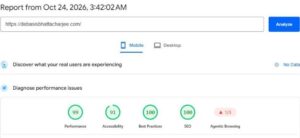
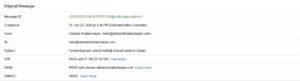
Short answer: build a small sign-up form on your WordPress site, make every new subscriber confirm their email address first, and only then add them to Kit. This keeps your list clean, protects your sending reputation, and costs nothing to start. Below is the exact setup I just did on my own site, with my real screenshots, and the one surprise that changed my plan.
My site had a “Stay in the Loop” box in the footer that looked fine but did very little. It saved an email address in the database and nothing else: no confirmation, no way for me to see the list, and no email service behind it. I already had a free Kit account, so the goal was simple: every real visitor who signs up should end up as a confirmed subscriber in Kit.
Two ways to do it
| Method | Good for | Trade-off |
|---|---|---|
| A. Kit’s own embed form | Most people. Copy a snippet from Kit and paste it into a page or widget. | The form looks like Kit’s, unless you style it. |
| B. Your own form + Kit’s API | You want the form to match your design exactly, or you want a local copy of every sign-up. | You need a little code, and you must handle confirmation yourself. |
If you are not a developer, use method A and stop reading at the end of Step 1. I used method B because my footer form already existed and I wanted it to keep my site’s look.
Step 1: Create a form in Kit
Either way you start in Kit. Log in, open Audience growth → Landing pages & forms, switch to the Forms tab and create a form. Give it a name you will recognise, for example “Website footer newsletter”. Kit shows each form’s subscriber count, so you can see later which form works.
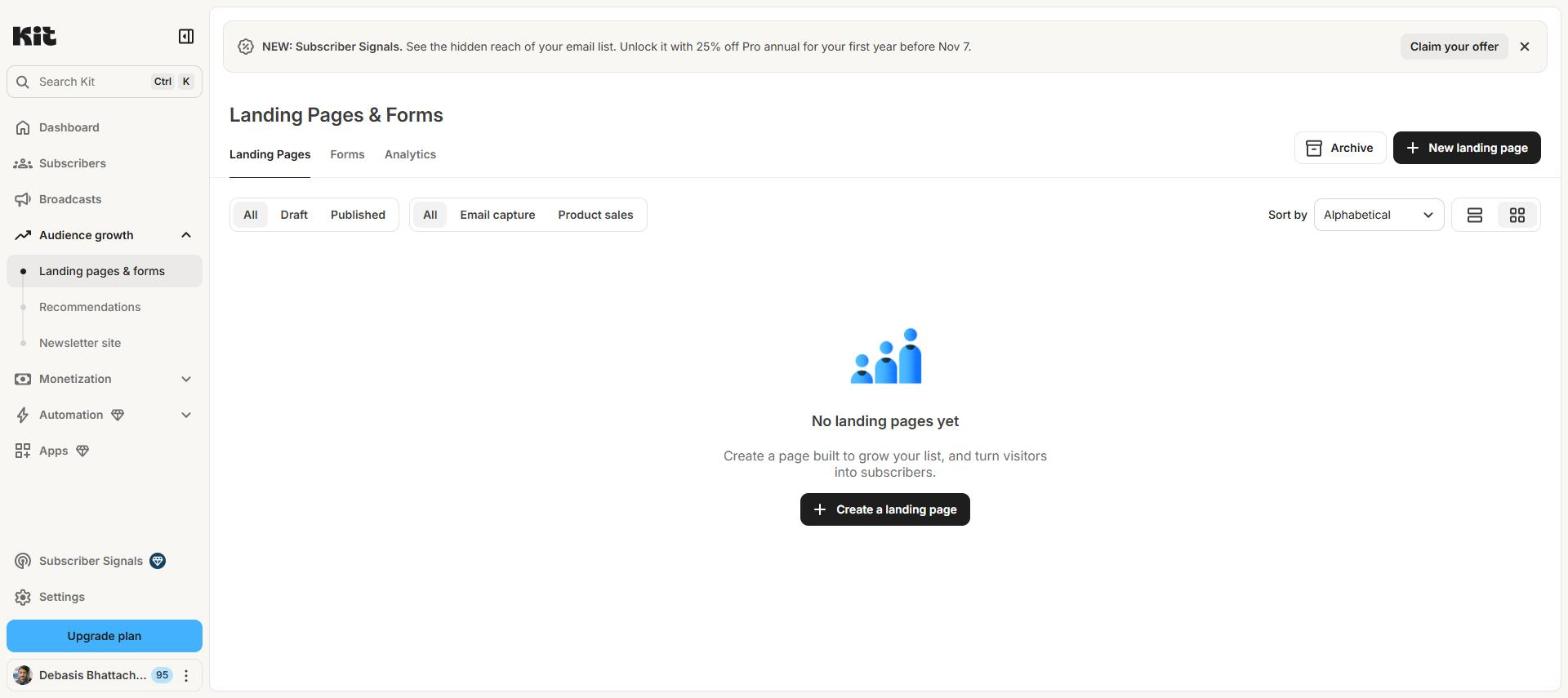
Method A ends here: open the form, choose Embed, and copy the code Kit gives you. Method B continues below.
Step 2: Find your form ID and create an API key
For the API you need two things:
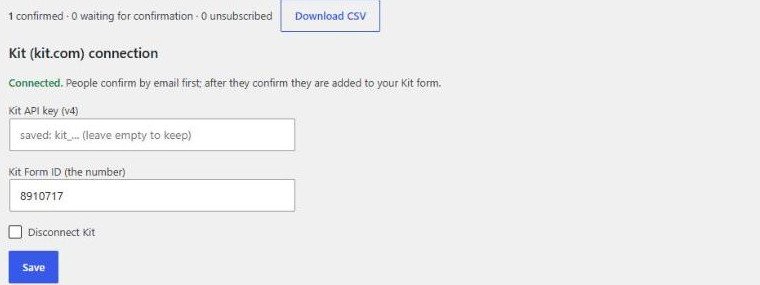
- The form ID. Open your form in Kit and look at the address bar. The number in the link is the ID. Mine was 8910717.
- A v4 API key. In Kit go to Settings → Developer, find V4 Keys, click Add a new key and copy it. Treat it like a password: never paste it into a public page, a chat, or a screenshot.
I double-checked that the ID was right by asking the API for my forms. It returned the list with the same number next to my form’s name. This small check saved me later, because the first attempt returned “Not Found” for a different reason (see Step 5).
Step 3: Build the form on your site
On the front end this is a normal email box and a button. Two details matter:
- A hidden honeypot field. Real people never see it; bots fill it in, and you quietly ignore them.
- A rate limit. I allow six sign-ups per hour from one connection, which stops anyone from using your form to flood other people’s inboxes.


Step 4: Make people confirm first (double opt-in)
When someone presses Subscribe, do not send them to Kit yet. Save the address as “pending” and email them a link that says: please confirm your subscription. Only when they click it do they become a subscriber.
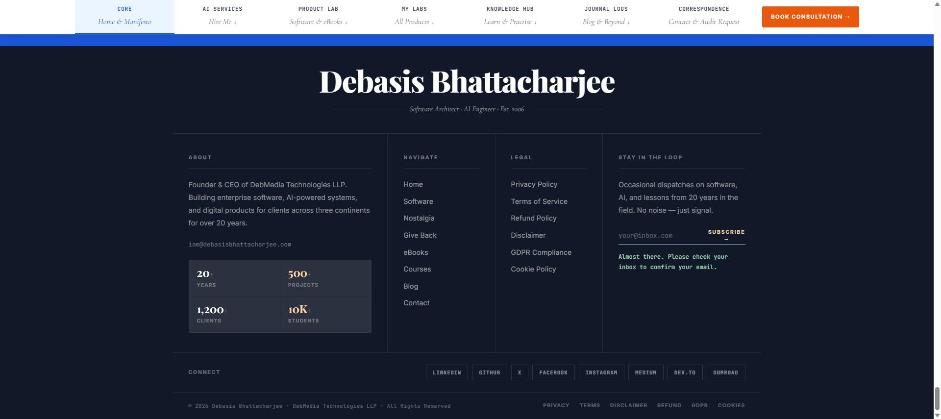

Why bother? Three reasons:
- People cannot sign up other people’s addresses. Without this, anybody can type your competitor’s email into your form.
- Your list contains only real, interested people, so more of your newsletters get opened and fewer land in spam.
- In many countries, such as under the European GDPR, you need clear proof that the person agreed. A confirmation click is that proof.
Sending the confirmation email also needs a mail setup that works. If your WordPress emails do not arrive, fix that first with my guide Free Business Email: Brevo + Cloudflare Email Routing.

Step 5: Add the confirmed person to Kit with the API
This is the part where I had a surprise. I first tried the obvious call, “add this email to my form”, and Kit answered 404 Not Found. The key and the form ID were fine; that one endpoint simply does not accept an email address. In Kit’s v4 API you add someone in two calls:
POST https://api.kit.com/v4/subscriberswith the email address. Kit creates the person (or finds them if they already exist) and returns their ID.POST https://api.kit.com/v4/forms/{form_id}/subscribers/{subscriber_id}to put that person on your form.
Both calls send your key in a header called X-Kit-Api-Key. In WordPress it looks like this:
$h = [ 'X-Kit-Api-Key' => $key, 'Content-Type' => 'application/json' ];

$r  = wp_remote_post( 'https://api.kit.com/v4/subscribers',
        [ 'headers' => $h, 'body' => wp_json_encode( [ 'email_address' => $email ] ) ] );
$id = json_decode( wp_remote_retrieve_body( $r ), true )['subscriber']['id'];

wp_remote_post( "https://api.kit.com/v4/forms/$form_id/subscribers/$id",
        [ 'headers' => $h, 'body' => '{}' ] );
The second surprise is why Step 4 exists. People added through the API show up in Kit as active immediately, with no confirmation step in between. In my tests I saw no confirmation from Kit for API-added people, whereas Kit’s embedded forms (method A) are built around confirmation. So when you use method B, assume the confirmation is your job.
Keep your key out of your code files. I store mine in the WordPress database and paste it into a small settings box in the admin area, where it shows only as a masked field.
Step 6: Test the whole path, then clean up
Test with a fresh address: sign up, open the email, click the link, then look at your Kit subscribers. The address should appear as Confirmed.
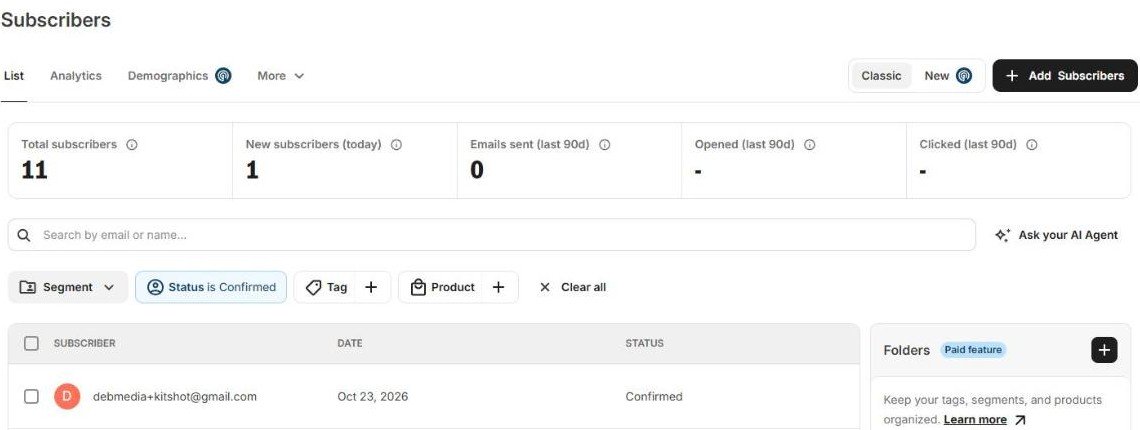
Then remove your test addresses from Kit so they do not count toward your plan or skew your numbers. In Kit you can unsubscribe a person from their profile, or call POST /v4/subscribers/{id}/unsubscribe.
What you get
- A footer form that matches your site and works on phones.
- Every subscriber has confirmed by email.
- Confirmed people flow into Kit automatically, where you write and send your newsletters from Broadcasts.
- A local copy of your list in WordPress, with a CSV download, in case you ever move to another service.
Common questions
Do I need to know how to code?
No, if you use method A. Kit’s own embed form takes minutes and Kit handles the confirmation email for you. Method B is for people who want full control of the design or want to store sign-ups themselves.
Why did the API say 404 Not Found?
Because the “add to form” call needs the subscriber’s ID in the address, not their email in the body. Create the subscriber first, then add them to the form with the ID Kit returns.
Is Kit free?
Kit has a free plan for small lists, and some features, such as automations, are paid. Plans and limits change, so check Kit’s pricing page before you rely on it.
Do I need double opt-in?
It is not required everywhere, but it is the safest default. It keeps fake sign-ups out and gives you proof of consent. If you use Kit’s own embed form, it is built in.
Where do I keep the API key?
Never in a page, a public code repository or a screenshot. Store it in the database or in your server configuration, and create a new key straight away if you ever expose it.
Need this set up for your site?
If you want a sign-up form that matches your design, confirms subscribers, and feeds your email service correctly, I can build and test it as part of a paid consultation. Book a session and tell me which email tool you use.
Disclosure: I am not affiliated with Kit and earn nothing from it. All screenshots are from my own setup in October 2026. Screens, plans and API details change, so confirm current details on Kit’s own pages.