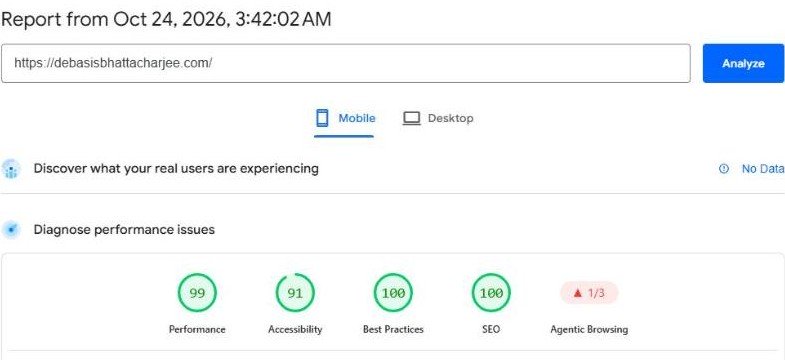
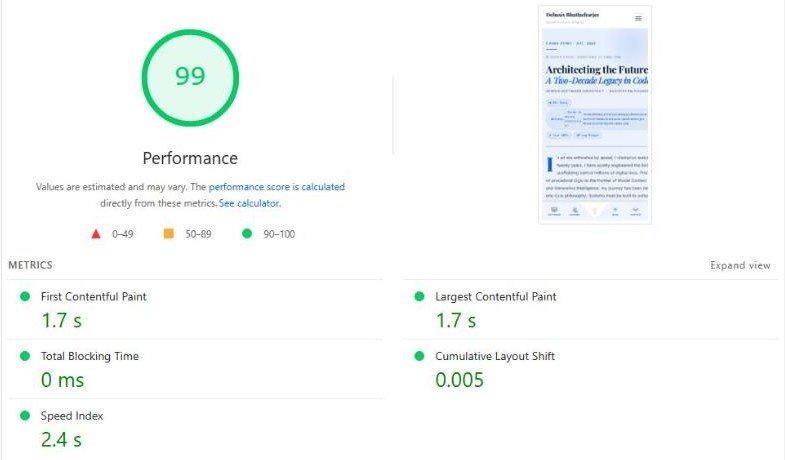
Short answer: I took the mobile home page of my own WordPress site from a PageSpeed Insights score of 66 to 98 (a re-test the same morning scored 99). Four changes did almost all of the work: moving fonts off Google, skipping the layout work for sections far down the page, a real page cache, and loading ad and analytics scripts late. This case study shows the real numbers at each step, the two things I got wrong, and what I would repeat on any WordPress site.
Disclosure: this is my own site, debasisbhattacharjee.com, and every number below is from my own tests. They are lab scores from Google’s PageSpeed Insights and a local Lighthouse run, not data from real visitors. Scores move a few points between runs, so read them as a direction, not a promise.
The starting point
The site runs on a custom WordPress theme on a VPS with nginx. The home page is long: about 1,000 page elements, around 200 KB of HTML (42 KB on the wire after compression), and 14 big sections one under another. On mobile, PageSpeed Insights gave it this:
| Measure | Start |
|---|---|
| Performance score (mobile) | 66 |
| First Contentful Paint (first thing visible) | 4.5 s |
| Largest Contentful Paint (main content visible) | 6.3 s |
| Render-blocking files | about 1,650 ms of delay |
| Unused JavaScript | 288 KiB |
A score of 66 sits in the orange band. Nothing was broken: the page looked fine. It was just slow to appear on a throttled phone, which is exactly what PageSpeed simulates.
How I measured (and why one test is not enough)
I used two tools:
- PageSpeed Insights (mobile) for the official number. It emulates a Moto G Power on a slow connection with a slowed-down processor.
- Lighthouse on my own PC (version 13.5.0, the same engine), which lets me change one thing at a time and re-test in a minute. For this I used a small temporary switch that could turn a single change on or off through a URL parameter, then removed it.
The first lesson came straight away: the same page scored 77 on one local run and 84 on the next, with no change in between. That is normal. I never trusted a single run, and I only believed a change when the move was much bigger than that noise.
What was slowing the page down
| Cause | What it did |
|---|---|
| Google Fonts loaded in the head | The browser waited for fonts from another company’s server before it could paint text. |
| An empty script and an empty stylesheet | A plugin script with 0 bytes still pulled jQuery onto every page, and the theme’s main style.css held only a comment. Both cost requests for nothing. |
| Ad and analytics scripts | The ad script was printed twice (once by the theme, once by a plugin) and both scripts loaded straight away. |
| No working page cache | A cache plugin was installed, but the server was nginx, so its page cache did nothing. Each visit rebuilt the page, about 1.3 seconds on the server. |
| Layout work for 14 long sections | The phone laid out and painted the whole 15,000-pixel-tall page, though only the first screen was visible. |
The fixes, in the order I did them
1. Fonts: stop waiting for Google
First I trimmed the font request to the weights the theme really used and loaded the stylesheet without blocking the page. Later I went further and hosted the fonts on my own server: 12 small .woff2 files, with font-display: swap so text shows at once, and a preload for the two most-used files. No more connection to Google for fonts.
@font-face{ font-family:'Inter';font-style:normal;font-weight:400;
  font-display:swap;src:url(/wp-content/uploads/deb-fonts/ab12cd34.woff2) format('woff2'); }

<link rel="preload" as="font" type="font/woff2" crossorigin
      href="/wp-content/uploads/deb-fonts/ab12cd34.woff2">
2. Remove dead weight
I switched off the empty plugin script (and with it the jQuery it dragged in) and the empty theme stylesheet on the public site. I searched the theme and my own plugins for jQuery use before removing it, and the few scripts that still do (the table of contents on blog posts) bring it back as a dependency.
3. Load ad and analytics scripts late
I kept one copy of the ad script instead of two, and made it, and the analytics script, load after the page has finished loading, or on the visitor’s first scroll, tap or key press, whichever comes first. The scripts still run. They just stop competing with the content during the first seconds.
4. A real page cache
The installed cache plugin was written for a different web server. I replaced it with WP Super Cache in its simple mode, with the pages I do not want cached (checkout, support, login) excluded. Cached visits skip PHP and the database completely.
5. Skip the layout work for sections nobody can see yet
This was the biggest single win, and it is one line of CSS. content-visibility: auto tells the browser not to lay out or paint a section until it is about to scroll into view. I applied it to the 14 long sections below the first screen of the home page only:
main > section:not(:first-child),
main > div:not(:first-child) {
  content-visibility: auto;
  contain-intrinsic-size: auto 900px;   /* a guess at height, so the scrollbar does not jump */
}
I scrolled through the whole page afterwards to check that every section still appeared normally as it came into view.
What each change was worth (my local A/B tests)
These tests changed one thing on the live page at a time, with the same Lighthouse version and mobile settings (the processor slowed down four times):
| Test | Score | LCP | Blocking time | Layout work |
|---|---|---|---|---|
| Control (no change) | 84 | 2.3 s | 530 ms | 1,674 ms |
| Google Fonts removed | 93 | 1.7 s | 260 ms | 880 ms |
Only content-visibility added |
98 | 1.7 s | 70 ms | 850 ms |
Fonts and layout work were the two biggest causes by far. Many speed guides spend their time on image compression and minifying files. On this page those would have moved the score very little.
The official numbers after each round (PageSpeed Insights, mobile)
| Round | What changed | Score | FCP | LCP |
|---|---|---|---|---|
| Start | Nothing | 66 | 4.5 s | 6.3 s |
| 1 | Fonts trimmed and non-blocking, empty script and stylesheet removed, ad and analytics scripts delayed, page cache | 78 | 4.0 s | 4.0 s |
| 2 | content-visibility on the 14 lower sections |
92 | 1.0 s | 3.3 s |
| 3 | Fonts hosted on my own server, with preload | 98 | 1.1 s | 1.1 s |
A fresh run on the morning I wrote this, after everything was in place:
Two things I got wrong
1. I blamed the page fade-in, and it was not the problem. The theme fades the whole page in from invisible when it loads. I was sure that was delaying the first paint, so I switched it off. The score did not change at all (still 78). I left that change in, since a page that starts invisible is not useful, but it was not the cause. Only the A/B tests found the real causes.
2. I broke a script by delaying it. I also made a push-notification script load late. But the page runs a line of code that depends on that script straight after loading it, so the page threw a console error and the Best Practices score fell from 100 to 96. I undid that one change, and the score went back to 100. Not every script can be delayed: check the console for errors after every change.
Other pages
The home page was the worst case, so I checked two others. After moving jQuery and the table-of-contents scripts to load without blocking, my local test moved the Services page from 86 to 89 and a long blog post from 88 to 91. Those are within normal run-to-run movement, so I only call them a small gain.
What this does not prove
- These are lab scores. The PageSpeed report shows “No Data” for real-visitor data on this page, so I can only measure the lab result.
- A faster page is not a guaranteed ranking jump. Speed helps visitors, and Google says it is one of many signals. I make no ranking claim.
- The accessibility score did not improve. It stayed at 91 to 92 the whole time. That is a separate job.
A checklist you can reuse on any WordPress site
- Test the mobile score on PageSpeed Insights three times and note the spread before you change anything.
- Run Lighthouse locally so you can test one change at a time.
- Look at the font request first. Host the fonts yourself, add
font-display: swap, and preload only the one or two files used above the fold. - Find scripts and styles that load but do nothing (check file sizes in the network tab).
- Make sure you have a page cache that actually works on your web server.
- Delay ad, chat and analytics scripts until the page has loaded or the visitor interacts, then test the console for errors.
- On long pages, add
content-visibility: autoto the sections below the first screen, and scroll the page to check nothing looks wrong. - Keep the changes in one small plugin with an off switch, so you can undo everything in a second.
Frequently asked questions
Does content-visibility: auto work in every browser?
Recent versions of the major browsers support it, but check a current compatibility table before you rely on it. A browser that does not support it ignores the rule, so those visitors simply get the page as before. Either way, test your own page by scrolling through it.
Is it safe to host Google Fonts on my own server?
Yes. The fonts are open licence files you are allowed to host. It also means your visitors’ browsers do not contact Google just to show text. Check the licence of any other font you use.
Why did the score change when I changed nothing?
Lab tests depend on the machine and network at that moment. On my own page the same code scored 77 and then 84. Take several runs and compare the typical result.
Which change gave the most improvement here?
Moving fonts away from Google, and content-visibility on the lower sections. In my tests each of these alone moved the score by about nine to fourteen points.
Do I need a plugin for any of this?
Not for the fixes themselves. I used a small custom plugin because I wanted every change in one place with an off switch. A standard cache plugin that matches your web server is worth installing.
Need this done on your site?
I audit WordPress sites for speed, find the real causes with this kind of one-change-at-a-time testing, and make the changes safely. Book a consultation and send me the page you care about most. If you only need a small custom tool, see my free online tools and my services.
Method and dates
All measurements were taken between 23 and 24 October 2026. PageSpeed Insights: mobile, Lighthouse 13.5.0, emulated Moto G Power. Local tests: Lighthouse 13.5.0 on my own PC, mobile settings, against the live page. Written 24 October 2026. Screens and tools change, so check current behaviour before copying any step.