Overview
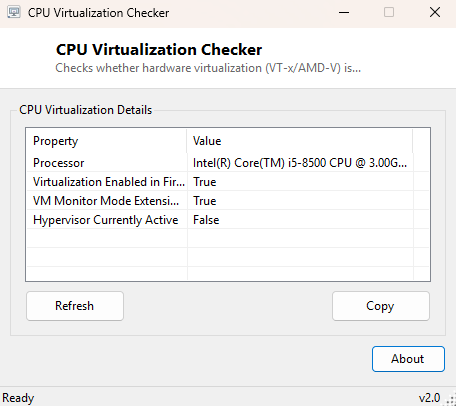
CPU Virtualization Checker confirms whether hardware-assisted virtualization — VT-x on Intel processors, AMD-V on AMD processors — is both supported and actually enabled in firmware right now. This is the single most common reason virtual machine software, Windows Sandbox, Android emulators and even some antivirus sandboxing features refuse to start, and the fix almost always requires a trip into the BIOS/UEFI setup screen that most people rarely visit. This tool tells you in seconds whether that trip is actually necessary.
Key Features
- Reports whether virtualization is enabled in firmware right now
- Separately reports whether VM Monitor Mode Extensions are present on the CPU
- Checks whether a hypervisor is currently active on the system
- Distinguishes between "CPU supports it" and "firmware has it turned on"
- No scanning delay — reads instantly on launch
- One-click copy of the full report to the clipboard
Why You Might Need This Tool
Installing VirtualBox, VMware, Hyper-V, WSL2, Windows Sandbox, or an Android emulator like BlueStacks and hitting a cryptic "virtualization is not enabled" error is one of the most common early-setup frustrations in all of desktop computing. Before diving into an unfamiliar BIOS/UEFI menu hunting for a setting that might be labeled "Intel VT-x," "SVM Mode," "AMD-V" or something else entirely depending on the motherboard vendor, this tool tells you definitively whether the setting is already on, already off, or whether the CPU does not support it at all — which changes the whole troubleshooting path.
How It Works
The tool queries Win32_Processor through WMI for
VirtualizationFirmwareEnabled and VMMonitorModeExtensions —
the first reports whether firmware currently has hardware virtualization turned on,
while the second reports whether the CPU itself is capable of VM Monitor Mode
Extensions regardless of the firmware setting. It then separately queries
Win32_ComputerSystem for HypervisorPresent, which reports
whether a hypervisor (Hyper-V, WSL2's virtualization layer, or another VM platform) is
actively running on top of the hardware right now. Together these three values cover
every stage of the question: can the CPU do it, has firmware allowed it, and is
something already using it.
How to Use It
Open the tool and all three values populate immediately. If "Virtualization Enabled in Firmware" reads False but your CPU is known to support VT-x or AMD-V, the fix is to restart, enter your motherboard's BIOS/UEFI setup (commonly Del or F2 during boot), and enable the virtualization option under CPU or Advanced settings — the exact label varies by manufacturer.
System Requirements & Notes
Runs on 64-bit Windows 10 and Windows 11 and needs no administrator rights — these values are standard WMI processor and system properties available to any user account.
Frequently Asked Questions
Why is HypervisorPresent True even though I never installed a VM tool?
Windows 11 and recent Windows 10 builds enable core isolation and memory integrity
features by default, which run on top of a lightweight built-in hypervisor even
without any third-party virtualization software installed — this is normal.
My firmware setting is enabled but VMware still won't start — why?
Hyper-V and WSL2 can exclusively claim virtualization extensions on Windows, blocking
other hypervisors like VirtualBox or older VMware versions from using them
simultaneously — disabling Hyper-V-related Windows features may be required.
Can this tool enable virtualization for me?
No — hardware virtualization can only be toggled from within your motherboard's
BIOS/UEFI firmware setup screen, which this tool cannot access or modify.