
In one of my projects, I encountered a layout issue where widgets were not properly aligning. I used the Flutter DevTools to inspect the widget tree and identified that a parent widget was constraining the size of its child. By adjusting the constraints, I resolved the issue.
In depth
Debugging in Flutter requires a good understanding of the widget tree and how layout works within the framework. When you encounter an issue, it’s important to utilize tools like Flutter DevTools, which allow you to visualize the widget hierarchy and properties in real-time. This is particularly useful for identifying issues related to constraints and rendering. Understanding how widgets are rendered and their layout mechanisms can significantly reduce debugging time, especially with complex UIs where multiple widgets might be intertwined. Always ensure that you are testing across different screen sizes and orientations to find edge cases that could lead to layout problems.
Example scenario
In a recent app I worked on, we faced a problem with the layout of a grid view that appeared broken on certain devices. By using Flutter DevTools, I discovered that the grid items were set to fixed sizes, causing overflow on smaller screens. After adjusting the item sizes to be responsive and using Flexible widgets, the layout issue was resolved, allowing the grid to adapt correctly regardless of device dimensions.
Common mistakes
A common mistake developers make during debugging is not utilizing the debugging tools provided by Flutter, such as the Inspector and the Debug Console. Relying solely on print statements can lead to missing critical information about the widget tree and state management. Another error is failing to test the application on multiple devices and orientations, which can cause developers to overlook how changes affect different screen sizes.
Follow-up questions
- What specific tools did you find most helpful during your debugging process?
- Can you describe a particularly challenging bug you encountered and how you approached it?
- How do you ensure that your code is maintainable and testable to make future debugging easier?
- What strategies do you use to prioritize which bugs to tackle first?
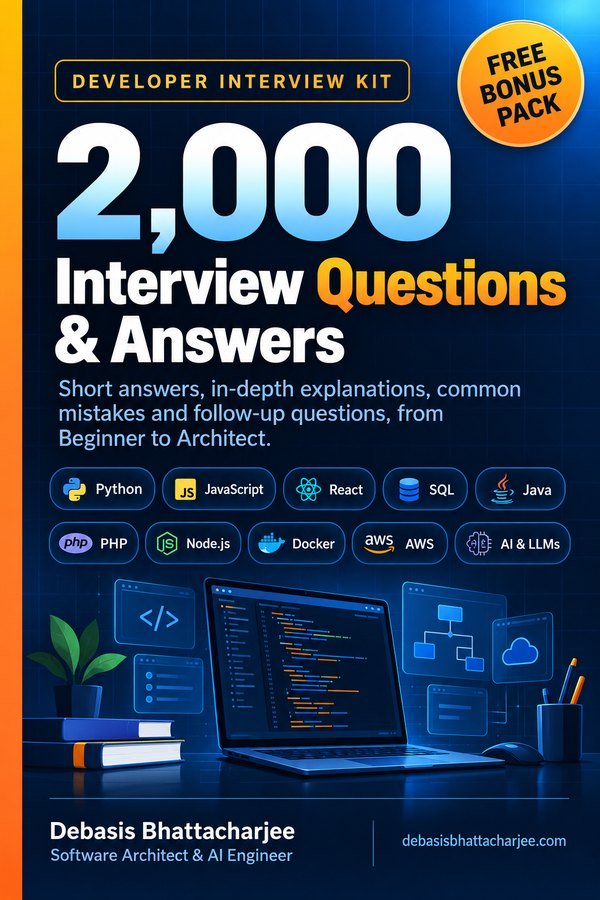
Want all 2,000 questions in one PDF?
- Short answers, in-depth explanations, common mistakes and follow-ups
- 89 topics, from Beginner to Architect, with a clickable contents list
- 226 extra questions that are not on this website
- Free Bonus Pack: 30-day study plan, behavioral questions, salary scripts
Includes 226 extra questions that are not on this site, plus a free Bonus Pack.
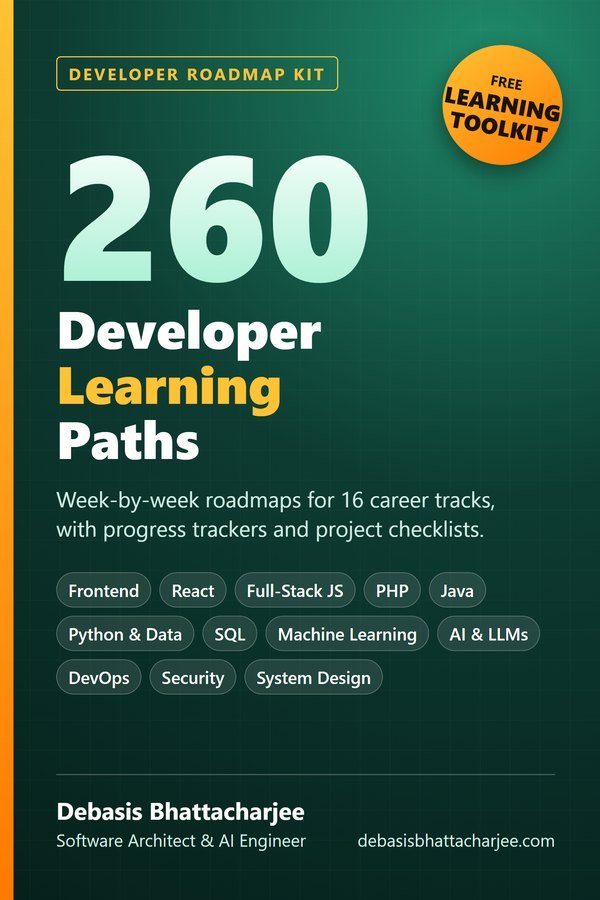
Get both books for $9.99 (save $2.99):
The material stays free to read online. This is the organised, offline, print-ready PDF edition. Secure payment by PayPal; your personal download link is emailed after payment is confirmed. Digital product, no shipping.