TS/MP4 Converter
Convert TS, MTS and M2TS video files to MP4 quickly on Windows
TS/MP4 Converter is a dedicated tool for converting MPEG-2 Transport Stream files (TS, MTS, M2TS) to MP4. Fast hardware-accelerated conversion, no quality loss, batch processing and direct support for broadcast and camera-recorded files.

See TS/MP4 Converter in Action
A clean, modern interface designed for real-world use.
Ts to mp4 converter done next screenshot
TS/MP4 Converter is a fast, lightweight Windows utility for converting MPEG Transport Stream recordings (.ts files) — the format commonly used by DVRs, IPTV boxes, and digital broadcast capture cards — into standard MP4 files that play on any device. Drop your .ts file in, choose your quality settings, and click Convert. Powered by FFmpeg under the hood, it handles the conversion natively on your PC with GPU acceleration support for faster processing.
This is a focused tool: one input format, one output format, done right. No bloated UI, no subscriptions, no cloud upload. Your video file stays on your machine throughout.
Screen 1 — Main Converter (Empty)
The main Converter screen opens with a large drag-and-drop zone: “Drag & Drop your TS file here — or — Browse File.” The word “TS” is highlighted in purple to make clear exactly what input format is accepted. A note below reads: “Only .ts video files are supported.” The status bar at the bottom confirms Ready to convert and a GPU Acceleration toggle sits at the bottom right — enabled by default when a compatible GPU is present for faster transcoding. The sidebar navigation has four items: Converter, History, Settings, and About. Bottom left shows the app identity: TS to MP4 Converter — Convert TS files to MP4 in just one click — v1.0.0.
Screen 2 — File Loaded, Output Settings
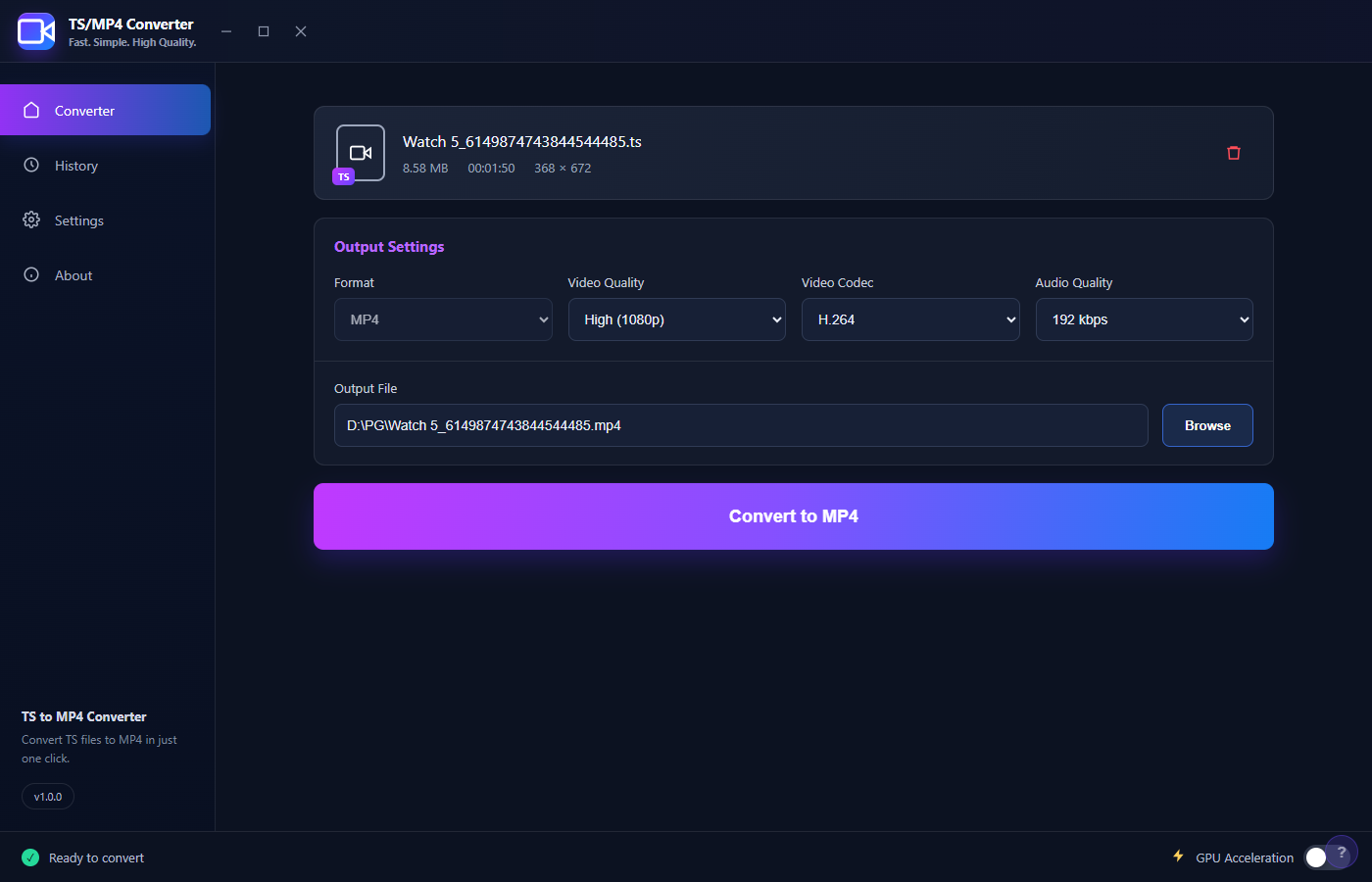
After dropping or browsing a file, it appears in a card at the top of the converter: filename (Watch 5_6149874743844544485.ts), size (8.58 MB), duration (00:01:50), and resolution (368 × 672). A delete icon at the top right of the card removes the file if you want to load a different one.
Below the file card, Output Settings appear with four dropdowns:
- Format — MP4 (the only output format in v1.0.0)
- Video Quality — High (1080p), with lower options available
- Video Codec — H.264, the universally compatible codec
- Audio Quality — 192 kbps
The Output File field is auto-populated with the same filename at the same location but with a .mp4 extension (D:PGWatch 5_….mp4). Click Browse to change the destination. The large purple gradient Convert to MP4 button at the bottom starts the conversion.
Screen 3 — Video Quality Selection
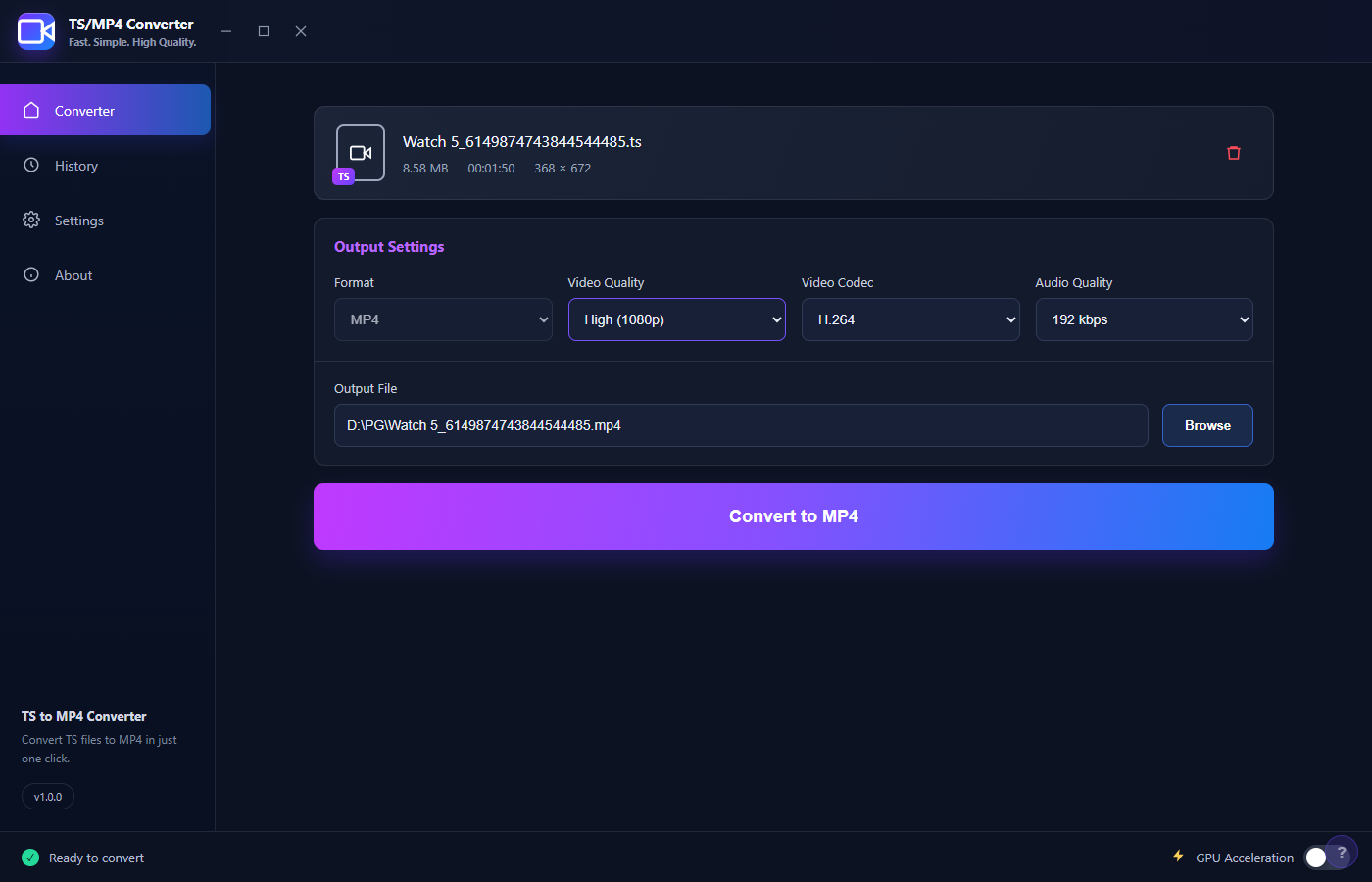
The Video Quality dropdown is active here — highlighted with a focus border — showing High (1080p) selected. This dropdown controls the output resolution and bitrate target. Lower quality options (e.g., Medium 720p, Low 480p) allow faster conversion and smaller file sizes when you don’t need the full source resolution.
Screen 4 — Audio Quality Selection
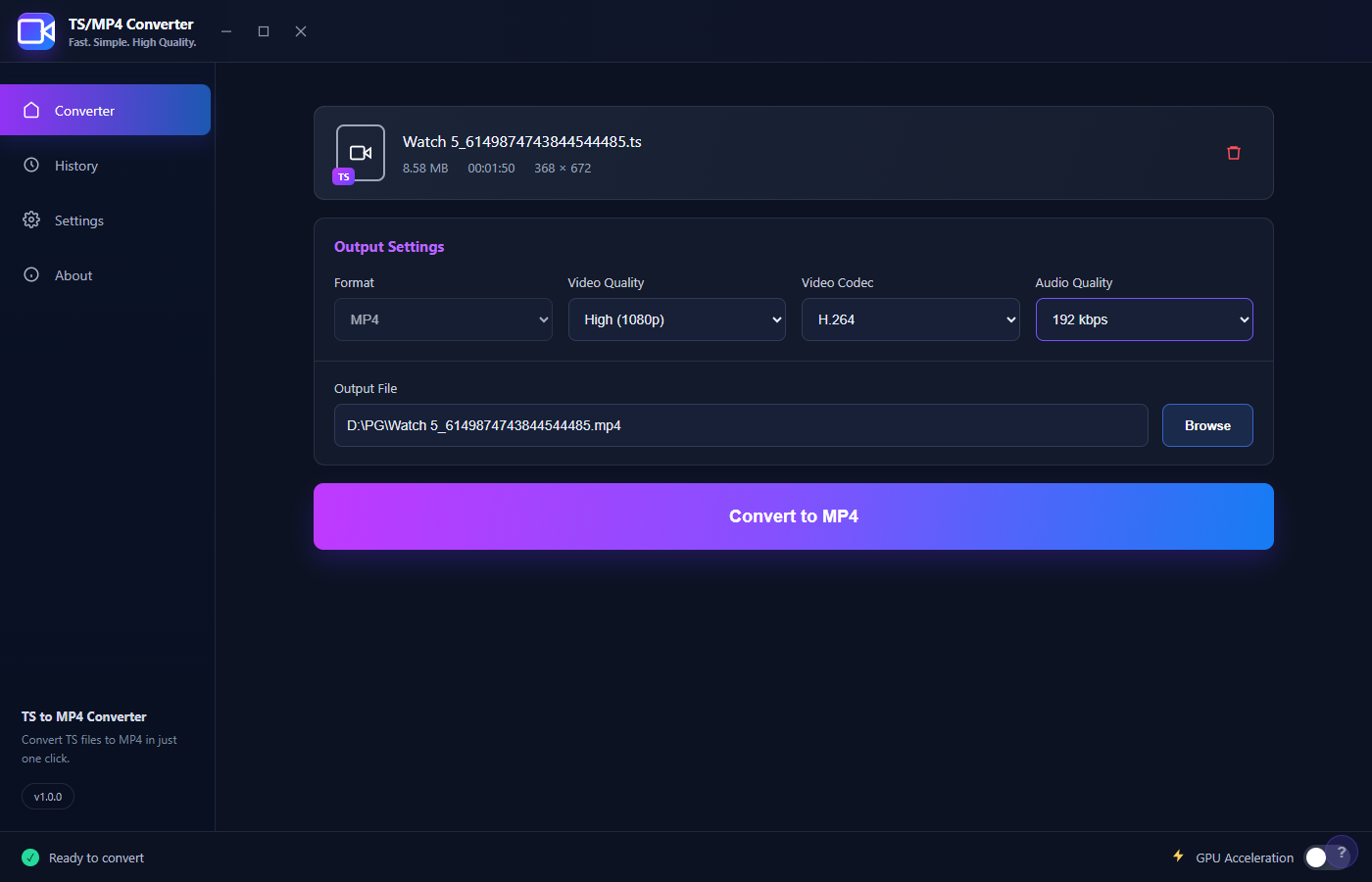
The Audio Quality dropdown is active — showing 192 kbps selected. This sets the AAC audio bitrate in the output MP4. Standard broadcast TS files typically carry AC3 or AAC audio; TS/MP4 Converter transcodes the audio stream to AAC at your chosen bitrate for maximum device compatibility in the output MP4.
Screen 5 — Ready to Convert
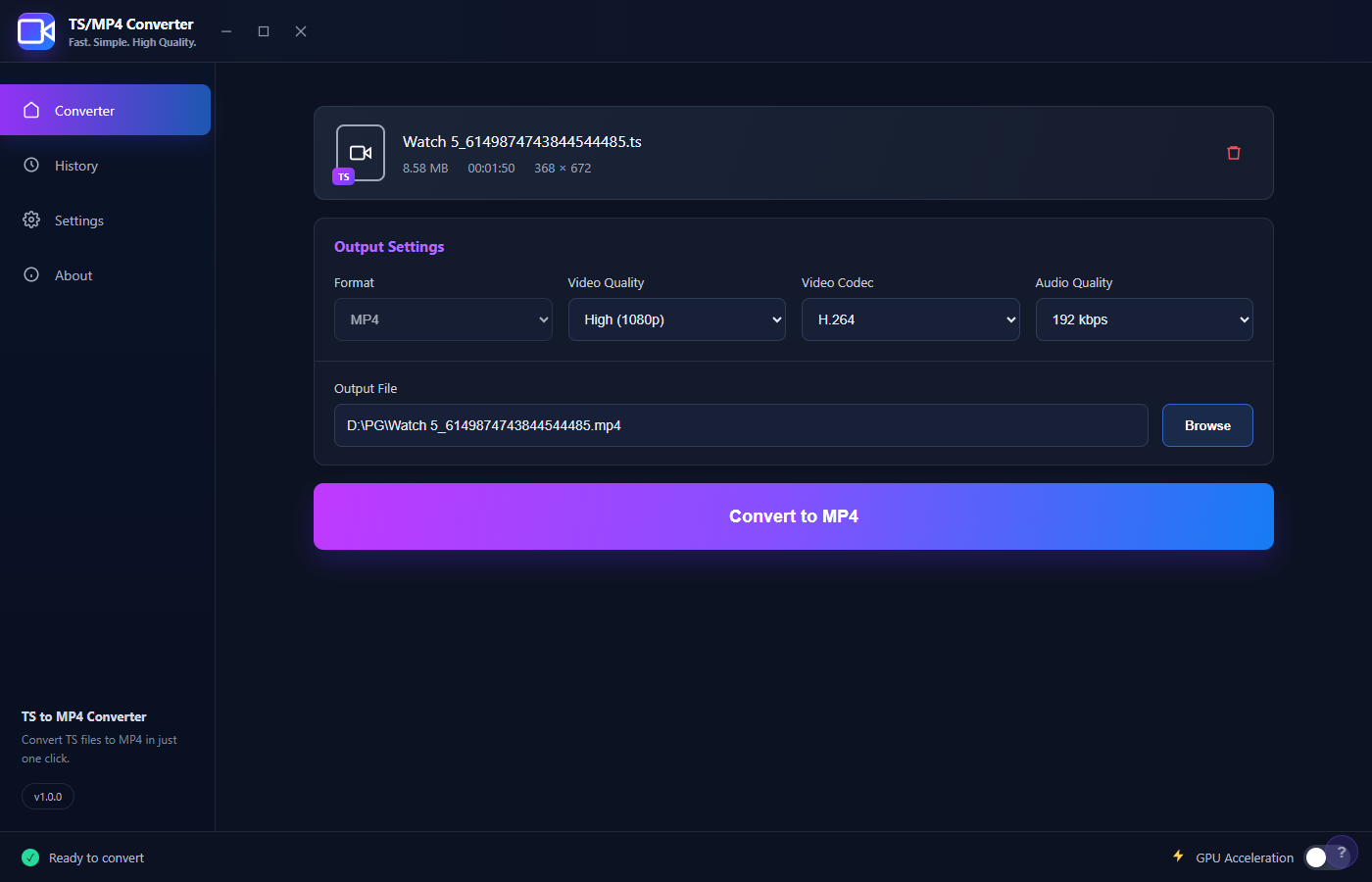
With all four output settings configured and the output file path confirmed, the app is ready. The full state before clicking Convert: file loaded (8.58 MB TS, 1:50 duration), Format MP4, Quality High 1080p, Codec H.264, Audio 192 kbps, output path set. Click Convert to MP4 and FFmpeg processes the file. The status bar will show conversion progress, and when complete, the converted file appears in History.
Screen 6 — About
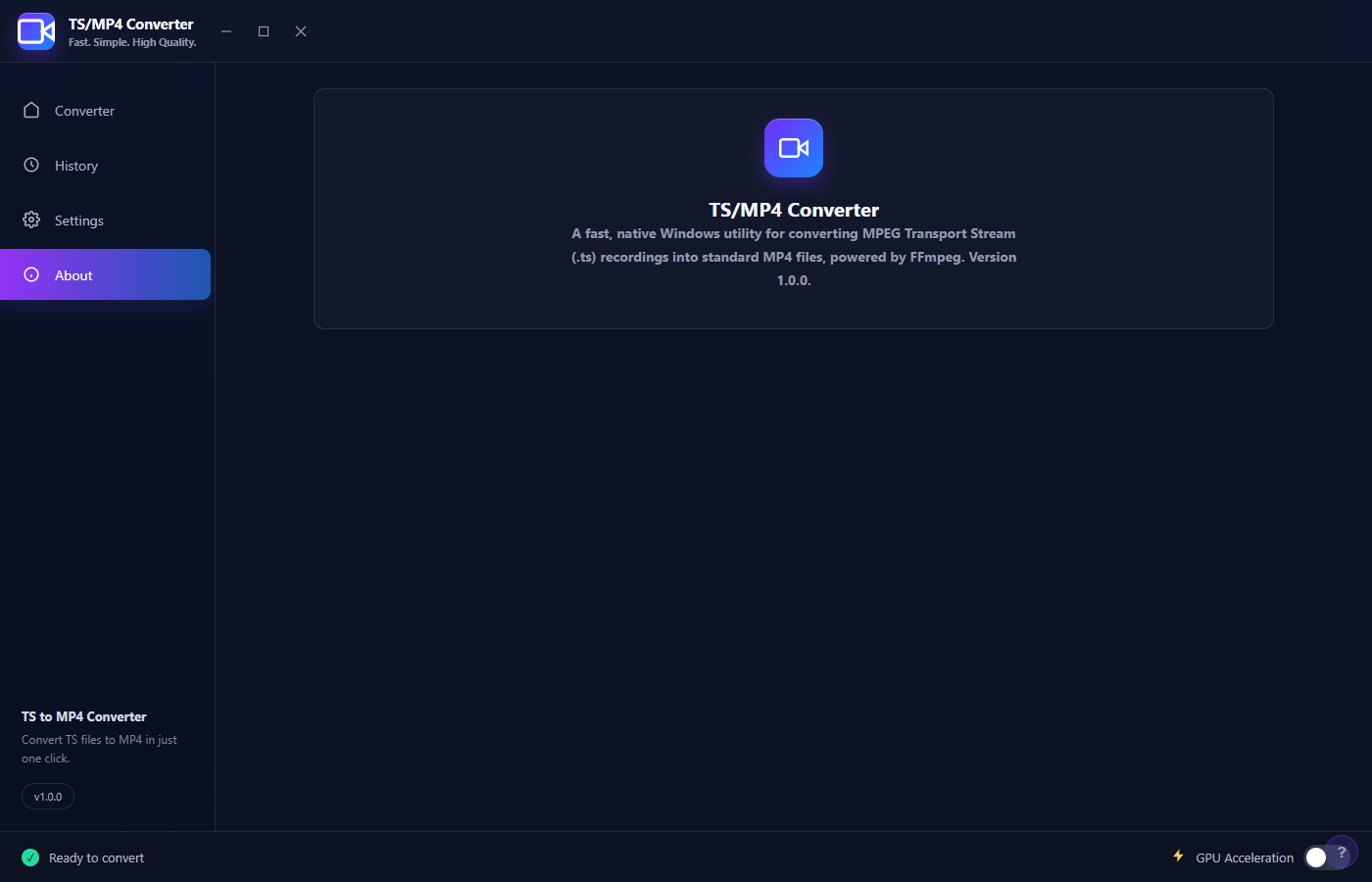
The About page shows the app icon and its description: “A fast, native Windows utility for converting MPEG Transport Stream (.ts) recordings into standard MP4 files, powered by FFmpeg. Version 1.0.0.” TS/MP4 Converter uses FFmpeg as its transcoding engine — a battle-tested, open-source tool used by professionals and major media platforms worldwide. The conversion quality and compatibility of your output MP4 benefits directly from FFmpeg’s codec support.
Key Features at a Glance
- TS to MP4 conversion — converts MPEG Transport Stream (.ts) files to MP4 in one click
- Powered by FFmpeg — industry-standard transcoding engine for reliable output quality
- Configurable output quality — choose video resolution (1080p / 720p / 480p) and audio bitrate
- H.264 codec — universally compatible video codec that plays on every device and platform
- GPU Acceleration — optional hardware acceleration for faster conversion on compatible GPUs
- Drag & drop — drop a TS file directly onto the app to get started
- Auto output path — automatically suggests the output filename and location
- Conversion history — History tab tracks past conversions
- 100% local — no cloud upload, no account, all processing happens on your PC
Who Is TS/MP4 Converter For?
TS/MP4 Converter is for anyone who works with MPEG-TS files — commonly produced by DVRs, satellite receivers, IPTV capture devices, OBS (in some recording modes), and digital broadcast capture cards. TS files play poorly or not at all on many devices and editing software; MP4 files play everywhere. If you’ve ever received a .ts file you couldn’t play or share, this tool resolves it in one step.
System Requirements
- Windows 10 / 11 (64-bit)
- .NET 6.0 Runtime or later
- FFmpeg bundled — no separate installation required
- 50 MB disk space
- GPU Acceleration: NVIDIA (NVENC) or AMD (AMF) GPU recommended for faster conversion, not required
Frequently Asked Questions
What’s the difference between TS and MP4?
TS (Transport Stream) is a container format designed for broadcast transmission — it’s robust against data loss but not optimized for playback. MP4 is the universal consumer video container — smaller, compatible with every player, phone, and social media platform.
Does it support M2TS or MTS files?
v1.0.0 supports .ts files. Support for M2TS and MTS (used by Blu-ray camcorders) is planned for an upcoming release.
How fast is the conversion?
With GPU Acceleration enabled on a modern NVIDIA or AMD card, typical conversion is faster than real-time. A 1-hour TS file can convert to MP4 in 3–8 minutes depending on quality settings and GPU performance. CPU-only mode is slower but works on any Windows 10/11 PC.
TS/MP4 Converter does one thing and does it well: turns your TS recordings into portable, shareable MP4 files — fast, locally, with no account required.
Download TS/MP4 Converter
Convert TS, MTS and M2TS video files to MP4 quickly on Windows