Why Workstations Lose Speed Over Time
Every single week you run your computer, invisible digital debris accumulates under the surface. Temporary caches bloat from normal daily usage, system pathways cross directions, and stealth background applications quietly attach themselves to your startup sequence.
The result? Your hardware isn't old—it's simply crowded. The utility safely unburdens your storage blocks to bring back original click responsiveness.
One-Click Simplicity. No Jargon.
Most operating toolkits on the market are intentionally confusing. They scare users with cryptic alerts or swamp you under endless, risky confirmation checklists. Our development blueprint focuses entirely on clean, background automation.
You do not need to be an administrator or understand complex software settings. Simply click the interface activation handle, let the automated sequence clean the targets, and return immediately to a light, responsive system environment.
Smart Explorer — The Windows File Manager You Always Wished You Had
Everything Windows Explorer does, plus the things it should have done all along.
Windows Explorer Is Fine. Smart Explorer Is Better.
Windows has come a long way, but its built-in file manager has remained stubbornly basic for years. It shows you your files. It lets you move them around. And that’s largely where it stops. There’s no way to see how large a folder actually is without waiting for a slow calculation. No instant preview panel that shows you what a file looks like before you open it. No folder contents summary telling you how many files and subfolders are inside. No built-in folder size column in the file list. No depth indicator telling you how nested a directory structure is.
These aren’t exotic features. They’re things people need every day — and Windows simply doesn’t provide them.
Smart Explorer is a modern Windows file manager that starts from everything Windows Explorer already does well, adds the capabilities it has always been missing, and wraps it all in a clean, fast interface that feels like it belongs on a modern PC.
A Familiar Interface — Immediately Better
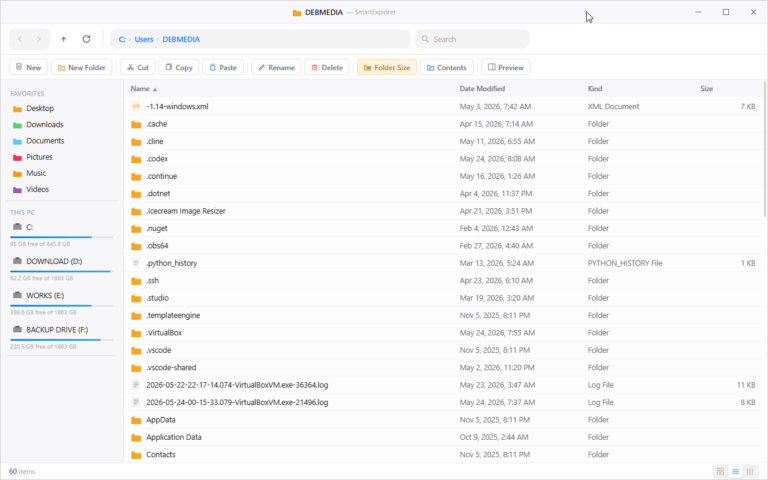
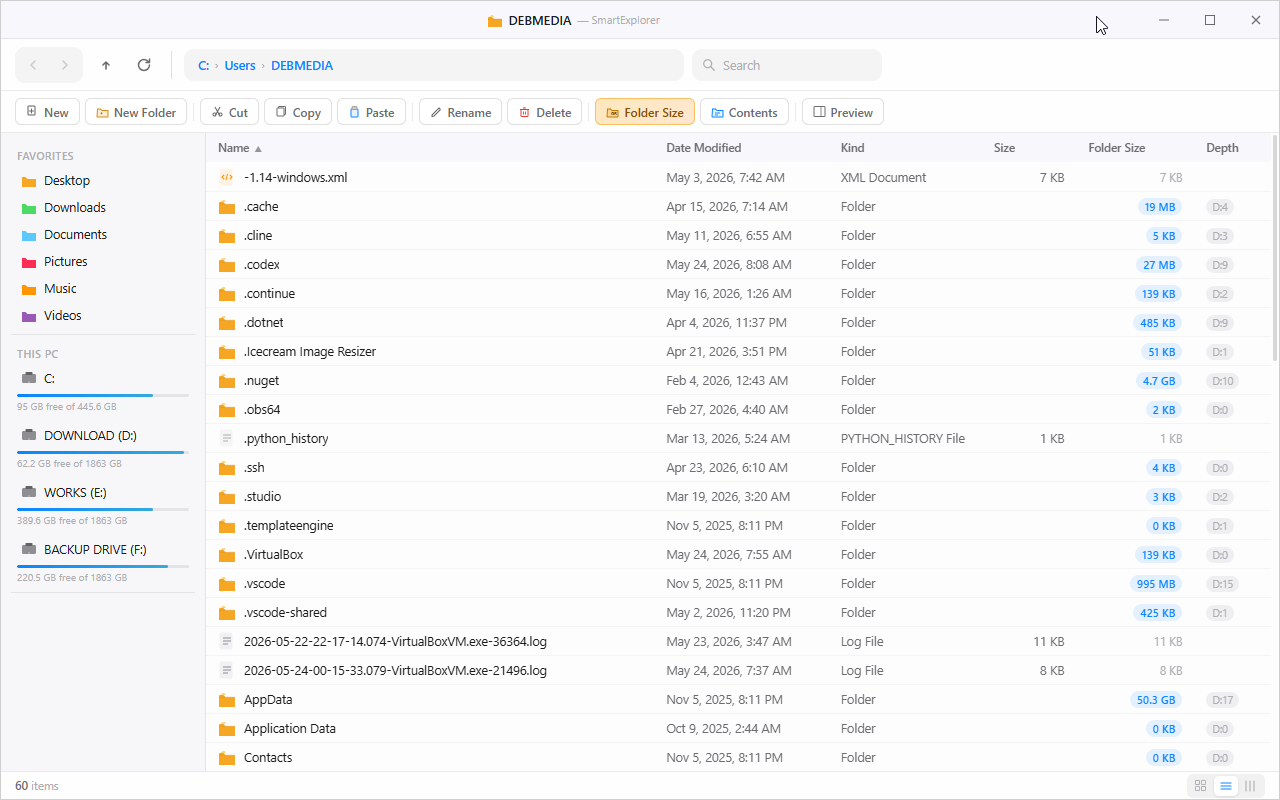
The first thing you’ll notice about Smart Explorer is how immediately comfortable it feels. The layout is familiar: a favourites and drives panel on the left, a file list in the centre, a breadcrumb navigation bar at the top, a search box, and a toolbar of common actions. Back, forward, up, refresh — everything is exactly where you expect it.
That familiarity is intentional. Smart Explorer isn’t trying to reinvent how you think about files. It’s trying to give you a better version of the tool you already use every day — one that fits your existing habits perfectly while quietly doing far more than you’re used to.
The sidebar keeps your most-used locations — Desktop, Downloads, Documents, Pictures, Music, Videos — a single click away at all times. Below that, every connected drive is listed with a visual capacity bar showing used versus free space at a glance, so you always know how much room you have on each drive without navigating anywhere.
Three view modes — list, detail, and grid — let you switch the presentation of your files to suit whatever you’re doing at the moment.
Folder Size — Finally Know What’s Really Taking Up Space
This is one of the most immediately impactful features in Smart Explorer, and one of the most glaring omissions from Windows Explorer.
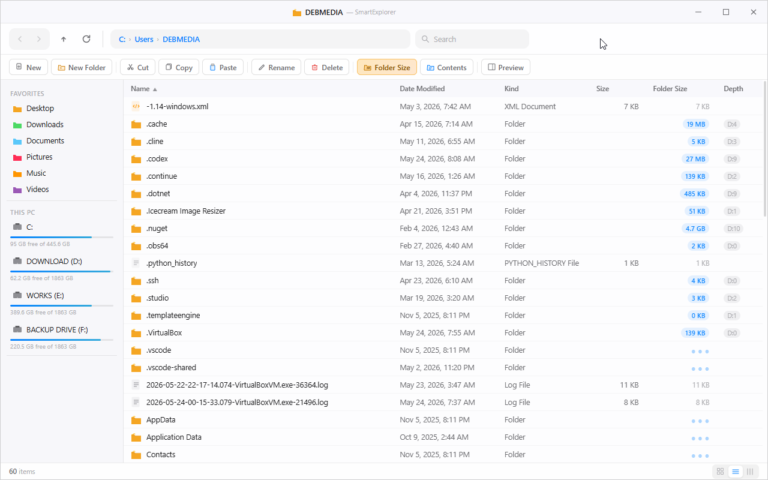
Activate Folder Size mode and Smart Explorer calculates and displays the true size of every folder in your current view — not just the size of files sitting directly inside it, but the complete size of everything contained within, recursively, all the way down through every level of nesting. The sizes appear highlighted in colour directly in the file list, making it immediately obvious which folders are large and which are nearly empty.
A Depth column appears alongside the size figures, showing how many levels deep each folder’s content extends. A folder showing D:17 contains seventeen levels of nested subfolders — information that’s genuinely useful when you’re trying to understand a complex directory structure, audit a project folder, or decide where to focus a cleanup effort.
This combination — true recursive size plus nesting depth — gives you a level of insight into your folder structure that Windows Explorer simply cannot provide. Finding what’s eating your disk space, which previously meant either installing a separate disk analysis tool or waiting for Windows to laboriously calculate each folder one at a time, becomes immediate and effortless.
Contents View — See Inside Folders Without Opening Them
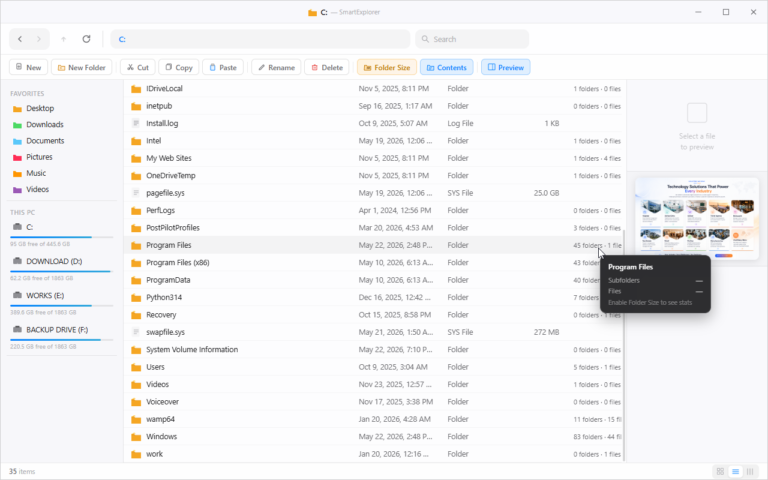
The Contents view adds another dimension to your file browsing by showing a quick summary of what’s inside each folder directly in the file list — the number of subfolders and files contained within, displayed right alongside the folder name.
This means you can scan a directory full of folders and immediately understand the shape of each one — which folders are deeply populated, which contain only a handful of items, and which are effectively empty — without clicking into any of them. For anyone managing large, complex directory structures, this contextual awareness is enormously time-saving.
Hover over any folder and a small tooltip popup appears showing the folder name, subfolder count, file count, and a prompt to enable Folder Size for full stats — a small but thoughtful touch that keeps information accessible without cluttering the interface.
Instant Preview — See Before You Open
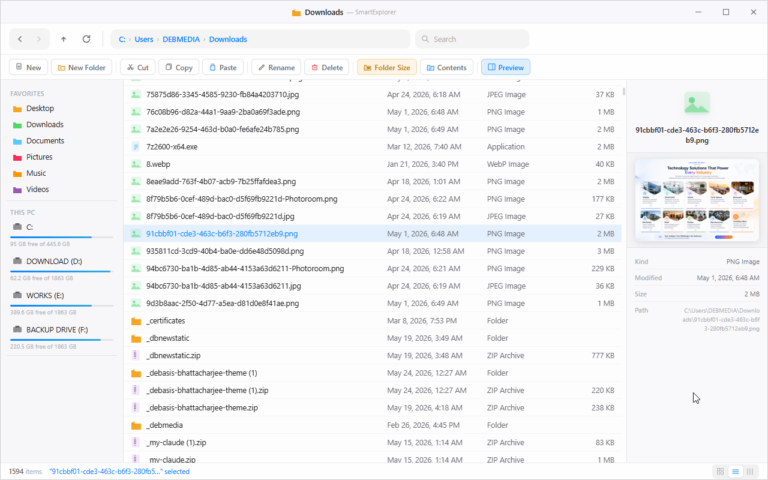
The Preview panel is the feature you’ll reach for constantly once you have it. Select any file in the list and the right-hand panel immediately shows you a visual preview — a rendered thumbnail of the file’s contents — alongside its key metadata: file type, last modified date, file size, and full path.
For image files — JPEG, PNG, WebP, and others — the preview renders the actual image at a generous size, so you can see exactly what a file contains without opening it in a separate application. For other file types, the metadata panel gives you immediate context about what you’re looking at.
When you’re working through a folder containing hundreds of files — a downloads folder, a batch of exported images, a project archive — the ability to preview files instantly without opening and closing applications for each one is a massive productivity gain. One click on a file, and you know immediately whether it’s what you’re looking for.
The preview panel sits neatly to the right of the file list and can be activated or deactivated with the Preview button in the toolbar, keeping the interface clean when you don’t need it.
All the File Operations You Need, Right in the Toolbar
Smart Explorer keeps the most common file management operations immediately accessible in the main toolbar — no right-clicking through nested context menus required.
New creates a new file in the current location. New Folder creates a new directory. Cut, Copy, and Paste work exactly as you’d expect for moving and duplicating files and folders. Rename lets you rename the selected item directly. Delete removes it.
These operations work on single items and on multi-file selections equally. Select multiple files, cut them, navigate to your destination, paste — the workflow is smooth, fast, and free of the quirks and slowdowns that have frustrated Windows Explorer users for years.
Search — Find What You Need, Fast
The search bar at the top of the interface lets you filter the current directory by name instantly, narrowing a large folder’s contents to just the items matching your search term as you type. For folders containing hundreds or thousands of files — a Downloads folder, an archive directory, a project folder with years of accumulated files — this instant filtering is far faster and more convenient than scrolling or sorting.
Drive Management at a Glance
The left sidebar doesn’t just list your drives — it gives you a visual health check of each one. Every connected drive shows a capacity bar indicating how much space is used versus free, with the free space figure displayed in plain text below. Multiple drives are listed together, so you can see the storage situation across your entire system at a glance without navigating anywhere.
For anyone managing files across multiple drives — a common scenario for anyone with a separate downloads drive, a work drive, and a backup drive — this persistent overview eliminates the need to check drive properties individually to understand where you have space.
Breadcrumb Navigation — Always Know Where You Are
The address bar uses a clean breadcrumb format — showing your current path as a series of clickable location segments — making it effortless to navigate back up your directory tree to any level with a single click. No typing required, no confusion about where you are in a deeply nested structure.
The forward and back navigation buttons work exactly as expected, and the up button takes you directly to the parent directory — giving you multiple intuitive ways to move around your file system depending on what’s most convenient at any moment.
Clean, Modern, and Fast
Smart Explorer has been built to feel like a modern Windows application — clean typography, well-proportioned layout, clear visual hierarchy, and a light colour scheme that’s easy to read in any lighting condition. The interface is free of the visual clutter and inconsistencies that have accumulated in Windows Explorer over multiple generations of updates.
Performance is snappy. Navigation is immediate. The folder size calculations run in the background without blocking the interface. And the preview panel renders without delay. Smart Explorer is a tool designed to get out of your way and let you work.
Who Is Smart Explorer For?
Developers and technical users who manage complex project structures and need to understand directory sizes and nesting depths without leaving their file browser. Photographers, designers, and creative professionals who work with large collections of images and need instant visual previews to find the right file quickly. Power users and PC enthusiasts who have always wanted more from Windows Explorer without committing to a complex dual-pane file manager. Anyone doing a disk cleanup who needs to quickly identify which folders are consuming the most space. And frankly, anyone who uses Windows and has ever been frustrated by its file manager’s limitations.
The File Manager Windows Should Have Built
Smart Explorer isn’t a radical reinvention of file management. It’s a thoughtful, well-executed upgrade to a tool that millions of people use every day — one that adds exactly the capabilities that have been conspicuously absent from the built-in alternative for far too long.
Folder sizes. Depth indicators. Contents summaries. Instant previews. A clean, fast interface. Everything you already know how to use, working the way you always wished it would.
Smart Explorer — Navigate smarter. Find faster. Know more.