PDF ++
50+ PDF tools in one desktop app — edit, convert, compress, OCR and protect offline
PDF++ is a complete all-in-one PDF toolkit for Windows. Edit text and images directly inside PDF files, convert PDFs to Word, Excel, PowerPoint and image formats, convert documents back to PDF, merge multiple PDFs into one, split a single PDF into individual pages or ranges, compress PDF file size without visible quality loss, add or remove passwords and permissions, annotate with highlights and comments, apply digital signatures and extract text and images from any PDF. The OCR engine makes scanned PDFs searchable and editable. Everything runs locally — no uploading sensitive documents to an online service, no file size limits, no subscription. PDF++ handles individual files or entire folder batches.
See PDF++ in Action
A clean, modern interface designed for real-world use.
Pdfplusplus screen 01 screenshot
What Is PDF++?
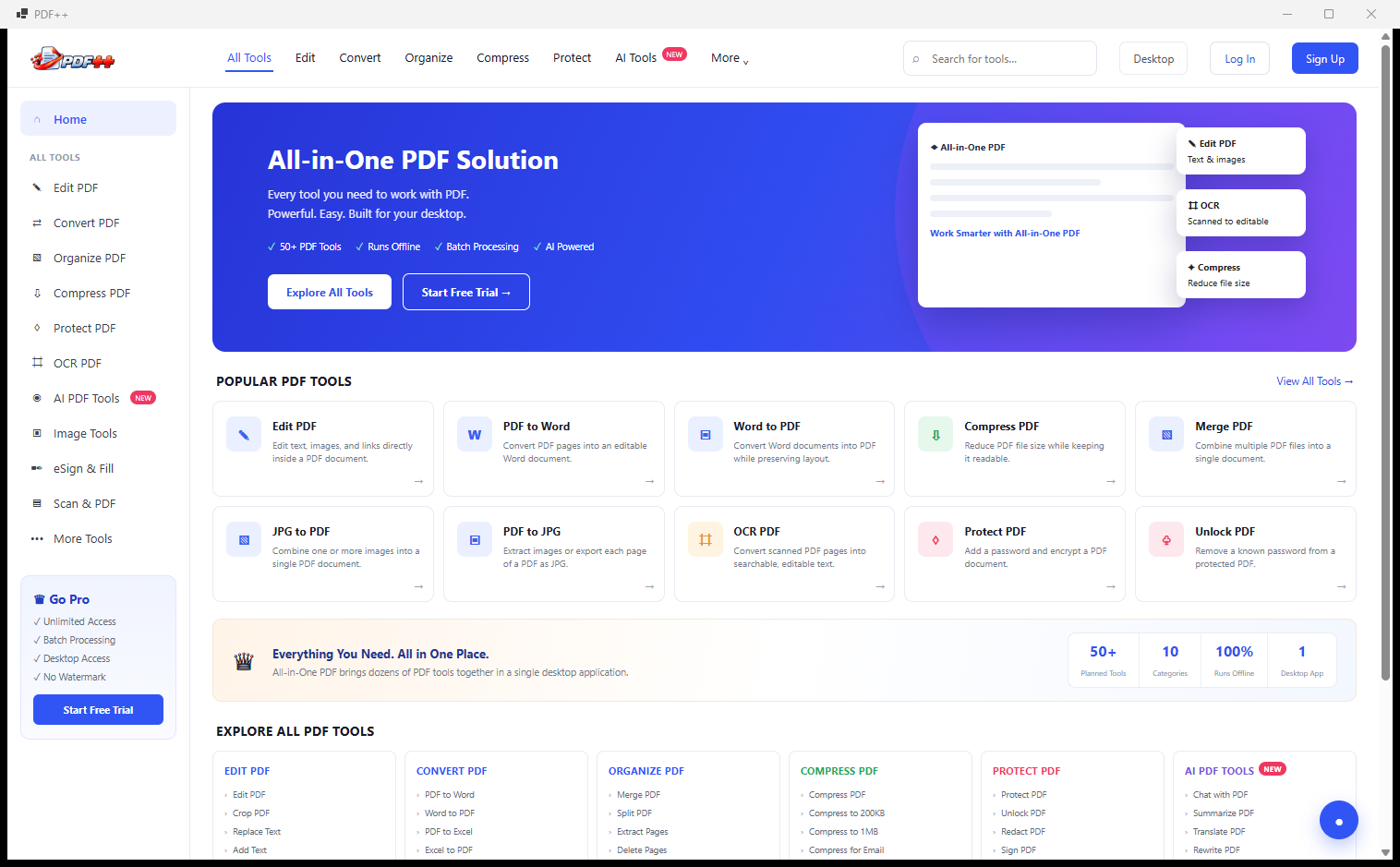
PDF++ is a comprehensive Windows desktop PDF toolset that packages over 50 PDF operations into a single, clean application with a light-themed interface. Instead of juggling multiple separate tools or uploading files to an online service, PDF++ handles every common PDF task in one place — all tools run offline, directly on your machine, with no file size limits and no subscriptions. A left-sidebar navigation and top-category tabs make finding the right tool instant, and every category from Edit to AI Tools is reachable in two clicks.
Screen-by-Screen Feature Walkthrough
Home — The All-in-One PDF Dashboard
The home screen opens with the headline “All-in-One PDF Solution — Every tool you need to work with PDFs. Powerful. Easy. Built for your desktop.” A Popular PDF Tools grid immediately surfaces the most-used operations: Edit PDF, PDF to Word, Word to PDF, Compress PDF, Merge PDF, JPG to PDF, OCR PDF, Protect PDF and Unlock PDF are all one click away. Below that, statistics confirm the scope: 50+ named tools, 10 categories, 100% offline, 1 desktop app. Scrolling further reveals the full Explore All PDF Tools directory with every tool listed by category — so even on first use you can see everything the app is capable of.
Edit PDF Tools — Full Editing Toolkit
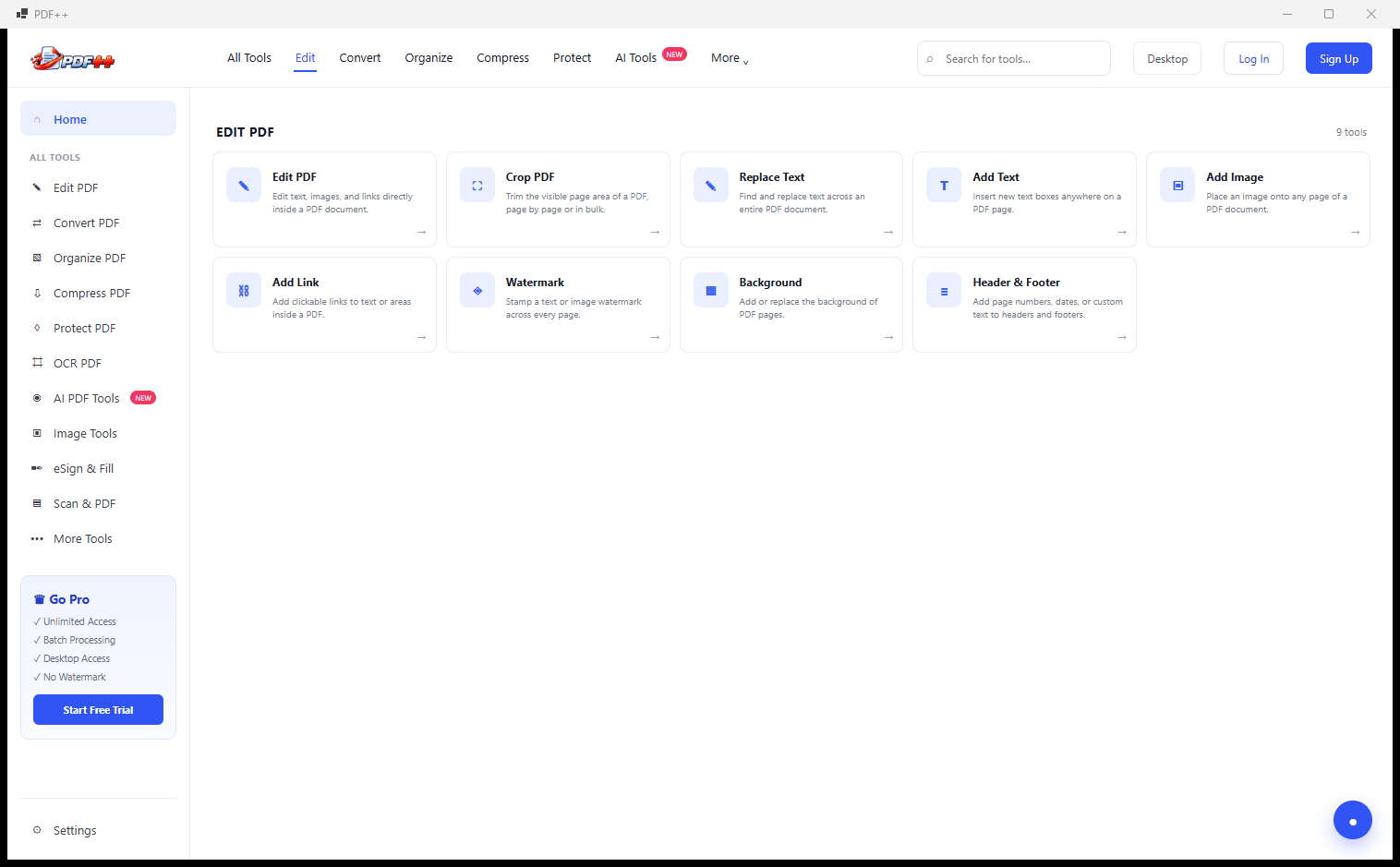
Clicking the Edit tab in the top navigation reveals every editing tool in one view: Edit PDF, Crop PDF, Replace Text, Add Text, Add Image, Add Link, Watermark, Background and Header & Footer. Each tool card shows its name and a brief description of what it does, making it easy to find exactly the right operation without guessing. Whether you need to fix a typo in a finalised contract, crop a page to remove a border, or insert your company logo onto every page, all the editing actions are here grouped together in one category screen.
Edit PDF — In-App Tool Dialog
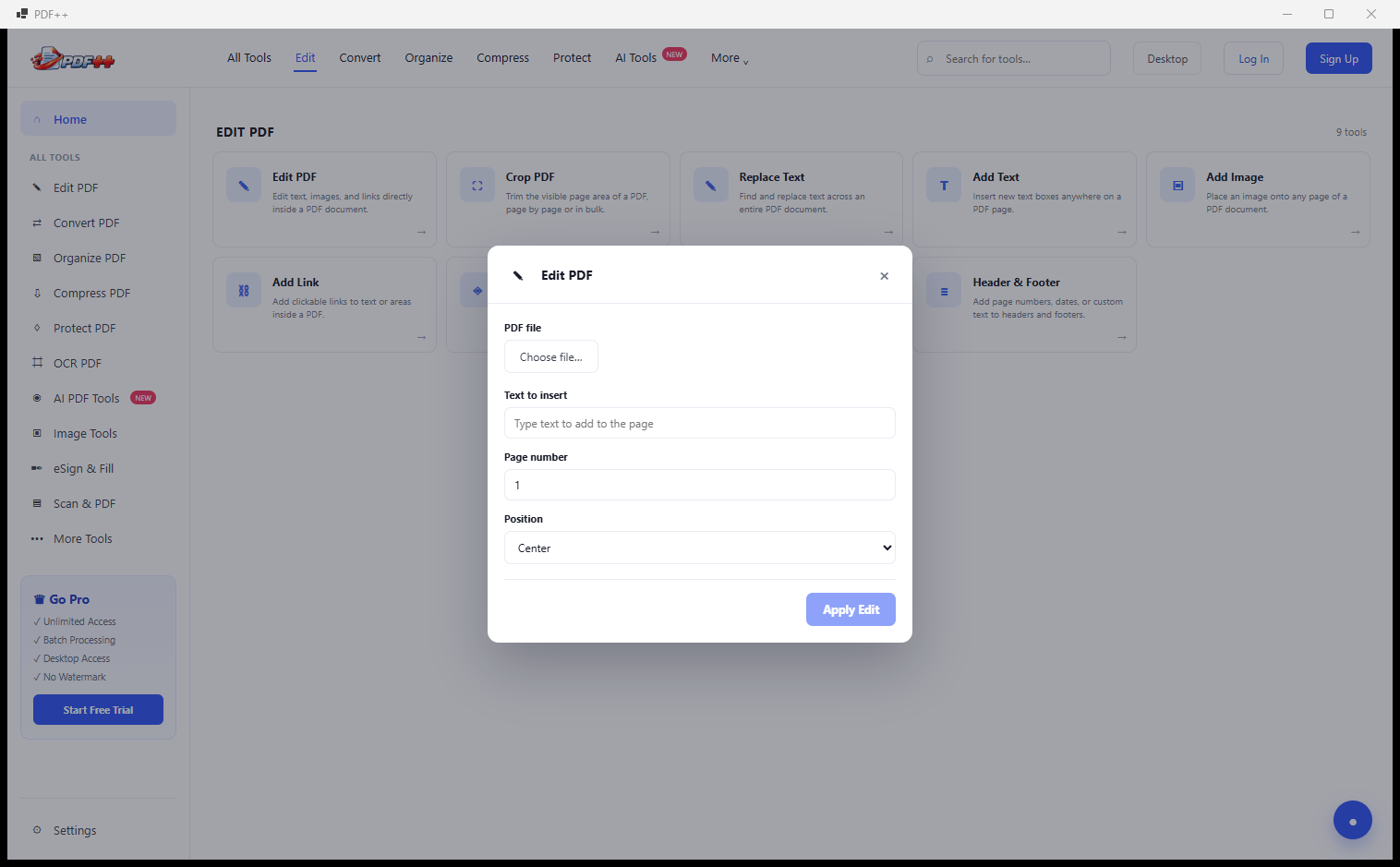
Clicking any tool card opens a clean dialog directly over the category view — no new window, no separate app. The Edit PDF dialog shown here presents three settings: choose your PDF file, type the text you want to insert, select the target page number, and pick a position (Centre, Top-Left, Top-Right, Bottom-Left, Bottom-Right). Hit Apply Edit and the operation runs instantly. This consistent dialog pattern applies across all 50+ tools — pick a file, set a couple of options, run. PDF++ keeps every tool fast to use by keeping every interface minimal.
Convert PDF — Full Conversion Directory
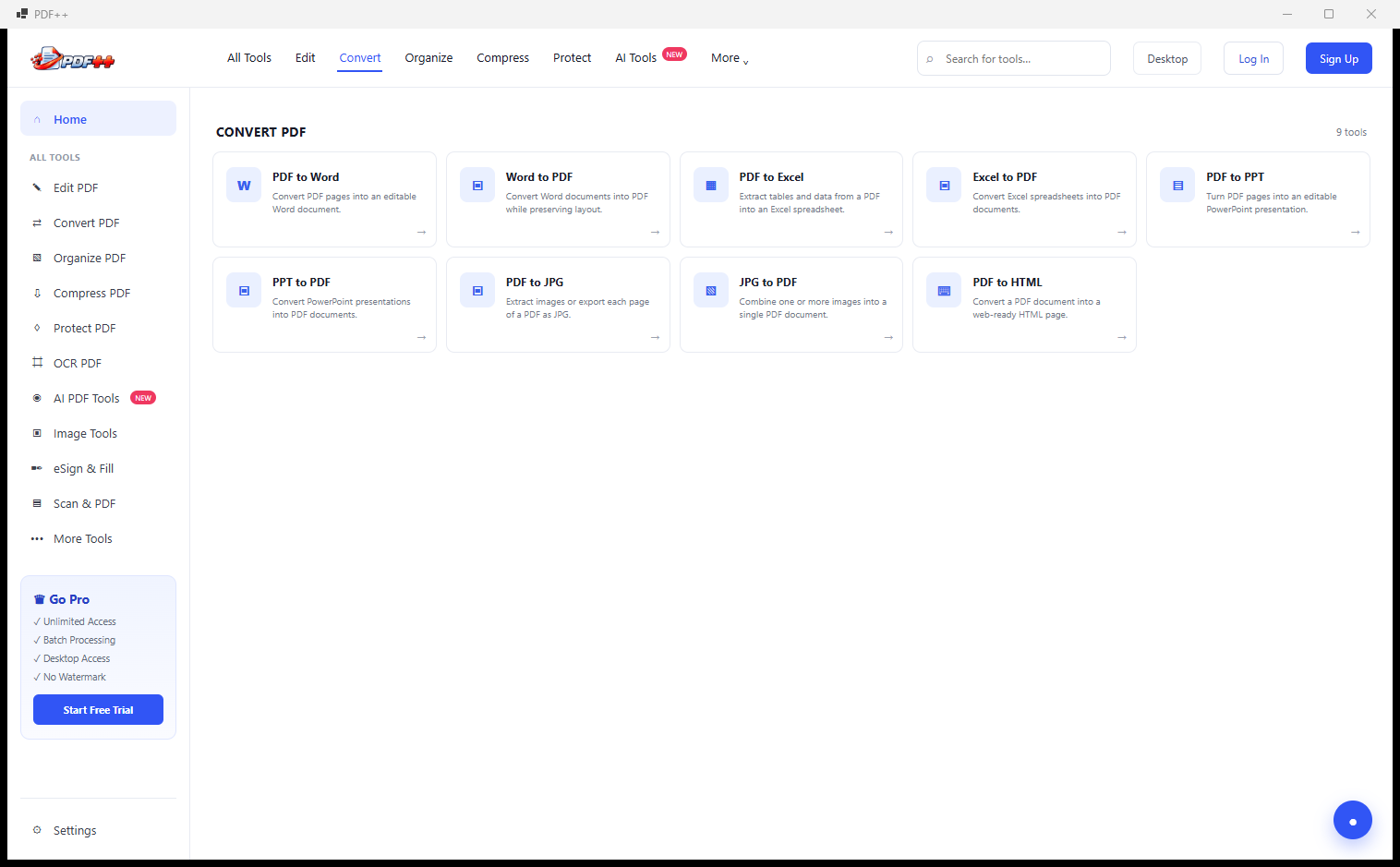
The Convert tab groups all file-format conversions in one place: PDF to Word, Word to PDF, PDF to Excel, Excel to PDF, PDF to PPT, PPT to PDF, PDF to PNG, PNG to PDF and PDF to HTML. Every direction is covered — whether you are pulling content out of a PDF into an editable format or wrapping another file type into a PDF for distribution. The tool cards explain what each converter does in plain terms, so you can pick the right tool even if you have never used the app before.
PDF to Word — Conversion in Progress
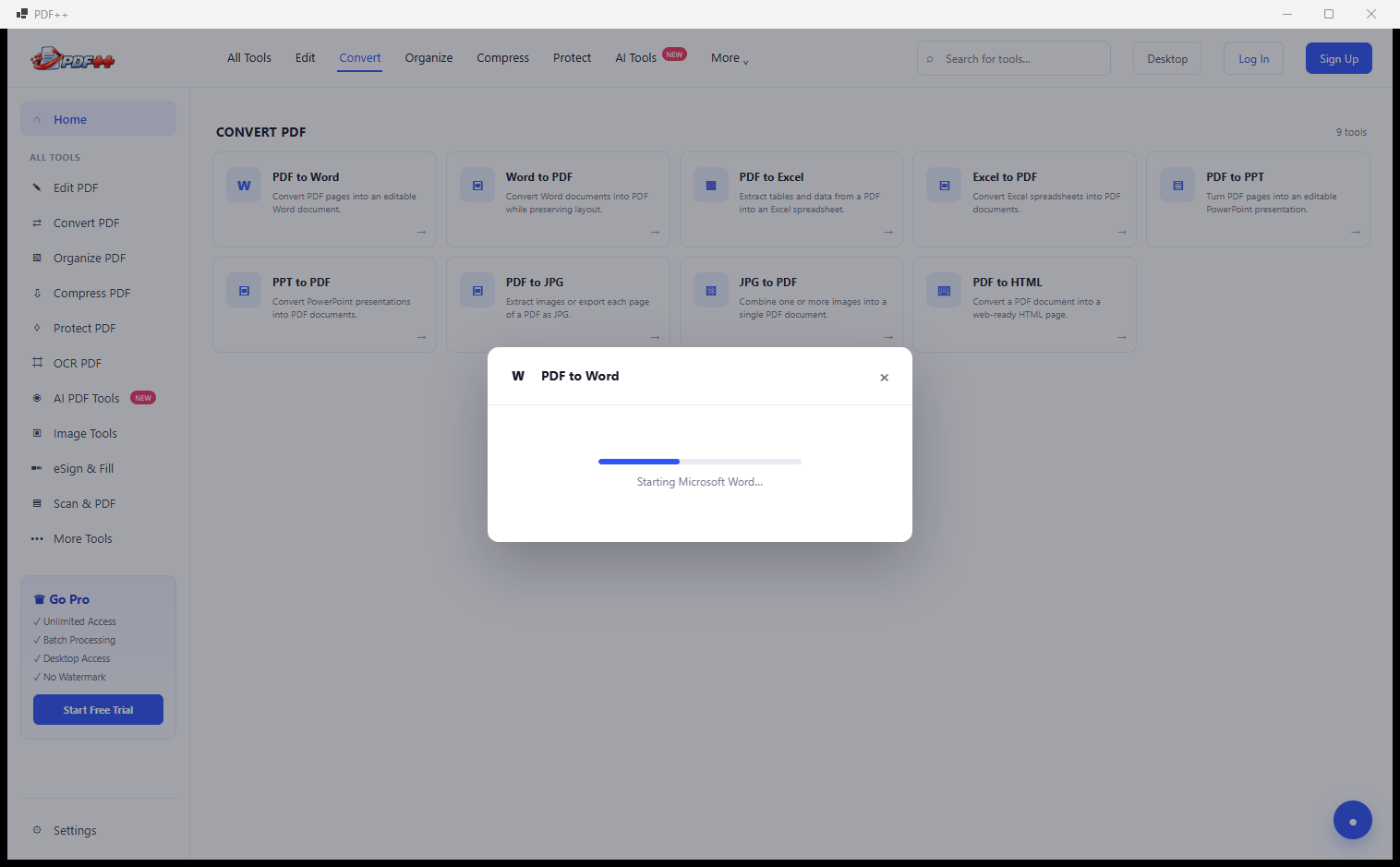
Once you select a PDF and launch the PDF to Word conversion, a progress dialog appears showing exactly what the app is doing. “Starting Microsoft Word…” confirms that PDF++ is coordinating with your local Microsoft Word installation to produce a properly formatted .docx output. Conversions run locally on your machine — nothing is uploaded to a server — so document privacy is maintained throughout. The progress animation keeps you informed so you are never left wondering whether the conversion has stalled.
PDF to Word — Writing Output Pages
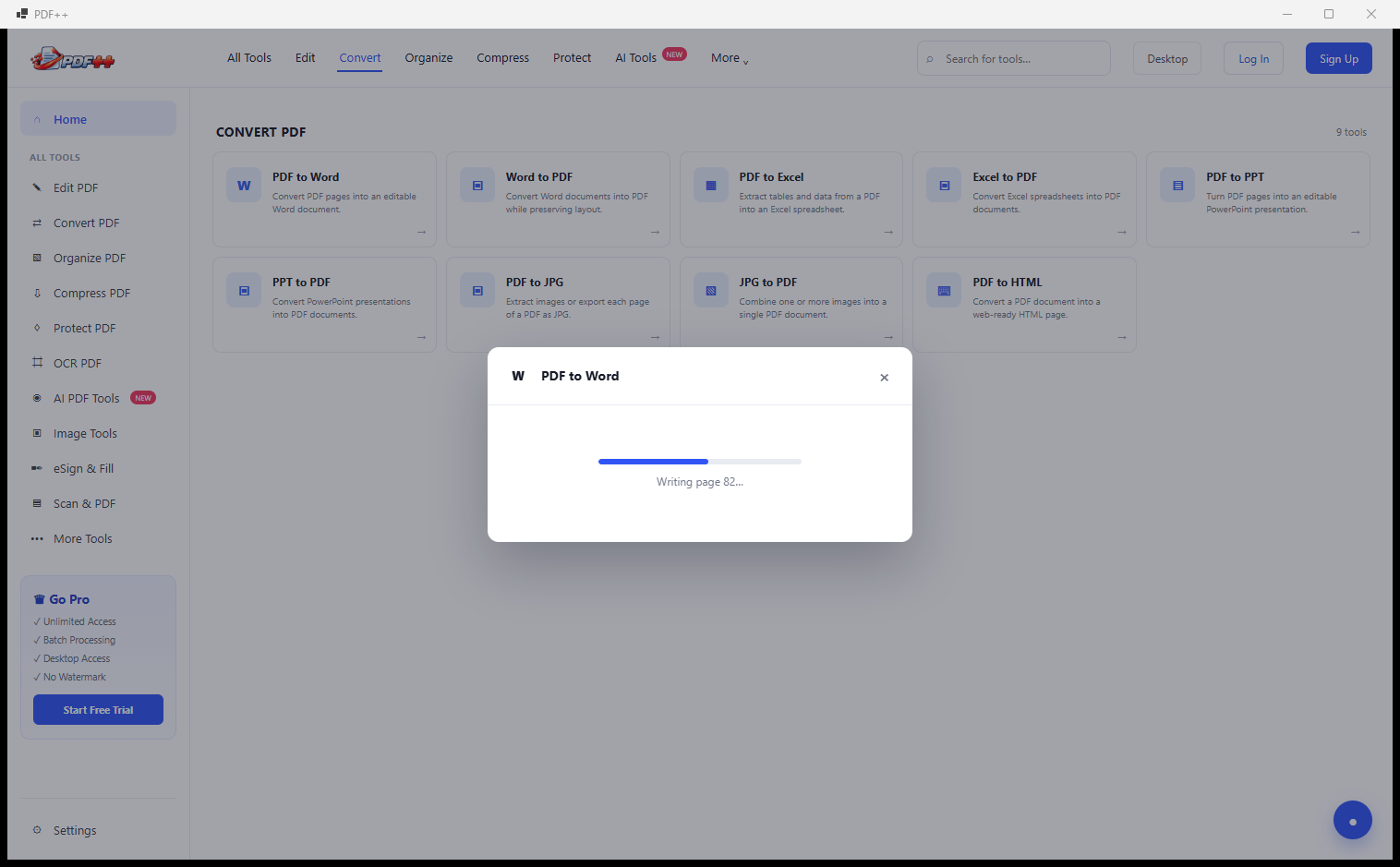
As the conversion advances, the progress dialog updates to show the current page being written — “Writing page 02…” — so you can see the conversion working through the document in real time. For multi-page PDFs this gives a clear sense of progress and expected completion time. The same live-progress pattern is used across all conversion tools, so you always know the current step whether you are converting PDF to Excel, to PPT, or running an OCR scan.
Organize PDF — Page Management Tools
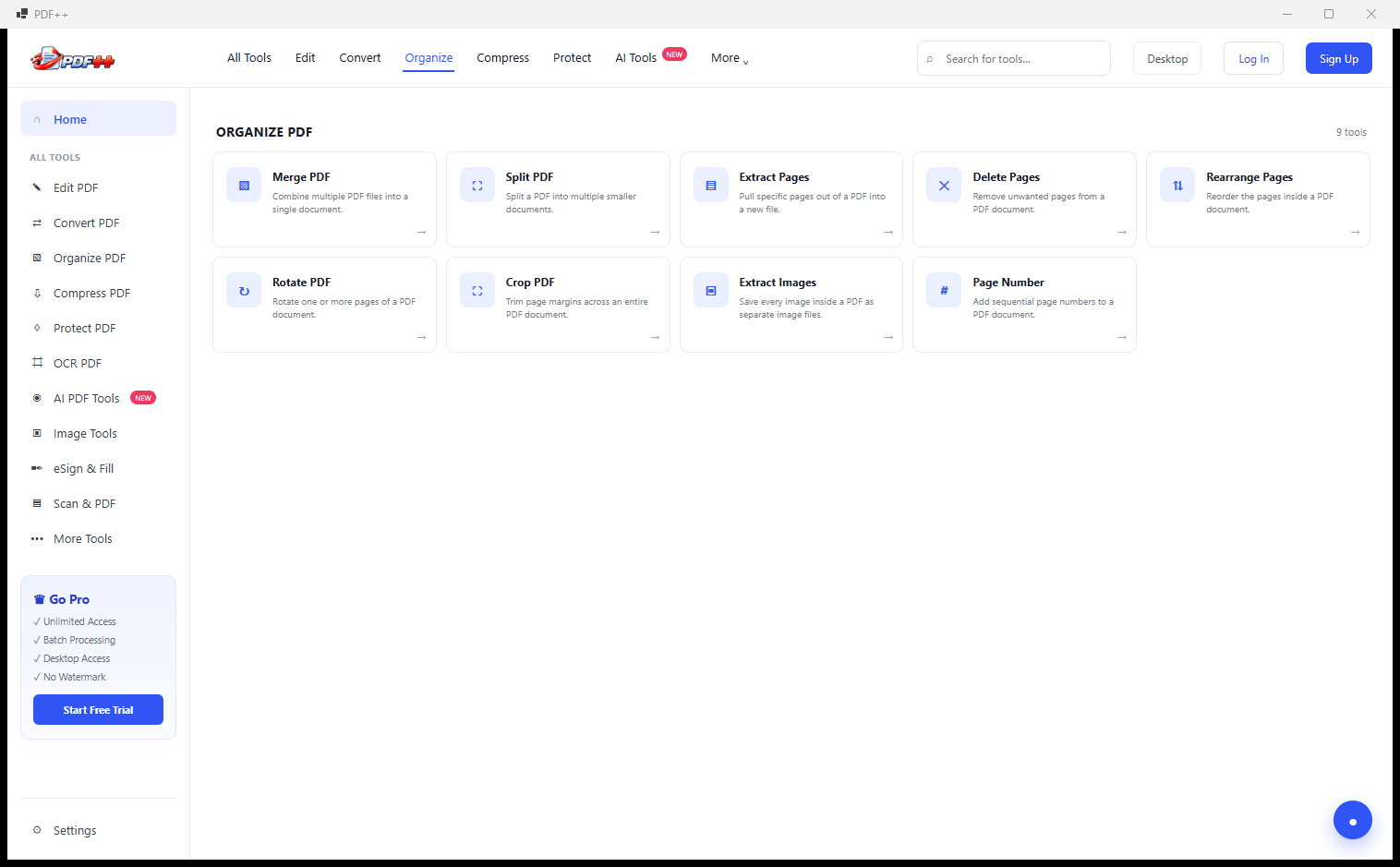
The Organize tab covers all page-level operations: Merge PDF (combine multiple files), Split PDF (break a document into parts), Extract Pages (pull specific pages out), Delete Pages, Rearrange Pages, Rotate PDF, Lasso PDF, Refresh Images and Page Number. These are the tools you reach for when the content of a PDF is correct but the structure needs changing — reordering chapters, removing a draft title page, combining a report with its appendices, or stamping page numbers onto a document that lacks them.
Compress PDF — Six Compression Modes
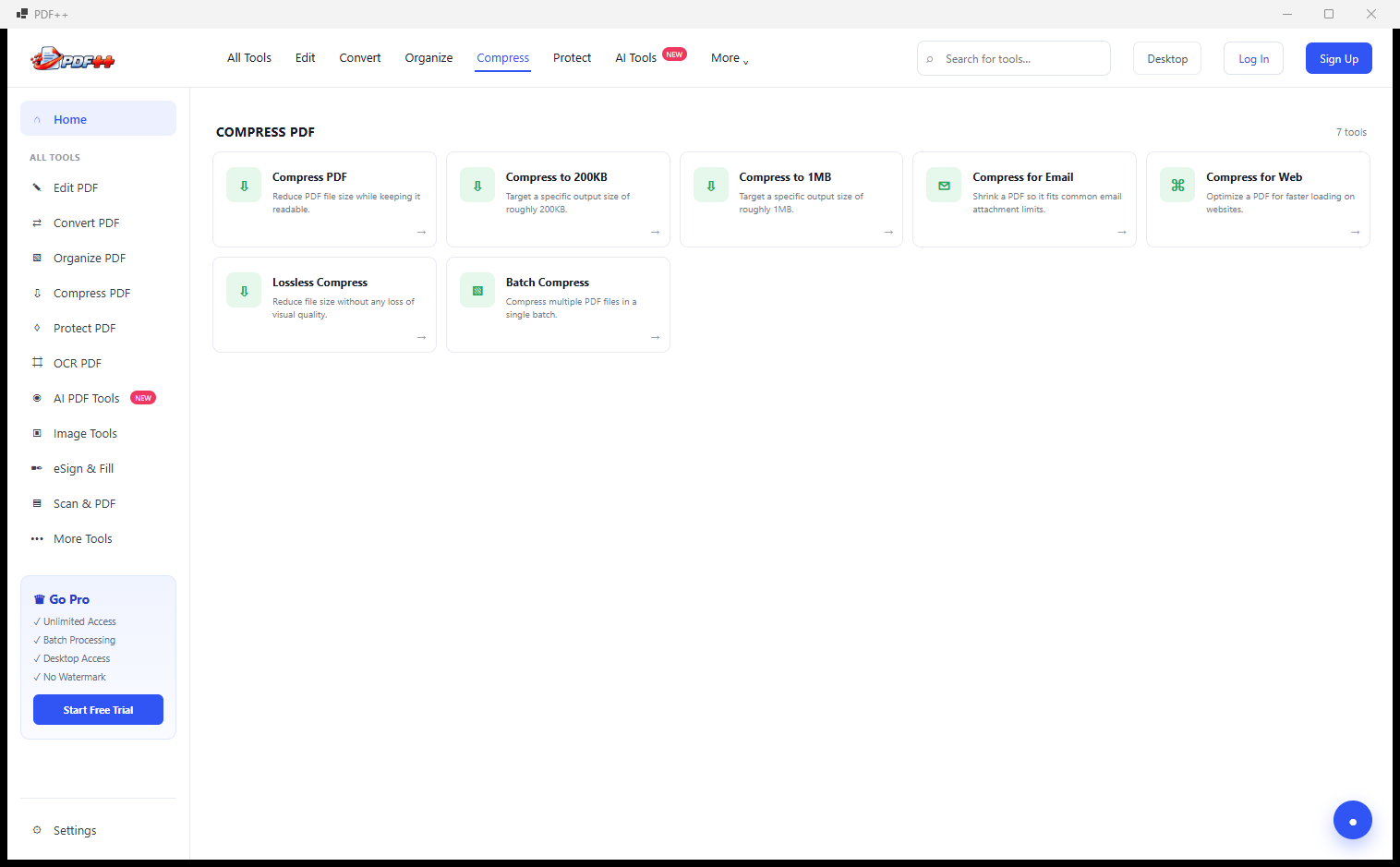
PDF++ does not offer just one generic compression button — the Compress tab gives you seven targeted options: Compress PDF (standard reduction), Compress to 200KB (hit a specific small-file target), Compress to 1MB, Compress for Email (optimised for email attachment size limits), Compress for Web (fast-loading PDFs for online display), Lossless Compress (reduce file size without any image quality loss), and Batch Compress (process a whole folder at once). This granularity means you always get exactly the file size you need for the specific use case, rather than over-compressing a document that will be printed.
Protect PDF — Security and Signature Tools
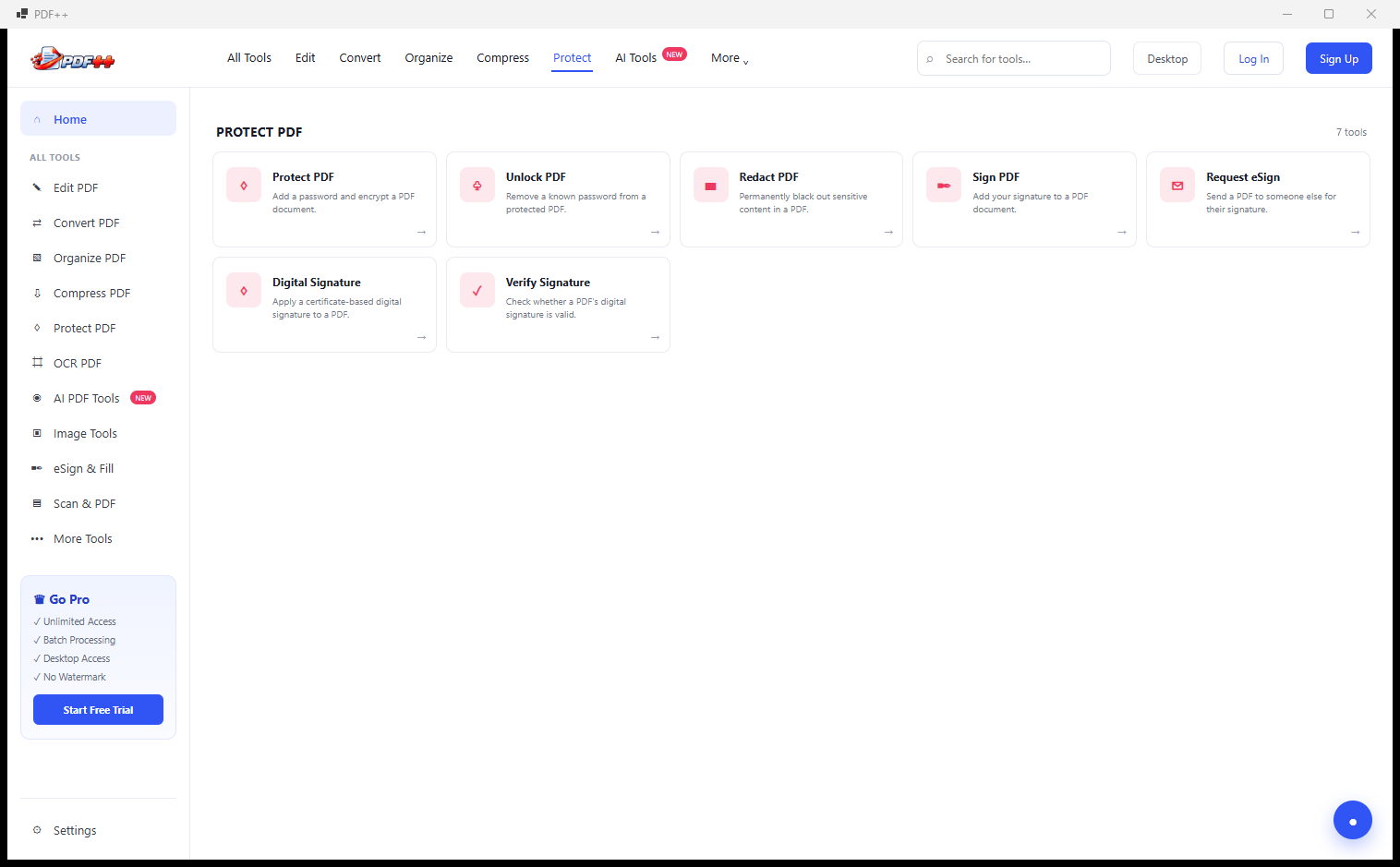
The Protect tab covers every document security scenario: Protect PDF (add open and permissions passwords), Unlock PDF (remove protection from documents you own), Redact PDF (permanently black out sensitive information), Sign PDF (apply your signature), Request eSign (send a document for someone else to sign), Digital Signature (apply a cryptographic certificate-based signature), and Verify Signature (confirm a digital signature’s authenticity). Whether you need to lock down a confidential report, permanently remove personally identifiable information before sharing, or get a legally binding signature on a contract, all the tools are in one tab.
AI PDF Tools — Seven Intelligence Features
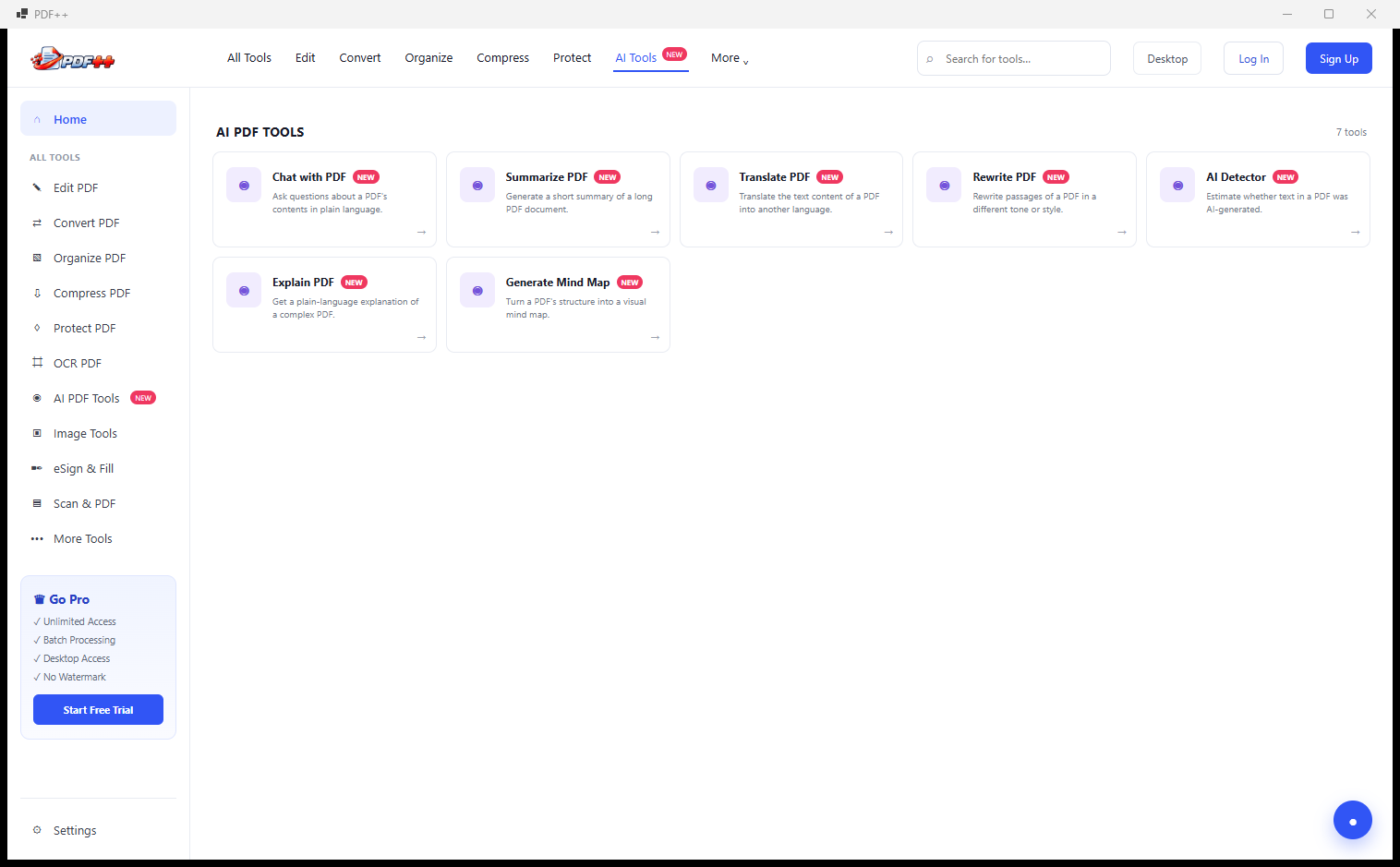
The AI Tools tab brings seven AI-powered features to your local PDF workflow, all marked “New”: Chat with PDF (ask questions about any document in natural language), Summarize PDF (get a concise summary of a long document), Translate PDF (convert the document to another language while preserving formatting), Rewrite PDF (rephrase content for a different tone or reading level), AI Detector (check whether PDF content was AI-generated), Explain PDF (get plain-language explanations of complex sections), and Generate Mind Map (turn a document’s structure into a visual mind map). These tools handle the 20% of PDF tasks that require understanding content, not just transforming format.
More Tool Categories — Revealed via Navigation
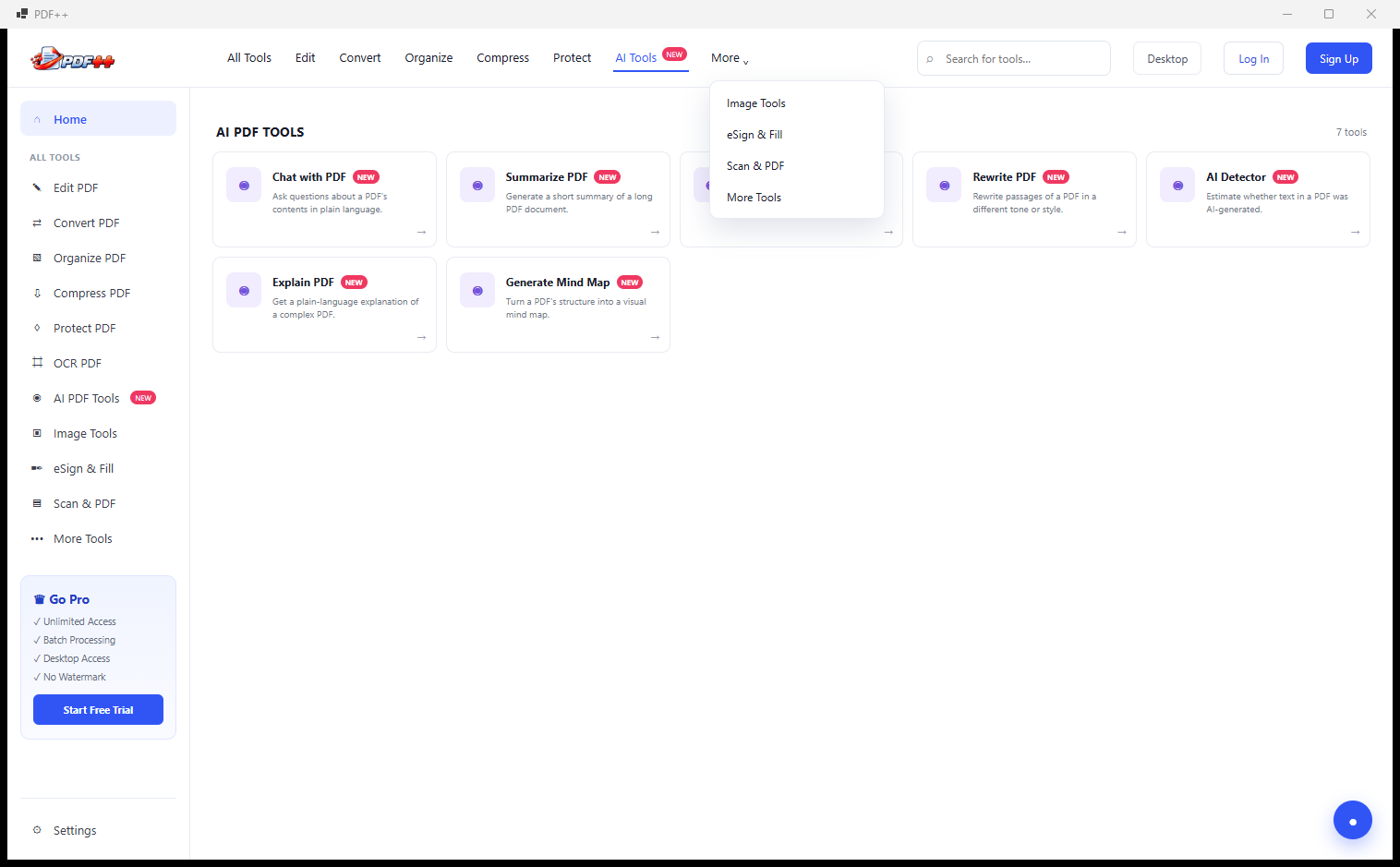
The top navigation bar’s “More” button reveals four additional tool groups beyond the main tabs: Image Tools, eSign & Fill, Scan & PDF, and More Tools. This keeps the top bar clean while still making every category reachable in a single extra click. No feature is buried more than two clicks deep from the home screen, regardless of how many tools the app contains.
Image Tools — Resize, Compress and Convert
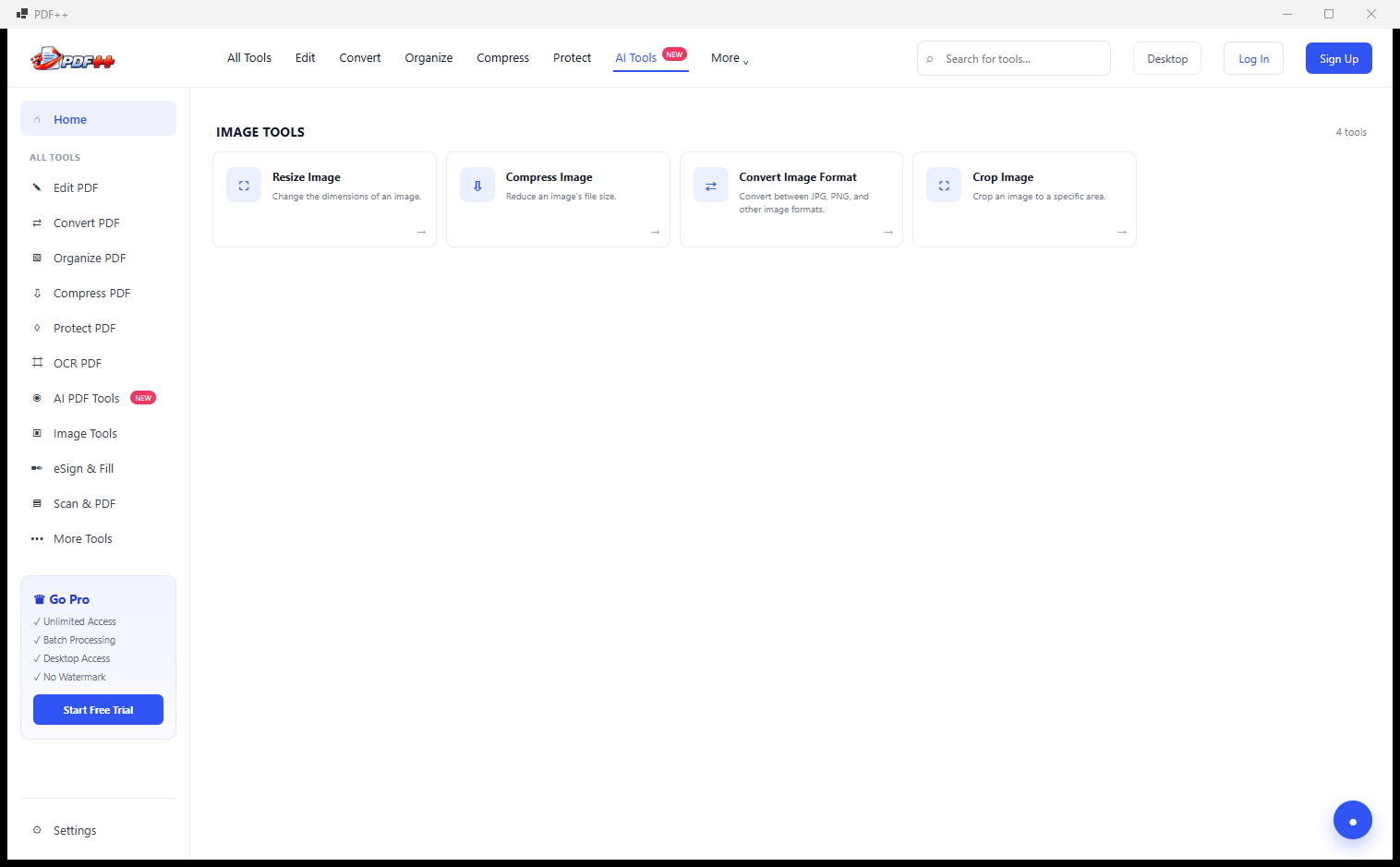
PDF++ extends beyond PDFs with a built-in Image Tools section: Resize Image (change dimensions for web or print), Compress Image (reduce file size without visible quality loss), Convert Image Format (convert between JPG, PNG, WebP and other formats), and Crop Image. These tools are particularly useful for preparing images before embedding them in a PDF — resizing to the exact dimensions you need or converting a PNG to JPG before adding it to a report saves a round-trip through a separate image editor.
eSign & Fill — PDF Form Tools
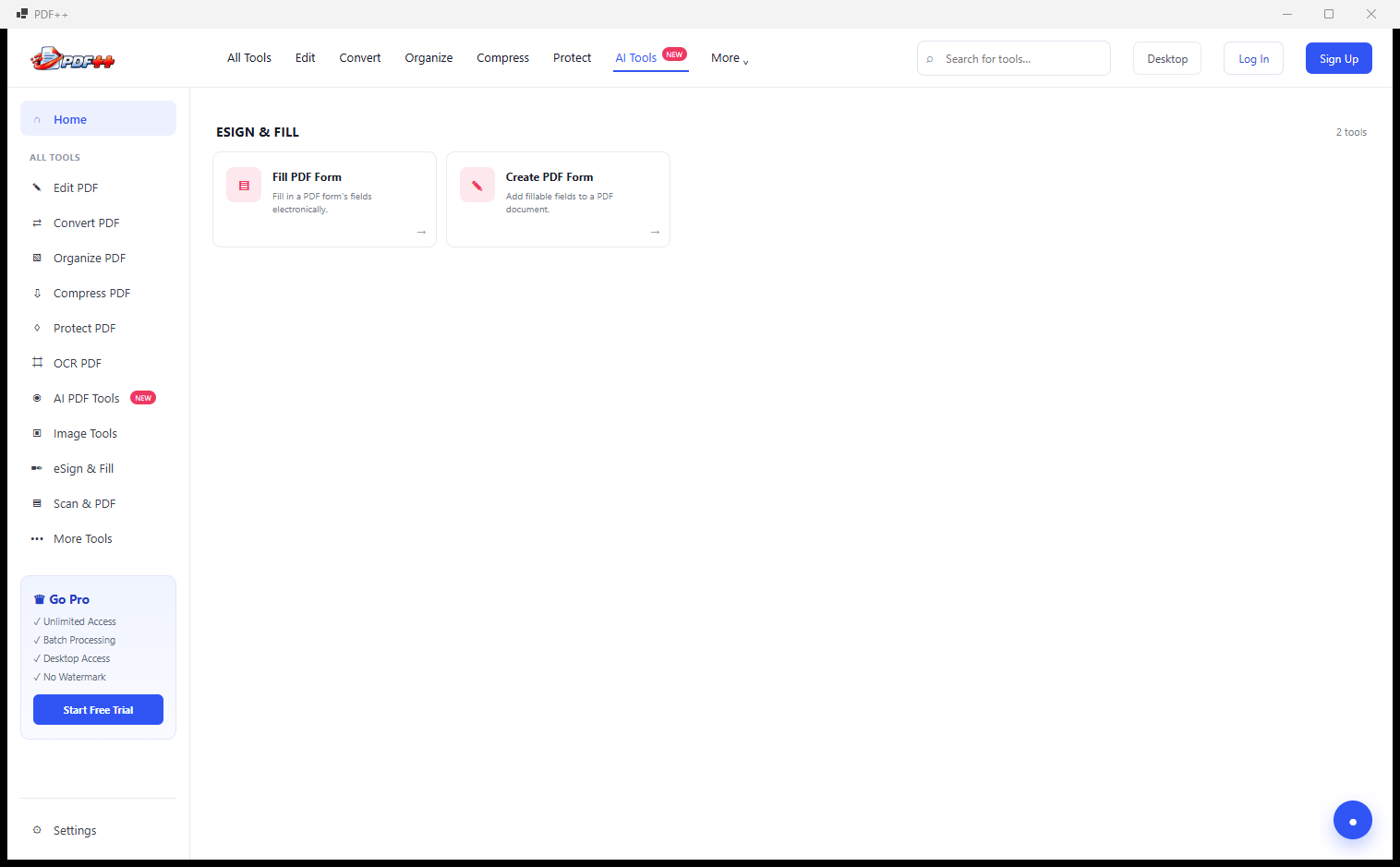
The eSign & Fill section handles interactive PDF form workflows: Fill PDF Forms (open any PDF form, fill in the fields and save the completed document) and Create PDF Form (build a new fillable PDF form from scratch, adding text fields, checkboxes, dropdowns and signature fields). Together these tools cover both sides of form-based workflows — receiving a form from a client and filling it in, or creating a form template for others to complete.
Scan & PDF — Capture to Document
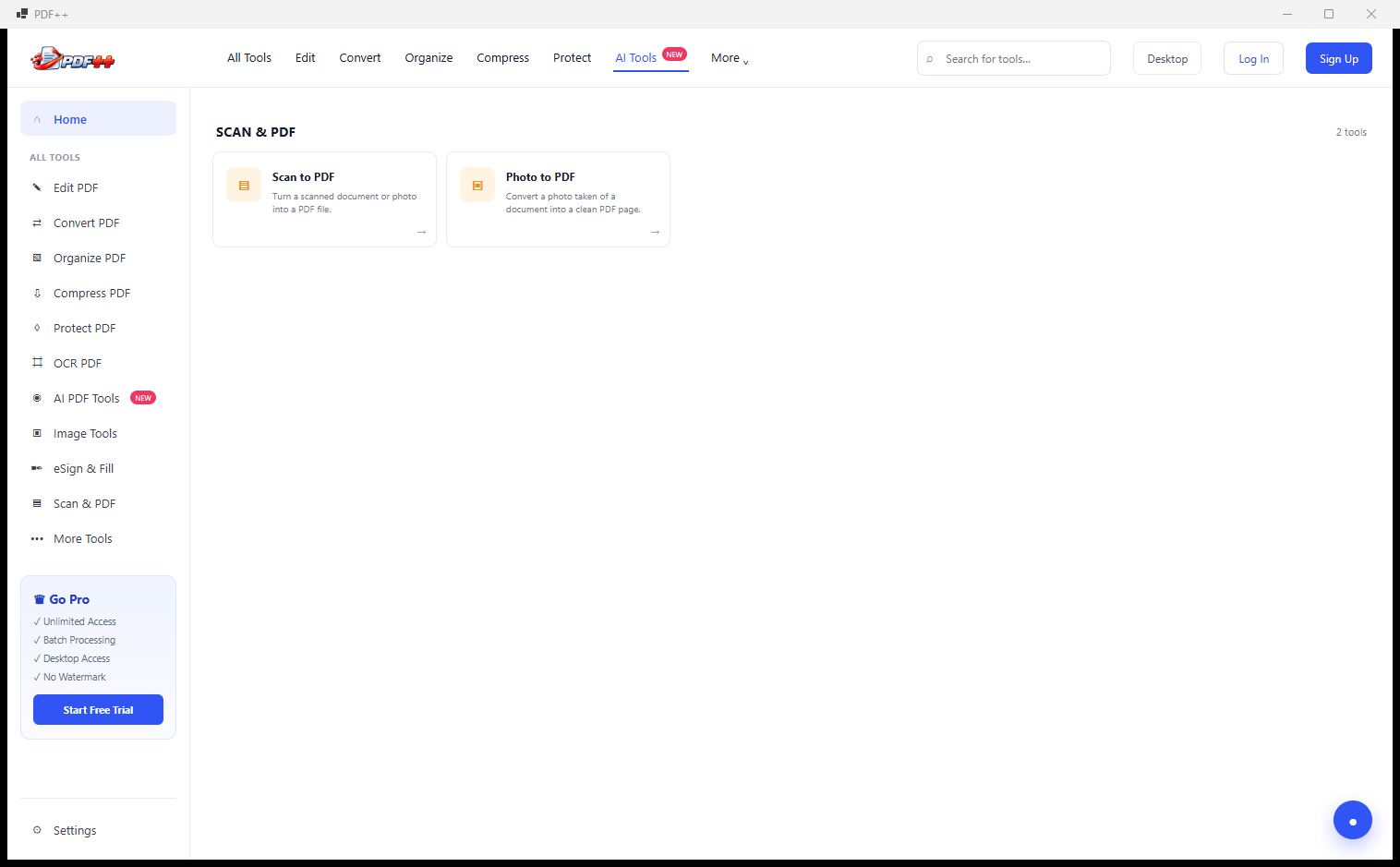
The Scan & PDF section bridges the physical and digital document worlds: Scan to PDF captures from any connected scanner directly to a PDF file, and Photo to PDF converts a photo (from your camera, phone or existing files) into a properly formatted PDF document. Combined with the OCR tools available elsewhere in the app, you can scan a paper document and immediately make it fully text-searchable — the complete paper-to-digital workflow without leaving PDF++.
More Tools — Repair, Metadata and Utilities
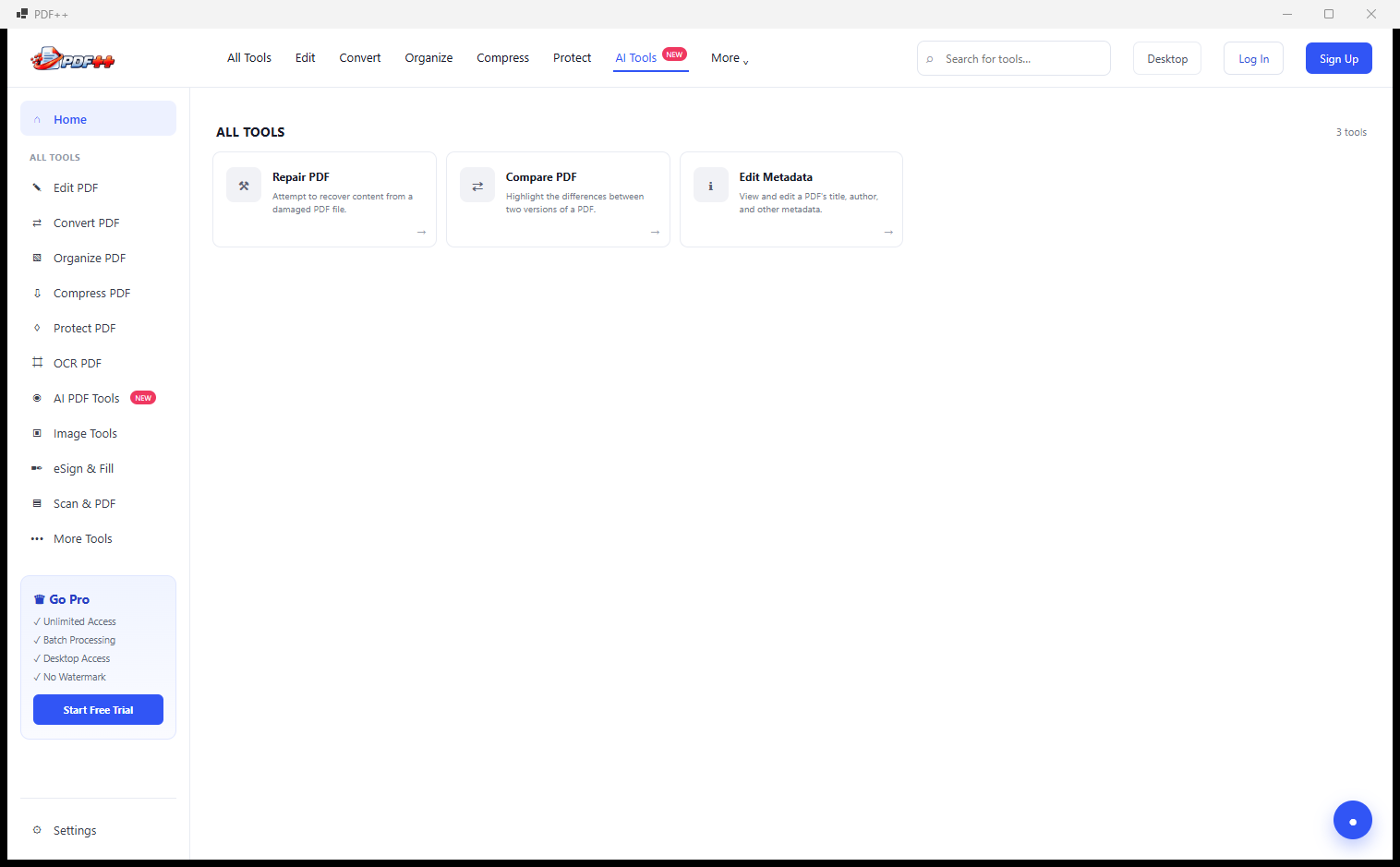
The More Tools section surfaces utility operations that do not fit neatly into other categories: Repair PDF (attempt to recover and fix corrupted or damaged PDF files that fail to open in standard viewers), Compress PDF (a shortcut to the compression tool accessible from here as well), and Edit Metadata (view and update the document’s title, author, subject, keywords, and creation/modification dates stored in the PDF’s internal metadata). Editing metadata is essential for document management systems, content archives and any workflow where PDF properties are used for search or indexing.
OCR PDF — Make Scanned Documents Searchable
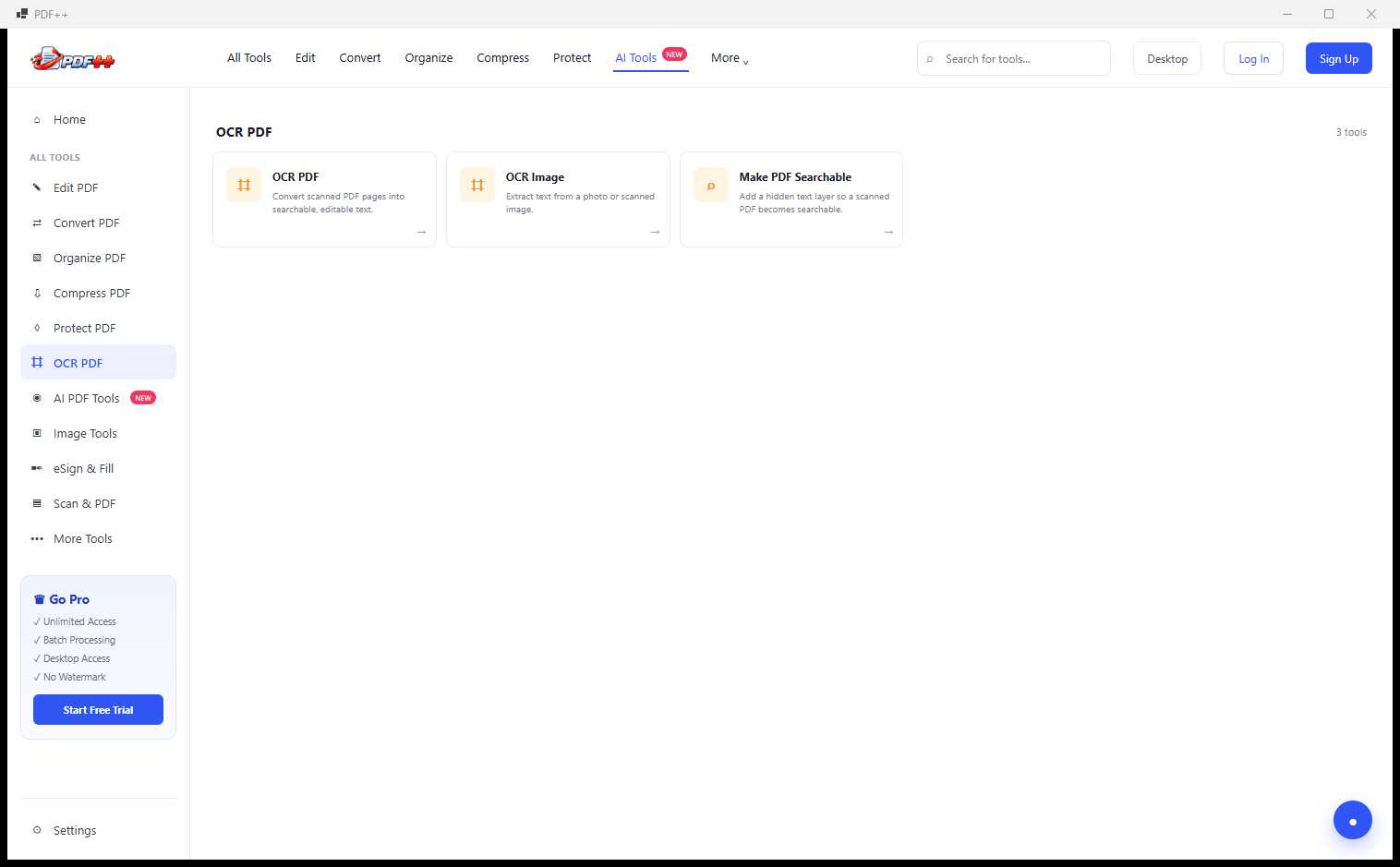
The OCR section provides three text-recognition tools: OCR PDF (run optical character recognition on a scanned PDF to make its text selectable, copyable and searchable), OCR Image (extract text from any image file), and Make PDF Searchable (add a hidden searchable text layer to a scanned PDF without changing its visible appearance). OCR is the key to unlocking scanned archives — turning a decade of scanned invoices, contracts or letters into fully searchable, copyable documents that can be found by content rather than just by filename.
AI PDF Tools — Sidebar-Selected View
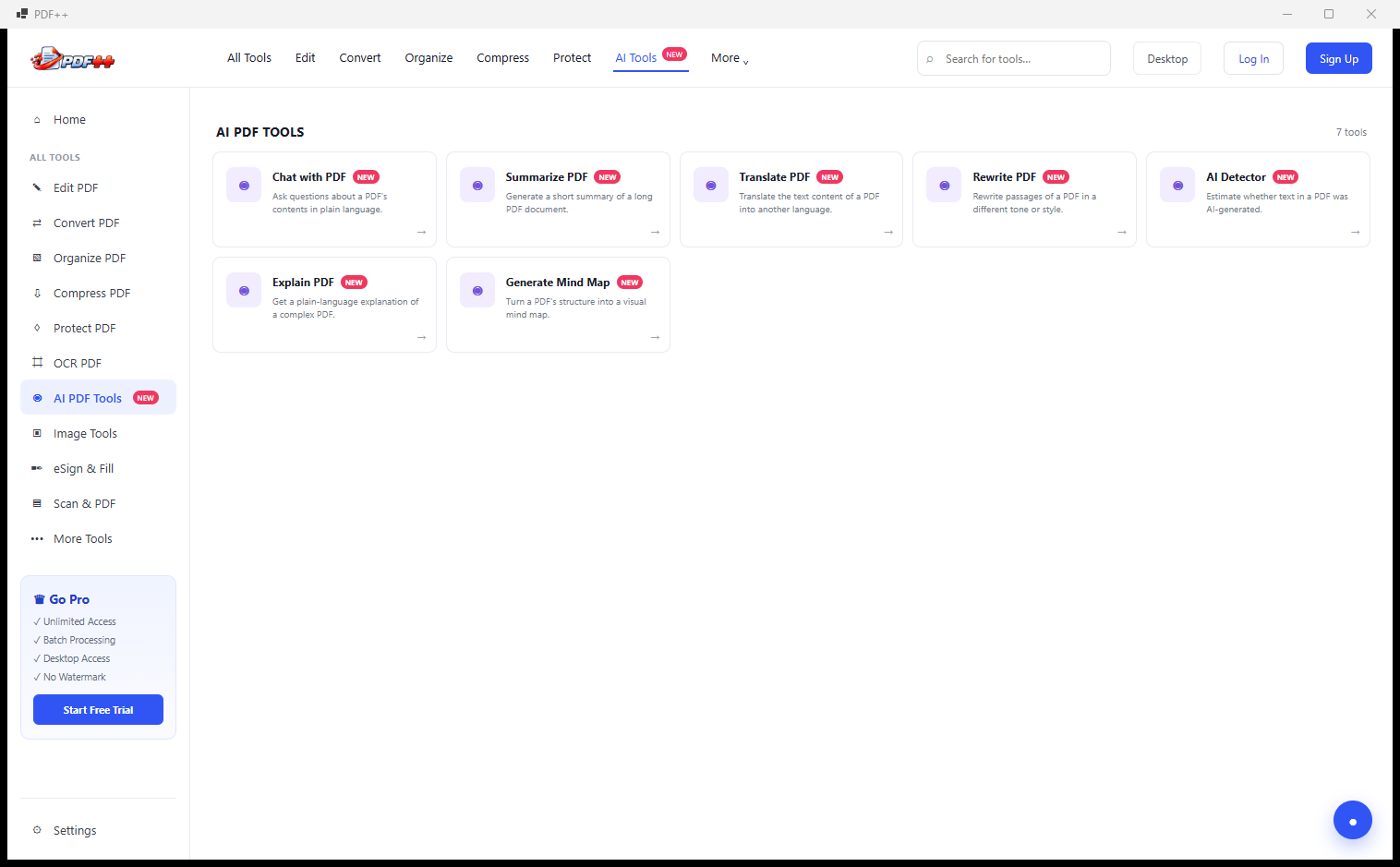
The AI PDF Tools section is also accessible directly from the left sidebar, where clicking “AI PDF Tools” highlights it in blue and brings the same seven AI features into view. The sidebar navigation mirrors the top tab navigation — every major section is reachable from both places, so whether you prefer navigating by sidebar or by top bar the tool you need is always one click away. The sidebar also shows all categories at a glance: Edit PDF, Convert PDF, Organize PDF, Compress PDF, Protect PDF, OCR PDF, AI PDF Tools, Image Tools, eSign & Fill, Scan & PDF, and More Tools.
Tool Dialog Over Home — Compress to 1MB
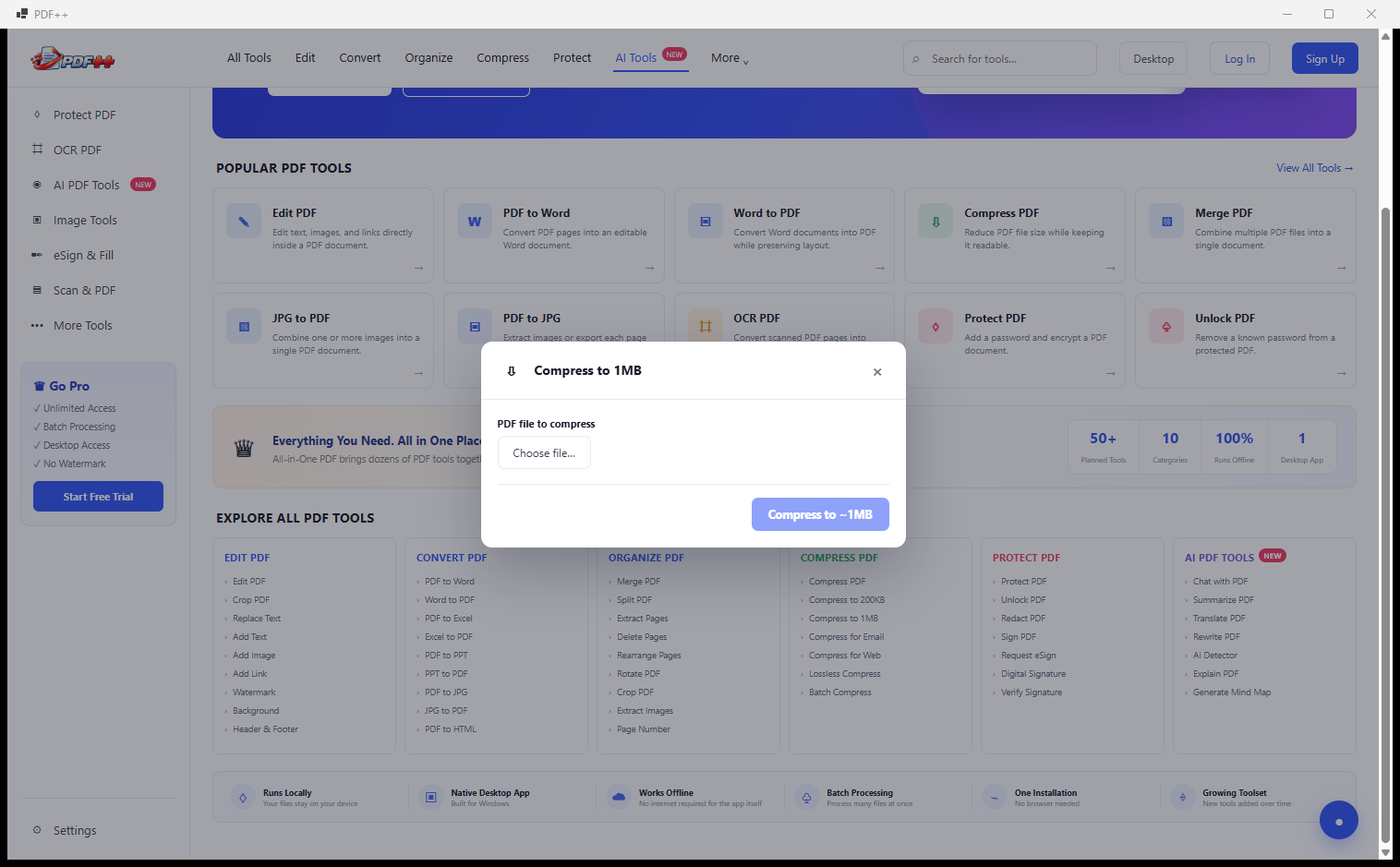
PDF++ tool dialogs can be opened from anywhere — including directly from the Popular PDF Tools cards on the home page. Here, the “Compress to 1MB” dialog is open over the home screen, showing just two inputs: the PDF file to compress and the Compress to 1MB action button. The home screen remains visible in the background showing the complete tool directory, so you can see at a glance what else is available while running a compression. This frictionless access pattern — click a tool on the home page, fill in the dialog, run — keeps routine operations fast without navigating away from your starting point.
Explore All PDF Tools — Complete Tool Directory
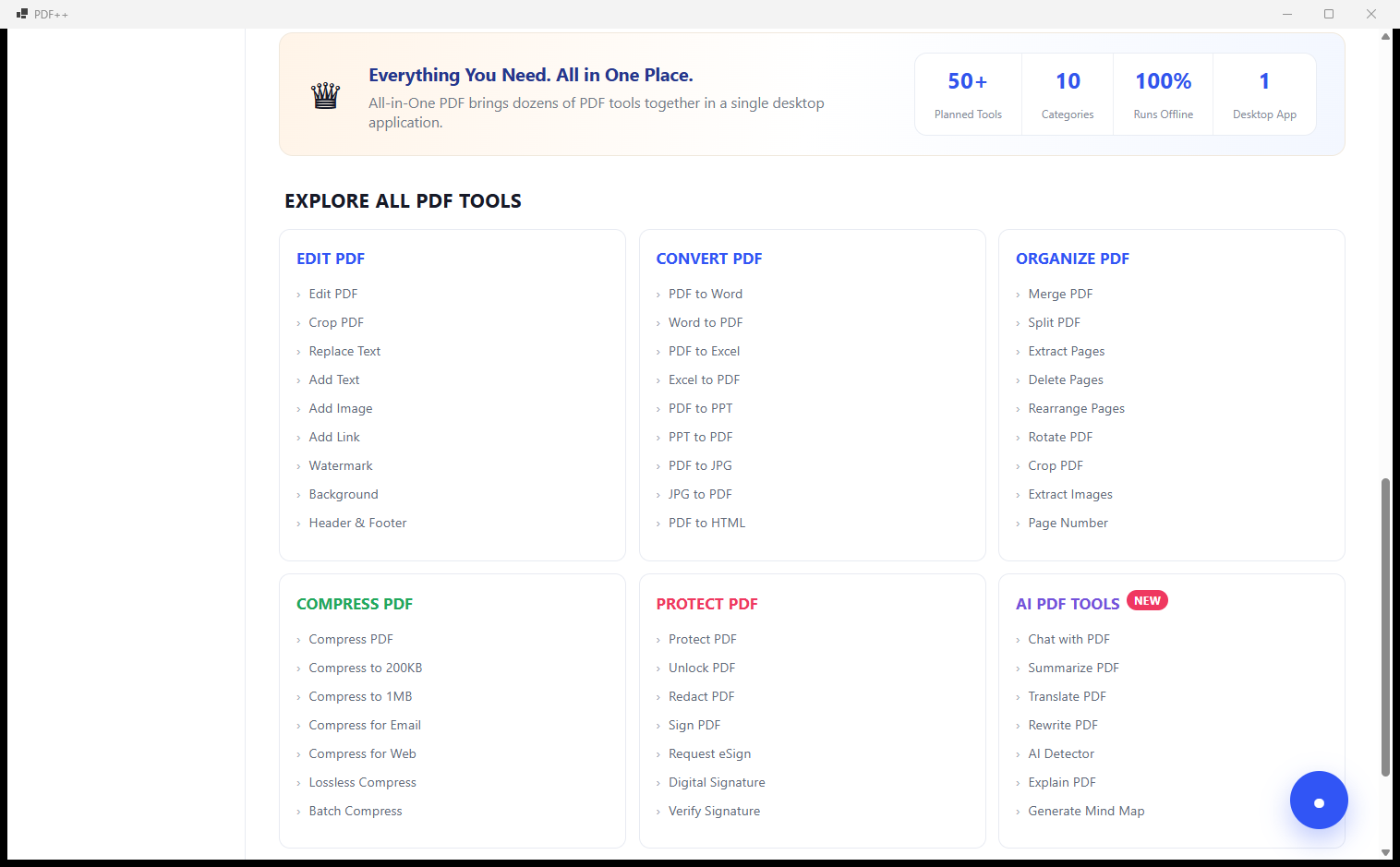
The Explore All PDF Tools page is the complete directory of everything PDF++ can do — all 50+ tools across ten categories on one scrollable reference page. Edit PDF (Edit, Crop, Replace Text, Add Text, Add Image, Add Link, Watermark, Background, Header & Footer), Convert PDF (PDF to Word, Word to PDF, PDF to Excel, Excel to PDF, PDF to PPT, PPT to PDF, JPG to PDF, PDF to HTML), Organize PDF (Merge, Split, Extract Pages, Delete Pages, Rearrange, Rotate, Crop, Extract Images, Page Number), Compress PDF (standard, to 200KB, to 1MB, for Email, for Web, Lossless, Batch), Protect PDF (Protect, Unlock, Redact, Sign, Request eSign, Digital Signature, Verify Signature), and AI PDF Tools (Chat, Summarize, Translate, AI Detector, Explain, Generate Mind Map) are all listed here. This directory is the single fastest way to discover whether PDF++ has the specific tool your current task requires.
Who Is PDF++ For?
- Office workers and business professionals — Convert PDF reports and contracts to editable Word or Excel, compress large PDFs for email, protect sensitive documents with passwords, and merge multiple files into a single deliverable — all without a subscription or an online PDF service.
- Students and academics — Extract pages from textbooks, compress thesis documents for submission, convert scanned notes via OCR, and merge multiple paper PDFs into a single organised document.
- Freelancers and consultants — Watermark deliverables with client names, protect draft proposals with open passwords, convert client-provided PDFs to editable formats, and use Request eSign to collect signatures without a separate e-signature subscription.
- Legal and compliance professionals — Apply permission-controlled password protection to sensitive documents, redact personally identifiable information before sharing, extract specific pages for submissions, and verify digital signatures on received contracts.
- IT administrators and technical users — Batch-compress large document libraries, run OCR on scanned archives to make them searchable, repair corrupted PDF files, and edit document metadata for content management system integration.
System Requirements
- Operating System: Windows 10 (64-bit) or Windows 11
- Processor: Intel Core i3 or AMD Ryzen 3 equivalent or better
- RAM: 4 GB minimum — 8 GB recommended for AI tools and batch operations
- Storage: 250 MB for the application; additional space for processed file output
- Runtime: .NET Desktop Runtime 6.0 or later (included in the installer)
- Internet: Some AI features may require an internet connection; all standard tools work fully offline
Frequently Asked Questions
Does PDF++ upload my files to a cloud server?
No. All standard tools (Edit, Convert, Organize, Compress, Protect, OCR, Image Tools, eSign, Scan) run entirely on your Windows PC — no files are uploaded anywhere. Some AI features (Chat with PDF, Summarize, Translate) may use cloud AI processing for best accuracy, but standard PDF operations are always 100% local and offline.
Can PDF++ handle scanned PDFs that contain images instead of text?
Yes. The OCR PDF tool detects scanned pages and applies optical character recognition to make the text selectable, copyable and searchable. You can also use Make PDF Searchable to add a hidden text layer to a scanned PDF while keeping its original visual appearance unchanged — useful for archiving scanned documents that need to be indexed by content.
Is there a limit on how many files I can process?
No per-file or daily limits apply. Batch Compress processes an entire folder of PDFs in one operation. You can run as many conversions, compressions, merges or OCR operations as you need — PDF++ is a one-time purchase with no usage caps.
Can I get someone else to sign a PDF without a separate e-signature service?
Yes. The Request eSign tool in the Protect section lets you send a PDF to a recipient for their signature. Digital Signature applies a certificate-based cryptographic signature to a document you sign yourself, and Verify Signature confirms the authenticity of a digital signature on a received document — all inside PDF++ without a subscription to a dedicated e-signature platform.
What image formats does PDF++ support for conversion?
PDF++ converts between PDF and JPG, PNG, and HTML. The Image Tools section additionally handles resizing, compressing and converting between common image formats. For scanning, PDF++ works with any scanner connected to your Windows PC via TWAIN or WIA drivers.
Every PDF Task in One Desktop App
PDF++ replaces the collection of online tools, browser extensions and single-purpose utilities that most people use for PDF work with one comprehensive Windows application. Edit, convert, organise, compress, protect, OCR, sign, scan, and apply AI analysis to any PDF — no uploads, no subscriptions, no file size limits. Over 50 tools across ten categories, all accessible within two clicks of the home screen. Whether you process one PDF a week or run batch operations on hundreds of documents daily, PDF++ has the right tool for every task you will encounter — and it works completely offline.
Download PDF++ today — install in under a minute and try any tool for free to see the quality and speed of results before purchasing.
Download PDF++
50+ PDF tools in one desktop app — edit, convert, compress, OCR and protect offline