FixArmor
Detect and fix missing DLLs, Visual C++ and .NET runtime errors on Windows
FixArmor scans your Windows PC for missing or corrupted DLL files, broken Visual C++ redistributable installations and outdated or missing .NET framework versions — the three most common causes of application startup errors on Windows. When a program refuses to launch with an error like msvcp140.dll not found or VCRUNTIME140.dll is missing, FixArmor identifies exactly what is missing and installs the correct version automatically. It supports all Visual C++ redistributable versions from 2005 through the latest release, all .NET Framework and .NET Core versions, and common system DLLs. FixArmor also verifies the integrity of installed runtimes and repairs corrupted installations.
See FixArmor in Action
A clean, modern interface designed for real-world use.
Fixarmor screen 01 screenshot
What Is FixArmor?
FixArmor is a Windows PC repair tool that automatically finds and fixes the system errors that cause applications to crash, fail to launch, or display missing DLL error messages. It scans your Windows installation for broken dependencies — missing runtime libraries, corrupted DLL files, damaged application components, startup errors and generic system faults — and repairs them in a single click without requiring any technical knowledge from the user.
FixArmor uses a clean, professional light blue and white interface designed around clarity. The workflow is intentionally simple: scan, review the findings, repair. There is no dark mode — FixArmor is built for maximum readability during the repair process, making every issue and every action clearly visible at a glance.
Screen-by-Screen Feature Walkthrough
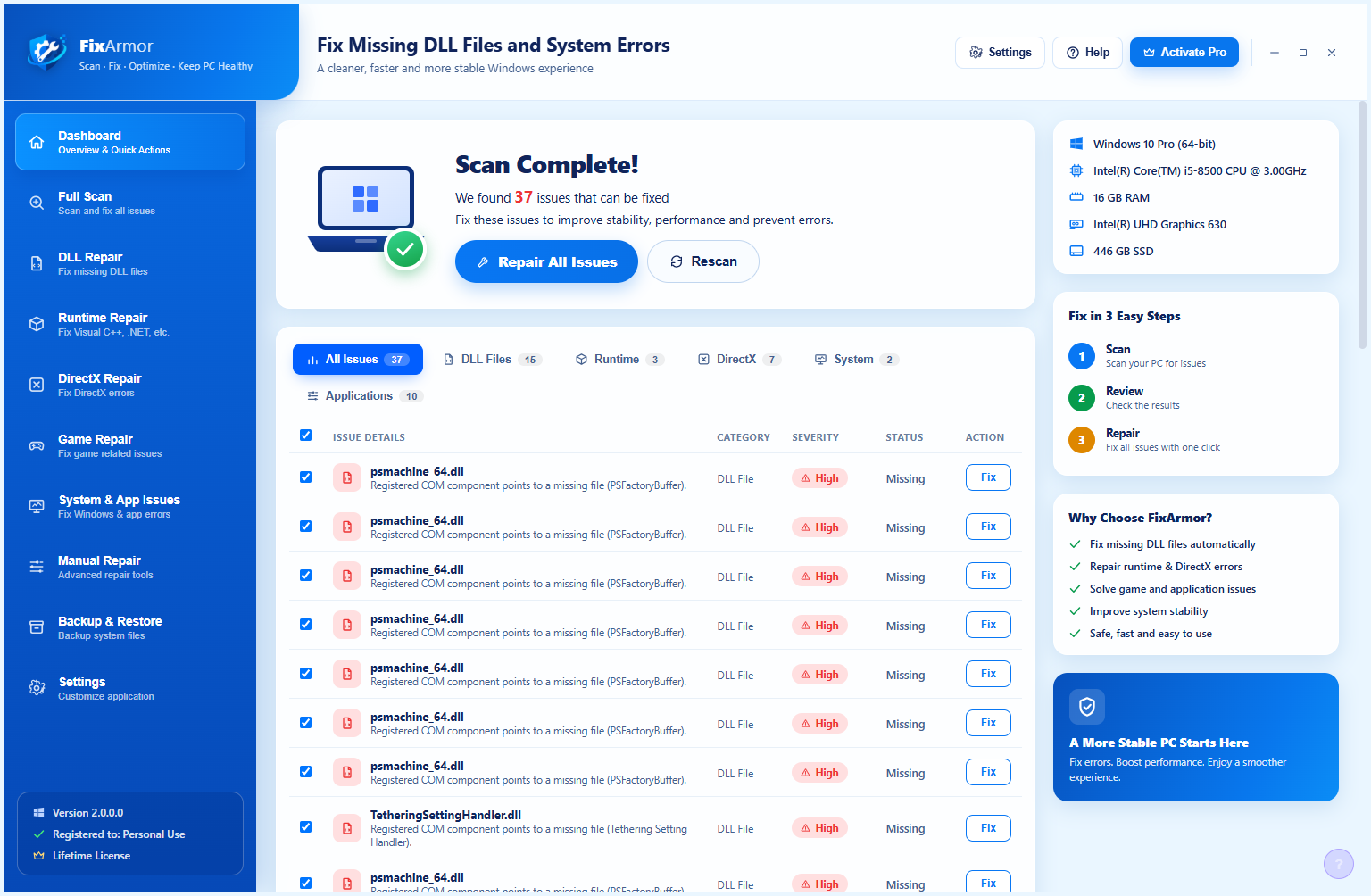
1. Scan Complete — Issues Found and Ready to Fix
After a full system scan, FixArmor presents a clear summary: in this example, 37 issues were detected that can be repaired. The “Repair All Issues” button at the top handles everything in one action. For users who prefer to review before acting, the “Rescan” button confirms the findings, and each individual issue in the list has its own Fix button for selective repair. Issues are organised across five category tabs — Applications, DLL, Runtime, Generic, and System — so you can see immediately where the problems are concentrated. The right panel provides two helpful sections: “Fix in 3 Easy Steps” explains the Scan → Review → Repair workflow, and “Why Choose FixArmor?” highlights the key guarantees. The left sidebar gives access to all repair modules: Dashboard, Full Scan, DLL Repair, Runtime Repair, Generic Repair, System & App Issues, Startup Repair, Backup & Restore, and Settings.
2. DLL Issues in Detail
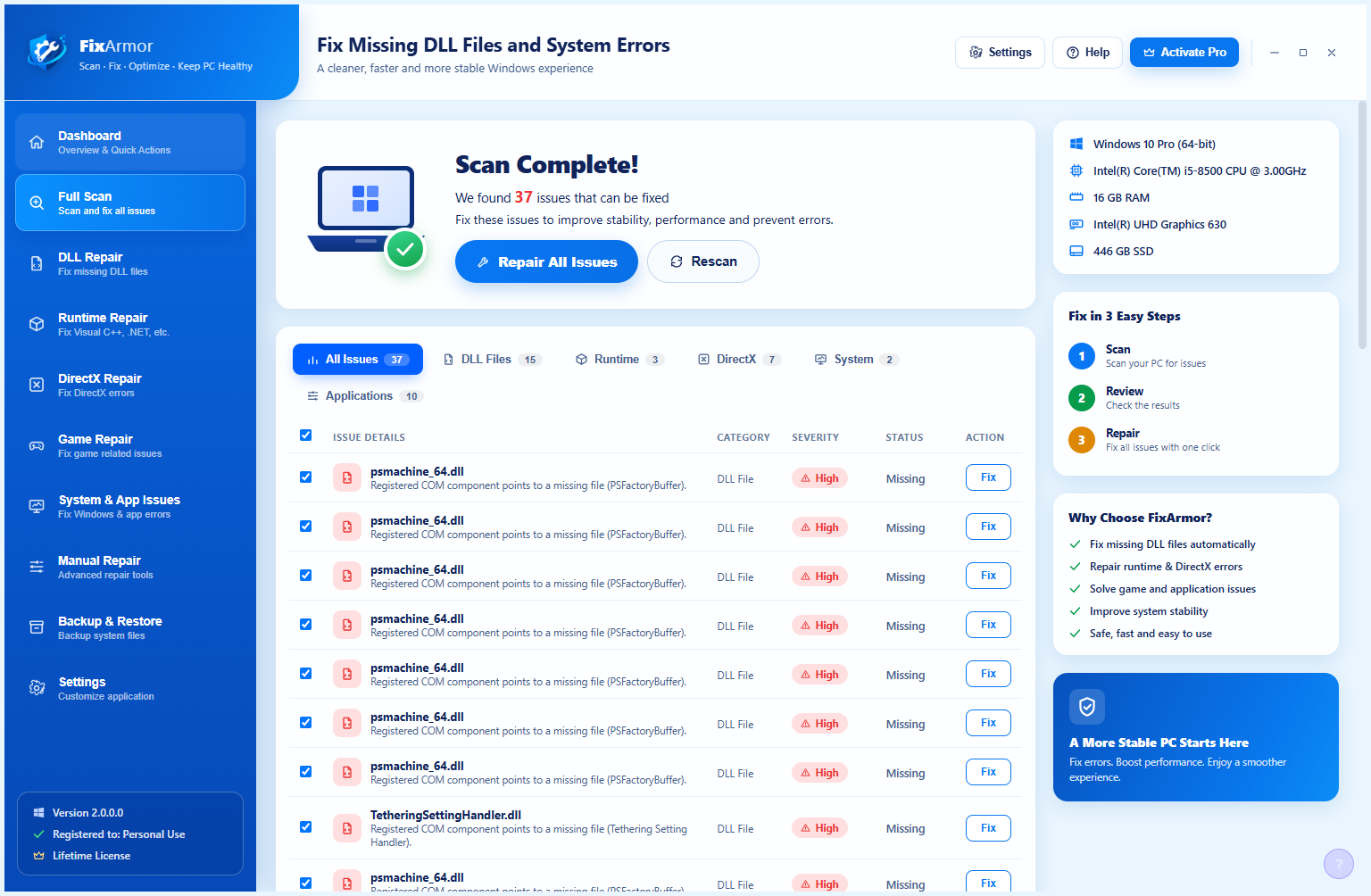
Scrolling through the scan results reveals the specific DLL files that are missing or damaged. The list includes Visual C++ Redistributable components (vcredist), Microsoft Visual C runtime libraries (msvc), and other system-level DLL dependencies that Windows applications rely on. Each entry shows the file name, the nature of the issue, and a Fix button — giving you the option to repair individual items rather than running the full repair. This per-item view is useful for understanding which specific software components have been affected, particularly if a recently installed application introduced a conflict.
3. The Full Issues List
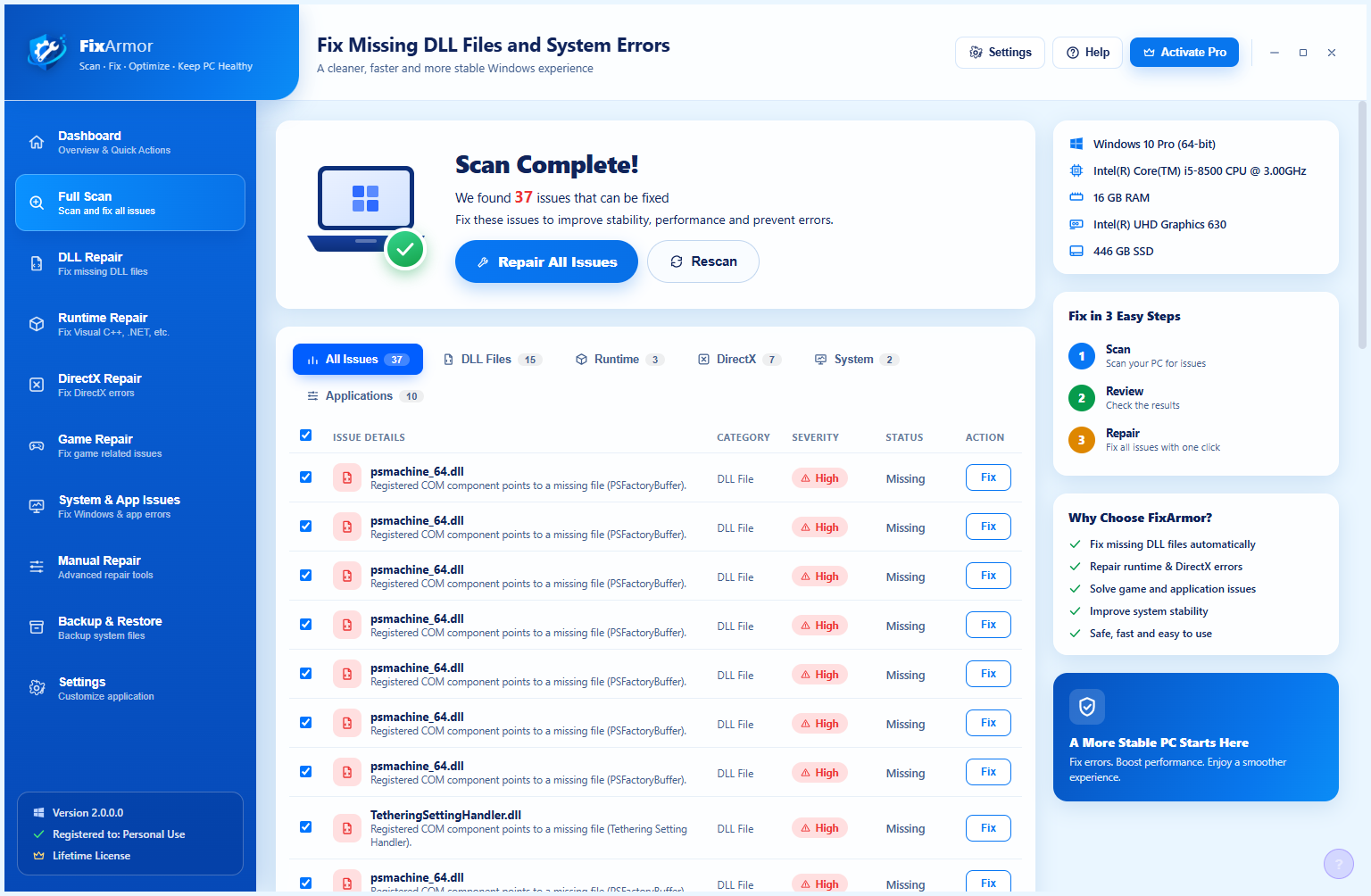
The full issues list shows the breadth of what FixArmor scans for — not just DLL files but application components, runtime packages, system hooks and generic Windows errors that may not surface as obvious error messages. Users who prefer to understand what is being fixed can browse the entire list before committing to the repair. The category tabs remain accessible at the top of the list, allowing you to jump between issue types and review each category independently. Every item that FixArmor can repair with high confidence carries a Fix button; items that require manual intervention are flagged separately with guidance.
4. About FixArmor
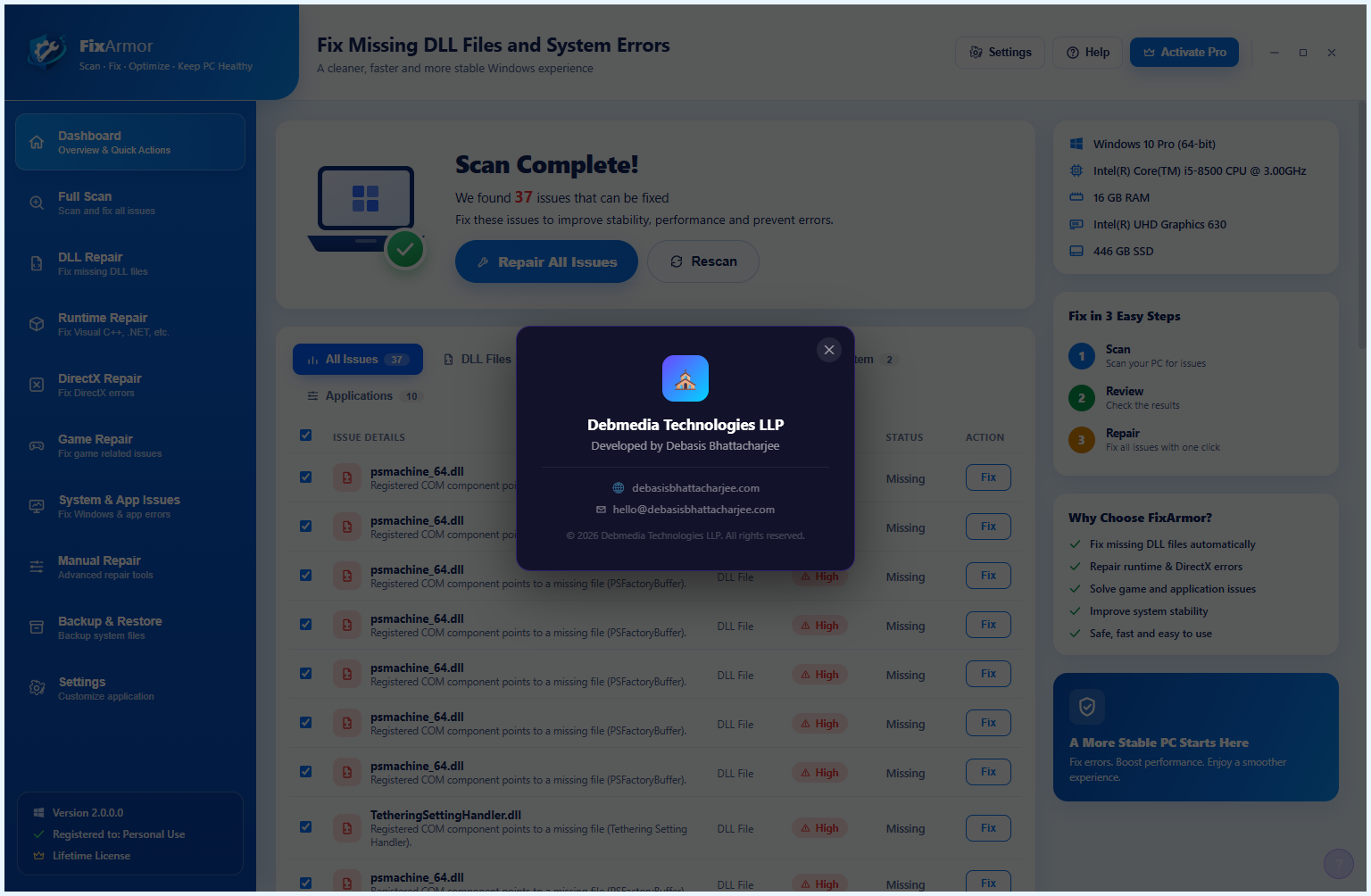
The About dialog identifies the software and the team behind it. FixArmor is developed and published by Debmedia Technologies LLP, with developer Debasis Bhattacharjee listed alongside contact email and the official website. The About panel is accessible from Settings in the left sidebar. The dialog displays the FixArmor Pro branding and version details, confirming you are running the genuine, current release of the software.
Who Is FixArmor For?
- Users experiencing DLL errors — If Windows is showing “missing DLL” or “application failed to start” errors, FixArmor finds the root cause and repairs it automatically.
- Non-technical home users — The three-step workflow (Scan, Review, Repair) is designed to be understandable and actionable without needing any knowledge of Windows internals.
- IT support technicians — Run FixArmor as a first-pass diagnostic and repair step on problem machines before escalating to manual investigation.
- New PC builders and fresh Windows installs — Verify that all runtime dependencies are correctly in place after setting up a new system or reinstalling Windows.
- Users after software uninstalls — Software removal sometimes leaves broken references or removes shared libraries that other apps depended on. FixArmor detects and repairs these residual conflicts.
System Requirements
- Operating System: Windows 10 (64-bit) or Windows 11
- Processor: Any modern x64 processor
- RAM: 4 GB minimum
- Storage: 80 MB for the application
- Permissions: Administrator rights required for system repairs
- Internet: Required for downloading missing runtime packages during repair
Frequently Asked Questions
Is it safe to use Repair All Issues?
Yes. FixArmor creates a system restore point automatically before beginning any repairs, so the process is fully reversible. The Backup & Restore section in the sidebar lets you roll back any repair that causes an unexpected issue.
Why does FixArmor need an internet connection for repairs?
Some repairs involve downloading fresh copies of Microsoft runtime libraries (such as Visual C++ Redistributables) from official sources to replace damaged or missing files. FixArmor always fetches files from verified sources only.
Will FixArmor touch my personal files or installed applications?
No. FixArmor only repairs system-level components — runtime libraries, DLL files, Windows startup entries and application registry references. It does not access, modify or delete your documents, photos, media files or installed application data.
How long does a full scan take?
A typical full scan completes in 2 to 5 minutes depending on the number of installed applications and the speed of your storage. The progress indicator shows real-time scan progress so you always know how far along the analysis is.
Can I undo a repair?
Yes. The Backup & Restore section creates restore points before every repair session. You can use it to roll back all repairs from a session if needed.
Fix Windows Errors Once — Stop Them Coming Back
DLL errors, missing runtime libraries and broken application dependencies are among the most frustrating Windows problems because they give you almost no actionable information. FixArmor turns a confusing error message into a simple three-step process: scan, see exactly what is wrong, fix it. No command lines, no manual registry edits, no risk of making things worse.
If your PC is throwing errors or an application has stopped working, FixArmor will find the cause and repair it. Download FixArmor now — your first scan is free.
Download FixArmor
Detect and fix missing DLLs, Visual C++ and .NET runtime errors on Windows