Debmedia Jewellery ERP
Offline jewellery shop management: weight-based billing, tagged stock, old gold, karigar, girvi, bullion and full books in one golden Windows app
Debmedia Jewellery ERP runs a whole jewellery shop on one Windows PC with no internet: billing by weight, purity, making and wastage, barcode-tagged stock, old gold and exchange, karigar job-work in fine grams, gold loans, bullion, savings schemes, and books that agree with every screen. Your data is one file on your own computer.
See Debmedia Jewellery ERP in Action
A clean, modern interface designed for real-world use.
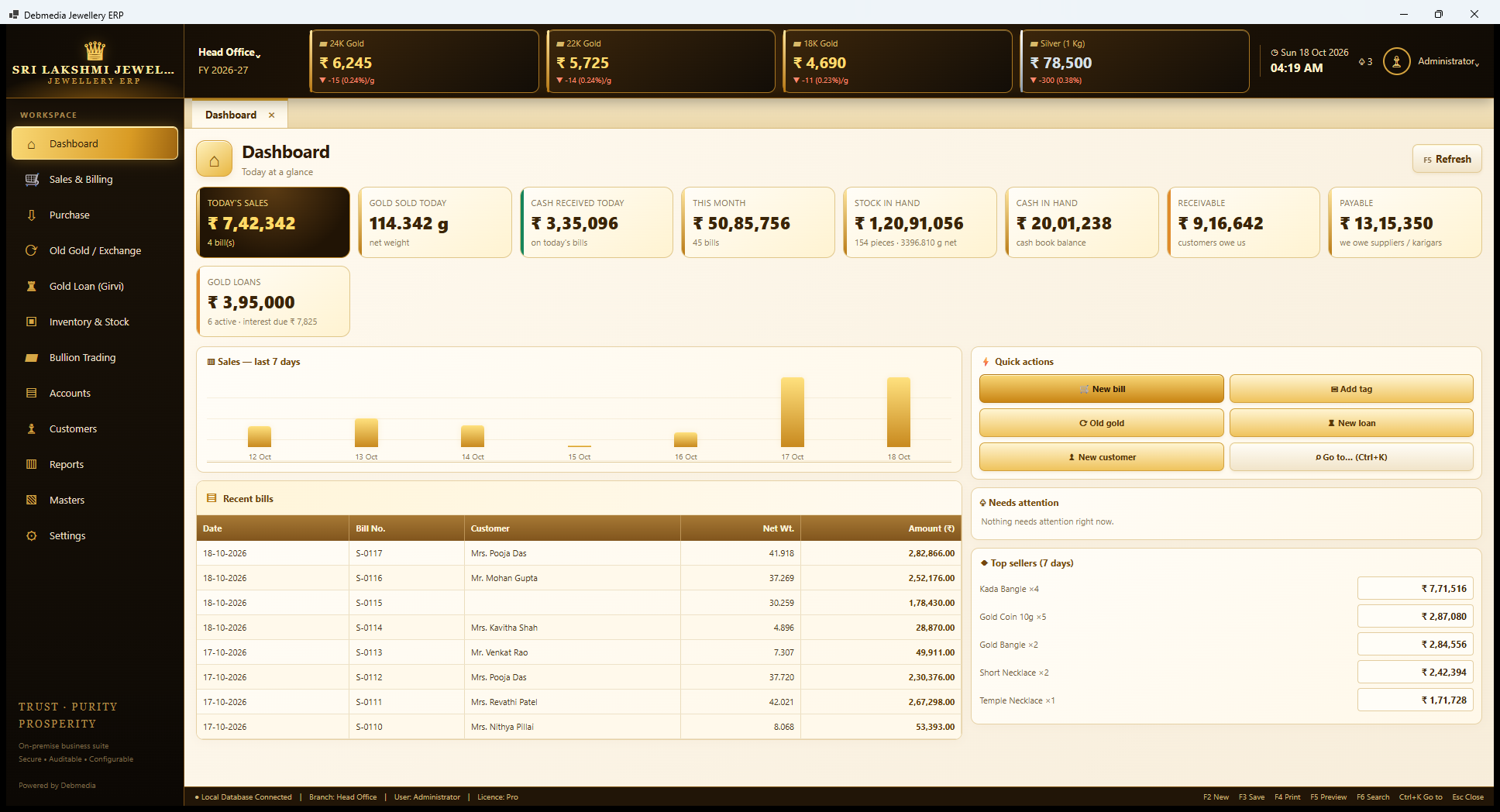
Debmedia Jewellery ERP Dashboard: The Dashboard: today's sales, gold sold, cash received, month total, stock in hand, cash in hand, receivable, payable, gold loans, a seven-day chart, quick actions, top sellers and recent bills.
What Is Debmedia Jewellery ERP?
Debmedia Jewellery ERP is a complete shop-management program for a jewellery retailer, made to run on the shop’s own Windows computer. It covers the whole life of a piece of jewellery and of the gold behind it: buying from suppliers and karigars, tagging each piece with a barcode, selling it with the right GST, taking old gold in exchange, lending against pledged jewellery (girvi), trading bullion, running savings schemes, and keeping honest double-entry books of all of it. The Trial Balance, Profit and Loss, Balance Sheet, cash book, bank book, GST summary and stock figures are not typed in afterwards. Each one is built from the same entries that the counter staff make during the day, so they agree with each other.
What makes jewellery different from ordinary retail is that almost nothing is counted in pieces or rupees alone. A bill is made of gross weight, stone weight, net weight, purity, the day’s metal rate, making charges charged per gram or as a percentage, wastage, stone value and GST. Old gold has a melting loss and a tested touch. A karigar is given metal in fine grams and returns finished pieces with an allowed wastage. A girvi loan earns monthly simple interest on the principal still outstanding. This program is built around those facts rather than around a generic invoice, and the screens use the vocabulary of the trade.
It is an on-premise desktop program. The screens are a golden-themed web-style interface hosted inside the Microsoft Edge WebView2 component, and the business logic and the data are handled by VB.NET code on the current .NET platform with one local SQLite database file. There is no cloud account, no subscription and no internet connection needed to bill, to take a backup or to close the books. Nothing leaves the computer. The file can be copied to a pen drive or sent to an accountant like any other file.
This page walks through the program screen by screen, in the order of its Main Menu, using screenshots from the real, running program. Each screen is explained: what it is for, what each field, column and button does, what the program does behind the scenes and how it connects to the other screens. If you only want the highlights, read the next two sections and use the contents list to jump to the part you care about. If you want to know exactly how the product behaves before deciding, read it all.
About the sample shop. The screenshots use a made-up shop, Sri Lakshmi Jewellers of T. Nagar, Chennai, with 117 sample sales bills, 230 tagged pieces, 30 customers, 8 gold loans, karigar jobs, bullion trades and savings schemes spread over about six weeks to 18 October 2026. The shop name, address, GSTIN, PAN, BIS number, bank account, customer names and phone numbers are all fictional. The figures are real outputs of the program working on that sample data, so you can follow one amount from screen to screen. Where the sample data produces an oddity, such as a stock line with no category or a negative figure, this page says so instead of hiding it.
Debmedia Jewellery ERP at a Glance
| Topic | What you get |
|---|---|
| Platform | Windows desktop program with a golden, tabbed interface (HTML screens inside WebView2, business logic in VB.NET on .NET). Needs the .NET 10 Desktop Runtime and the Edge WebView2 Runtime, which is part of Windows 11. |
| Who it is for | One jewellery shop on one Windows PC. Stock can be moved between named branches, but there is one database file and no branch-to-branch synchronisation. |
| Data storage | One SQLite file on your own computer, with an automatic daily backup (newest 14 kept). Nothing leaves the machine. |
| Internet | Not needed. Metal rates are typed in once a day; there is no live rate feed. |
| Billing | Sales invoice, estimate, customer order with advance and locked rate, and sales return. Weight, purity, rate, making, wastage, stone, discount and GST are worked out on the server side of the program. Old gold can be taken in exchange, and payments can be split across modes. |
| Stock | Tagged pieces with Code 128 barcode labels (50 × 25 mm), HUID stored per tag, loose metal counted in fine grams, stock summary, ageing, scan-based audit, branch transfers and opening stock. |
| Purchase and karigar | Supplier purchase invoice and return, karigar metal issue and finished-work receipt with wastage and labour, and a balance of fine metal and labour held by each karigar. |
| Old gold | Purchase over the counter or in exchange with weight, dirt, melting loss, tested touch and rate, an old-gold stock by purity, and melting into bullion. |
| Gold loan (girvi) | New loan, monthly simple interest, part payment, renewal, top-up, release and auction, statements and an interest-due list for notices. |
| Bullion | Buy, sell, receive and issue metal, rate-cut of metal deposited by a party, a metal position and a fine-weight metal ledger. |
| Accounts | Receipt, payment, contra and journal vouchers, day book, cash book, bank book, account ledger, trial balance, profit and loss, balance sheet, GST summary and a chart of accounts. Every document posts a balanced voucher. |
| Customers | Customers, suppliers and karigars on one party list, a customer card, party ledger, outstanding receivables and payables, birthdays and anniversaries, and gold savings schemes. |
| Reports | 31 reports with filters, Print and Excel. |
| GST | Rates are data (Masters, GST Codes), not hard-wired. CGST plus SGST or IGST is decided from the customer’s state. A GSTR-1 style register, HSN summary and GST payable summary are reports; the program does not file returns or produce portal JSON. |
| Control | Roles with 21 permissions, users, password-protected sign-in, auto-lock, an audit log of every sale, cancellation, rate change and sign-in, and a cash rule that warns or refuses at ₹2,00,000 per bill. |
| Licence tiers | Starter, Standard and Pro, enforced by an offline licence key. Locked features show a padlock and the tier that includes them. |
| Quality checks | 246 automated business checks (gold arithmetic, GST, books, girvi, bullion, schemes, licence tiers and the demo shop) and 174 automated screen checks that open all 65 screens, all passing on the last recorded run. |
How Debmedia Jewellery ERP Works
Every jewellery shop day follows a rhythm, and the program follows it too.
1. Set the day’s rates. The first job is to type the day’s 24K gold, silver and other pure-metal rates under Masters, Daily Rates. Four tiles at the top of every screen show the 24K, 22K, 18K and silver rates, with the change from the previous day. Every bill uses them. Other purities are worked out from the pure rate by fineness unless you type their own.
2. Sell. At the counter, the salesman opens the Sales Invoice, types or scans a tag number or HUID and presses Enter. The piece’s weights, purity, rate, making, wastage and GST appear. Old gold can be taken in exchange, and the customer can pay in cash, UPI, card, transfer or cheque, in one or many payments. A saved bill is never edited; it can be cancelled with a reason and a new one made, and both stay in the audit log.
3. Buy and make. Purchases from suppliers create tags for finished pieces and count loose metal in fine grams. Metal given to a karigar is recorded as an issue, and finished pieces received back become tagged stock with the labour payable booked automatically.
4. Lend and trade. Gold loans, old-gold purchases and bullion trades each have their own screens, and each posts to the books and to the metal ledger.
5. Look after the customer. Birthdays and anniversaries, outstanding balances and savings schemes bring customers back.
6. See the result. Behind the scenes, every document above posts a balanced voucher with debit and credit lines. The Day Book, Cash Book, Bank Book, Trial Balance, Profit and Loss, Balance Sheet and GST Summary read those same vouchers, so the totals agree. For example, the Day Book total for 18 October (₹7,42,342.51) matches the Dashboard’s Today’s Sales.
7. Protect it. A daily automatic backup, an audit log, a password with auto-lock, and licence tiers keep the data and the features under control.
Starting the Program: The Dashboard
Dashboard
The Dashboard is the first screen and the one an owner looks at between customers. Around it is the frame that appears on every screen. The dark golden sidebar lists the twelve modules of the program (Dashboard, Sales and Billing, Purchase, Old Gold and Exchange, Gold Loan (Girvi), Inventory and Stock, Bullion Trading, Accounts, Customers, Reports, Masters and Settings). The top bar shows the current branch (Head Office) and financial year (2026-27), four live rate tiles for 24K gold at ₹6,245 a gram, 22K at ₹5,725, 18K at ₹4,690 and silver at ₹78,500 a kilogram, each with its change from the day before, the date and time, a notification bell and the signed-in user. Screens open as tabs, so the Dashboard stays open while you work in others, and the bar at the bottom shows the database connection, branch, user, licence tier and the function keys.
Nine cards summarise the business. Today’s Sales shows ₹7,42,342 from four bills. Gold Sold Today shows 114.342 grams of net weight. Cash Received Today shows ₹3,35,096 on today’s bills. This Month shows ₹50,85,756 from 45 bills. Stock in Hand shows ₹1,20,91,056 across 154 pieces of 3,396.810 grams. Cash in Hand shows ₹20,01,238, the cash book balance. Receivable shows ₹9,16,642 that customers owe, Payable shows ₹13,15,350 owed to suppliers and karigars, and Gold Loans shows ₹3,95,000 across six active loans with ₹7,825 of interest due.
Below the cards is a seven-day sales chart, a row of quick actions (New bill, Add tag, Old gold, New loan, New customer and Go to, which opens the Ctrl+K jump box), a “Needs attention” box that says nothing needs attention right now, the top sellers of the week (Kada Bangle first with four sold for ₹7,71,516) and the latest bills with customer, net weight and amount. Every figure is read from the same books as the reports, which is why Cash in Hand here equals the Cash Book closing balance and Receivable equals the Receivables list.
Sales and Billing
Sales & Billing
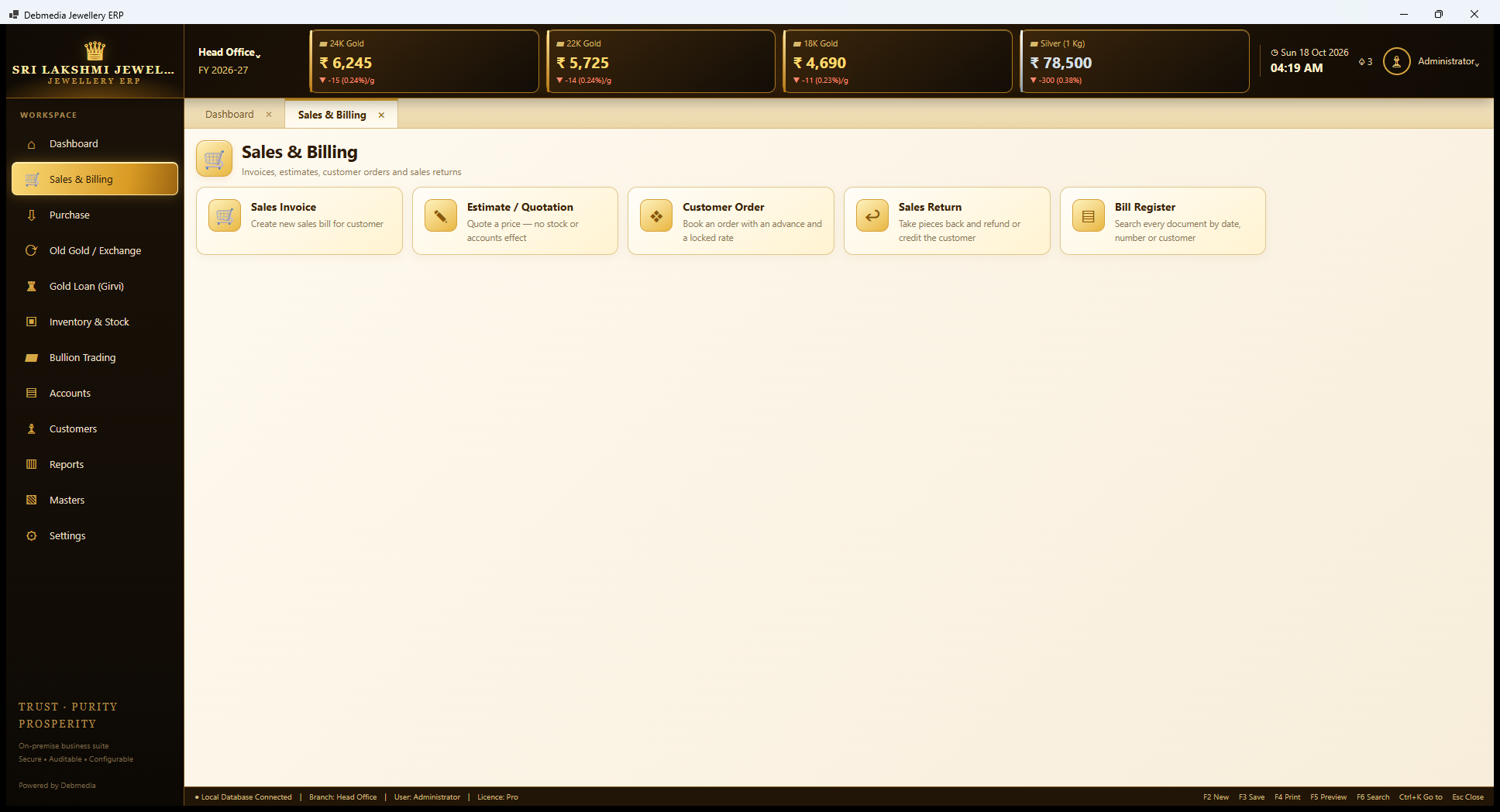
Each module opens with a hub of large tiles, and this is the Sales and Billing hub. There are five. Sales Invoice creates a new sales bill for a customer. Estimate / Quotation quotes a price with no effect on stock or accounts. Customer Order books an order with an advance and a locked rate. Sales Return takes pieces back and refunds the customer or credits the account. Bill Register searches every document by date, number or customer.
The hub is only a doorway. Everything it opens is also reachable with the Ctrl+K “go to” box, which finds any screen by typing a few letters, and the same keys work everywhere: F2 for a new document, F3 to save, F4 to print, F5 to preview, F6 to search and Esc to close the tab.
Sales Invoice
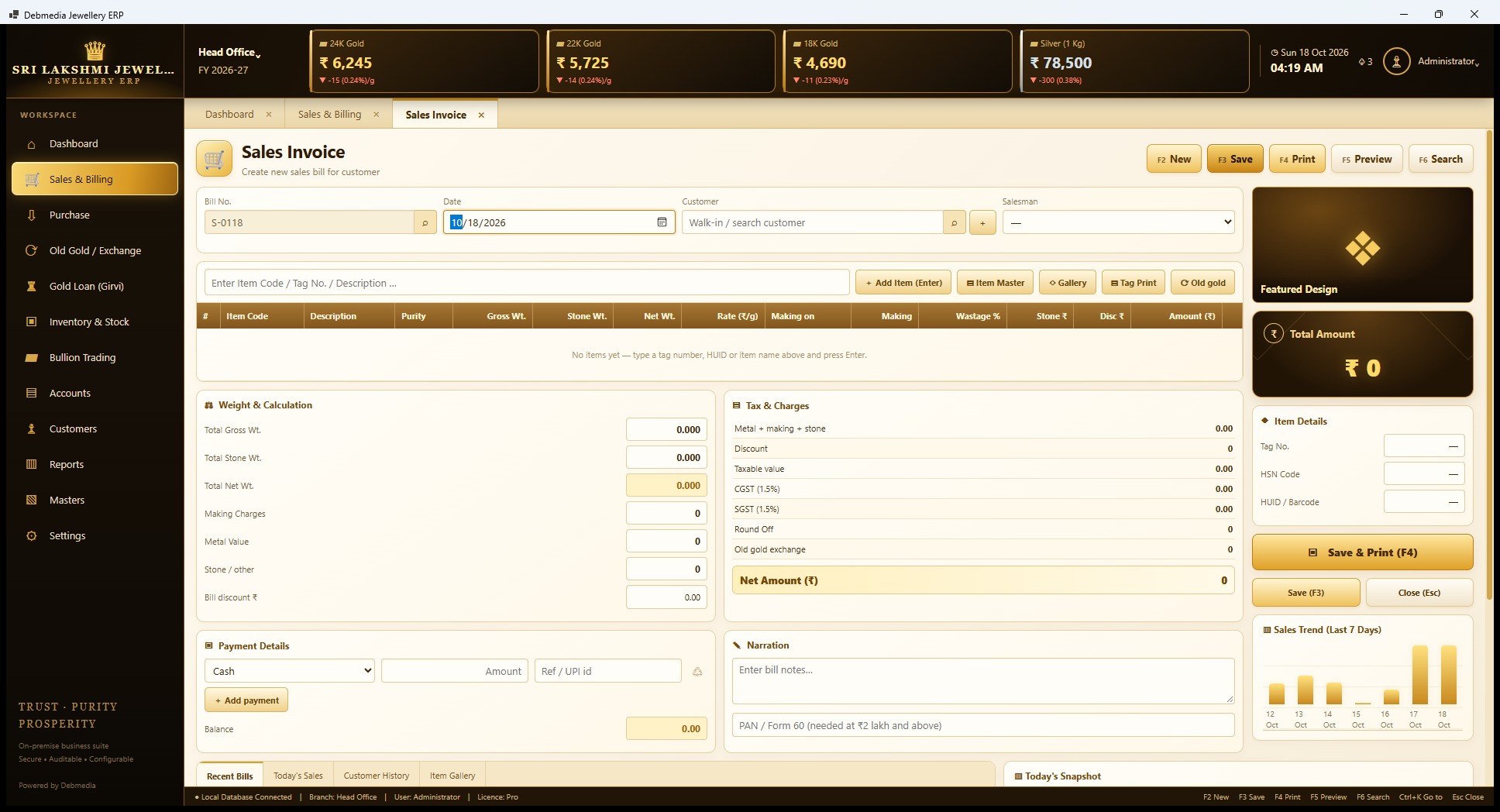
The Sales Invoice is the screen the counter lives in, and it is shown here empty, ready for the next bill, which is numbered S-0118 automatically. The top row takes the date, the customer (a search box with a plus button to add a new one on the spot, or Walk-in) and the salesman. The long box below it, “Enter Item Code / Tag No. / Description”, is where a bill is built: type or scan a tag number or HUID, press Enter, and the piece joins the grid. Buttons beside it add an item, open the Item Master or the picture Gallery, print tags, or bring in Old gold taken in exchange.
The grid has the columns of a jewellery bill: item code, description, purity, gross weight, stone weight, net weight, rate per gram, the basis of the making charge (per gram, percent of metal value or fixed per piece), the making amount, wastage percent, stone value, discount and the line amount. Until something is added it says “No items yet – type a tag number, HUID or item name above and press Enter.”
On the right a large Total Amount is always visible, with an item-detail strip for the selected line (tag number, HSN code, HUID or barcode), the Save and Print (F4), Save (F3) and Close (Esc) buttons, and a small seven-day sales trend. Below, a Weight and Calculation box adds up gross, stone and net weight, making, metal value, stone and the bill discount, and a Tax and Charges box shows the taxable value, CGST (1.5 percent), SGST (1.5 percent), round-off, the old gold exchange credit and the Net Amount. A Payment Details box takes any number of payments by mode, with the amount, a reference or UPI id, and the balance. For cash-heavy bills there is a PAN or Form 60 box, which the program asks for at ₹2,00,000 and above.
The server side of the program, not the screen, calculates every figure, so the same bill cannot come out differently on two computers.
Recent Bills and Today’s Snapshot
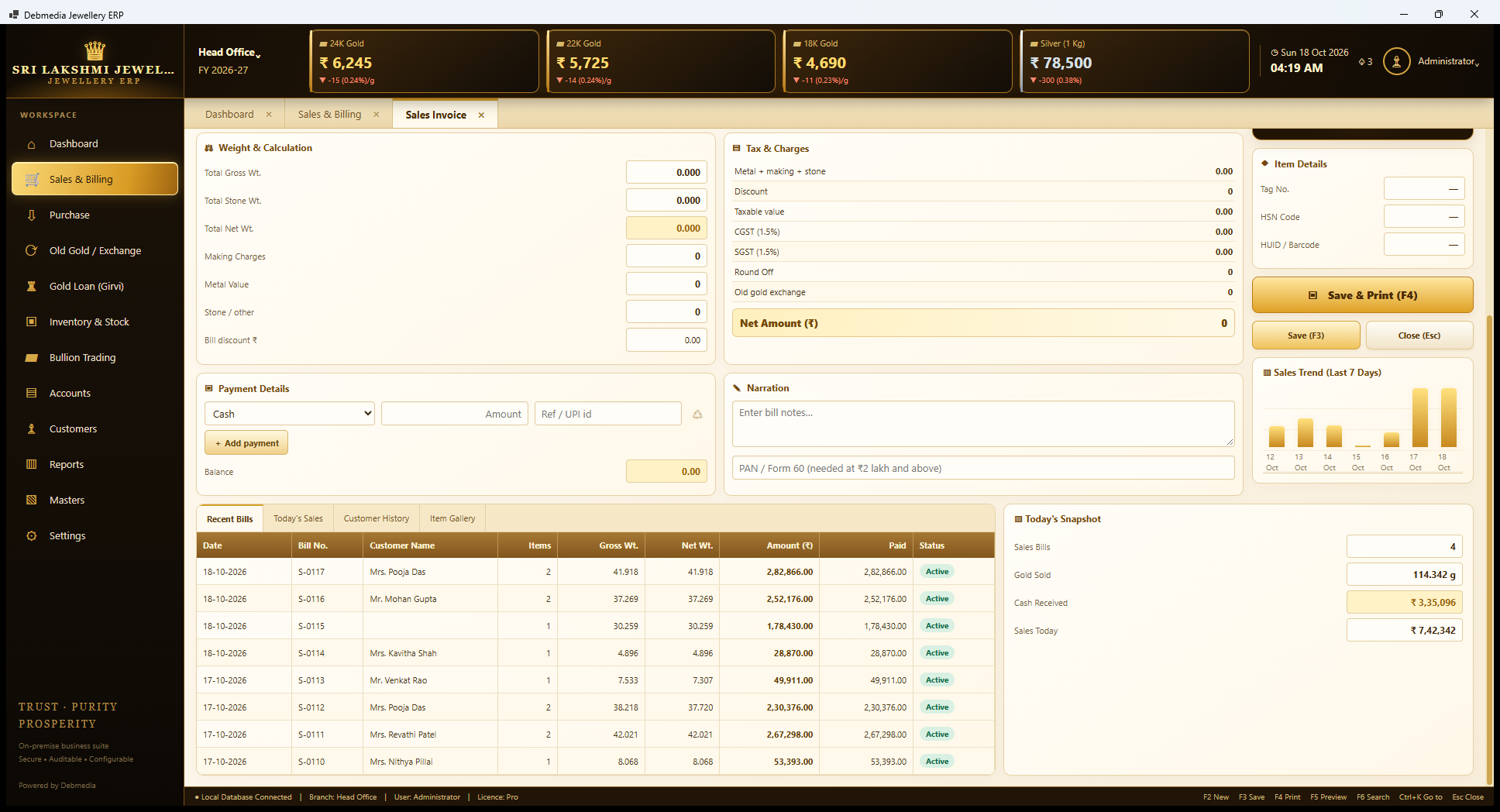
Scrolling down, the invoice screen shows what has just happened at the counter. The tabs read Recent Bills, Today’s Sales, Customer History and Item Gallery. Recent Bills lists the latest documents with date, bill number, customer, item count, gross and net weight, amount, amount paid and status, all Active and paid in full here. Customer History shows what the selected customer has bought before, which helps a salesman greet a regular and suggest the next piece, and Item Gallery shows tag cards.
At the bottom, Today’s Snapshot gives four numbers for the day: 4 sales bills, 114.342 grams of gold sold, ₹3,35,096 cash received and ₹7,42,342 of sales. They are the same as the Dashboard’s cards, which is the point: the counter sees the day’s position without leaving the billing screen.
Item pictures are not stored in this edition; the Gallery shows tag cards rather than photographs, and the Item Master has no picture upload.
Estimate / Quotation
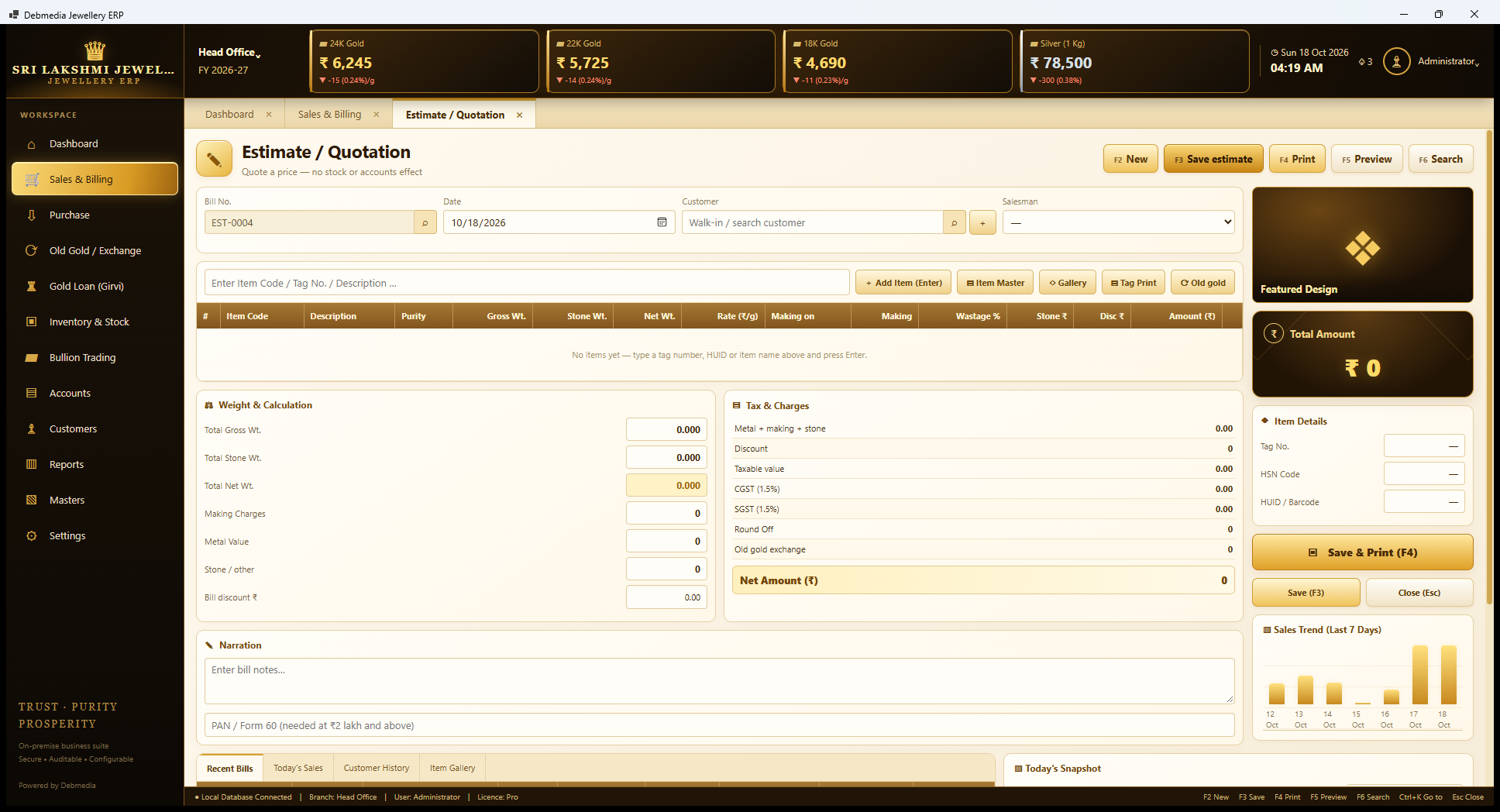
The Estimate screen looks like the invoice because it is built the same way, but it is a quotation. It is numbered separately (EST-0004 is next) and its button reads Save estimate. Saving an estimate changes nothing: no stock is reserved and no entry reaches the books. That makes it safe for a customer who wants to see the price of a necklace at today’s rate and think about it, or to compare two pieces.
There is no payment box, because no money is taken. When the customer returns, the estimate is opened from the Bill Register and Make invoice turns it into a real bill with today’s rate. The register shows estimates in their own type, and “Open Estimates and Orders” is a report that lists the ones still waiting.
Customer Order
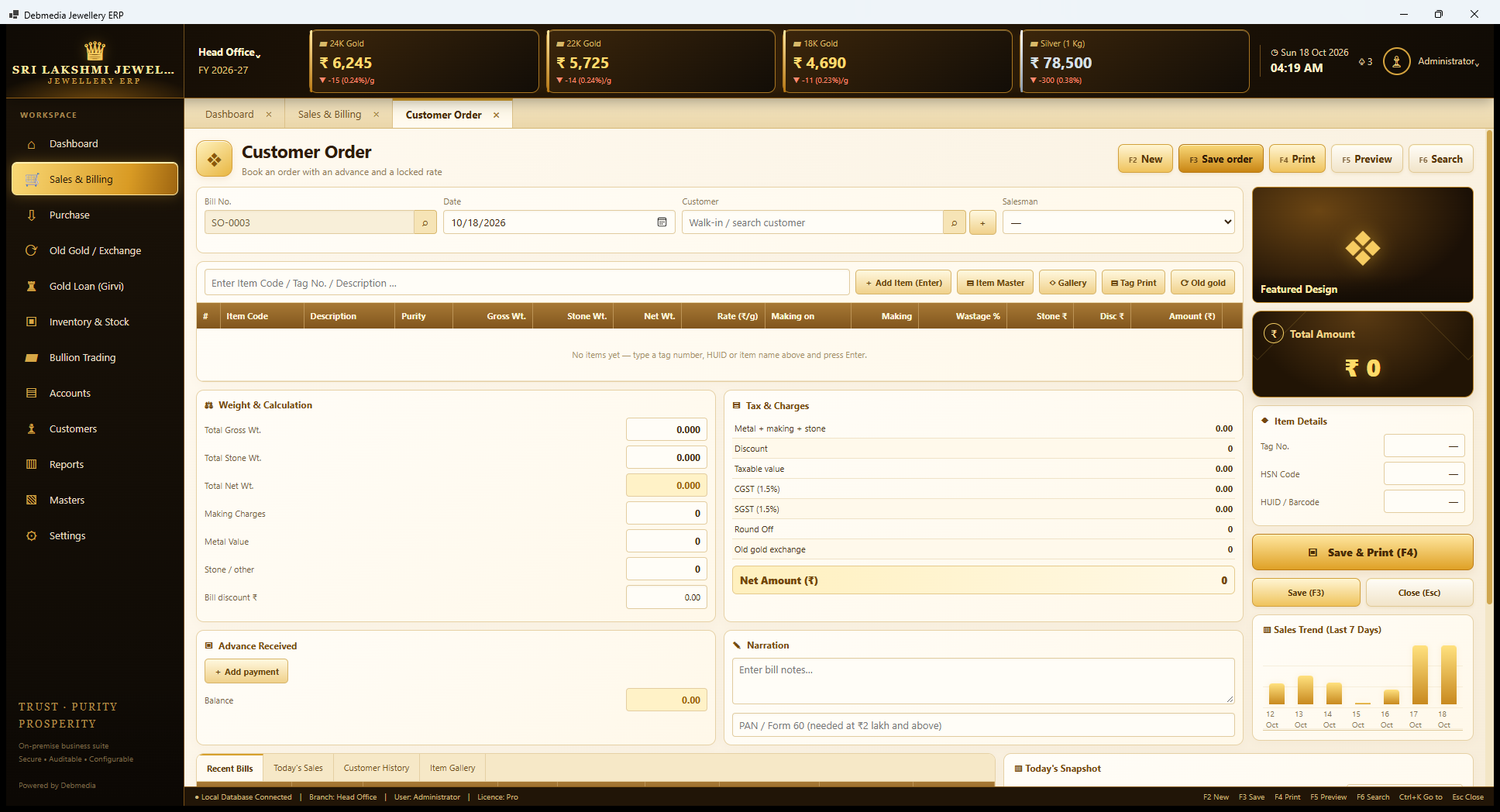
A Customer Order is for a piece that is not in stock, such as a bridal necklace to be made by a karigar, or a piece the customer wants to reserve. It is numbered SO-0003 next and saved with Save order. Instead of Payment Details the screen has Advance Received, with the mode, the amount and the balance.
Two things happen when it is saved. The advance is posted to the books as money received on account of the customer, and when the order is turned into an invoice from the Bill Register with Make invoice, the booked rate is kept, so a customer who books before a price rise is billed at the booked rate. When the piece is ready, the order is opened from the Bill Register and Make invoice turns it into a sales bill. In the sample shop two customers have advances of ₹1,00,000 each against orders; they show as advances on the customer list and on the Payables list.
Sales Return
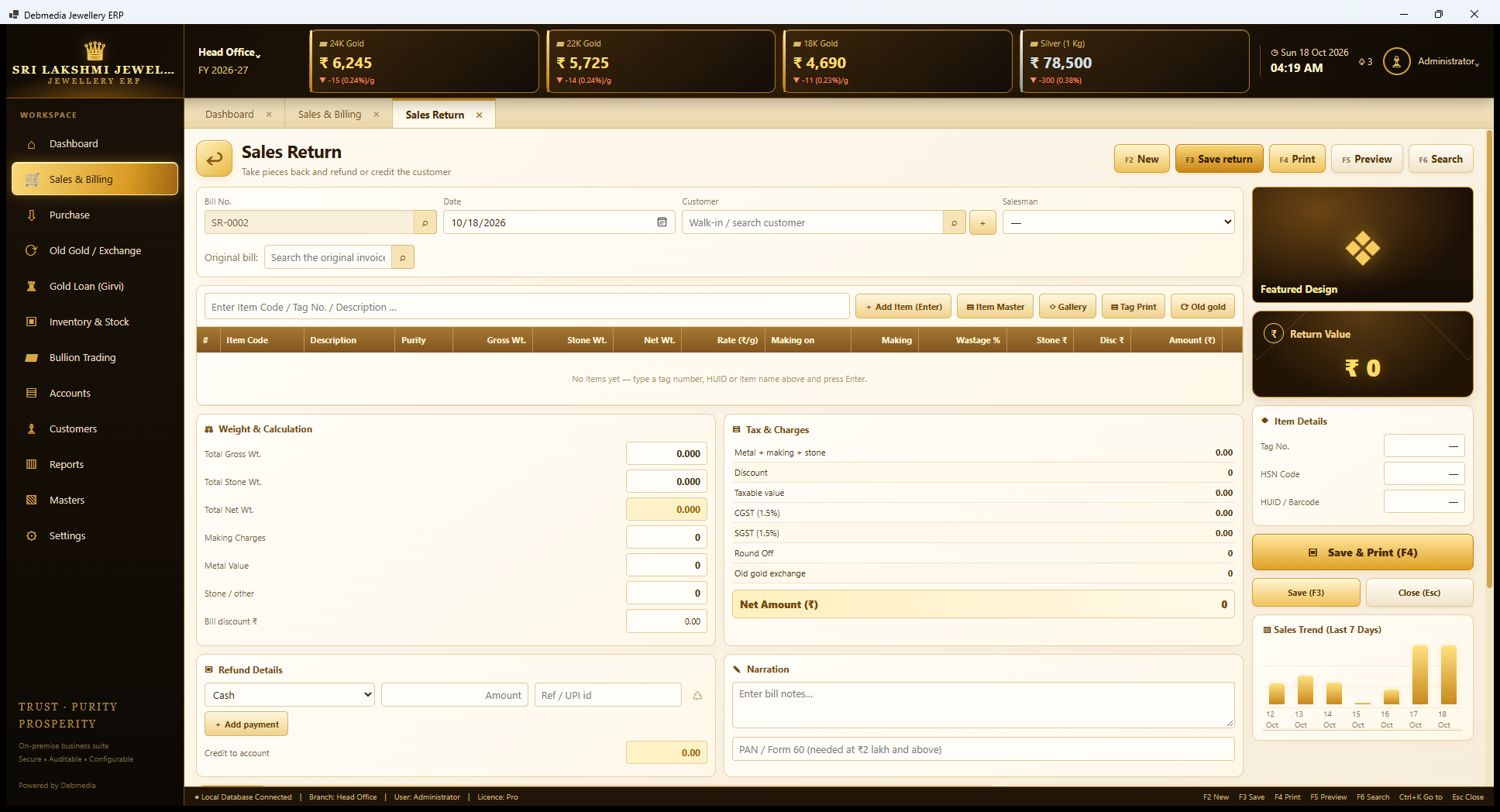
Sales Return, numbered SR-0002 next, handles a customer who brings a piece back. The user finds the original bill in the search box, and the lines of that bill are loaded. Lines that are not coming back are deleted from the screen, which leaves only the pieces returned. The big Return Value at the top right is the amount of the return, and the Refund Details box says how it goes back: cash or any other mode with an amount and a reference, or Credit to account, which keeps the value as a credit on the customer’s account for a future purchase.
Saving the return puts the returned pieces back into stock as tagged pieces, posts a reversing entry to sales and GST, and records the refund or the credit. In the sample, SR-0001 returned ₹2,18,371 of Mr. Balaji Menon’s purchase, of which about half was refunded and the rest left as a balance.
Bill Register
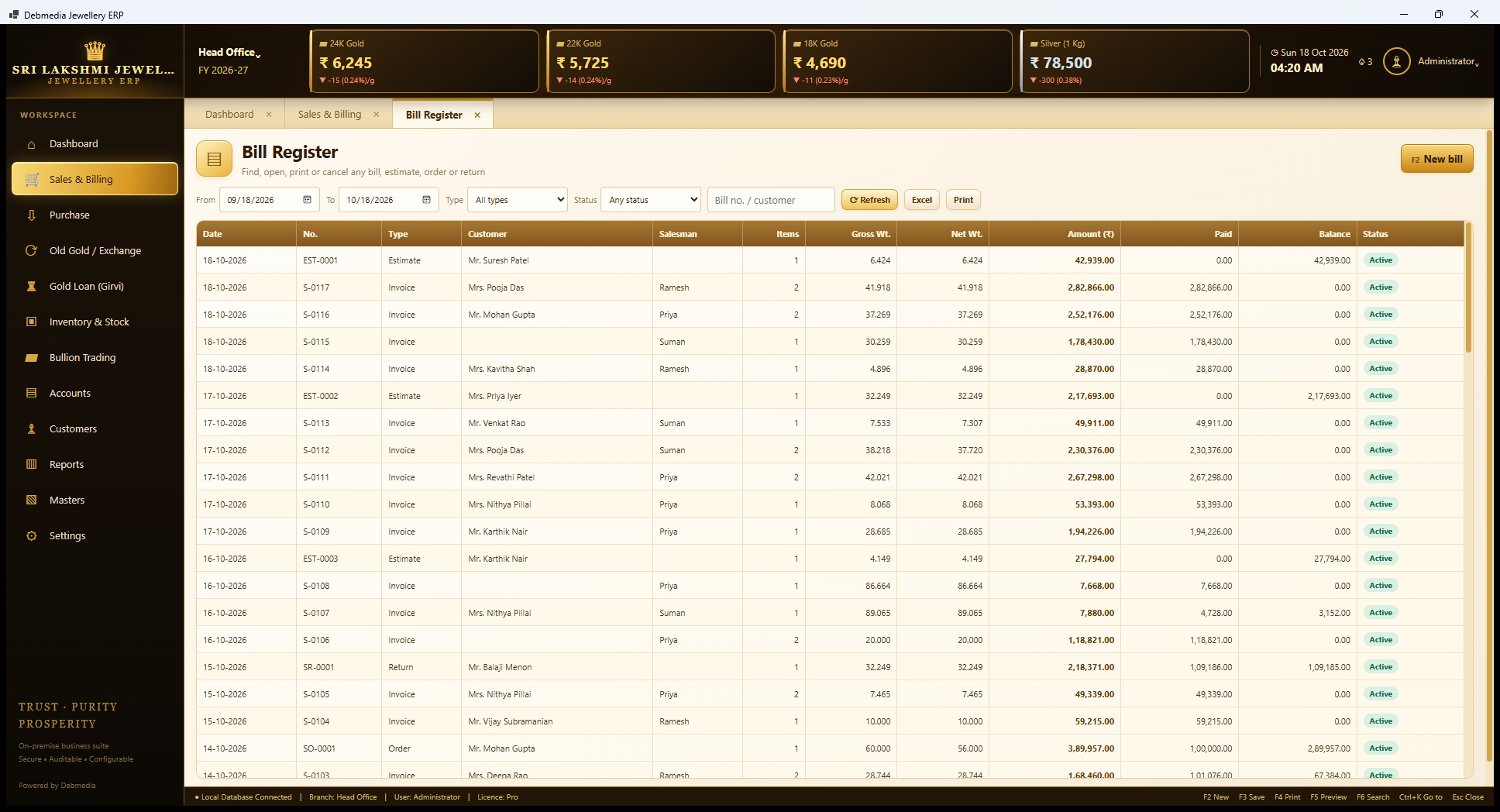
The Bill Register is the permanent index of every document the counter has made. Filters across the top choose the date range, the type (all types, invoices, estimates, orders or returns), the status and a search for a bill number or customer. Refresh, Excel and Print work as on every list, and F2 starts a new bill.
Each row shows the date, number, type, customer, salesman, number of items, gross and net weight, amount, paid, balance and status. In the sample, S-0117 for Mrs. Pooja Das is ₹2,82,866 paid in full, an estimate EST-0001 for Mr. Suresh Patel is ₹42,939 with nothing paid, the return SR-0001 is shown against Mr. Balaji Menon, and the order SO-0001 for Mr. Mohan Gupta shows ₹3,89,957 with ₹1,00,000 paid and ₹2,89,957 balance. Part-paid bills show their balance in the Balance column, which is how the shop sees at a glance who still owes money on a bill.
From here a document is opened to view, print or cancel. A saved bill is never edited. It is cancelled with a reason and a new one is made, and the cancellation is written to the audit log with the user’s name.
Purchase and Karigar Work
Purchase
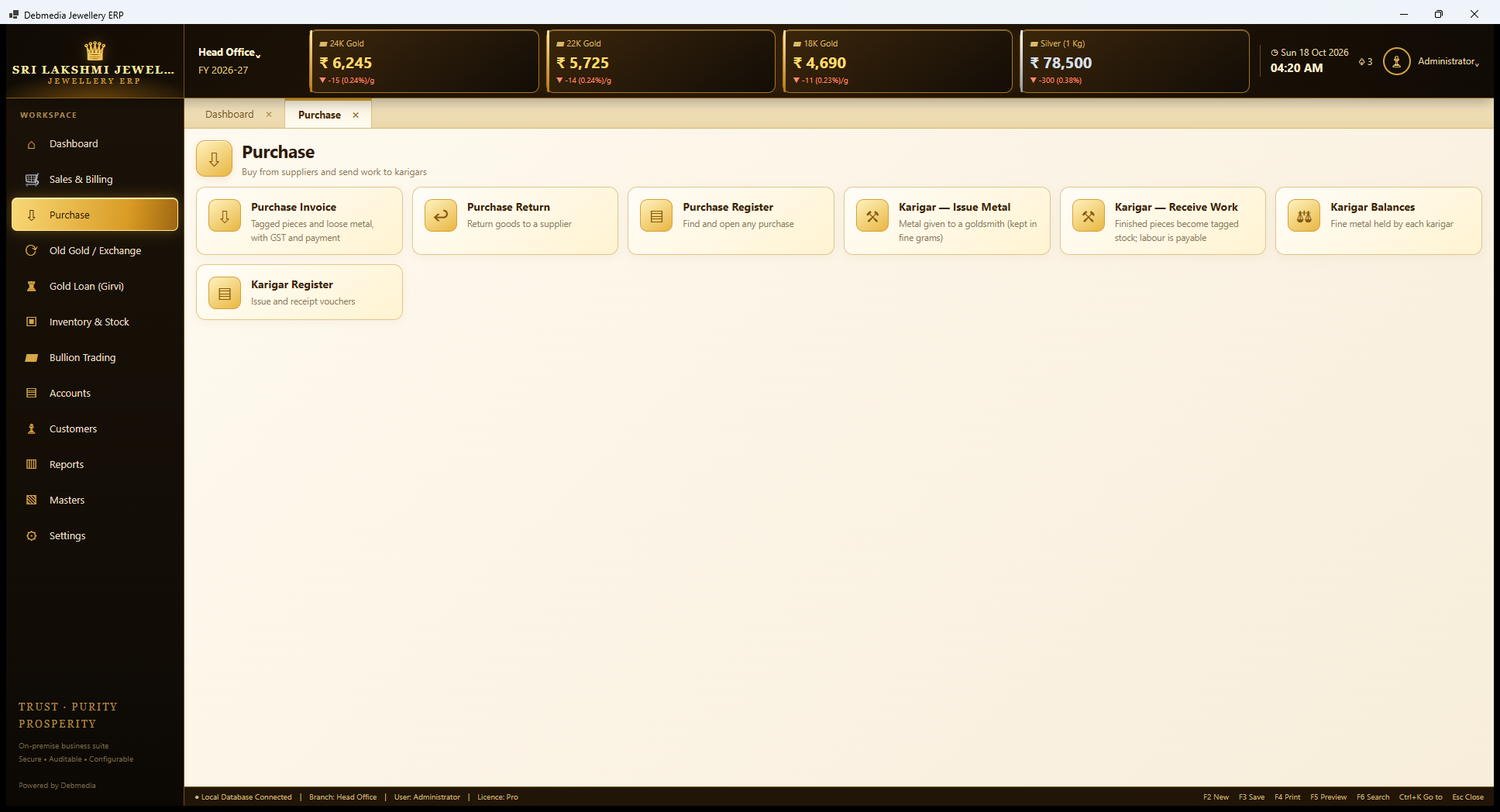
The Purchase hub covers buying from suppliers and sending work to karigars. The first three tiles are Purchase Invoice (tagged pieces and loose metal, with GST and payment), Purchase Return (return goods to a supplier) and Purchase Register (find and open any purchase). The next four deal with goldsmiths: Karigar – Issue Metal (metal given to a goldsmith, kept in fine grams), Karigar – Receive Work (finished pieces become tagged stock and the labour is payable), Karigar Balances (fine metal held by each karigar) and Karigar Register (issue and receipt vouchers).
Purchase Invoice
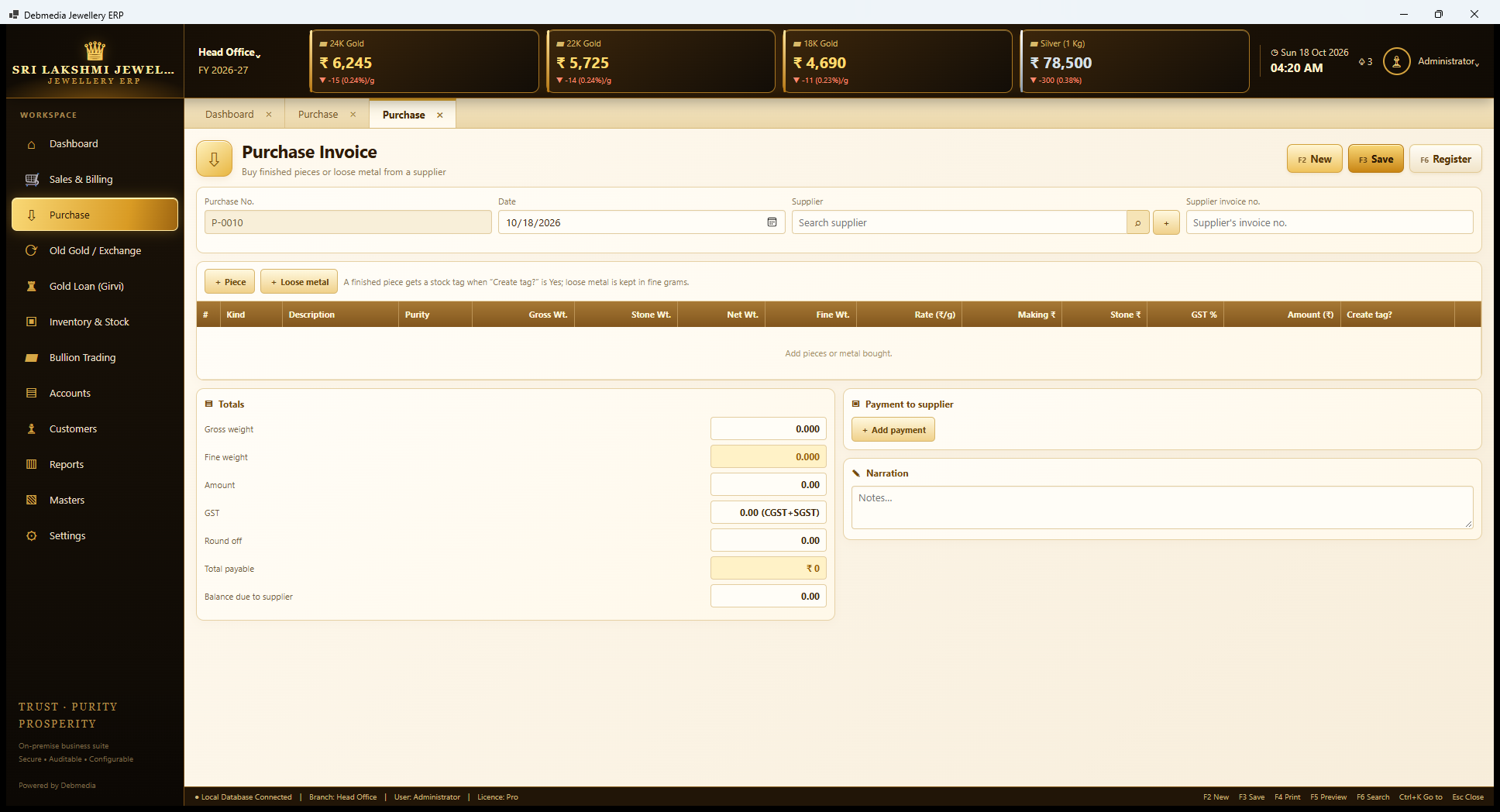
The Purchase Invoice, numbered P-0010 next, records goods bought from a supplier. At the top are the date, the supplier and the supplier’s own invoice number. Two buttons add lines: Piece for a finished article and Loose metal for bars, scrap or fine gold. The hint on screen explains the key rule: a finished piece gets a stock tag when “Create tag?” is Yes, and loose metal is kept in fine grams.
The grid has the columns a bullion or ornament purchase needs: kind, description, purity, gross weight, stone weight, net weight, fine weight (net weight times fineness), rate per gram, making, stone, GST percent, the line amount and the Create-tag choice. On the right, a totals box shows gross weight, fine weight, amount, GST split into CGST and SGST, round-off, the total payable and the balance due to the supplier, and a Payment to supplier box takes the part that is paid now.
On saving, each tagged piece becomes a row of stock with a tag number, loose metal goes into the metal ledger in fine grams, the GST paid is booked as input credit, and any unpaid balance becomes a payable to the supplier.
Purchase Register
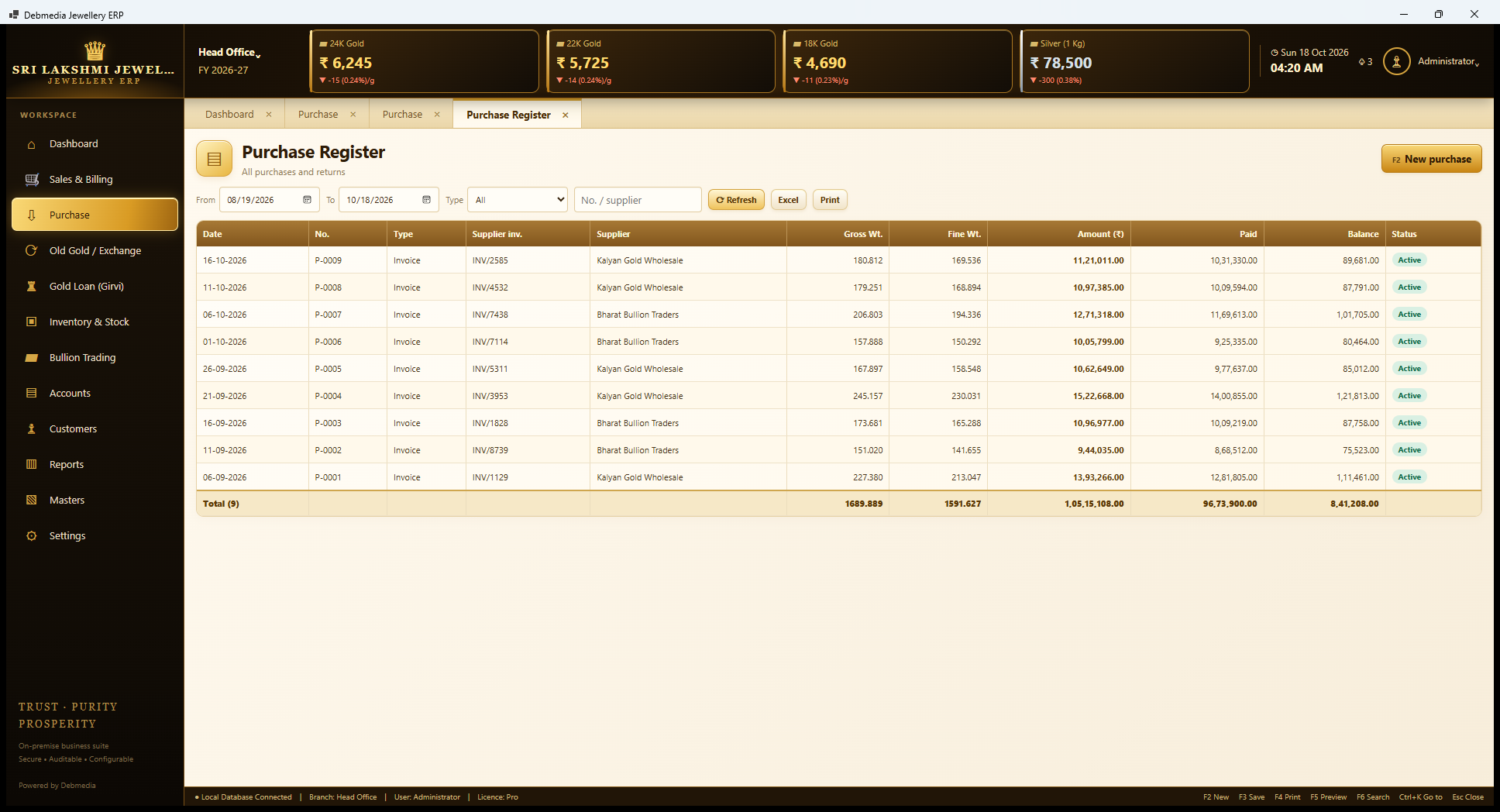
The Purchase Register is the history of everything bought. It filters by date range and type and searches by number or supplier, with Refresh, Excel, Print and F2 for a new purchase. Each row shows the date, the purchase number, the supplier’s invoice number, the supplier, gross and fine weight, the amount, the amount paid, the balance and the status.
The sample has nine purchases from two suppliers, Kalyan Gold Wholesale and Bharat Bullion Traders. The totals row reads 1,689.889 grams gross, 1,591.627 grams fine, ₹1,05,15,108 in all, ₹96,73,900 paid and ₹8,41,208 still owing. A typical row is P-0009 on 16 October for 180.812 grams gross and 169.536 grams fine at ₹11,21,011 with ₹89,681 unpaid. The balance column is what feeds the supplier’s payable balance, so what is owed here is the figure that appears on the Payables list.
Purchase Return
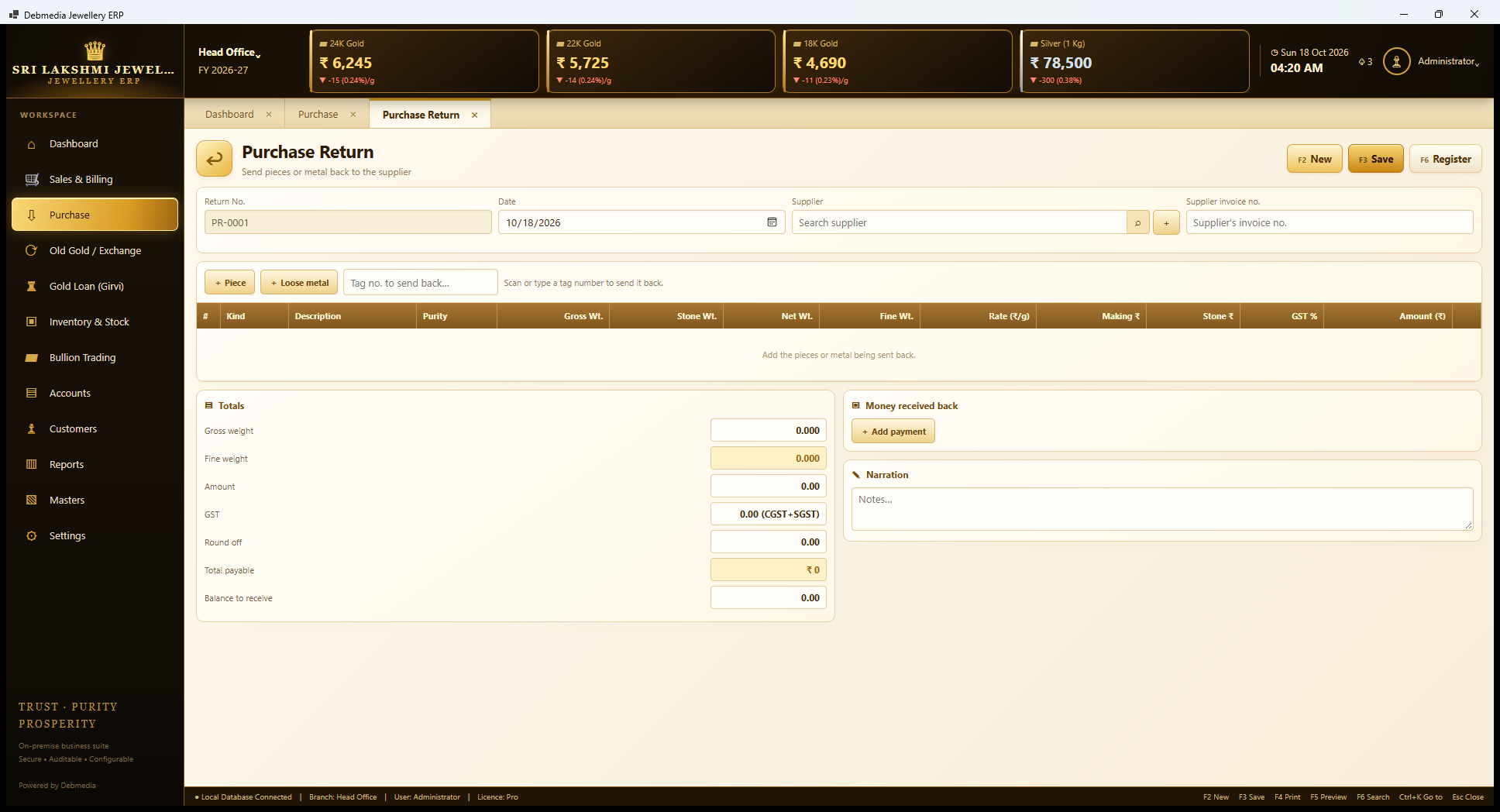
Purchase Return, numbered PR-0001 next, sends goods back to a supplier. The user scans or types a tag number to send a piece back, or adds a loose-metal line. The grid is the same as on the purchase invoice, without the Create-tag choice. A Money received back box records any refund from the supplier and shows the balance still to receive.
On saving, the piece leaves stock, the metal leaves the ledger, the GST input credit is reversed and the supplier’s payable reduces. Because only tags that really are in stock can be sent back, the program cannot return something that has already been sold.
Karigar – Issue Metal
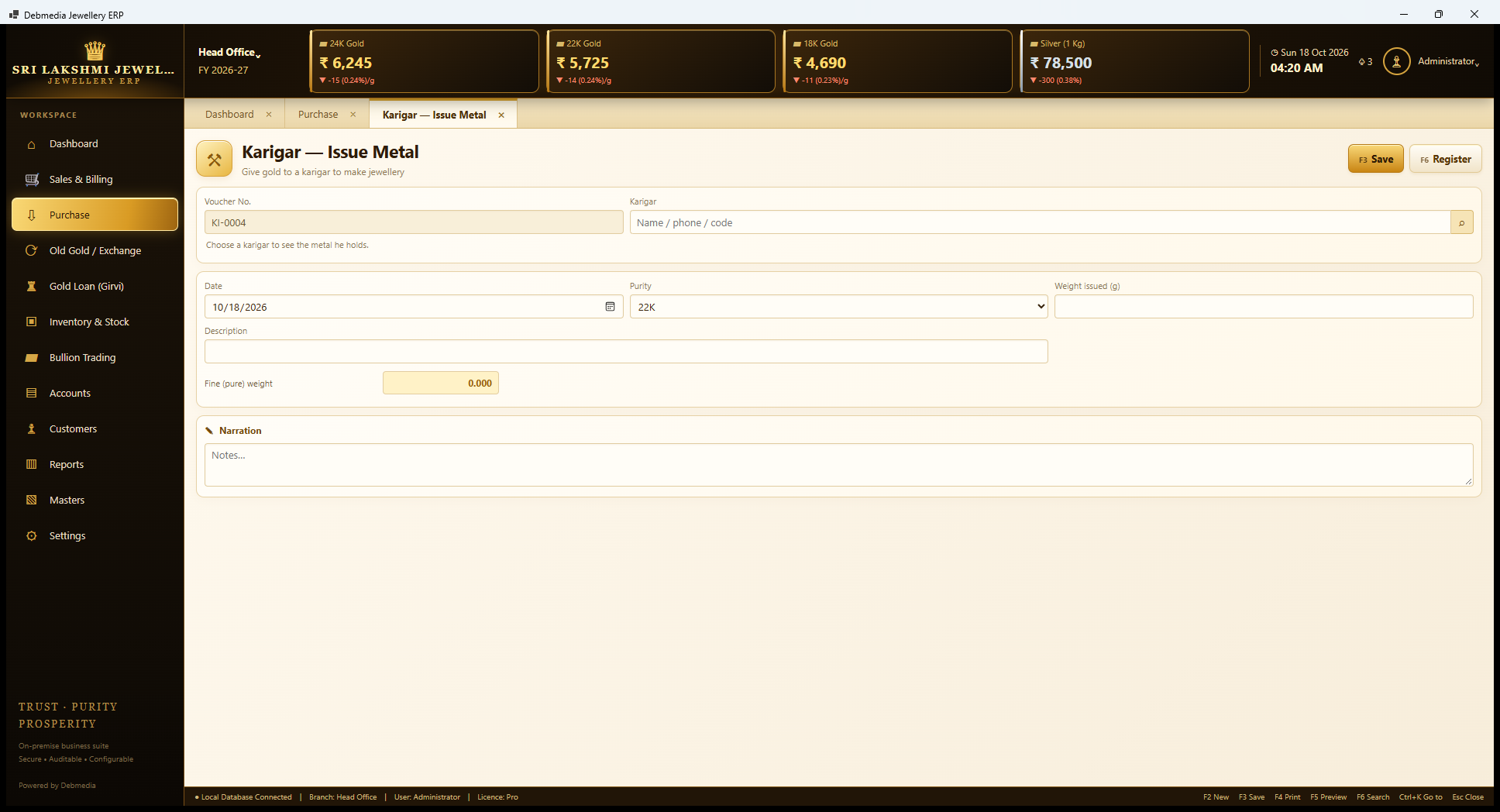
A karigar, or goldsmith, is given gold to make jewellery, and the shop needs to know exactly how much of its metal is sitting in his workshop. This screen records that issue. The voucher is numbered KI-0004 next. The user chooses the karigar (typing a name, phone or code, with a hint that selecting him shows the metal he already holds), the date, the purity (22K here), the weight issued in grams and a description such as “Gold for bangles and chains”. The program works out the fine (pure) weight by multiplying by the fineness.
The metal is recorded in fine grams, not in rupees. That is the right unit because the karigar will return jewellery of a different purity and weight, and the account must settle in pure metal. The issue reduces the shop’s loose metal and increases the metal held by the karigar.
Karigar – Receive Work
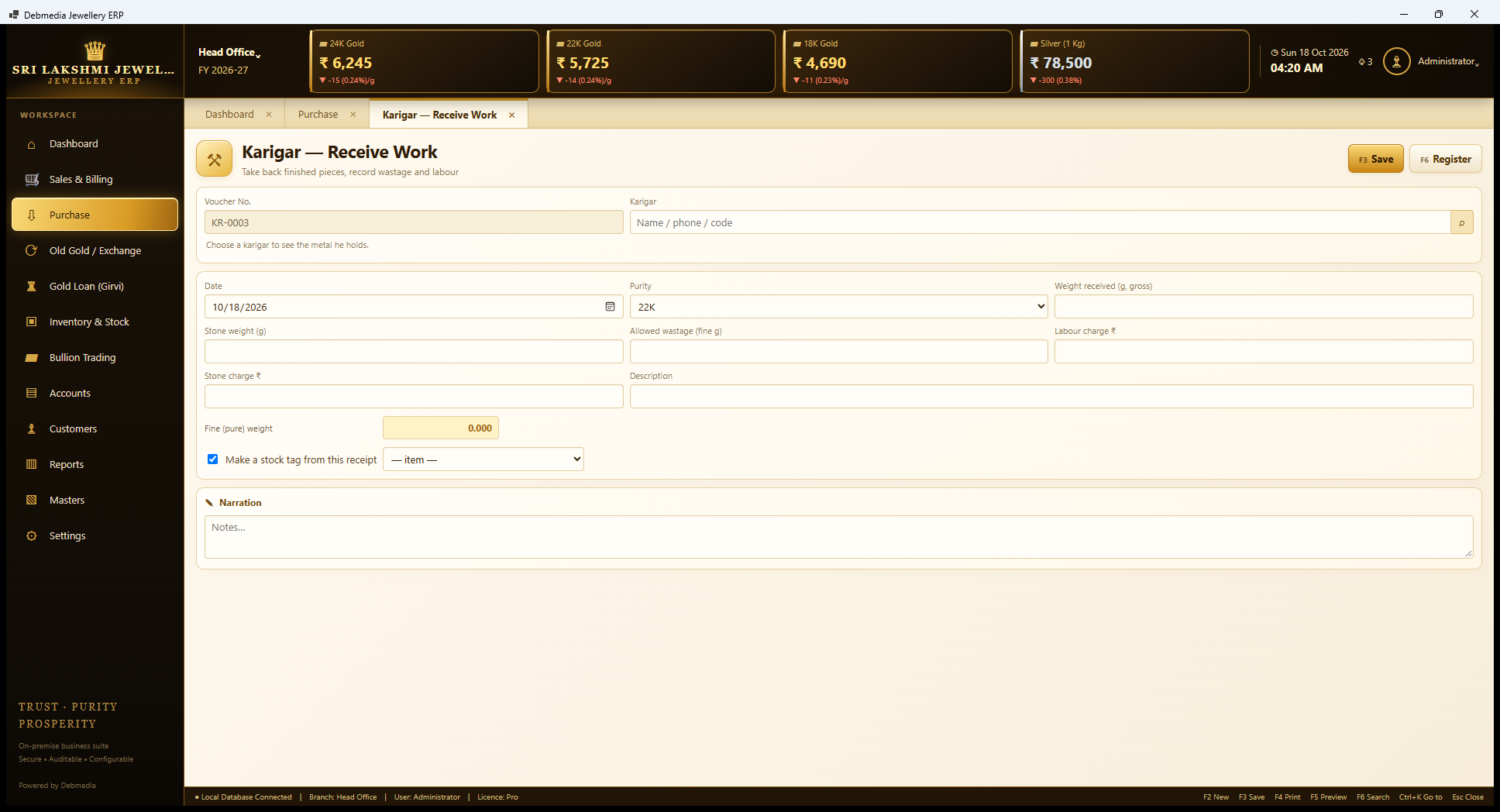
When a karigar returns finished work, this screen, numbered KR-0003 next, takes it in. It records the karigar, date, purity, weight received (gross), stone weight, the allowed wastage in fine grams, the labour charge, any stone charge and a description. The fine weight is worked out, and a tick, “Make a stock tag from this receipt”, with an item choice, turns the finished piece into tagged stock.
Three things happen on saving: the metal held by the karigar falls by the fine weight received plus the wastage allowed, the new piece joins stock at its cost, and the labour becomes an amount payable to the karigar. The sample shows exactly this: a 62 gram gold bangle received from Karigar Ramesh created tag TG-00321 and ₹4,200 of labour payable.
Karigar Balances
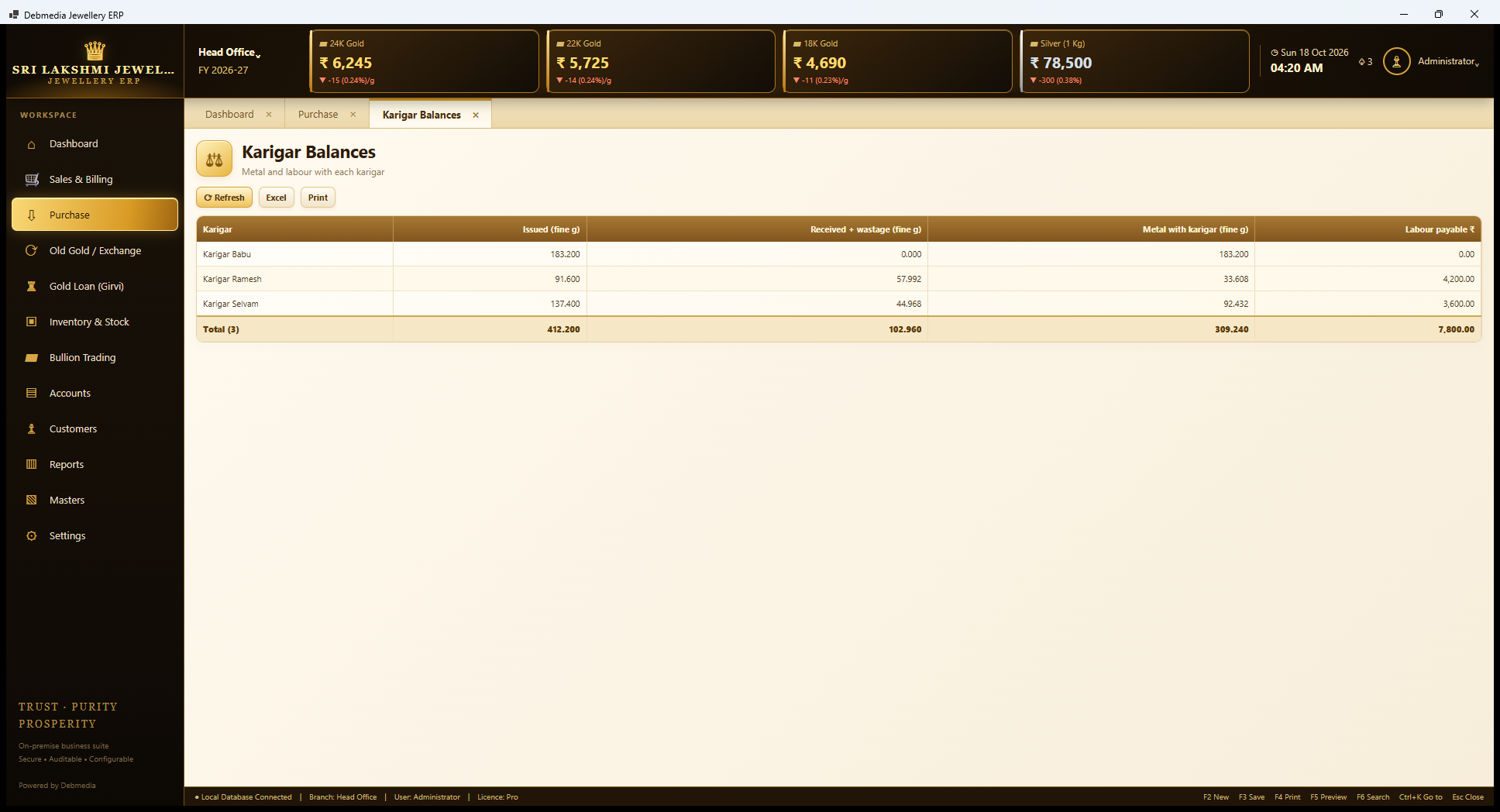
Karigar Balances is the owner’s check on the workshop. It shows, for each karigar, the fine metal issued, the fine metal received plus wastage, the metal still with the karigar and the labour payable in rupees. In the sample, Karigar Babu was given 183.200 grams and has returned nothing yet; Karigar Ramesh was given 91.600 grams, returned 57.992 grams including wastage and holds 33.608 grams, with ₹4,200 labour payable; and Karigar Selvam holds 92.432 grams with ₹3,600 payable. The total is 309.240 grams of the shop’s gold held by karigars and ₹7,800 of labour payable.
The same 309.240 grams appears on the Metal Position screen as “metal with parties”, and the same labour appears on the Payables list, so a shop can see its gold exposure to the workshops in one place.
Karigar Register
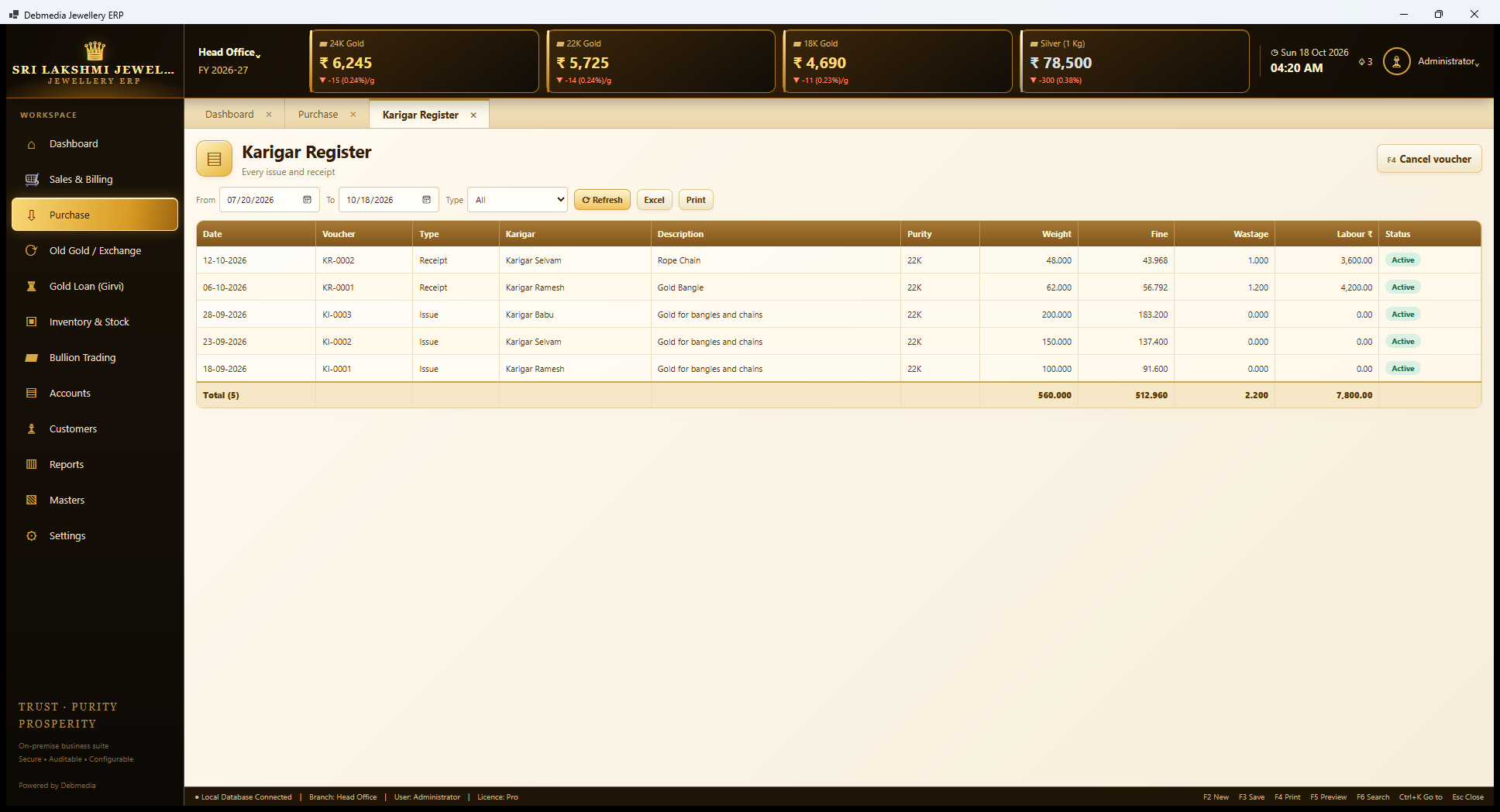
The Karigar Register lists every issue and receipt voucher in a date range, filtered by type. Each row shows the date, voucher number, type (Issue or Receipt), karigar, description, purity, weight, fine weight, wastage, labour and status. The sample has three issues (KI-0001 to KI-0003, totalling 450 grams gross) and two receipts, a rope chain of 48 grams from Karigar Selvam with ₹3,600 labour and a bangle of 62 grams from Karigar Ramesh with ₹4,200.
A voucher entered by mistake can be cancelled with F4, which reverses its effect on the metal ledger and the books rather than deleting it. The register is the paper trail for any dispute about how much gold went out and what came back.
Old Gold and Exchange
Old Gold / Exchange
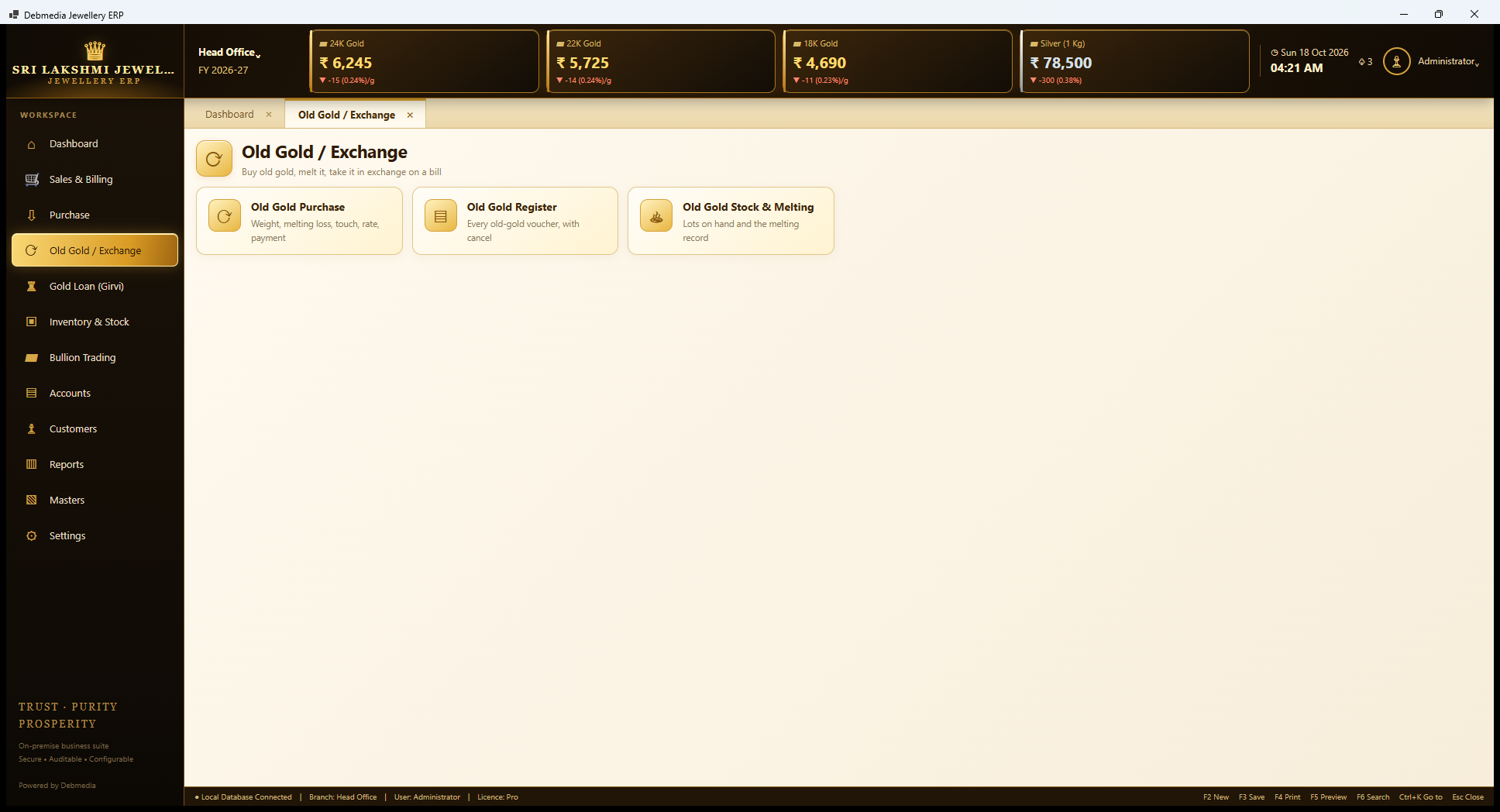
Old gold is a daily reality in a jewellery shop, either bought outright over the counter or taken in exchange against a new purchase. The hub has three tiles. Old Gold Purchase records the weight, melting loss, touch, rate and payment. Old Gold Register lists every old-gold voucher, with cancellation. Old Gold Stock and Melting shows the lots on hand and records the melting. Old gold taken in exchange during a sale is entered from the invoice itself with the Old gold button, and shows up here too.
Old Gold Purchase
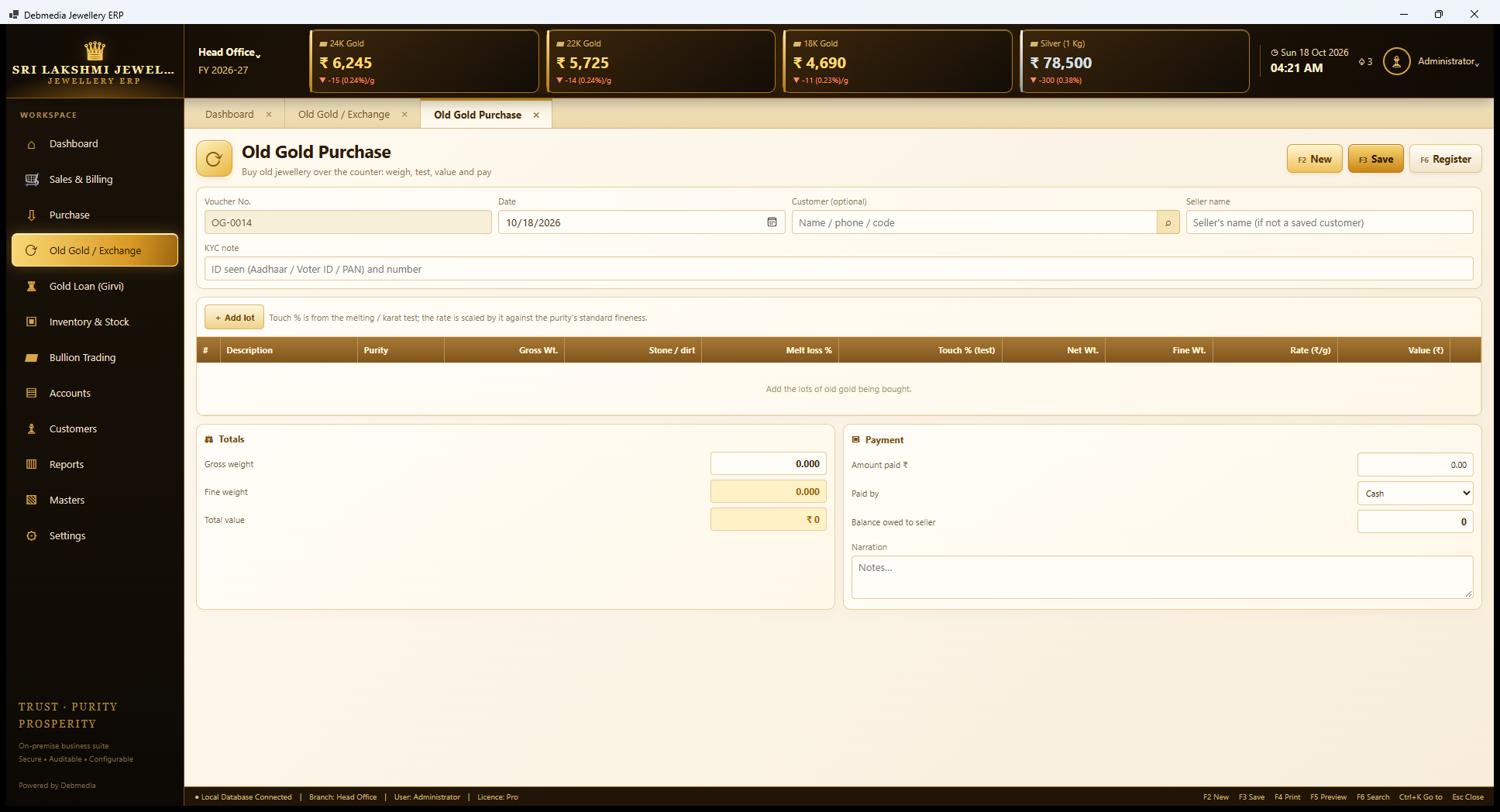
Old Gold Purchase, numbered OG-0014 next, is the form for buying old jewellery across the counter: weigh it, test it, value it and pay. At the top are the date, an optional saved customer and a seller’s name for someone who is not on the customer list, plus a KYC note for the identity proof seen (Aadhaar, Voter ID or PAN) and its number. Keeping that note on every voucher is good practice for a business that buys second-hand gold.
Add lot adds one line per lot of metal, and the grid follows the way a goldsmith values scrap: description, purity, gross weight, stone or dirt weight, melting loss percent, touch percent from the melting or karat test, the resulting net weight, the fine weight, the rate per gram and the value. The hint on screen explains the key rule: the touch percent comes from the test, and the rate is scaled by it against the purity’s standard fineness. So a lot that tests lower than its nominal purity is paid less, and one that tests higher is paid more.
The totals show gross weight, fine weight and total value, and a payment box records the amount paid, how it was paid and any balance still owed to the seller. The program warns at the cash limit, which matters when the shop buys scrap for cash. Default melting loss is set once in Preferences (2 percent in the sample).
Old Gold Register
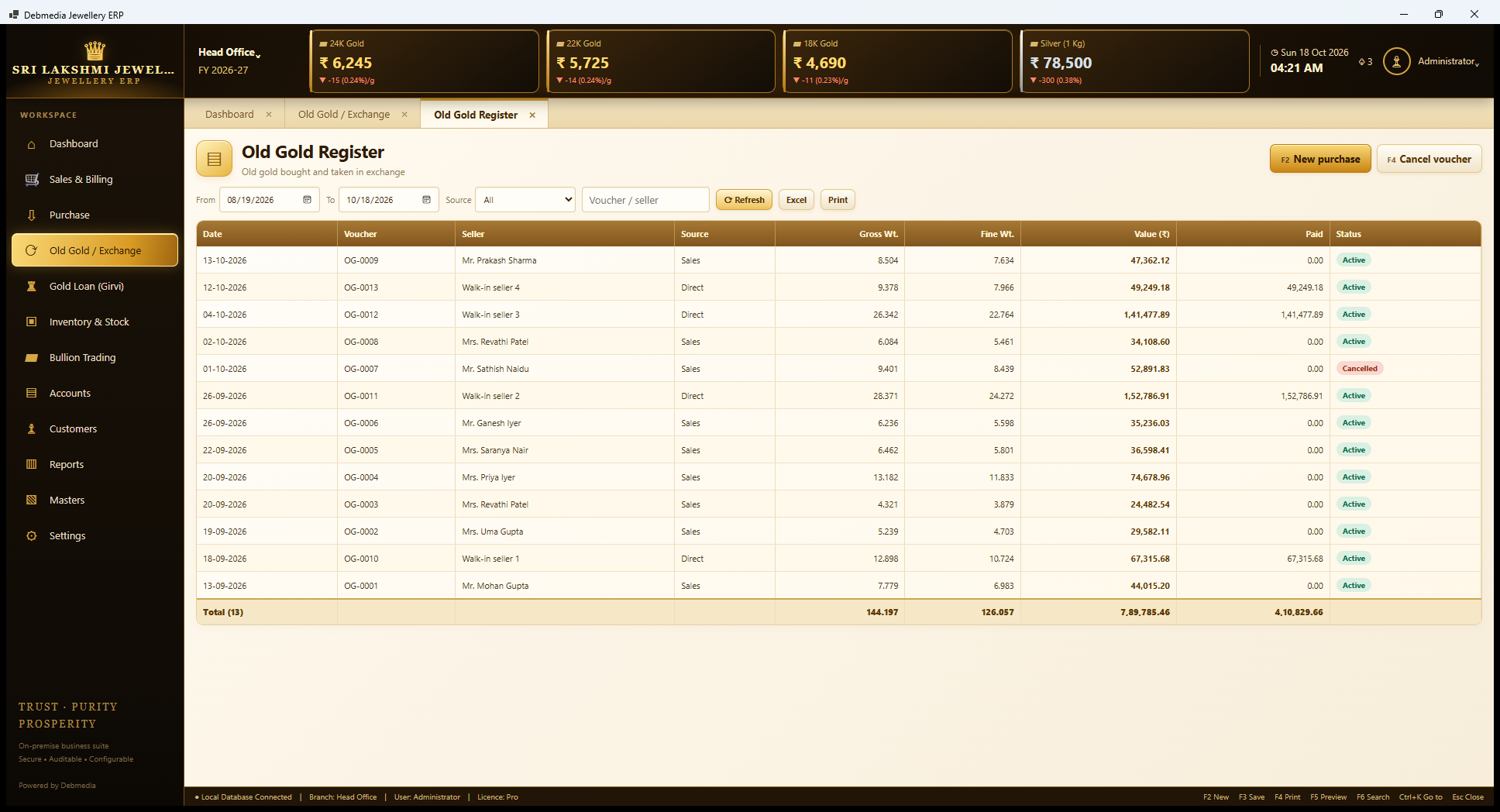
The Old Gold Register lists every old-gold voucher in a date range, filtered by source. The Source column explains where the gold came from. Sales means it was taken in exchange on a bill, so the value was set against the new purchase and nothing was paid in cash here; Direct means it was bought over the counter and paid for. In the sample, OG-0009 was taken from Mr. Prakash Sharma in exchange (8.504 grams, fine 7.634, value ₹47,362.12, nothing paid), while OG-0013 and OG-0012 were bought direct from walk-in sellers and paid in full.
One voucher, OG-0007, is shown with a red Cancelled badge. A voucher is never deleted; cancelling it (F4, with a reason) reverses its effect and leaves the record visible. The register total for the sample is 13 vouchers, 144.197 grams gross, 126.057 grams fine and a value of ₹7,89,785.46, of which ₹4,10,829.66 was paid in cash or other modes. An old-gold voucher taken on a sales bill can only be cancelled by cancelling that bill.
Old Gold Stock and Melting
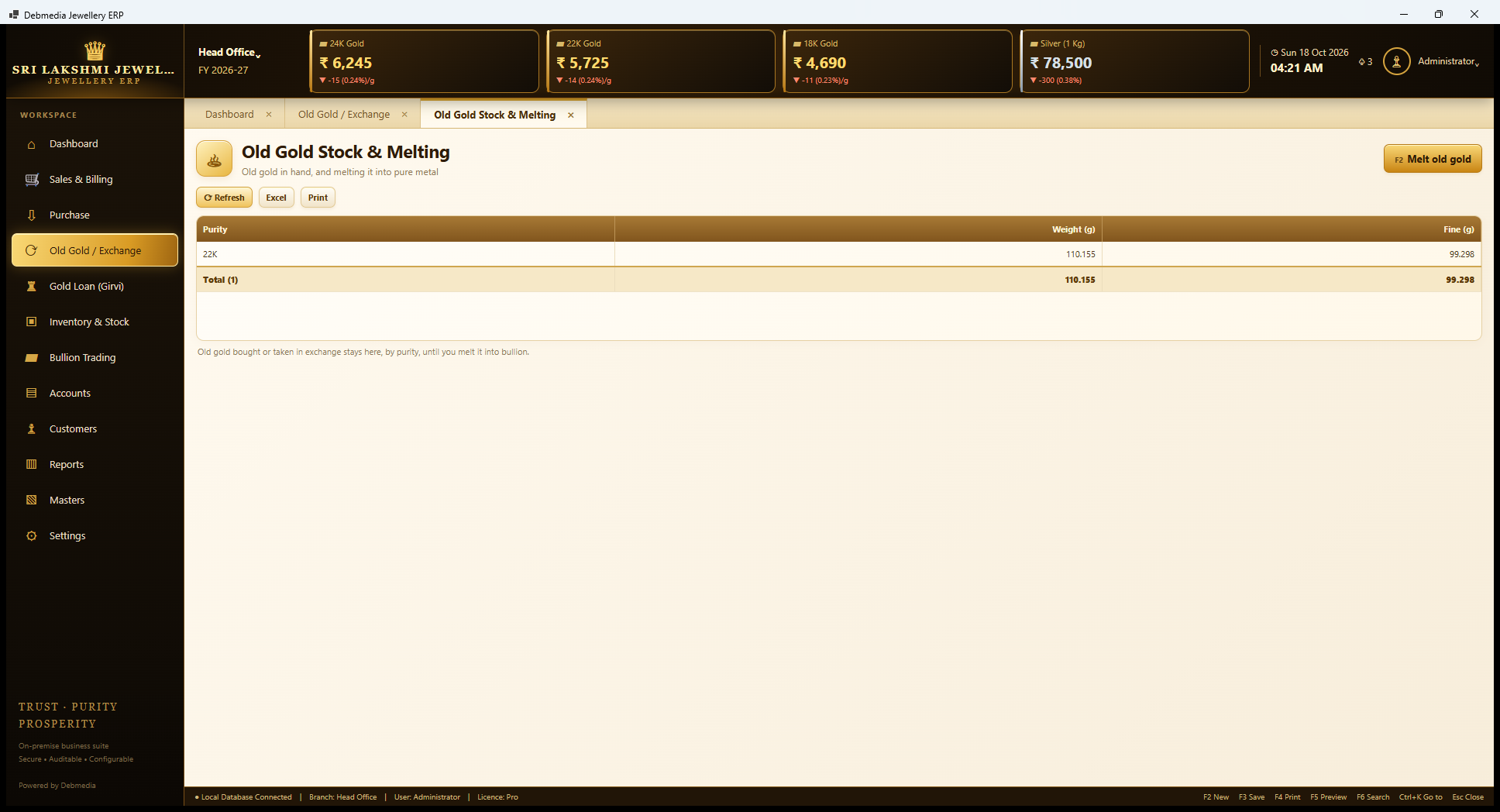
Old gold bought or taken in exchange stays in this stock, by purity, until it is melted into bullion. The screen is short on purpose: one row per purity with the weight and the fine weight. In the sample there is a single lot of 22K gold, 110.155 grams with 99.298 grams fine. The note on screen says it plainly: old gold stays here until you melt it into bullion.
Melt old gold (F2) records the melting. It takes old gold of a chosen purity out of this stock and turns it into pure bullion, where the only loss is the stated melting loss. The sample includes one such melt. From then the metal is bullion and can be issued to a karigar or traded. Keeping old gold separate until it is melted means the shop always knows how much scrap it is carrying and what it could be worth in pure metal.
Gold Loan (Girvi)
Gold Loan (Girvi)
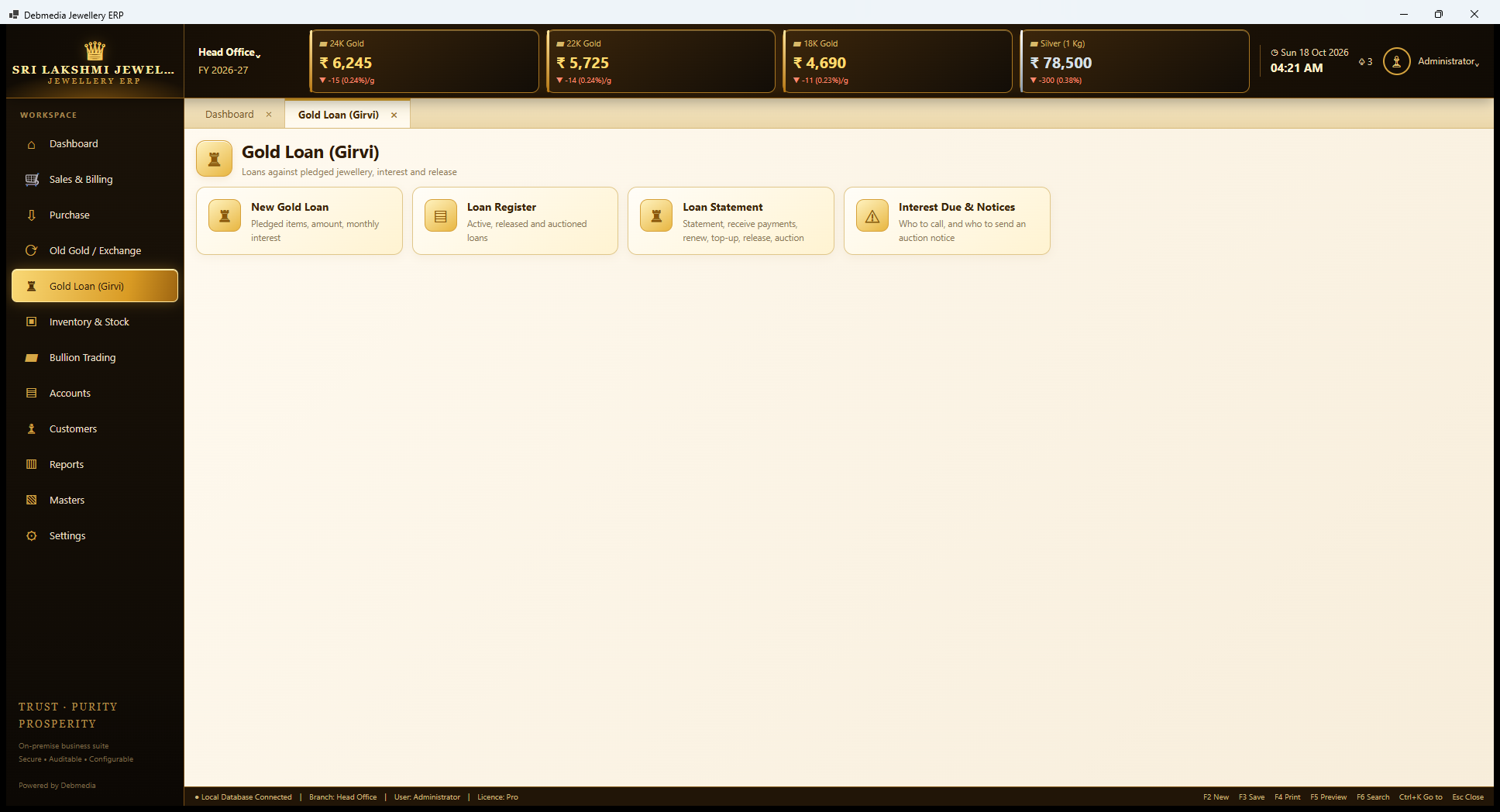
Lending against pledged jewellery is a business of its own, and this module gives it four screens. New Gold Loan records the pledged items, the amount and the monthly interest. Loan Register shows active, released and auctioned loans. Loan Statement is the working screen for one loan: it shows the statement and is where payments are received and a loan is renewed, topped up, released or auctioned. Interest Due and Notices lists who to call and who to send an auction notice to.
New Gold Loan
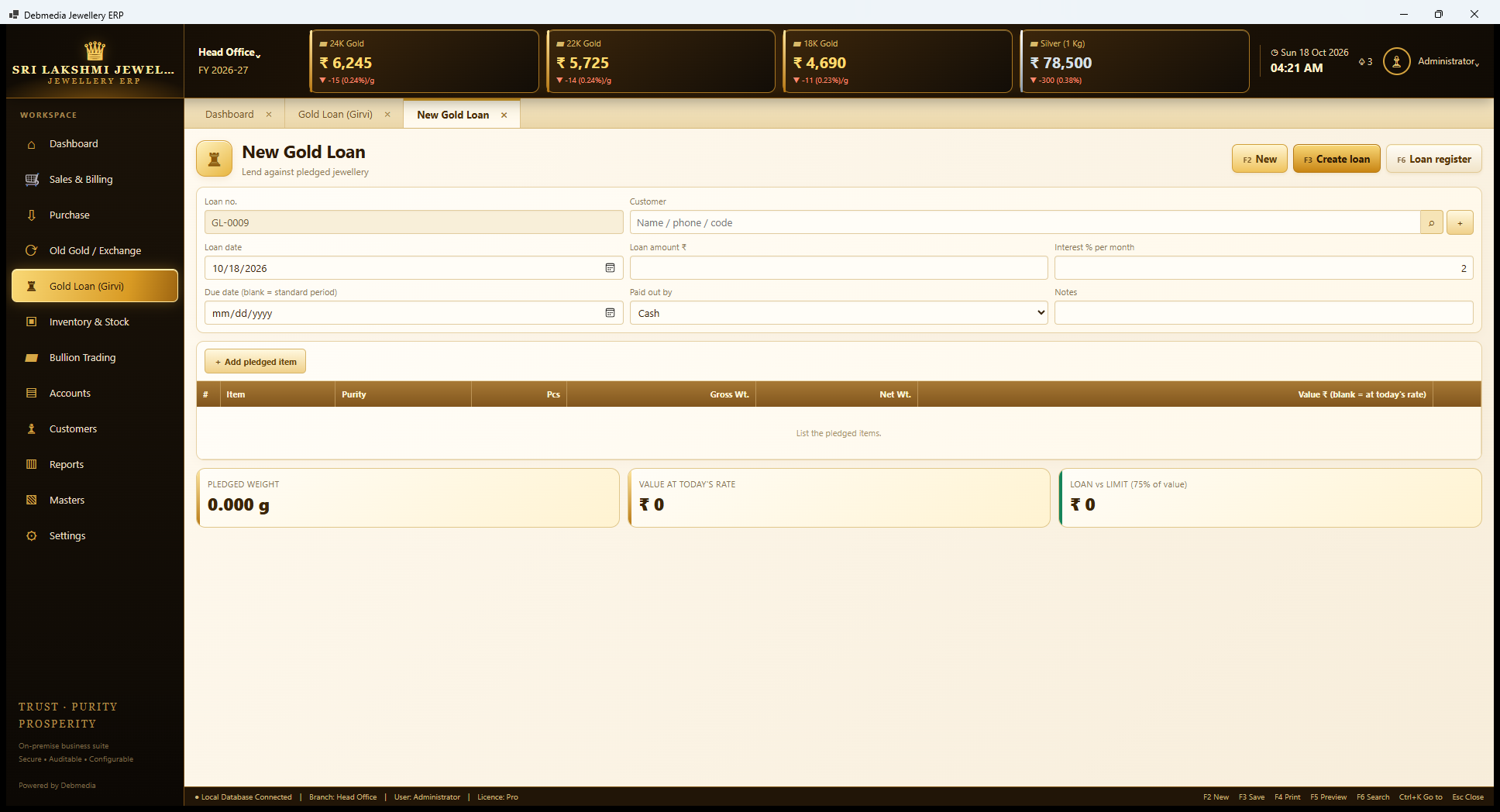
New Gold Loan, numbered GL-0009 next, creates a loan against jewellery. The form takes the customer, loan date, loan amount, interest percent per month (2 percent is the default from Preferences), an optional due date (blank means the standard period of 12 months), the mode the money is paid out by and notes. Add pledged item adds each article: item, purity, pieces, gross weight, net weight and a value, which, if left blank, is taken at today’s rate.
Three tiles update as the items are added: Pledged Weight in grams, Value at today’s rate, and Loan versus Limit, which compares the loan amount to the maximum loan percentage of item value (75 percent in the sample’s Preferences). If the loan is more than that percentage of the pledged value, the program refuses it and asks you to lower the amount or change the limit. Saving posts the money paid out to the books as Girvi Loans Given, an asset account that stood at ₹3,95,000 in the sample, and the pledged items are held against the loan.
Loan Register
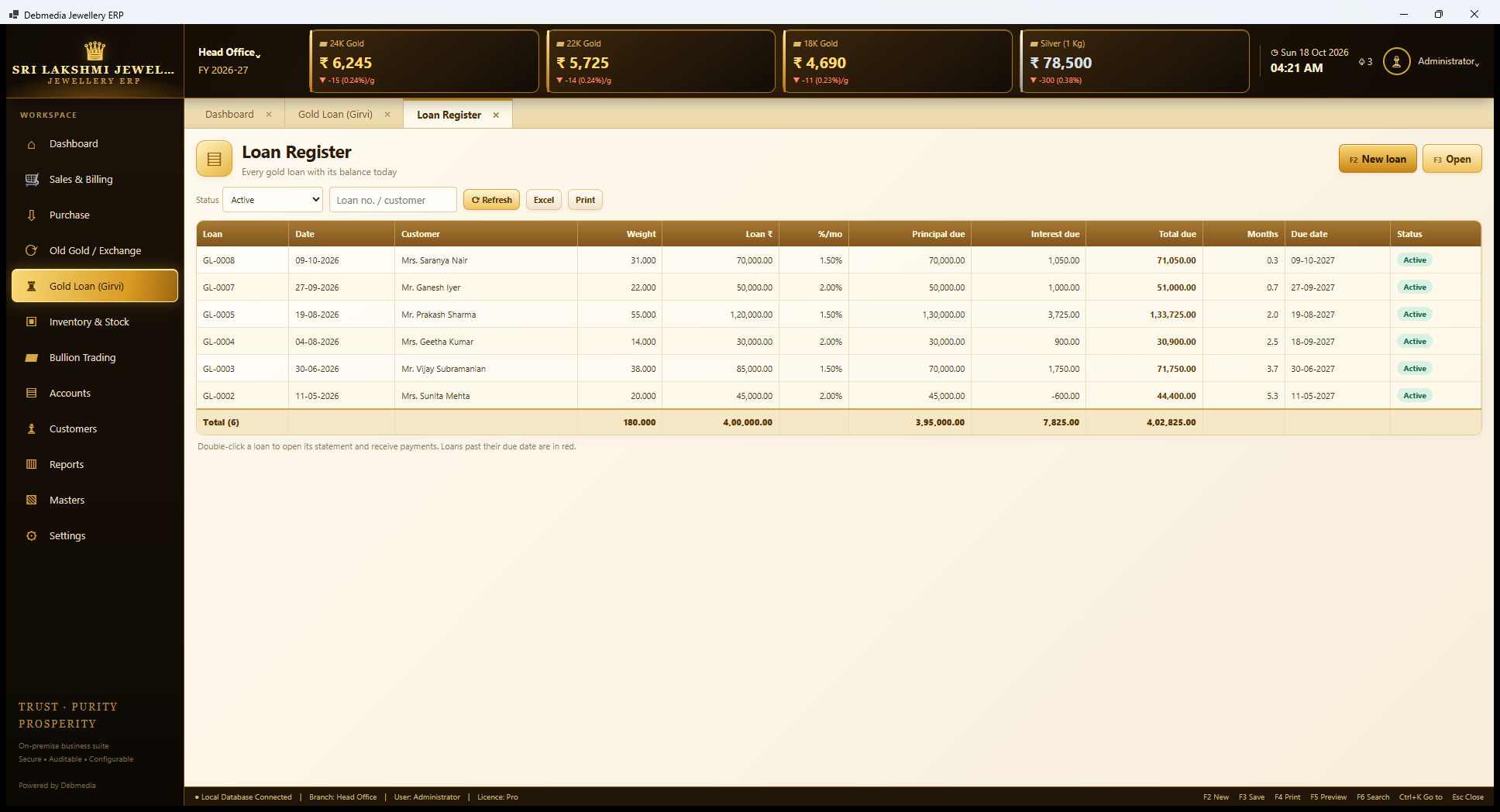
The Loan Register shows each loan with its balance as of today. The columns are the loan number, date, customer, pledged weight, loan amount, interest percent per month, principal due, interest due, total due, months elapsed, due date and status. A status filter selects active, released or auctioned loans.
In the sample, GL-0008 for Mrs. Saranya Nair is a ₹70,000 loan against 31 grams at 1.5 percent a month, with ₹1,050 interest accrued after a few days. GL-0005 shows a loan amount of ₹1,20,000 but a principal due of ₹1,30,000, because ₹10,000 was added by a top-up. GL-0003 shows ₹70,000 principal outstanding on an original ₹85,000, because ₹15,000 was repaid. The totals are six active loans, 180.000 grams, ₹4,00,000 lent, ₹3,95,000 principal due, ₹7,825 interest due and ₹4,02,825 in all.
One oddity in the sample data: GL-0002 shows a negative interest figure (minus ₹600). This happens because the sample payment history received more interest (₹5,400) than had accrued at the screenshot date, so the loan sits in credit on interest. It is a sample-data effect, not something a shop would normally see, and the program’s rule is that interest is the amount accrued less the amount paid and waived.
Double-clicking a loan opens its statement. Loans past their due date show in red.
Loan Statement
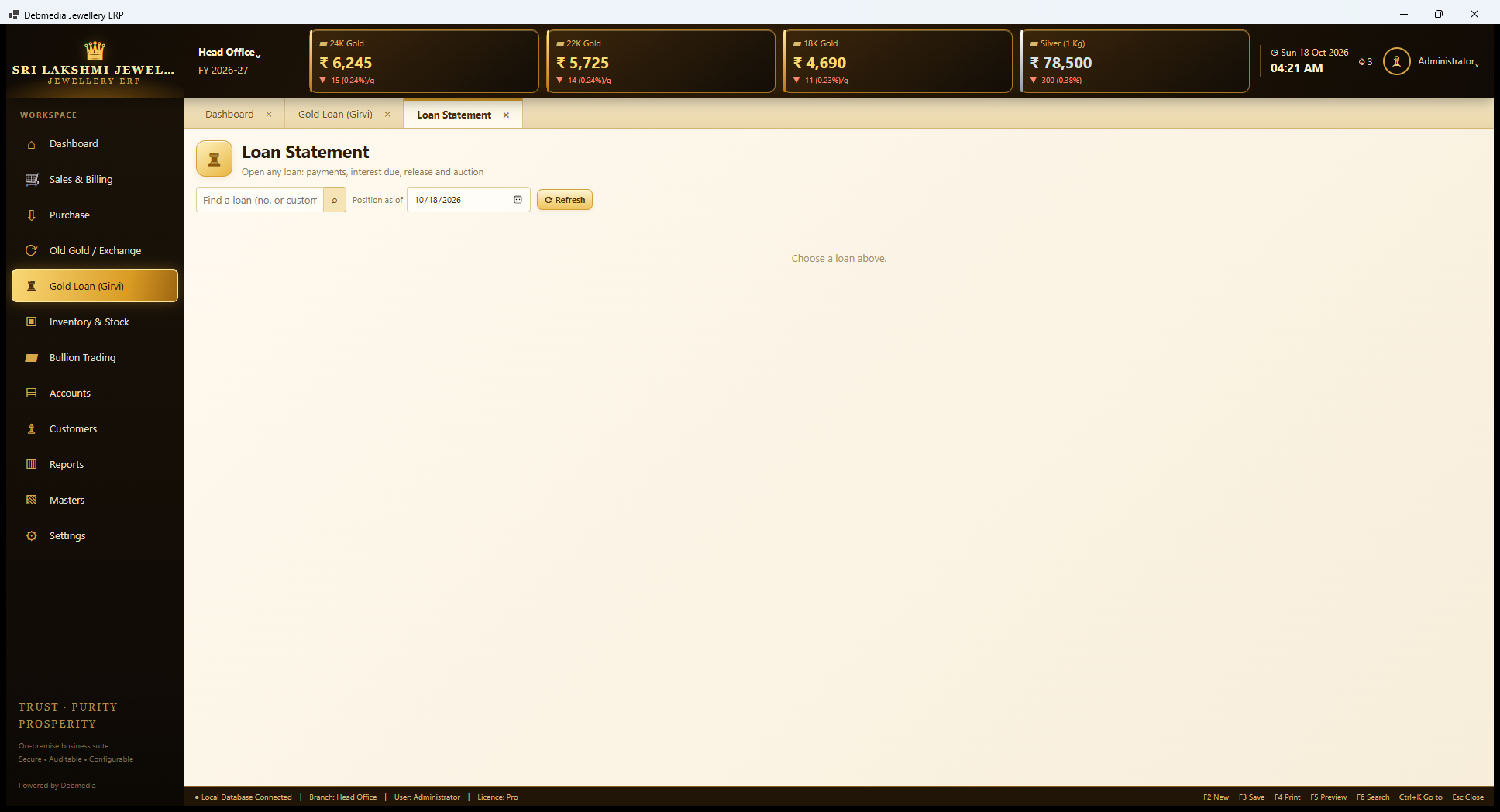
The Loan Statement is the working screen for one loan and is shown here before a loan is chosen. The user finds a loan by number or customer name and sets the Position as of date, which lets the shop see what a loan would owe on a future date, for example the day a customer says they will come to settle.
Once a loan is chosen, the screen shows its history of payments and the position, and offers the actions of the life of a loan. Receive payment takes interest and principal, interest first, with an optional discount. Renew records the interest paid to roll the loan on. Top-up lends more against the same security. Release returns the jewellery after the interest due is received or discounted, and refuses to release while interest is outstanding unless it is cleared. Auction records the sale of the pledged items, applies the proceeds first to interest and then to principal, and books any surplus or shortfall in the accounts.
The interest rule is simple interest per month on the principal still outstanding, in 30-day months, with a minimum number of days of interest (30 in the sample’s Preferences), so a customer who repays in a week still pays a month’s interest. All of it follows the settings on the Preferences screen.
Interest Due and Notices
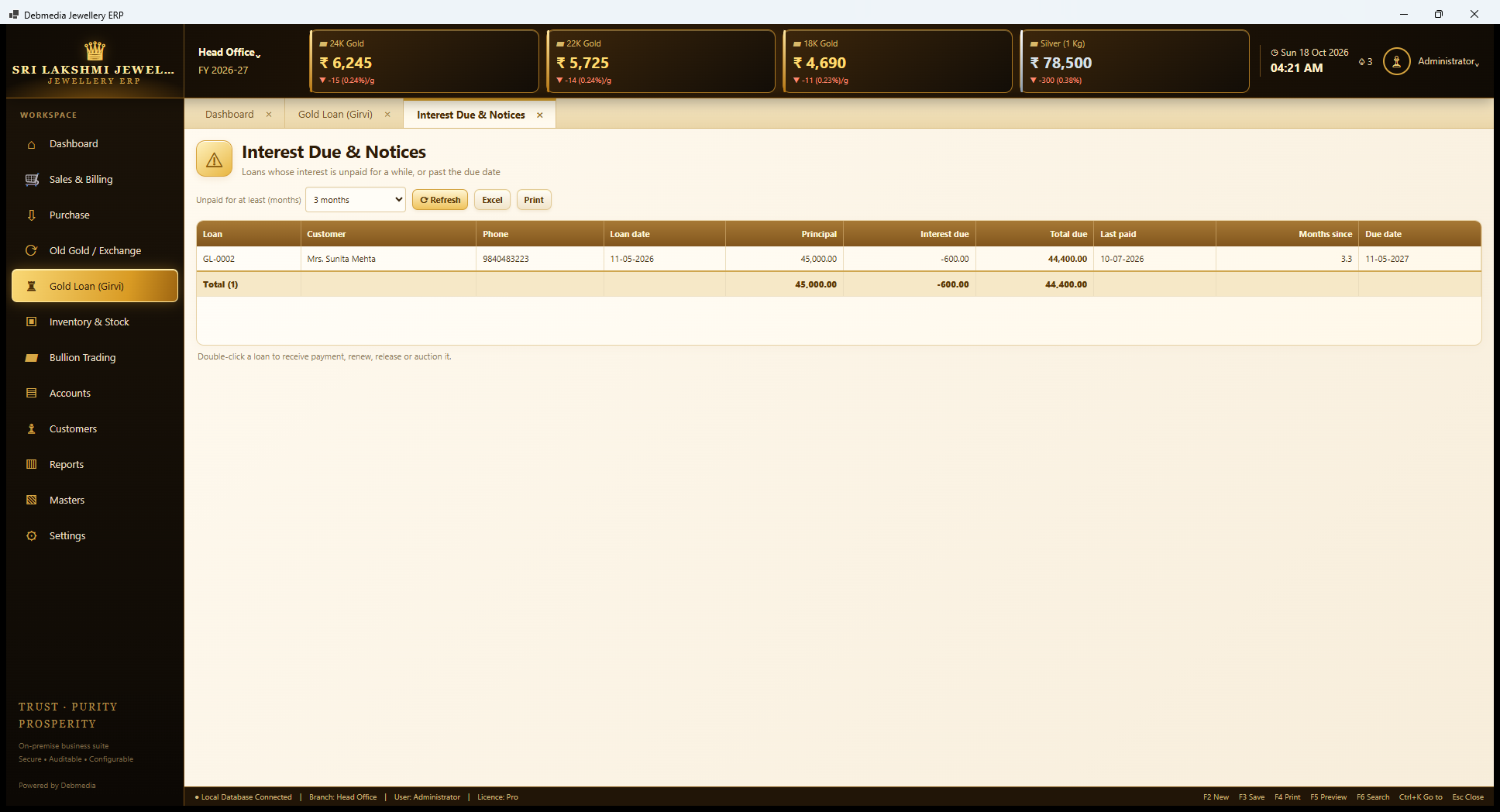
Interest Due and Notices is the follow-up list. A drop-down chooses Unpaid for at least (months), three in the sample, and the grid lists the loans that have gone that long without a payment: loan number, customer, phone, loan date, principal, interest due, total due, last paid, months since and due date. The phone number is on the row so that the person who has to call does not have to look elsewhere.
In the sample, one loan appears, GL-0002 for Mrs. Sunita Mehta, whose last payment was on 10 July and whose loan is more than five months old. It carries the negative interest figure mentioned above, so it shows as interest “due” of minus ₹600. In a real shop the same list is the basis of the monthly round of calls and of the printed notices that must precede an auction. Double-clicking a row opens the loan to receive a payment, renew, release or auction it.
Inventory and Stock
Inventory & Stock
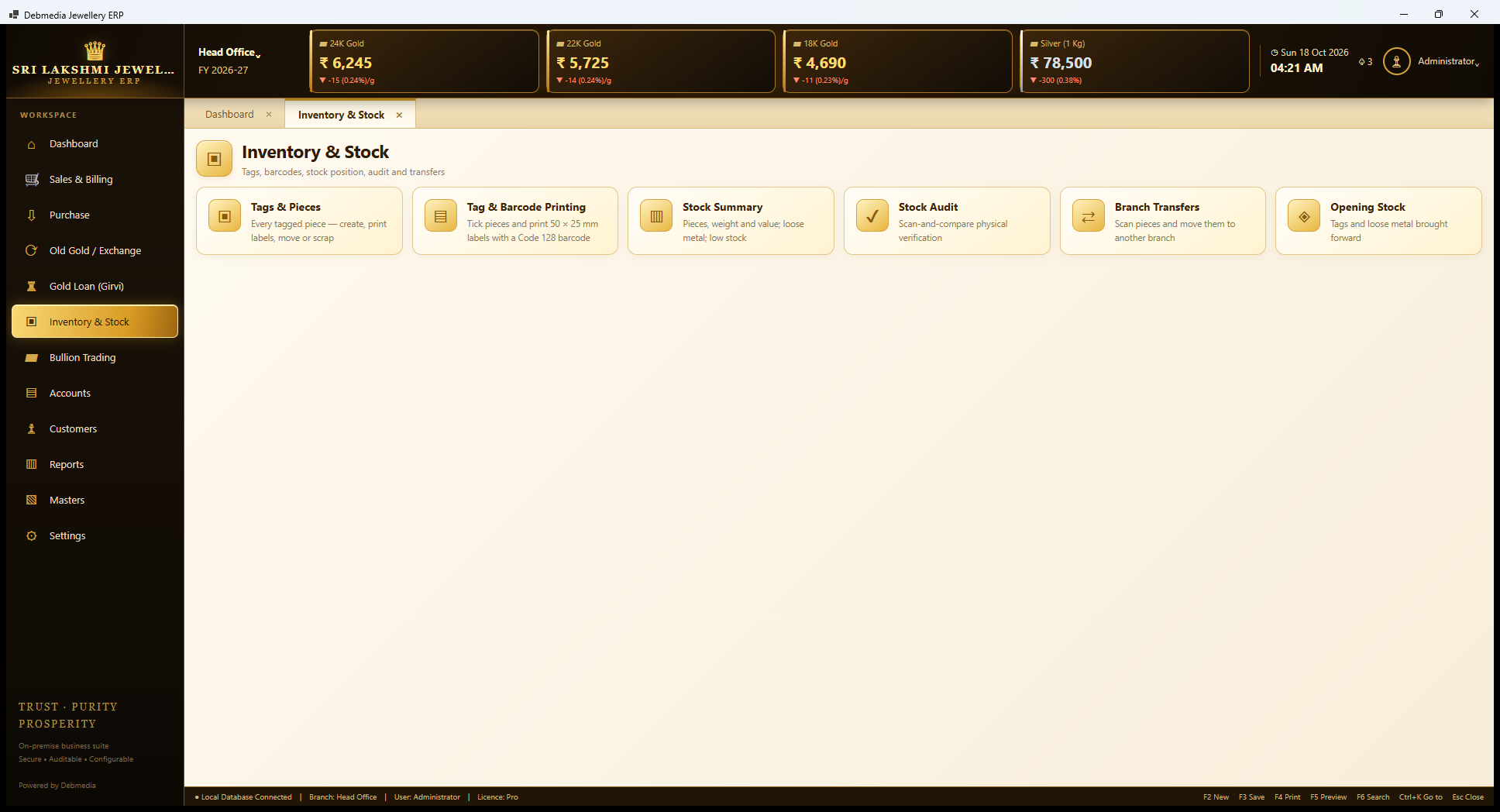
The Inventory hub has six tiles. Tags and Pieces lists every tagged piece, with create, label printing, branch move and scrap. Tag and Barcode Printing ticks pieces and prints 50 by 25 millimetre labels with a Code 128 barcode. Stock Summary shows pieces, weight and value, loose metal and low stock. Stock Audit is a scan-and-compare physical verification. Branch Transfers scans pieces and moves them to another branch. Opening Stock brings in the tags and loose metal already held when the shop starts using the program.
Tags and Pieces
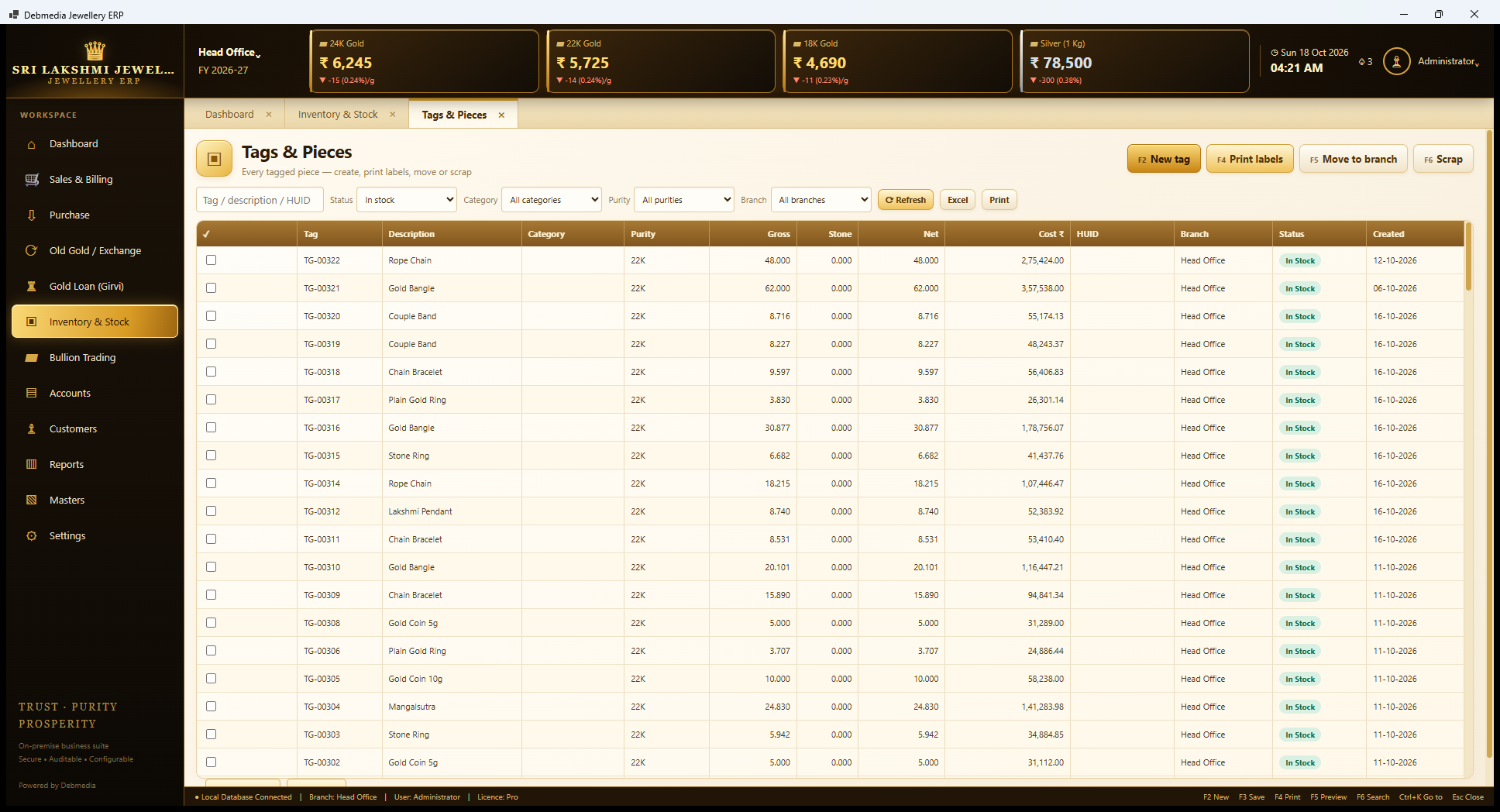
Tags and Pieces is the master list of the shop’s showcase. Each piece has a tag number, a description, a category, a purity, gross, stone and net weights, a cost, a HUID, the branch it is in, a status and the date it was created. Filters narrow the list by search text, status (In stock, Sold and so on), category, purity and branch. The buttons across the top are New tag (F2), Print labels (F4), Move to branch (F5) and Scrap (F6), and the check boxes on the left select pieces for printing or moving.
The sample shows the newest tags first. TG-00322 is a 48 gram rope chain that came from Karigar Selvam’s receipt KR-0002 at a cost of ₹2,75,424, and TG-00321 is the 62 gram gold bangle from Karigar Ramesh’s receipt KR-0001 at ₹3,57,538. The rest are typical showcase pieces such as couple bands, a chain bracelet, plain rings, Lakshmi pendants, coins and a mangalsutra, all in 22K.
In the sample the Category and HUID columns are empty for these rows, because the demonstration tags were created without them. In a real shop the category comes from the Item Master and the HUID is entered from the hallmarking certificate. The HUID is stored per tag and can be searched, and there is a HUID Register report for it.
Stock Summary
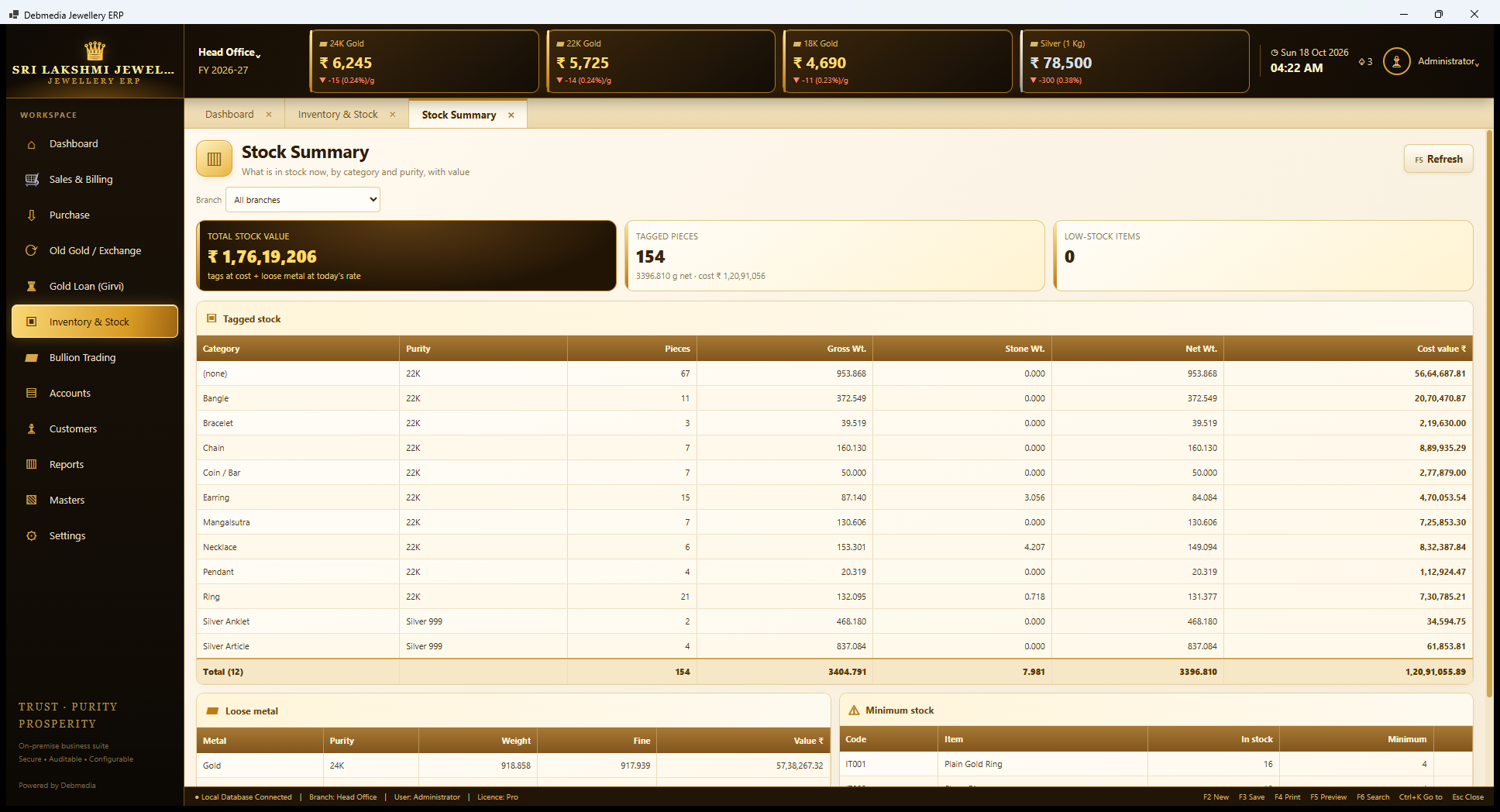
Stock Summary answers “what do I have, and what is it worth?” Three cards sit at the top: Total Stock Value of ₹1,76,19,206 (tags at cost plus loose metal at today’s rate), Tagged Pieces at 154 pieces of 3,396.810 grams net with a cost of ₹1,20,91,056, and Low-Stock Items, none here. A branch filter limits the view to one location.
Beneath, Tagged stock is a grid by category and purity with pieces, gross, stone and net weights and cost value. In the sample the 154 pieces break down into bangles (11 pieces, ₹20,70,470.87), chains, earrings, mangalsutras, necklaces, pendants, rings (21 pieces) and silver anklets and articles, and a total of 3,404.791 grams gross, 7.981 grams of stone and 3,396.810 grams net worth ₹1,20,91,055.89. A Loose metal section values bars and scrap at the day’s rate, and a Minimum stock section compares each item’s stock with its minimum pieces, set on the Item Master.
One sample-data note: the first row, 67 pieces of 22K worth ₹56,64,687.81, has no category, because those demonstration tags were created without one. A real shop would see its piece counts split by category throughout.
Stock Audit
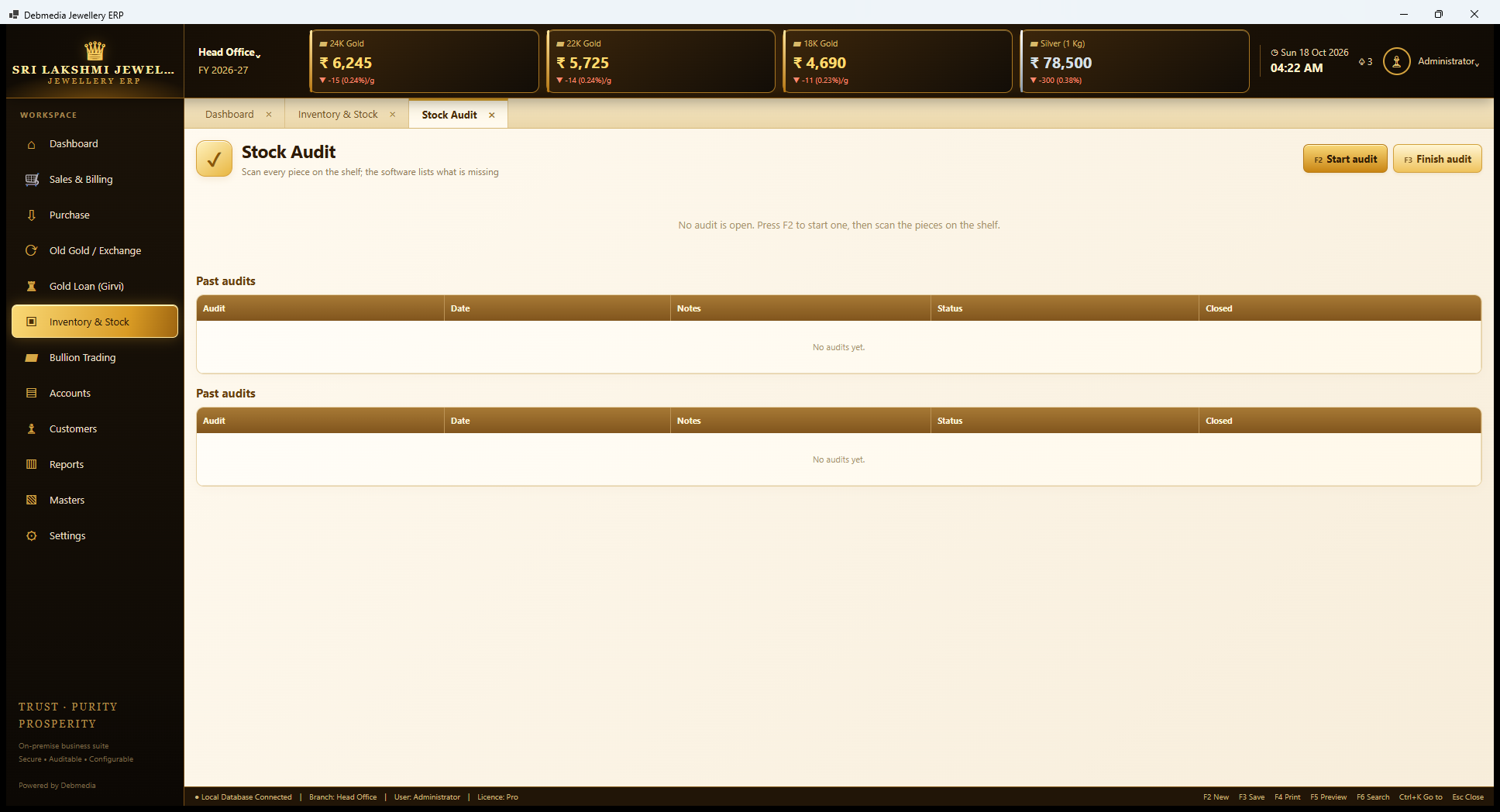
Stock Audit is how a shop checks its showcase against the computer. The idea is simple: scan every piece on the shelf, and the program lists what is missing. With no audit open the screen says “No audit is open. Press F2 to start one, then scan the pieces on the shelf.” Start audit (F2) begins one and Finish audit (F3) closes it, and a Past audits list keeps the history with date, notes, status and closing time.
During an audit the user scans each tag with a barcode scanner, which acts as a keyboard, and the program compares the scanned set with the tags recorded as in stock at that branch. Whatever was not scanned is reported as missing, and a scanned tag that is not on the expected list is reported as unmatched. The screenshot shows a cosmetic quirk: the “Past audits” heading and its empty table appear twice. It does not affect the function.
Start a Stock Audit
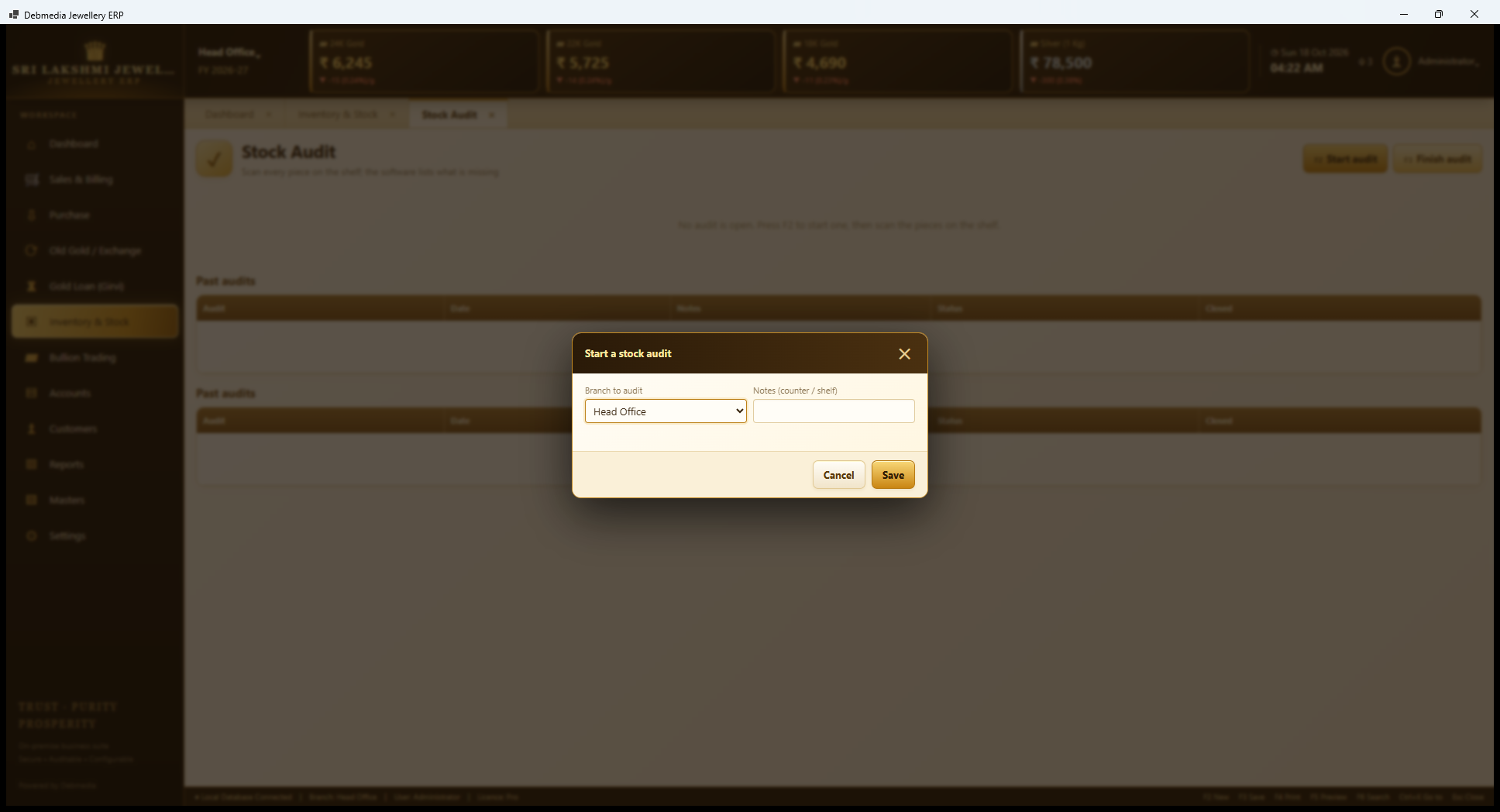
Pressing Start audit opens a small dialog. The user picks the branch to audit (Head Office is the only branch in the sample) and types notes, usually the counter or shelf being counted, then saves. Auditing one counter at a time is practical in a big showcase: the notes say which part of the shop a particular audit covered. The audit number is taken from the SA series (SA-001 is next), which is visible on the Numbering screen.
Branch Transfers
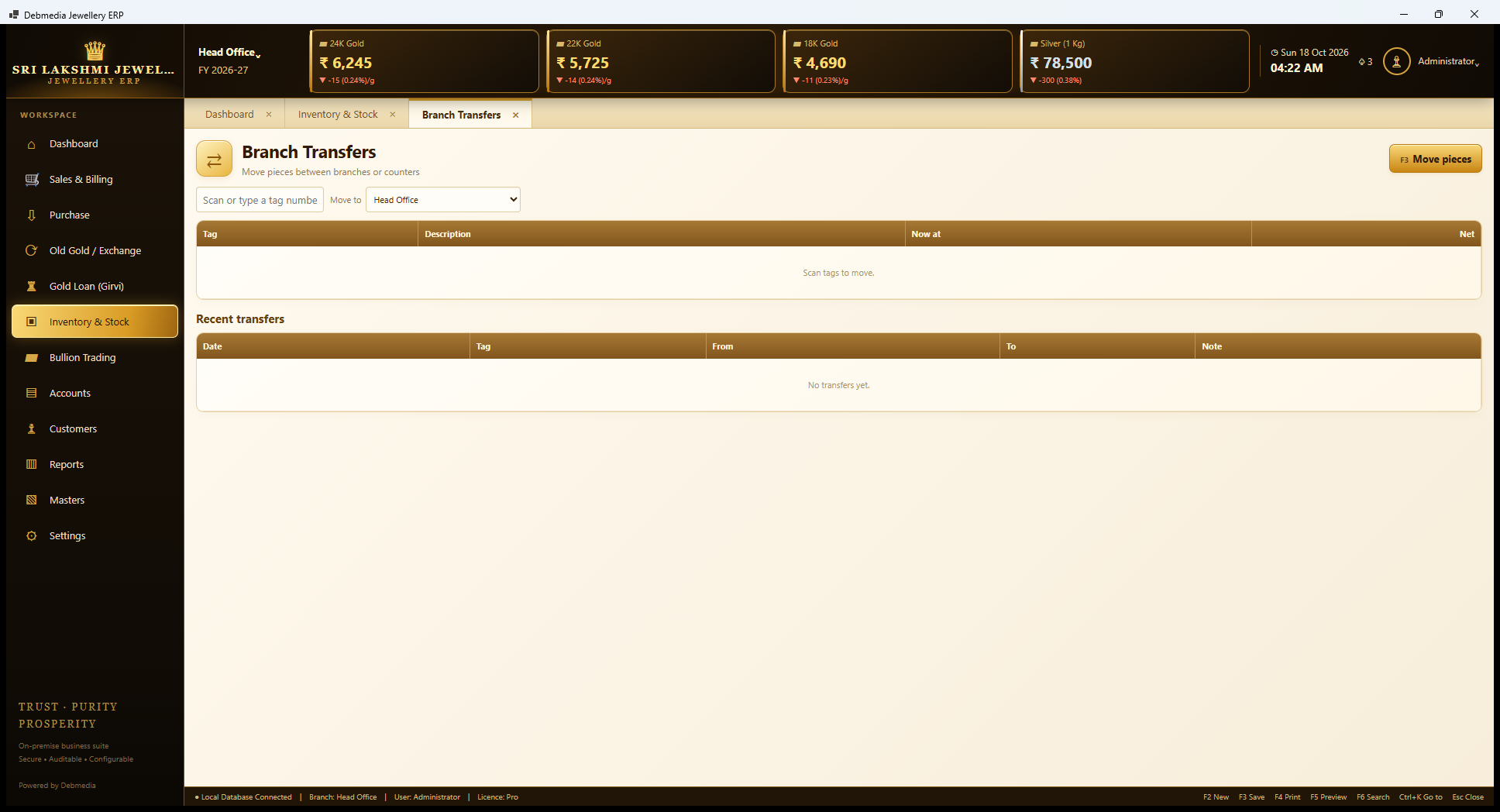
Branch Transfers moves pieces between the shop’s branches, counters or godowns. The user scans or types a tag number into the box and picks the Move to branch from a drop-down; the grid lists the tag, its description, where it is now and its net weight. Move pieces (F3) completes the transfer, which is recorded in the Recent transfers list with date, tag, from, to and note.
The sample has no transfers because it has one branch only. The feature is a stock location change, not synchronisation: this edition keeps one database file for all branches, so it suits a shop with several counters or a godown on the same computer, not several shops each with their own computer.
Opening Stock
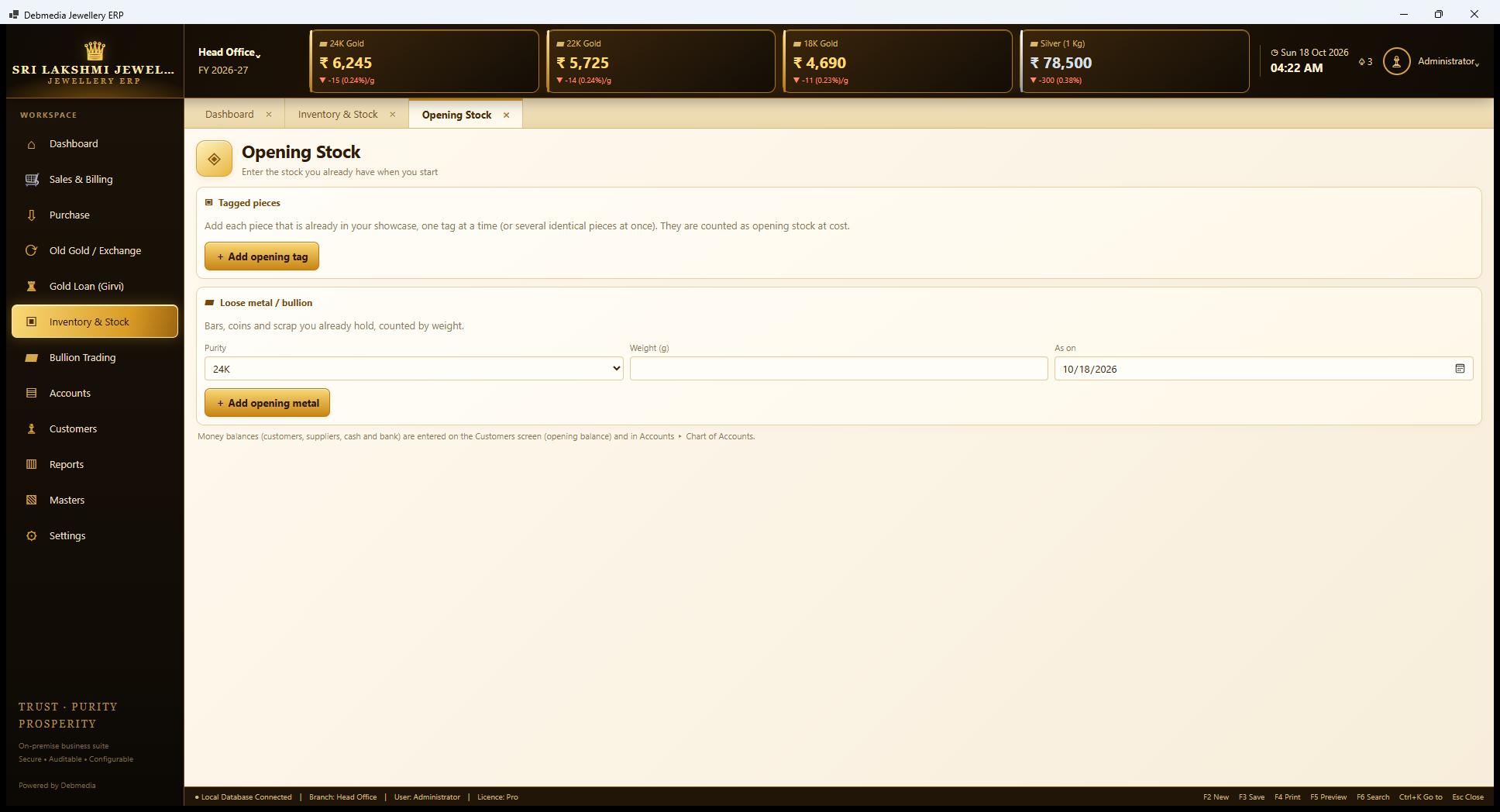
Opening Stock is for the first day of using the program. It has two boxes. Tagged pieces says: add each piece that is already in your showcase, one tag at a time or several identical pieces at once, and they are counted as opening stock at cost. Loose metal and bullion takes the purity, weight and an “as on” date for bars, coins and scrap already held, counted by weight.
A note at the bottom tells the user where the money side goes: customer and supplier balances are entered as opening balances on the Customers screen, and cash, bank and other balances in the Chart of Accounts. Splitting stock from money in this way keeps the opening position clear, and the Trial Balance shows the opening figures as Opening Balance Equity.
Bullion Trading
Bullion Trading
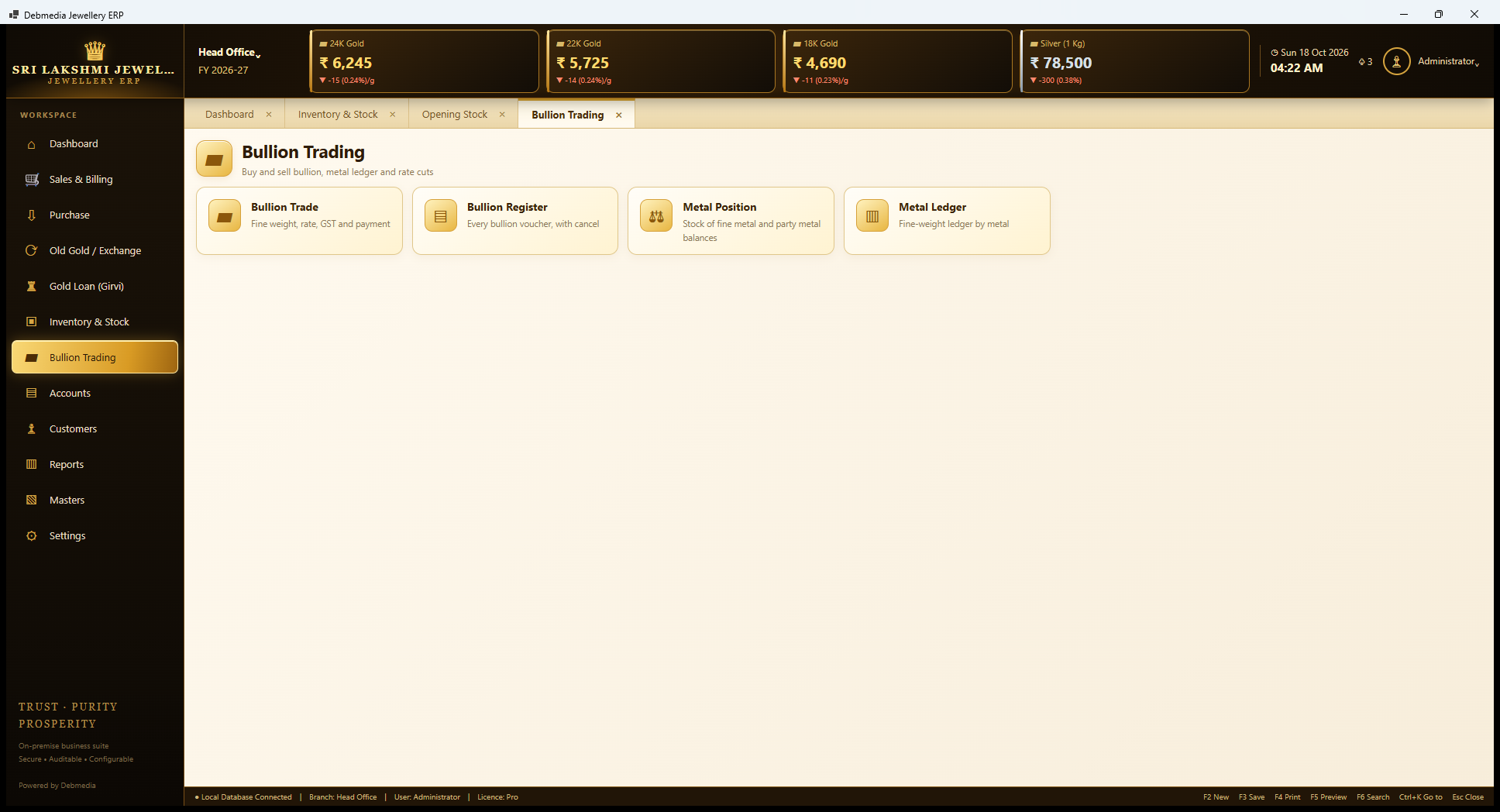
Bullion Trading is for shops that buy and sell gold and silver in bar or loose form. The hub has four tiles. Bullion Trade records the fine weight, rate, GST and payment. Bullion Register lists every bullion voucher, with cancellation. Metal Position shows the stock of fine metal and the metal balances of parties. Metal Ledger is the fine-weight ledger by metal.
Bullion Trade
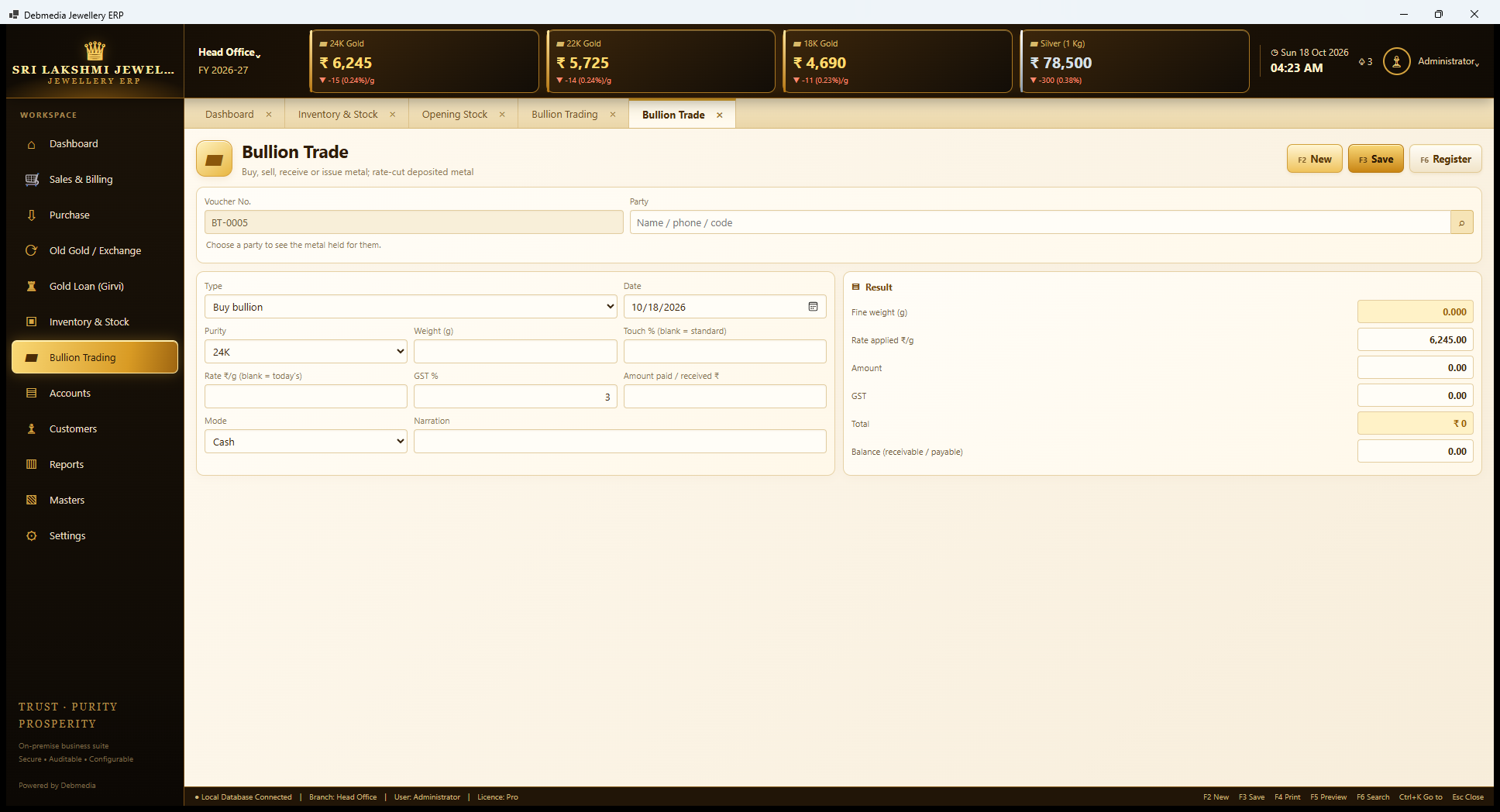
The Bullion Trade screen, numbered BT-0005 next, handles five kinds of transaction through a Type drop-down: buy bullion, sell bullion, receive metal from a party, issue metal to a party, and rate-cut deposited metal. Choosing a party shows the metal already held for them. The other fields are the date, purity, weight, touch percent (blank means the standard), rate per gram (blank means today’s), GST percent (3 percent for bullion) and the amount paid or received with its mode.
A result box shows the working before saving: the fine weight, the rate applied (₹6,245 per gram here, the day’s 24K rate), the amount, the GST, the total and the balance, receivable or payable. Buying and selling are ordinary trades with GST. Receive and issue move metal without money, so that a jeweller can deposit metal with a wholesaler or hold it for a customer. Rate-cut converts metal a party has deposited into a rupee amount at the rate chosen, which is how a deposited balance of fine gold is settled.
Bullion Register
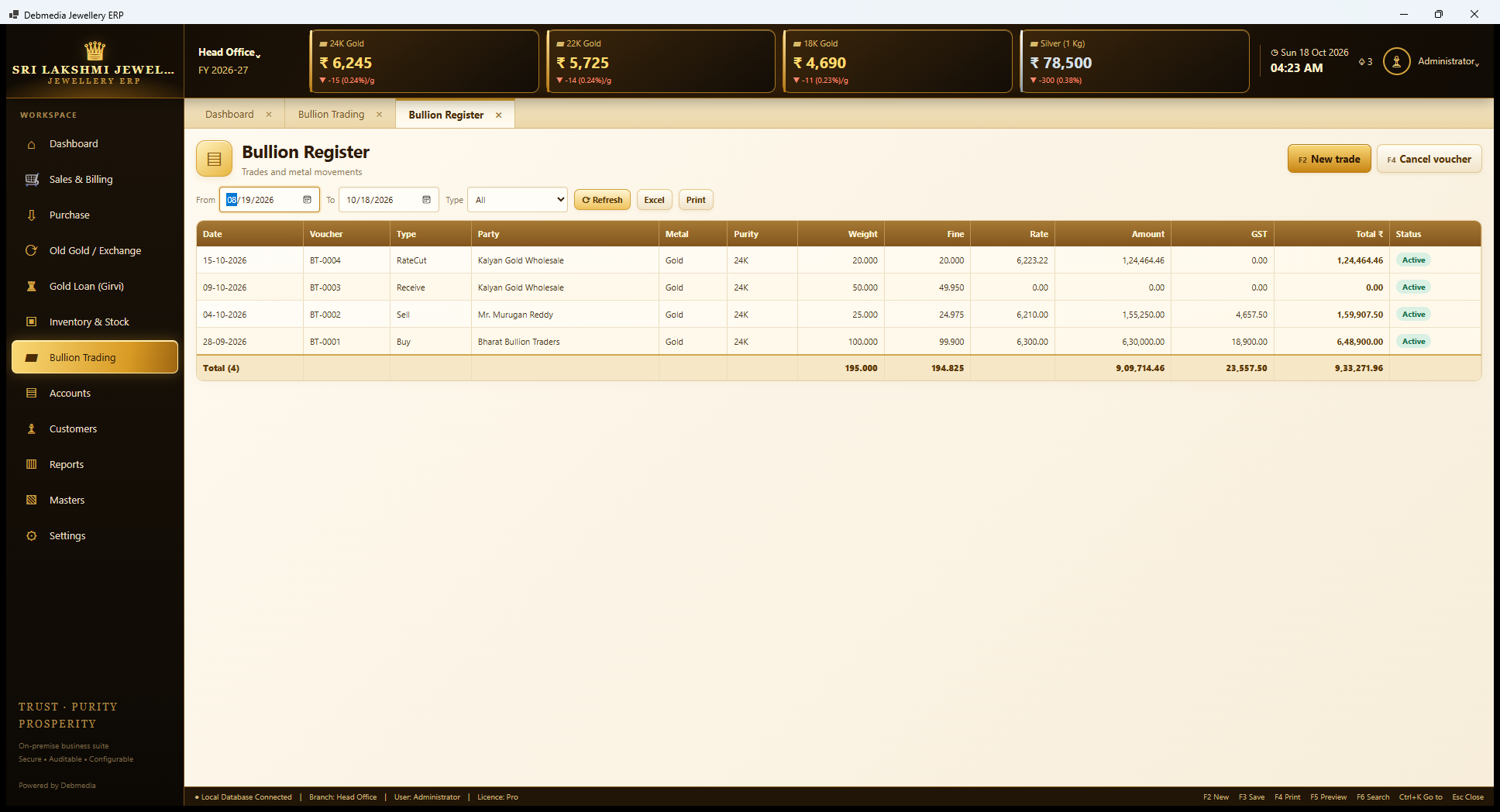
The Bullion Register lists every bullion voucher in a date range. The sample has four, one of each interesting kind. BT-0001 on 28 September bought 100 grams from Bharat Bullion Traders at ₹6,300 a gram for ₹6,30,000 plus ₹18,900 GST, a total of ₹6,48,900. BT-0002 sold 25 grams to Mr. Murugan Reddy at ₹6,210 for ₹1,55,250 plus ₹4,657.50 GST. BT-0003 received 50 grams of metal from Kalyan Gold Wholesale with no money moving, and BT-0004 was a rate-cut of 20 grams of that deposit at ₹6,223.22 a gram, an amount of ₹1,24,464.46.
The register totals 195 grams, 194.825 grams fine and ₹9,33,271.96 including ₹23,557.50 of GST. A voucher can be cancelled with F4 and a reason. The gap between a gross weight of 195 and a fine weight of 194.825 is the 99.9 percent fineness of 24K gold.
Metal Position
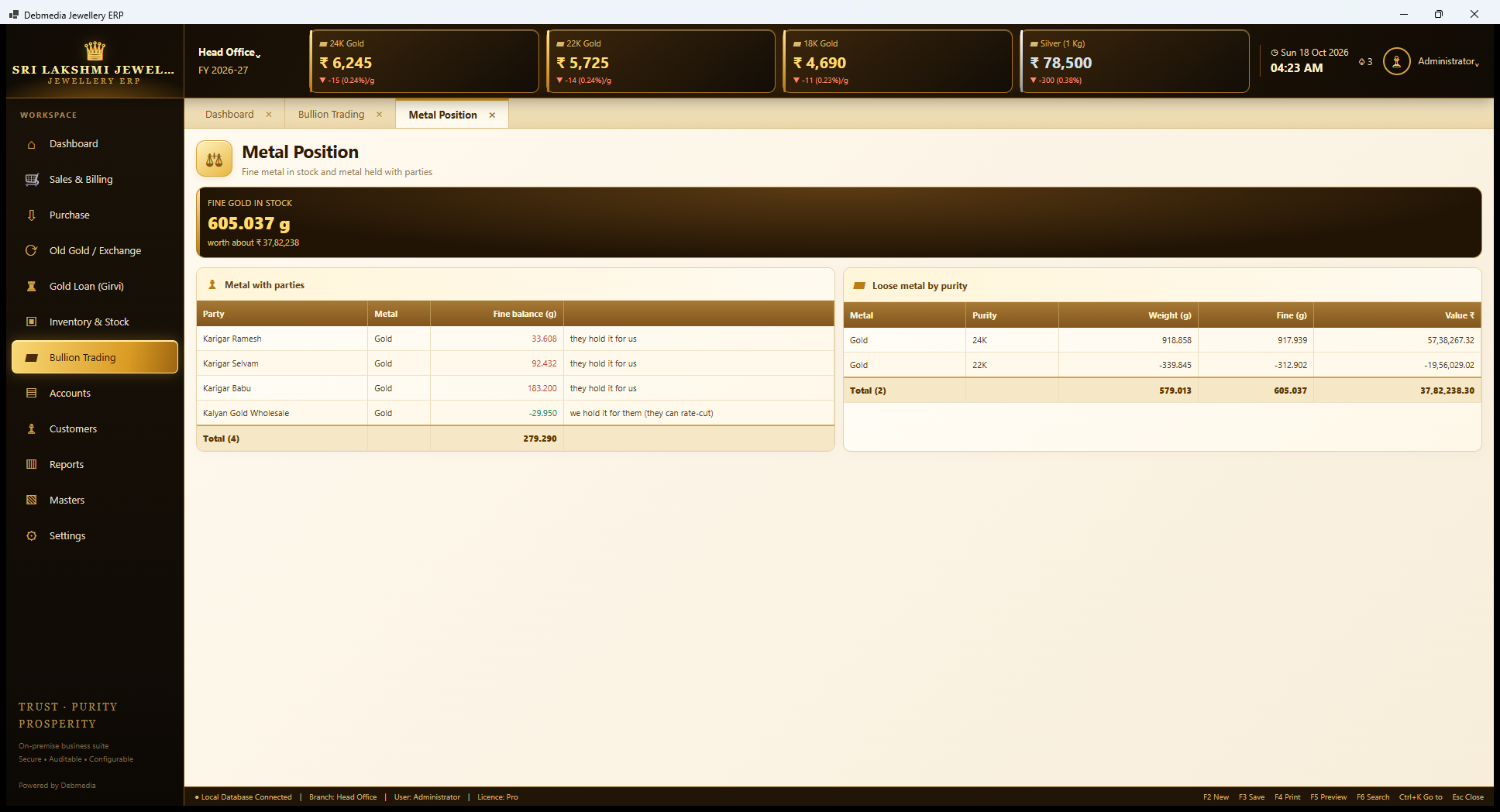
Metal Position shows where the shop’s pure metal is. A dark card at the top gives fine gold in stock, 605.037 grams worth about ₹37,82,238. Metal with parties lists each party’s fine balance and the direction: the three karigars hold 33.608, 92.432 and 183.200 grams for the shop (“they hold it for us”), while Kalyan Gold Wholesale shows minus 29.950 grams (“we hold it for them, they can rate-cut”), that is, 49.950 grams deposited less 20 grams already rate-cut. Loose metal by purity shows the weight, fine weight and value of each purity held.
Look closely at the sample’s loose metal and you will see 24K gold of 918.858 grams, but 22K gold with a negative 339.845 grams. That is an artefact of the sample data, in which more 22K metal was issued to karigars than the sample purchases had brought in as 22K. The program’s arithmetic is working as designed, since it reports a negative as it is; in a real shop a negative loose-metal balance is a warning that a purchase or opening entry is missing.
Metal Ledger
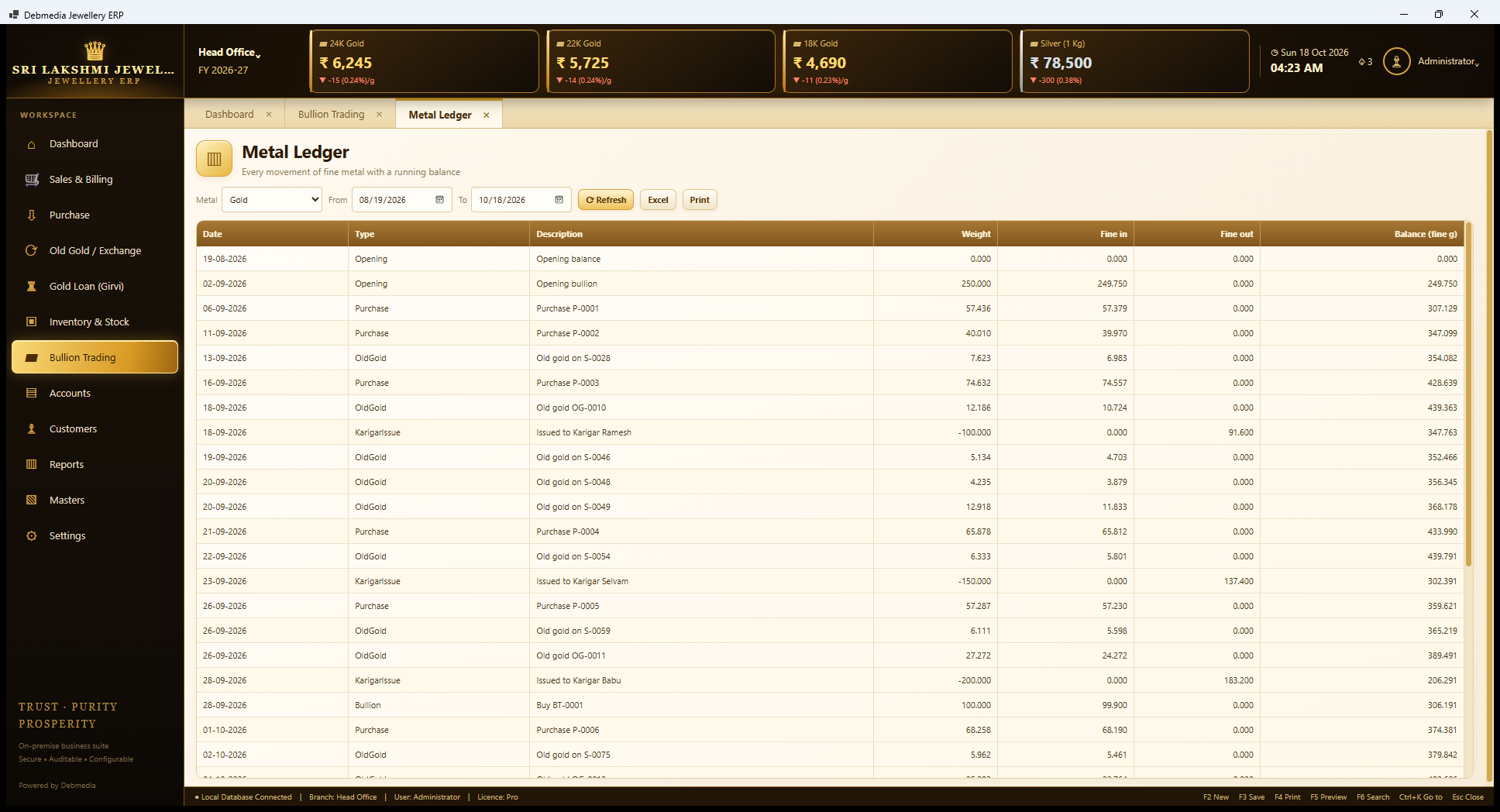
The Metal Ledger is the fine-weight account of one metal, in the manner of a bank passbook. A Metal selector and a date range set the view, and each row shows the date, the type, a description, the weight, fine in, fine out and the running balance in fine grams.
The sample’s gold ledger begins with an opening balance of 249.750 grams fine on 2 September. Then purchases add fine metal (P-0001 adds 57.379 grams), old gold taken on bills and bought direct adds more (OG-0010 adds 10.724 grams), and issues to karigars take it out (100 grams issued to Ramesh is 91.600 fine out). Bullion trades appear too, BT-0001 adding 99.900 grams. Each line is a link to the voucher that caused it.
This is the screen that settles an argument about metal. Because purchases, old gold, karigar issues and receipts and bullion trades all write to this one ledger in fine grams, it is the place to trace any figure on the Metal Position screen back to the voucher behind it.
Accounts: Vouchers, Books and Statements
Accounts
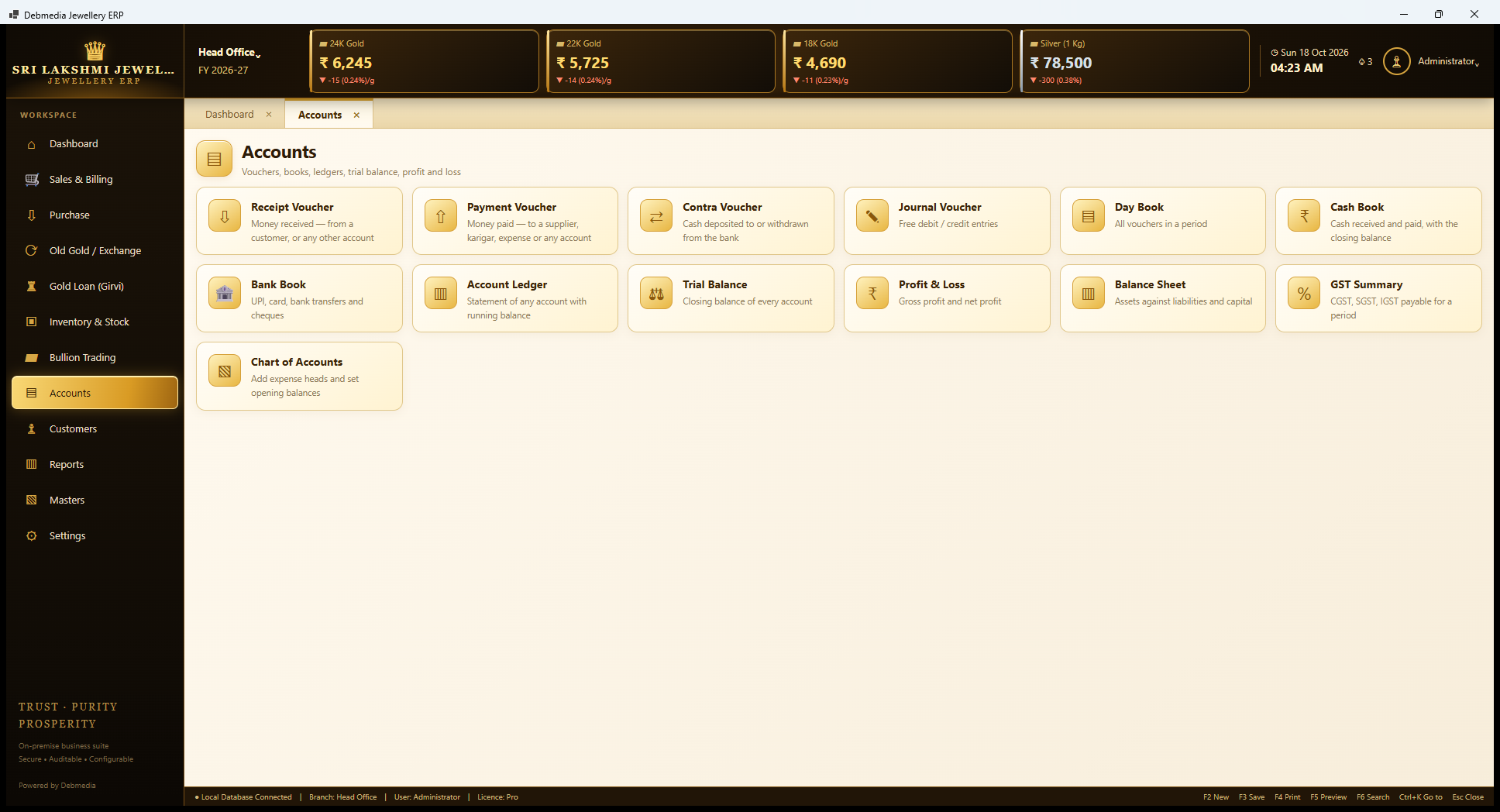
The Accounts hub gathers thirteen tiles. Four are vouchers: Receipt Voucher (money received from a customer or any other account), Payment Voucher (money paid to a supplier, karigar, expense or any account), Contra Voucher (cash deposited to or withdrawn from the bank) and Journal Voucher (free debit and credit entries). Four are books: Day Book (all vouchers in a period), Cash Book (cash received and paid, with the closing balance), Bank Book (UPI, card, bank transfers and cheques) and Account Ledger (statement of any account with a running balance). The last five are the statements: Trial Balance, Profit and Loss, Balance Sheet, GST Summary and Chart of Accounts.
The point of the module is that the shop’s staff rarely make accounting entries by hand. Every sale, purchase, old-gold voucher, loan, bullion trade, karigar receipt and scheme instalment posts its own balanced voucher, marked AV (automatic voucher) in the numbering. The four manual vouchers are for what has no other screen: rent, salaries, electricity, cash deposits and adjustments.
Receipt Voucher
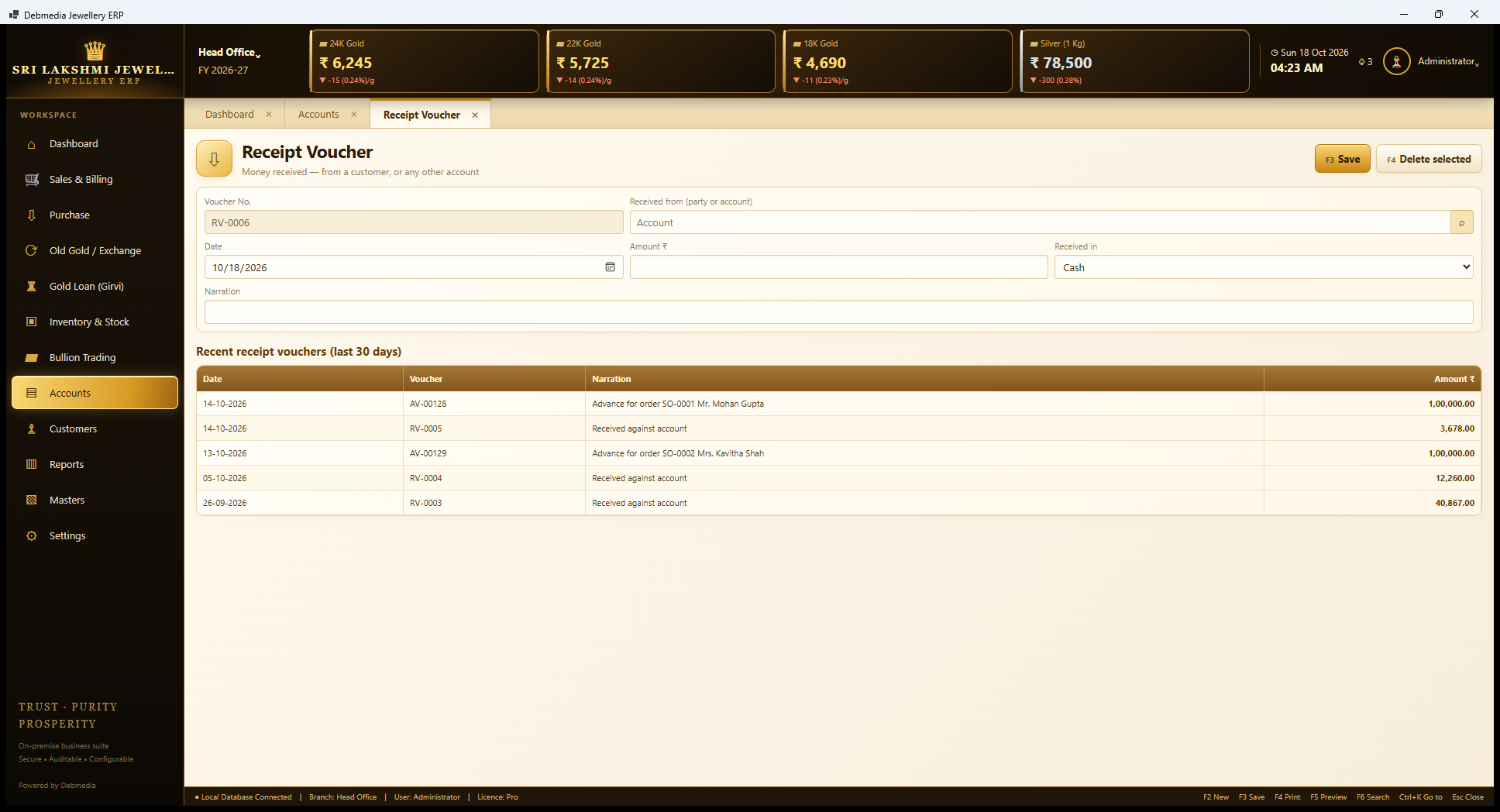
A Receipt Voucher, numbered RV-0006 next, records money received that is not part of a bill. The form takes the account it came from (a party or any account), the date, the amount, the account it was received in (Cash by default, or a bank account) and a narration. A list below shows the recent receipt vouchers of the last 30 days.
That list shows how the automatic vouchers sit beside manual ones. Two of the lines are advances against customer orders (AV-00128 and AV-00129, ₹1,00,000 each), posted automatically when the orders were saved, and the rest are RV vouchers, such as ₹40,867 received against an account on 26 September. Saving a voucher posts debit to the receiving account and credit to the paying party, so the party’s ledger and balance change immediately. A saved voucher is not edited. A manual voucher entered in error can be deleted, and the deletion is written to the audit log.
Payment Voucher
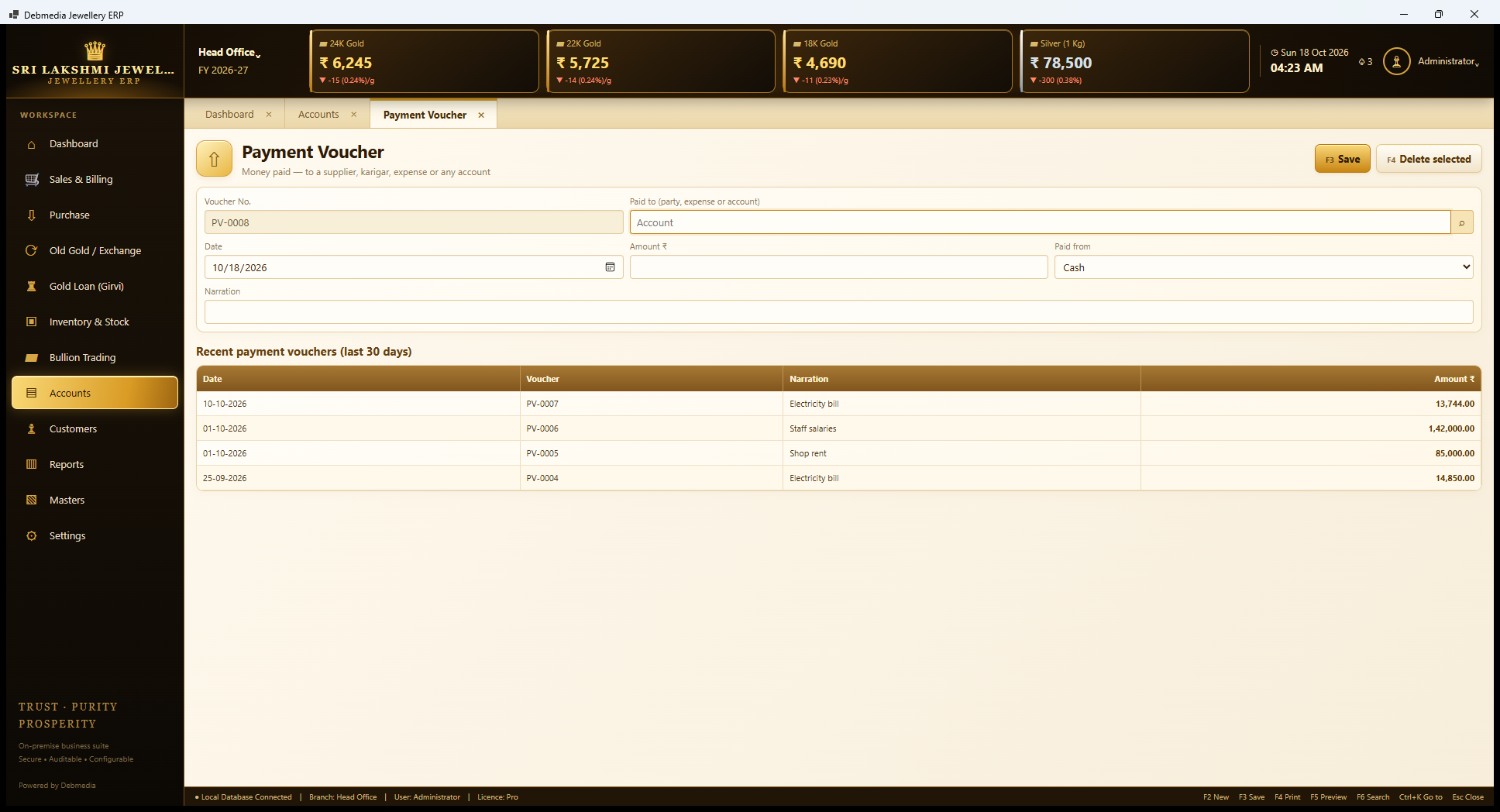
The Payment Voucher, numbered PV-0008 next, is the mirror image: money paid out. It takes the party, expense or account paid, the date, the amount, the account it was paid from and a narration. The recent list shows the shop’s everyday outgoings: ₹85,000 shop rent on 1 October, ₹1,42,000 staff salaries on the same day, and electricity bills of ₹14,850 and ₹13,744. Each of these debits an expense account, which is why Rent, Salaries and Wages and Electricity appear in the Profit and Loss.
Payments to suppliers and karigars are entered the same way, choosing the party, and reduce what the shop owes them on the Payables list. Expense heads that do not yet exist are added under Chart of Accounts.
Contra Voucher
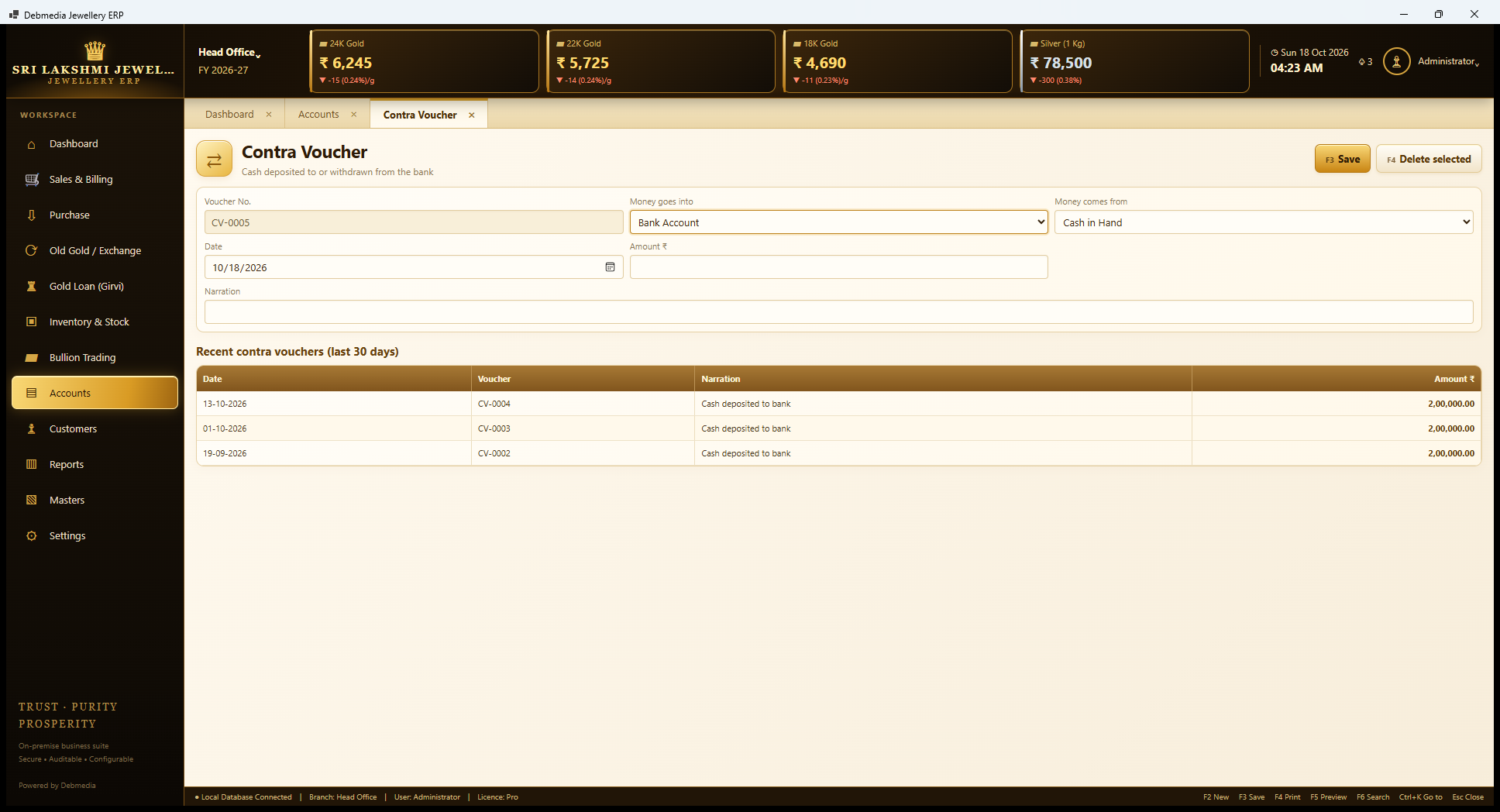
A Contra Voucher, numbered CV-0005 next, moves money between the shop’s own cash and bank accounts. The form takes where the money goes into (Bank Account here), where it comes from (Cash in Hand), the date, the amount and a narration. The recent list shows the shop’s habit of banking surplus cash: ₹2,00,000 deposited on 19 September, 1 October and 13 October.
Because neither side is income or expense, a contra changes nothing in the Profit and Loss; it only moves a figure from the Cash Book to the Bank Book. That is why cash in hand stays a sensible number even for a shop that takes a lot of cash on busy days.
Journal Voucher
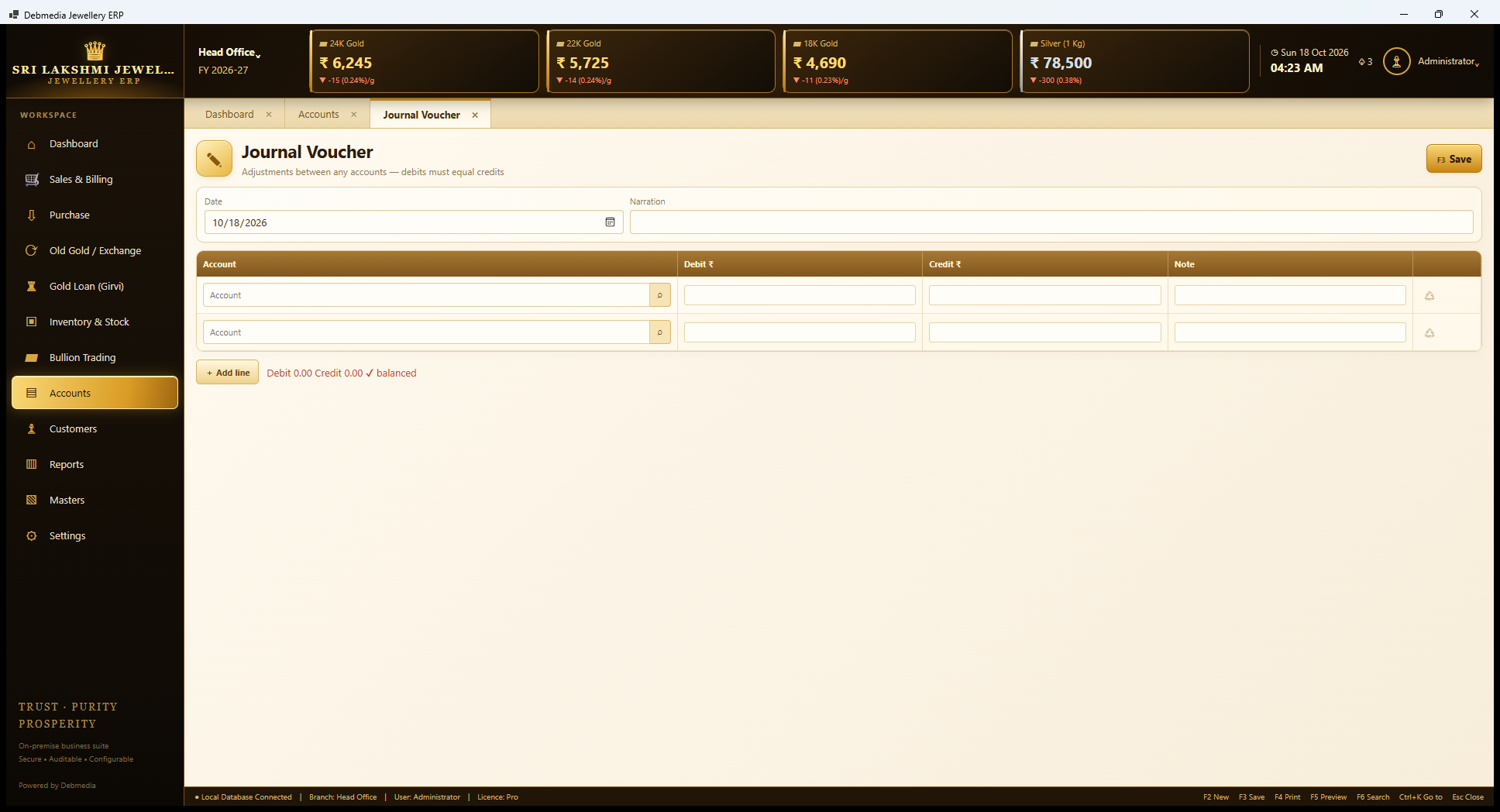
The Journal Voucher is for adjustments between any accounts, such as writing off a small balance or correcting a posting. The user enters a date and narration, then picks accounts in the grid and types a debit or credit with a note for each line, using Add line for more. A live check at the bottom shows the debit and credit totals and a tick when they are balanced.
The program will not post a journal whose debits and credits differ. This is the one screen where the user does the accounting by hand, and the check is what makes it safe. Journal vouchers are part of the Standard tier; Starter has receipts, payments and the books.
Day Book
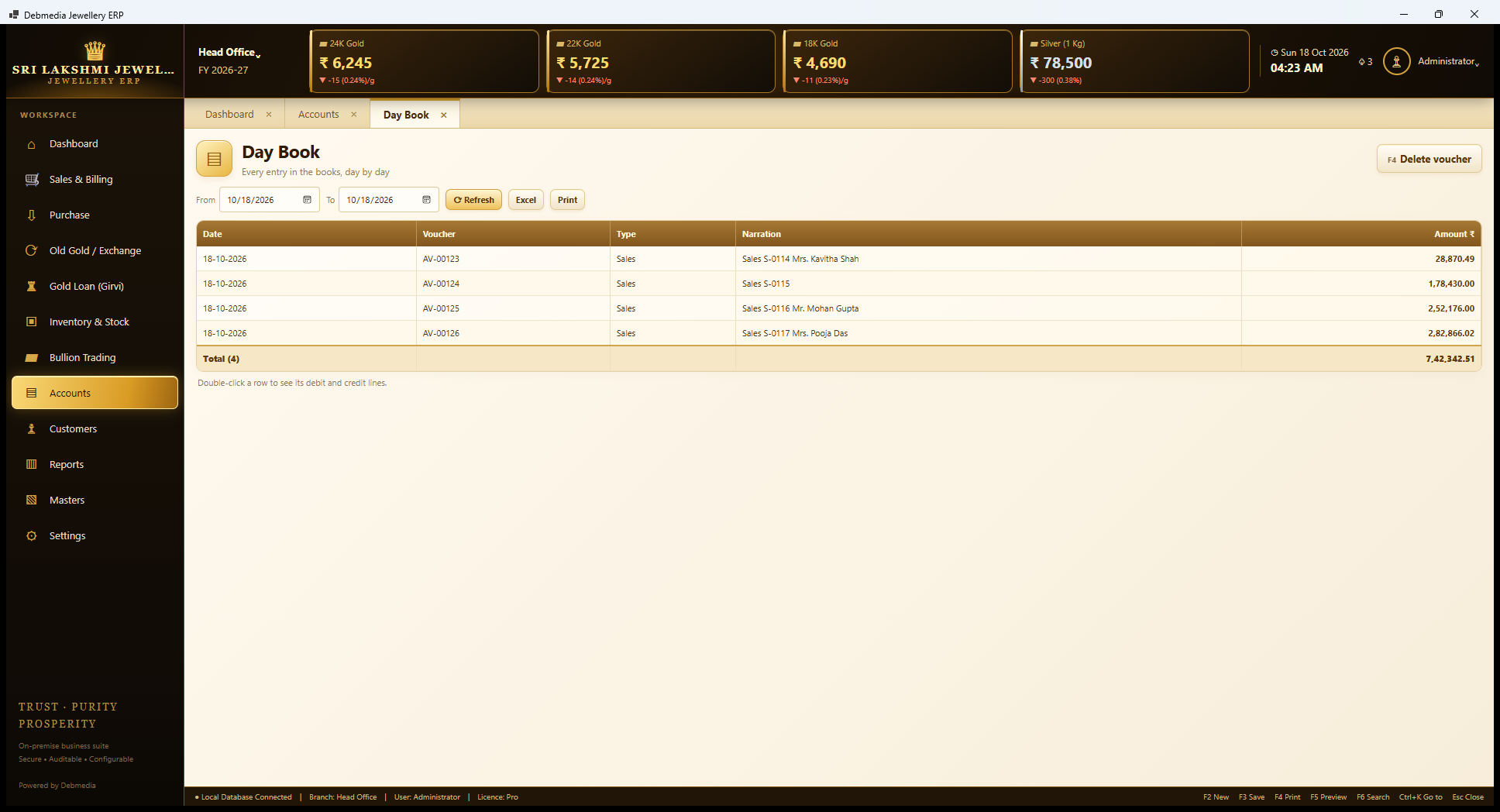
The Day Book lists every voucher posted in a period, in date order. For 18 October it shows four sales vouchers (AV-00123 to AV-00126), one for each bill of the day, for example ₹2,82,866.02 for S-0117 to Mrs. Pooja Das, and the total of ₹7,42,342.51. That total matches the Dashboard’s Today’s Sales, which is the quickest demonstration that the books and the counter agree.
Double-clicking a row opens the voucher with its debit and credit lines, showing exactly which accounts the sale hit: the customer or cash and bank, sales, and CGST and SGST output. Only manual vouchers can be deleted (F4). An entry made by a bill or other document is not deleted here; the program tells you to cancel that document instead. Print and Excel produce the usual outputs.
Cash Book
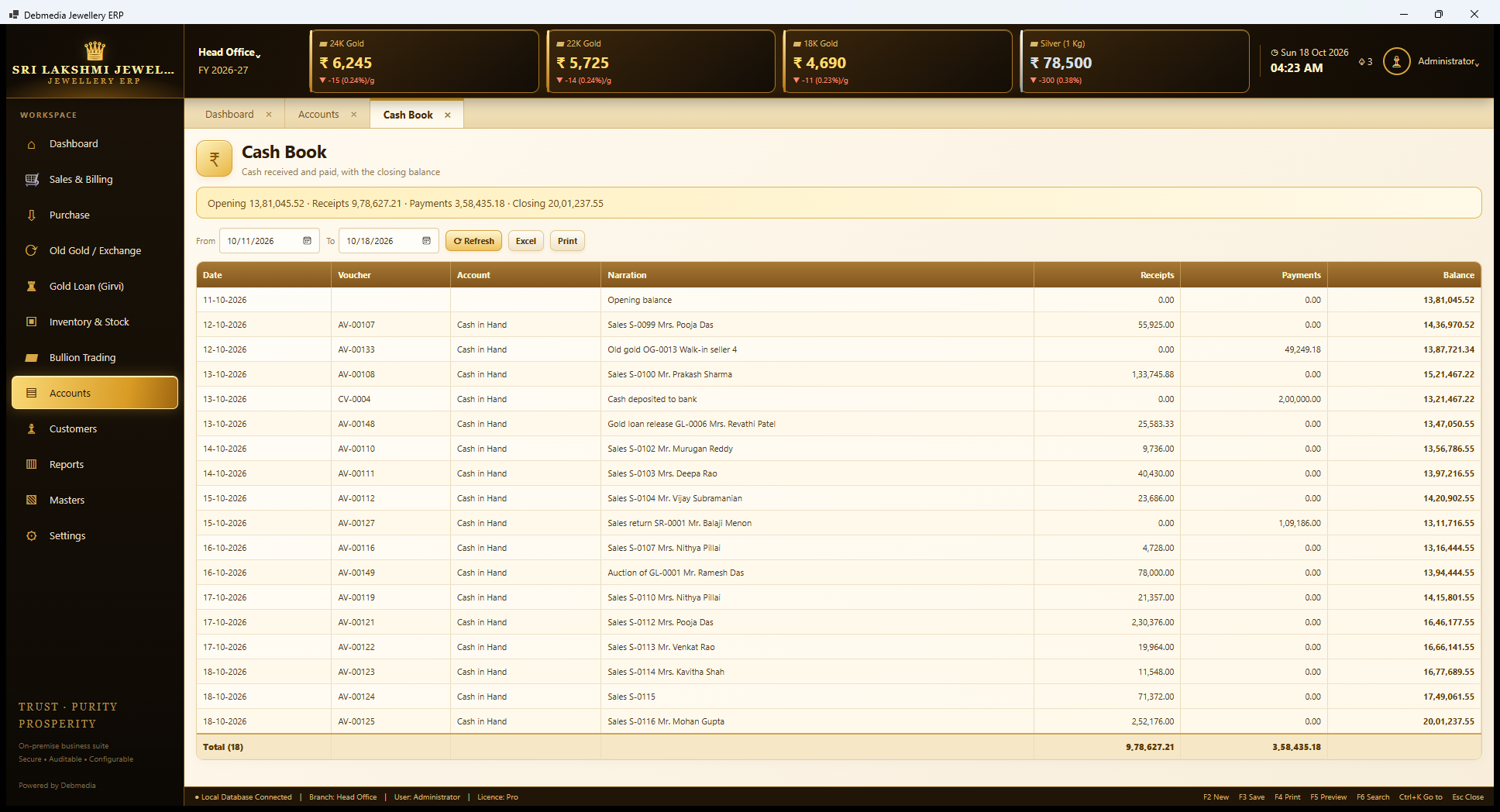
The Cash Book is the cash account in the form a shopkeeper understands. A bar at the top shows Opening ₹13,81,045.52, Receipts ₹9,78,627.21, Payments ₹3,58,435.18 and Closing ₹20,01,237.55 for 11 to 18 October. Below, each cash entry has its date, voucher, account, narration, receipts, payments and a running balance.
You can read the shop’s week in it: cash sales received, old gold bought for cash (₹49,249.18 for OG-0013), a ₹2,00,000 cash deposit to the bank, a gold loan released and interest received (₹25,583.33 on GL-0006), an auction recovery (₹78,000 on GL-0001) and a ₹1,09,186 refund to Mr. Balaji Menon for the sales return. The closing balance, ₹20,01,237.55, is the figure on the Dashboard’s Cash in Hand card. The shop’s real drawer can be counted against it.
Bank Book
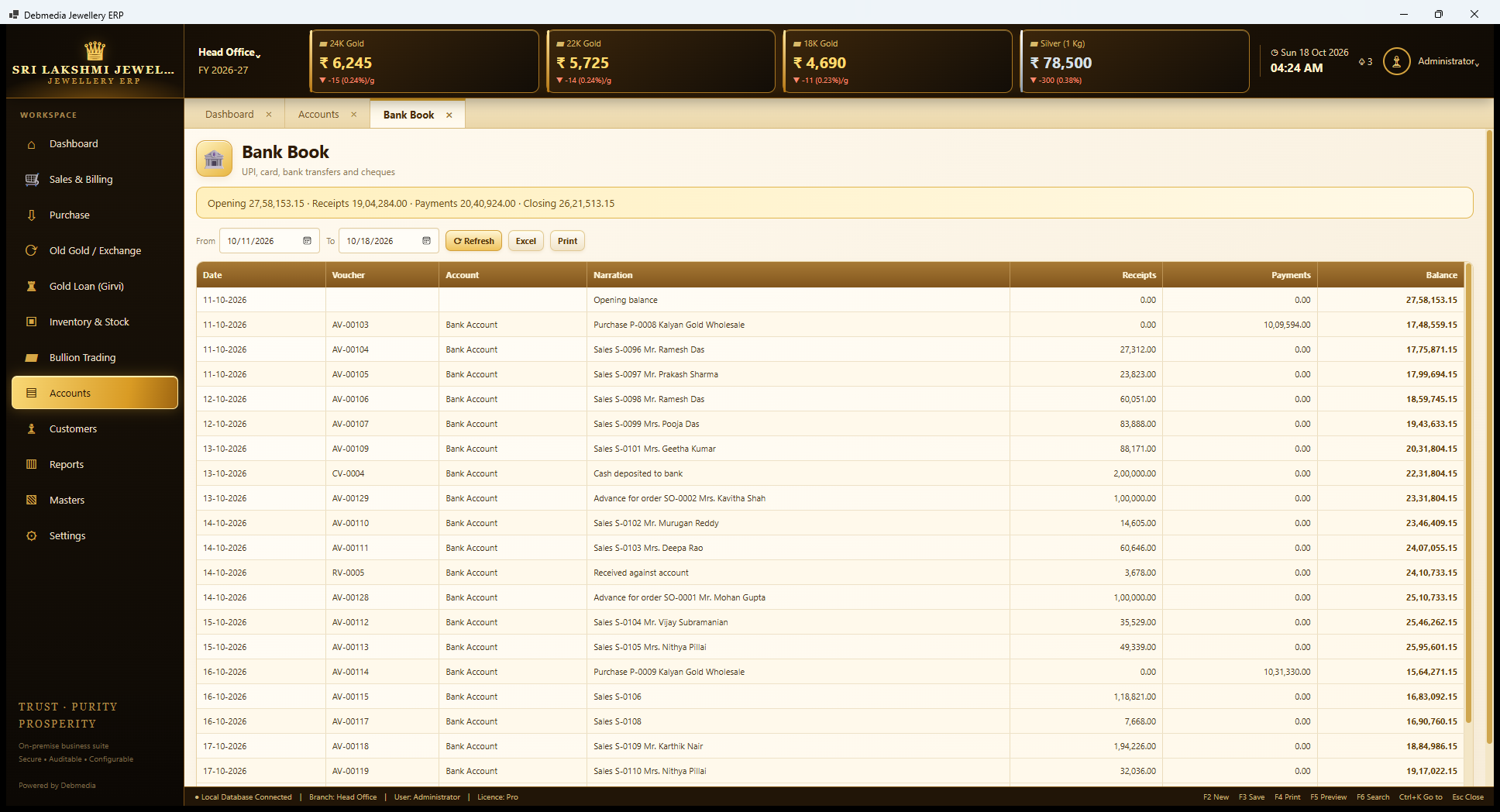
The Bank Book does the same for everything that is not cash: UPI, cards, bank transfers and cheques. The summary reads Opening ₹27,58,153.15, Receipts ₹19,04,284.00, Payments ₹20,40,924.00 and Closing ₹26,21,513.15. The week’s largest payments are to suppliers, ₹10,09,594 to Kalyan Gold Wholesale for purchase P-0008 and ₹10,31,330 for P-0009, and the receipts include the ₹2,00,000 cash deposit from the Contra Voucher and the two order advances of ₹1,00,000.
The Payment Modes master decides which book a payment mode lands in: Cash goes to the Cash Book, and UPI, Card, Bank Transfer and Cheque go to the Bank Book. This screen shows bank movements as the shop’s books record them; it is not a bank reconciliation against a bank statement.
Account Ledger
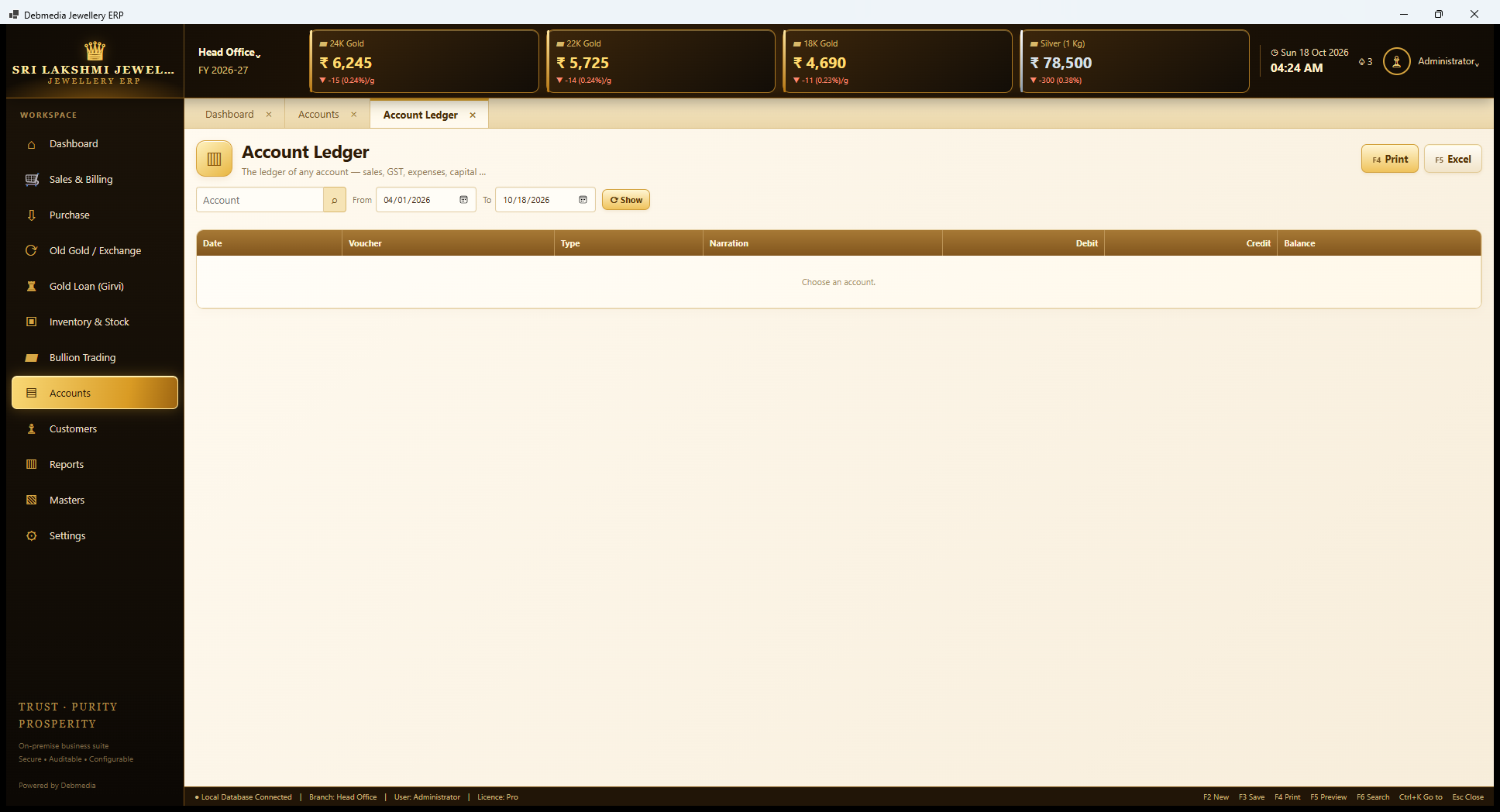
The Account Ledger is the statement of any account: sales, a GST account, an expense, capital, a customer or a supplier. The user chooses the account and a date range (the financial year begins on 1 April, so the default is from 1 April 2026), presses Show, and gets each voucher with its debit, credit and running balance. It is shown here before an account is chosen, with the message “Choose an account.” Print (F4) and Excel (F5) are at the top.
This is where an accountant goes to answer “what is in this number?” Click any total on the Trial Balance and the ledger behind it explains it, voucher by voucher.
Trial Balance
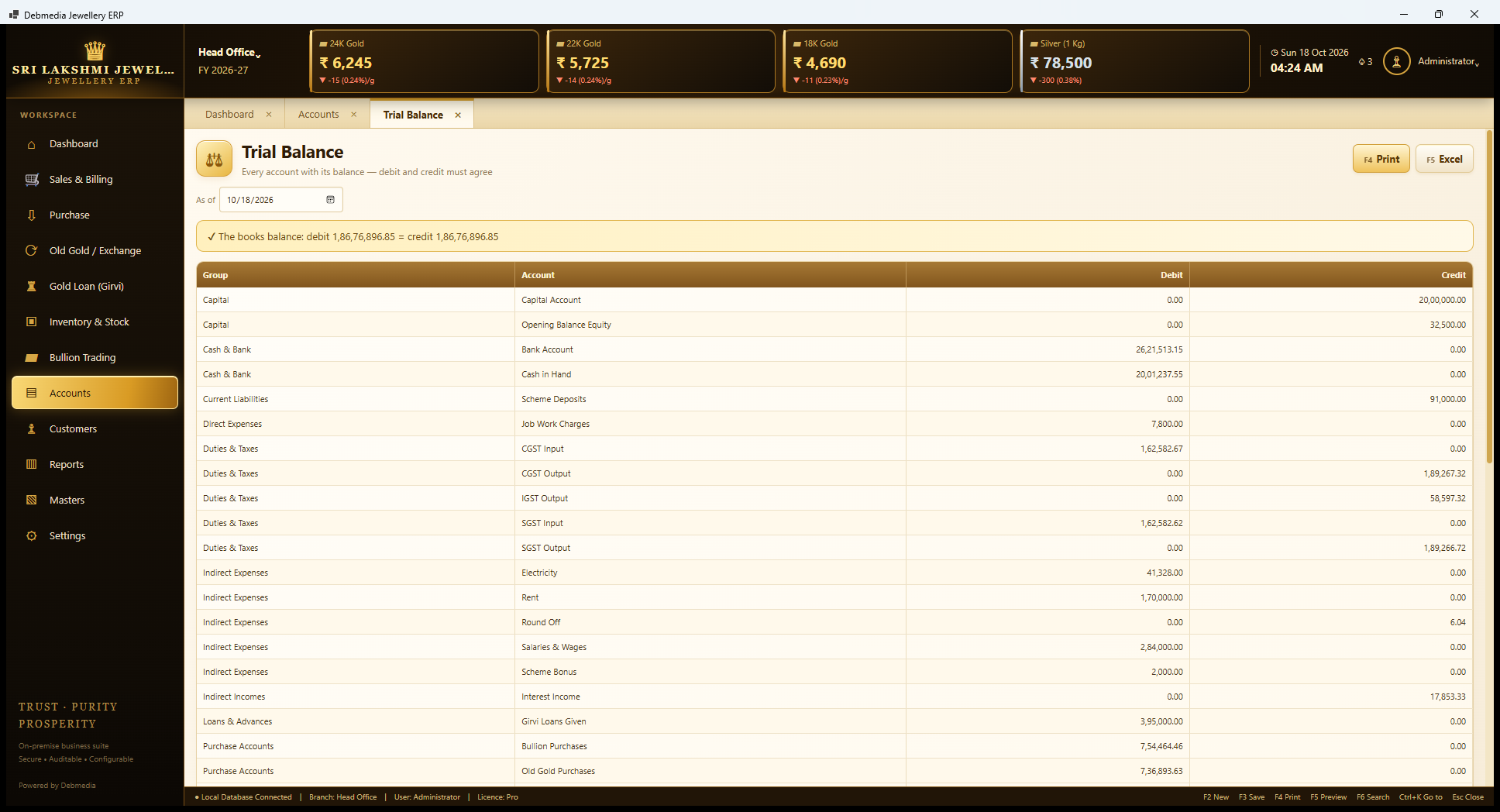
The Trial Balance lists every account with its closing balance as of a date, grouped by type. A green banner confirms it: “The books balance: debit ₹1,86,76,896.85 = credit ₹1,86,76,896.85.” Underneath, each group shows its accounts. Capital has ₹20,00,000 of Capital Account and ₹32,500 of Opening Balance Equity. Cash and Bank shows the Bank Account at ₹26,21,513.15 and Cash in Hand at ₹20,01,237.55. Duties and Taxes shows CGST, SGST and IGST Input (asset) and Output (liability) separately. Indirect Expenses shows Electricity, Rent, Salaries and Wages and Scheme Bonus. Loans and Advances shows Girvi Loans Given at ₹3,95,000, and Purchase Accounts shows Bullion Purchases and Old Gold Purchases.
That the two sides agree is not luck. The same posting routine produces every voucher and refuses one that does not balance, so the Trial Balance cannot drift. It is also a good check on the sample data, because dozens of document types from different screens all feed it.
Trial Balance (continued)
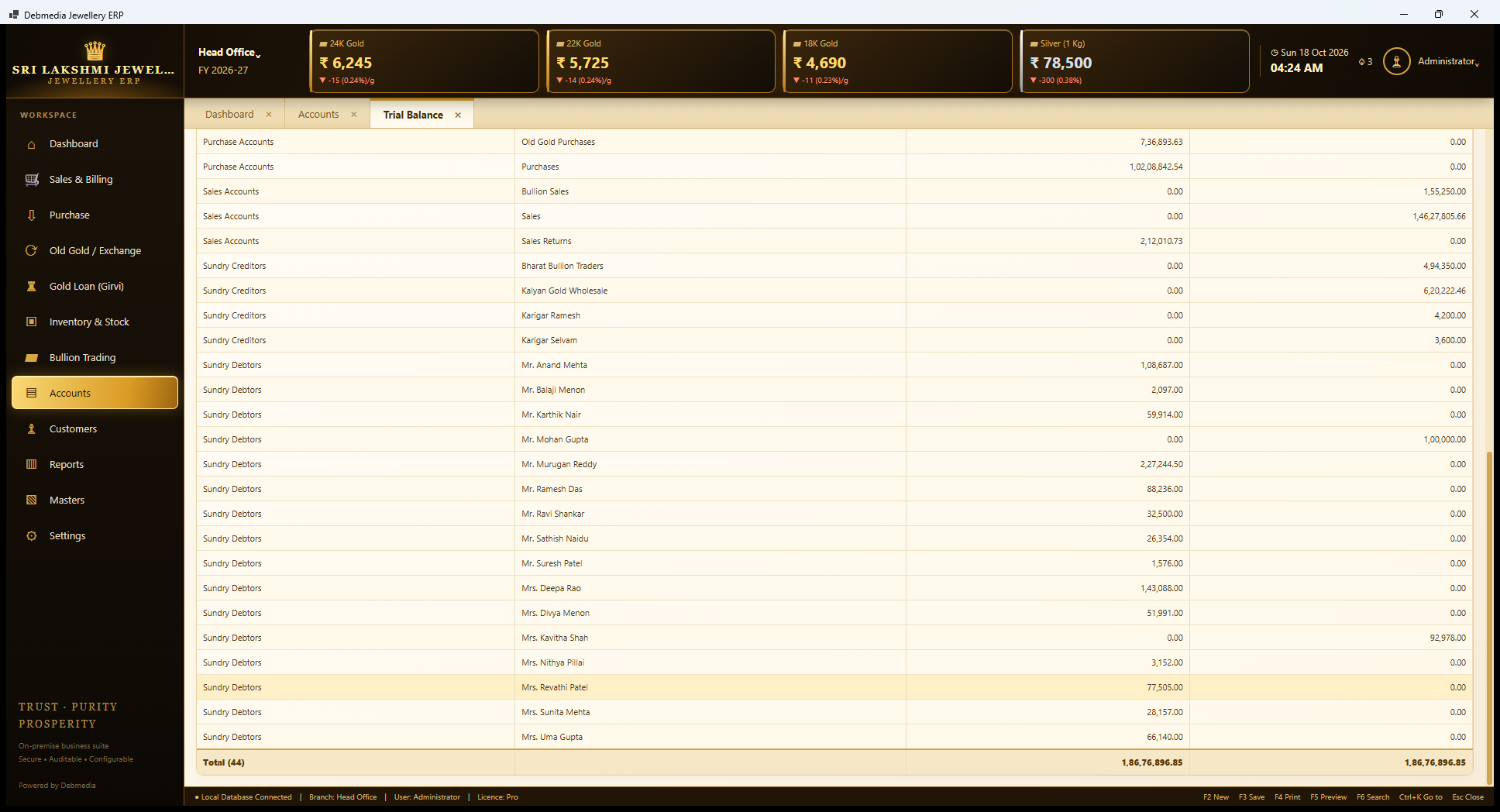
Scrolling down, the Trial Balance continues. Purchases stands at ₹1,02,08,842.54. Sales Accounts shows Sales of ₹1,46,27,805.66, Bullion Sales of ₹1,55,250 and Sales Returns of ₹2,12,010.73 on the debit side. Sundry Creditors lists the suppliers and karigars the shop owes: Bharat Bullion Traders ₹4,94,350, Kalyan Gold Wholesale ₹6,20,222.46, and the two karigars. Sundry Debtors has an account for each customer, such as Mr. Murugan Reddy at ₹2,27,244.50 and Mrs. Deepa Rao at ₹1,43,088, and the two customers with advances, Mr. Mohan Gupta and Mrs. Kavitha Shah, appear on the credit side.
The totals row reads 44 accounts and the same ₹1,86,76,896.85 on both sides. Each customer and supplier automatically has an account of their own in these groups, created when the party is added, so the customer list, the Outstanding screen and the Trial Balance can never disagree about a balance.
Profit and Loss
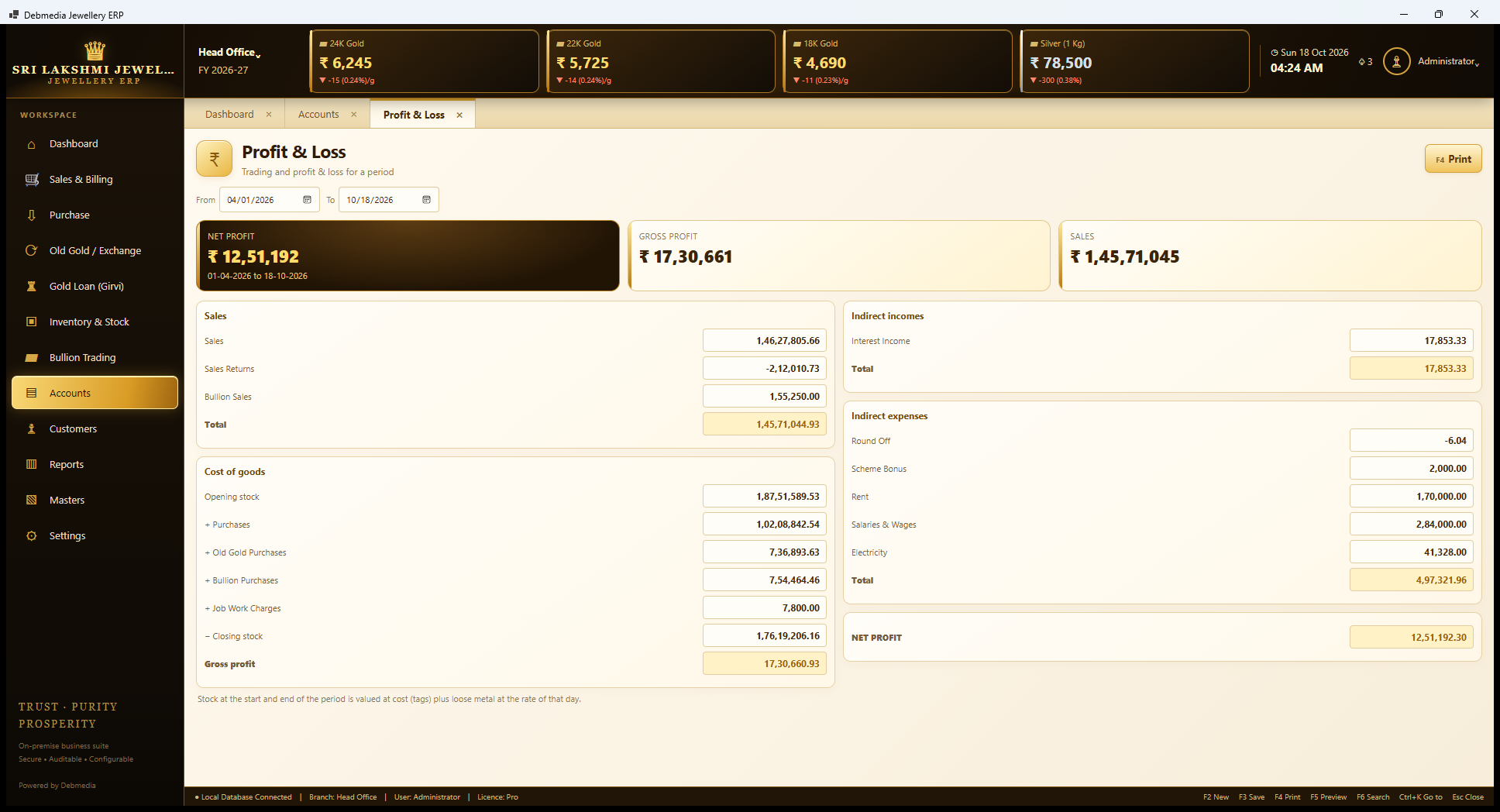
Profit and Loss, for 1 April to 18 October 2026, opens with three cards: Net Profit ₹12,51,192, Gross Profit ₹17,30,661 and Sales ₹1,45,71,045. Below, the trading account shows sales (₹1,46,27,805.66 less returns of ₹2,12,010.73 plus bullion sales of ₹1,55,250), and the cost of goods: opening stock ₹1,87,51,589.53, plus purchases ₹1,02,08,842.54, old-gold purchases ₹7,36,893.63, bullion purchases ₹7,54,464.46 and job-work charges ₹7,800, less closing stock ₹1,76,19,206.16, which leaves the gross profit of ₹17,30,660.93.
The profit and loss part then adds indirect income (₹17,853.33 of interest income from girvi) and deducts indirect expenses of ₹4,97,321.96 (rent, salaries and wages, electricity, scheme bonus and a small round-off), giving the net profit of ₹12,51,192.30. A note under the statement explains the stock method: stock at the start and end of the period is valued at cost for tags plus loose metal at the rate of that day. That is a reasonable method for management accounts, and your accountant may prefer another for statutory ones.
Balance Sheet
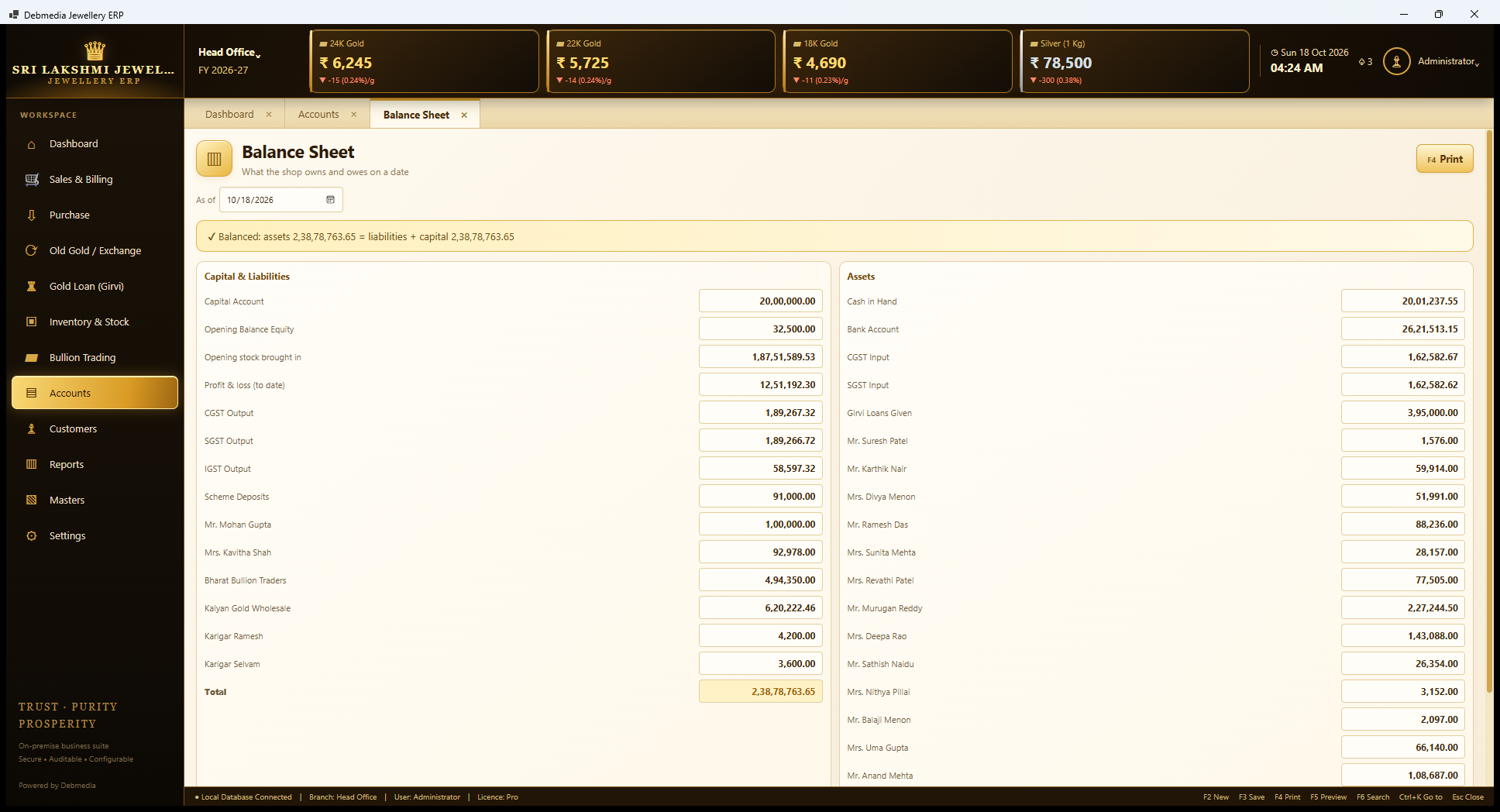
The Balance Sheet shows what the shop owns and owes on a date. A banner states “Balanced: assets ₹2,38,78,763.65 = liabilities + capital ₹2,38,78,763.65.” On the left, Capital and Liabilities starts with Capital Account ₹20,00,000, Opening Balance Equity, opening stock brought in (₹1,87,51,589.53) and the profit and loss to date of ₹12,51,192.30, then the GST output liabilities, scheme deposits, customer advances and the amounts owed to suppliers and karigars. On the right, Assets lists Cash in Hand, Bank, CGST and SGST input credit, Girvi Loans Given and the customers’ balances.
The profit figure here is the same ₹12,51,192.30 as the Profit and Loss, carried across, which is how the two statements stay consistent.
Balance Sheet (continued)
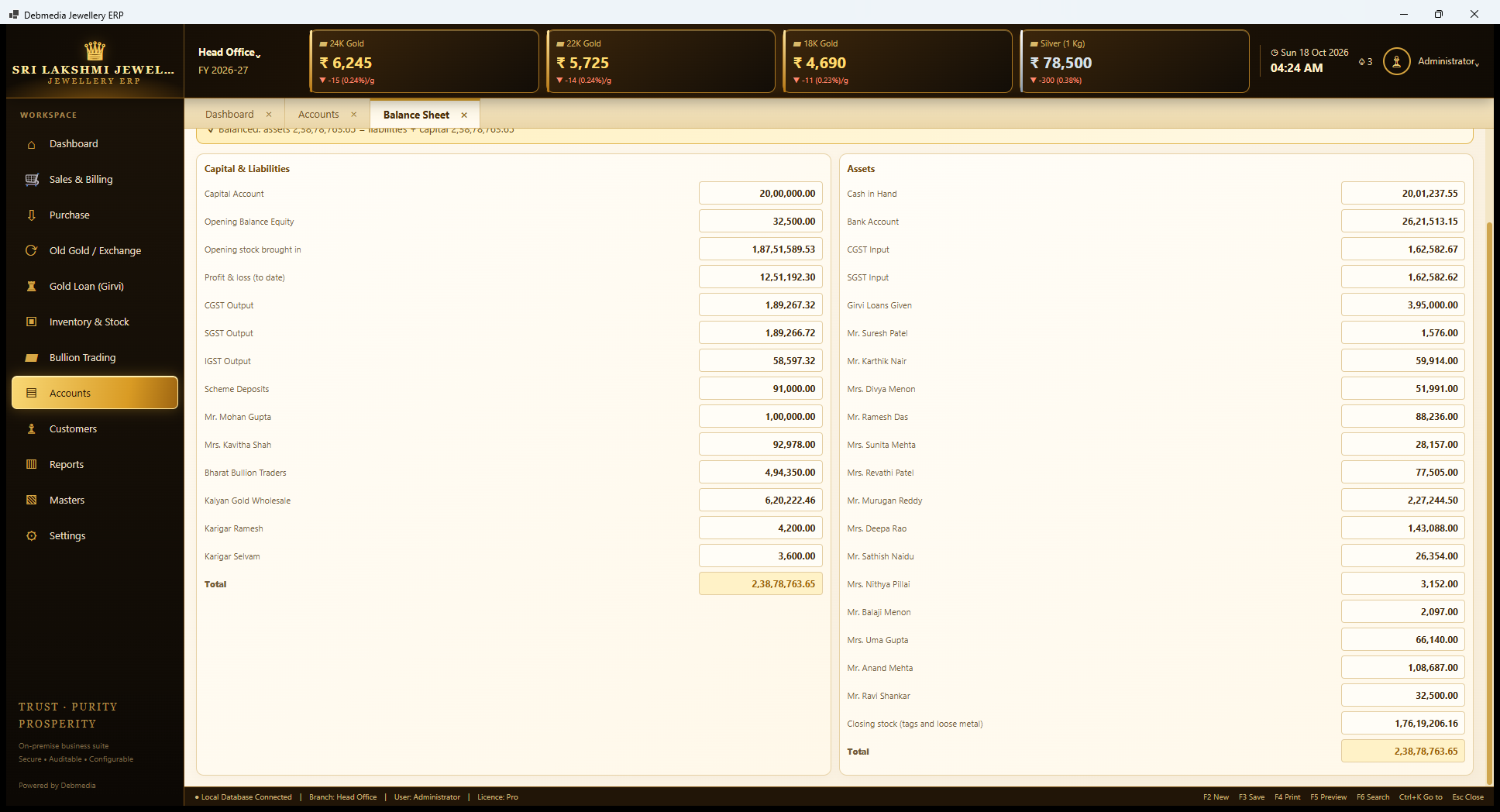
The lower half of the Balance Sheet finishes the asset side: the rest of the customers’ balances and a closing stock line of ₹1,76,19,206.16 for tags and loose metal, the same figure as the closing stock in the Profit and Loss and the Total Stock Value on the Stock Summary. Both sides add to ₹2,38,78,763.65.
A shop that wants a stock figure its accountant can sign can look at the same number on three screens and see that they agree.
GST Summary
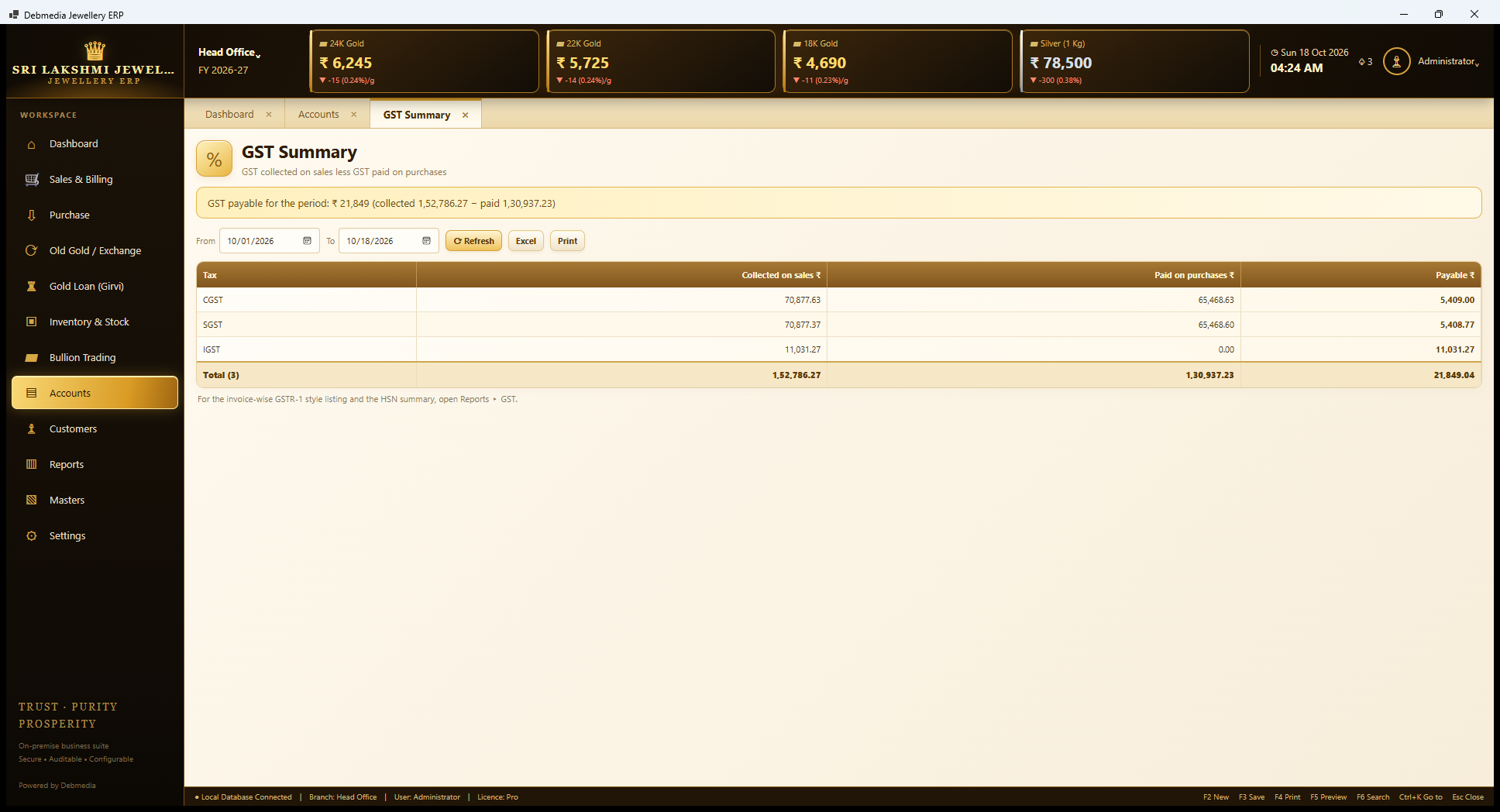
The GST Summary works out what the shop owes the government for a period. A banner for 1 to 18 October reads “GST payable for the period: ₹21,849 (collected ₹1,52,786.27 less paid ₹1,30,937.23)”. The table shows each tax. CGST collected on sales ₹70,877.63 against ₹65,468.63 paid on purchases gives ₹5,409.00 payable. SGST gives ₹5,408.77. IGST, collected on sales to customers in other states, gives ₹11,031.27 with no IGST input in the period. The total payable is ₹21,849.04.
A note points to Reports, GST for the invoice-wise GSTR-1 style listing and the HSN summary. These are reports to help prepare a return. The program does not file the return or produce portal JSON, and your accountant should confirm the treatment, especially of the 3 percent rate on jewellery and the 5 percent on making and job-work charges that the GST Codes master carries.
Chart of Accounts
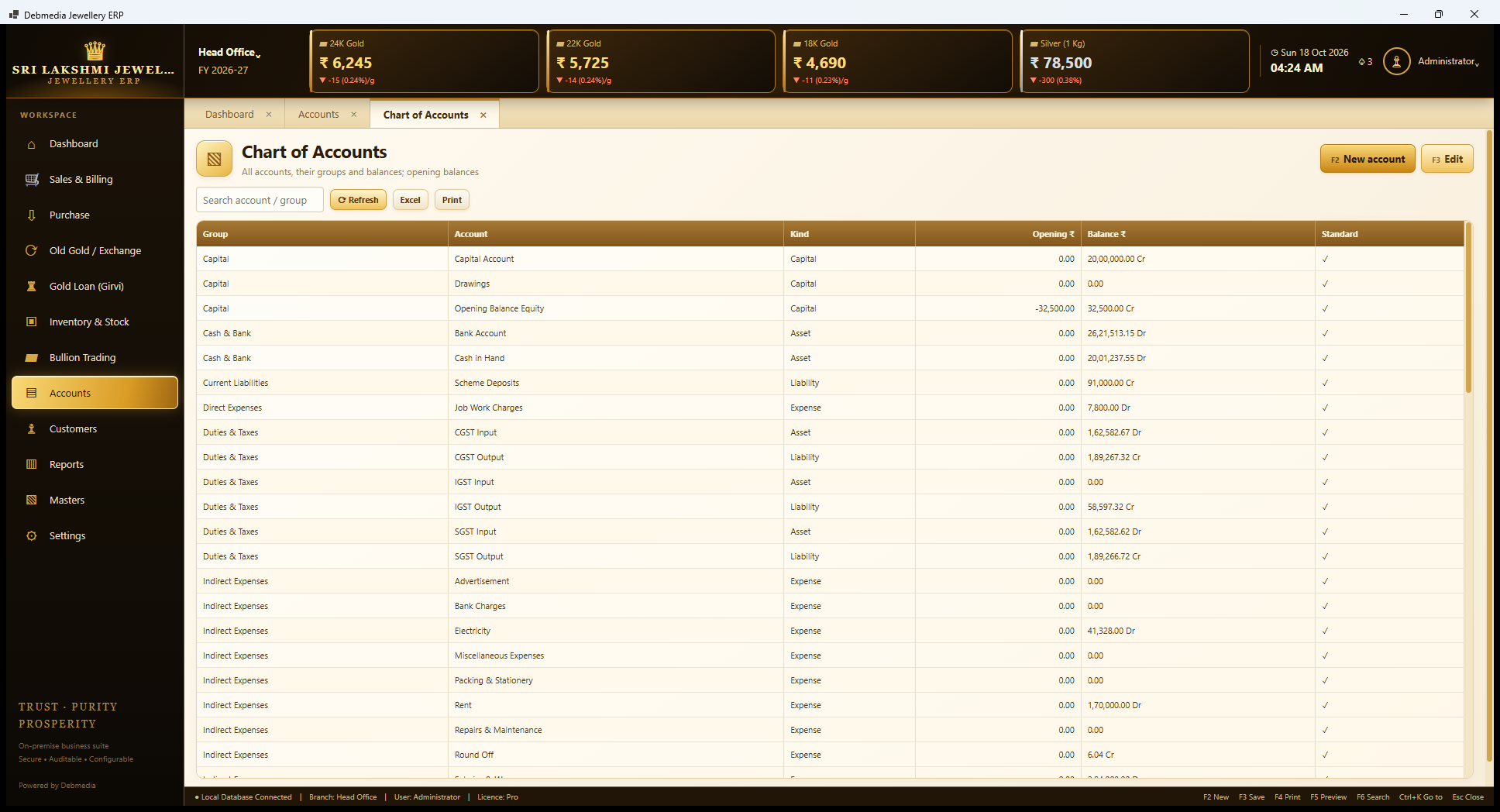
The Chart of Accounts lists every account in the books with its group, kind (asset, liability, expense and so on), opening balance, current balance and a tick for built-in standard accounts. Built-in accounts include Capital Account, Cash in Hand, Bank Account, Scheme Deposits, the CGST, SGST and IGST input and output accounts, Job Work Charges, and indirect expenses such as Advertisement, Bank Charges, Electricity, Rent, Repairs and Maintenance, and Round Off.
New account (F2) adds an expense head or any other account, and Edit (F3) sets an opening balance, which is how the opening cash and bank figures of a shop moving from another system are entered. A search box finds an account by name or group. Customer, supplier and karigar accounts are created automatically with the party, so there is nothing to set up there.
Customers, Suppliers, Karigars and Schemes
Customers
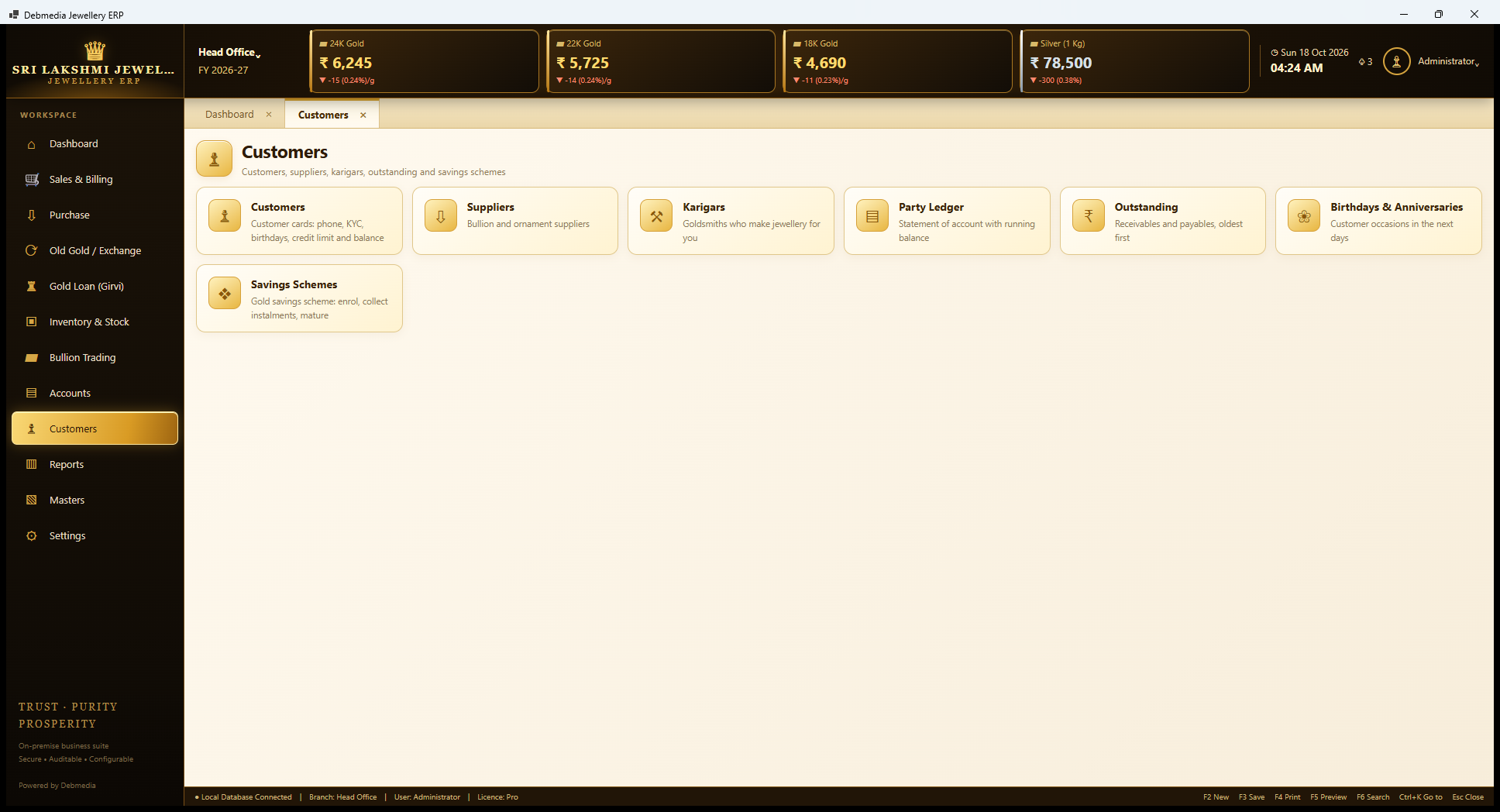
The Customers hub has seven tiles. Customers holds customer cards with phone, KYC, birthdays, credit limit and balance. Suppliers holds bullion and ornament suppliers. Karigars holds the goldsmiths who make jewellery for the shop. Party Ledger is the statement of account with a running balance. Outstanding lists receivables and payables, oldest first. Birthdays and Anniversaries shows customer occasions in the next days. Savings Schemes is for a gold savings scheme: enrol, collect instalments and mature.
Customers
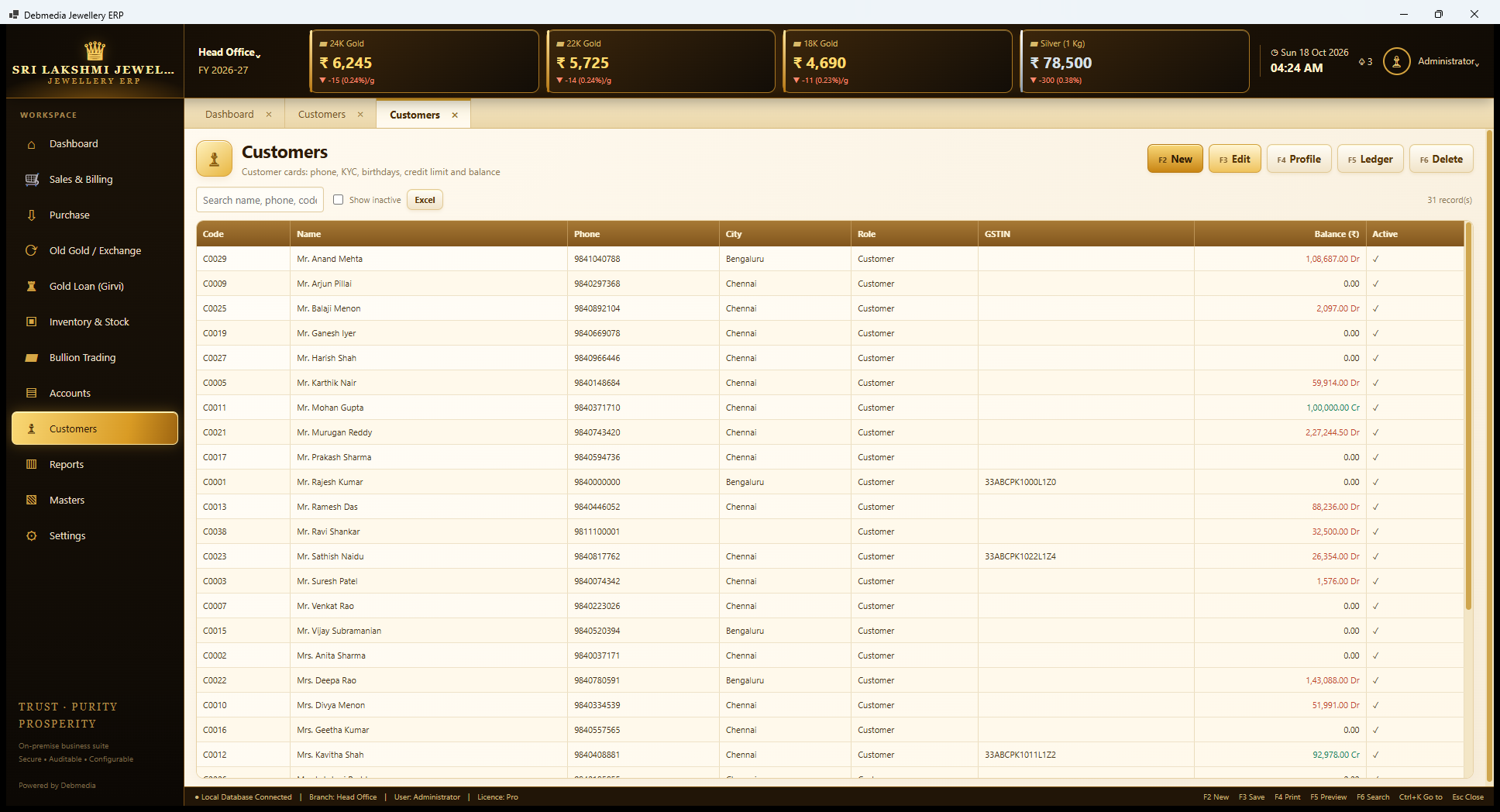
The Customers screen is the list of people the shop deals with. It has F2 New, F3 Edit, F4 Profile, F5 Ledger and F6 Delete buttons, a search for name, phone or code, a Show inactive option and an Excel export. Each row shows the code (C0001 onwards), name, phone, city, role, GSTIN and balance. Balances are coloured: a customer who owes the shop is in red, such as Mr. Murugan Reddy at ₹2,27,244.50 debit, and a customer with an advance is in green, such as Mr. Mohan Gupta at ₹1,00,000 credit.
The same list holds suppliers and karigars, because one person can be several things at once, and the Role column shows which. The separate Suppliers and Karigars screens are filtered views of this one party list. Some sample customers carry sample GSTINs in a pattern that is obviously made up.
New Customer, Supplier or Karigar
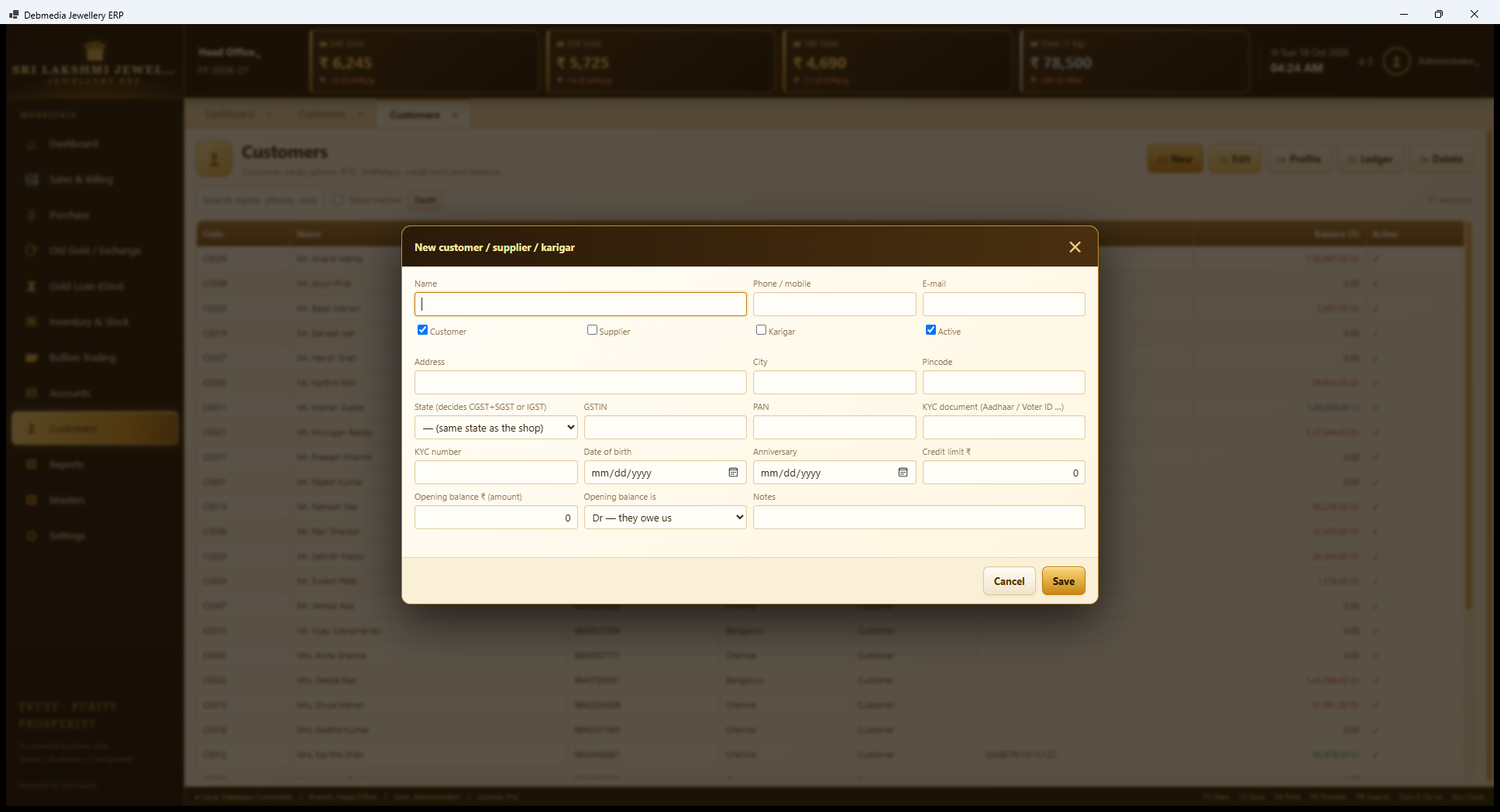
The New party dialog collects everything about a person or firm. It takes the name, phone, e-mail, and tick boxes for Customer, Supplier, Karigar and Active, so one party can be all three. The address block takes address, city and pincode, and a State drop-down, with the hint that it decides CGST plus SGST or IGST: a customer in the shop’s own state is charged CGST and SGST, and one in another state is charged IGST.
The rest suits the trade. GSTIN and PAN are for business customers. A KYC document type and number (Aadhaar, Voter ID) are recorded, which supports the PAN and KYC rules for large sales and for buying old gold. Date of birth and anniversary feed the Birthdays screen. A credit limit caps what the customer may owe. An opening balance with a Dr or Cr switch brings in what a customer owed or was owed before the program started. Notes hold anything else.
Customer Card
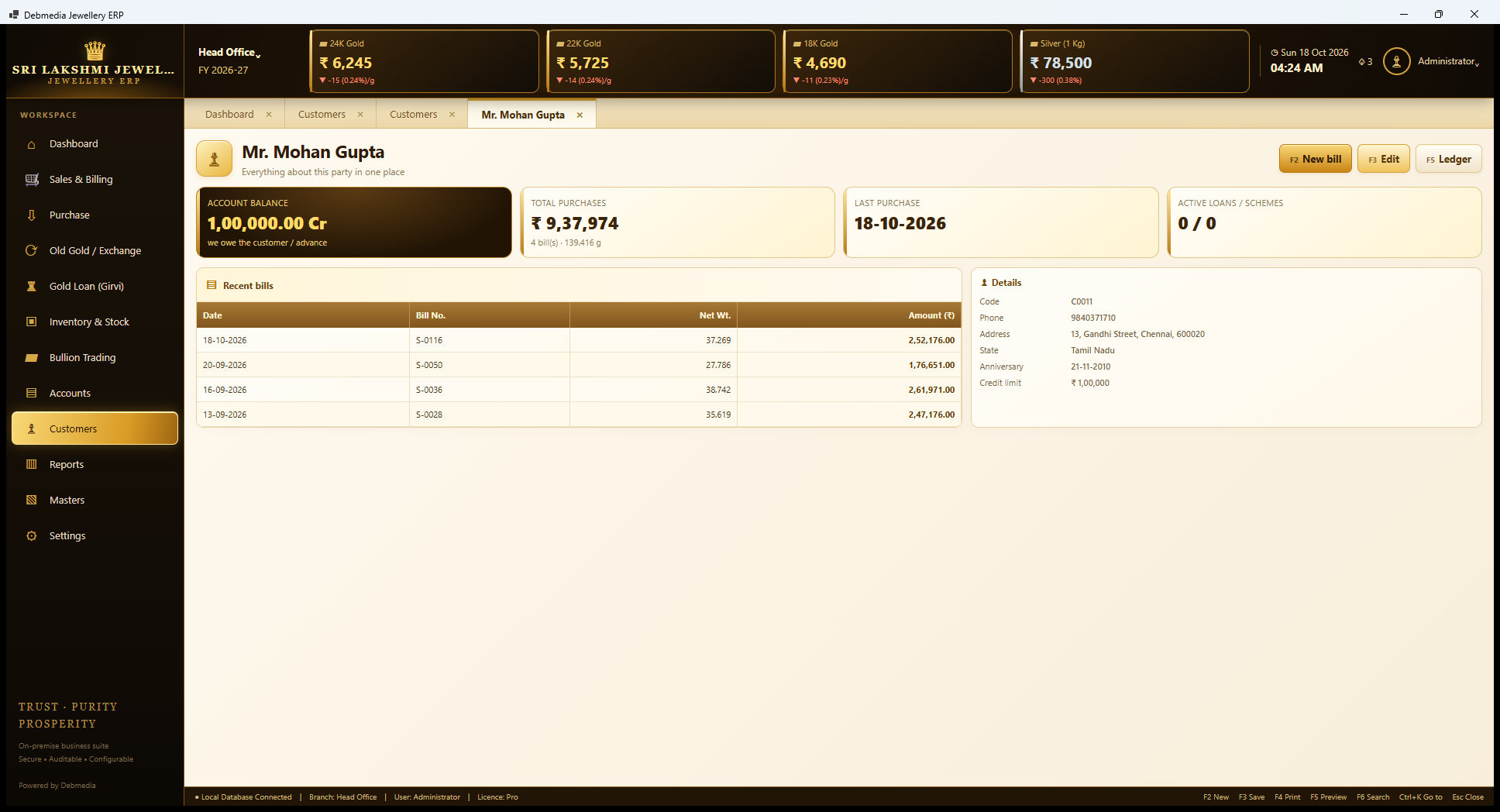
The Customer Card is “everything about this party in one place”. Four tiles summarise the relationship: Account Balance (₹1,00,000 Cr, “we owe the customer, advance”), Total Purchases (₹9,37,974 across four bills and 139.416 grams), Last Purchase (18 October 2026) and Active Loans or Schemes (none). A grid lists the recent bills with date, number, net weight and amount, and a details panel shows the code, phone, address, state, anniversary and credit limit.
For a salesman it is a briefing: before Mr. Gupta reaches the counter, the card says he is a good customer who has paid in advance for an order and spends about ₹2.3 lakh a visit. Buttons on the card start a new bill, edit the party or open the ledger.
Edit Party
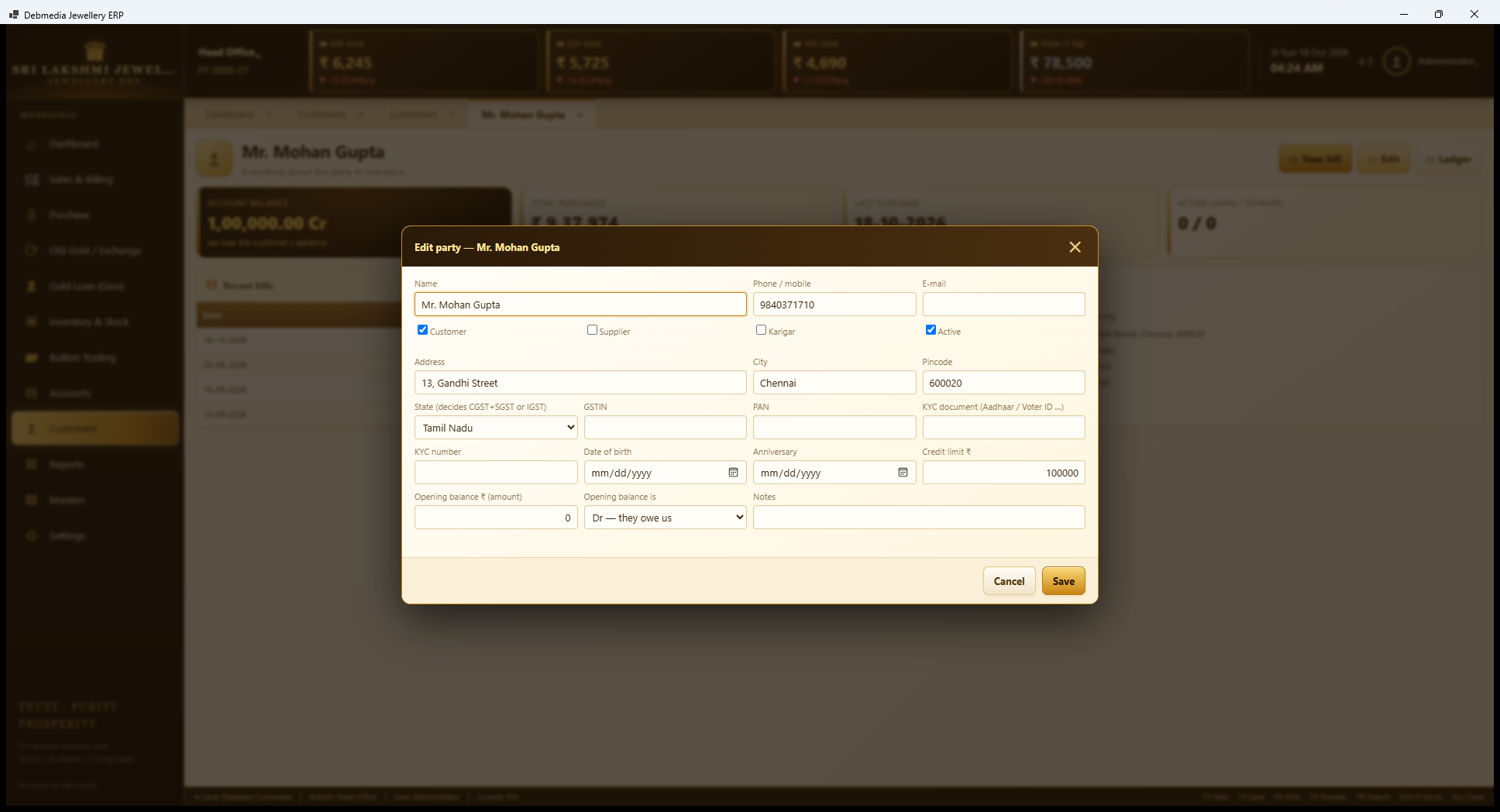
The Edit party dialog is the same form as New party, filled with the existing details of Mr. Mohan Gupta: his phone, his Chennai address, Tamil Nadu as the state and a credit limit of ₹1,00,000. Changes are saved at once and carry to the party’s account. The shop can mark a party inactive instead of deleting them, so past bills keep their name.
Party Ledger
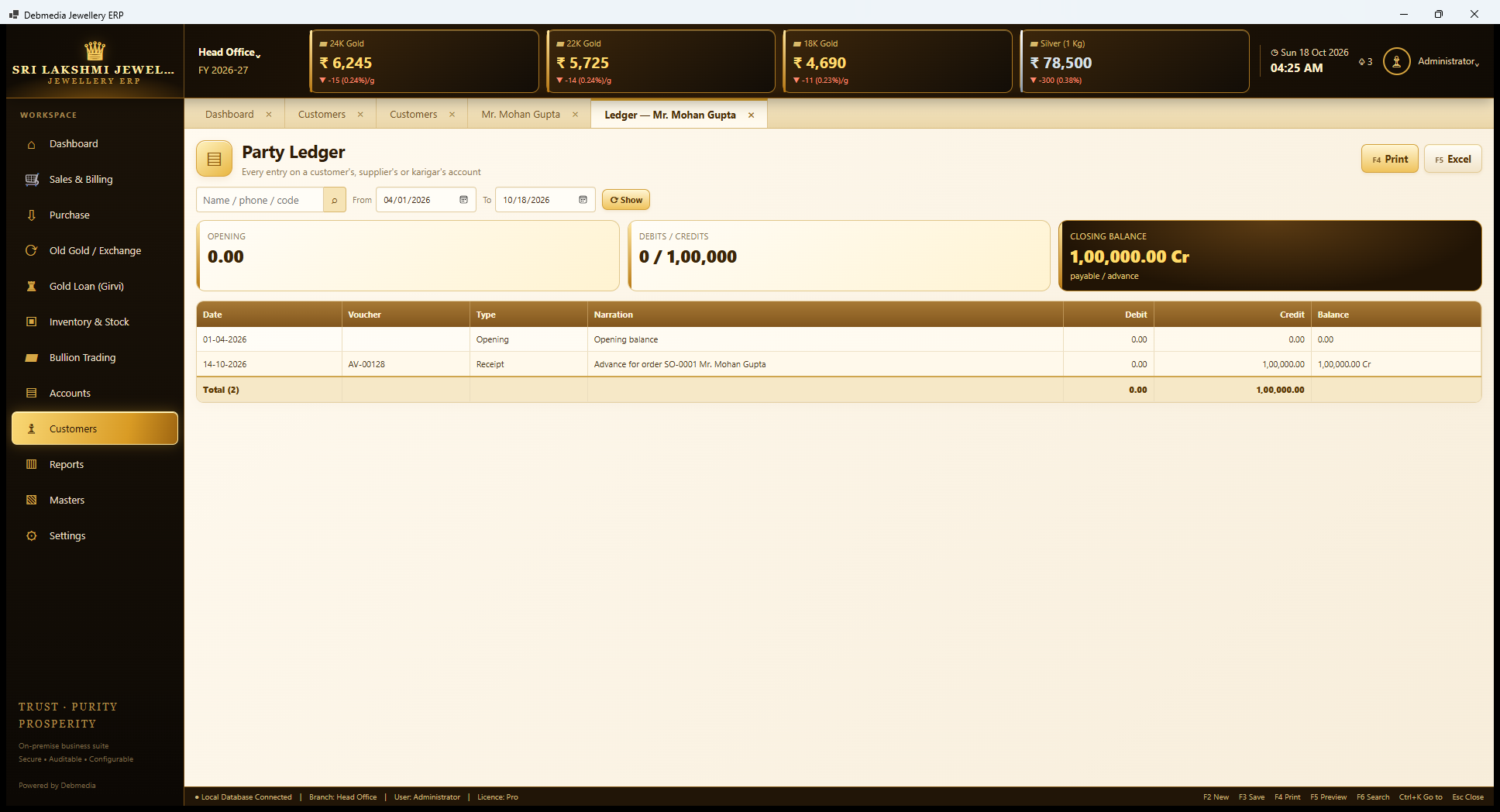
The Party Ledger is the statement of account for one customer, supplier or karigar. The user picks the party and a date range, and four cards show the opening balance, the debits and credits, and the closing balance with its direction. For Mr. Mohan Gupta it shows an opening balance of zero, one credit of ₹1,00,000 on 14 October (voucher AV-00128, “Advance for order SO-0001”) and a closing balance of ₹1,00,000 Cr, “payable, advance”.
His own purchase bills do not appear as debits here, because he paid them in full at the counter. Print and Excel make a statement that can be handed over or posted. For a customer with many open bills it is the page used when asking for payment.
Suppliers
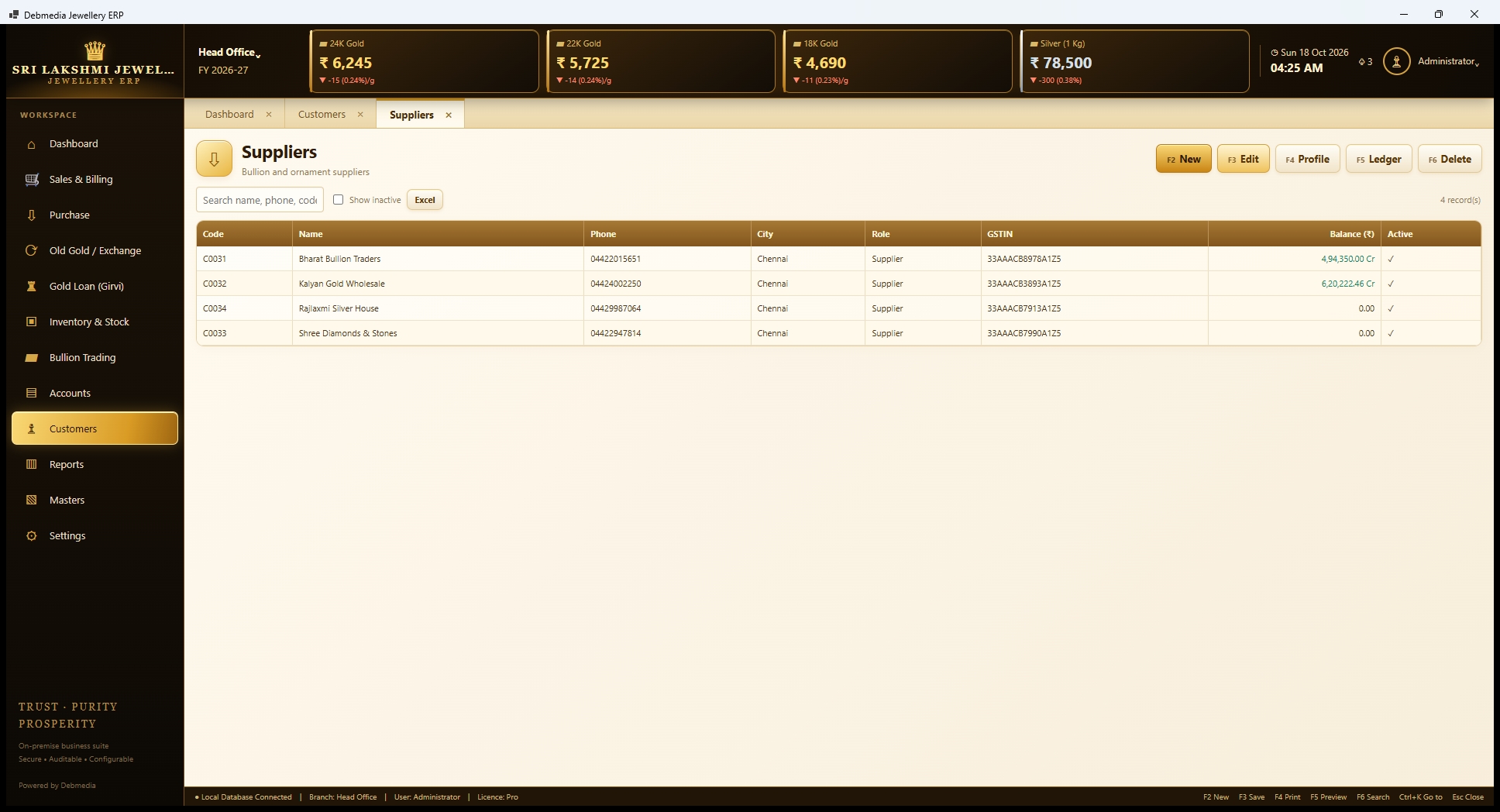
Suppliers is the party list filtered to suppliers. The sample has four: Bharat Bullion Traders (₹4,94,350 owed), Kalyan Gold Wholesale (₹6,20,222.46 owed), Rajlaxmi Silver House and Shree Diamonds and Stones, with nothing owed to the last two. Balances to suppliers are shown in green because they are payables. The same buttons add, edit, open a profile and show a ledger.
The two suppliers with balances are the two the Purchase Register shows. Their balances equal the unpaid column there plus any metal rate-cut or payment vouchers, and they match the Payables list and the Trial Balance’s Sundry Creditors.
Karigars
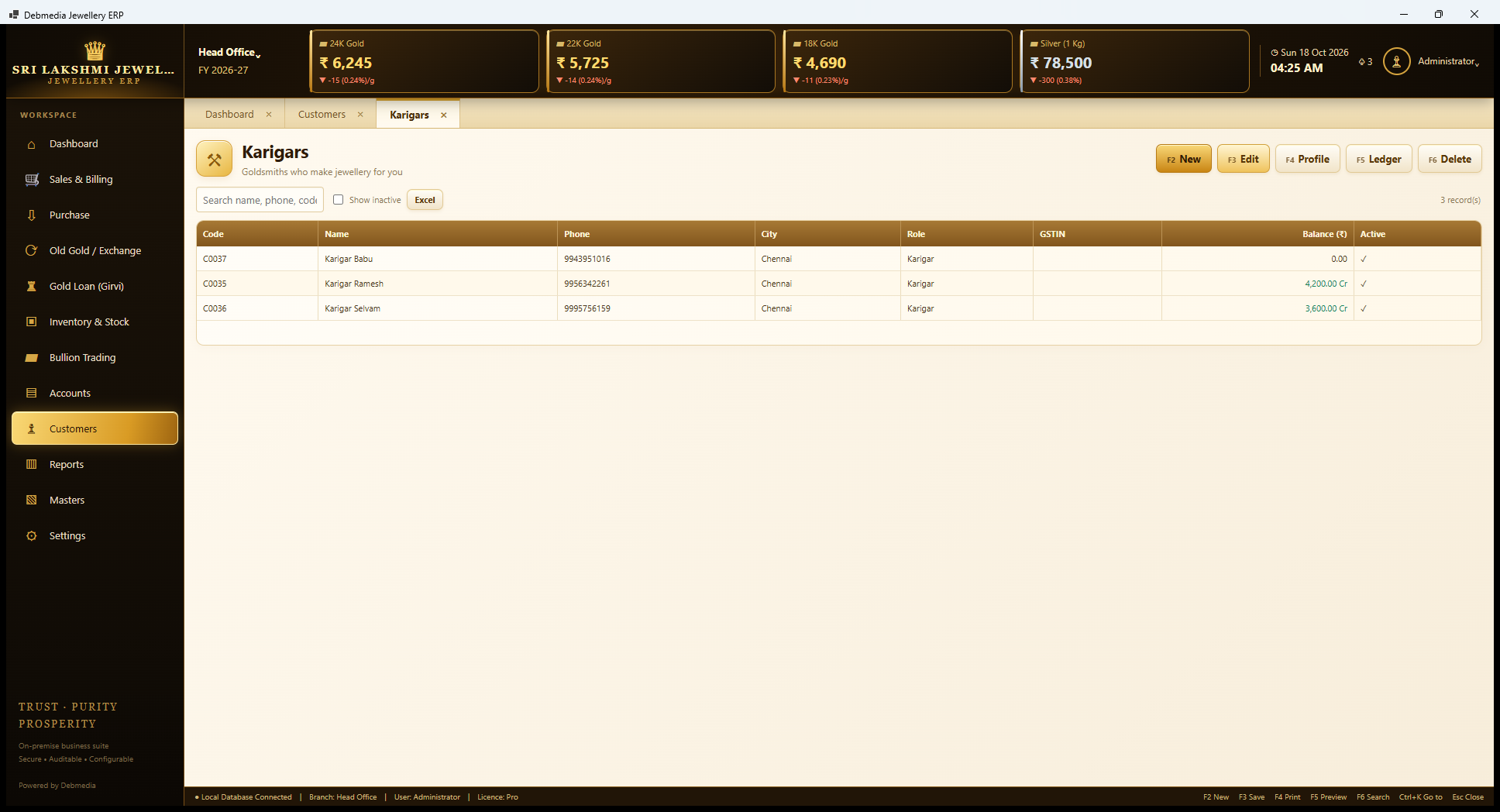
The Karigars screen is the party list filtered to goldsmiths. The sample has Karigar Babu (nothing owed), Karigar Ramesh (₹4,200 owed) and Karigar Selvam (₹3,600 owed). The amounts are the labour payable from the receipts, and they match the Karigar Balances screen. The metal each holds is not shown here, since this list is about money; the metal is on Karigar Balances and Metal Position.
Outstanding: Receivables
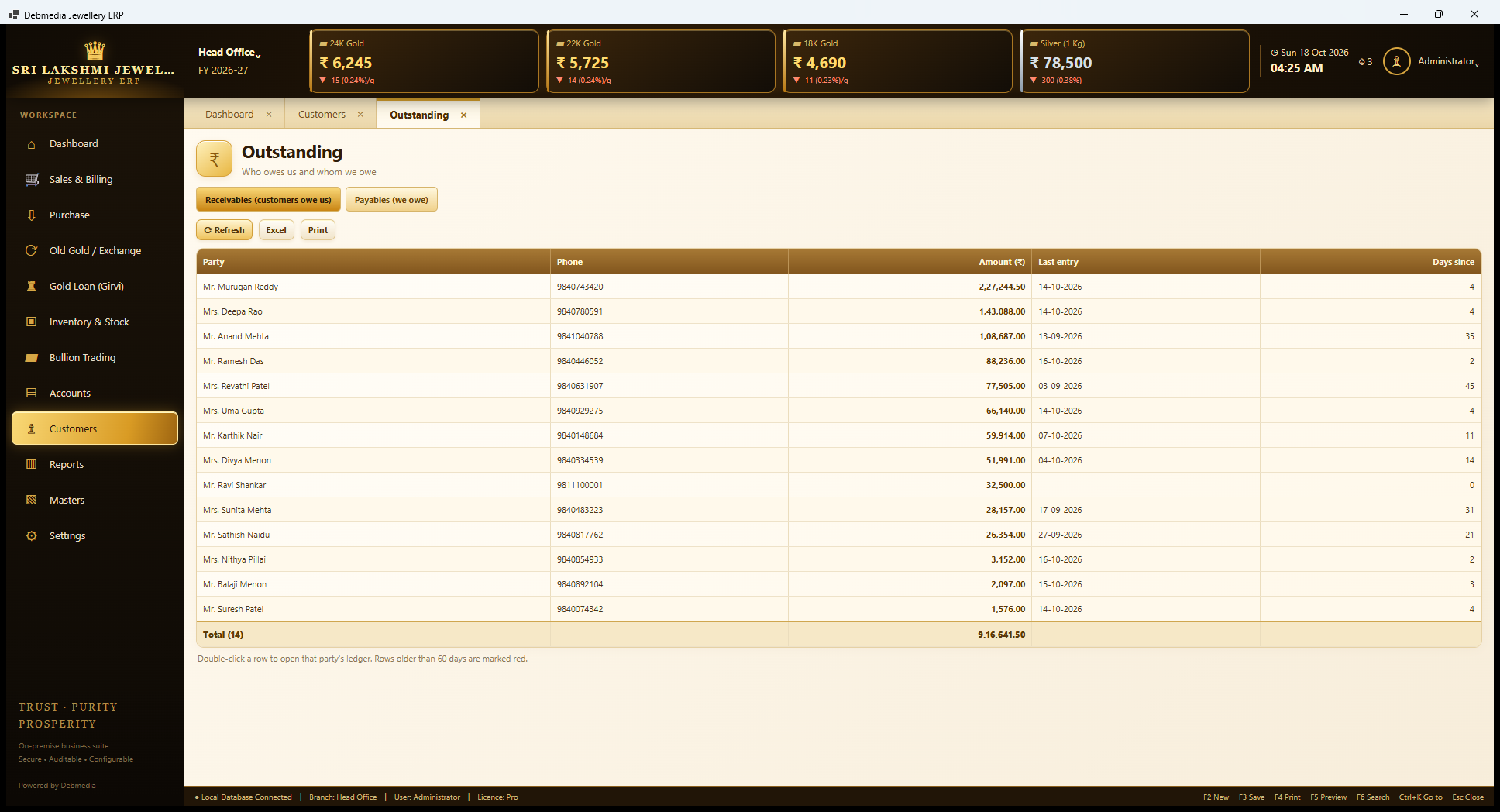
The Outstanding screen has two buttons that switch between Receivables (customers owe us) and Payables (we owe). Receivables lists each customer with the amount, the last entry date and the days since it. Mr. Murugan Reddy leads with ₹2,27,244.50, then Mrs. Deepa Rao with ₹1,43,088, and Mr. Anand Mehta with ₹1,08,687, whose last entry was 35 days ago. The total is ₹9,16,641.50 from 14 customers, the same as the Dashboard’s Receivable card.
A note says rows older than 60 days are marked red, and double-clicking a row opens that party’s ledger. It is a practical call list for the person who chases dues: the oldest and largest first, with phone numbers beside the names.
Outstanding: Payables
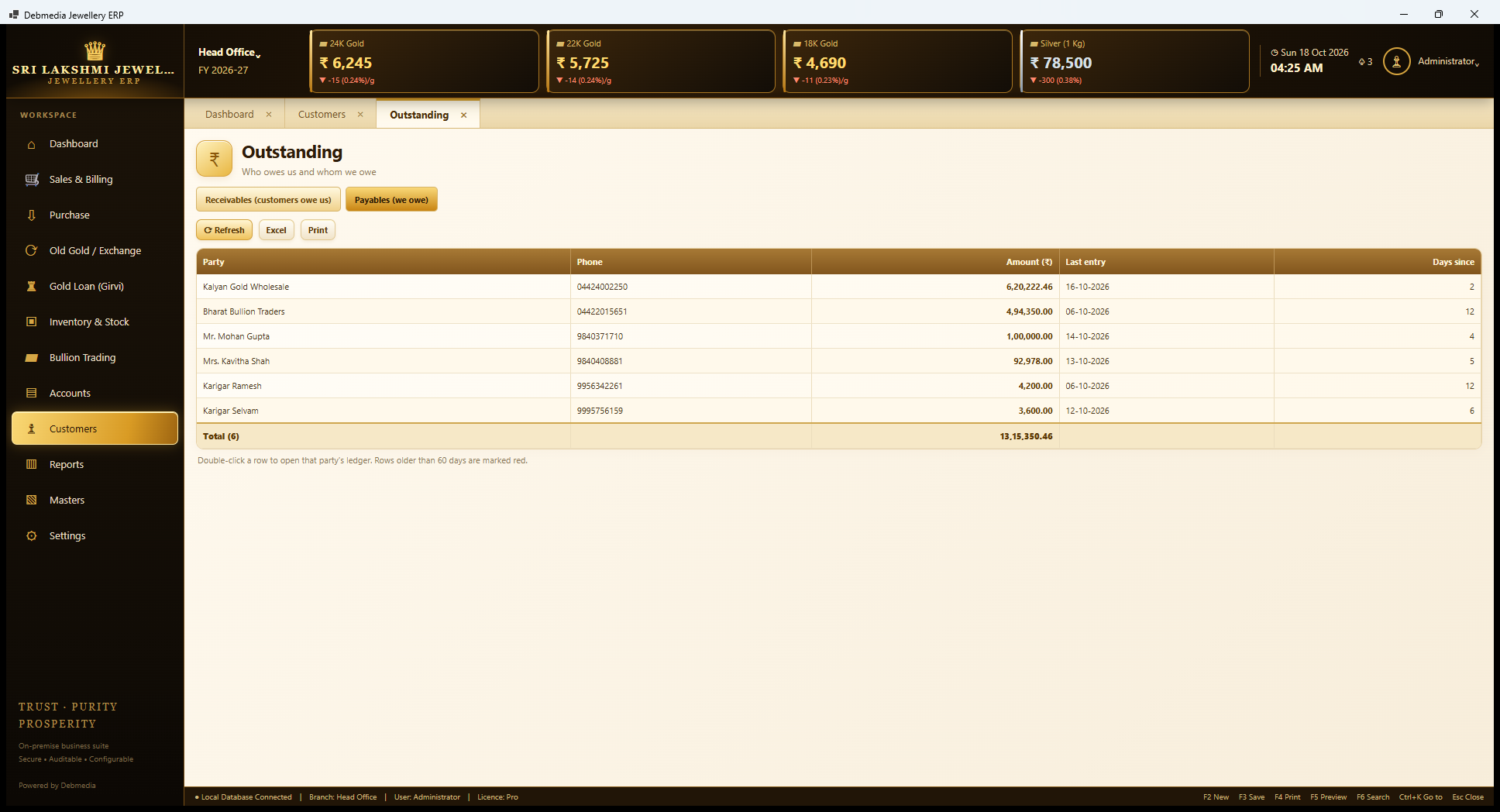
Switching to Payables lists whom the shop owes: Kalyan Gold Wholesale ₹6,20,222.46, Bharat Bullion Traders ₹4,94,350, Mr. Mohan Gupta ₹1,00,000 and Mrs. Kavitha Shah ₹92,978, and the karigars with labour payable, ₹4,200 and ₹3,600. The total is ₹13,15,350.46, the Dashboard’s Payable card.
Note that the two customers listed are there because they hold advances against orders. An advance is money the shop has received and owes back in the form of goods, so it is shown as a payable until it is adjusted against an invoice. The same logic puts them on the credit side of the Trial Balance.
Birthdays and Anniversaries
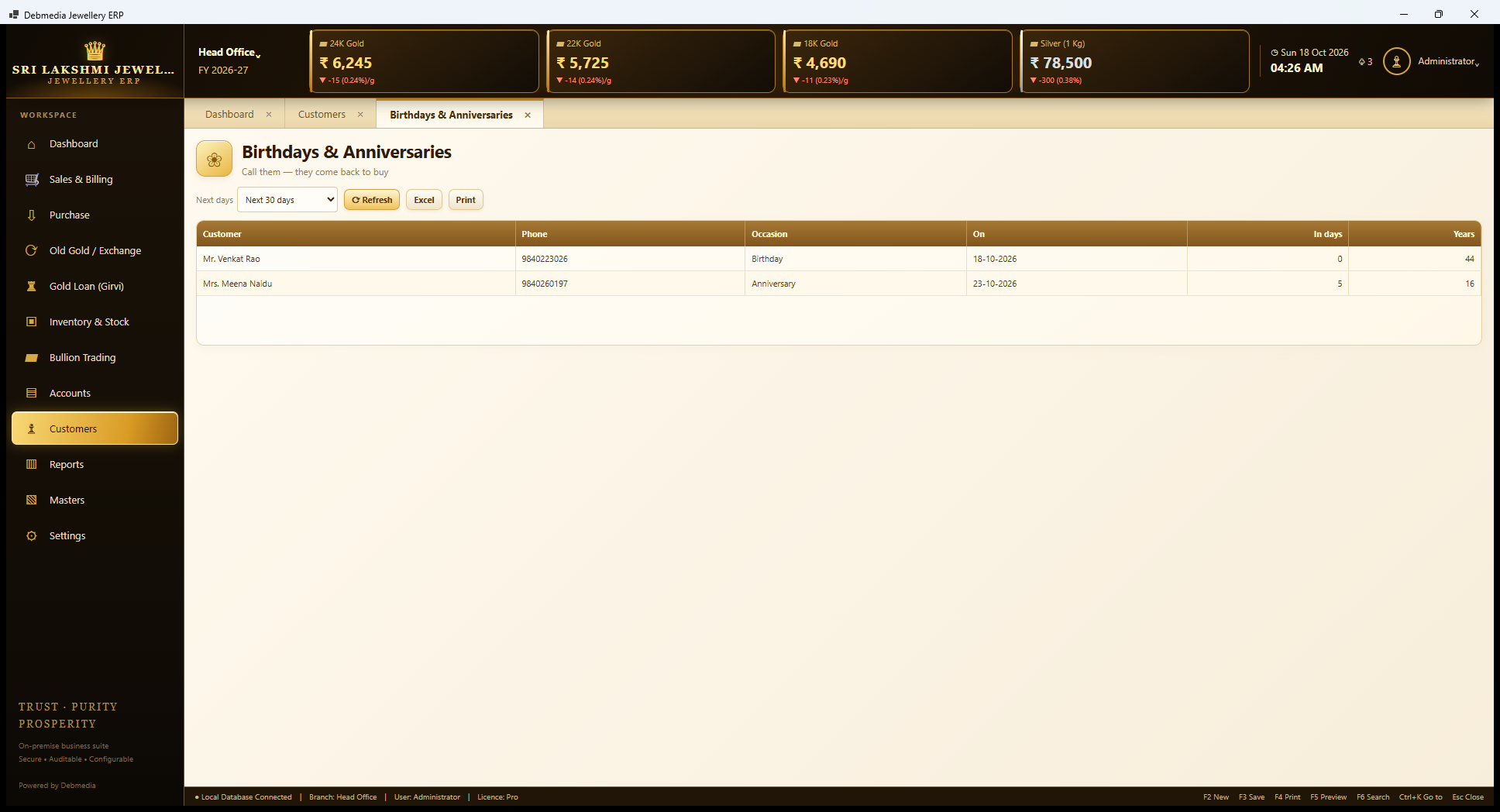
This screen is the shop’s reminder to call customers who are about to celebrate. A selector sets the window, Next 30 days here, and the grid lists the customer, phone, occasion, date, days to go and years. In the sample, Mr. Venkat Rao has a birthday today (his 44th) and Mrs. Meena Naidu has an anniversary in five days (her 16th).
The heading on screen says “Call them – they come back to buy”, which is the whole idea. It depends on the birthday and anniversary being recorded when the customer’s card is made, which is why those fields are on the New party dialog. The program does not send messages itself; this is a list for a person to call from.
Savings Schemes
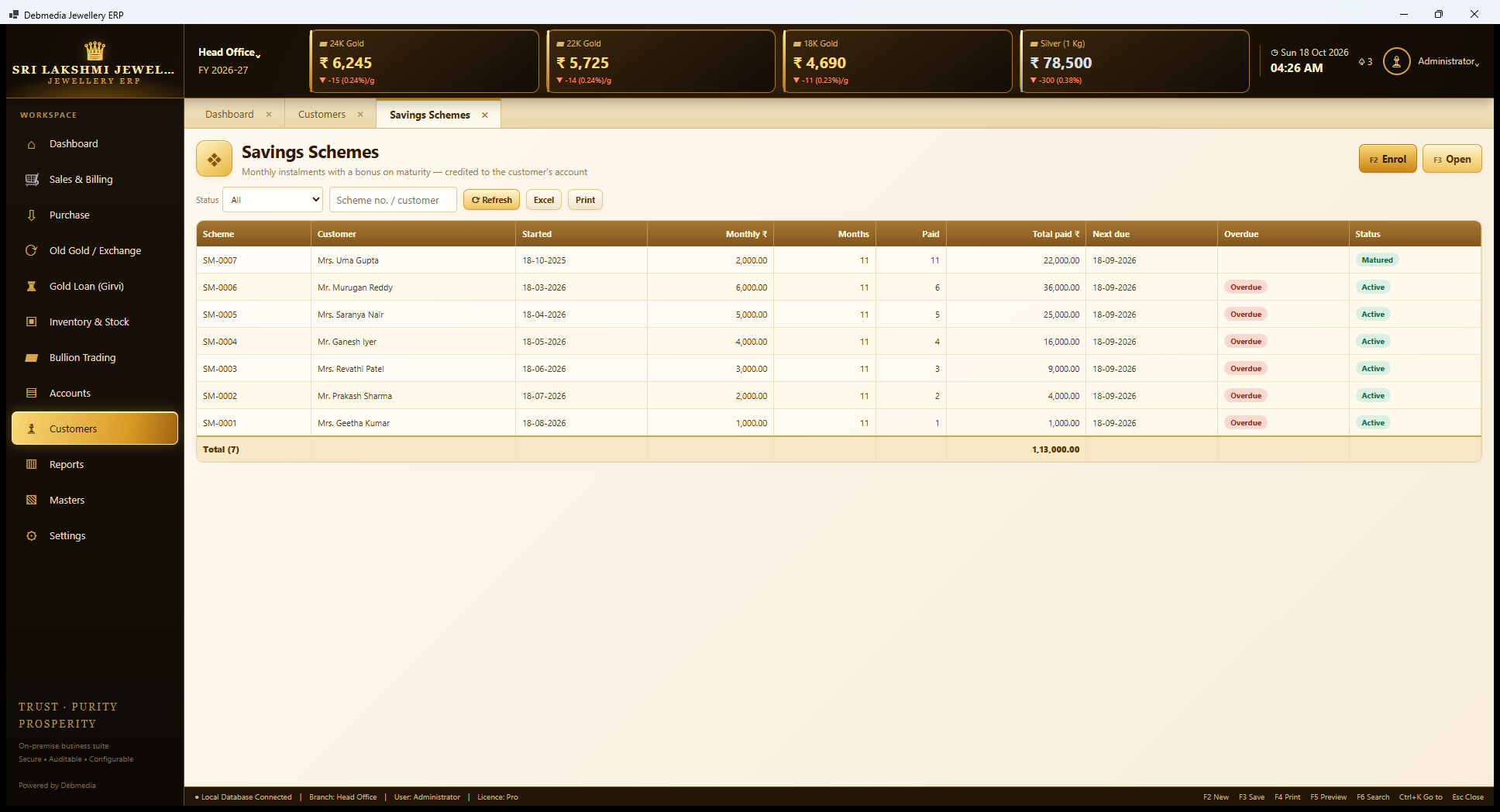
Gold savings schemes are a common way for a jeweller to build loyalty and cash flow. The Savings Schemes screen shows each scheme with its scheme number, customer, start date, monthly amount, months (11 in the sample), the number of instalments paid, the total paid, the next due date, an overdue badge and a status. Enrol (F2) starts a scheme and Open (F3) shows one with its instalment history.
The sample has seven schemes, from ₹1,000 to ₹6,000 a month, with a total of ₹1,13,000 paid. SM-0007 for Mrs. Uma Gupta has completed all 11 instalments and is marked Matured. The other six show Overdue in red because the sample’s next-due dates are in September and the screenshot is dated in October. The instalments are credited to the customer’s account and the scheme deposits appear as a liability, and on maturity the shop adds a bonus, a number of monthly instalments fixed when the scheme is enrolled (one in the sample), which is recorded in the books as Scheme Bonus. Closing a scheme early credits only what was paid.
Scheme Detail
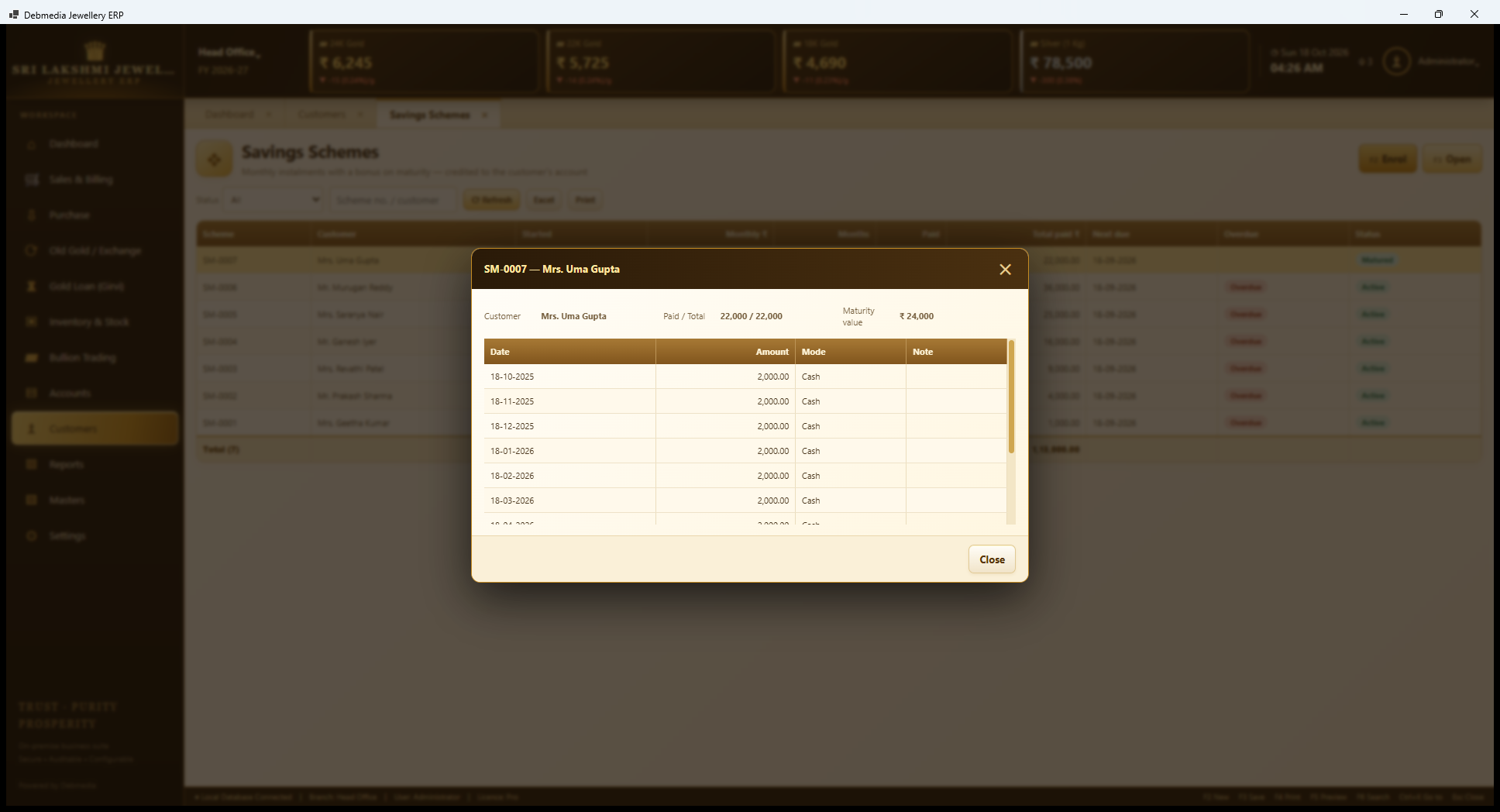
Opening a scheme shows its instalments. For SM-0007 the dialog says Mrs. Uma Gupta, paid 22,000 of 22,000, with a maturity value of ₹24,000, which is the 11 instalments of ₹2,000 plus a bonus of one instalment, the bonus set when the scheme was enrolled. The grid lists each instalment with its date (the 18th of each month from 18 October 2025), amount and payment mode, all cash here.
The maturity value is credited to the customer’s account when the scheme is closed, and the Audit Log records “Scheme closed: SM-0007 credited 24,000.00”. The customer then spends it as a credit on a purchase.
Reports
Reports: Sales Register
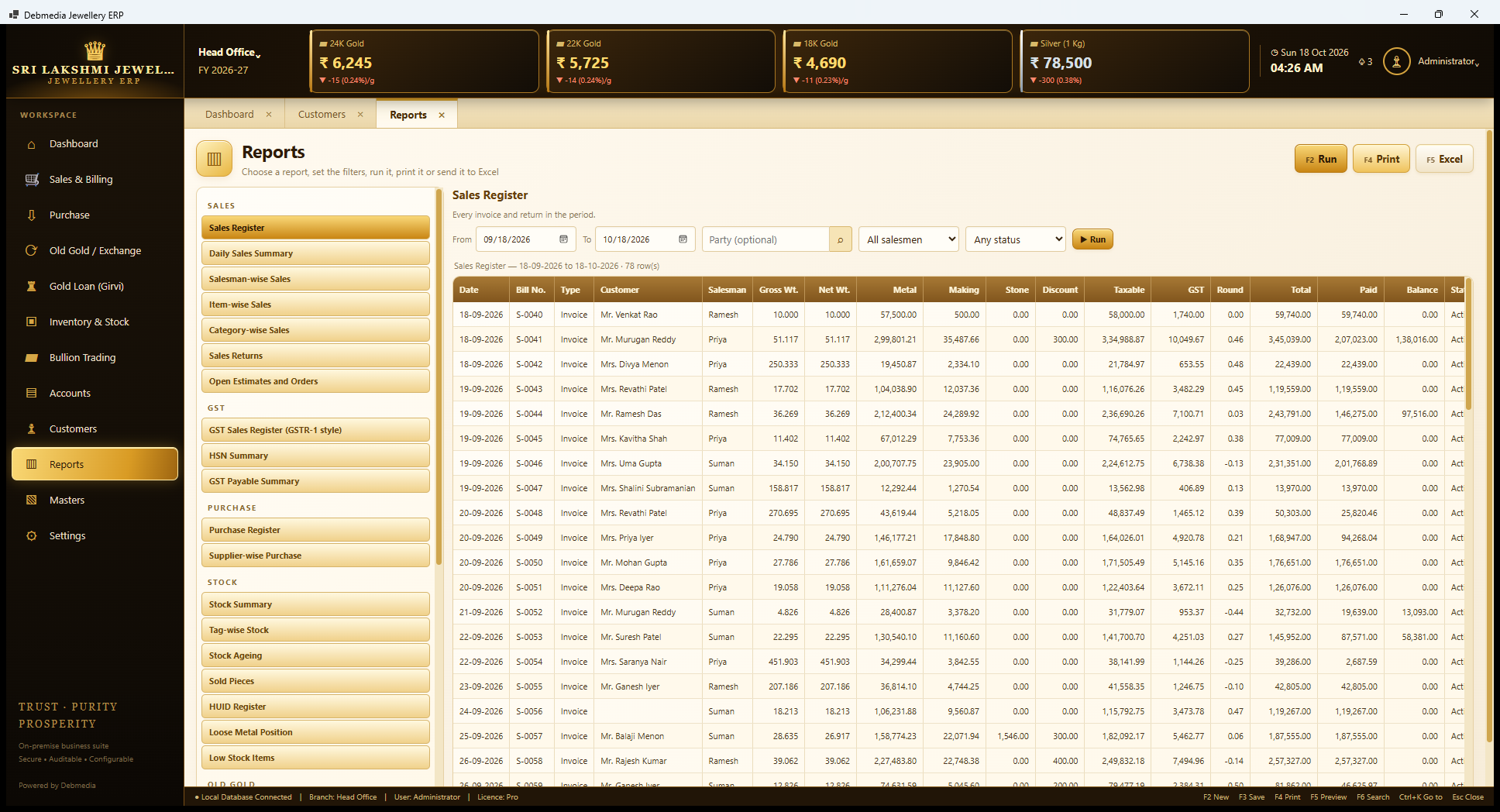
The Reports screen is a single workspace for about thirty reports. On the left is a list grouped by subject, and clicking a name opens that report on the right with its own filters, a Run button (F2), Print (F4) and Excel (F5). The groups visible here are Sales (Sales Register, Daily Sales Summary, Salesman-wise Sales, Item-wise Sales, Category-wise Sales, Sales Returns and Open Estimates and Orders), GST (GST Sales Register in the GSTR-1 style, HSN Summary and GST Payable Summary), Purchase (Purchase Register and Supplier-wise Purchase) and Stock (Stock Summary, Tag-wise Stock, Stock Ageing, Sold Pieces, HUID Register, Loose Metal Position and Low Stock Items).
The report open in the screenshot is the Sales Register for 18 September to 18 October, 78 rows, which lists every invoice and return in the period. Filters take a date range, an optional party, a salesman and a status. The grid is wide because a jewellery bill has many parts: date, bill number, type, customer, salesman, gross and net weight, metal value, making, stone, discount, taxable value, GST, round-off, total, paid and balance. For example S-0040 sold 10 grams for ₹57,500 of metal plus ₹500 of making, a taxable value of ₹58,000 and GST of ₹1,740, which is exactly the 3 percent rate, for a total of ₹59,740.
Because the Sales Register carries both the metal and the making separately, it is also the basis for the GST Sales Register and the HSN Summary, where the rates differ.
Reports: Old Gold Register
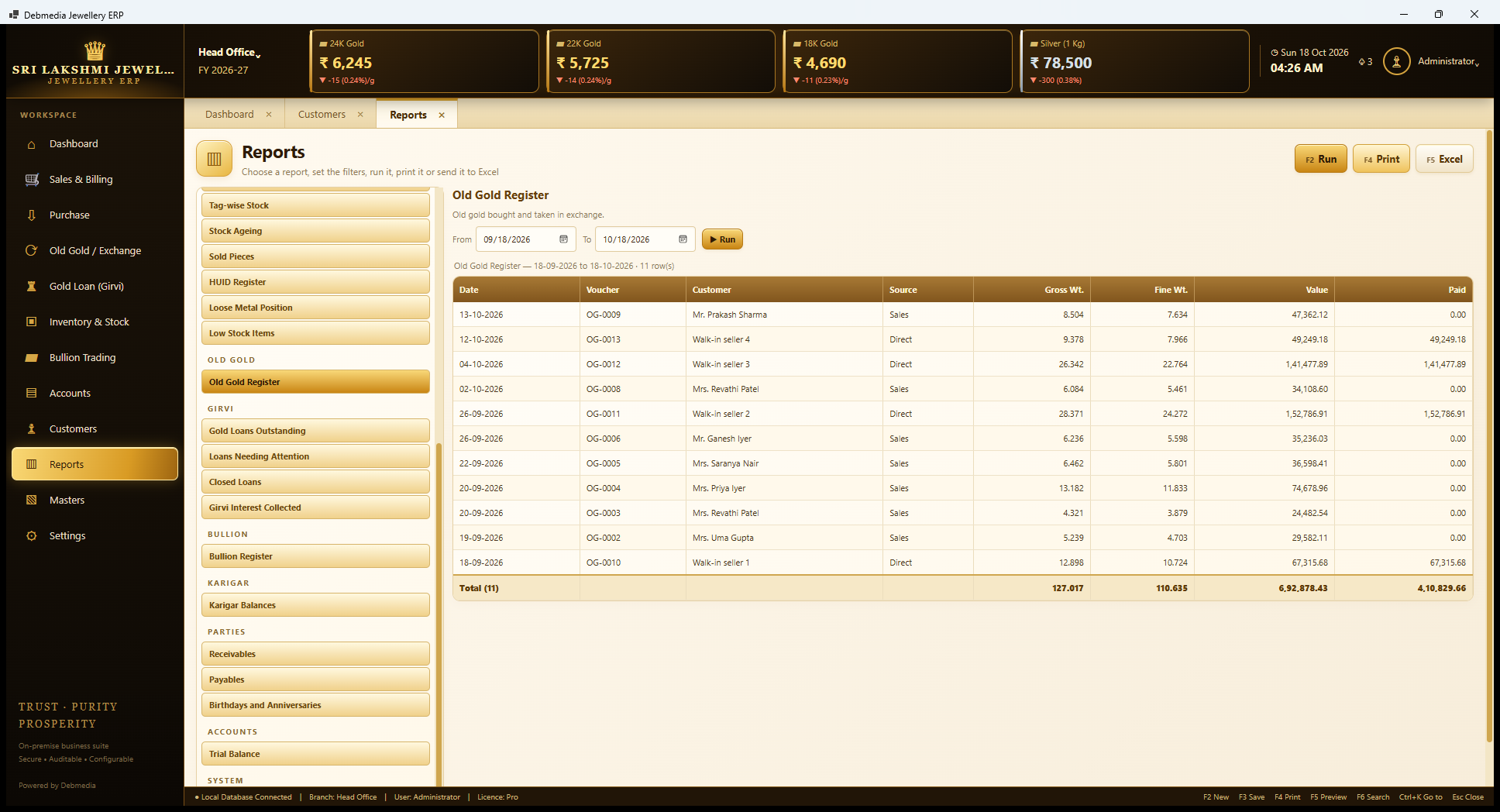
Scrolling the report list shows the rest of the groups. Old Gold has the Old Gold Register. Girvi has Gold Loans Outstanding, Loans Needing Attention, Closed Loans and Girvi Interest Collected. Bullion has the Bullion Register. Karigar has Karigar Balances. Parties has Receivables, Payables and Birthdays and Anniversaries. Accounts has the Trial Balance, and a System group follows. Together with the screens’ own lists, that is the 31 reports the product counts.
The report open here is the Old Gold Register for the month: 11 vouchers, 127.017 grams gross, 110.635 grams fine, ₹6,92,878.43 of value and ₹4,10,829.66 paid. It shows the same Source column as the screen of that name, Sales for exchange and Direct for counter purchases. Every report has Print and an Excel export, so the data can go to an accountant in a spreadsheet.
Masters: The Reference Data
Masters
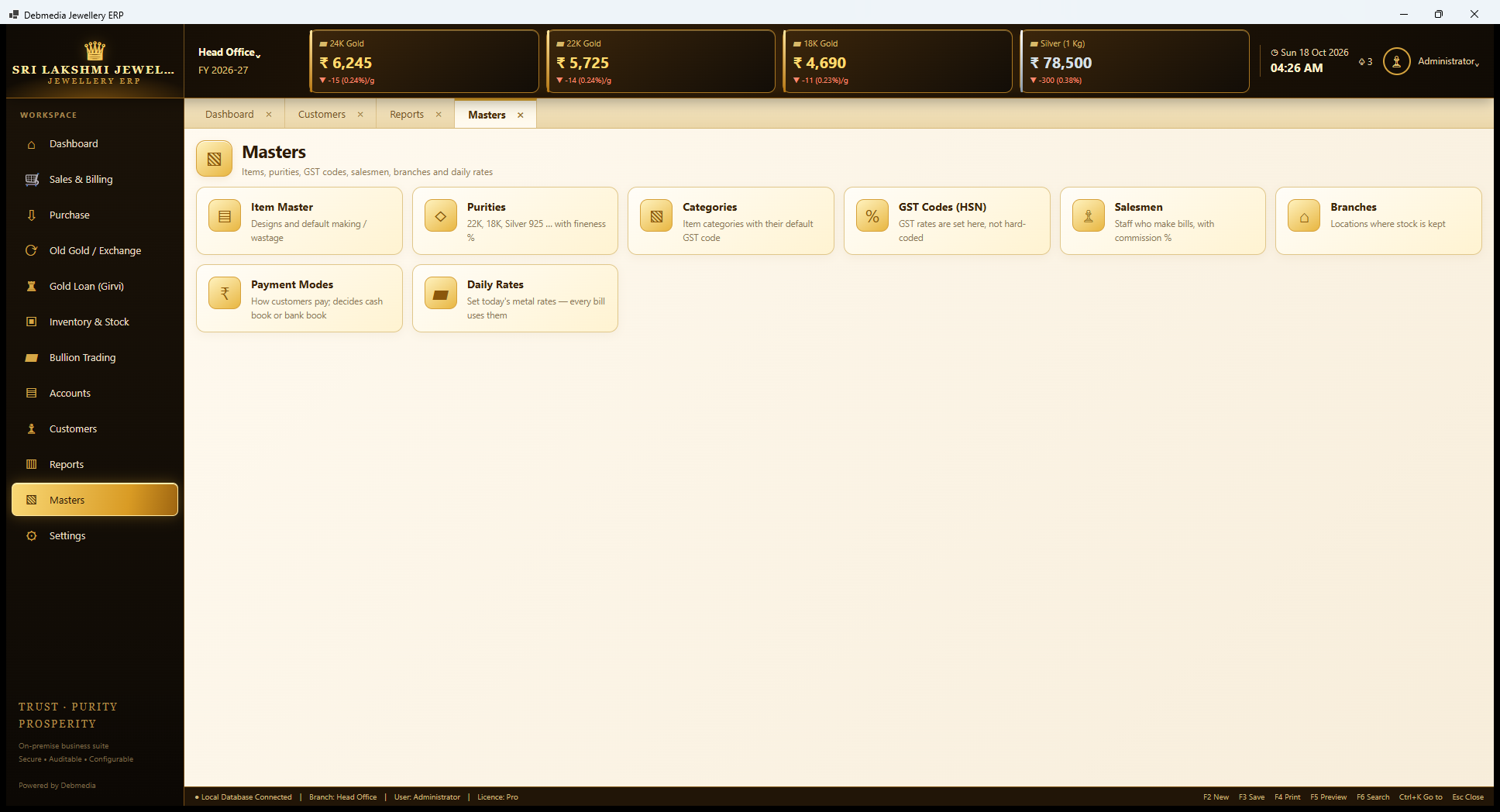
Masters holds the reference data that the rest of the program leans on. The tiles are Item Master (designs with default making and wastage), Purities (22K, 18K, Silver 925 and so on, with fineness percent), Categories (item categories with their default GST code), GST Codes (HSN) (GST rates are set here, not hard-coded), Salesmen (staff who make bills, with commission percent), Branches (locations where stock is kept), Payment Modes (how customers pay, which decides cash book or bank book) and Daily Rates (today’s metal rates, which every bill uses).
Item Master
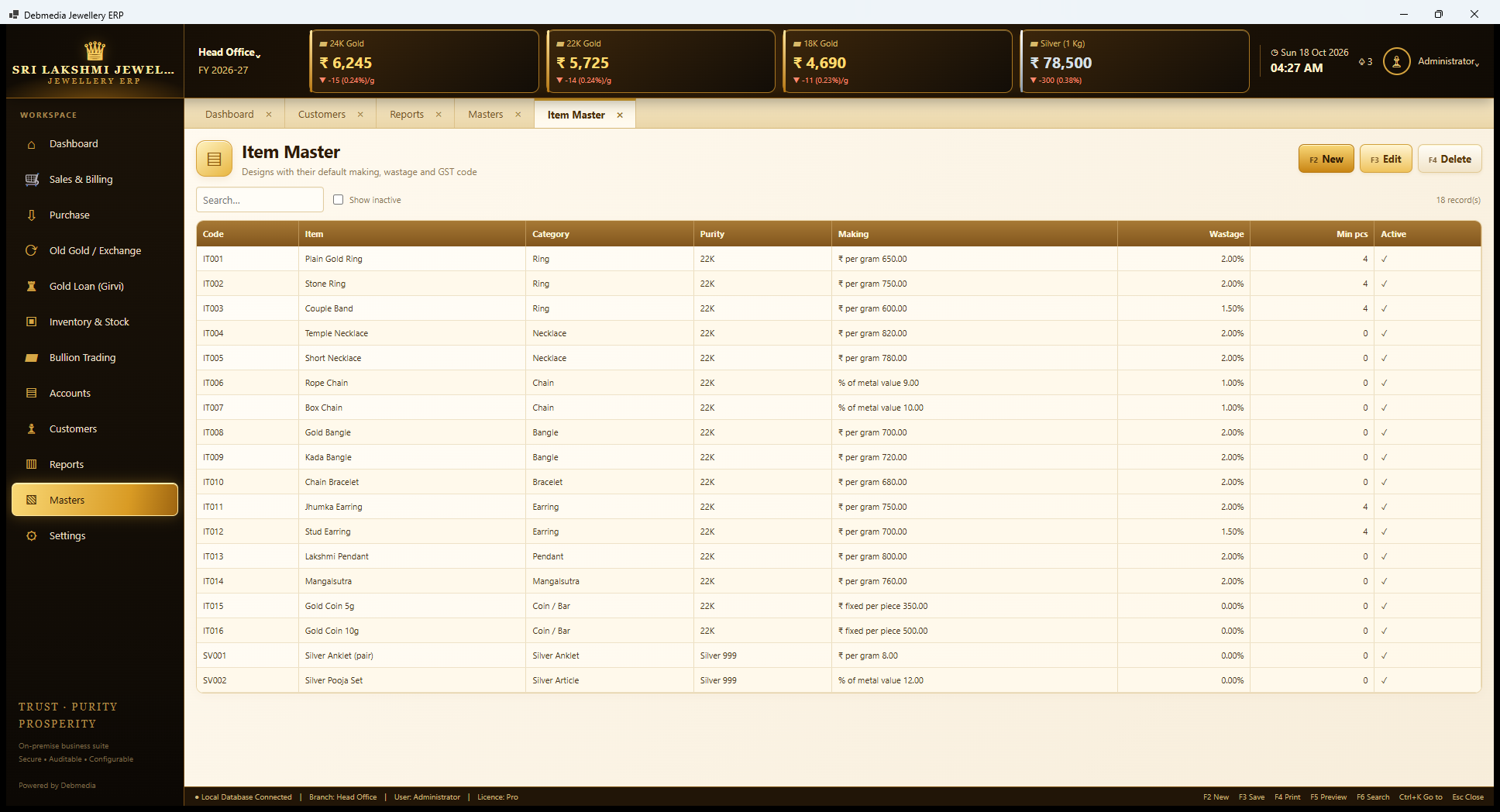
The Item Master is the catalogue of designs. Each row has a code, name, category, purity, making (with its basis), wastage percent, minimum pieces and an active tick. The sample has 18 items: plain and stone rings, couple bands, temple and short necklaces, rope and box chains, bangles and kadas, a chain bracelet, jhumka and stud earrings, a Lakshmi pendant, a mangalsutra, 5 and 10 gram coins, a silver anklet and a silver pooja set.
The making column shows that a jeweller can charge making in three ways. Most items use a rate per gram (₹650 a gram for a plain ring, ₹820 for a temple necklace). Chains use a percent of metal value (9 percent for a rope chain, 10 percent for a box chain). Coins use a fixed amount per piece (₹350 for 5 grams, ₹500 for 10 grams), and the silver pooja set uses 12 percent of metal value. The default wastage runs from 1 percent on chains to 2 percent on most gold items, and nothing on coins. These are only defaults: they are offered on the invoice and can be changed for a bill. Minimum pieces is the stock level below which an item appears on the Low Stock report.
Purities
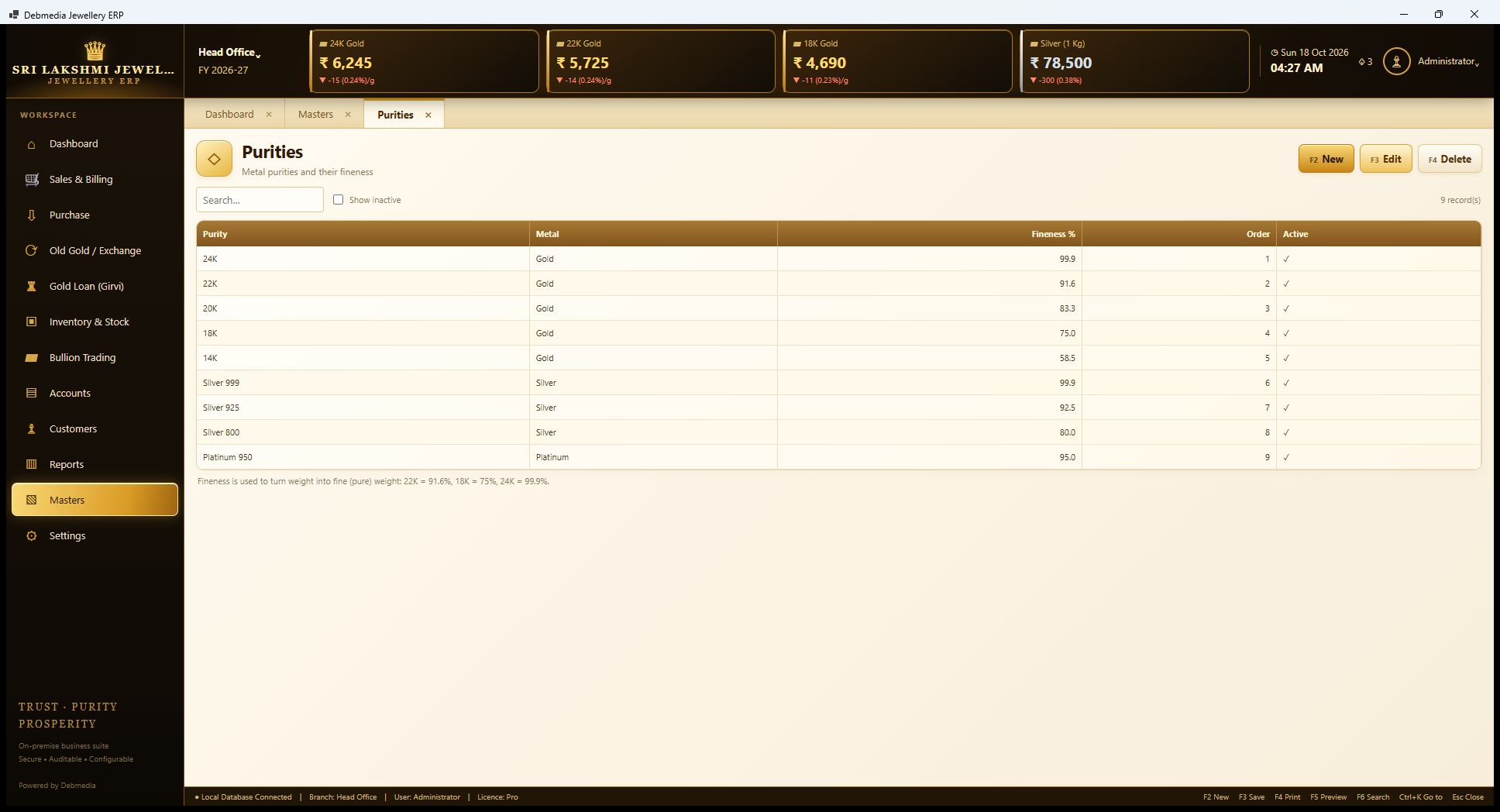
Purities define each grade of metal and its fineness, which the program uses to turn any weight into fine (pure) weight. The list has 24K at 99.9 percent, 22K at 91.6, 20K at 83.3, 18K at 75.0 and 14K at 58.5 for gold, Silver 999, 925 and 800 at 99.9, 92.5 and 80.0, and Platinum 950 at 95.0. A note spells it out: fineness is used to turn weight into fine weight, so 22K is 91.6 percent, 18K is 75 percent and 24K is 99.9 percent.
Fine weight is what the Metal Ledger counts, what a karigar’s balance is kept in and what old gold is valued on, so these percentages sit under much of the program. They are editable, in case a shop works to a different standard.
Categories
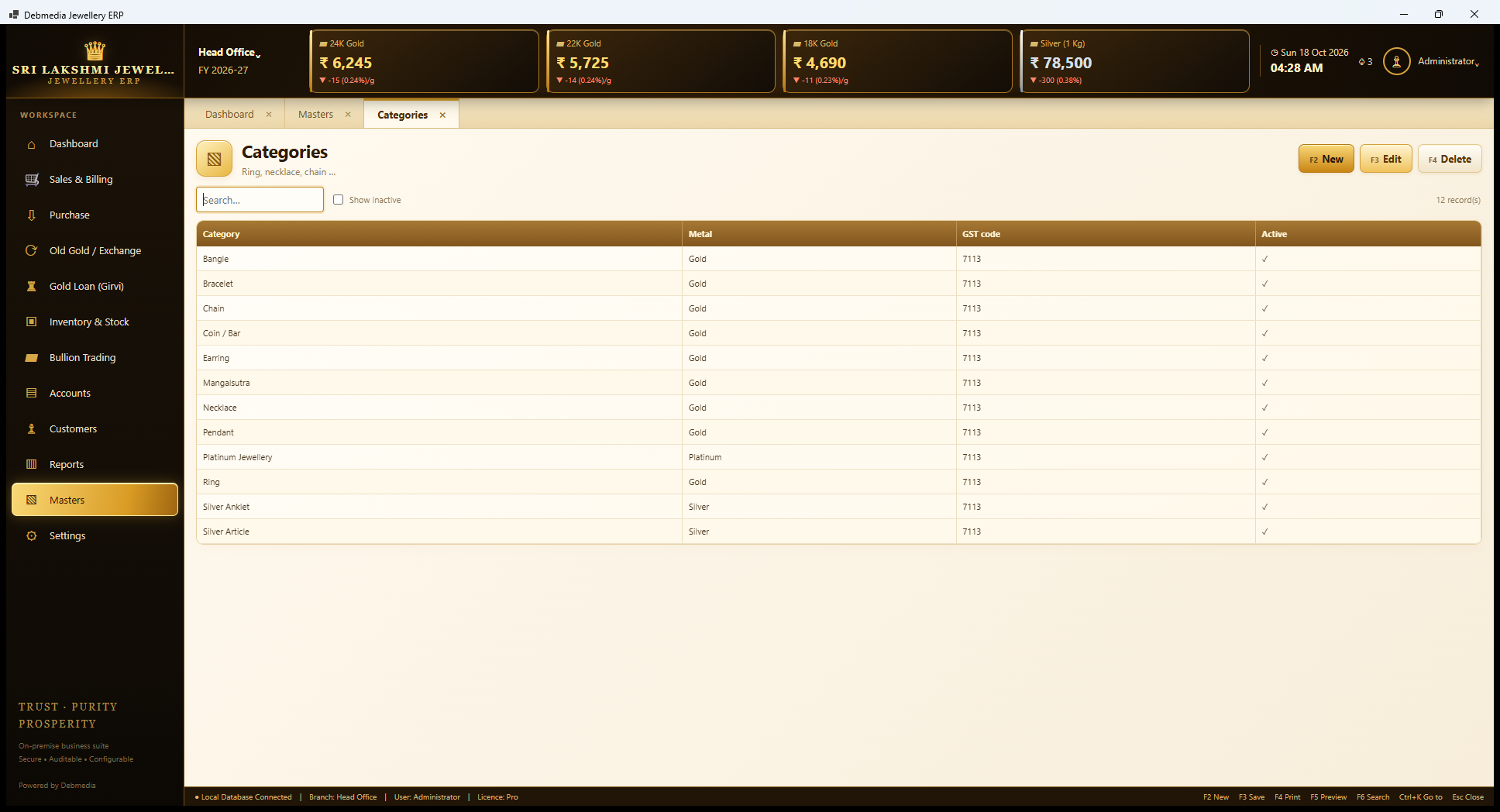
Categories group the items: Bangle, Bracelet, Chain, Coin or Bar, Earring, Mangalsutra, Necklace, Pendant, Ring, Platinum Jewellery, Silver Anklet and Silver Article. Each has its metal and a default GST code, which is HSN 7113 (articles of jewellery) for all of them in the sample. The default GST code is what a new item or tag takes, so the right rate is applied without the salesman choosing it.
New Category
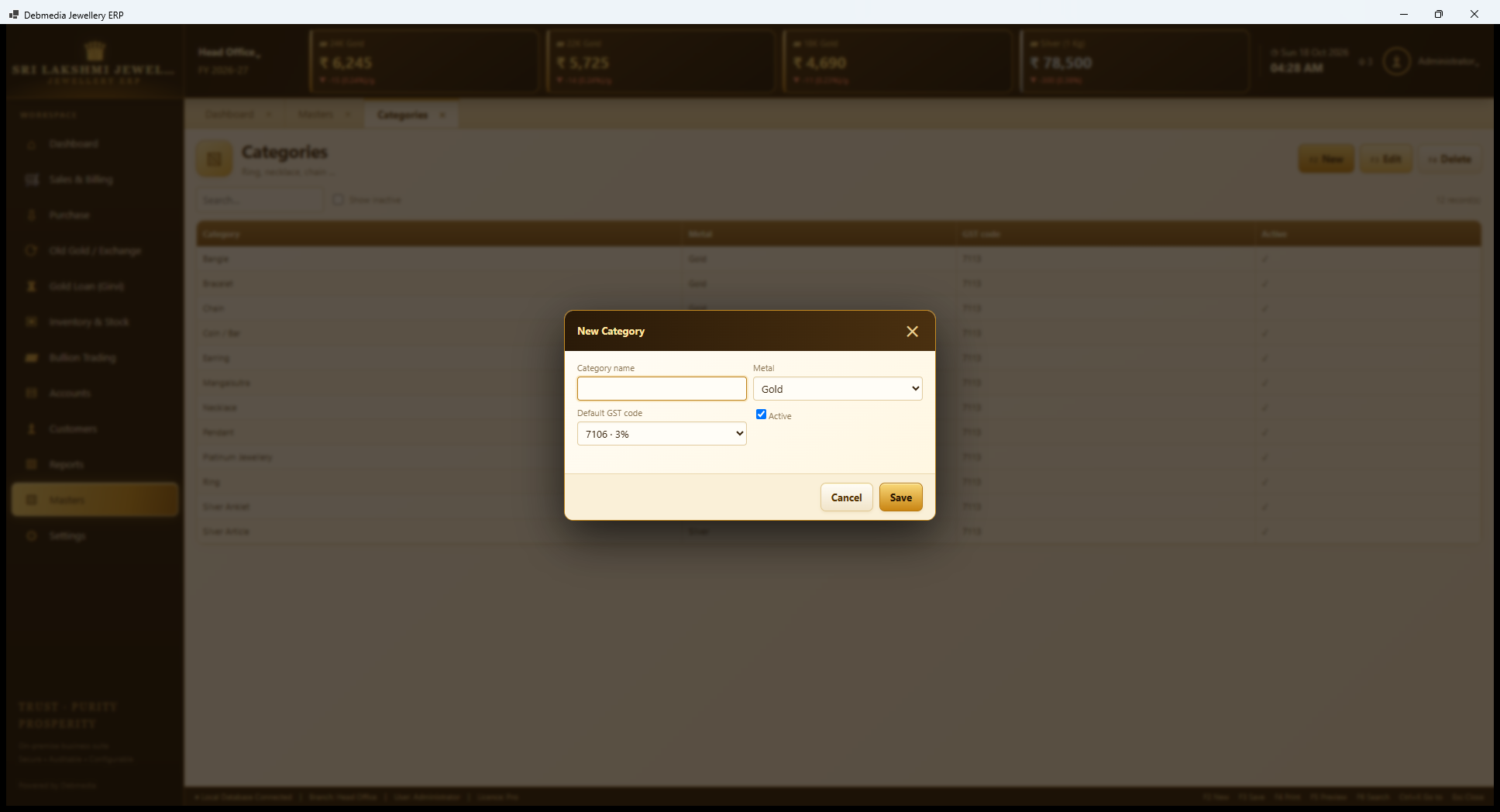
New Category is a short dialog. The user types a category name, chooses a metal (Gold by default), picks a default GST code from the GST Codes master (the first choice, 7106 at 3 percent, is shown) and leaves Active ticked. Because the GST code is chosen from the master rather than typed, a change of rate in one place reaches every category that uses it.
GST Codes (HSN)
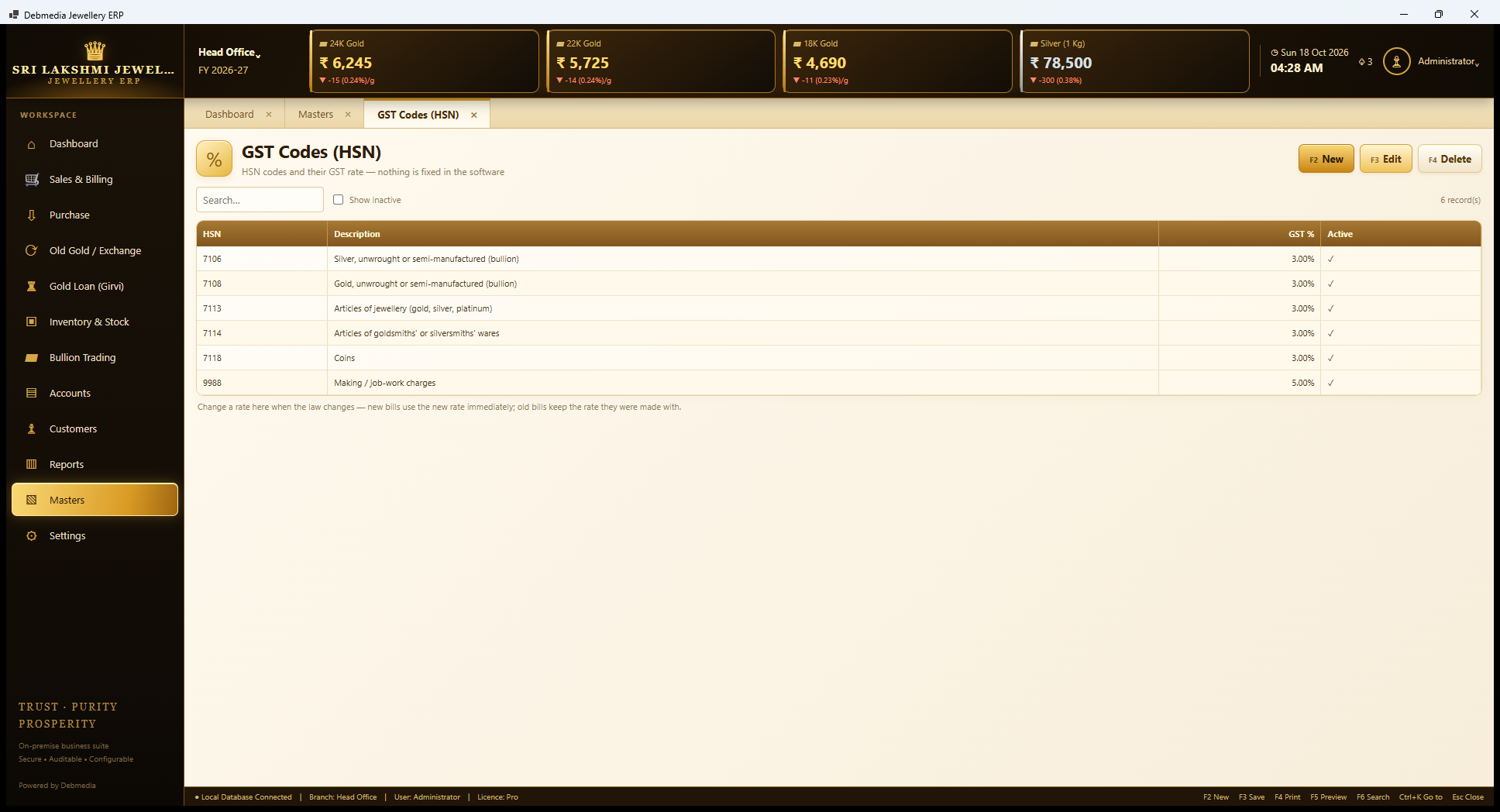
GST Codes holds the HSN codes and their rates: 7106 silver bullion, 7108 gold bullion, 7113 articles of jewellery, 7114 goldsmiths’ or silversmiths’ wares and 7118 coins, all at 3 percent, and 9988 making or job-work charges at 5 percent. The heading says “nothing is fixed in the software”, and a note adds: change a rate here when the law changes, and new bills use the new rate immediately, while old bills keep the rate they were made with.
That last point is important for an auditor. A rate change is not applied backwards, so a report for last quarter still shows last quarter’s tax. The rates here are the ones loaded with the program; your accountant should confirm which apply to your business.
New GST Code
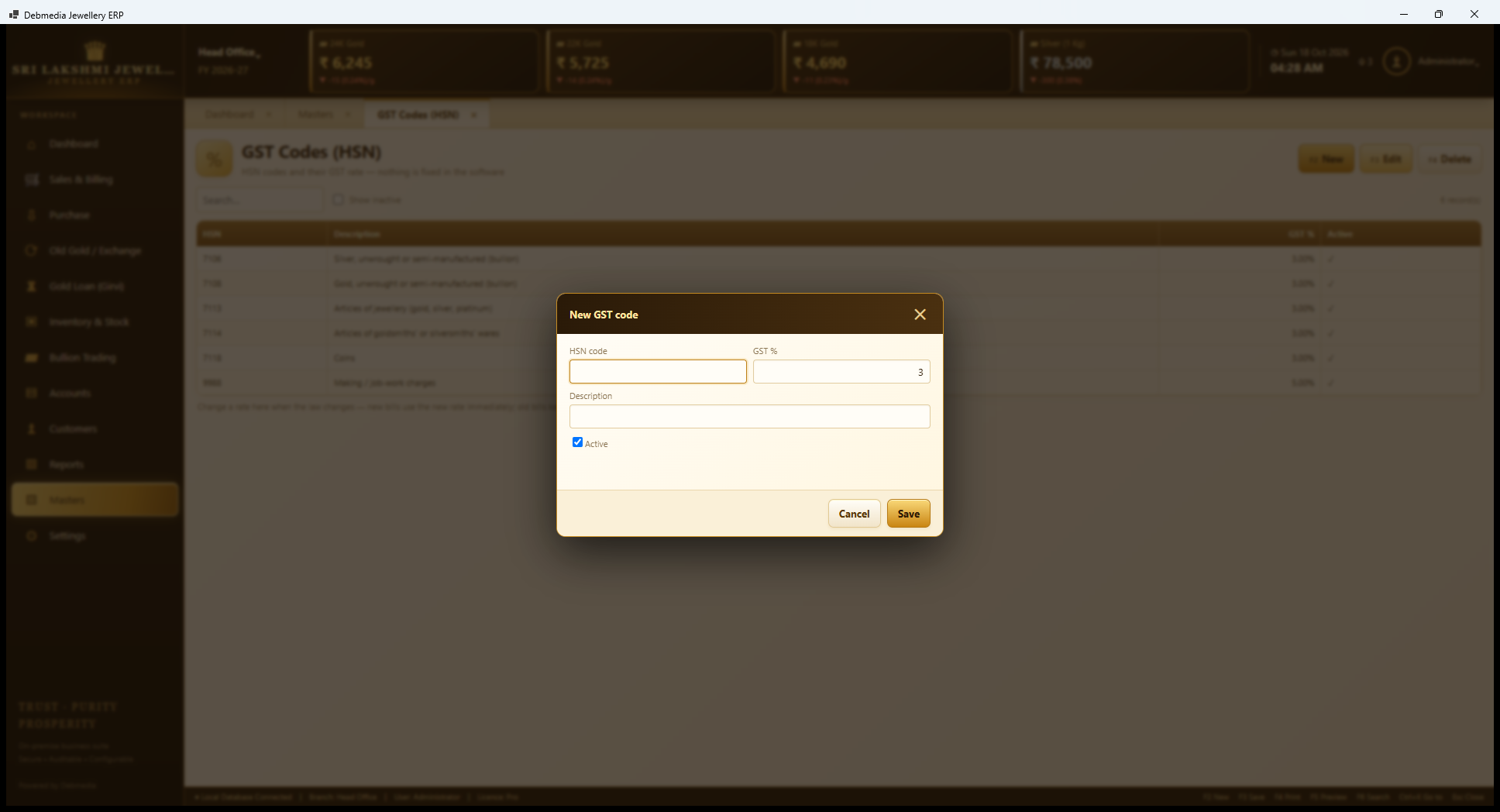
A new rate or HSN code is added with a short dialog: the HSN code, the GST percent (3 is pre-filled), a description and an Active tick. This is how a shop adds a code for a service it starts to offer, such as repairs or hallmarking, without waiting for a program update.
Salesmen
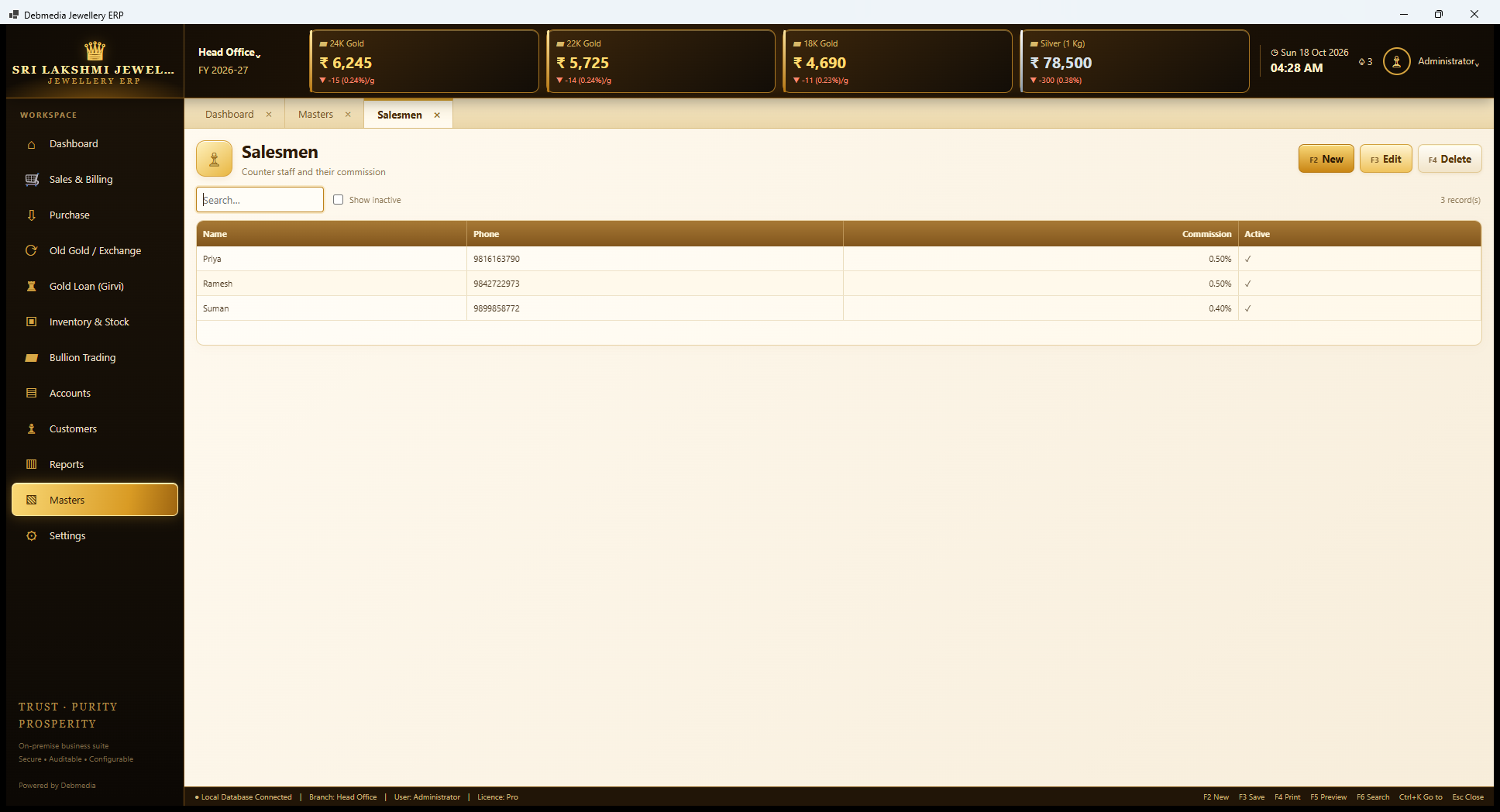
Salesmen lists the counter staff who make bills: Priya and Ramesh at 0.50 percent commission and Suman at 0.40 percent, each with a phone number. The salesman chosen on a bill is carried into the Bill Register and the Salesman-wise Sales report, which is the basis of the commission calculation. Staff who leave are marked inactive and keep their history.
Branches
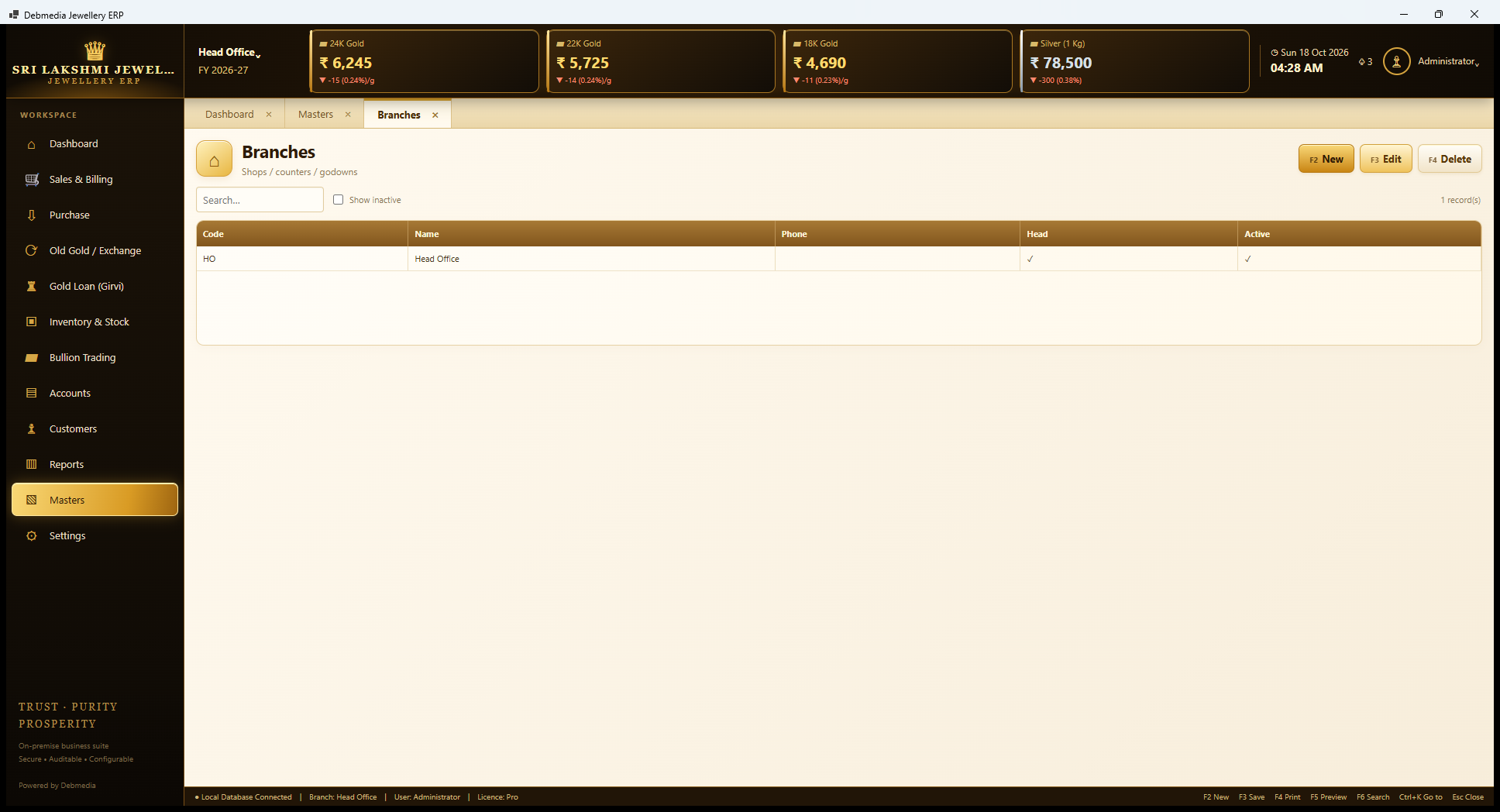
Branches are the locations where stock is kept, such as shops, counters or godowns. The sample has one, HO, Head Office, ticked as the head branch and active. Adding more branches enables the branch filter on stock screens and the Branch Transfers screen. As noted earlier, all branches share one database file in this edition.
Payment Modes
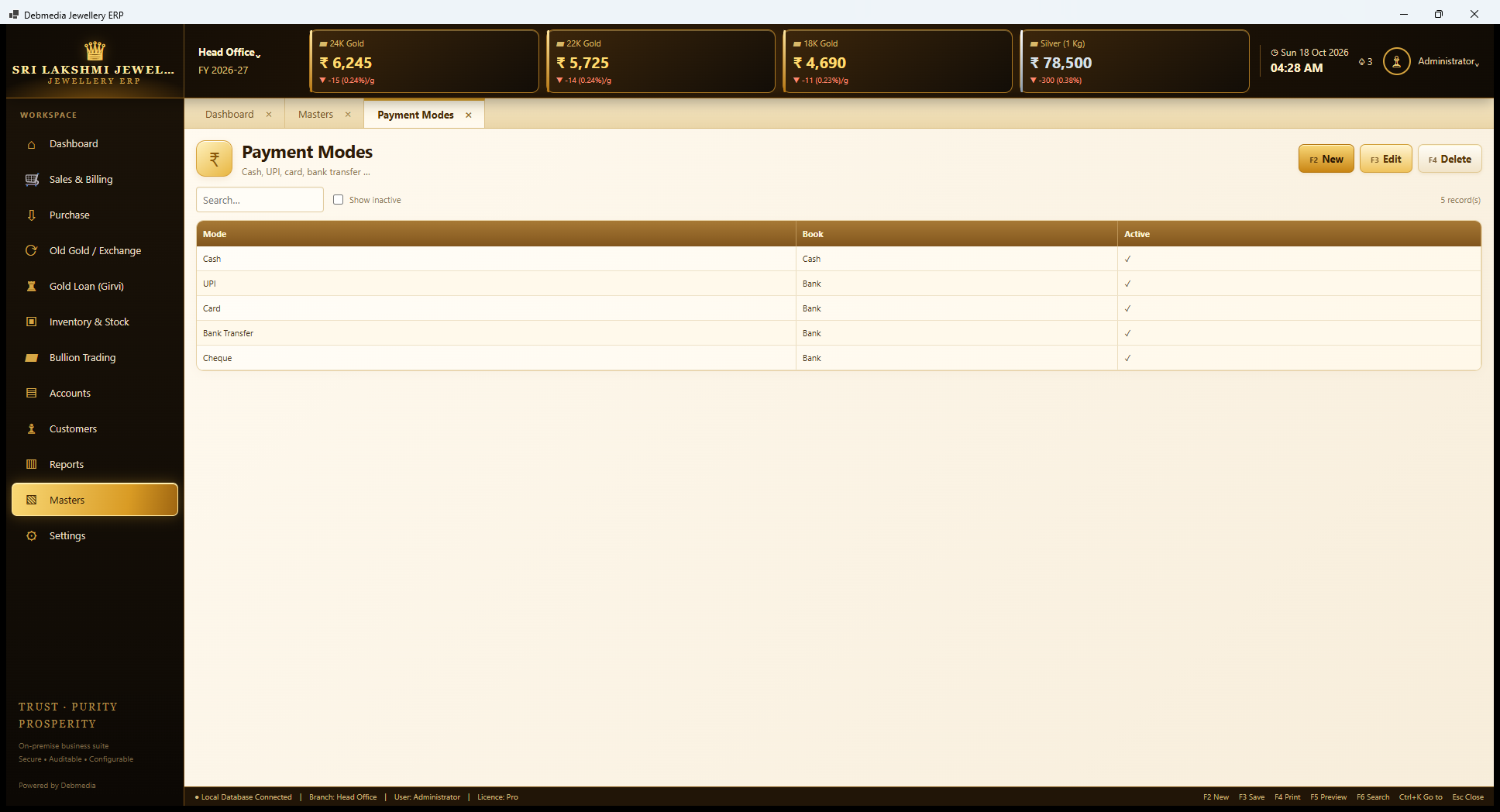
Payment Modes lists how customers and the shop pay: Cash (Cash book), and UPI, Card, Bank Transfer and Cheque (all Bank book). The Book column decides where a payment taken in that mode is recorded, so a UPI sale appears in the Bank Book and a cash sale in the Cash Book. A shop that accepts a wallet or a gold-exchange card adds a mode here and chooses its book.
Daily Rates
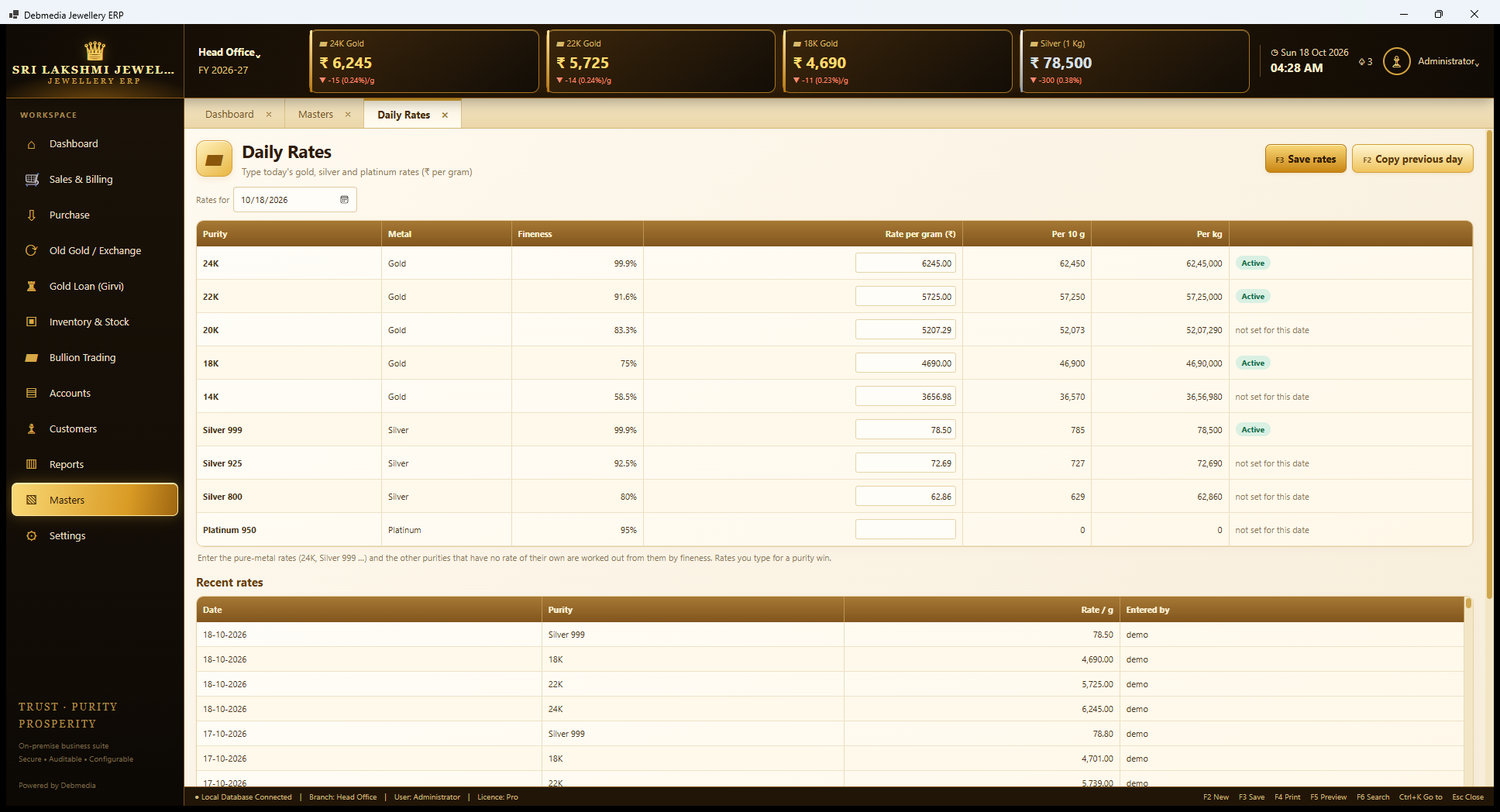
Daily Rates is the first screen to open each morning. The user picks the date and types the rate per gram of each pure metal, 24K gold ₹6,245, 22K ₹5,725, 18K ₹4,690 and Silver 999 ₹78.50 in the sample. The table shows each rate also per 10 grams and per kilogram (₹62,450 and ₹62,45,000 for 24K), which is how markets quote them. A note explains the rule: enter the pure-metal rates, and the other purities that have no rate of their own are worked out from them by fineness, while a rate typed for a purity wins. So 20K, 14K, Silver 925 and Silver 800 show as derived, “not set for this date”, with computed rates.
Save rates (F3) stores them and Copy previous day (F2) carries yesterday’s rates forward for a day on which the market has barely moved. A Recent rates list below shows the history with who entered each rate. Setting the rates is an audited action, and the four tiles at the top of every screen pick up the new figures at once.
Every bill uses these rates, and an order can keep the rate it was booked at. There is no live rate feed in this edition: the rates are typed by hand each day.
Settings, Control and Licence
Settings
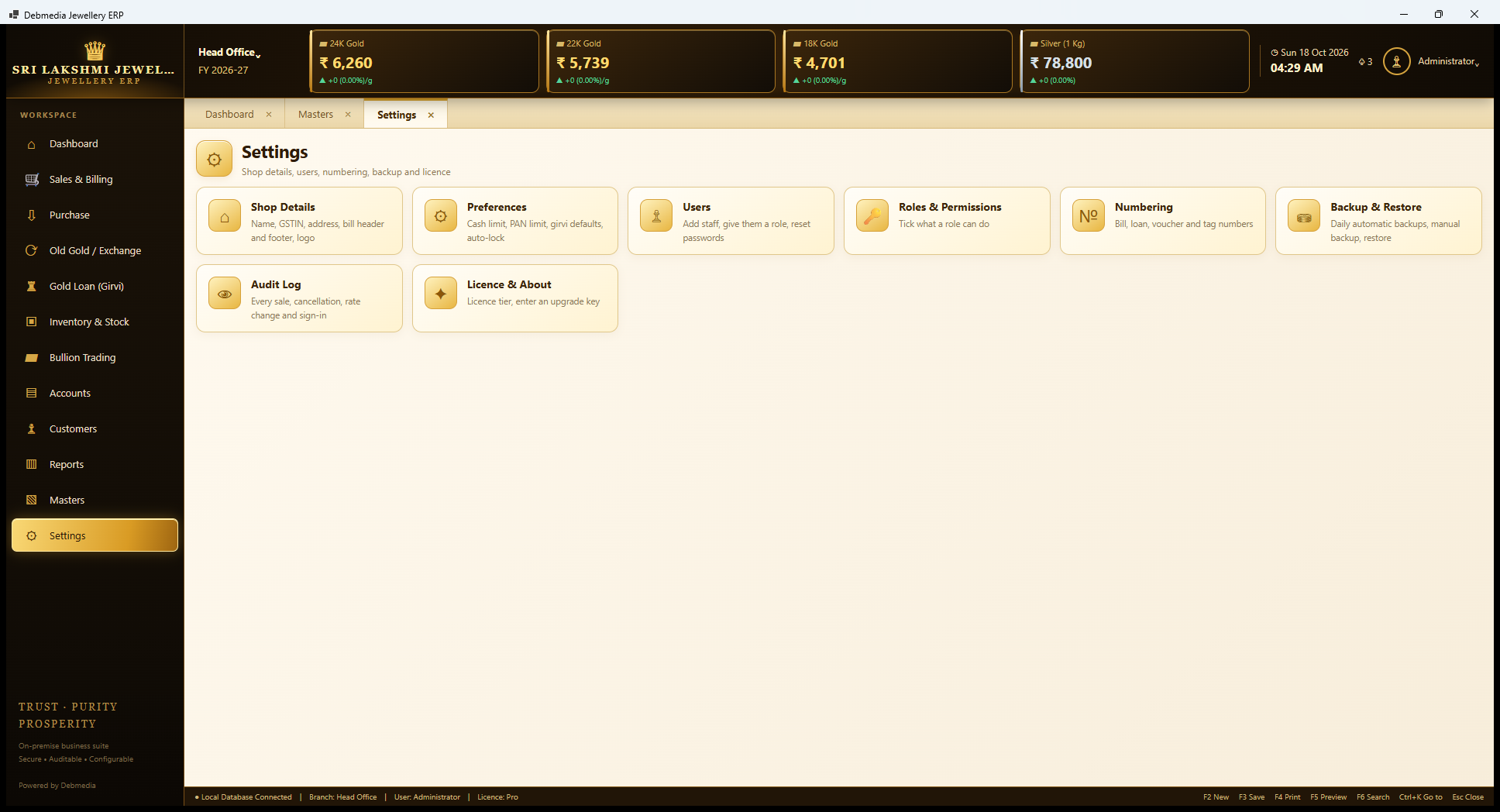
Settings has eight tiles: Shop Details (name, GSTIN, address, bill header and footer, logo), Preferences (cash limit, PAN limit, girvi defaults, auto-lock), Users (add staff, give them a role, reset passwords), Roles and Permissions (tick what a role can do), Numbering (bill, loan, voucher and tag numbers), Backup and Restore (daily automatic backups, manual backup, restore), Audit Log (every sale, cancellation, rate change and sign-in) and Licence and About (licence tier and an upgrade key).
Shop Details
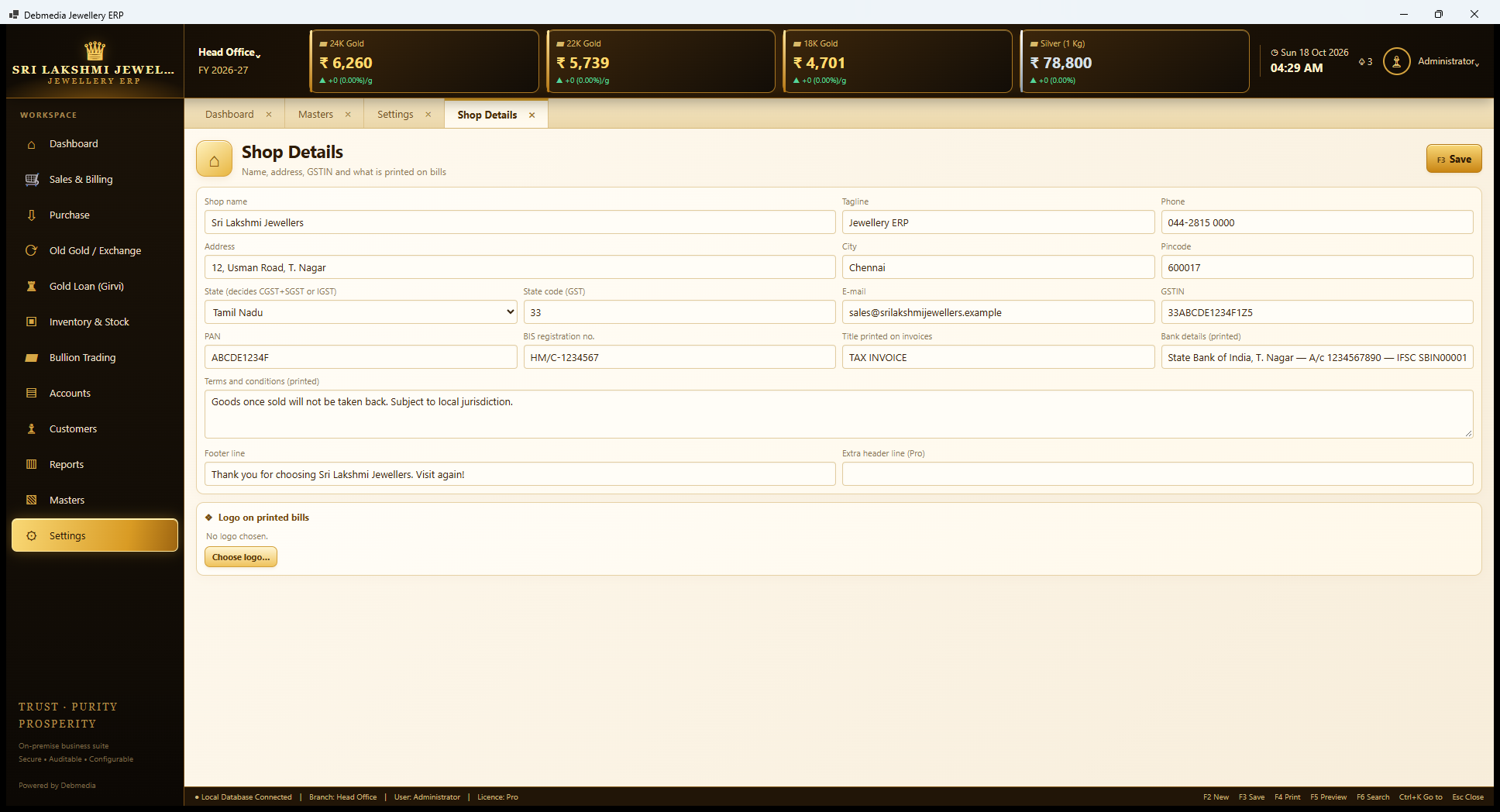
Shop Details are the facts printed on every bill. The form takes the shop name, tagline, phone, address, city, pincode, state (which decides CGST plus SGST or IGST) and state code, e-mail, GSTIN, PAN, BIS registration number, the title printed on invoices (TAX INVOICE), the bank details that print, the terms and conditions (“Goods once sold will not be taken back. Subject to local jurisdiction.” in the sample) and a footer line. All of the identifying numbers in the sample, including the GSTIN, PAN, BIS number and account number, are fictitious.
Two items belong to the Pro tier: an extra header line and a logo on printed bills, chosen with the Choose logo button (“No logo chosen” here). The State drop-down matters most for billing: comparing the shop’s state with the customer’s is how the program decides between CGST plus SGST and IGST.
Preferences
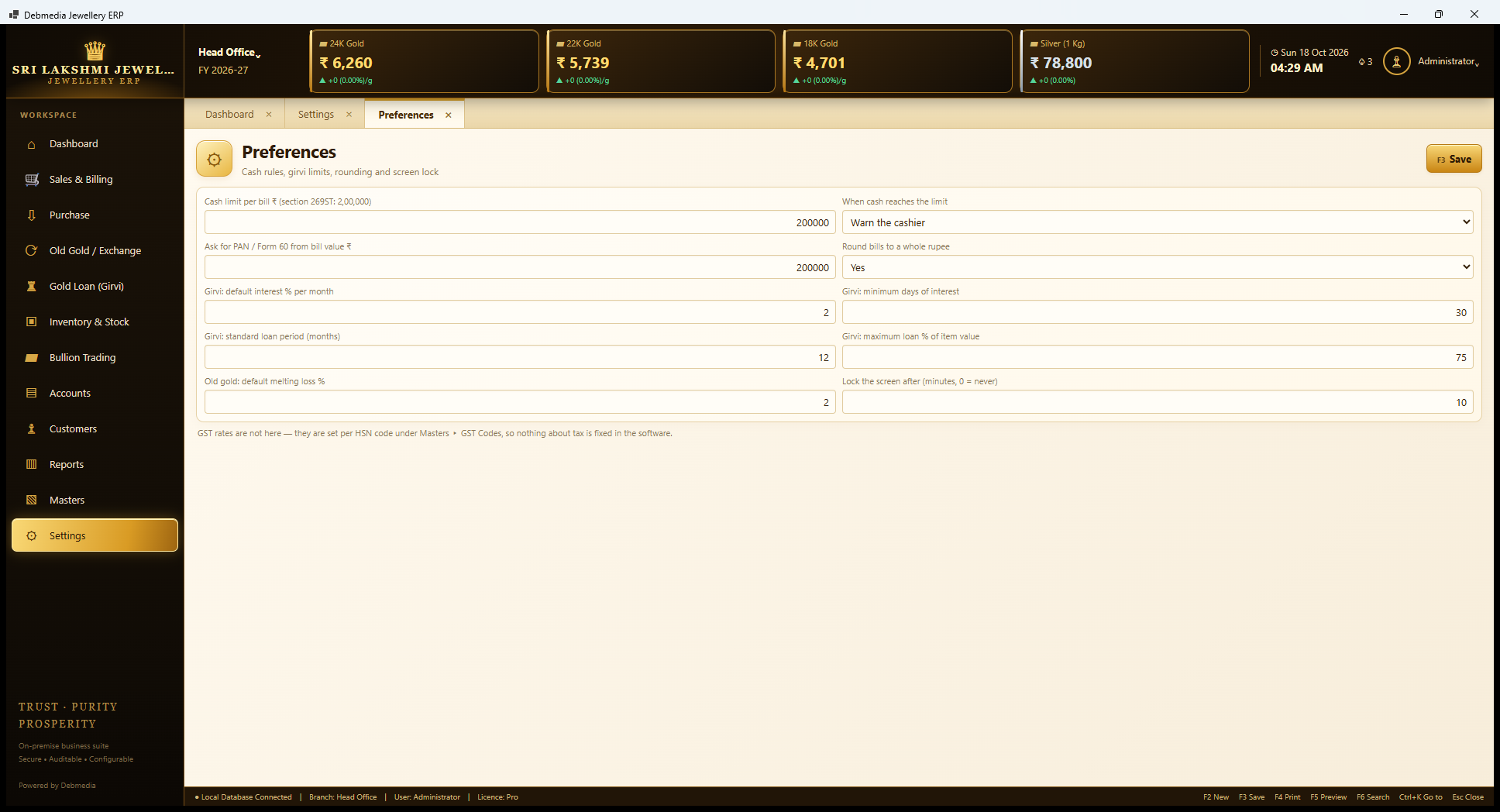
Preferences holds the shop’s rules. For cash, Cash limit per bill is ₹2,00,000 (section 269ST), When cash reaches the limit offers to warn the cashier or refuse, and Ask for PAN or Form 60 from bill value is also ₹2,00,000. Round bills to a whole rupee is Yes. For girvi, the default interest is 2 percent a month, the minimum days of interest is 30, the standard loan period is 12 months and the maximum loan is 75 percent of item value. Old gold default melting loss is 2 percent, and Lock the screen after is 10 minutes of idleness.
A note says that GST rates are not here, since they are set per HSN code under Masters, so nothing about tax is fixed in the software. Putting these rules in settings rather than in code means a change in law or policy is a change of a number. The cash rule is a good example: at the limit, a cashier is warned, or blocked, and told to take part of the amount by UPI, card or transfer.
Users
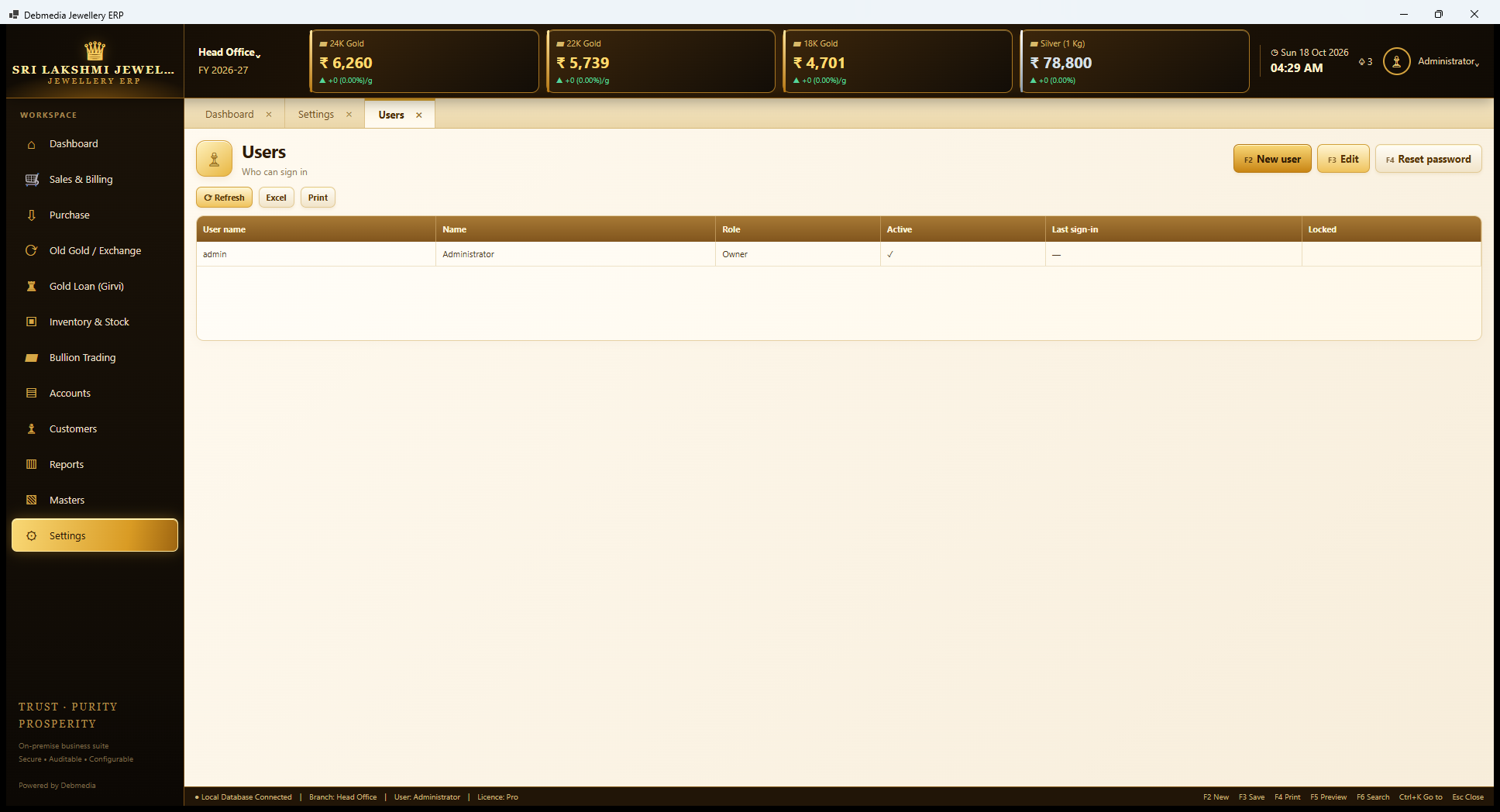
Users lists who can sign in. The grid shows the user name, name, role, whether active, the last sign-in and whether the account is locked. The sample has only the administrator, “admin”, with the Owner role. New user (F2) adds staff, Edit (F3) changes a user, and Reset password (F4) sets a new password for someone who has forgotten theirs. An account is locked after 8 wrong passwords in a row, and the Locked column shows it; the owner then resets it.
On a real installation the first sign-in is as admin with the starting password, and the program makes the owner choose a new one at once. Every person should have a login of their own, because the audit log and the salesman on a bill depend on it.
New User
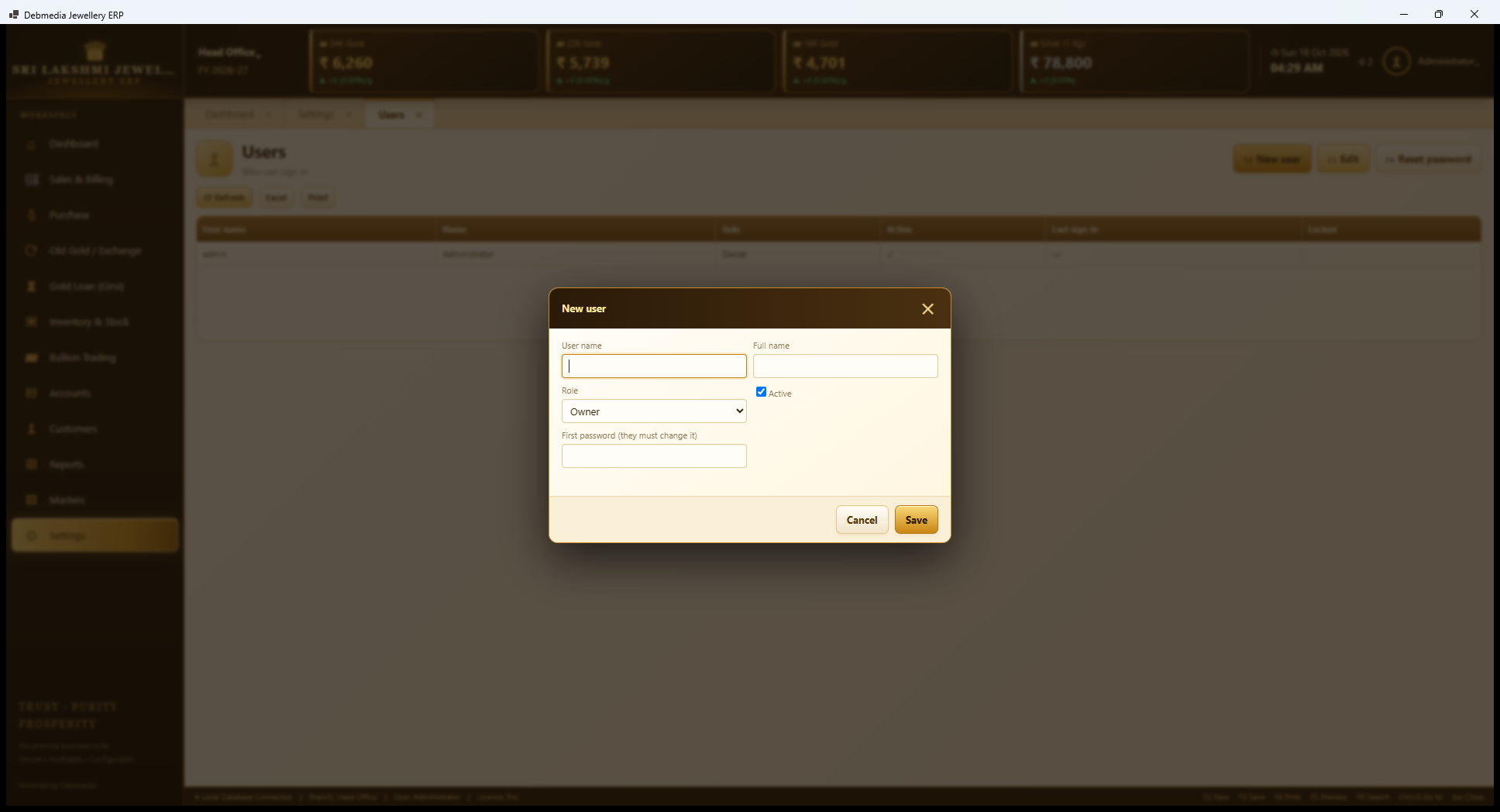
Adding staff is a short dialog: a user name, a full name, a role from the roles on the next screen and a first password, with the note that the person must change it. The user is created active and can sign in straight away, and at the first sign-in they are made to choose their own password.
Roles and Permissions
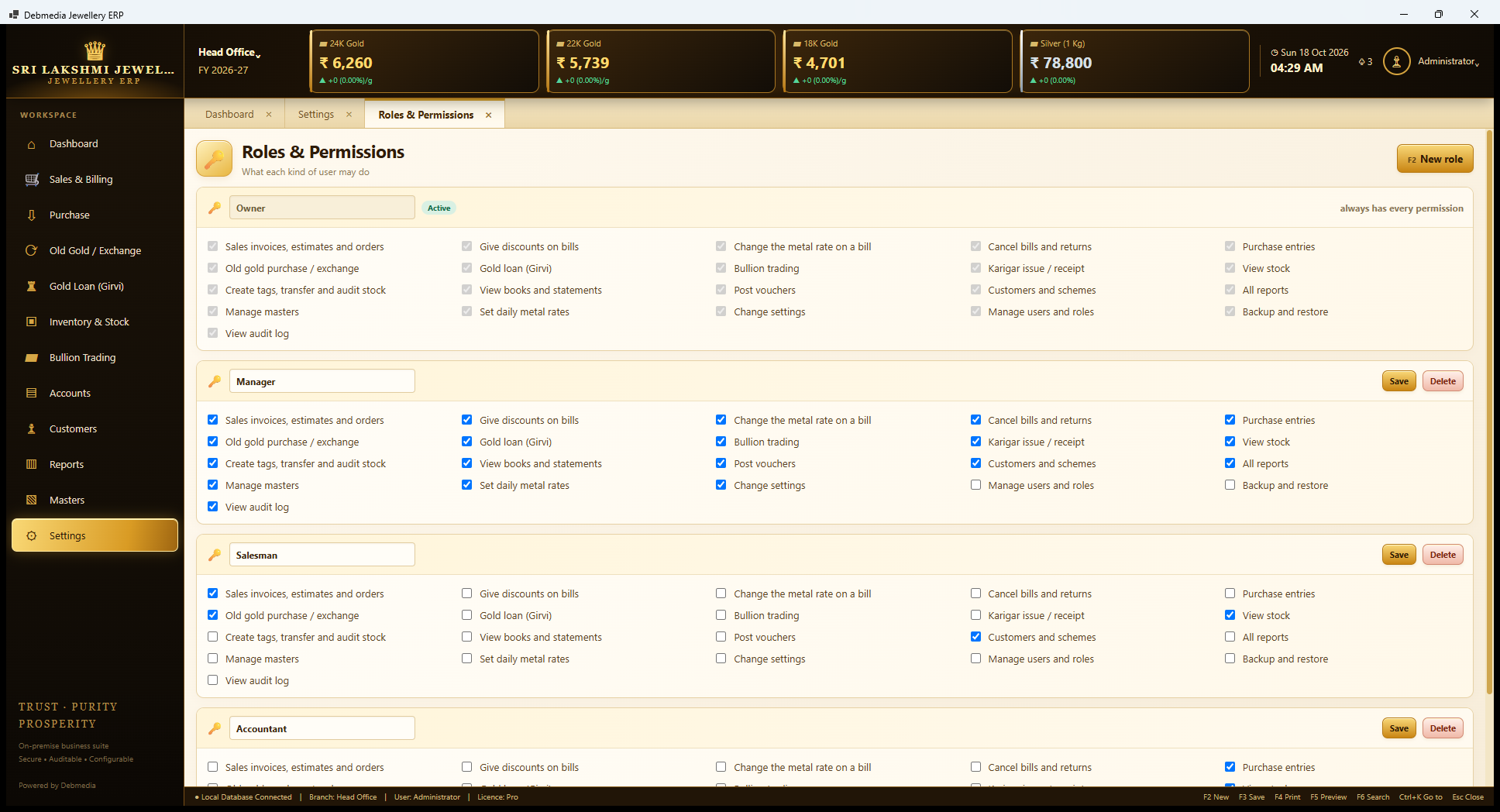
Roles and Permissions decides what each type of user may do. Each role is a card with 21 tick boxes: sales invoices, estimates and orders; give discounts on bills; change the metal rate on a bill; cancel bills and returns; purchase entries; old gold purchase and exchange; gold loan; bullion trading; karigar issue and receipt; view stock; create tags, transfer and audit stock; view books and statements; post vouchers; customers and schemes; all reports; manage masters; set daily metal rates; change settings; manage users and roles; backup and restore; and view audit log.
The Owner card is ticked and greyed, marked “always has every permission”, so the owner cannot be locked out. The Manager has everything except managing users and roles, and backup and restore. The Salesman has only sales documents, old gold purchase and exchange, view stock, and customers and schemes, so a salesman cannot give discounts, change the metal rate on a bill, cancel a bill, see the books or open a loan. The Accountant (partly visible) starts from purchase entries and the books. Each role has Save and Delete buttons, and New role (F2) adds one of your own.
The risky powers each have their own switch, namely discounts, changing the rate on a bill and cancelling. That is what makes it practical to let a junior at the counter without risking the gold rate.
Numbering
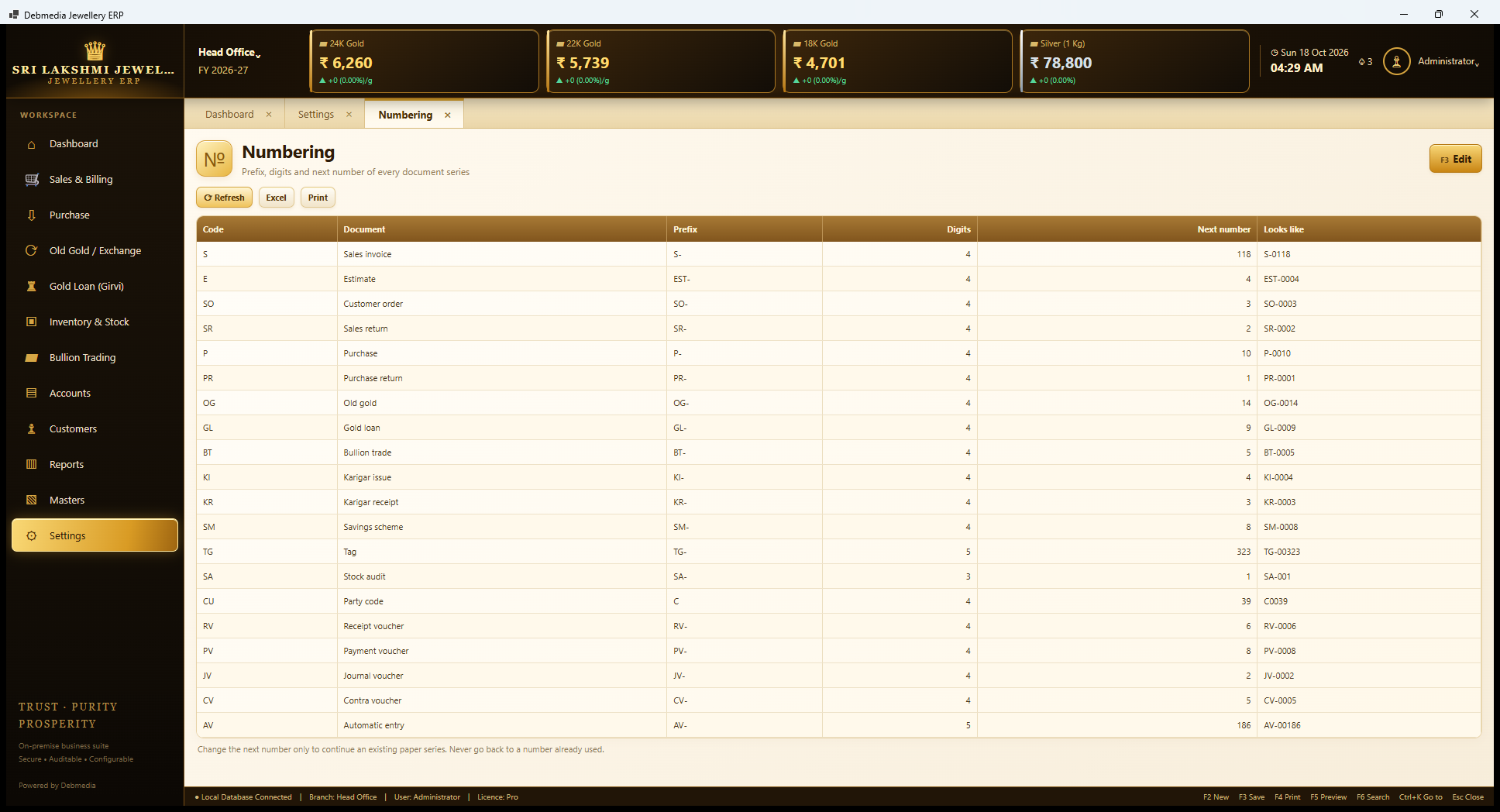
Numbering shows every document series and its next number. The grid lists the code, the document, the prefix, the number of digits, the next number and what it looks like. The next sales invoice is S-0118, estimate EST-0004, customer order SO-0003, sales return SR-0002, purchase P-0010, old gold OG-0014, gold loan GL-0009, bullion trade BT-0005, karigar issue KI-0004, receipt KR-0003, savings scheme SM-0008, tag TG-00323, stock audit SA-001, party code C0039, and the voucher series RV, PV, JV and CV, with AV for the automatic entries made by the program (AV-00186 next).
Edit (F3) changes a series. The note says to change the next number only to continue an existing paper series, and never to go back to a number already used. A shop moving from paper bills uses it to carry on from its last bill number.
Backup and Restore
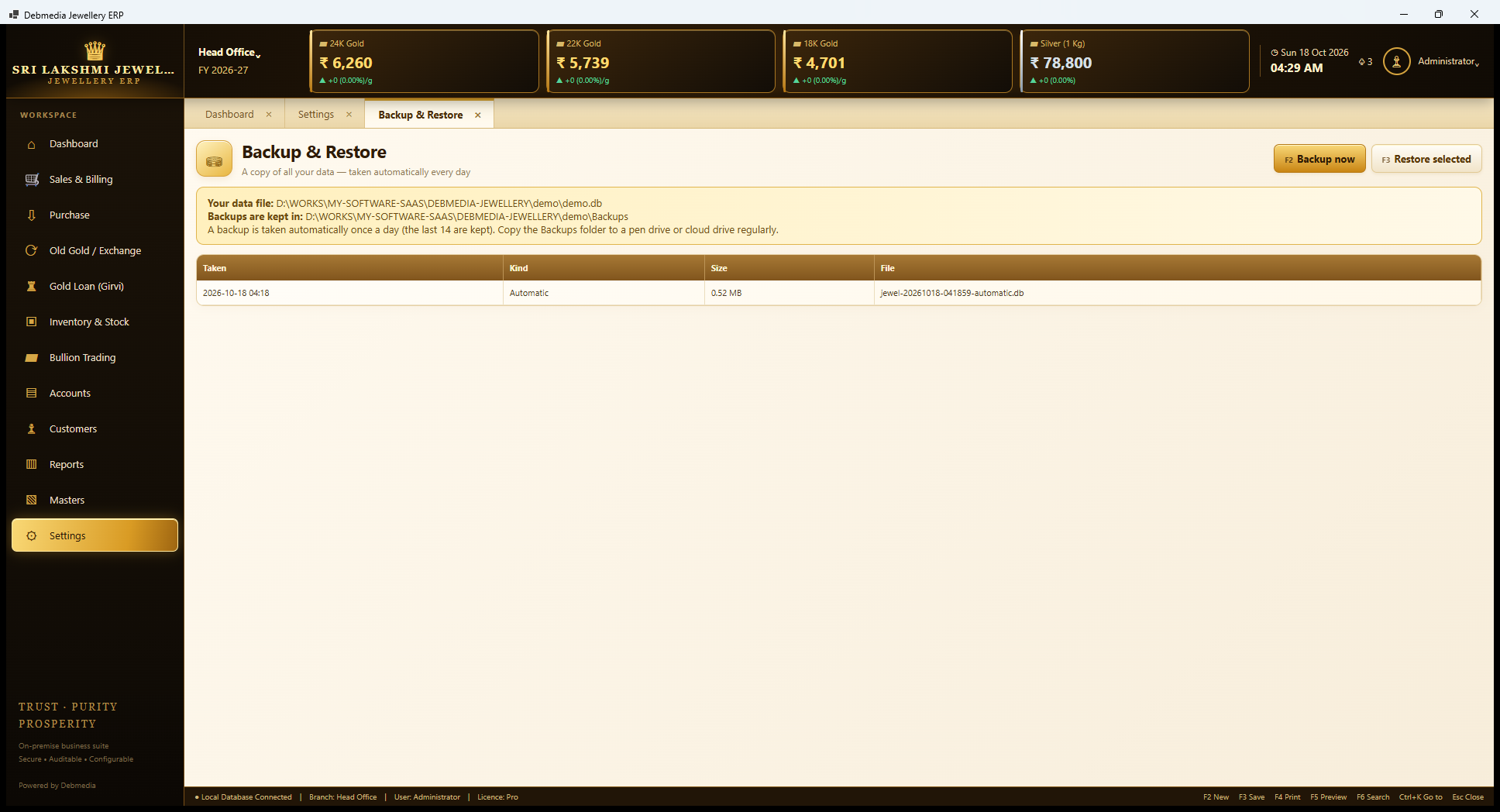
Backup and Restore protects the shop’s data, which is one file. A box states the data file and where backups are kept, and explains: a backup is taken automatically once a day, the last 14 are kept, and the Backups folder should be copied to a pen drive or cloud drive regularly. The grid shows each backup with when it was taken, its kind (Automatic or Manual), its size and file name. Here there is one automatic backup of 0.52 MB.
Backup now (F2) makes a manual backup and Restore selected (F3) puts one back, after first taking a safety copy of the current data, so that a wrong restore can itself be undone. Restoring needs the program to be restarted afterwards. The file paths in the screenshot are those of the development machine where the screenshots were taken.
Backup Created
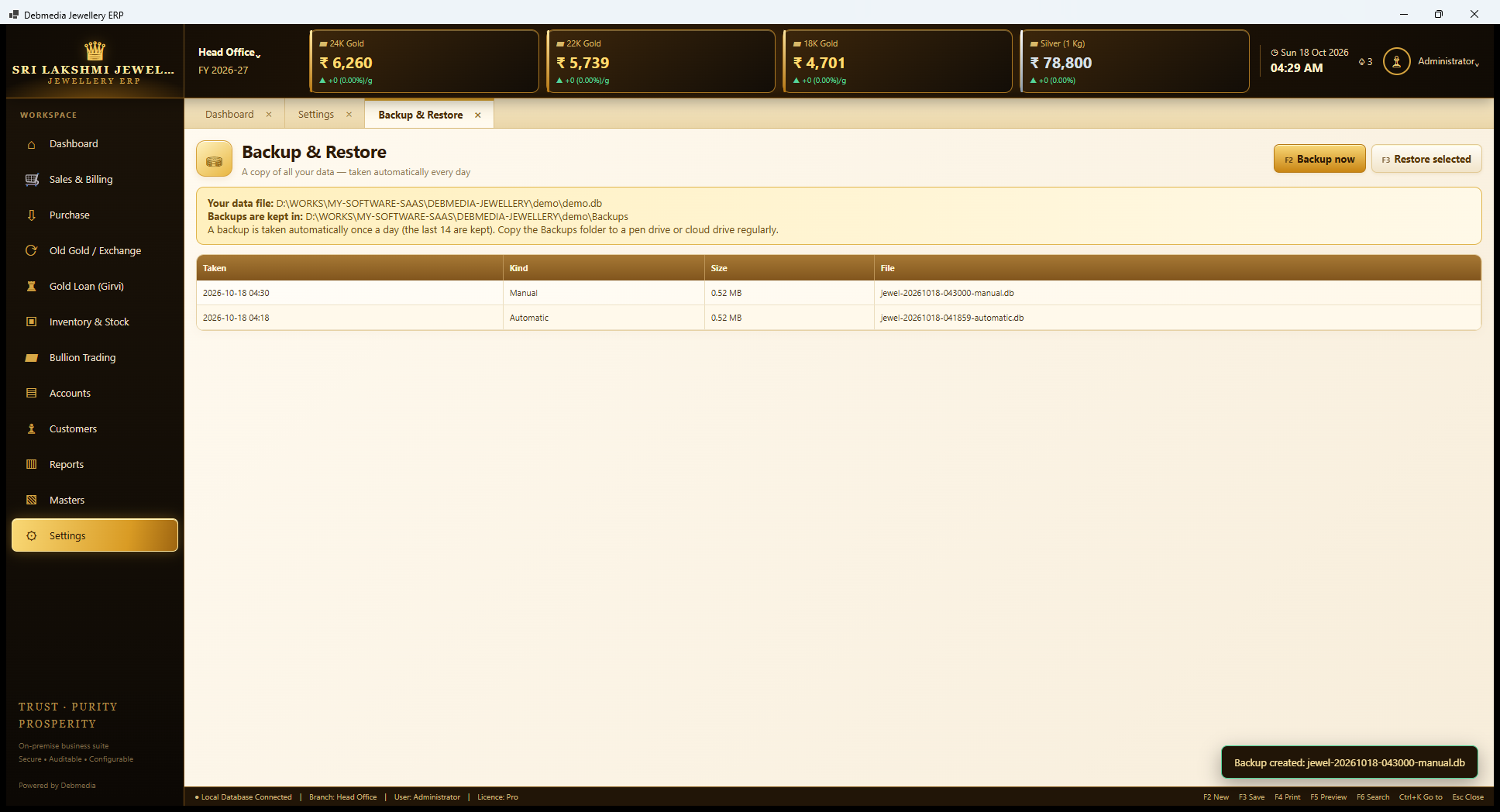
After pressing Backup now, a second line appears, a Manual backup, 0.52 MB, taken at 04:30, and a green message at the bottom right confirms “Backup created” with the file name. A copy is a complete database file, so it can be opened by the same program on another computer. That is also how a shop moves to a new computer: install the program there, restore the latest backup and carry on.
Audit Log
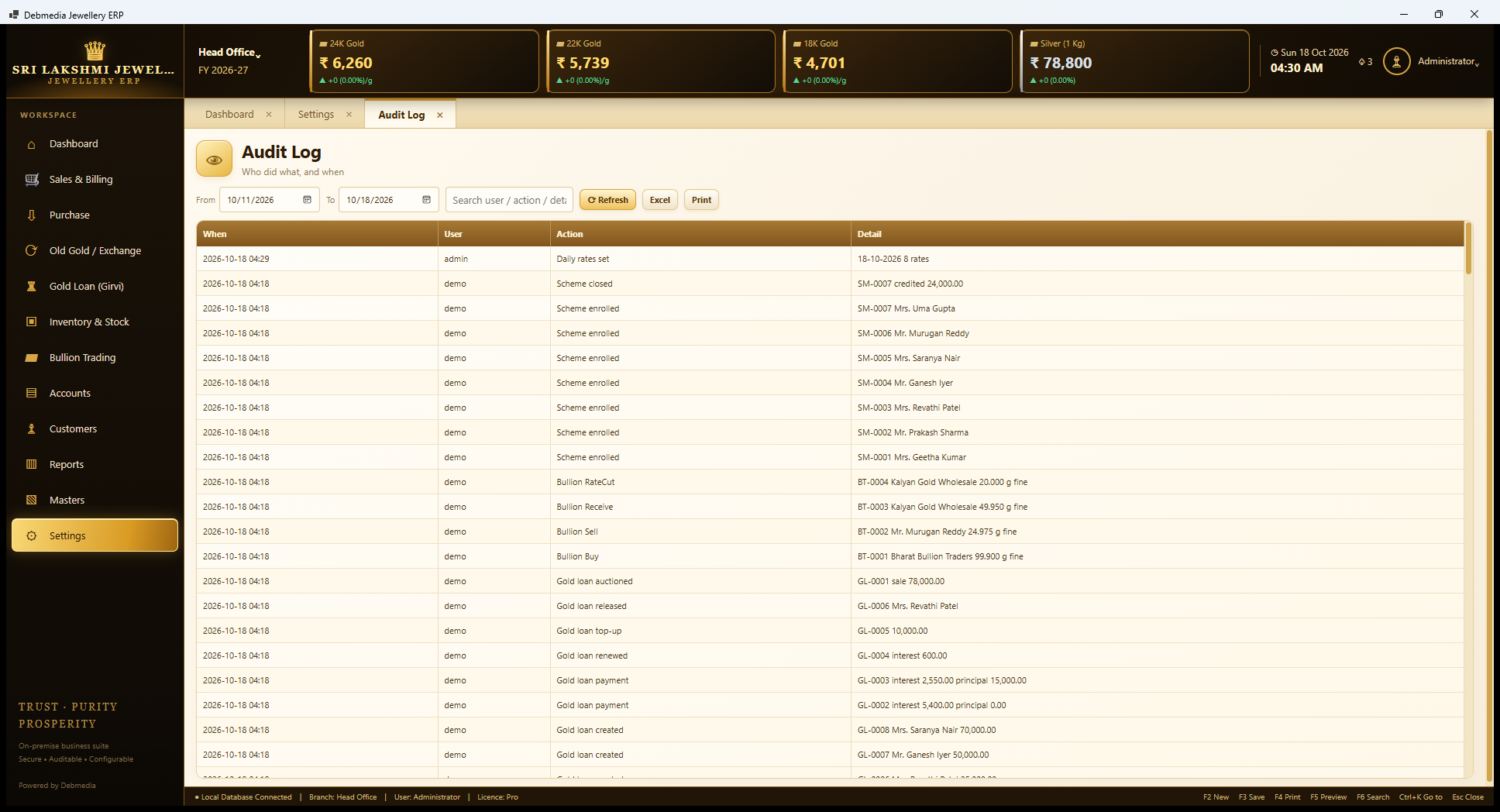
The Audit Log is the program’s memory of important actions. Filters set a date range and a search over user, action and detail, and the grid shows when, user, action and detail. In the sample, the first line is the administrator’s “Daily rates set” for 18 October, and below it come the events of the demonstration data, recorded under the user “demo”: scheme enrolments and a scheme closed with 24,000 credited, bullion buy, sell, receive and rate-cut, a gold loan auctioned for 78,000, a loan released, topped up and renewed, loan payments with their interest and principal split, and loans created.
On a real system every sale, cancellation, rate change and sign-in is here with the real user name. It is the answer to “who changed the rate?” and “who cancelled that bill?” Because entries cannot be edited, it is also what makes the shop’s own discounts and cancellations visible to the owner.
Licence and About
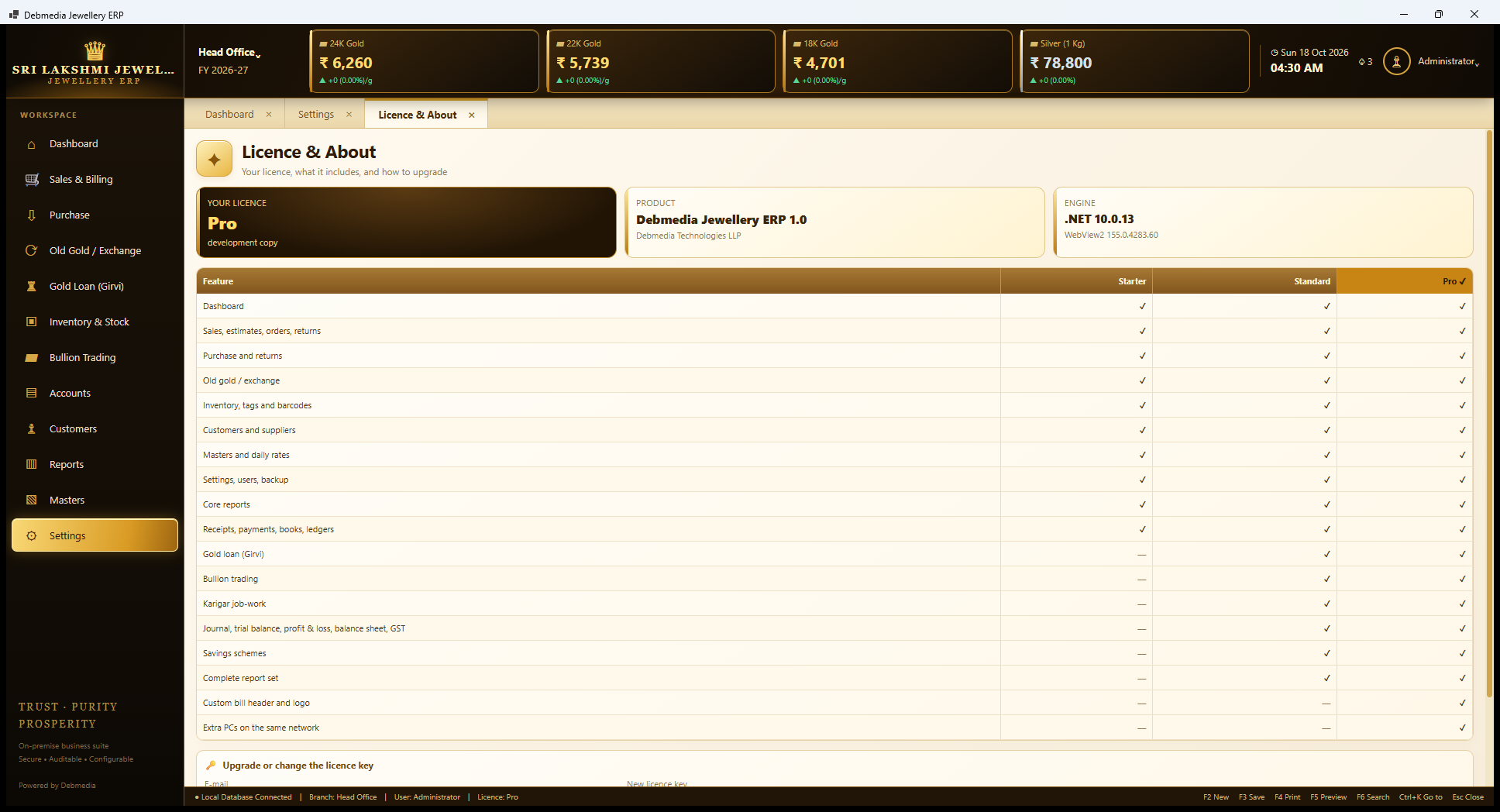
Licence and About shows what the shop is licensed for. Three cards state the licence (Pro, here “development copy”), the product (Debmedia Jewellery ERP 1.0, Debmedia Technologies LLP) and the engine (.NET 10 and the WebView2 version). A table lists the features by tier. Starter includes the dashboard, sales, estimates, orders and returns, purchase and returns, old gold, inventory with tags and barcodes, customers and suppliers, masters and daily rates, settings and backup, the core reports, and receipts, payments, books and ledgers. Standard adds gold loan, bullion, karigar job-work, journal, trial balance, profit and loss, balance sheet and GST, savings schemes, and the complete report set. Pro adds a custom bill header and logo.
The last row, “Extra PCs on the same network”, is ticked for Pro in the table, but it is not available yet. This edition runs on one computer per licence, and a network edition for several PCs has not been built. If you need several computers on one shop’s data today, this is not the right product yet. In the menu, a feature outside the licence shows a padlock with the name of the tier that includes it.
Upgrade the Licence Key
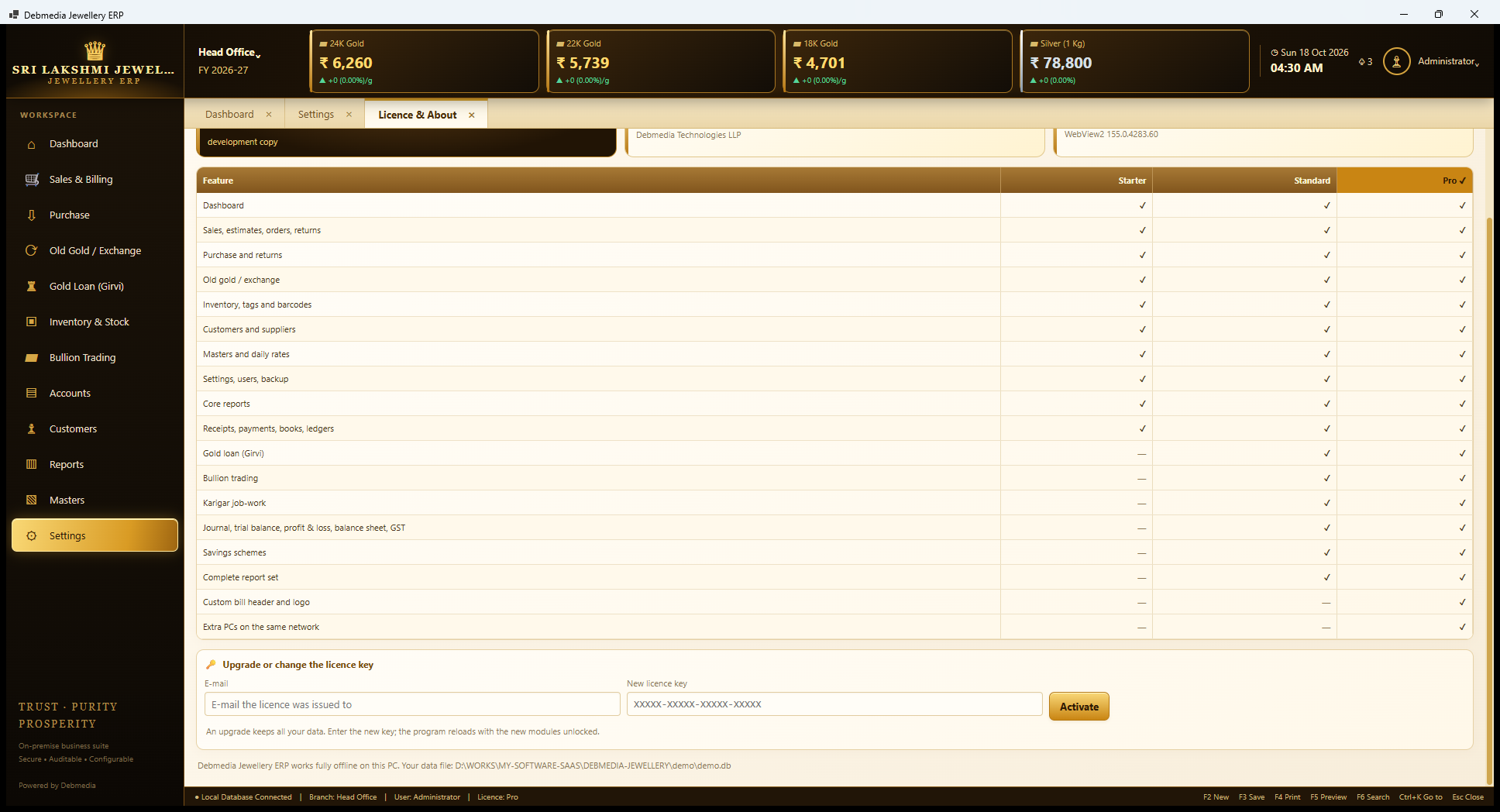
At the bottom of the screen is the upgrade box. The owner enters the e-mail the licence was issued to and the new licence key, in the form XXXXX-XXXXX-XXXXX-XXXXX, and presses Activate. A note says an upgrade keeps all your data: the program reloads with the new modules unlocked, with nothing reinstalled. A line at the foot repeats that the program works fully offline on this PC and shows the data file’s location.
The key is checked on the computer, with no server involved, and is tied to the e-mail and the tier. A shop can start on Starter and move up to Standard when it begins lending against gold, simply by entering a new key.
Lock Screen
When the shop’s computer is left idle for the time set in Preferences (10 minutes in the sample), the screen locks. It shows the crown, “Locked for Administrator. Enter the password to continue”, a password box and two buttons, Unlock and Sign out. Nothing on screen is visible behind it, so a customer standing at the counter cannot read figures from the shop’s books while the salesman has stepped away.
Unlocking needs the same user’s password, and signing out returns to the main sign-in screen, where another person can sign in. The setting is a number of minutes in Preferences, and zero means never lock.
One Sale Followed Through the Whole System
To see how the screens connect, follow Mrs. Pooja Das’s bill S-0117 on 18 October. The Dashboard lists it among the latest bills: two items, 41.918 grams of net weight and ₹2,82,866.
Before the bill, the day’s Daily Rates were set, 22K gold at ₹5,725 a gram. At the counter, Ramesh opened the Sales Invoice, chose the customer, scanned the tags and let the program work out the net weights, the metal value at the day’s rate, the making charge for each piece according to its Item Master setting, the wastage and the GST. The bill is made of metal value plus making plus stone, less any discount, then 3 percent GST, rounded to the rupee. She paid in full, and the Bill Register shows the row with paid equal to amount and no balance.
At the moment of saving, several things happened without anyone doing anything extra. The two tags left stock, so the Tags and Pieces list and the Stock Summary fell by two pieces. A balanced voucher, AV-00126, was posted, and the Day Book shows it for ₹2,82,866.02. Its lines debited cash or bank for the payment and credited Sales and the CGST and SGST output accounts, so the Cash Book or Bank Book moved, the Trial Balance and Balance Sheet moved, and the GST Summary collected figures grew. The sale appears in the Daily Sales Summary, in Salesman-wise Sales under Ramesh and in Item-wise Sales. It also counts towards Mrs. Das’s Customer Card under total purchases.
If the bill had been wrong, it would not be edited. It would be cancelled with a reason by a user who has the “Cancel bills and returns” permission, the tags would return to stock, the voucher would be reversed, and the Audit Log would hold both the sale and the cancellation. One entry, made once, shows up in every one of those places, and that is why the figures agree.
Under the Hood: Technology, Data and Security
Debmedia Jewellery ERP is an on-premise Windows application. The screens are HTML, CSS and JavaScript pages hosted in Microsoft Edge WebView2 inside a native Windows window, in the golden design shown here. The business logic, the reports and the database access are written in VB.NET on the current .NET platform in a core library. The screens talk to the core through a single API doorway, and the figures on a bill are calculated there rather than in the screen layer, so the screens cannot disagree with the books.
All data is kept in one SQLite file on the computer, which is the “data file” shown on the Backup screen. There is no server and no database engine to install. Backups are copies of that file, taken automatically once a day with the newest 14 kept, and a restore takes a safety copy of the current data first.
Every document posts to a double-entry ledger through one routine, which refuses an unbalanced entry. That is why the Trial Balance and the Balance Sheet show their “balanced” banners. Passwords are stored as salted PBKDF2 hashes with SHA-256, never in readable form. An account locks after eight wrong passwords, and the screen auto-locks after a set idle time. Roles with 21 individual permissions control what each user can do, and sales, cancellations, rate changes and sign-ins are written to an audit log that cannot be edited.
The licence is an offline key tied to an e-mail address and a tier. It is checked on the computer with no activation server, and an upgrade is done by entering a new key, with data kept.
The project ships with 246 automated checks of the business rules (gold arithmetic, GST, the books, girvi, bullion, schemes, licence tiers and the demo shop), which all passed when we ran them for this page, and 174 automated checks that open all 65 screens in a real WebView2 window and walk the main flows, which passed on the last recorded run. Automated checks show that the logic is consistent. They do not replace trying the program on your own shop’s work, which is why this page also lists what has not been tested.
Know Before You Decide: Scope and Current Limits
A product page should say what a program does not do as clearly as what it does. These are the limits of this first edition.
- One computer per licence. The Licence screen lists “Extra PCs on the same network” under Pro, but that network edition has not been built. Today it is one PC per shop, with all the data in one file.
- Hardware is untested. A barcode scanner works as a keyboard, so it should work, but a thermal or label printer, a weighing scale and a touch screen were not tested. Bills and labels print through the Windows print dialog at A4 or label size.
- No item pictures. The Item Master has no picture upload, and the Gallery shows tag cards rather than photographs.
- Rates are typed by hand. There is no live internet rate feed; the shop types the day’s rates once each morning.
- No GST filing. The GSTR-1 style register, HSN summary and GST payable summary are reports to help prepare a return. The program does not file anything and does not produce portal JSON files.
- One database, several branches. Stock can be moved between branches in the same file, but there is no synchronisation between separate computers or shops.
- Dates follow Windows. Date boxes follow the regional setting of the Windows computer.
- Sample data oddities. The sample shop has a few quirks that a real shop would not see, such as tagged stock without a category, a negative 22K loose-metal balance caused by the sample’s karigar issues, one loan with negative interest after an overpayment, and savings schemes all overdue because of the sample’s dates. The Stock Audit screen also shows its “Past audits” heading twice, a cosmetic fault.
- Installer. A ready-to-copy package folder and a zip are produced by the publish script, and an Inno Setup script for a customer installer is written, but it has not yet been compiled into a setup program.
If one of these is a deal-breaker for your shop, it is better to know now than after a purchase.
Who Debmedia Jewellery ERP Is For
It suits an owner-run jewellery shop with one billing computer, a showcase of tens or hundreds of tagged pieces, a few salesmen, and the mix of businesses that Indian jewellers actually run: retail sales with making charges, old gold, karigar job-work, a girvi lending book, and perhaps some bullion or a savings scheme. It suits a shopkeeper who wants one program for all of it, with the books done properly and without a monthly subscription or an internet dependency.
It is a good fit if you want to see your gold in fine grams, know exactly what is with each karigar, have the day’s rates feed every bill, have the program warn the cashier at the cash limit, and trust that the cash book, the stock and the GST summary agree.
It is not the right tool today for a chain with several shops that need to see each other’s stock live, a business that needs a networked second billing counter, or one that needs automated GST return filing. For those, wait for a later edition or choose a networked cloud system.
Frequently Asked Questions
Do I need the internet?
No. Billing, printing, backups and reports all work without it. The only thing that needs typing each day is the metal rate, because there is no live feed.
Where is my data stored?
In one database file on your own computer, with backups in a folder beside it. The Backup and Restore screen shows the exact paths. Nothing is sent to Debmedia or to any cloud.
Can I try it first?
Use the Download Now button at the top of this page to request a trial. Requests are answered by hand with the download link, to the e-mail address you give.
How does the program handle making charges and wastage?
Each item in the Item Master has a default making charge, either per gram, as a percent of metal value or as a fixed amount per piece, and a default wastage percent. They are offered on the invoice and can be changed for a particular bill.
Is GST built in?
GST is handled through the GST Codes master, with the tax split into CGST and SGST or IGST by the customer’s state. The rates are data you can edit, not fixed in the program, and old bills keep the rate they were made with. The program gives you the registers and summaries; it does not file returns. Please confirm your tax treatment with your accountant.
Can it handle old gold and exchange?
Yes. Old gold can be bought over the counter, with melting loss and tested touch, or taken in exchange on a sales bill. It sits in an old-gold stock by purity until you melt it into bullion.
Does it manage girvi (gold loans)?
Yes, in the Standard and Pro tiers. A loan has pledged items, monthly simple interest on the outstanding principal, part payments, renewal, top-up, release and auction, a statement, and a list of interest due for notices.
What is a karigar balance?
The fine gold given to a goldsmith less the fine gold he has returned as finished work and allowed wastage. It is kept in fine grams, and the labour owed to him is kept in rupees.
Can I cancel or edit a saved bill?
A saved bill is not edited. It is cancelled with a reason, which returns the pieces to stock and reverses the books, and a correct bill is made. Both the original and the cancellation stay in the audit log. A bill with a return against it needs the return cancelled first.
Does it print barcode labels?
Yes, as 50 by 25 millimetre labels with a Code 128 barcode, through the Windows print dialog. A dedicated label printer has not been tested, so try yours first.
Can two people use it at once?
Not on separate computers. This edition is one PC per licence. A network edition for extra PCs is listed in the Pro tier but has not been built yet.
How do I prevent staff giving discounts or changing the rate?
Give each person a login and a role. Giving discounts, changing the metal rate on a bill and cancelling bills each have their own permission, and the audit log records what was done and by whom.
What are the cash limit rules?
Preferences holds a cash limit per bill, ₹2,00,000 by default for section 269ST, and a choice to warn the cashier or refuse at that point. PAN or Form 60 is asked for from a bill value you set, also ₹2,00,000 by default.
What if I forget the password?
Another user with the “Manage users and roles” permission, normally the owner, uses Reset password on the Users screen. An account locks after eight wrong attempts and the owner can reset it too.
What if my computer fails?
Install the program on another computer and restore your latest backup. This is why copying the Backups folder to a pen drive or cloud drive matters.
Which licence tier do I need?
Starter covers sales, purchase, old gold, stock and tags, customers, masters, settings, the core reports and receipts, payments and books. Standard adds girvi, bullion, karigar job-work, journal and contra, the trial balance, profit and loss, balance sheet and GST, savings schemes and all reports. Pro adds a custom bill header and logo. You can upgrade later by entering a new key, with no data loss.
In Summary
Debmedia Jewellery ERP gives a jewellery shop one program for the whole trade: billing by weight, purity, making and wastage, tagged stock with barcodes, old gold, karigar job-work in fine grams, girvi lending, bullion, savings schemes and double-entry books that agree with every screen. It runs offline on one Windows computer, keeps everything in one file that backs itself up every day, and records cancellations, discounts, rate changes and sign-ins in an audit log. It is honest about what it is not: not a multi-PC system yet, not tested on real label printers or scales, not a GST filing tool, and with a sample shop that shows a few oddities as plainly as its good numbers. If your shop is one counter and one computer, use the Download Now button at the top of this page to request a trial.
Choose Your Plan
Start free, white-label it, get the full source, or let us build a custom version just for you.
- ✓ Full feature preview
- ✓ No credit card required
- ✓ Works right out of the box
- ✓ Your brand, your name
- ✓ Sell to unlimited clients
- ✓ Full installer & assets
- ✓ Complete source code
- ✓ Modify anything
- ✓ Commercial use rights
- ✓ Any modules you need
- ✓ Tailored to your business
- ✓ Agreed price, no surprises