Debmedia Cut
Fast video editor and cutter for Windows — trim, merge and export in minutes
Debmedia Cut is a lightweight desktop video editor for Windows. Trim clips, merge videos, add text overlays and transitions, adjust audio, and export in any format — fast, simple and without a watermark.
See Debmedia Cut in Action
A clean, modern interface designed for real-world use.
Debmediacut screen 01 screenshot
Debmedia Cut is a free, local Windows video editor built for creators who want speed and simplicity without a subscription. Import your clips, drag them to a multi-track timeline, cut and arrange, add text overlays, color filters, audio, and export — all on your PC with no cloud required. Powered by FFmpeg for rock-solid export quality, Debmedia Cut is in active development with new features being added regularly.
“Debmedia Cut is completely FREE forever!” — as shown in the app’s own status bar.
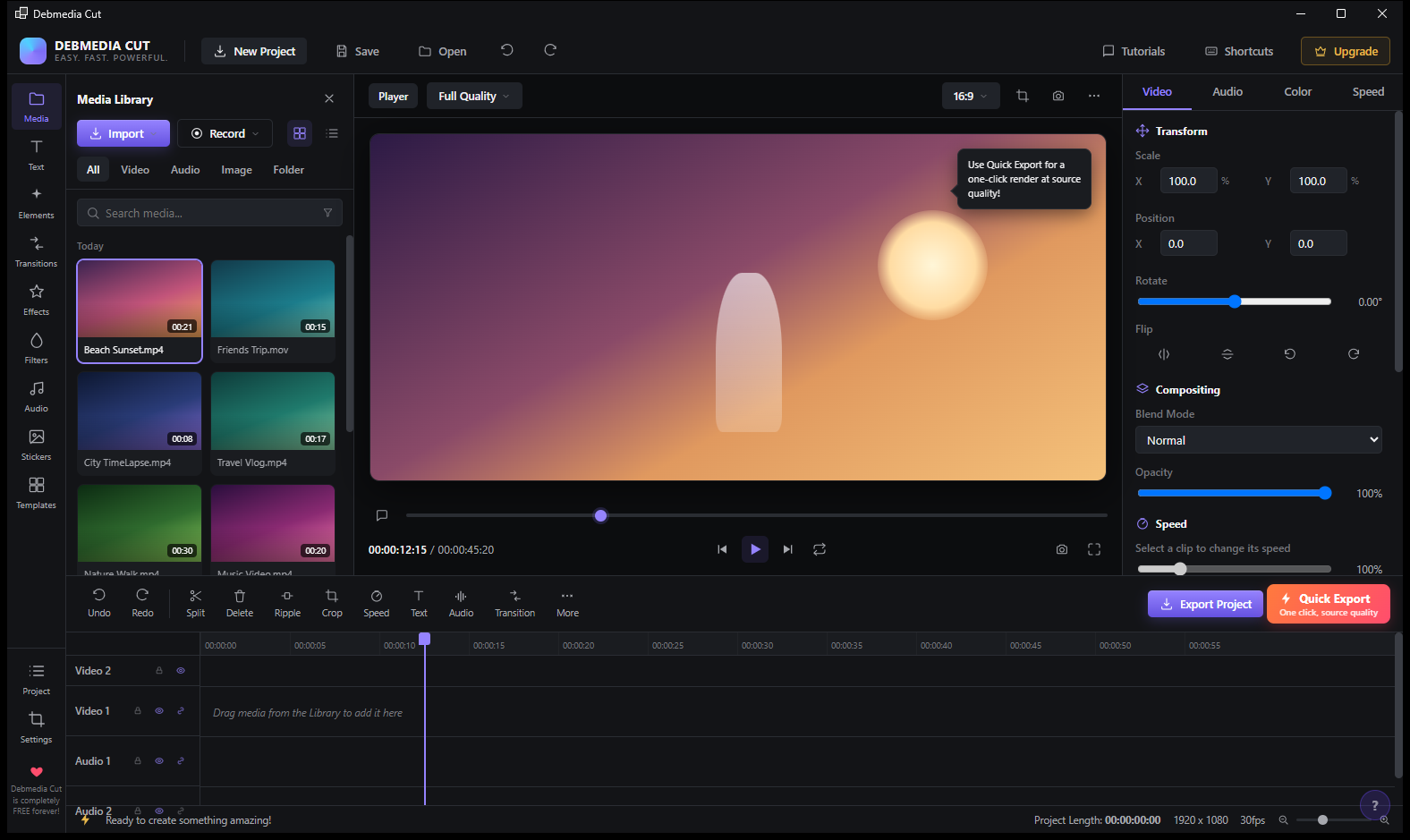
Screen 1 — Main Editor Overview
The full editor opens with everything visible at once. The Media Library (left panel) holds your imported clips — thumbnails show Beach Sunset (0:21), Friends Trip (0:15), City TimeLapse (0:08), Travel Vlog (0:17), Nature Walk (0:30), and Music Video (0:20) as demo content. The video preview fills the center with a 16:9 Full Quality view showing the current frame. Below the preview is a standard transport bar with playhead position (00:00:12:15 / 00:00:45:20), playback controls, and a scrubber.
The timeline at the bottom shows three tracks: Video 2, Video 1, and Audio 1 (plus Audio 2 below). The toolbar above the timeline has all essential edit operations: Undo, Redo, Split, Delete, Ripple, Crop, Speed, Text, Audio, Transition, and More. The right properties panel shows Video tab with Transform (Scale X/Y 100%, Position, Rotate, Flip), Compositing (Blend Mode: Normal, Opacity 100%), and Speed. Two export buttons sit at the bottom right: Export Project (full options) and Quick Export (one-click render at source quality). A tooltip confirms: “Use Quick Export for a one-click render at source quality!”
Screen 2 — Import Media Browser
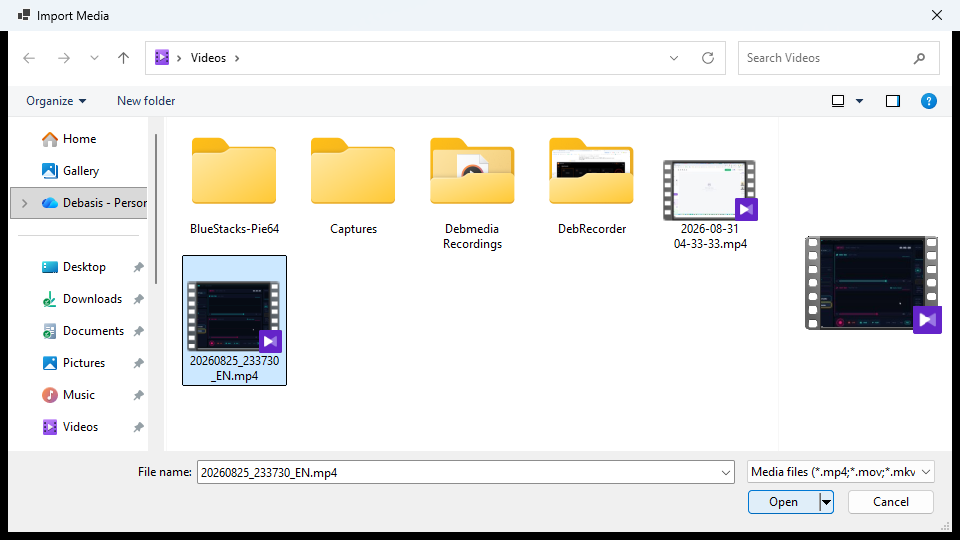
Clicking Import opens a standard Windows file browser pointing to your Videos folder. Folders visible include BlueStacks-Pie64, Captures, Debmedia Recordings, and DebRecorder. MP4 files are shown with small thumbnail previews — a recording file 20260825_233730_EN.mp4 is selected. The filter reads Media files (*.mp4;*.mov;*.mkv) — supporting the most common video formats for import. A file’s thumbnail preview appears on the right side of the dialog before you confirm.
Screen 3 — Media Library Populated
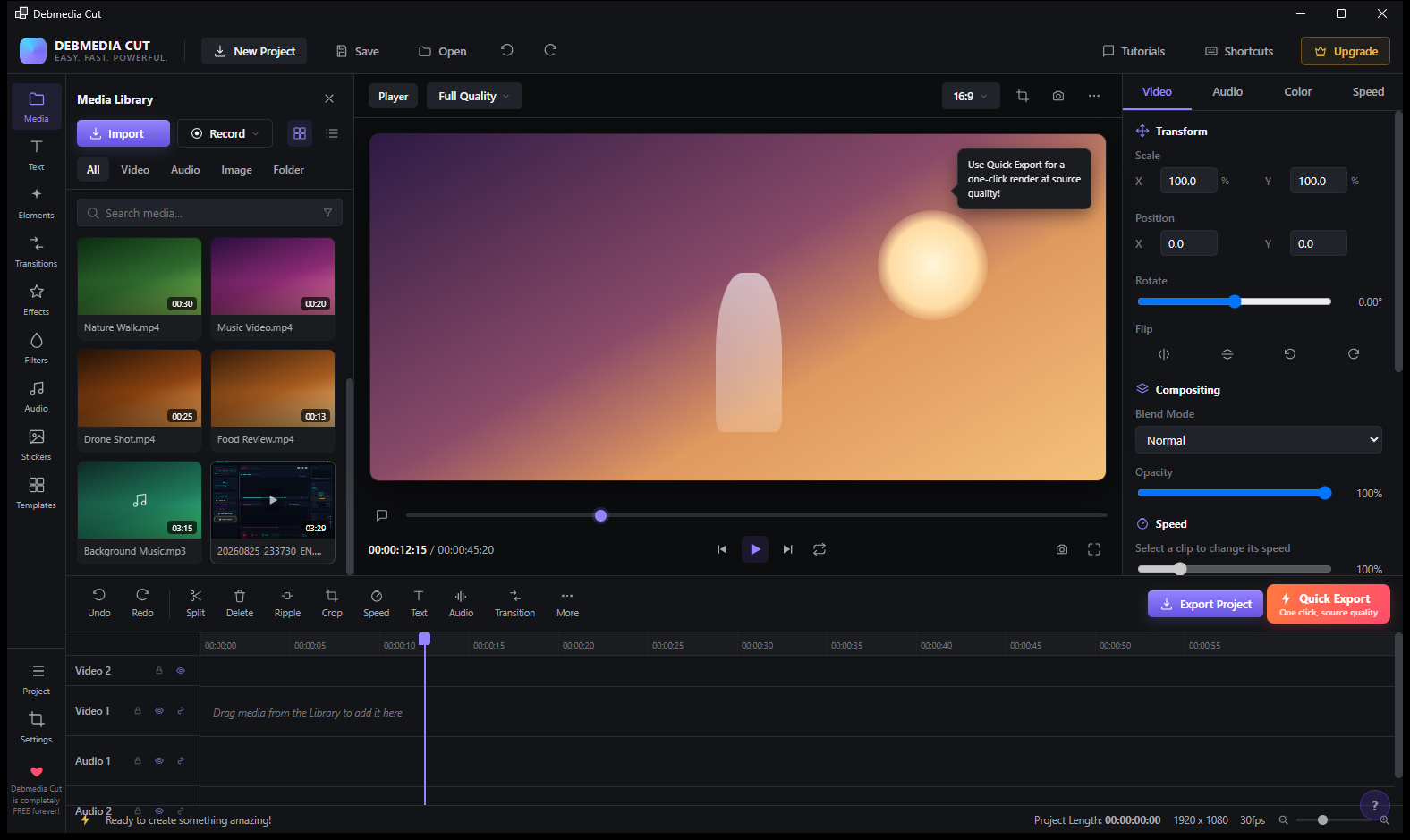
After importing additional files, the Media Library scrolls to show a richer set of assets: Nature Walk (0:30), Music Video (0:20), Drone Shot (0:25), Food Review (0:13), Background Music (MP3, 3:15), and the imported recording file (20260825_233730_EN, 3:29). The library handles both video and audio files, filtering by All / Video / Audio / Image / Folder tabs at the top. Assets are organized in a two-column grid with thumbnail previews and duration labels.
Screen 4 — Video Clip in Timeline
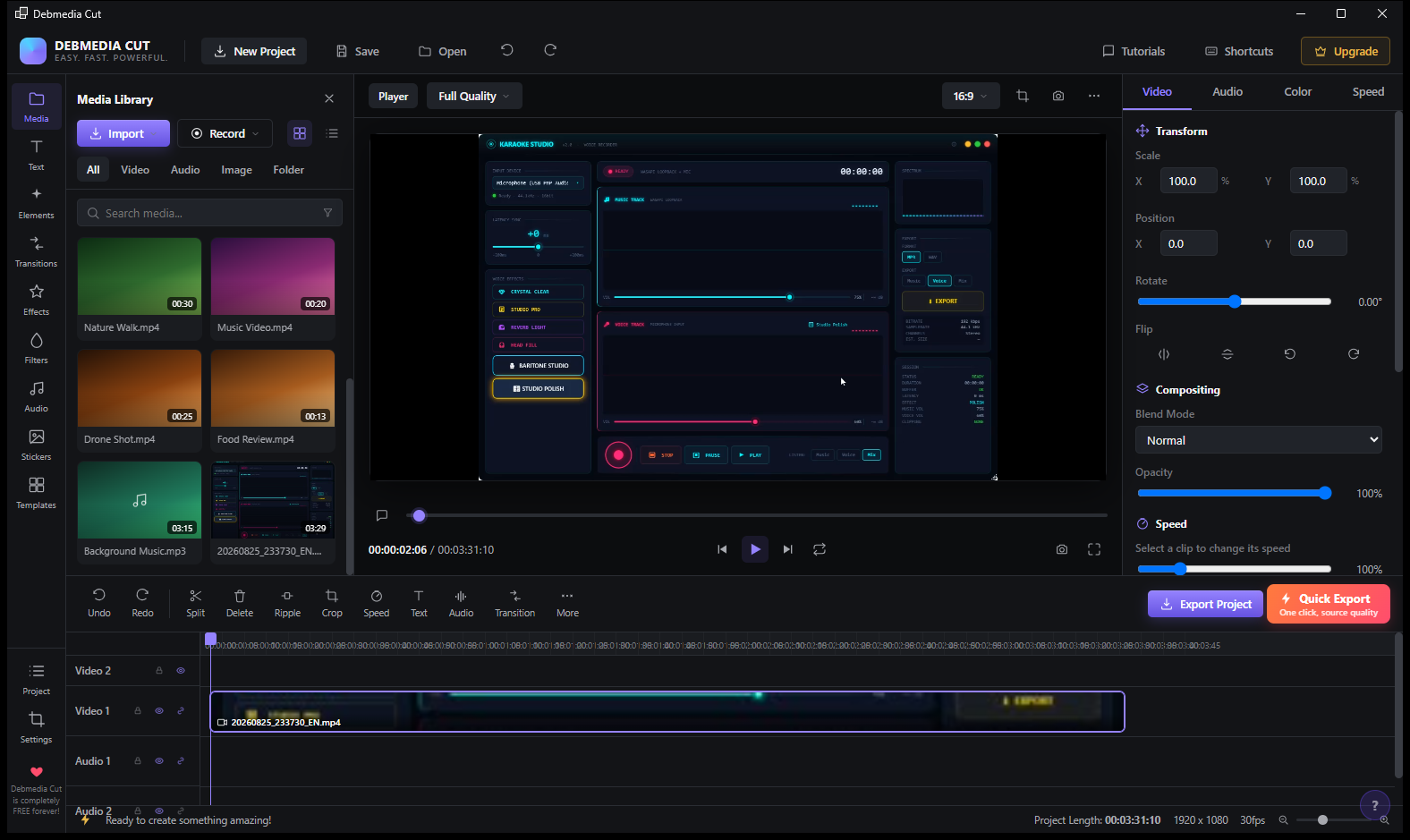
The imported recording (20260825_233730_EN.mp4, 3:31:10 duration) has been dragged into the Video 1 track on the timeline. The track block spans the full project length and shows the clip’s filename. The preview frame at playhead 00:02:06 shows the content of the recording — a screen capture of the Karaoke Studio application. The timeline ruler at the top shows the full 3:31 duration of the project. The project length and resolution (1920 × 1080, 30fps) are confirmed in the bottom status bar.
Screen 5 — Playback Active, Quick Guide
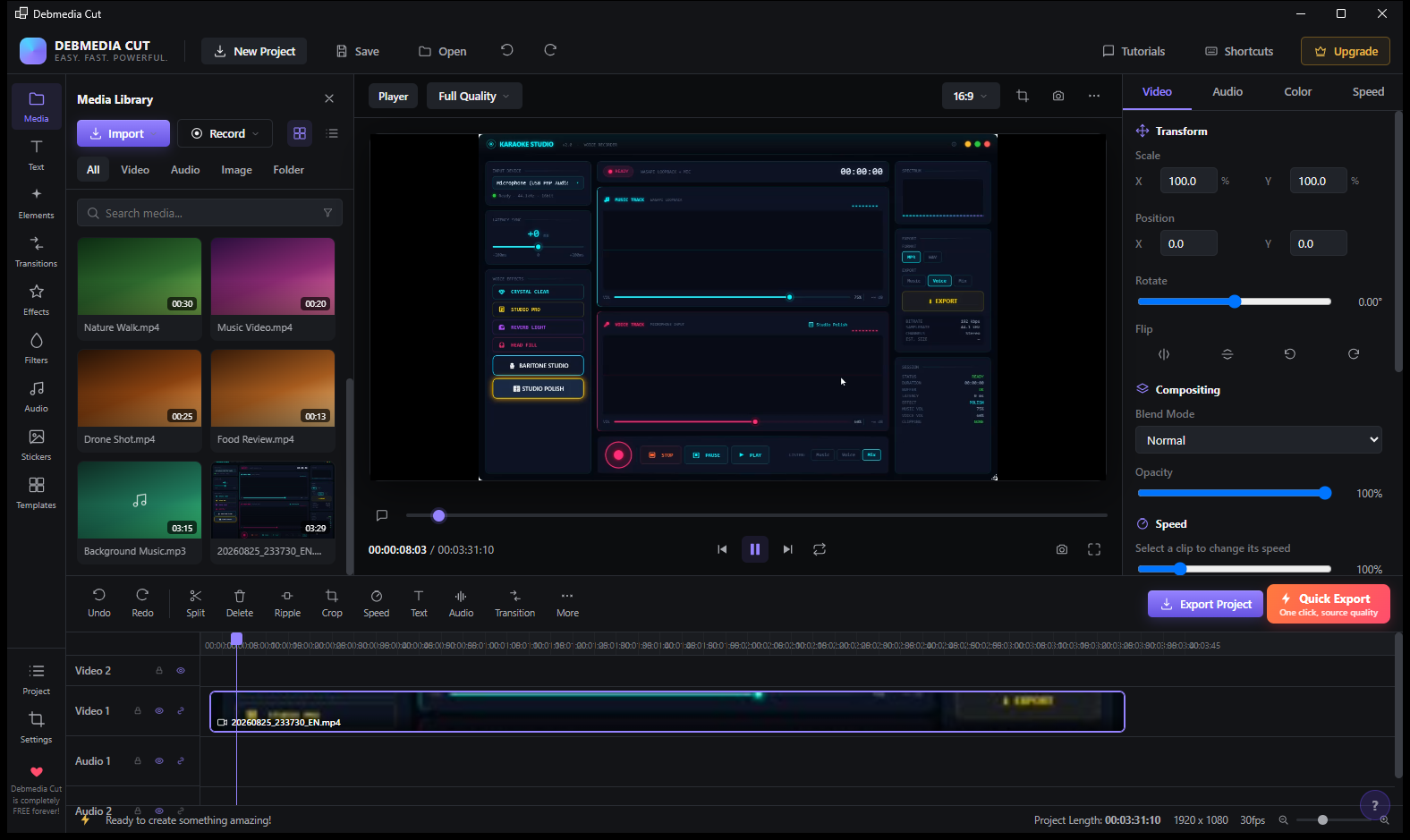
With the video playing, the transport bar shows the pause icon (the play button switches to pause during playback) and the current time reads 00:00:08:03. The Quick Guide in the right panel walks new users through the five steps to make a video: 1 Import your media → 2 Drag to timeline to edit → 3 Right click clip to cut → 4 Click Quick Export to render instantly → 5 Or click Export Project for more options. A Got it! button dismisses the guide. This contextual help appears the first time you load a clip into the timeline.
Screen 6 — Text Styles Panel
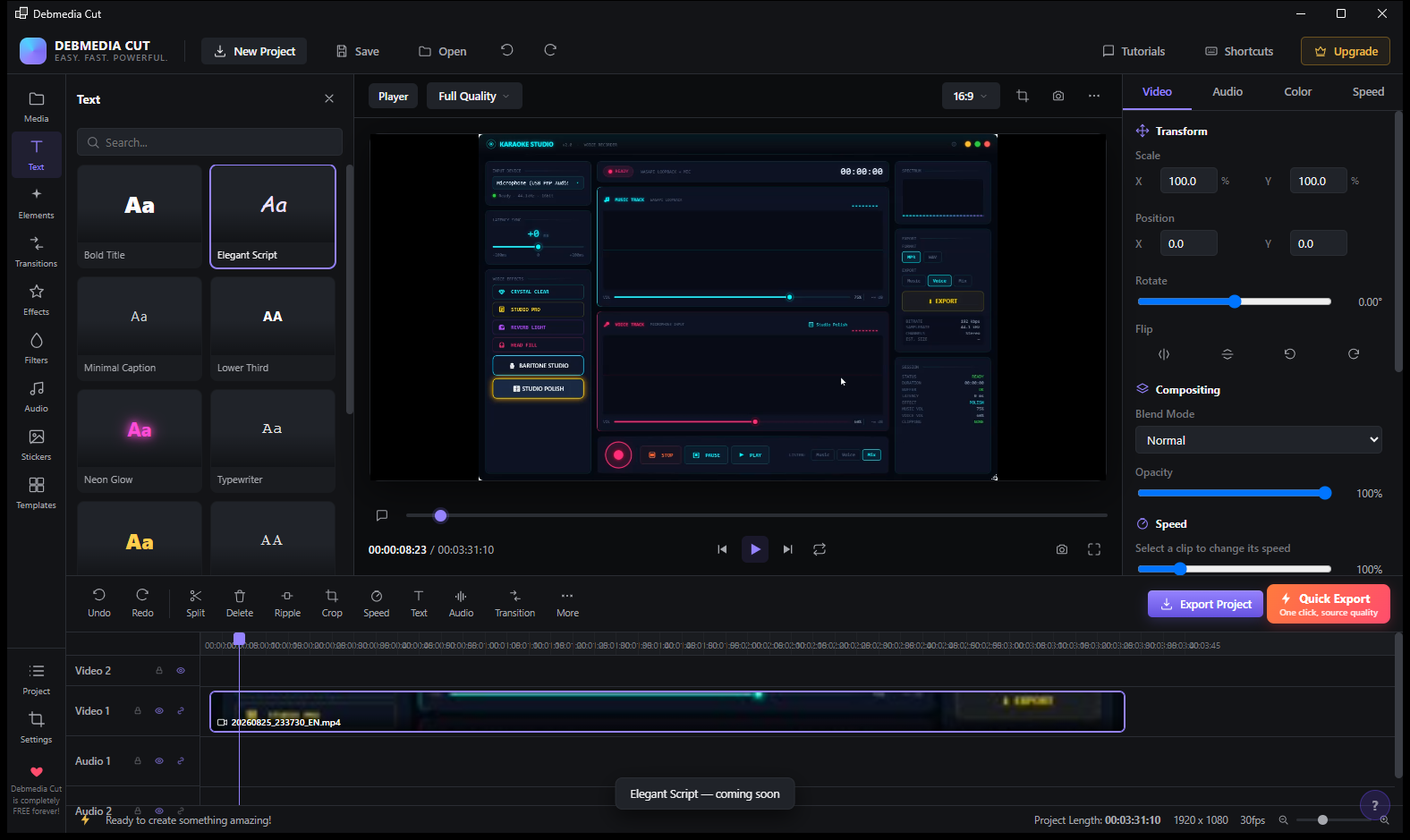
The Text panel (accessed via the Text toolbar button or the T icon in the sidebar) shows a selection of caption and title styles: Bold Title, Elegant Script (selected, with a blue highlight border), Minimal Caption, Lower Third, Neon Glow, and Typewriter. A status note at the bottom reads “Elegant Script — coming soon”, indicating that while all styles are shown in the library, some are still being finalized. Selecting an active style and clicking the video will overlay a text element that can be positioned, styled, and timed on the timeline.
Screen 7 — Color Filters
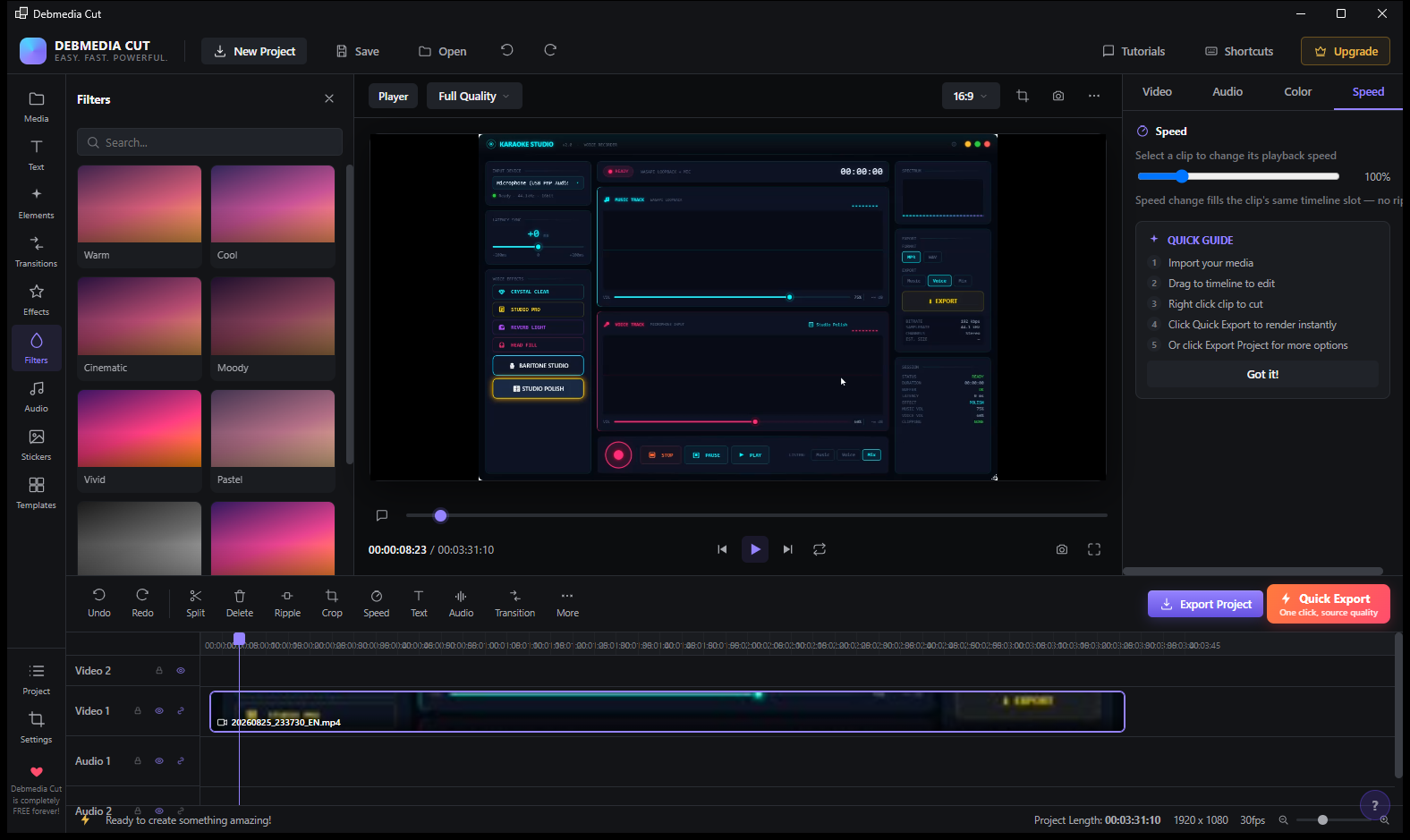
The Filters panel displays a visual gallery of color grading presets: Warm, Cool, Cinematic, Moody, Vivid, Pastel, and more below. Each is shown as a gradient thumbnail so you can quickly judge the look before applying. Click any filter to apply it to the selected clip on the timeline — the preview updates immediately. The Speed properties panel remains visible on the right for clip speed adjustments.
Screen 8 — Built-in Audio Library
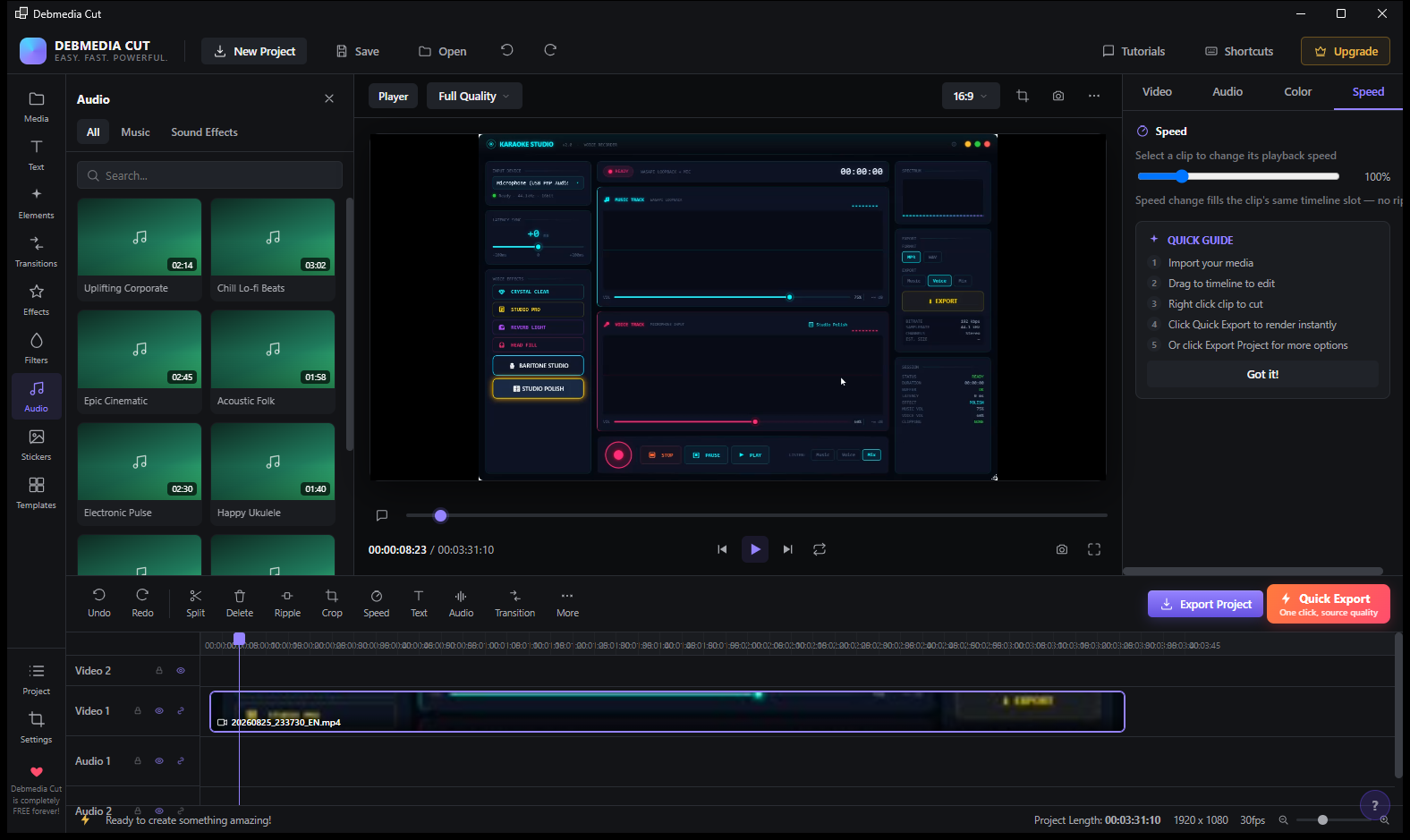
The Audio panel provides a built-in royalty-free music library, organized into All / Music / Sound Effects tabs. Music tracks visible include: Uplifting Corporate (2:14), Chill Lo-fi Beats (3:02), Epic Cinematic (2:45), Acoustic Folk (1:58), Electronic Pulse (2:30), and Happy Ukulele (1:40). Drag any track from the library directly to the Audio 1 or Audio 2 track on the timeline to add background music without leaving the editor.
Screen 9 — Audio Library (Continued)
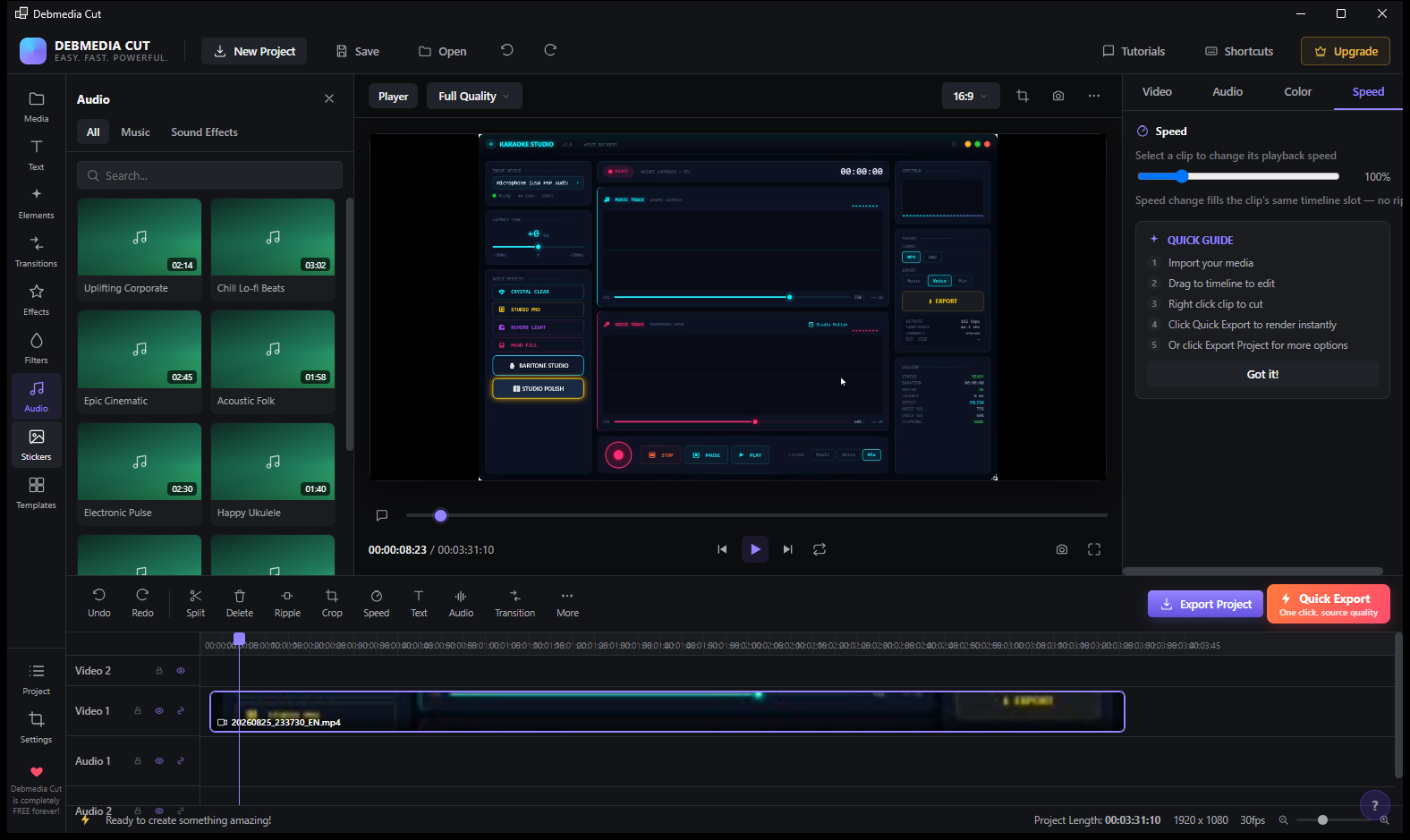
A second view of the Audio library shows the same set of built-in tracks — confirming the panel stays visible and scrollable as you browse your music options. The Stickers panel icon is highlighted in the left sidebar, while the audio panel content remains in view. The library grows as Debmedia Cut adds more music and sound effect packs in future releases.
Screen 10 — Templates
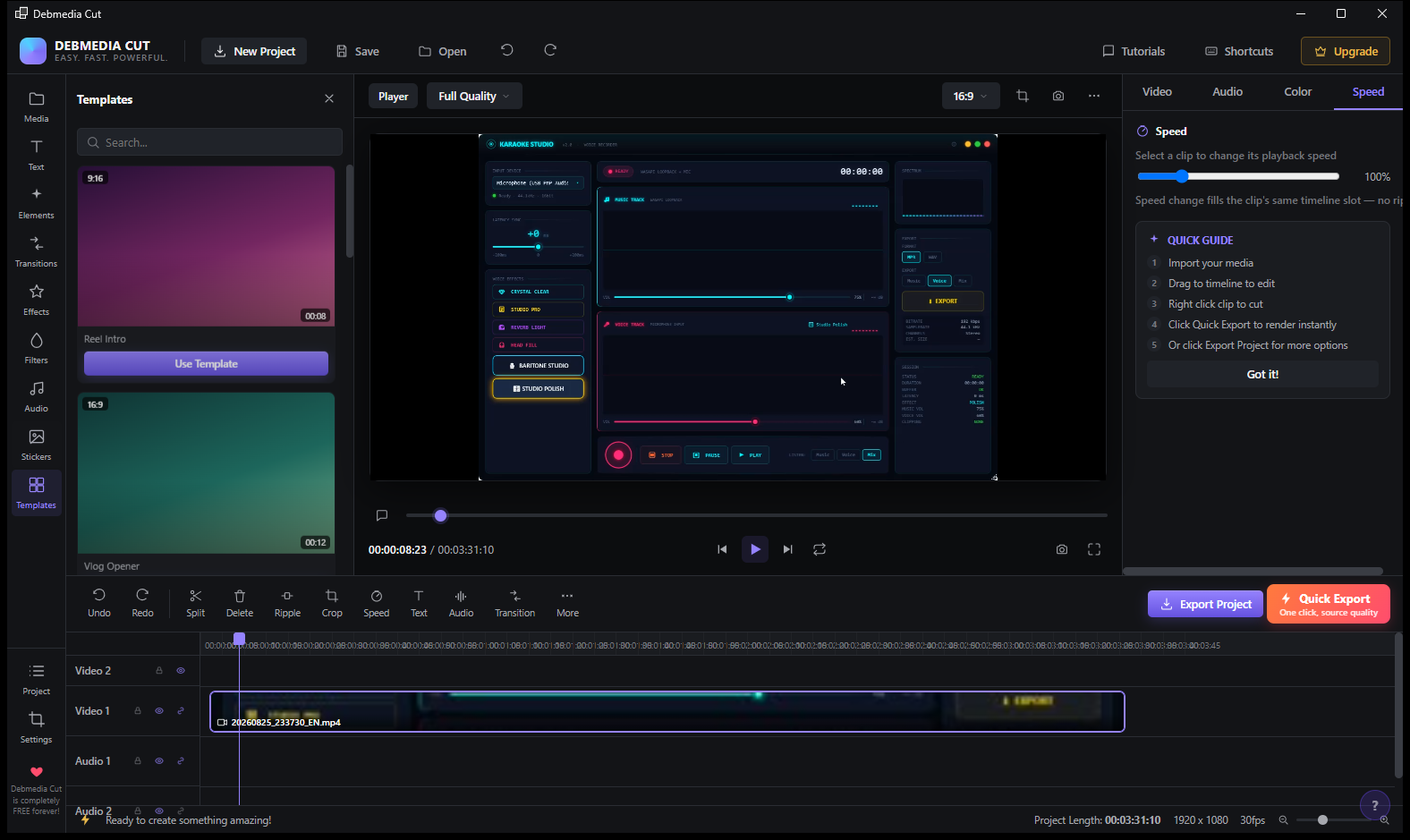
The Templates panel lets you start from a pre-built video structure. Two templates are available: Reel Intro (9:16 vertical format, 0:08 duration — optimized for Instagram and TikTok Reels) and Vlog Opener (16:9 widescreen, 0:12 duration). Clicking Use Template loads the template’s track layout and placeholder clips into the timeline — giving you a starting structure to drop your own footage into, rather than starting from a blank project.
Screen 11 — Templates (View Detail)
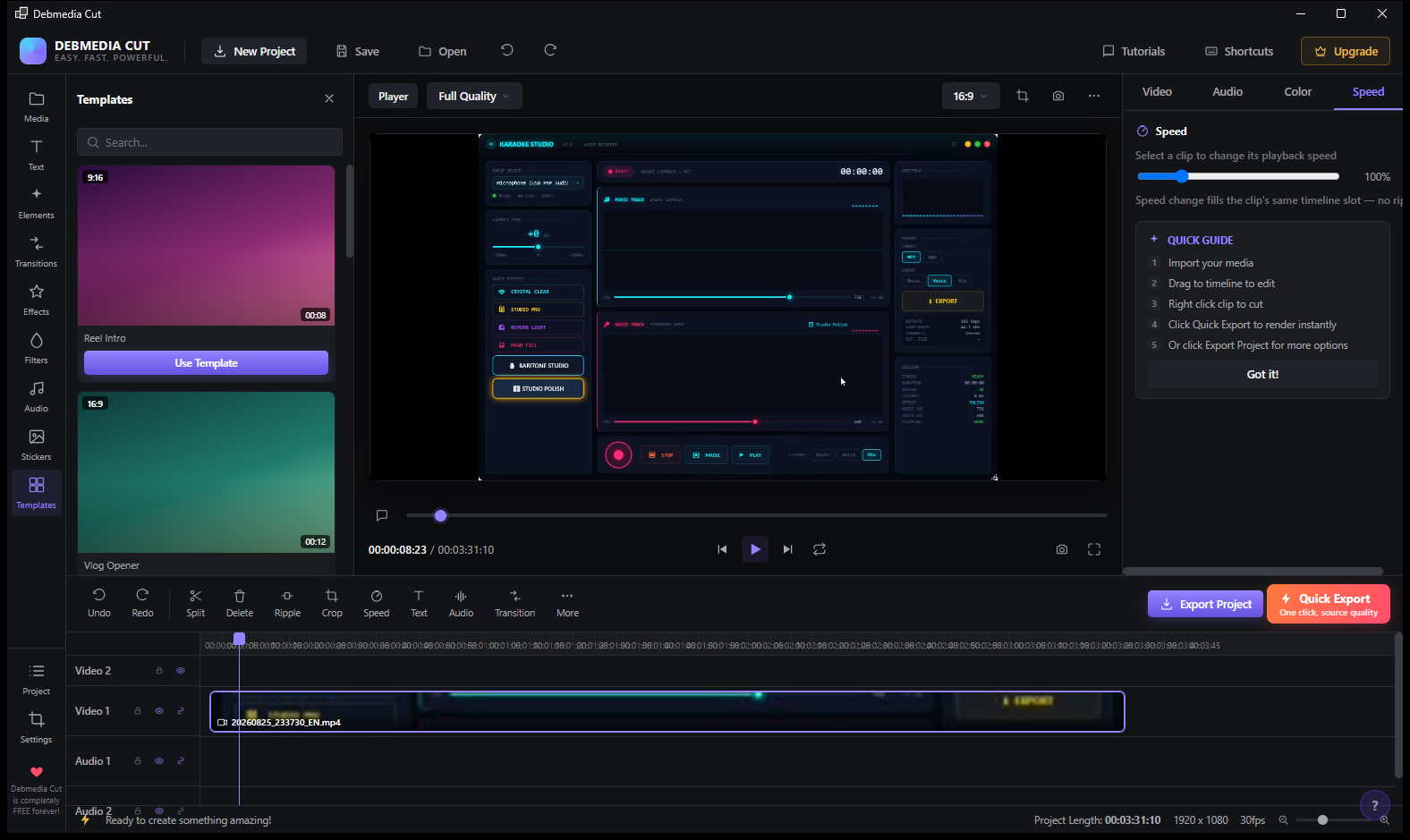
A closer look at the Templates panel confirms both options: the Reel Intro thumbnail shows the vertical 9:16 gradient card (tagged as 9:16 in the top left corner), and the Vlog Opener is displayed in the standard 16:9 widescreen format. Both have duration labels (8s and 12s respectively). The library will grow with additional templates as the app matures.
Screen 12 — Project Panel and Export Start
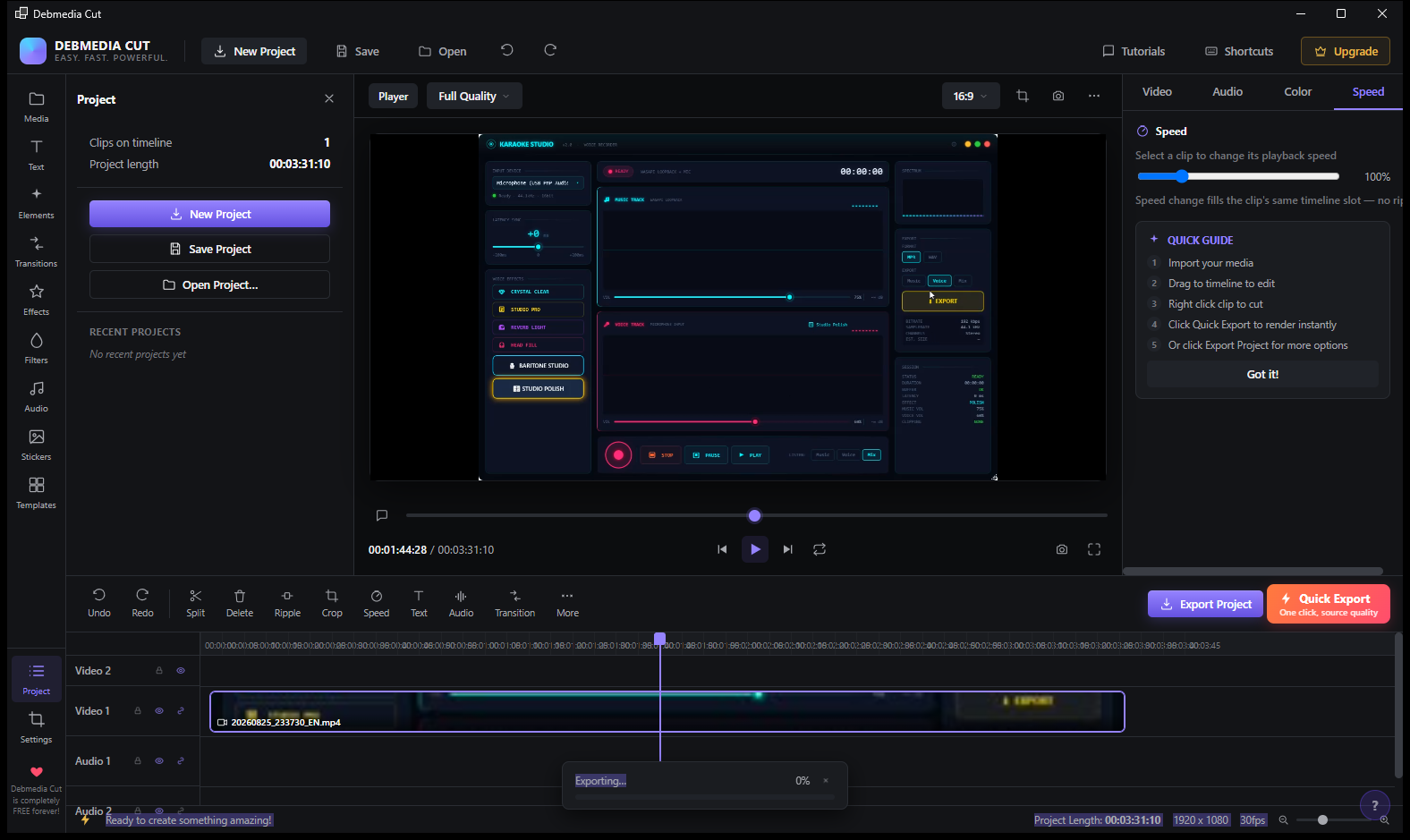
The Project panel (Project icon in the far-left sidebar) shows a summary of the current state: Clips on timeline: 1, Project length: 00:03:31:10. Three action buttons here — New Project, Save Project, Open Project… — plus a Recent Projects section (empty for this first session). At the bottom, the export progress bar has appeared: Exporting… 0% with a cancel button. The export was triggered by clicking the highlighted Export button visible in the preview pane.
Screen 13 — Settings and FFmpeg Attribution
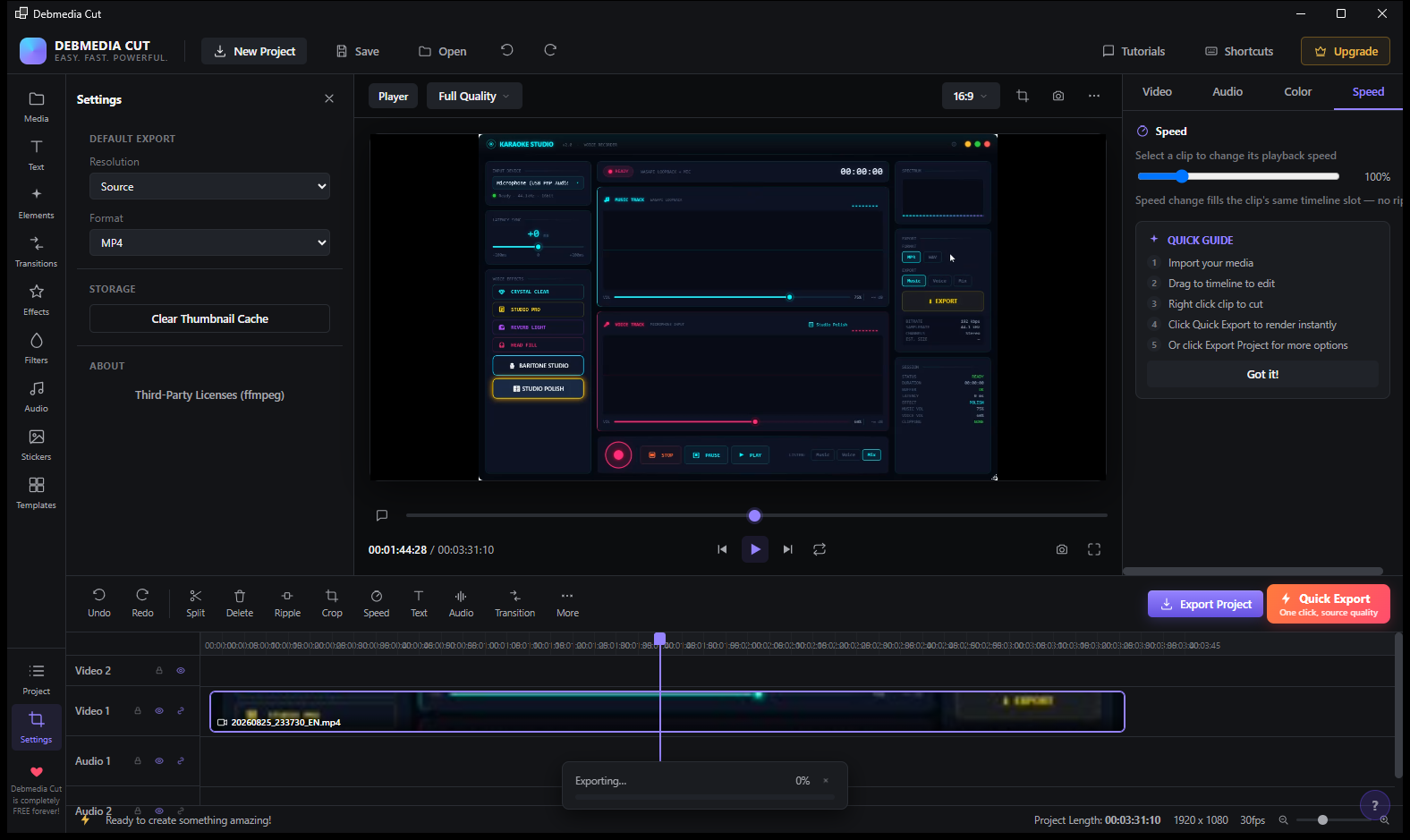
The Settings panel is organized into three sections. DEFAULT EXPORT: Resolution defaults to Source (match input resolution), Format defaults to MP4. Both are changeable from dropdowns. STORAGE: a Clear Thumbnail Cache button frees up disk space used by the Media Library previews. ABOUT: a Third-Party Licenses (ffmpeg) link confirms that Debmedia Cut uses FFmpeg as its rendering engine, properly licensed. The export progress bar continues at 0% in the background, confirming the export ran concurrently while settings were reviewed.
Key Features at a Glance
- Multi-track timeline — Video 2, Video 1, Audio 1, Audio 2 tracks for layered editing
- Media Library — import and organize video, audio, and image assets
- Quick Export — one-click render at source quality with no dialog
- Export Project — full export settings with resolution and format control
- Text styles — Bold Title, Minimal Caption, Lower Third, Neon Glow, Typewriter, Elegant Script
- Color Filters — Warm, Cool, Cinematic, Moody, Vivid, Pastel and more
- Built-in Audio Library — royalty-free music and sound effects included
- Templates — Reel Intro (9:16) and Vlog Opener (16:9) to start quickly
- Transform controls — Scale, Position, Rotate, Flip, Blend Mode, Opacity per clip
- Speed control — per-clip playback speed adjustment
- Split, Delete, Ripple, Crop — standard editing operations in the toolbar
- FFmpeg-powered export — reliable rendering at source quality
- 100% free, forever — no subscription, no watermark, no cloud required
Who Is Debmedia Cut For?
Debmedia Cut is for Windows creators who want a clean, fast video editor without paying a monthly fee or uploading their footage to the cloud. Content creators, vloggers, social media producers, and anyone making short-form video for YouTube, Instagram Reels, or TikTok will find everything they need here: a proper multi-track timeline, text overlays, color filters, background music, and one-click export. It’s also a practical tool for screen recording editors — import a long screen capture, cut it down, and export only the relevant portions.
System Requirements
- Windows 10 / 11 (64-bit)
- .NET 6.0 Runtime or later
- FFmpeg bundled — no separate installation required
- 4 GB RAM minimum (8 GB recommended for 1080p editing)
- GPU recommended for smooth preview playback
Note on Active Development
Debmedia Cut is in active development. The Media Library, multi-track timeline, video preview, filters, audio library, templates, export, and project management are all functional. Some text styles (like Elegant Script) and additional features are in progress and will ship in upcoming updates. The app is free forever — no freemium gates or feature locks planned.
Download Debmedia Cut
Fast video editor and cutter for Windows — trim, merge and export in minutes