Aurora PC Cleaner Pro
Deep-clean your PC, boost speed and reclaim disk space in one click
Aurora PC Cleaner Pro is a comprehensive Windows optimization suite that goes beyond simple junk removal. It performs a deep scan of your entire system — clearing temporary files, browser caches, broken registry entries, startup bloat, privacy traces and residual installer leftovers — then shows you exactly what it found before removing anything. The one-click Smart Clean mode handles everything automatically, while Advanced mode gives you full control over every category. Aurora also monitors startup programs, manages scheduled tasks and includes a built-in duplicate file finder and disk usage analyzer. Whether you are maintaining a new machine or rescuing a slow one, Aurora PC Cleaner Pro delivers measurable, visible results every single time.
See Aurora PC Cleaner Pro in Action
A clean, modern interface designed for real-world use.
Aurorapccleaner screen 01 screenshot
What Is Aurora PC Cleaner Pro?
Aurora PC Cleaner Pro is a comprehensive Windows PC optimization suite with a distinctive purple-aurora visual identity that sets it apart from generic system cleaners. It goes beyond simple junk removal to offer a full suite of maintenance tools: a deep junk scanner that reclaims gigabytes of wasted space, a registry cleaner with backup-before-clean safety, a privacy protection module that audits app permissions and outbound connections, an internet repair toolkit that fixes broken network configurations, a startup manager that cuts boot time, and an AI-powered health optimizer that monitors storage, network performance and critical Windows services. All tools are accessible from a single sidebar, and the health dashboard shows your PC’s overall score at a glance the moment the app opens.
Screen-by-Screen Feature Walkthrough
Health Dashboard — Your PC Score at a Glance
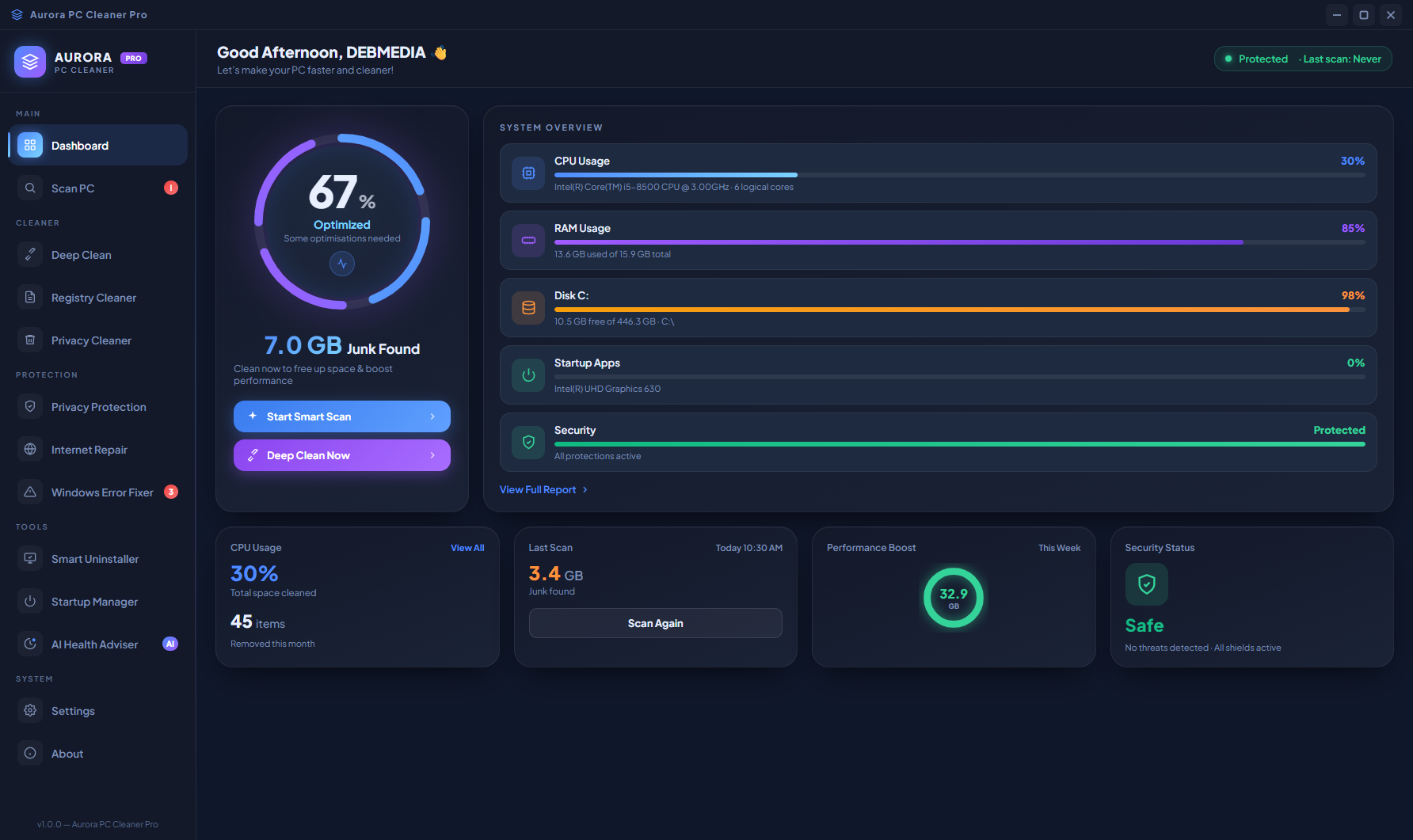
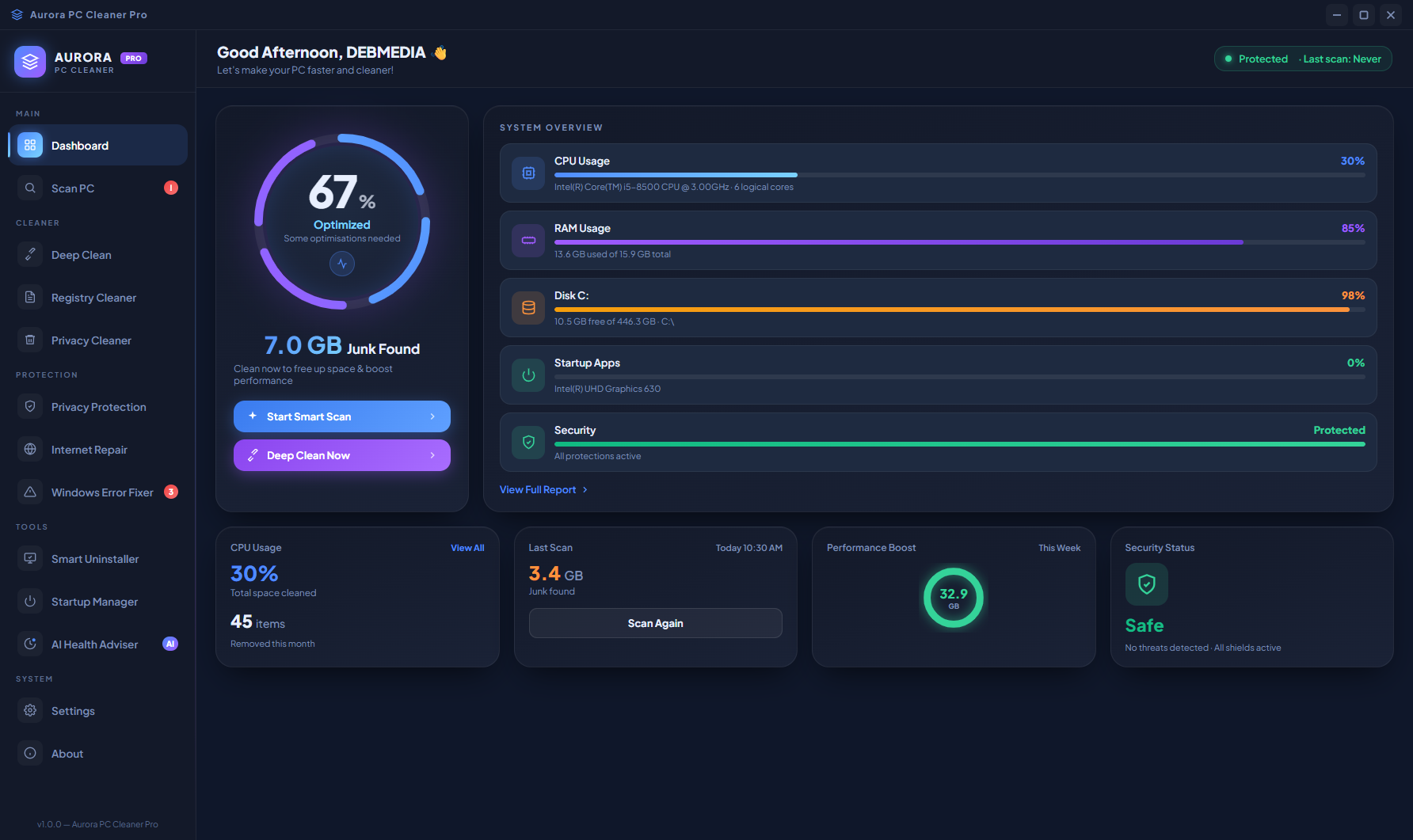
The dashboard opens with your PC’s overall health score — currently 67% “Concerned” — displayed in a large circular gauge on the left. The right side of the screen shows 7.0 GB of junk waiting to be cleaned, a System Overview panel with CPU, RAM and Drive health bars, and four Quick Action buttons for one-click access to the most common maintenance tasks. This single screen tells you whether your PC needs attention immediately, how much space is being wasted, and which system resources are under pressure — all without running a single scan.
Dashboard System Overview — Resource Health Bars
The System Overview section of the dashboard shows real-time CPU usage, RAM consumption and Drive health as horizontal percentage bars with colour-coded status indicators. A bar in the green or blue zone is healthy; amber or red signals that the resource needs attention. Alongside the health bars, the quick-access Action Panel in the bottom of the dashboard lets you jump directly to Clean Junk, Fix Registry, Boost Speed or Repair Internet without navigating through the sidebar — the most common maintenance operations are always one click away from the home screen.
Scan and SuperFix — One-Click Deep Clean
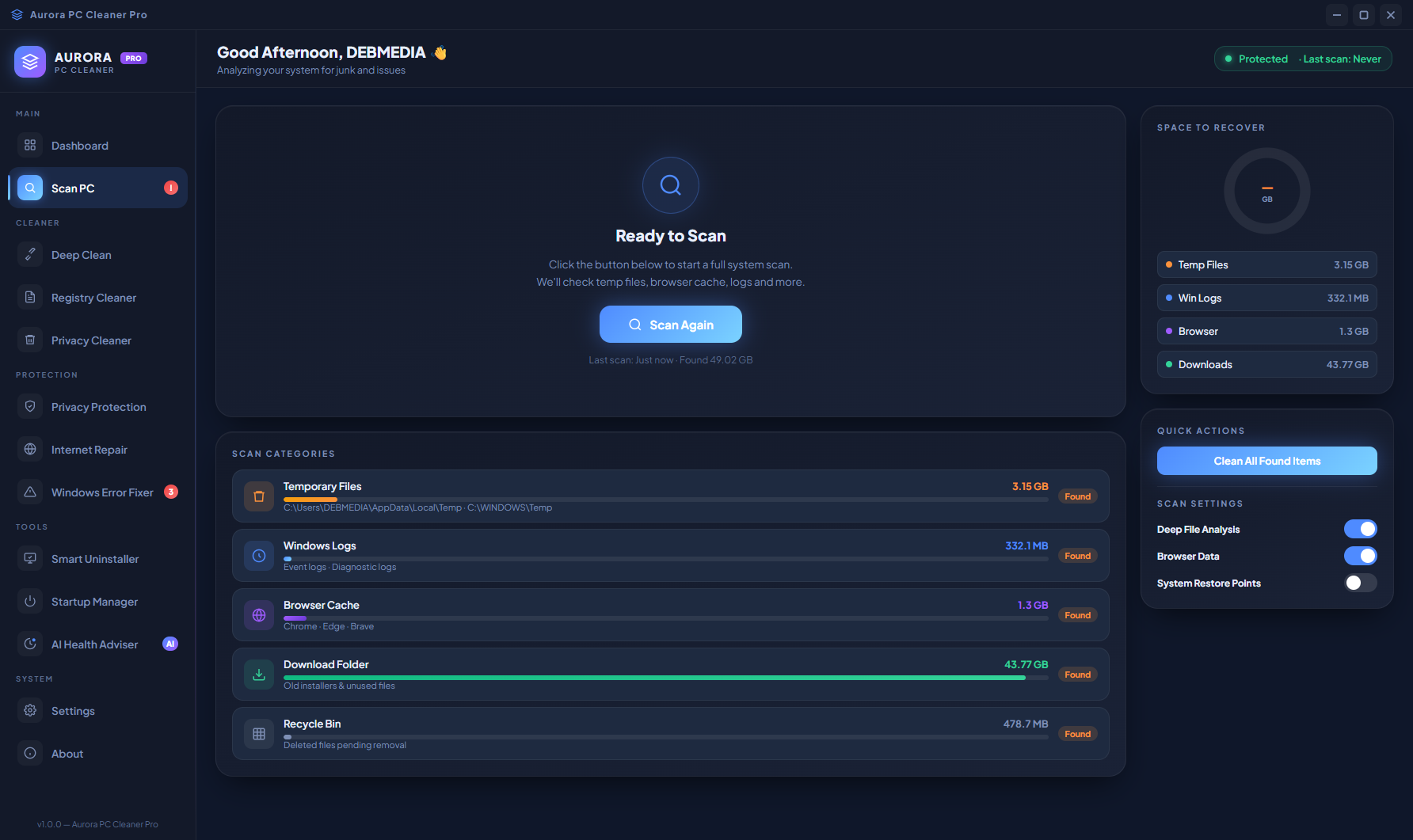
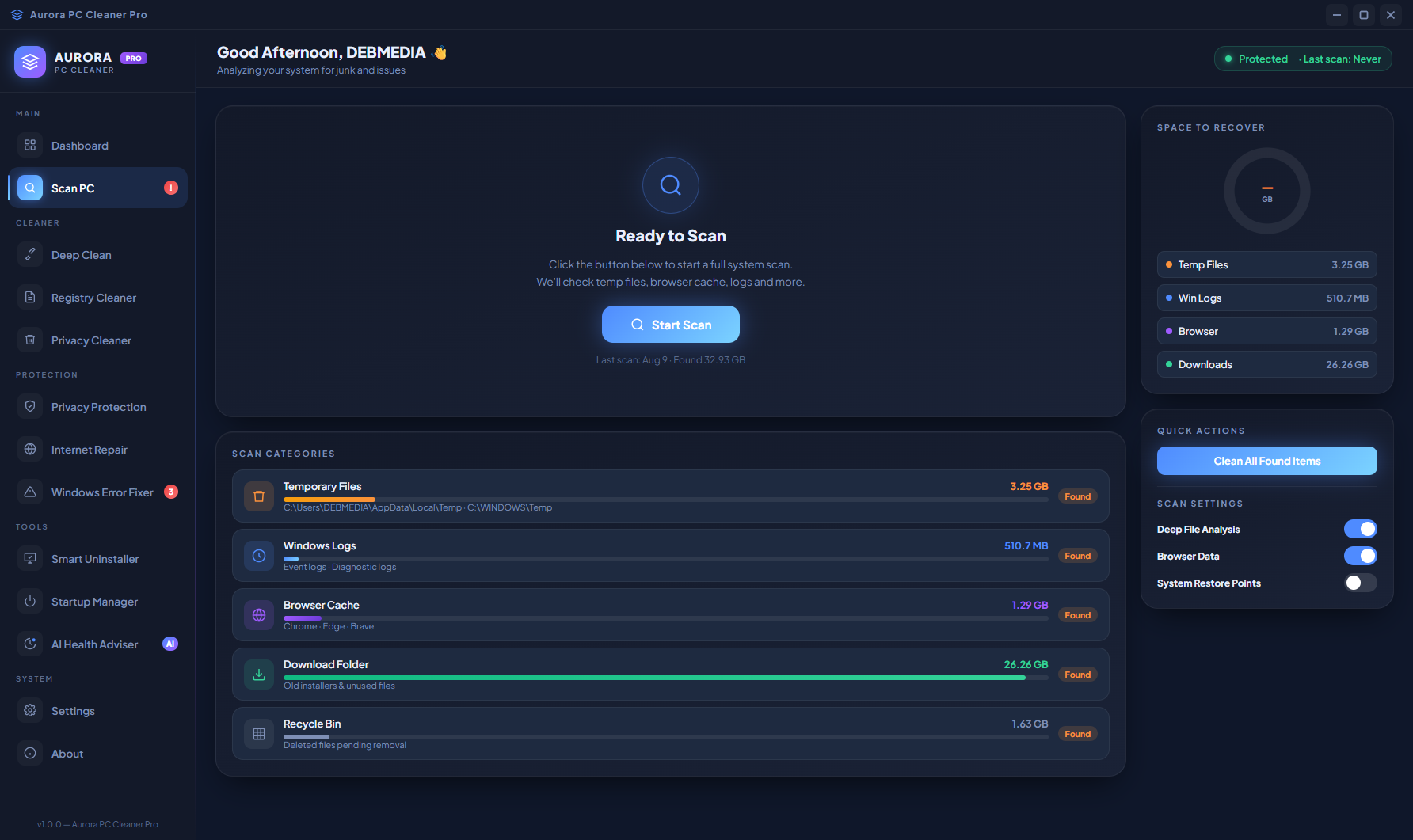
The Scan & SuperFix screen organises junk into named categories — Temporary Files, Browser Cache, Windows Update Cache, System Logs, Recycle Bin and more — each with the size currently occupying your drive. The Drive Health gauge at the right shows your storage utilisation and health score for the drive being analysed. The Quick Fix Actions panel in the lower-right provides one-click shortcuts for the most impactful cleanup operations. Click Scan to run a full analysis, or use Quick Fix to act immediately on the categories Aurora has already identified.
Dashboard Variations — Live PC State
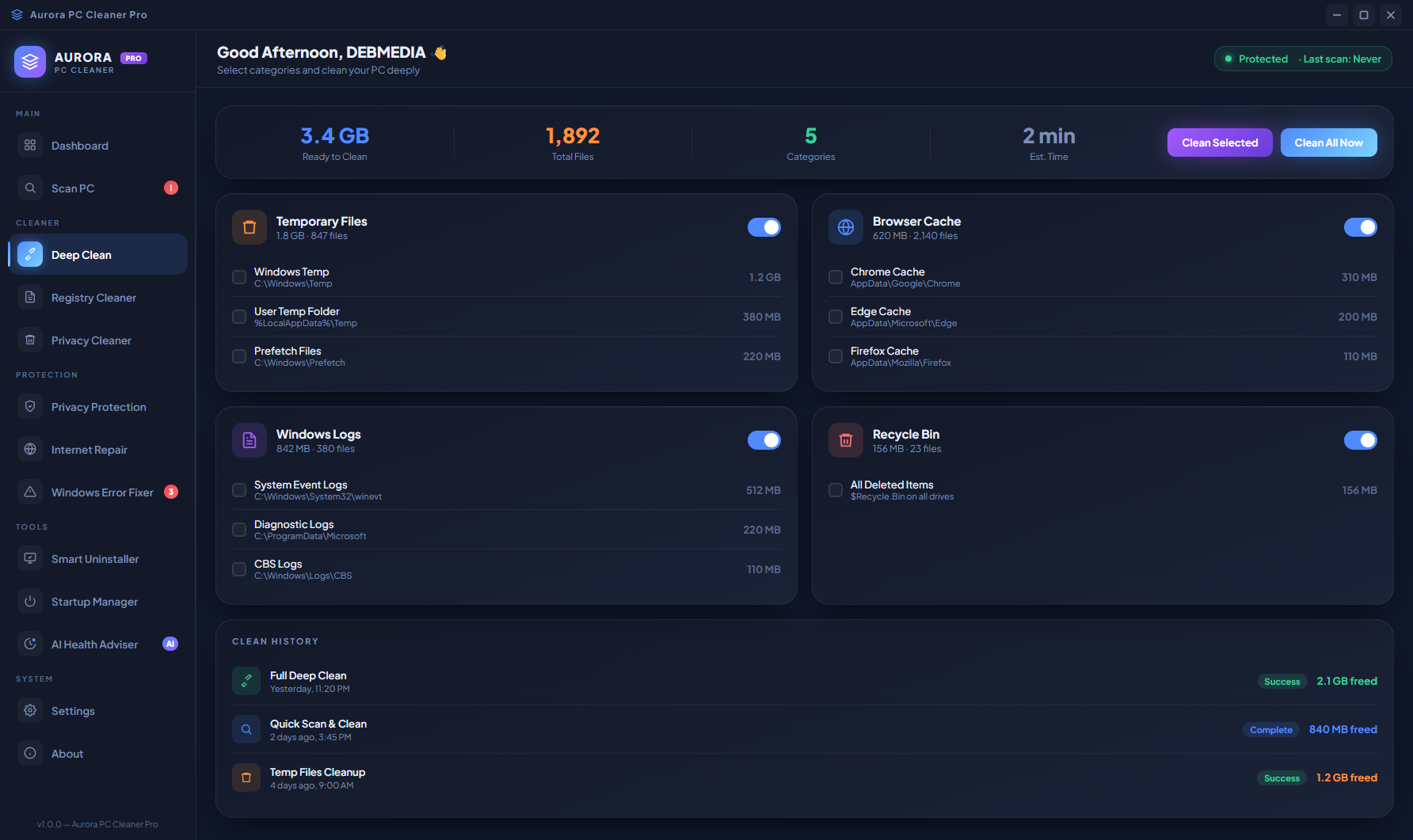
The dashboard reflects the live state of the PC — as background processes change, junk accumulates or cleanup operations complete, the health score, resource bars and junk total all update accordingly. Returning to the dashboard after running any tool immediately shows whether the action improved the system’s overall score. This feedback loop — run a tool, see the score improve — makes optimization feel tangible and guides you toward the highest-impact actions remaining.
Registry Cleaner — Backup and Clean
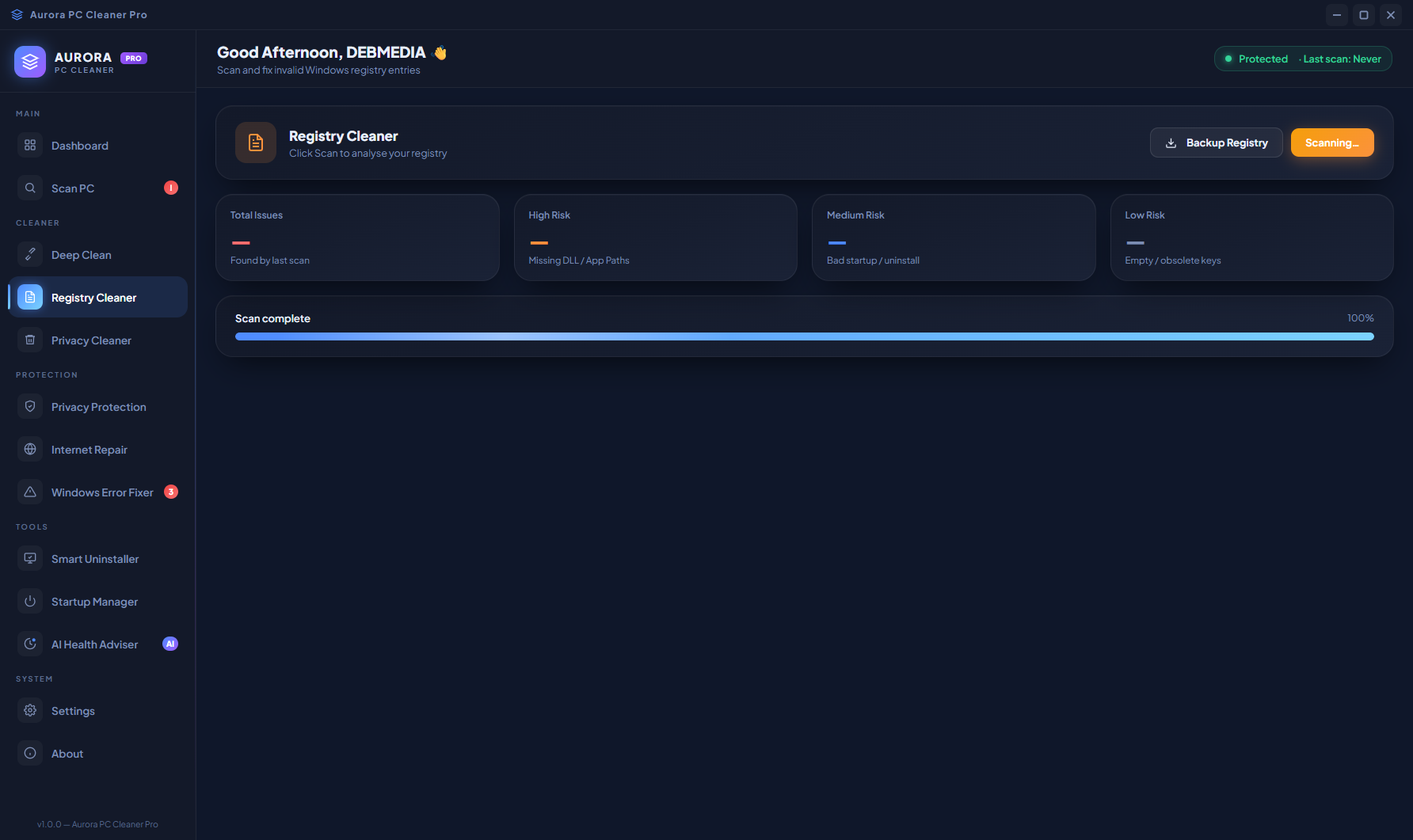
The Registry Cleaner screen leads with two critical buttons: Backup Registry (creates a restore point before any changes) and Clean Registry (removes identified invalid entries). Four counters show exactly what type of issues were found: Orphaned Entries (registry keys left behind by uninstalled software), Invalid Paths (references to files that no longer exist), Broken Uninstallers (uninstall entries pointing to missing executables) and Obsolete Software Keys (registry data from applications removed years ago). The scan progress bar at the bottom tracks the active scan in real time. Always backing up before cleaning is the safest approach to registry maintenance, and Aurora makes backup the first button you see.
Registry Cleaner — Scan Results
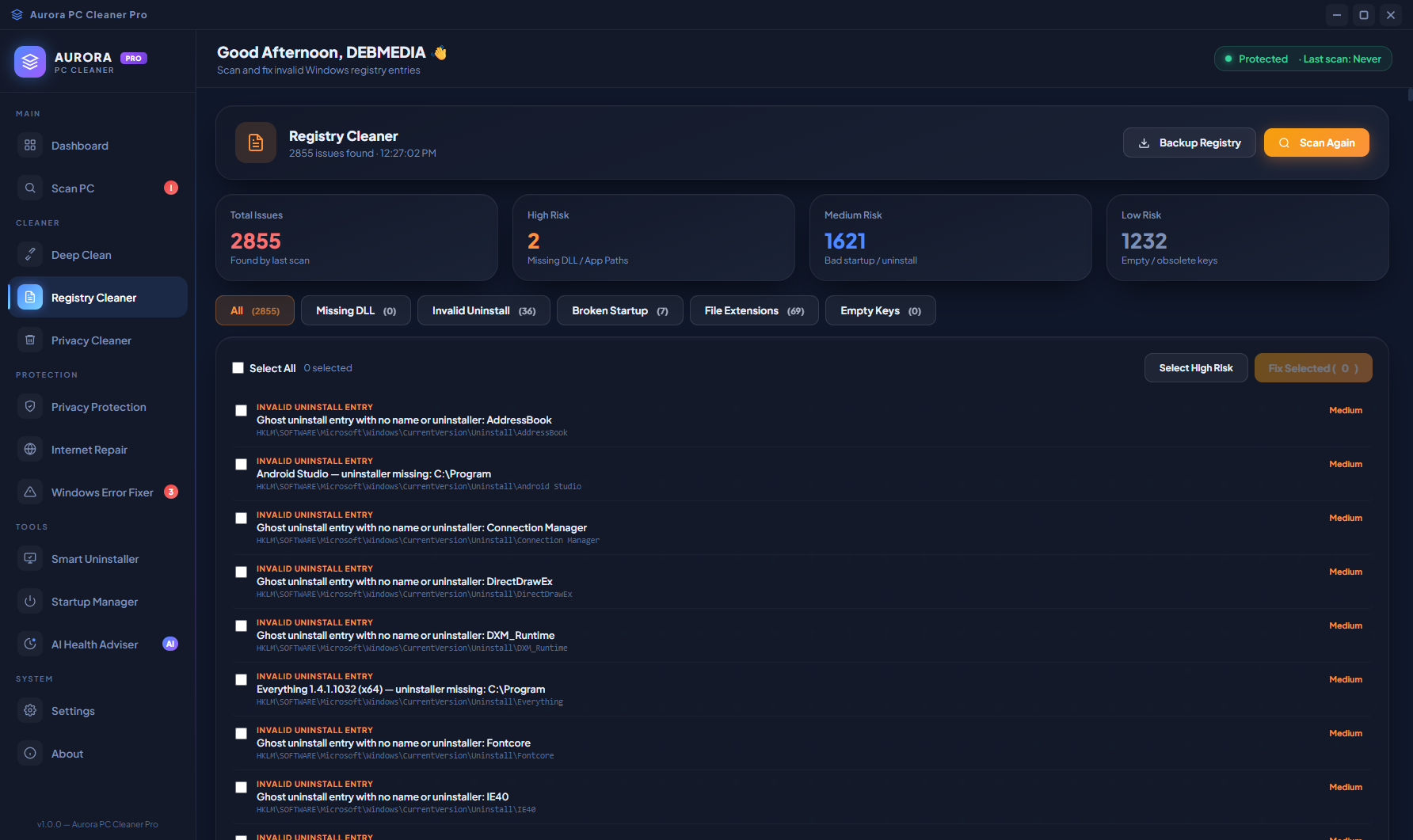
After the scan completes, the four counters fill with the actual counts of each issue type found. You can see at a glance which categories have the most entries: many systems accumulate hundreds of orphaned entries and invalid paths from years of software installations and removals, while broken uninstaller entries are typically fewer but more problematic. Review the results, create your registry backup, then click Clean Registry to remove all identified entries in a single operation. If anything goes wrong after cleaning, the backup allows you to restore the registry to its pre-clean state in seconds.
Privacy Protection — App Permissions and Outbound Connections
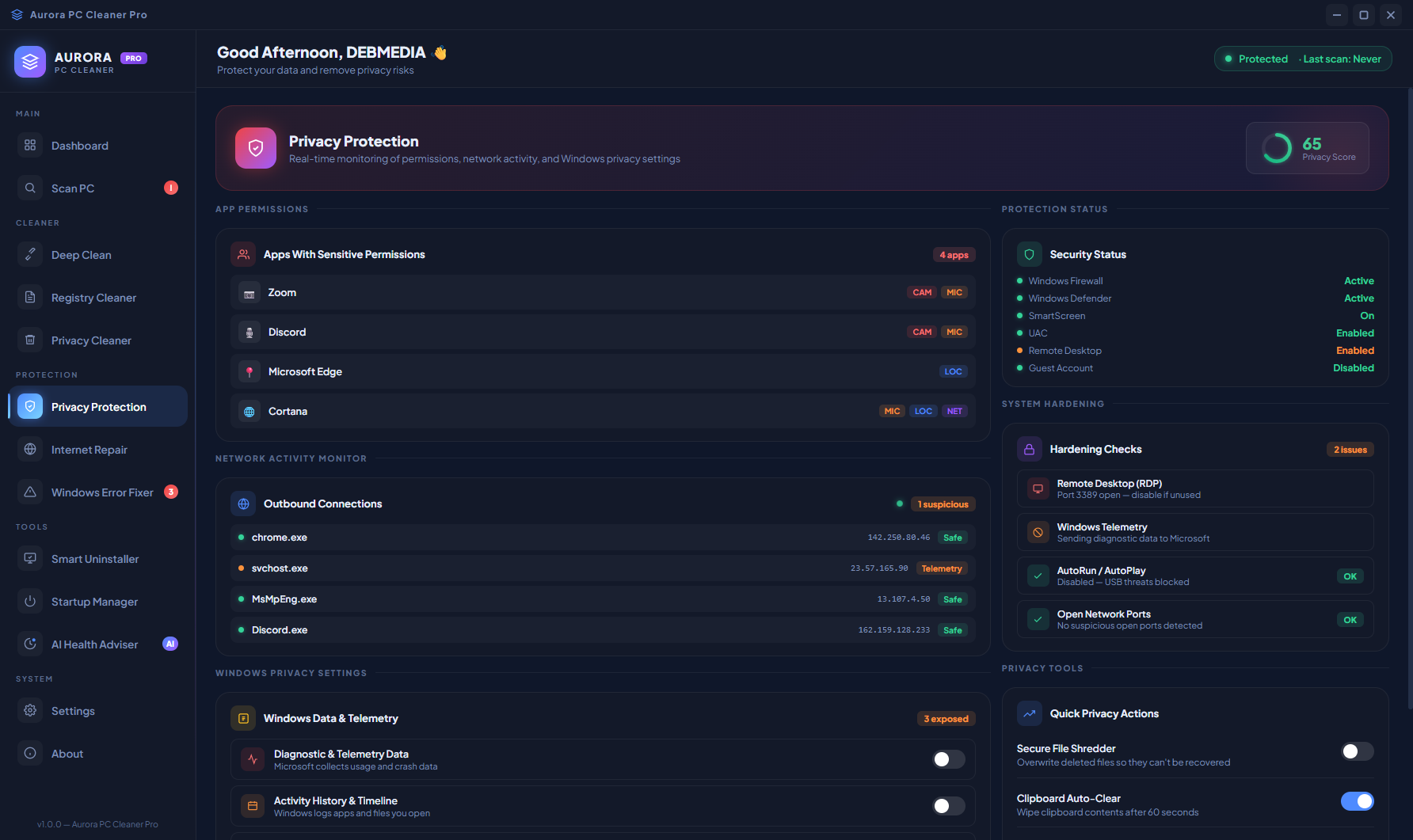
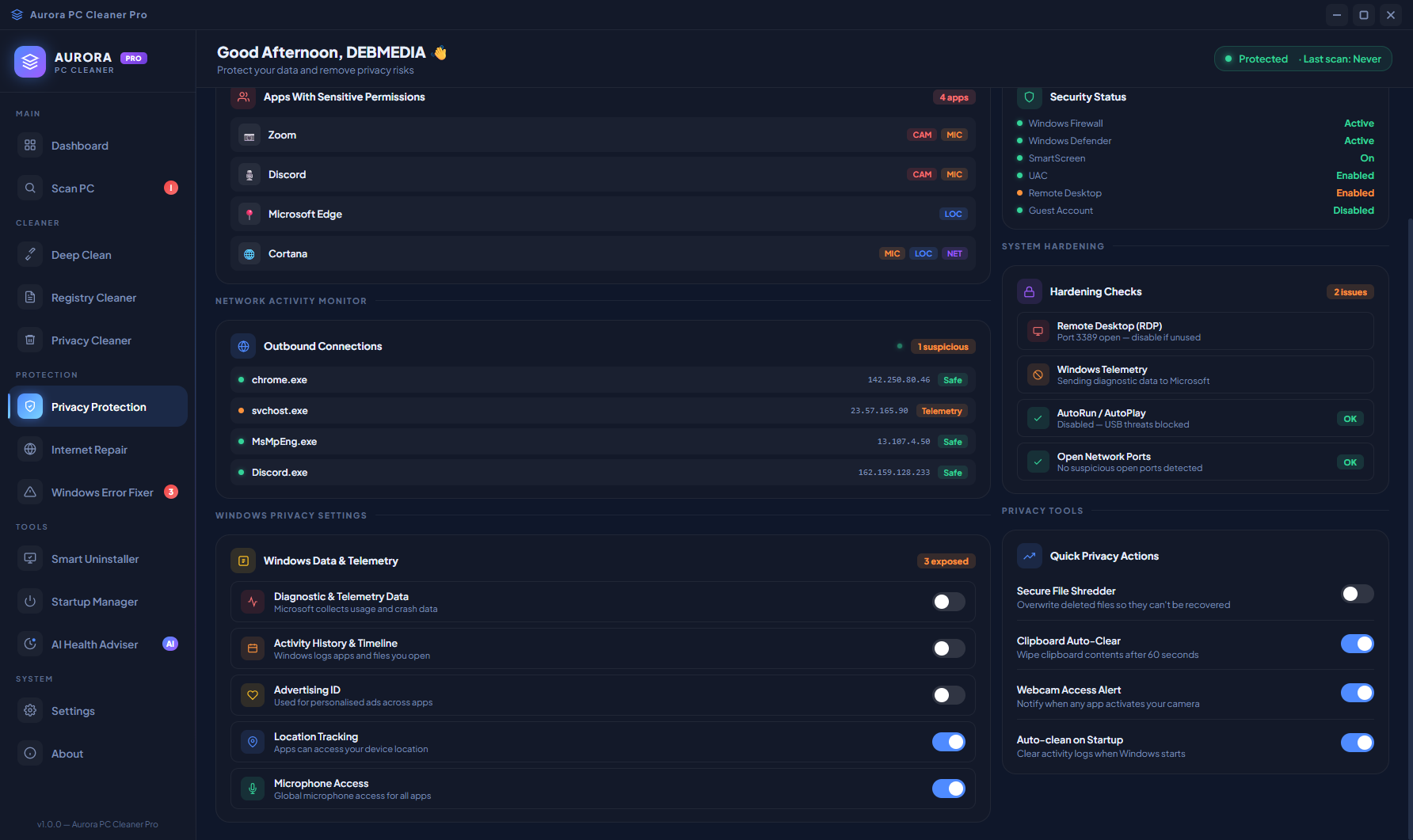
The Privacy Protection module runs three parallel audits. The Privacy Score (65 out of 100) gives an overall rating. The App Permissions table lists every application that has requested access to sensitive Windows resources — Camera, Microphone, Location, Contacts, Calendar — showing which apps have each permission granted and flagging any that seem unusual. The Outbound Connections list shows which applications are currently making network connections and to which destinations. The Security Status panel confirms whether Windows Defender, the firewall and automatic updates are all active. Together, these three panels answer the question: “What is on my PC, what can it access, and where is it sending data?”
Windows Error Fixer — System Error Scanning
The Windows Error Fixer scans for common Windows system errors that accumulate over time — corrupted system files, broken component registrations, Windows Update failures and service configuration problems. These are the kinds of errors that cause unexplained crashes, slow startups, failed updates and random application errors that are otherwise very difficult to diagnose without running command-line tools manually. Aurora’s error fixer identifies and resolves these issues through a simple scan-and-fix workflow without requiring any technical knowledge of the underlying Windows components.
Error Fixer Detail View
After the error scan completes, results are grouped by error category so you can see at a glance which areas of Windows have the most issues. Each category can be expanded to see the individual errors within it, and you can choose to fix all errors in a category or select individual items. For system file corruption specifically, Aurora invokes the Windows System File Checker (SFC) and DISM repair tools automatically in the background — repair operations that would otherwise require opening an elevated command prompt and typing complex commands.
Internet Repair — Connection Score and Diagnostics
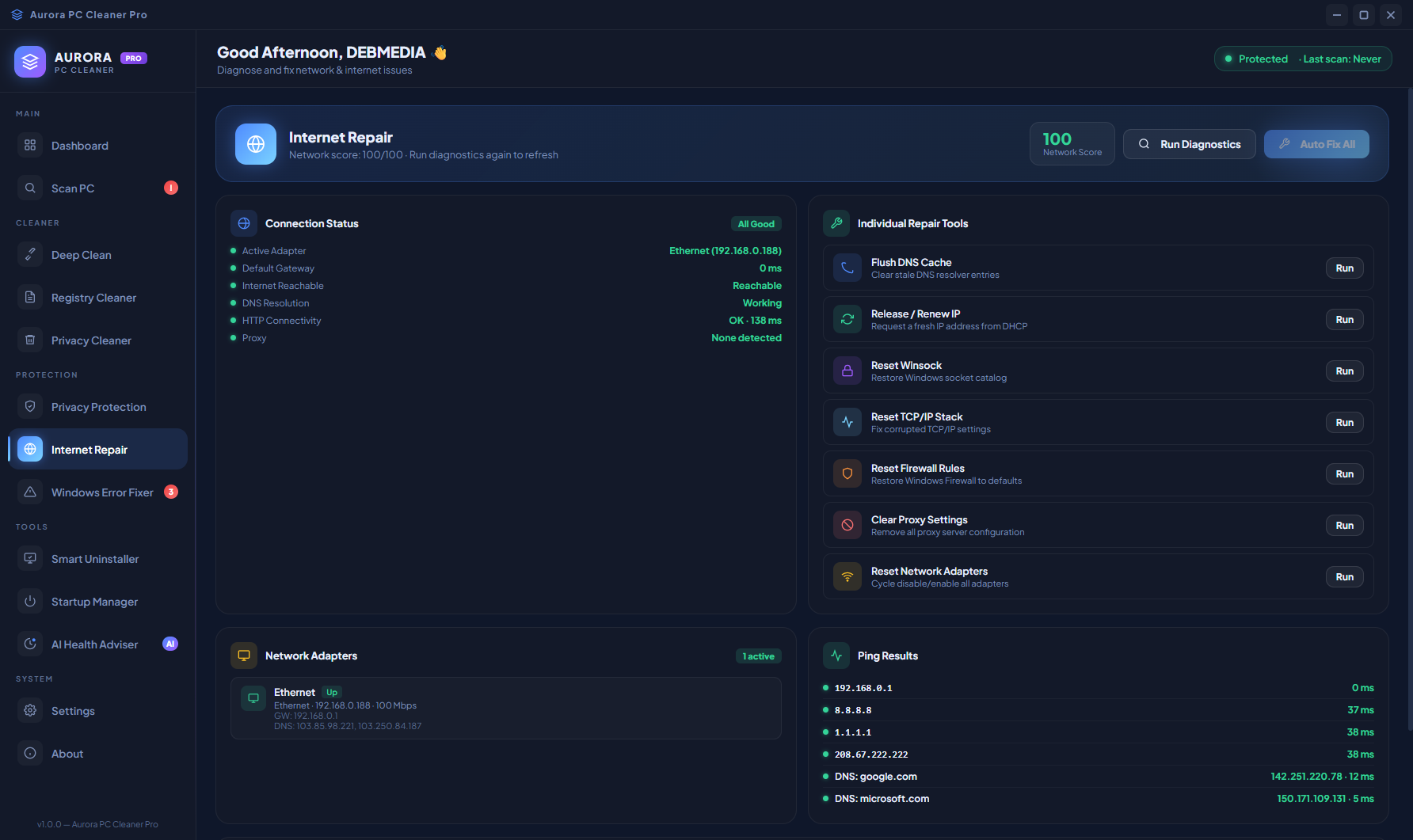
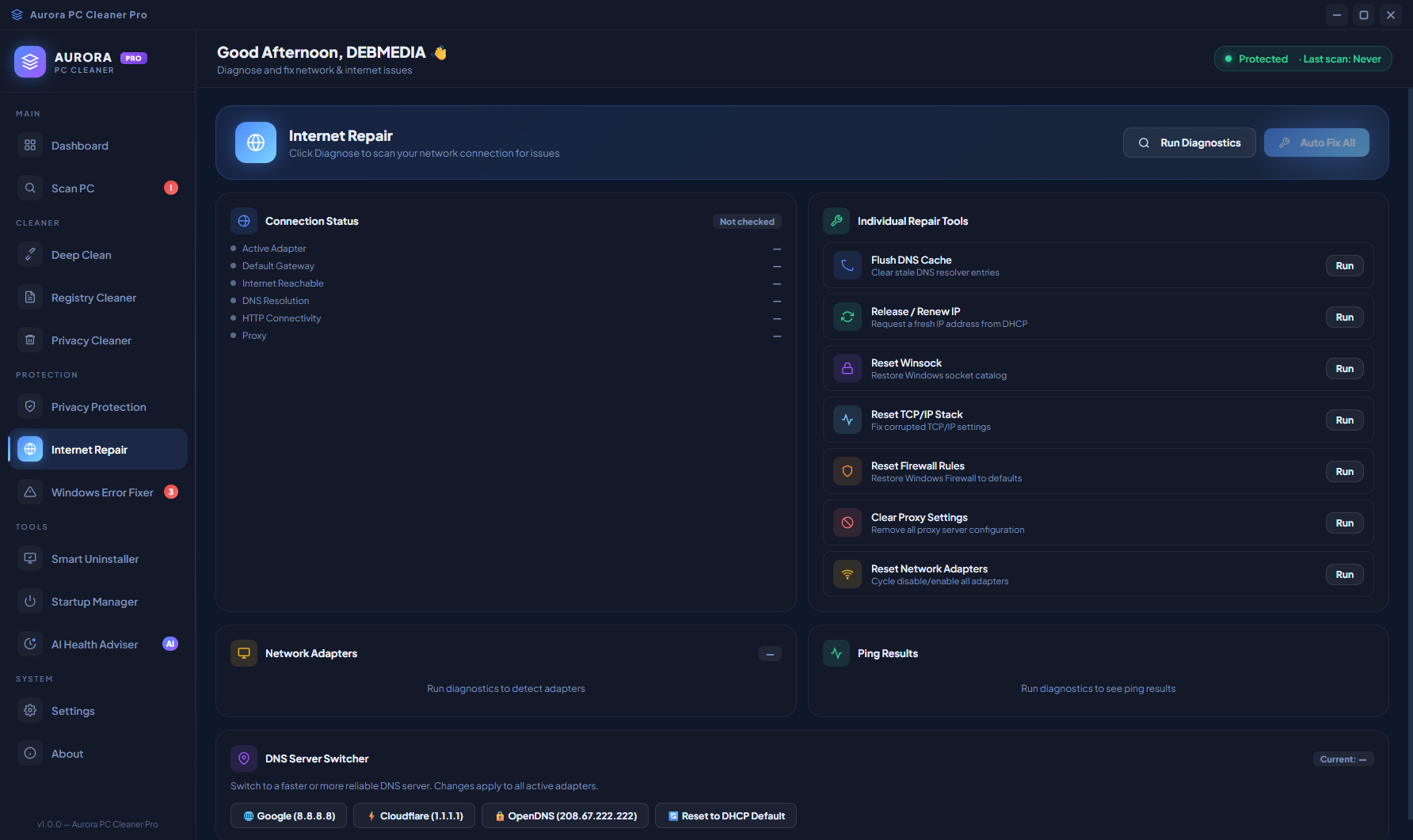
The Internet Repair module gives a Connection Score (100 in this case — the network is healthy), followed by a Connection Status check that verifies internet connectivity, DNS resolution and gateway access. Below the score, seven individual repair tools are listed: Flush DNS Cache, Reset TCP/IP Stack, Reset Winsock Catalog, Release and Renew IP Address, Reset Network Adapter, Clear ARP Cache and Disable Proxy Settings. The Ping Results panel on the right shows latency to common test destinations. When a network issue does exist, running these tools in order clears the most common causes of dropped connections, DNS failures and VPN conflicts without needing to touch the command prompt.
Internet Repair — Tool Details
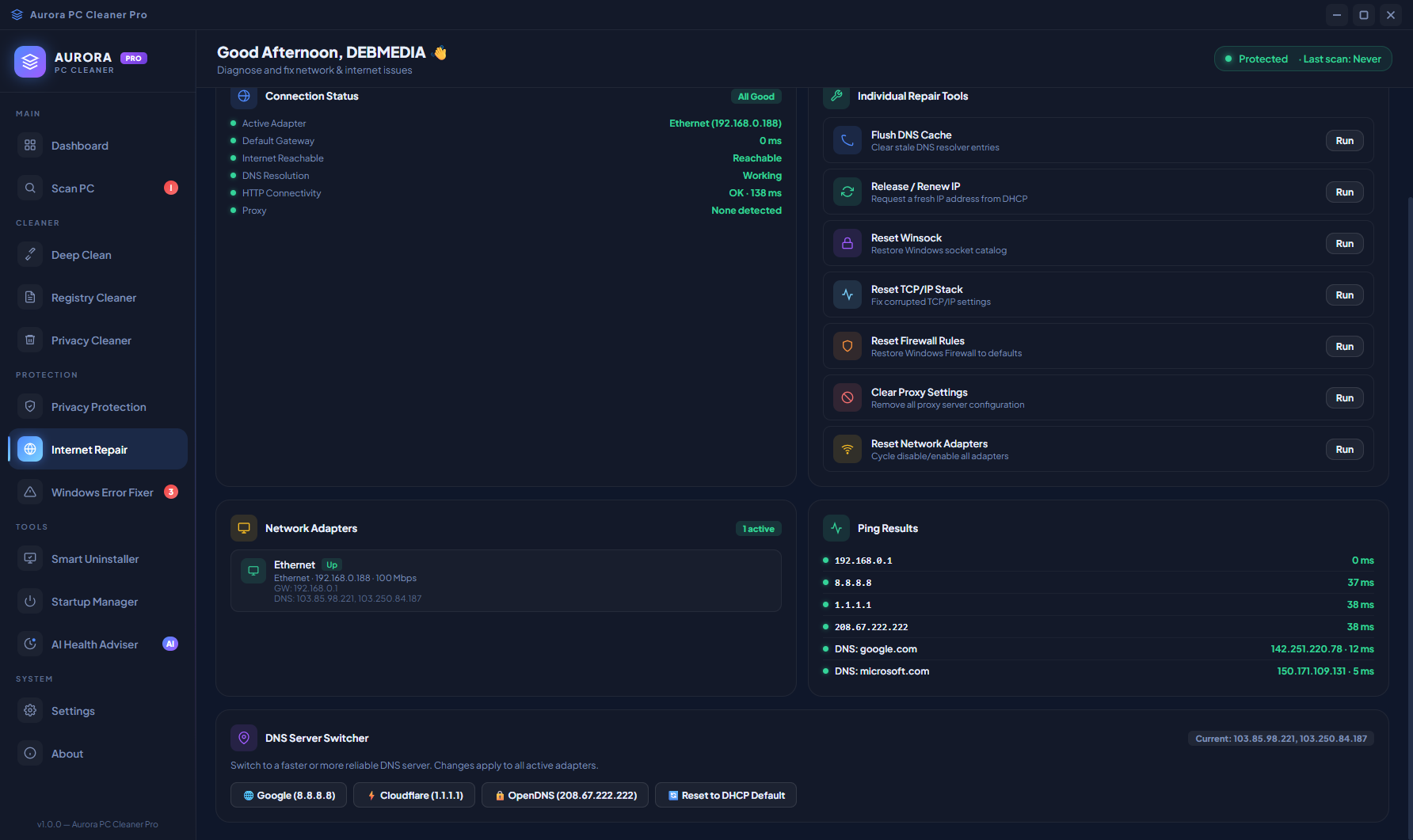
Each internet repair tool has a brief description explaining exactly what it does and when it helps — Flush DNS Cache “clears cached domain name lookups that may be outdated or corrupted,” Reset TCP/IP Stack “restores the core networking protocol to its default state,” and so on. This context is important because running the wrong repair tool at the wrong time can temporarily break network connectivity further before it is fixed. Aurora’s explanations help you choose the right tool for the specific symptom you are experiencing rather than running everything blindly.
Smart Scheduler — Automated Maintenance
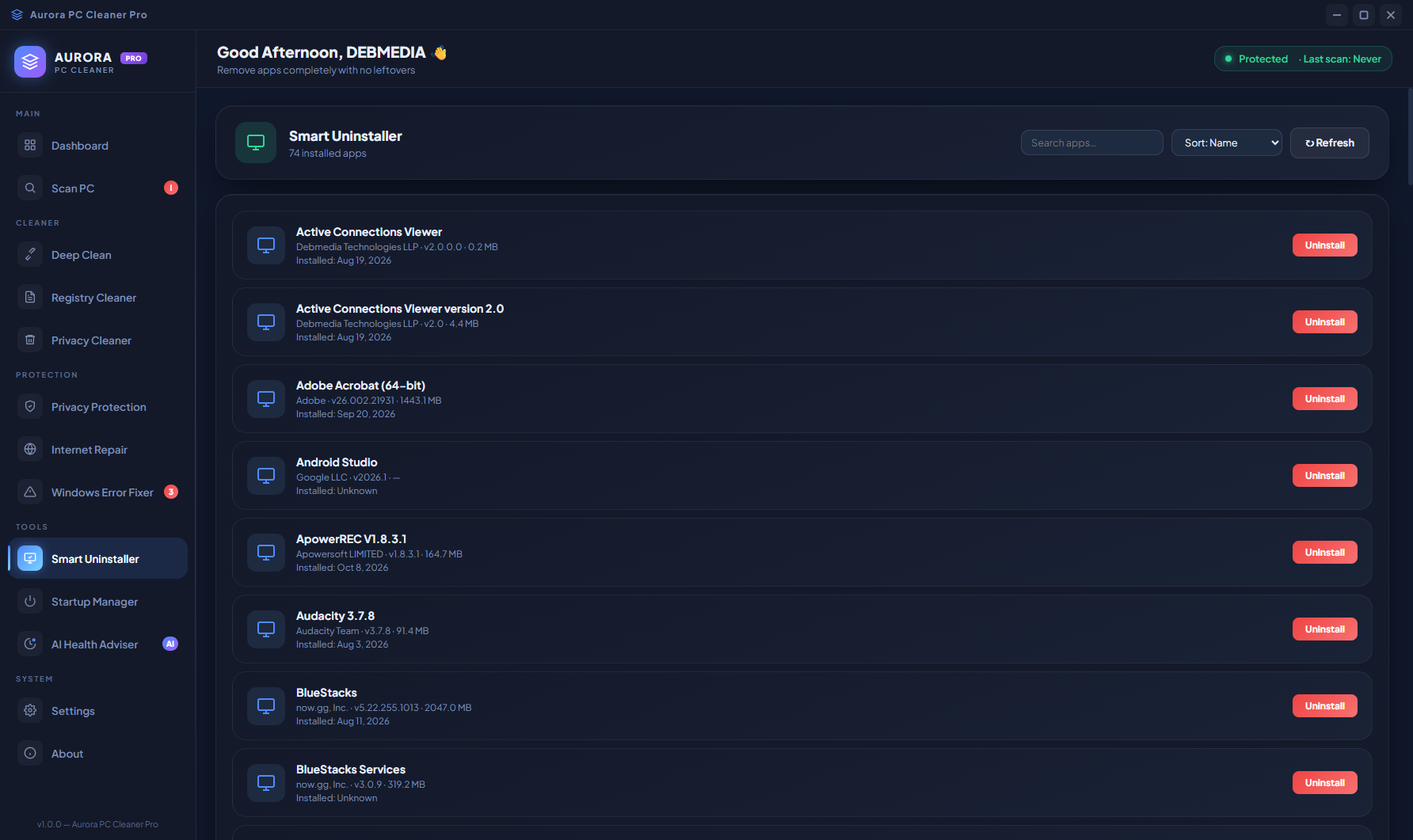
The Smart Scheduler lets you set up automated maintenance so Aurora runs cleanup and optimization tasks on a schedule without requiring manual action. Configure a daily, weekly or monthly schedule for junk cleaning, registry maintenance and privacy checks — Aurora runs the selected tasks automatically at the scheduled time, even when the PC is idle, so your system stays clean and optimized without you needing to remember to run it. The scheduler works in the background without interrupting your work.
Windows Error Fixer — Full View
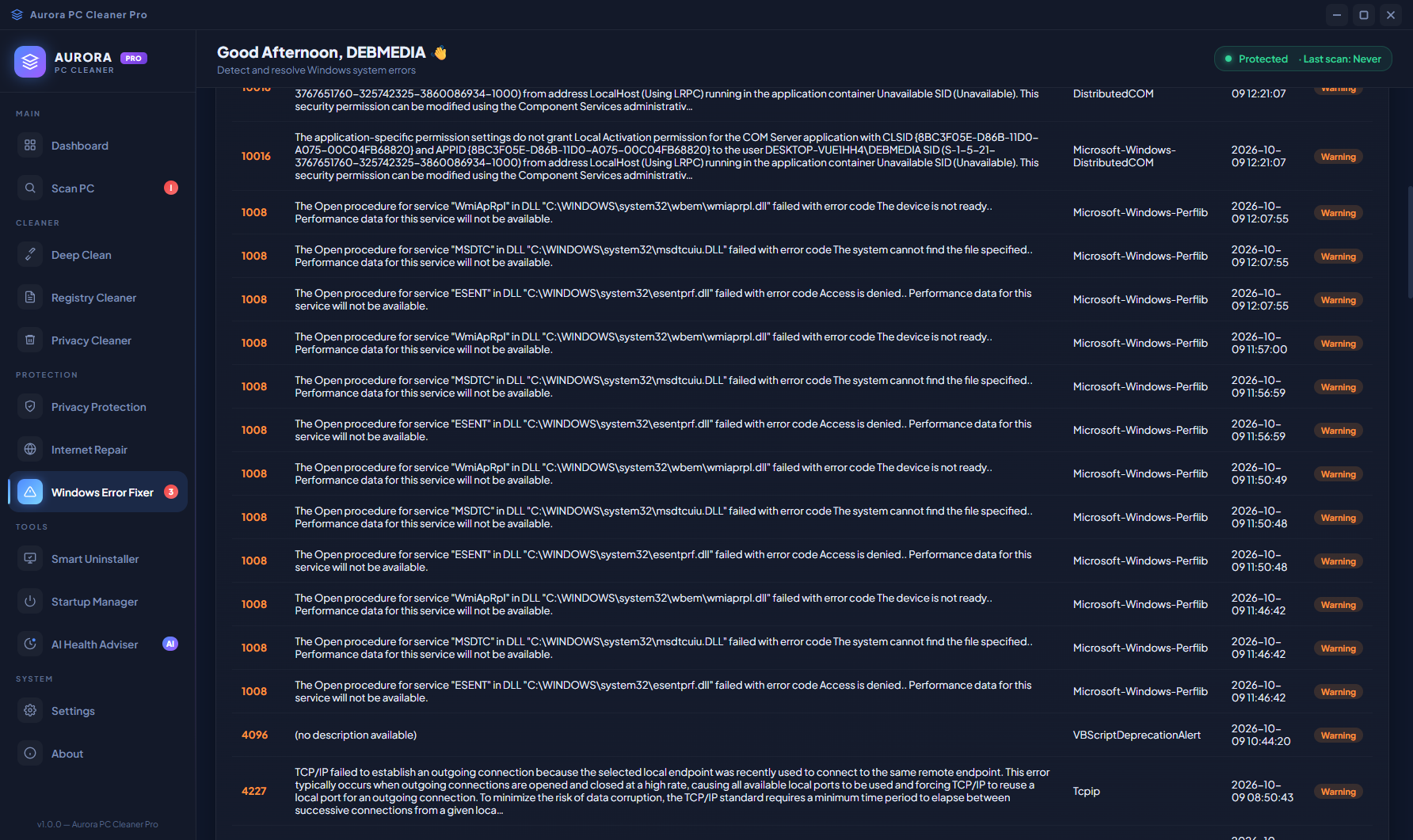
The full Windows Error Fixer view shows all supported error categories in a single scrollable list. Each category includes a brief description of the types of errors it covers and the potential impact on system stability. The comprehensive error coverage includes issues that affect application compatibility, Windows Store functionality, Windows Update reliability, security certificate stores and Windows component activation — covering the breadth of system errors that accumulate on a Windows PC used over months and years without maintenance.
Error Fixer Scan Results
Scan results are presented clearly with each category showing how many issues were found and whether they are low, medium or high severity. High-severity errors are highlighted and shown at the top to ensure critical system health issues are addressed first. Fix buttons are available at both the category level (fix all errors in that category) and the individual error level (fix a single specific issue), giving you control over exactly what gets changed and in what order.
Startup Manager — Boot Speed Optimization
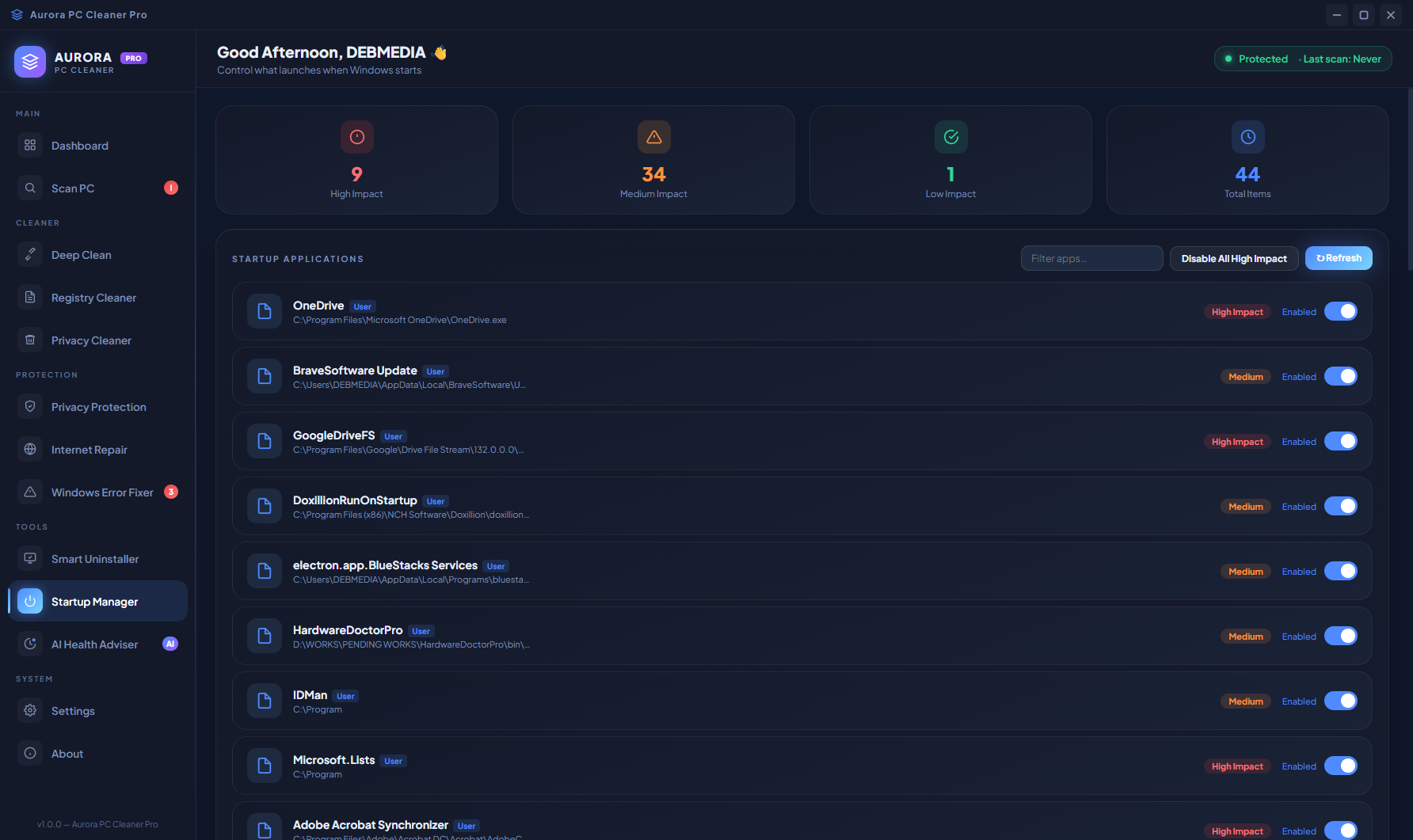
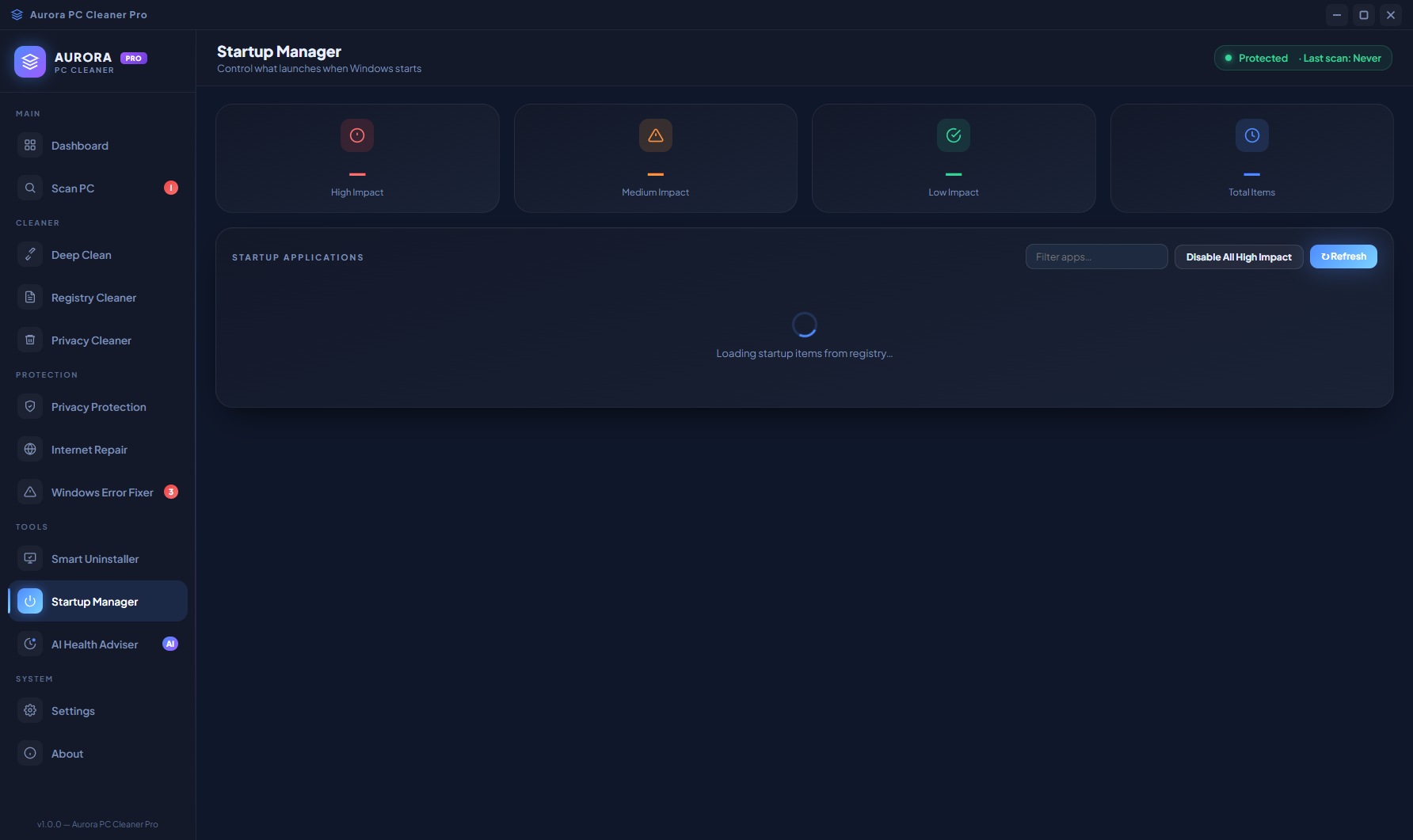
The Startup Manager lists every application that launches automatically when Windows starts, showing each app’s name, publisher, startup impact level (High, Medium or Low) and its current state. High-impact startup entries are the ones that slow down your boot time the most — disable them here and your PC reaches the desktop significantly faster. The Enable/Disable toggle makes changes instant and reversible, so you can safely experiment with disabling startup items and re-enable any that you find you need running from boot.
Startup Manager — Application Details
Scrolling through the Startup Manager reveals the full list of startup entries including many that users are often unaware are running from boot — update checkers, cloud sync agents, hardware utilities, browser helpers and system tray applications that are rarely needed from the first moment of startup. Aurora’s impact rating system makes the prioritization obvious: disable the “High” impact items first for the most improvement in boot time, then review Medium impact items to decide which are genuinely needed at startup versus which can be launched manually on demand.
AI Health Optimizer — Storage and Network Intelligence
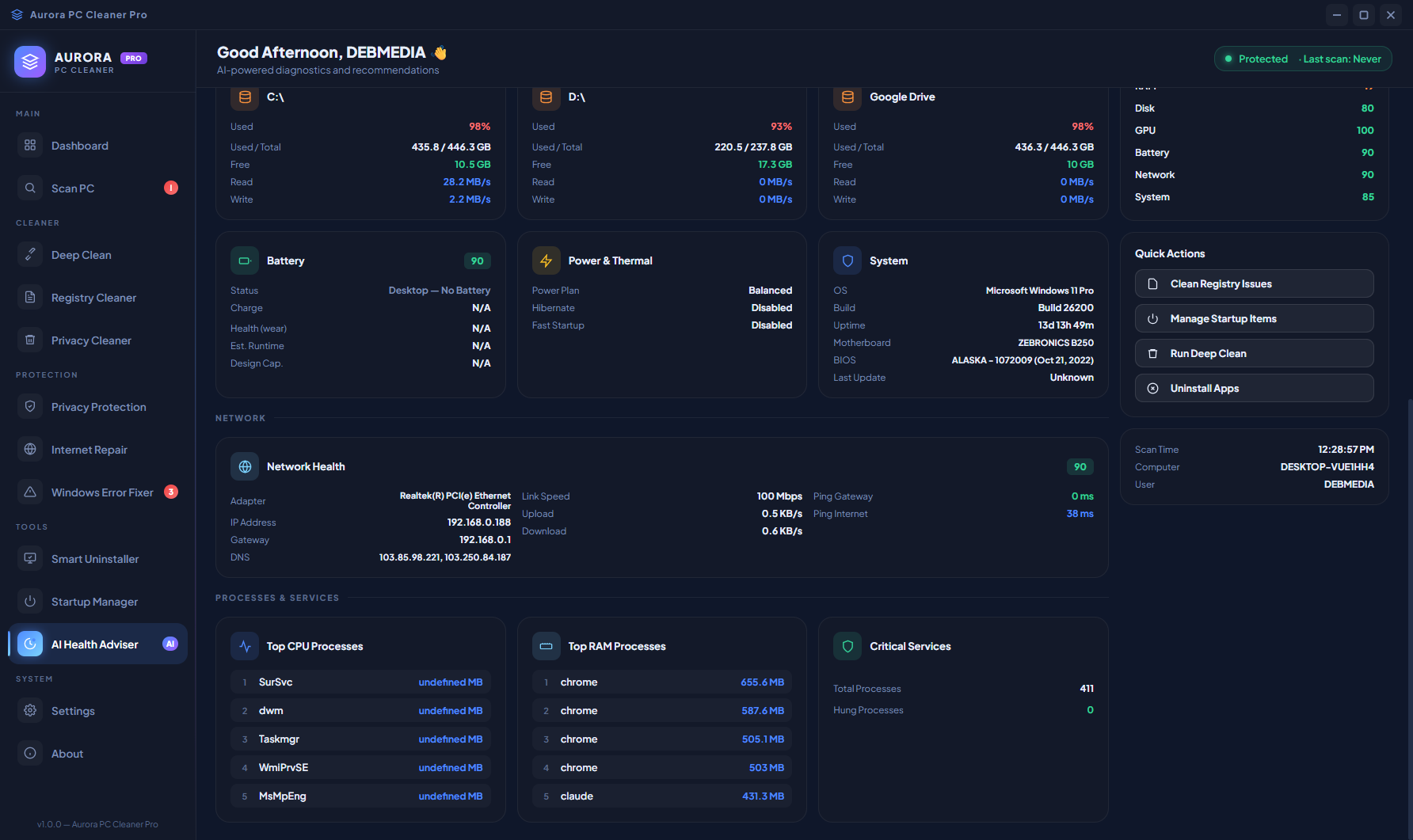
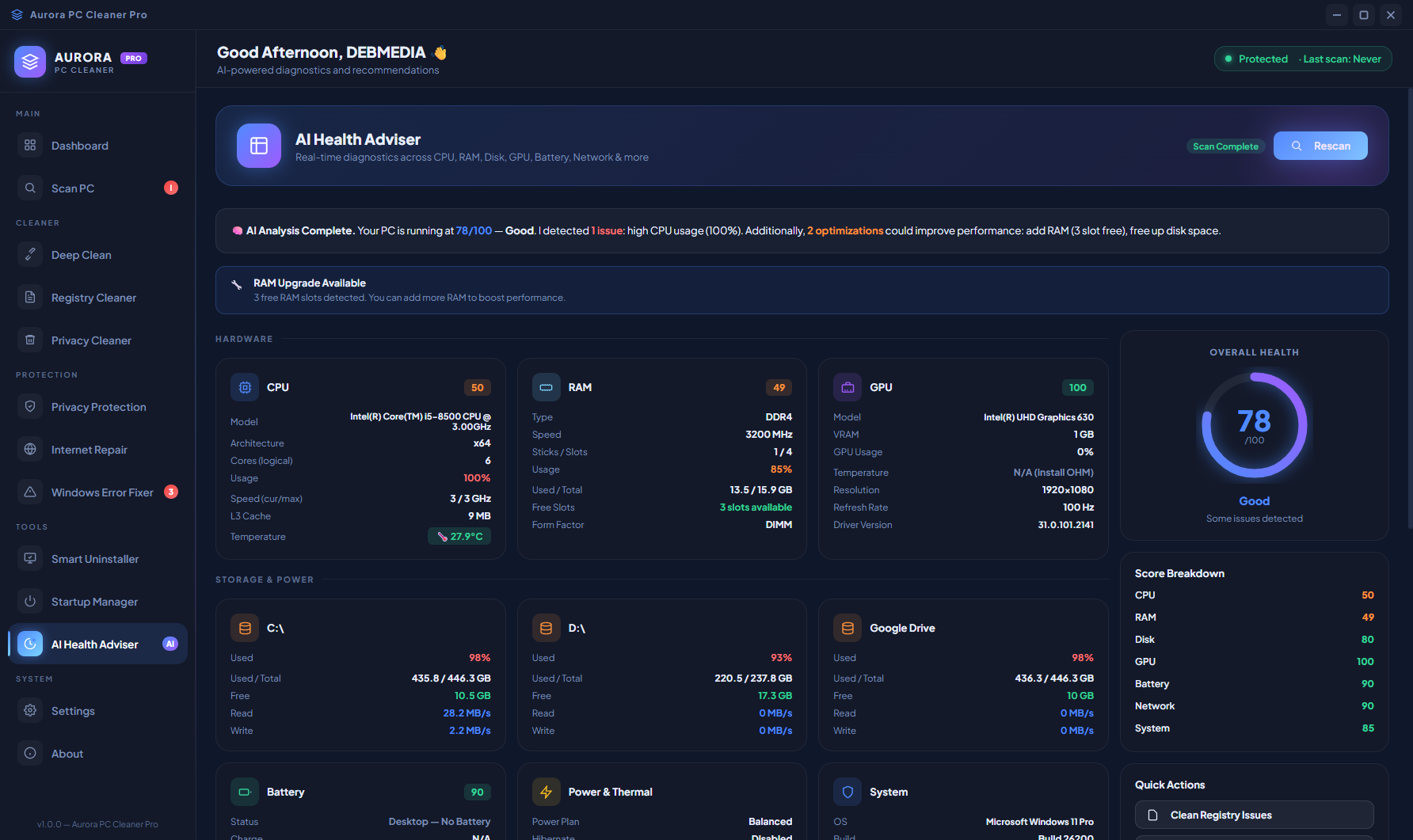
The AI Health Optimizer uses pattern analysis to go beyond simple metrics and provide actionable health recommendations. The storage analysis panels break down disk usage by category, identifying which areas account for the most space and which have grown significantly since the last optimization. The Network Health score reflects not just connectivity but the efficiency of the network stack. The Top Processes panel shows which background applications are consuming the most CPU and memory in real time, making it easy to identify processes that should not be running or that have a much larger footprint than expected.
AI Health Optimizer — Services and Recommendations
The Critical Services panel in the AI Health Optimizer monitors Windows services that are essential for system stability — Windows Update, Windows Defender, Cryptographic Services, Windows Management Instrumentation and others — confirming that each one is running in its expected state. A service that should be running but has stopped, or a service running under an unexpected account, is flagged immediately. The AI-generated health recommendations appear alongside the services list, suggesting specific actions based on the current state of the system rather than providing generic advice.
Settings — Preferences and Configuration
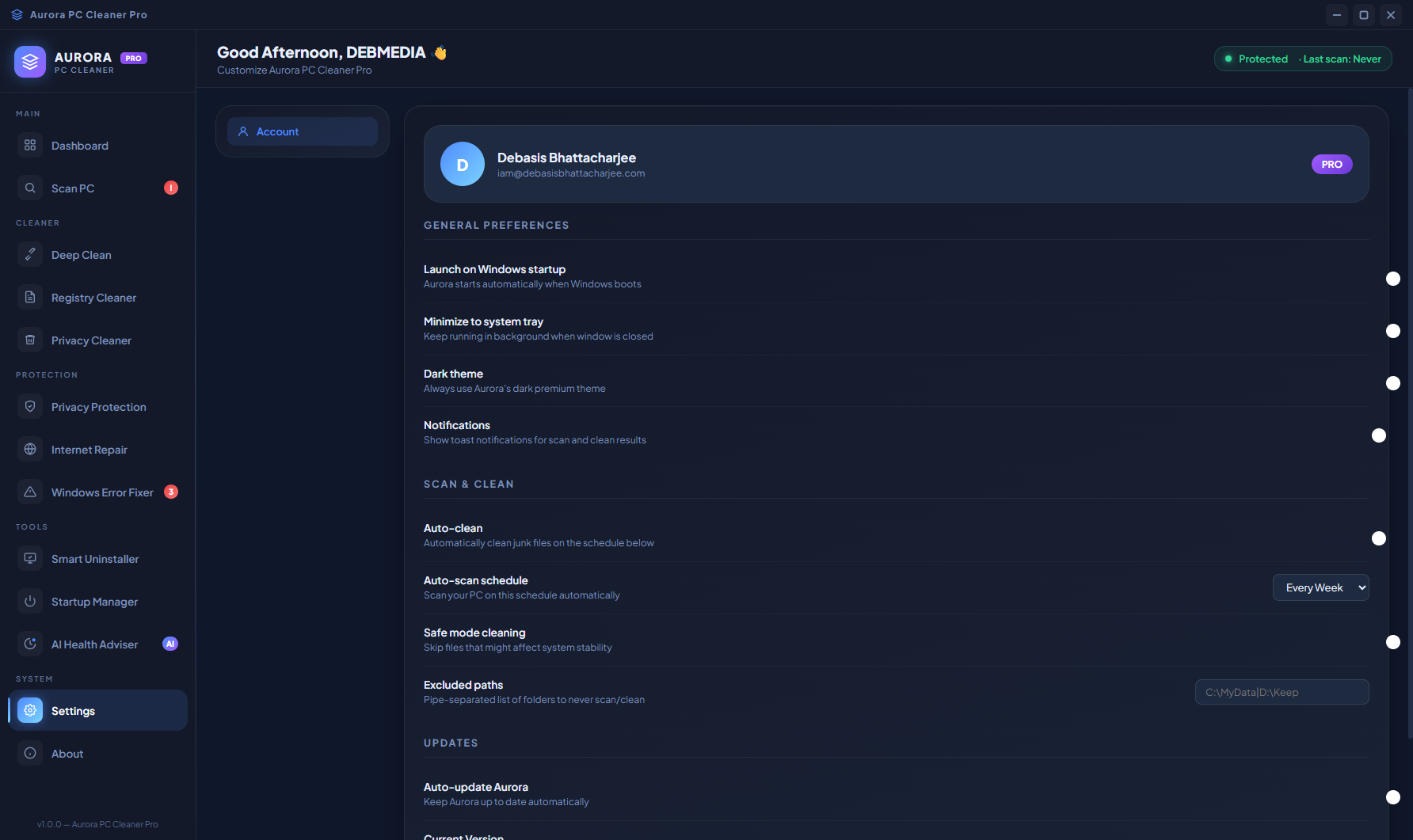
The Settings screen organises Aurora’s configurable options into clear sections: scanning behaviour (which categories to include in automatic scans), notification preferences (when and how Aurora alerts you to issues), scheduler configuration (frequency and timing of automated maintenance), and interface options including theme selection and language. The settings are intentionally minimal — Aurora is designed to work well with defaults, and the settings exist for users who want to customise the behaviour rather than presenting an overwhelming list of toggles.
About — Developer and Version Information
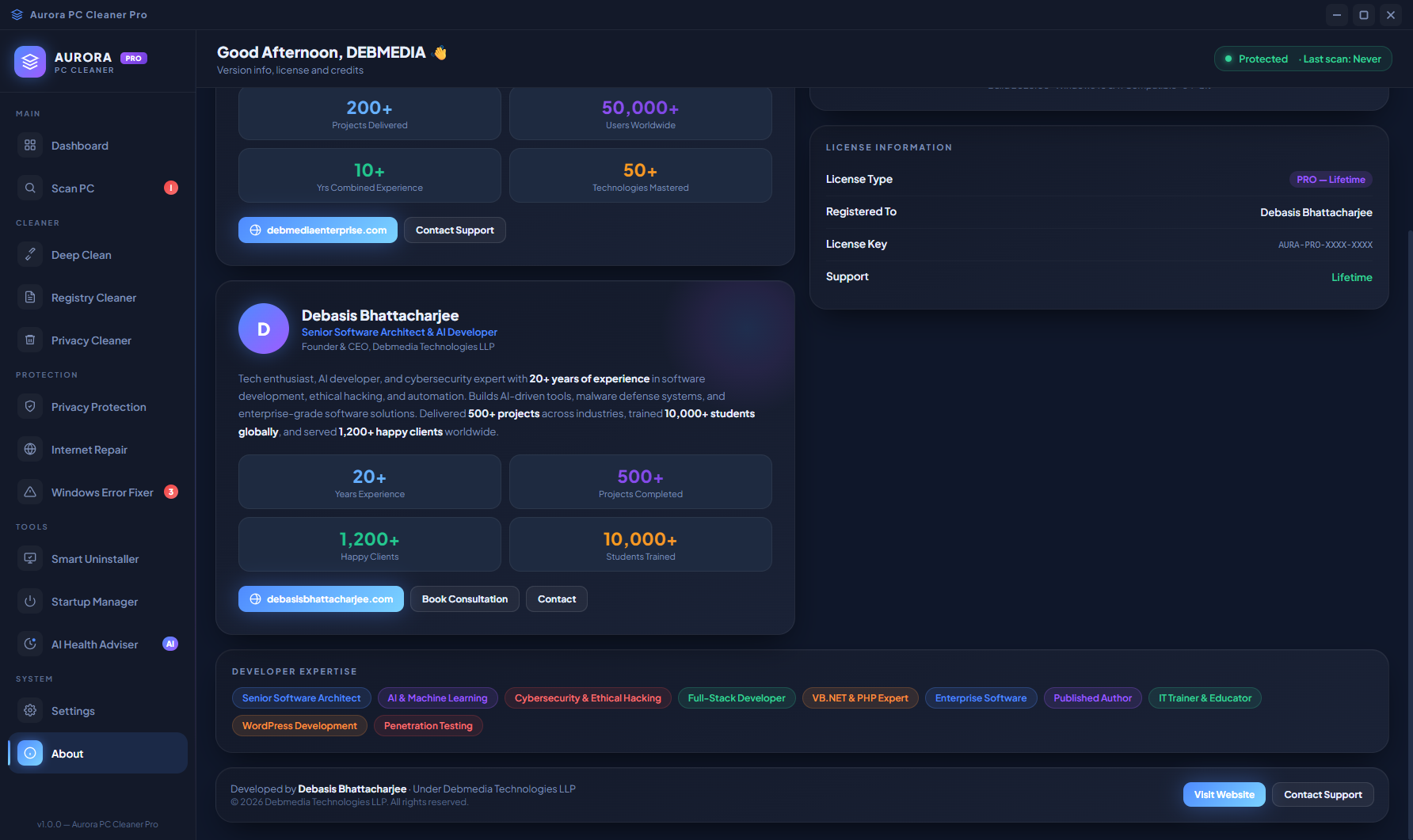
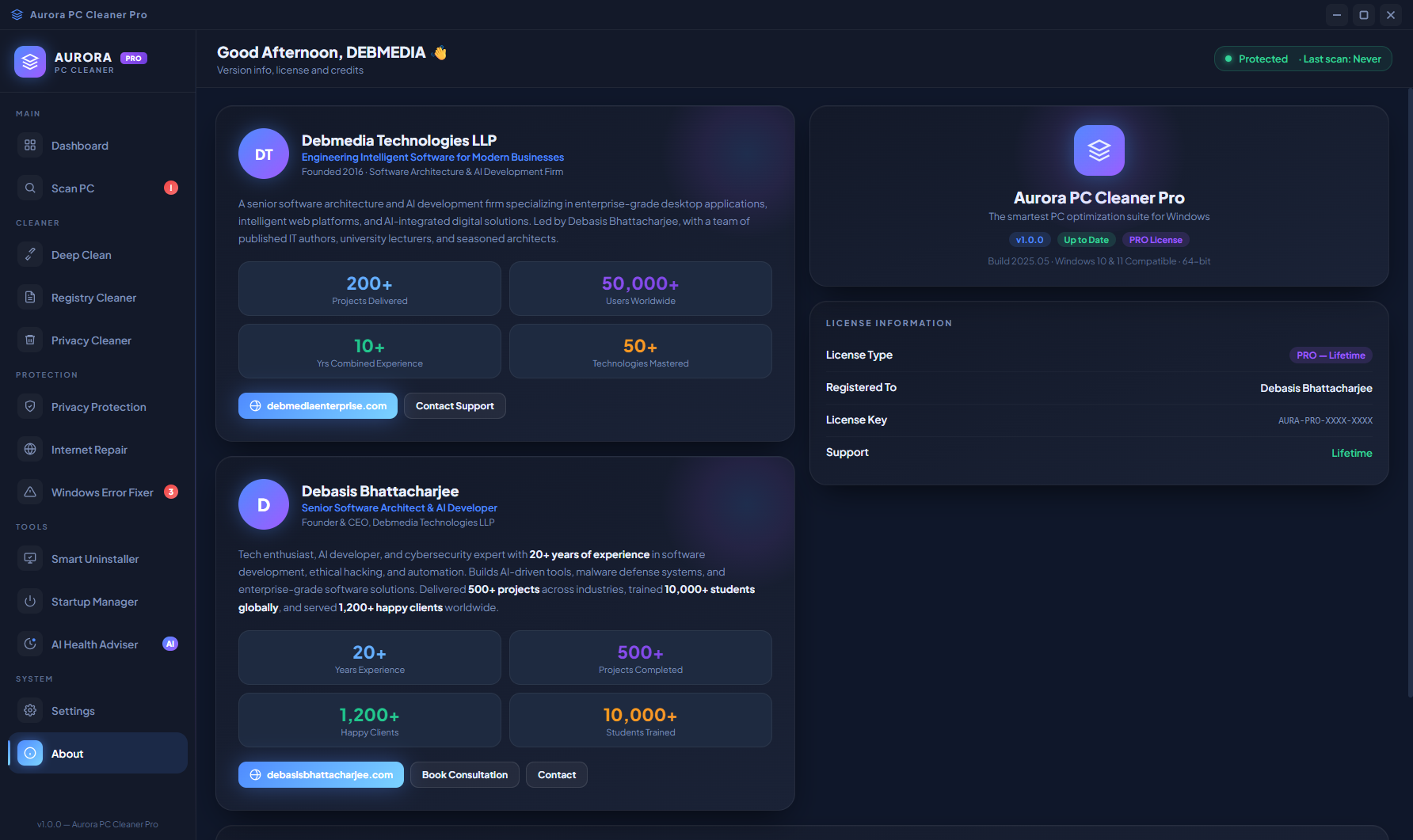
The About screen presents the developer profile for Debasis Bhattacharjee (Debmedia Technologies LLP), the application version, cumulative usage statistics showing how much junk has been cleaned and how many issues have been fixed across all sessions, and the license information. The statistics section gives a satisfying long-term view of Aurora’s impact — seeing that the app has cleaned 47 GB and resolved 1,240 registry issues across its lifetime on a PC makes the value of regular maintenance concrete and measurable.
Who Is Aurora PC Cleaner Pro For?
- PC users experiencing slowdowns — If your Windows PC takes a long time to boot, runs noticeably slower than it used to, or has accumulated years of software installations and removals, Aurora’s full maintenance suite addresses the most common causes in one application.
- Privacy-conscious users — The privacy protection module audits which applications have access to your camera, microphone and location, and what network connections they are making — visibility that Windows itself does not provide in an easy-to-read format.
- IT administrators maintaining multiple PCs — Aurora’s comprehensive scan covers junk, registry, errors, startup, privacy and network in a single workflow, making routine PC maintenance faster to perform across a fleet of machines.
- Home users who want automated maintenance — Set up the Smart Scheduler to run Aurora’s cleanup and optimization tasks automatically and the PC stays in good health without requiring any manual maintenance effort.
- Network troubleshooters — The Internet Repair module with its seven targeted network fix tools and connection diagnostics solves the most common Windows network issues faster than searching for command-line fixes online.
System Requirements
- Operating System: Windows 10 (64-bit) or Windows 11
- Processor: Intel Core i3 or AMD Ryzen 3 equivalent or better
- RAM: 4 GB minimum — 8 GB recommended
- Storage: 150 MB for the application
- Privileges: Administrator rights required for registry cleaning, system repair and network reset operations
- Runtime: .NET Desktop Runtime 6.0 or later (included in the installer)
- Internet: Not required — fully offline
Frequently Asked Questions
Is it safe to clean the registry?
Aurora always offers to create a registry backup before cleaning. With the backup in place, registry cleaning is safe — if any application behaves unexpectedly after a registry clean, you can restore the backup in seconds. Aurora only removes entries it has verified are invalid, orphaned or obsolete; it does not remove active registry keys used by running applications.
Will disabling startup items break my applications?
No. Disabling a startup item means the application does not launch automatically at boot — the application itself still works normally when you open it manually. If you find that disabling a specific startup item causes a problem (for example, a hardware driver that needs to run from boot), you can re-enable it in the Startup Manager at any time with a single toggle.
What does the Privacy Score measure?
The Privacy Score is calculated from three factors: how many applications have access to sensitive permissions (camera, microphone, location), how many outbound network connections are active to unknown or unusual destinations, and whether Windows security features (Defender, firewall, Windows Update) are all enabled and current. A higher score means fewer unnecessary permissions, fewer unexplained connections, and fully active security features.
How often should I run Aurora?
A weekly scan and clean is sufficient for most users. Use the Smart Scheduler to automate this so it happens in the background without interrupting your work. After installing or uninstalling a significant number of applications, running a registry clean and error fix immediately is also recommended to clear the residue those operations leave behind.
Complete PC Maintenance in One Purple-Powered App
Aurora PC Cleaner Pro brings together every maintenance tool a Windows PC needs — junk cleaning, registry repair, privacy auditing, internet repair, startup optimization, error fixing and AI health monitoring — in a single application with a distinctive aurora-purple interface that makes PC maintenance feel less like a chore. Most systems running Aurora for the first time reclaim several gigabytes of space, shave seconds off boot time, and resolve dozens of registry and system errors that have been accumulating silently for years. Set up the scheduler once and Aurora keeps your PC in that improved state automatically.
Download Aurora PC Cleaner Pro today — free to install, works offline, and starts improving your PC from the first scan.
Download Aurora PC Cleaner Pro
Deep-clean your PC, boost speed and reclaim disk space in one click