Short answer: use Brevo to send your website’s email and Cloudflare Email Routing to receive mail for hello@yourdomain.com. Both are free, together they take about 30–45 minutes, and you do not need a paid mailbox. Below is the exact setup I did on my own WordPress site, with my real screenshots, the mistakes I made and how I fixed them.
My website’s emails were silently failing. The contact form “worked”, but nothing reached my inbox. The reason turned out to be simple and common: my server could not send mail at all, and my paid mailbox was about to expire. This guide fixes both problems for free.
What you will build
Email has two separate jobs, and most guides mix them up. Keep them apart and everything gets easier:
| Job | What it means | Tool used here |
|---|---|---|
| Sending | Your website sends order emails, contact-form notices, password resets, ebook deliveries | Brevo (free plan) |
| Receiving | People write to hello@yourdomain.com and it lands in your Gmail |
Cloudflare Email Routing (free) |
| DNS | The “address book” entries that prove your domain is allowed to send and receive | Cloudflare DNS (free) |
What you need before you start: a domain whose DNS is managed in Cloudflare, a Gmail address to receive mail, a WordPress site, and admin access to all three. At the time of writing, Brevo’s free plan allows about 300 emails a day, which is plenty for a small business site. Check Brevo’s pricing page for the current limit.
Step 1: Find out why your emails are not arriving
WordPress sends email through the server’s own mail system by default. Many hosts and VPS providers block outgoing mail on port 25 to stop spam, so nothing ever leaves. I confirmed it in my server’s mail log, where every attempt to reach Gmail ended with “Connection timed out” and messages sat in the queue for more than a day.
A quick check: install a mail-log plugin such as FluentSMTP (we use it later anyway) and look at the log, or ask your host whether outbound port 25 is blocked. If it is, you need to send through an email service over a different route, such as an API or port 587. That is exactly what Brevo gives you.
Step 2: Add and authenticate your domain in Brevo
- Create a free account at brevo.com and sign in.
- Open Settings → Senders, Domains & Dedicated IPs → Domains and click Add a domain. Enter your domain, for example
yourdomain.com. - Choose Authenticate the domain yourself (manual). The automatic option asks for permission to edit your DNS, and I preferred to add the records myself so I could see each one.
- Brevo now shows four DNS records. Keep this tab open, because you will copy them in the next step.
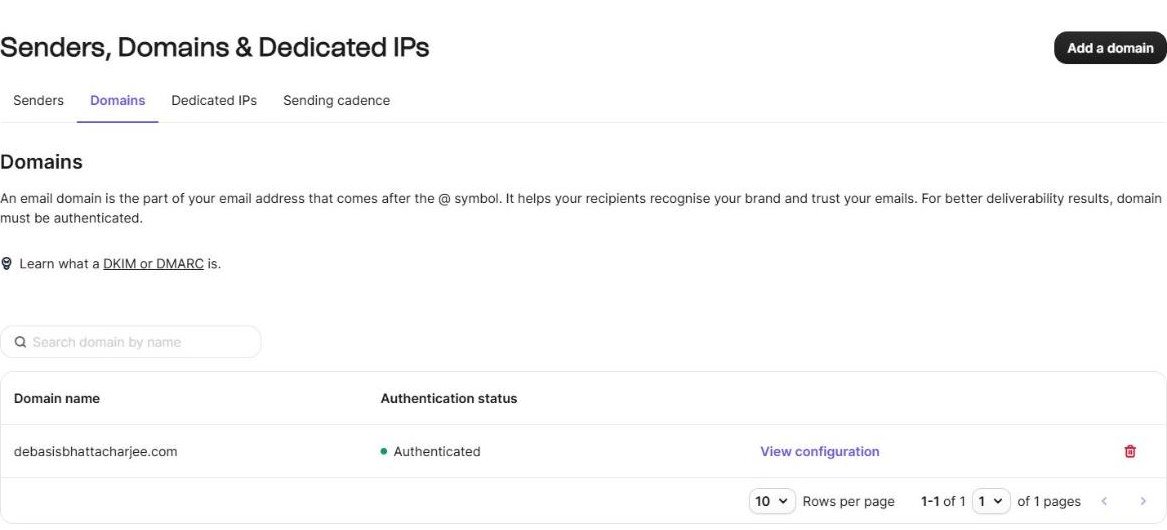
When it is done, the Domains page shows your domain as Authenticated:
Step 3: Add the four DNS records in Cloudflare
In Cloudflare, open your domain, go to DNS → Records, and use Add record four times. Your values will differ, so always copy them from your own Brevo screen. This is the pattern:
| Type | Name | Content | Proxy |
|---|---|---|---|
| TXT | @ |
brevo-code:… (your own code) |
— |
| CNAME | brevo1._domainkey |
b1.yourdomain-com.dkim.brevo.com |
DNS only |
| CNAME | brevo2._domainkey |
b2.yourdomain-com.dkim.brevo.com |
DNS only |
| TXT | _dmarc |
v=DMARC1; p=none; rua=mailto:rua@dmarc.brevo.com |
— |
Three things that trip people up:
- The two DKIM records must be “DNS only” (grey cloud). If Cloudflare proxies them (orange cloud), Brevo cannot read them and verification fails.
- Do not create a second SPF record. A domain may have only one SPF TXT record. Brevo does not require one, because its DKIM signing is enough for DMARC to pass, so I left SPF alone.
- Cloudflare adds the quotation marks for TXT records. Paste the content without quotes.
Wait a few minutes, then go back to Brevo and click Authenticate this email domain. In my case it worked on the first try.
Step 4: Add a verified sender
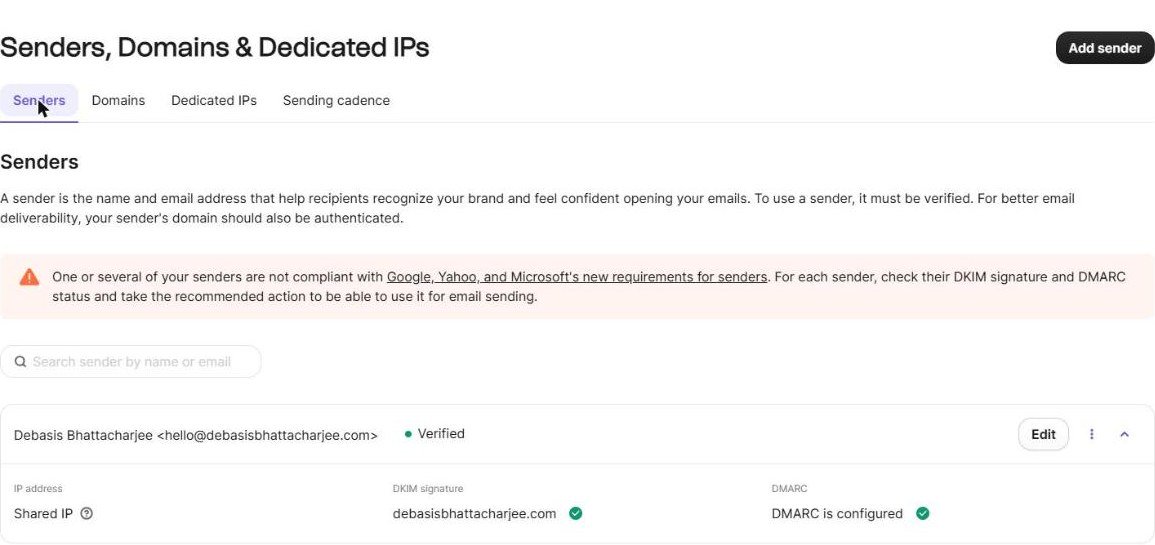
Still in Brevo, open the Senders tab, click Add sender, and enter a name and an address on your domain, such as hello@yourdomain.com. Because the domain is already authenticated, the sender is verified straight away, with green ticks for DKIM and DMARC:
Step 5: Connect WordPress to Brevo
- Install the free FluentSMTP plugin.
- In Brevo, open SMTP & API → API keys, generate a new key, and copy it. Treat it like a password: never paste it in chat, email or a public page.
- In WordPress, go to Settings → FluentSMTP → Add Connection, choose Brevo, set the sender email to
hello@yourdomain.com, paste the key, and save. Mark it as the Default connection.

The error that cost me ten minutes: “unrecognised IP address”
My first test email failed with 401: “We have detected you are using an unrecognised IP address…”. Brevo only accepts API calls from approved IP addresses. The fix is in Brevo under Security → Authorized IPs: add your server’s IP (it appears in the error message). Do this once. If you ever move to a new server, add the new IP too.
Then use FluentSMTP’s Send Test Email button and check Email Logs. You want the status to say sent.
Step 6: Receive mail on your domain with Cloudflare Email Routing
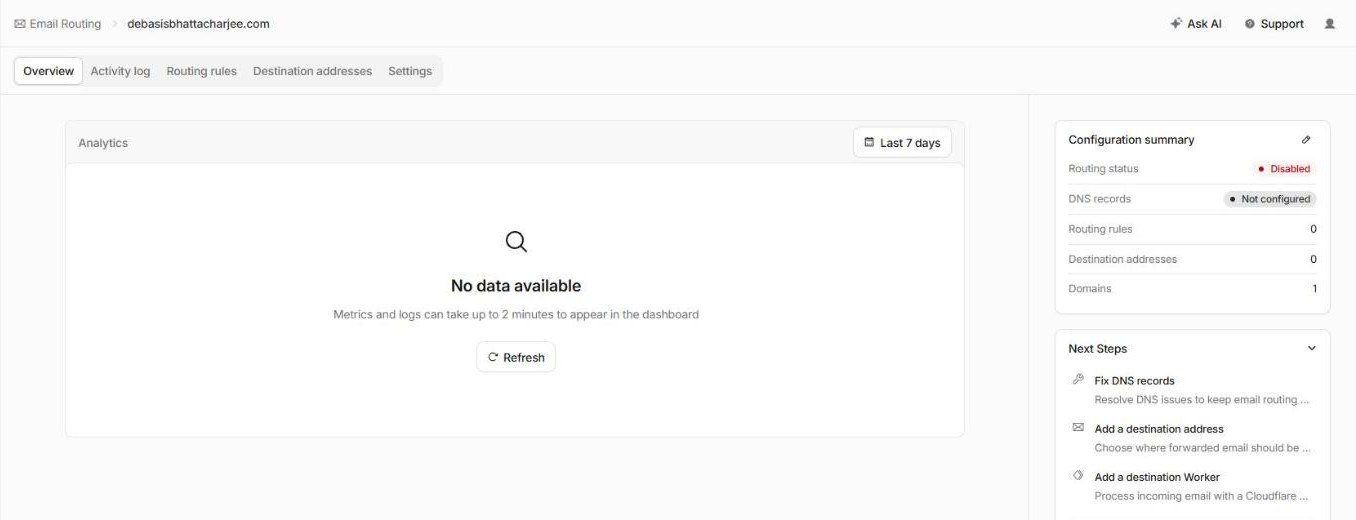
Sending is solved, but people also need to reach hello@yourdomain.com. Instead of paying for a mailbox, Cloudflare Email Routing receives mail for your domain and forwards it to your Gmail, for free.
6a. Add the destination address
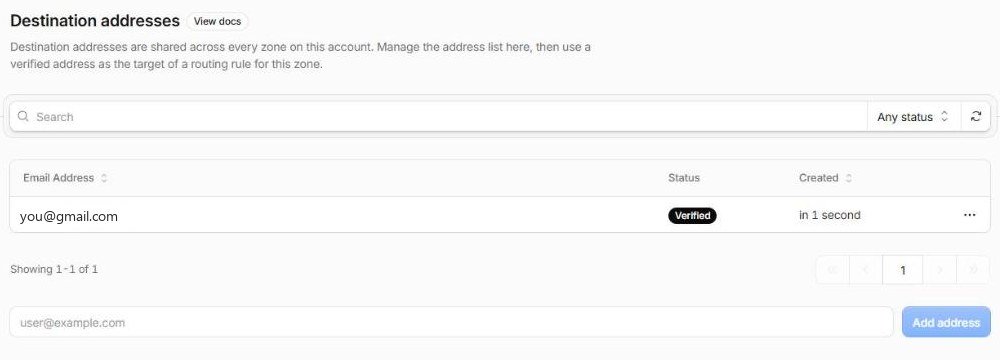
Open the Destination addresses tab and add the Gmail address that should receive your mail. If it is the same email as your Cloudflare account it is verified at once. Any other address gets a confirmation email with a link you must click.
6b. Create the forwarding rule
In Routing rules, click Create routing rule. Type hello, pick your domain, set the action to Send to an email, and choose your Gmail as the destination.
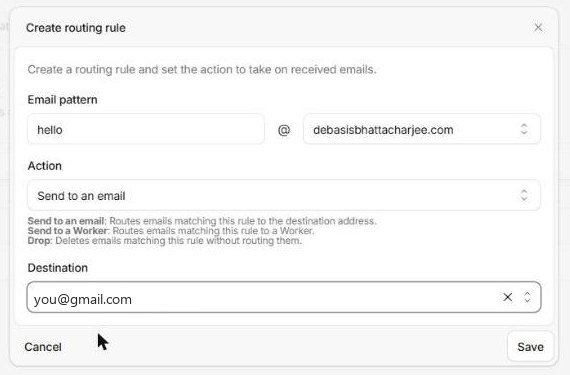
hello@yourdomain.com → Send to an email → your Gmail.
6c. Replace the old mail records
Email Routing needs its own MX records. If your domain currently uses another mail provider, its MX and SPF records will conflict, and two SPF records break email. My domain used a paid mailbox I no longer wanted to renew, so I removed its records first. Warning: after this step the old mailbox stops receiving mail, so export anything you need first.
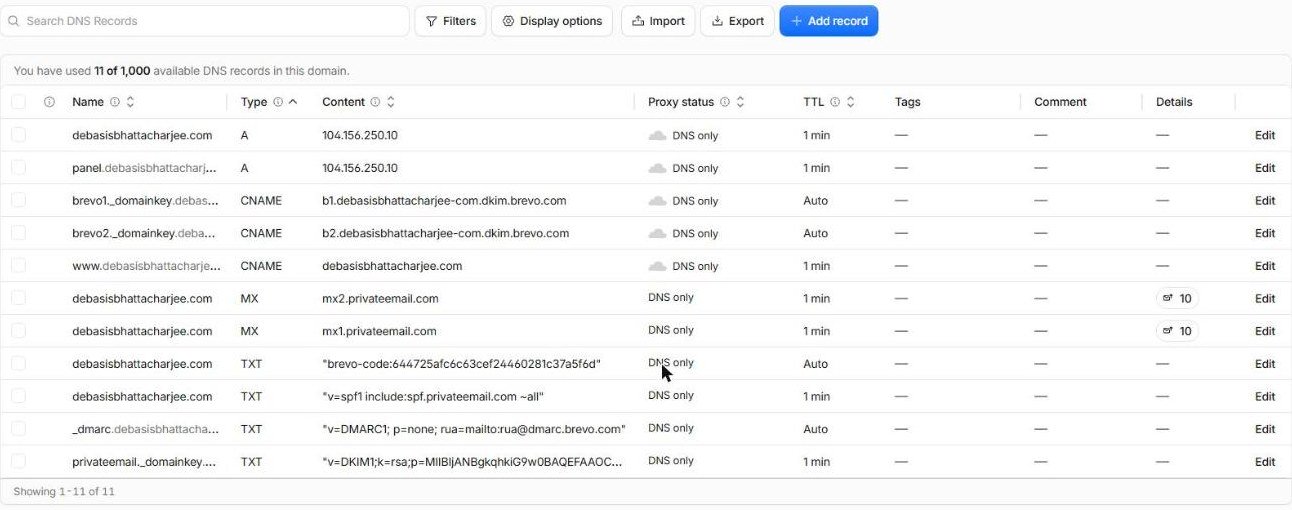
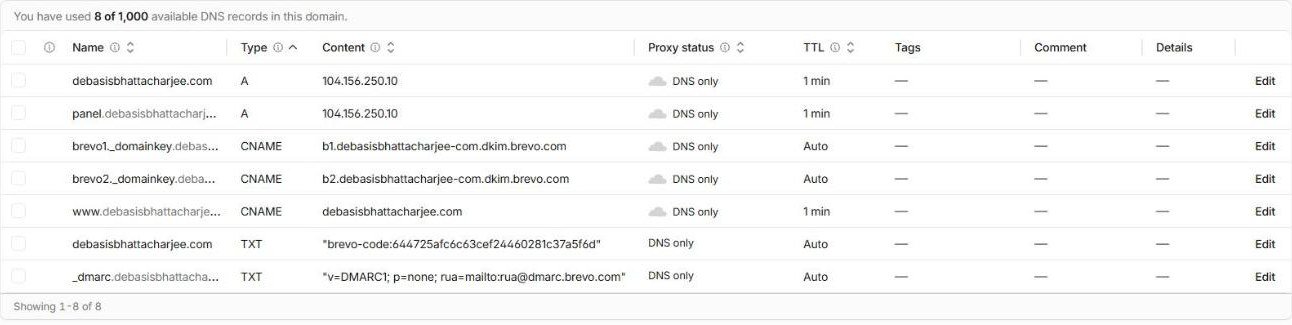
In DNS → Records I deleted four records belonging to the old provider: its two MX records, its SPF TXT record and its DKIM TXT record. Delete them one at a time and read the confirmation dialog, which names the record. I first tried ticking several rows at once, and the table shifted after the first click, so a Brevo record ended up selected. I noticed in time and cleared the selection, but the lesson is real: one record, one confirmation.
Then, back in Email Routing → Settings → DNS records, Cloudflare lists what it needs as “Missing”:
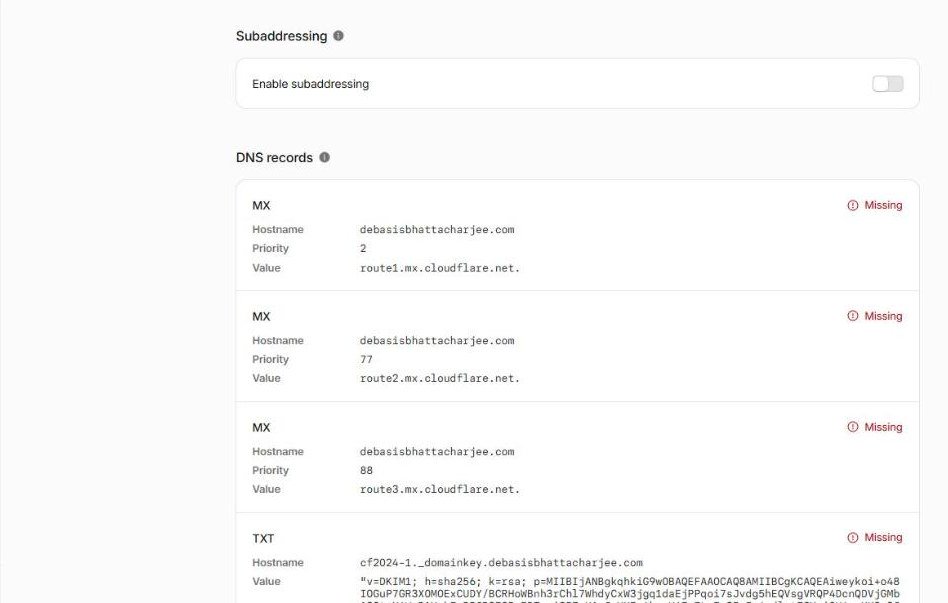
Click Add missing records. Cloudflare creates them and marks them Locked. After a minute, the live DNS shows the three route*.mx.cloudflare.net MX records and a single SPF record.
Step 7: Test it, and what to do when it lands in spam
From my website I sent a test message to hello@. It arrived in my Gmail within two seconds, but in the Spam folder. That is normal for a brand-new sending domain, because Gmail has no history with it yet.


hello@yourdomain.com, sent by the website through Brevo, delivered by Cloudflare.Check the proof: Gmail’s “Show original”
To be sure the setup was correct and not just lucky, I opened the message menu (three dots) and chose Show original. Three lines tell you everything:
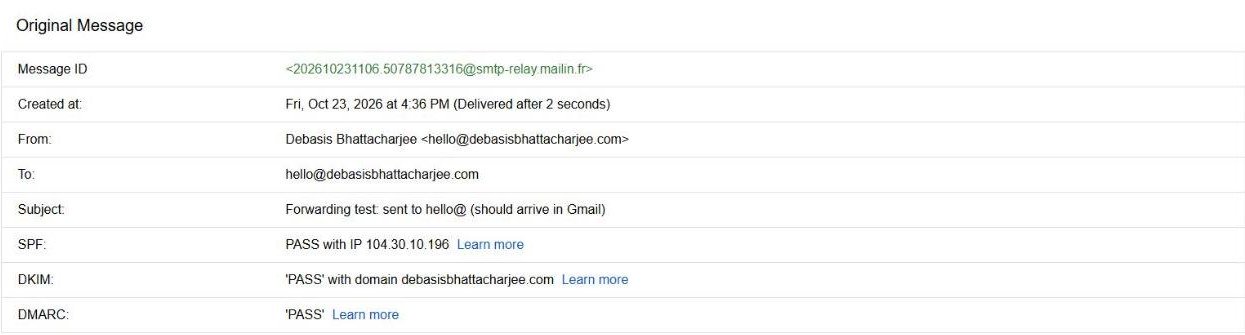
If all three say PASS, your DNS is correct and the spam folder is only about reputation, which improves as real people open and reply to your emails.
Stop good mail going to spam: a Gmail filter
- Click Not spam on the message once. This teaches Gmail.
- In Gmail, open Settings → See all settings → Filters and Blocked Addresses → Create a new filter.
- Put
hello@yourdomain.comin the To field and click Create filter. - Tick Never send it to Spam and click Create filter again.
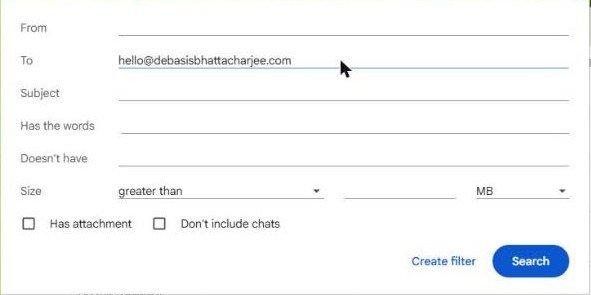
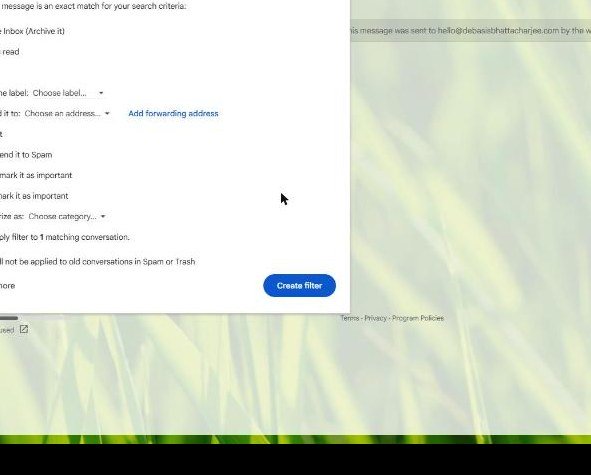

to:(hello@yourdomain.com) → Never send it to Spam.My first attempt did not save, because I left the page too quickly after clicking. Always confirm the filter appears in the list and the “Your filter was created” notice shows.
Troubleshooting: the problems I hit
| Symptom | Cause | Fix |
|---|---|---|
| Mail log shows “Connection timed out” | Host blocks outgoing port 25 | Send through Brevo (API or port 587) |
| 401 “unrecognised IP address” | Brevo only allows approved IPs | Brevo → Security → Authorized IPs: add the server IP |
| Brevo cannot verify the domain | DKIM CNAMEs are proxied (orange cloud) | Set both to DNS only |
| Mail to hello@ bounces or goes to the old mailbox | Old MX or a second SPF record still exists | Remove the old provider’s records, keep one SPF |
| Test mail lands in Spam | New domain with no sending history | Mark “Not spam”, add a filter, send real mail |
| Dashboard still shows old settings | Page not really reloaded (same address) | Reload with a changed address, for example add ?x=1 |
| Cloudflare activity log is empty | Logs can lag a few minutes | Check your inbox, not the log |
The honest limits of this free setup
- Replies show your Gmail address. Email Routing only receives. When you press Reply in Gmail, the answer goes out from your Gmail address, not
hello@. Making Gmail reply ashello@needs a separate “Send mail as” setup with mail-server credentials. For me the trade-off was acceptable. - It is not a full mailbox. There is no separate inbox, calendar or storage for
hello@. Everything lands in Gmail. - Free plans have limits. Brevo’s free plan caps daily sends, and Brevo’s shared sending IP is also used by others.
- Your domain registration is separate. Cancelling a mailbox does not move your domain. If you want everything in one place, transferring the domain to your DNS provider is a different job.
Frequently asked questions
Is this really free?
Yes, for a small site. Cloudflare Email Routing and Cloudflare DNS are free, and Brevo has a free plan with a daily sending limit. You only pay for your domain registration.
Can I send email from hello@yourdomain.com using only this setup?
Your website can, through Brevo. For your own replies from Gmail, you need an extra “Send mail as” configuration, otherwise replies show your Gmail address.
What does DMARC p=none do? Is it safe?
p=none means “report only”: it never blocks any mail. It gives mailbox providers a policy to look at and sends you reports. You can tighten it later, once you are sure all your sending sources are set up correctly.
Do I need an SPF record for Brevo?
Not for DMARC to pass. Brevo signs your mail with DKIM using your domain, and DMARC passes when either SPF or DKIM aligns. You must still never publish two SPF records.
Why not just use Gmail’s own SMTP server?
Gmail would send as your Gmail address, which customers then see. A dedicated sending service with your own domain looks more professional and keeps your personal address private.
Will old emails in my previous mailbox move over?
No. Email Routing only forwards new mail. Export or back up anything you need from the old mailbox before you remove its records.
Need this set up for your business?
If your site’s emails are not arriving, or you would rather have this done properly the first time, I can audit and fix your email setup, including DNS, authentication and deliverability, as part of a paid consultation. Book a session and tell me which tools you use.
Disclosure: I am not affiliated with Brevo, Cloudflare or FluentSMTP and earn nothing from these links. All screenshots are from my own setup in October 2026. Screens and limits change, so confirm current details on each provider’s own pages.