
I run a WordPress site. I built a web push notification platform. You would think the setup process would be the least interesting part of the story — and for me it was, because I wrote the plugin myself. But I have helped enough people set this up over the last couple of years to know that for most site owners, “how do I actually get this running” is the exact question that sits between them and their first subscriber.
So here is the complete walkthrough. From a WordPress site that has never had web push enabled to a live opt-in prompt collecting subscribers — in under fifteen minutes. I am going to be specific, because generic “here are the steps” walkthroughs are not actually helpful when you are trying to follow them on a real site.
I will use PushPro throughout this walkthrough because it is what I built and what I use on my own sites, but the general structure applies to any competent push platform that provides a WordPress plugin.
Before You Start: Two Checks
Web push notifications have two hard requirements that are non-negotiable. Check these before you do anything else.
Check 1: Your site runs on HTTPS
Push notifications require a secure connection. If your site URL starts with http:// rather than https://, the browser permission prompt will not appear. The Web Push API is only available on secure origins.
If your site is not on HTTPS: most WordPress hosting providers offer free SSL certificates through Let’s Encrypt. If yours does not, contact them directly — this is a basic feature in 2026 and any host worth using provides it. The switch from HTTP to HTTPS takes about ten minutes once you have the certificate, and it improves your SEO as a side effect.
Check 2: Your hosting allows service workers
Web push works through something called a service worker — a small JavaScript file that runs in the browser in the background and listens for incoming notification messages. This file needs to be served from the root of your domain (typically at yourdomain.com/firebase-messaging-sw.js or similar, depending on the platform).
Most standard WordPress hosting handles this automatically when you install the push plugin. The only case where this can fail is if your hosting uses an unusual file structure or if a security plugin blocks the worker file from being accessed. If your first subscriber test does not work, this is the first thing to check.
Step 1: Create Your PushPro Account (3 minutes)
Go to pushpro.store and create a free account. The free plan allows up to 5,000 subscribers and 5,000 notifications per month — more than sufficient to run a serious push strategy for most content sites and small business websites.
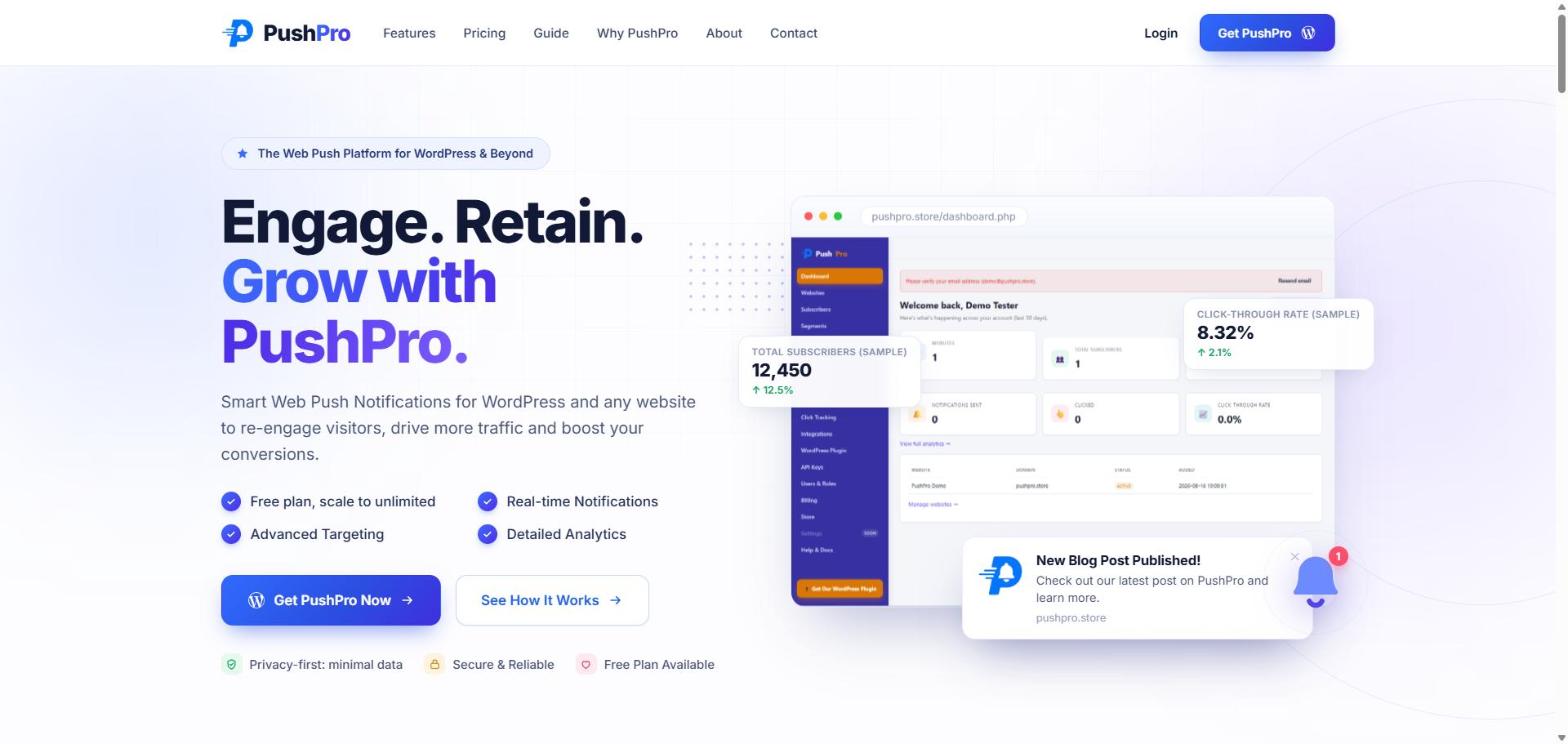
After signing up, you land in the PushPro dashboard. The first screen you see asks you to add a website. Click Add Website and enter your domain name — just the domain, not the full URL (example.com, not https://www.example.com).
PushPro generates VAPID keys for your account automatically. These are the cryptographic keys that identify your push notification sender — they are unique to your account and tied to your subscriber list. You do not need to do anything with them manually; the WordPress plugin reads them from your account during setup.
Step 2: Install the WordPress Plugin (2 minutes)
In your WordPress admin panel, go to Plugins → Add New. In the search box, type “Debmedia WebPush”. The plugin should appear as the first result.
Click Install Now, then Activate. The plugin adds a new menu item to your WordPress admin — look for “Web Push” or “PushPro” in the left sidebar.
Alternatively, if you prefer to install manually: download the plugin ZIP file from your PushPro dashboard under the “WordPress Plugin” section, go to WordPress admin → Plugins → Add New → Upload Plugin, and upload the ZIP file. Either method produces the same result.
Step 3: Connect the Plugin to Your PushPro Account (2 minutes)
Open the plugin’s settings page in WordPress admin. You will see a field asking for your API key or account connection. Go back to your PushPro dashboard, navigate to Settings → API Keys, and copy the key shown for your site.
Paste it into the WordPress plugin settings and click Save. The plugin connects to your PushPro account, downloads the necessary service worker file to your WordPress root directory, and registers the push sender configuration.
At this point, the technical infrastructure is in place. Your site can now receive and send push notifications. But subscribers will not appear yet — you still need to configure when the permission prompt appears.
Step 4: Configure the Opt-In Prompt (5 minutes)
This is the step most setup guides rush past, and it is the one that determines whether your subscriber list grows well or grows badly.
In the PushPro dashboard, go to your website’s settings and look for Opt-In Settings or Prompt Configuration. You will see options for when to show the permission prompt.
My recommended configuration for a content/blog site:
- Trigger: Scroll depth — set to 60% or 65%
- Soft prompt: Enabled — write custom copy explaining what the subscriber will receive (see below)
- Delay after soft prompt: 1-2 seconds before native browser dialog appears
- Reshow interval: 7-14 days for visitors who dismiss without clicking Deny (so they get another opportunity on a future visit without being harassed)
For the soft prompt copy, be specific. Here is an example that works well for a content site:
Title: “Stay in the loop”
Body: “I publish two new articles every week. Click Allow and I’ll send them to your browser — no email address needed, unsubscribe any time.”
This copy tells the visitor exactly what they are signing up for, how frequently they will hear from you, and how to leave if they change their mind. Specific, honest copy converts better than vague “stay updated” language.
Step 5: Send a Test Notification (2 minutes)
Before you go live and start collecting real subscribers, send yourself a test notification to verify the entire chain is working.
Visit your own site on a browser where you have not previously seen the opt-in prompt. Read through enough of an article to trigger the scroll depth condition you configured. The soft prompt should appear. Click Allow in the browser dialog that follows.
You are now your own first subscriber. Go to your PushPro dashboard and send a test notification — use the “Send Test” option which sends only to your current browser session rather than all subscribers. The notification should appear on your screen within a few seconds.
If it does not appear:
- Check that your browser has notifications enabled for your site (browser settings → Notifications)
- Check that do-not-disturb mode is off on your device
- Check the service worker file is accessible at yourdomain.com/pushpro-sw.js (or the path shown in your plugin settings)
When the test notification arrives, the setup is complete. Your site is live and collecting subscribers.
What Happens After Setup: Growing the List
Once the opt-in prompt is live, subscribers start joining automatically. You do not need to do anything for the list to grow — it grows as your existing traffic encounters the prompt and clicks Allow.
What you do need to do is send notifications worth receiving. For a content site publishing twice a week:
- Send a notification for each new article — when it is published, not days later
- Write the notification headline like a good email subject line: specific, honest, interesting
- Keep the body copy to one clear sentence about what the article covers
- Do not send notifications without a specific reason — no “it’s been a while” messages, no generic seasonal greetings
The PushPro dashboard shows you subscriber count, sends, views, and clicks for each notification. Monitor these weekly and adjust if you see patterns — a notification that underperforms is usually one with generic copy or a topic that did not connect with the audience you have built.
Comparing the Setup Experience Across Platforms
| Feature | PushPro | OneSignal | PushEngage | iZooto |
|---|---|---|---|---|
| WordPress plugin available | Yes | Yes | Yes | Yes |
| Setup time to first subscriber | ~15 min | ~20 min | ~20 min | ~25 min |
| Scroll-depth trigger on free plan | Yes | No (paid only) | No (paid only) | Yes |
| No third-party branding on free plan | Yes | No | No | No |
| Manual service worker upload required | No | Sometimes | Sometimes | No |
| Free subscriber limit | 5,000 | 10,000 | 2,500 | 2,500 |
| HTTPS required | Yes | Yes | Yes | Yes |
One setup difference worth noting: some platforms require you to manually upload the service worker file to your web server’s root directory via FTP or a hosting file manager. PushPro’s WordPress plugin handles this automatically, writing the service worker to your WordPress root during activation. For non-technical users, this matters — it removes the step that most commonly causes setup failures.
FAQ: Questions I Get About WordPress Push Notification Setup
Will it slow down my WordPress site?
No. The service worker loads asynchronously and does not block page rendering. The opt-in prompt JavaScript is small and deferred. Push notification infrastructure has no meaningful impact on Core Web Vitals or page speed scores.
Does it work with caching plugins?
Yes. The service worker file is not cached by standard page caching plugins (WP Rocket, LiteSpeed Cache, W3 Total Cache) because it is a JavaScript file served from the root directory, not a WordPress page. If you notice issues, add the service worker file path to your caching plugin’s exclusion list.
What happens if my subscriber uses multiple browsers or devices?
Each browser-device combination is a separate subscription. Someone who subscribes on Chrome on their laptop and again on Chrome on their phone generates two subscriber entries. Notifications are delivered to both. This is expected behaviour — push subscriptions are browser-level, not account-level, because no personal data is collected.
Can subscribers opt out, and how?
Yes. Subscribers can revoke push notification permission through their browser settings at any time. In Chrome: Settings → Privacy and Security → Site Settings → Notifications → find your domain. In Firefox: address bar lock icon → Permissions → Receive Notifications. When a subscriber revokes permission, they stop receiving notifications and their subscription is marked inactive in your dashboard.
Does it work with multisite WordPress?
Yes, with one additional step. Each subsite in a WordPress multisite network needs its own PushPro website entry in the dashboard, each with its own domain or subdomain. The plugin can be network-activated, but the push configuration needs to be set per subsite because push subscriptions are domain-specific.
Quick Summary
- Web push on WordPress requires an HTTPS site and a push platform providing a WordPress plugin — both conditions are easy to meet in 2026.
- Full setup from zero to first subscriber takes under 15 minutes: account creation (3 min), plugin install (2 min), account connection (2 min), opt-in configuration (5 min), test notification (2 min).
- The opt-in timing configuration is the most important step — set the prompt to fire after engagement (scroll depth at 60-65%), not on page load.
- PushPro includes scroll-depth triggers, custom soft prompt copy, and analytics on all plans including free.
- After setup, the list grows automatically as traffic arrives; the ongoing work is sending notifications worth receiving.
- The plugin handles all service worker setup automatically — no manual FTP or file uploads required.
The fifteen minutes of setup pays for itself the first time a notification brings a reader back to your site who would otherwise have been gone permanently. Get PushPro free and see how long it actually takes — in my experience, the setup guides that say “ten minutes” are underselling it slightly, and the ones that say “an hour” are being melodramatic. Fifteen minutes is accurate, including the time it takes to write your first good notification.