SQL Script Viewer
Open, browse and execute SQL script files on Windows without a full server
SQL Script Viewer lets you open any .sql script file, browse its statements with full syntax highlighting, and execute individual statements or the entire script against a connected database — without needing a full database management application installed. Load multi-thousand-line SQL files and navigate them with the built-in statement browser, which splits the script by statement type and lets you jump directly to any CREATE, INSERT, UPDATE, SELECT or stored procedure. Execute statements against SQLite, MySQL or PostgreSQL connections and see results in a formatted grid. Export results to CSV or Excel. Built for developers who receive SQL scripts from clients, need to review them quickly and want to run selected statements without the overhead of a full IDE.
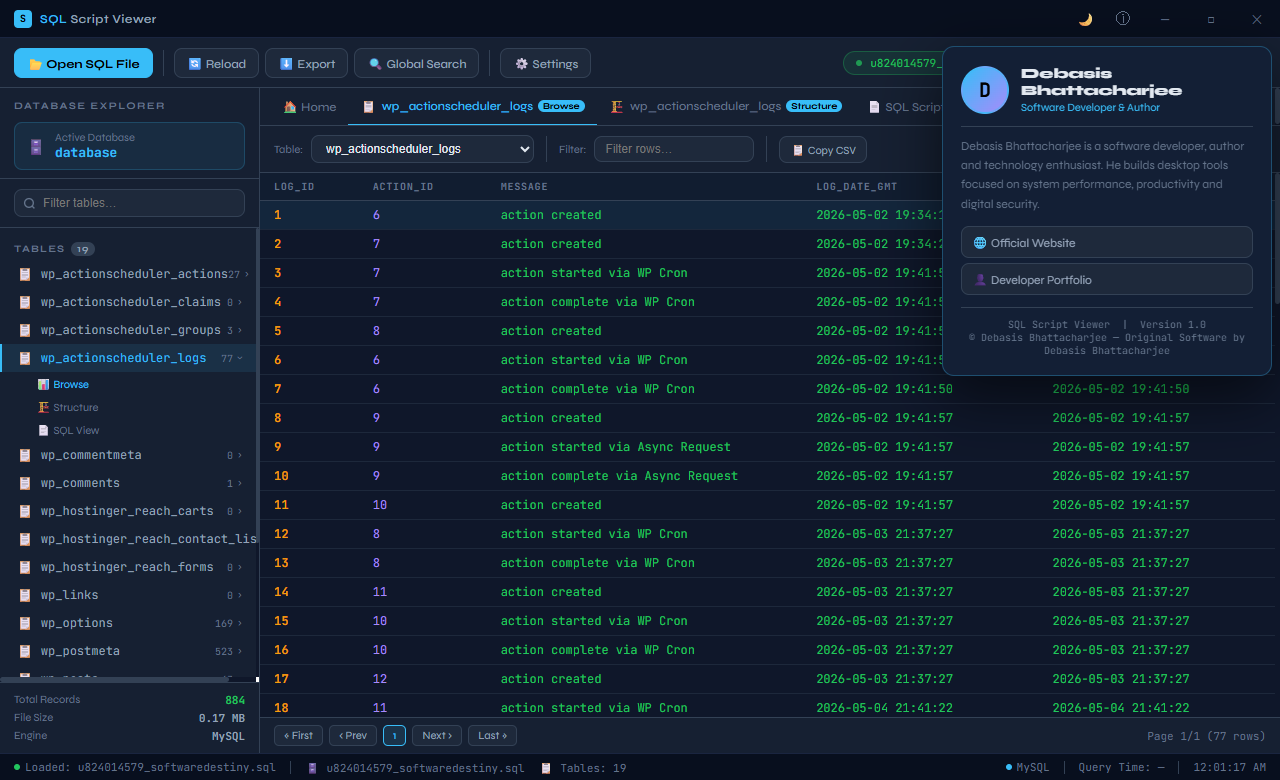
See SQL Script Viewer in Action
A clean, modern interface designed for real-world use.
Sqlscriptviewer developer 2 screenshot
What Is SQL Script Viewer?
SQL Script Viewer is a Windows desktop application for opening, reading and navigating SQLite database files and SQL script files without needing to install SQL Server, MySQL or any database server software. If you have received a .db, .sqlite or .sql file and need to understand its structure or read its data, SQL Script Viewer opens it immediately — no server setup, no connection strings, no administration overhead. A built-in query console lets you run ad-hoc SQL queries against any open database directly from the interface.
SQL Script Viewer is available in both Dark and Light interface modes, making it comfortable for use in any lighting environment and matching your preferred development colour scheme.
Screen-by-Screen Feature Walkthrough
1. Welcome Screen — Open a Database or Script
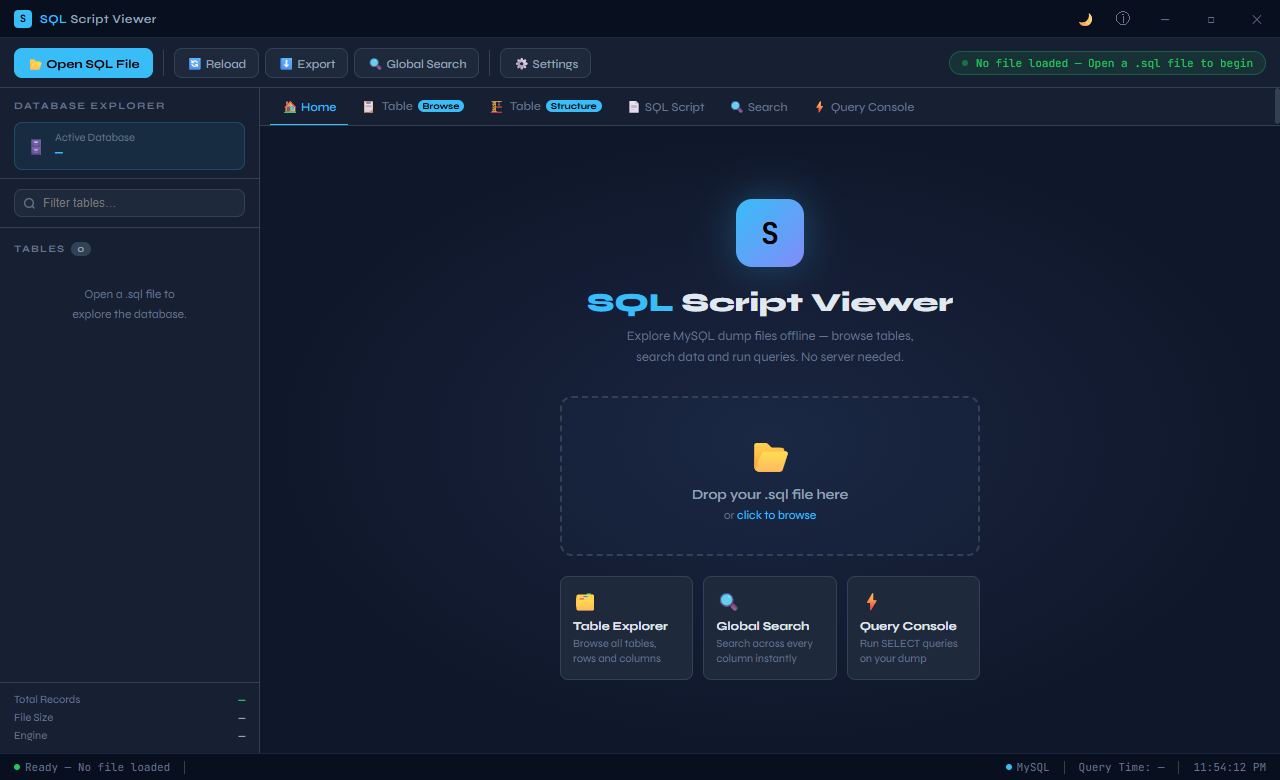
The welcome screen presents two clear entry points: open an existing SQLite database file (.db, .sqlite, .sqlite3) or open a SQL script file (.sql). Recent files are listed for quick access to databases and scripts you have worked with previously. The dark interface uses a neutral charcoal and blue colour scheme that is easy on the eyes for extended analysis sessions. From this screen, every feature of the application is one click or keyboard shortcut away.
2. Open an SQL File — File Browser
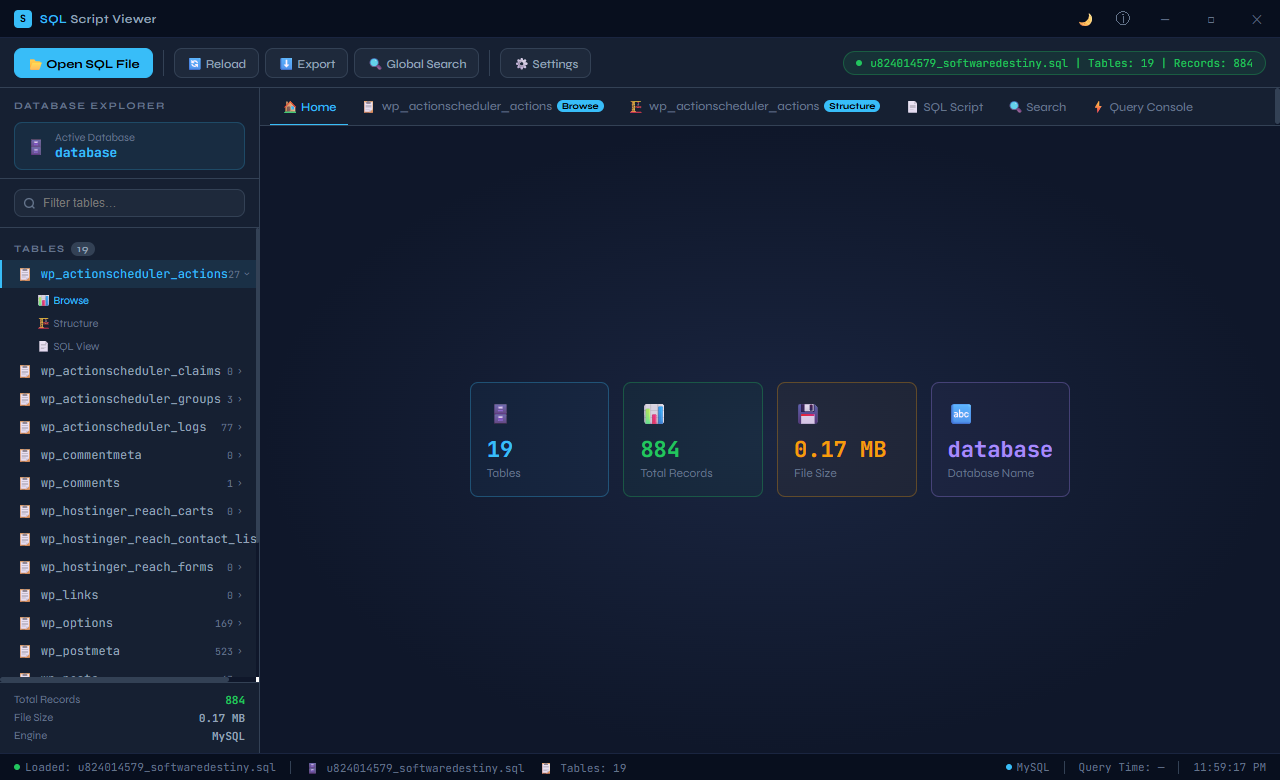
Opening a file uses the standard Windows file picker integrated directly into the SQL Script Viewer interface. Navigate to the .db, .sqlite or .sql file on your drive, select it, and SQL Script Viewer reads it immediately — no import wizard, no connection configuration, no waiting for a server to start. The entire database schema and all table data are available to browse as soon as the file is selected. This immediate-open approach is the core advantage over traditional database management tools that require a running database server.
3. SQL Script Viewer — Syntax-Highlighted Script View
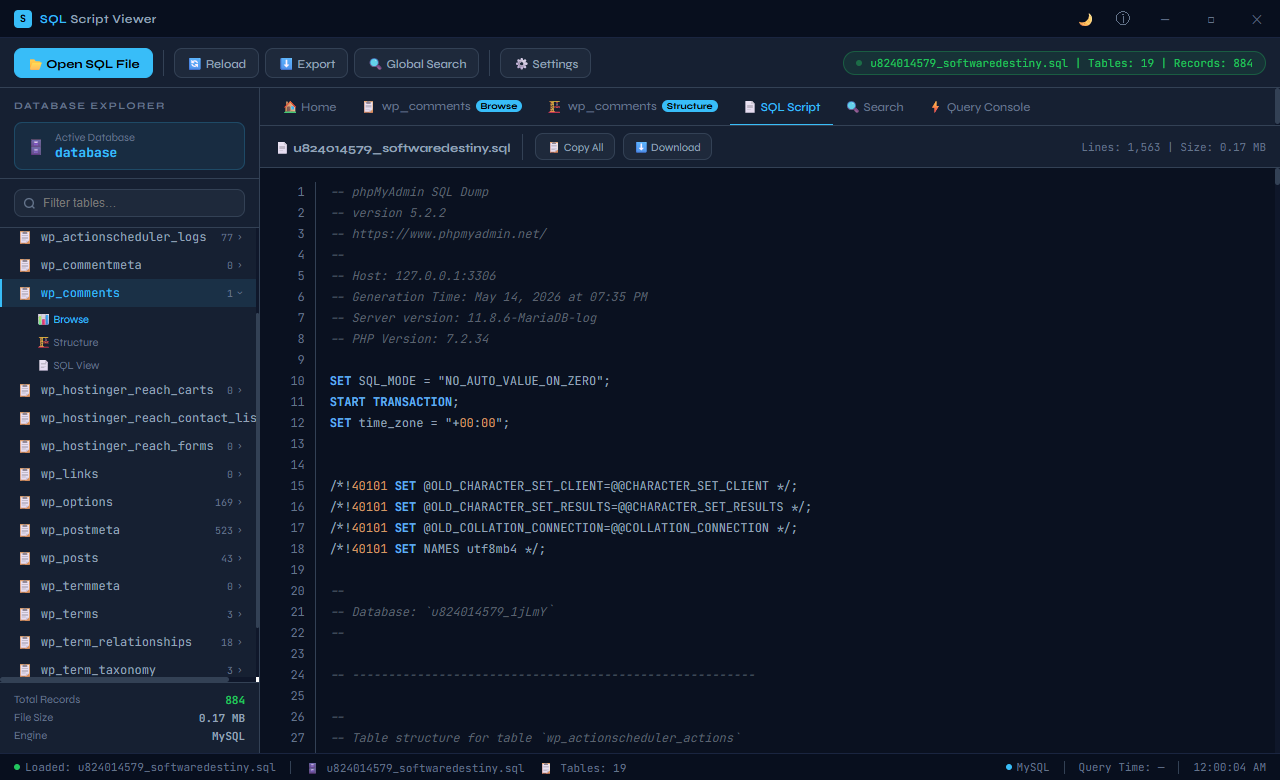
When a .sql script file is opened, SQL Script Viewer renders it with full syntax highlighting: SQL keywords (SELECT, INSERT, CREATE TABLE, FROM, WHERE, JOIN and so on) are highlighted in blue, string literals in green, comments in grey, and identifiers in the default foreground colour. Line numbers appear in the gutter for easy navigation. Syntax highlighting makes even long, complex SQL scripts readable at a glance, revealing the structure of CREATE TABLE definitions, stored procedures, INSERT batches and query logic that would be invisible in a plain-text editor.
4. Search Within Script
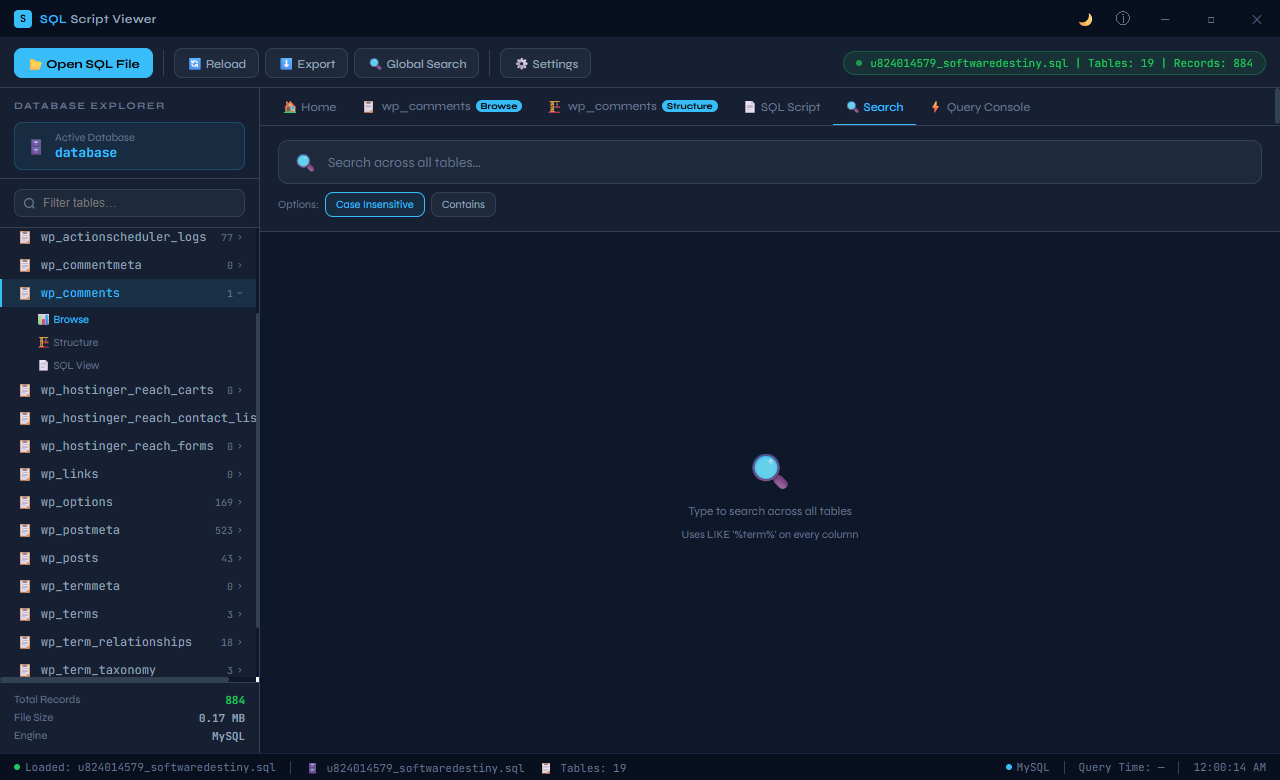
A built-in search panel lets you find any text in the open script or query result. Type a search term and SQL Script Viewer highlights all matching occurrences in the script, with Previous and Next buttons to step through each match in sequence. This is essential for navigating large SQL files — finding where a specific table is created, where a particular column is referenced, or where a function is defined in a multi-hundred-line script that would take minutes to read manually. Case sensitivity and whole-word matching options give precise control over the search.
5. Tables Browser — Database Schema Overview
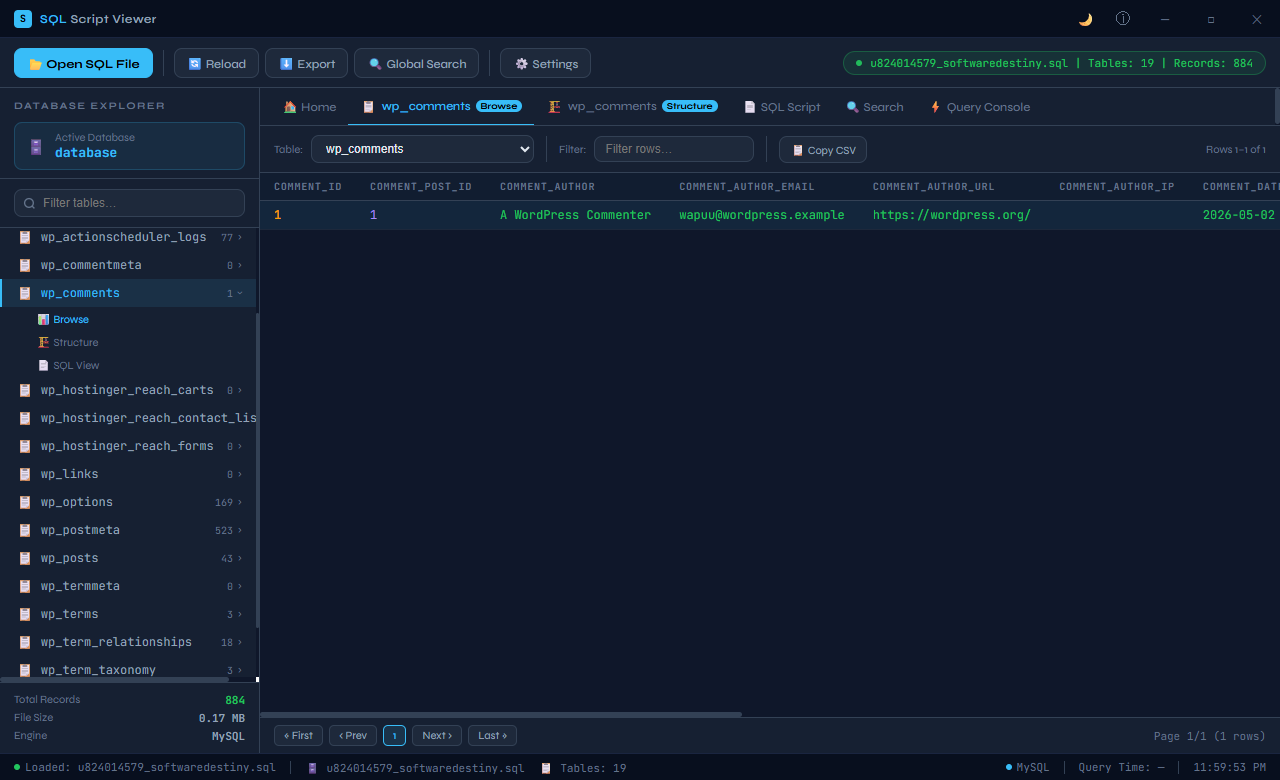
Once a SQLite database file is open, the tables browser panel lists every table in the database schema. A single click on any table name navigates to that table’s structure and data. The table list is the starting point for exploring an unfamiliar database — seeing the full list of tables immediately reveals the data model and helps you understand what information the database contains before reading any specific records. Views, triggers and indexes are also listed in separate sidebar sections for a complete picture of the schema.
6. Table Structure — Column Inspector
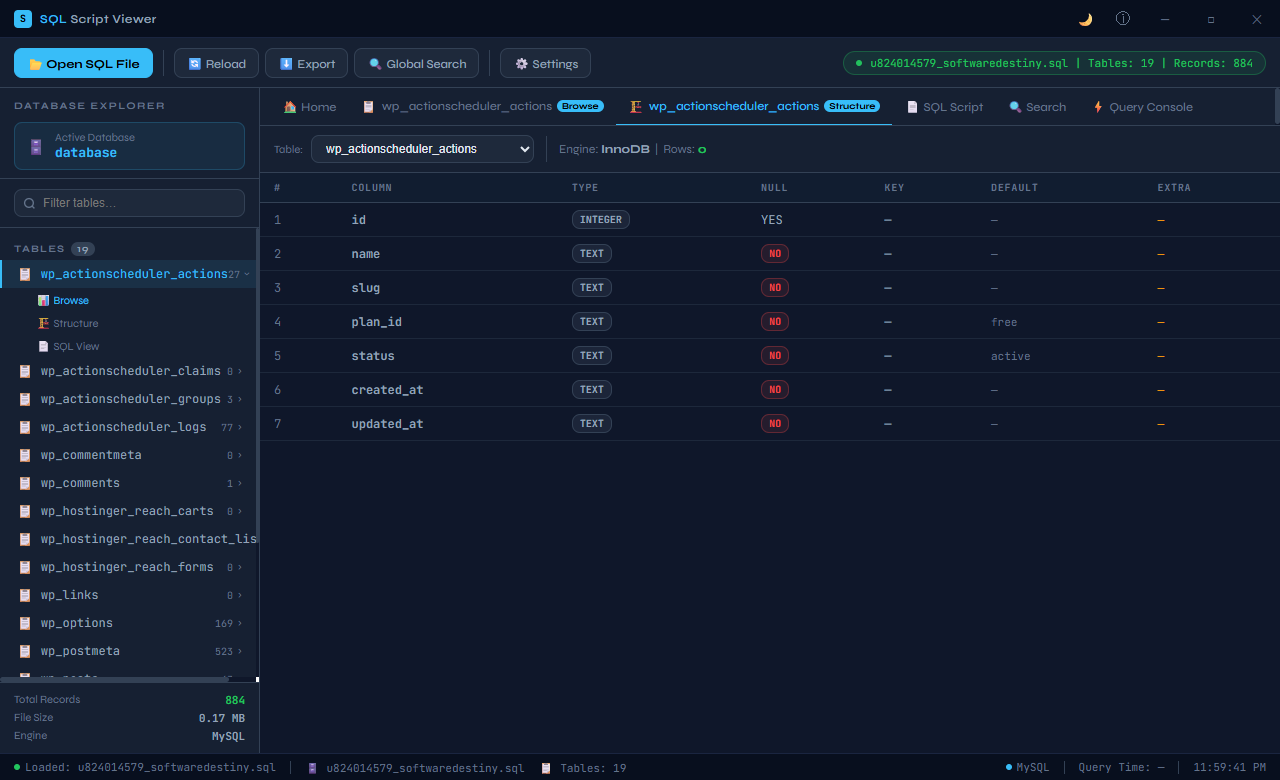
The table structure view shows the complete definition of every column in the selected table: column name, data type (TEXT, INTEGER, REAL, BLOB, NUMERIC), whether a NULL value is allowed, the default value if any, and which column is the primary key. This is the equivalent of running PRAGMA table_info() in a SQLite CLI but presented in a clear, readable table rather than raw output. Understanding a table’s structure before reading its data is essential for interpreting values correctly — knowing that a column is an INTEGER primary key versus a TEXT identifier changes how you read every row.
7. Table Data Viewer — Rows at a Glance
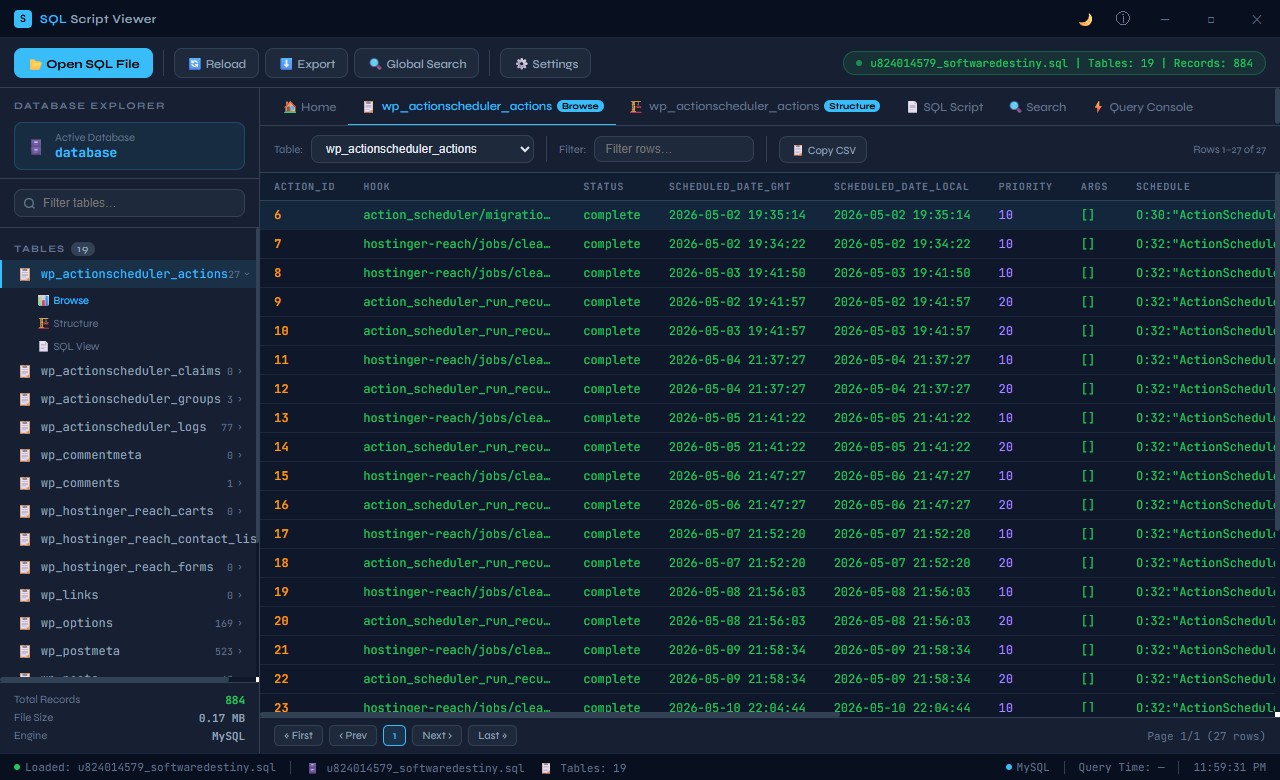
The table data view loads all rows from the selected table into a sortable grid. Column headers match the table schema, and clicking any header sorts the data by that column. Long text values are shown with a tooltip for the full content when you hover over a truncated cell. Pagination handles large tables — if a table contains thousands of rows, the data viewer loads them in pages to keep the interface responsive. This view is sufficient for most data inspection tasks: verifying record counts, checking specific row values, and understanding the overall data distribution in a table.
8. Query Console — Run Ad-Hoc SQL
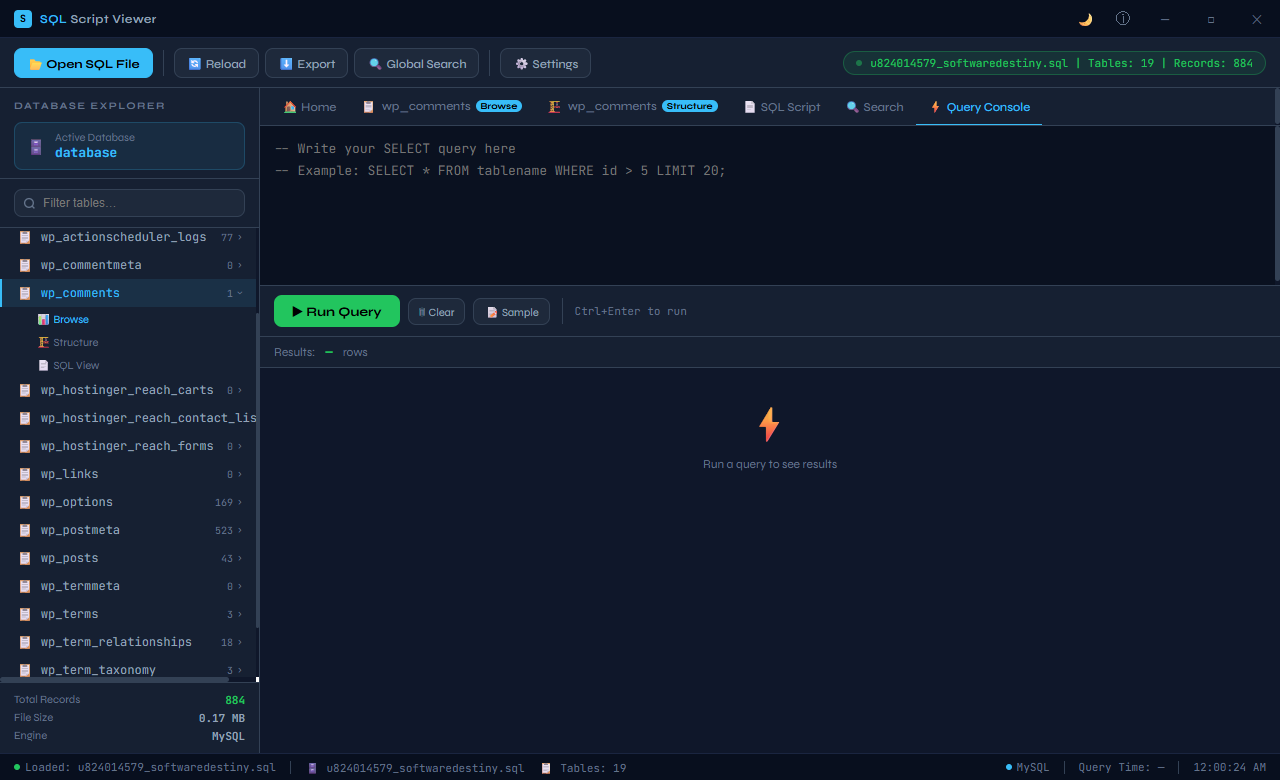
The query console is a full SQL editor with syntax highlighting, a Run button, and results displayed in a grid below the input. Write any SELECT, JOIN, GROUP BY or subquery against the open database and see the results immediately. The query console supports the full SQLite SQL dialect — window functions, CTEs (WITH clauses), JSON functions and all standard aggregation. This makes SQL Script Viewer useful not just for passively viewing data but for actively analysing it: filtering records, joining tables, aggregating values, and extracting specific information from an unfamiliar database without installing any server software.
9. Developer View — Schema and Relationships
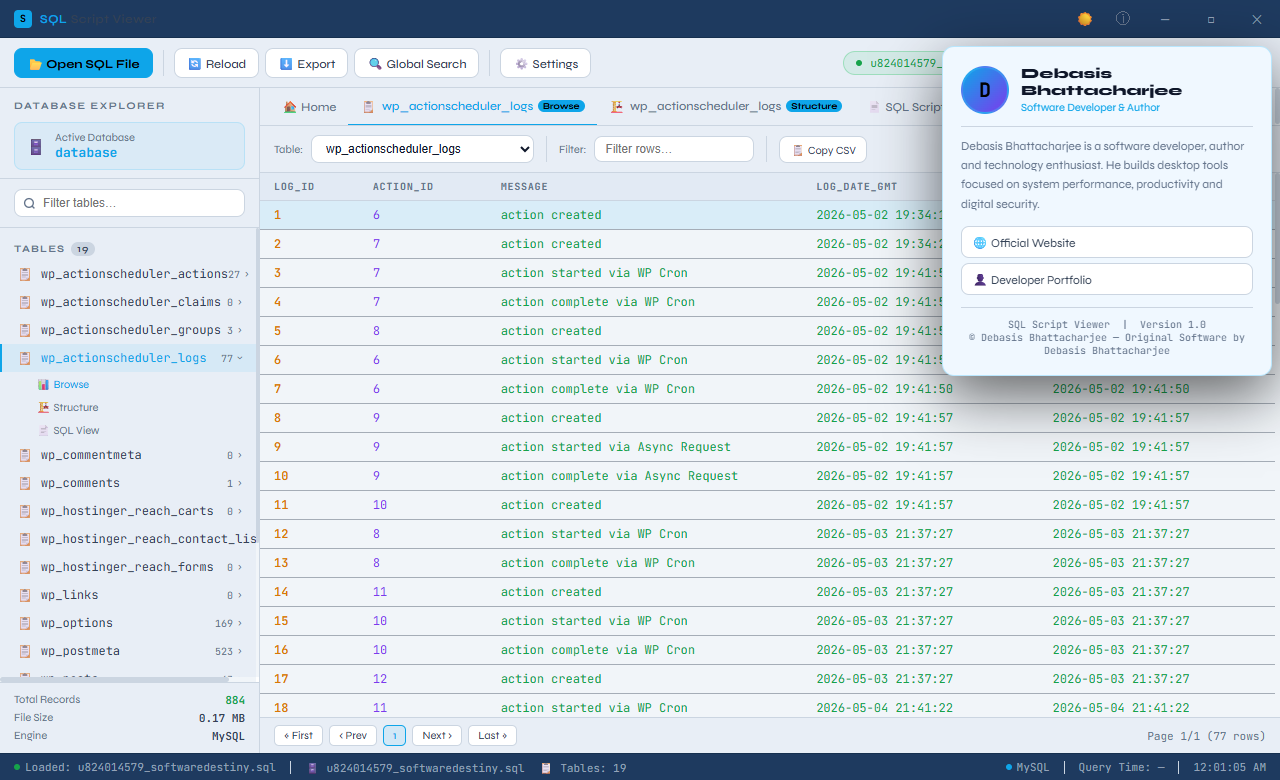
The developer view exposes the raw SQL CREATE statements for every table, view, trigger and index in the database. This is the complete schema definition as SQLite stores it — exactly what you would see in the sqlite_master table, but formatted and syntax-highlighted for readability. Developers receiving an unfamiliar database file can read the CREATE TABLE statements to understand the original designer’s intent, including column constraints, default values, indexes and any foreign key relationships defined in the schema.
10. Developer View — Additional Schema Details
A second developer view tab shows additional schema objects: index definitions (revealing which columns are indexed for performance), trigger definitions (showing any automatic database-side logic), and view definitions (exposing any pre-defined queries saved as views in the database). For a complete understanding of a database’s behaviour, all three — tables, indexes and triggers — need to be read together, and this view brings them into a single organised panel.
SQL Script Viewer also offers a Light Mode interface — the same full set of features with a clean light colour scheme that some users prefer for daytime use or in brighter environments.
11. Light Mode — The Same App, a Different Look
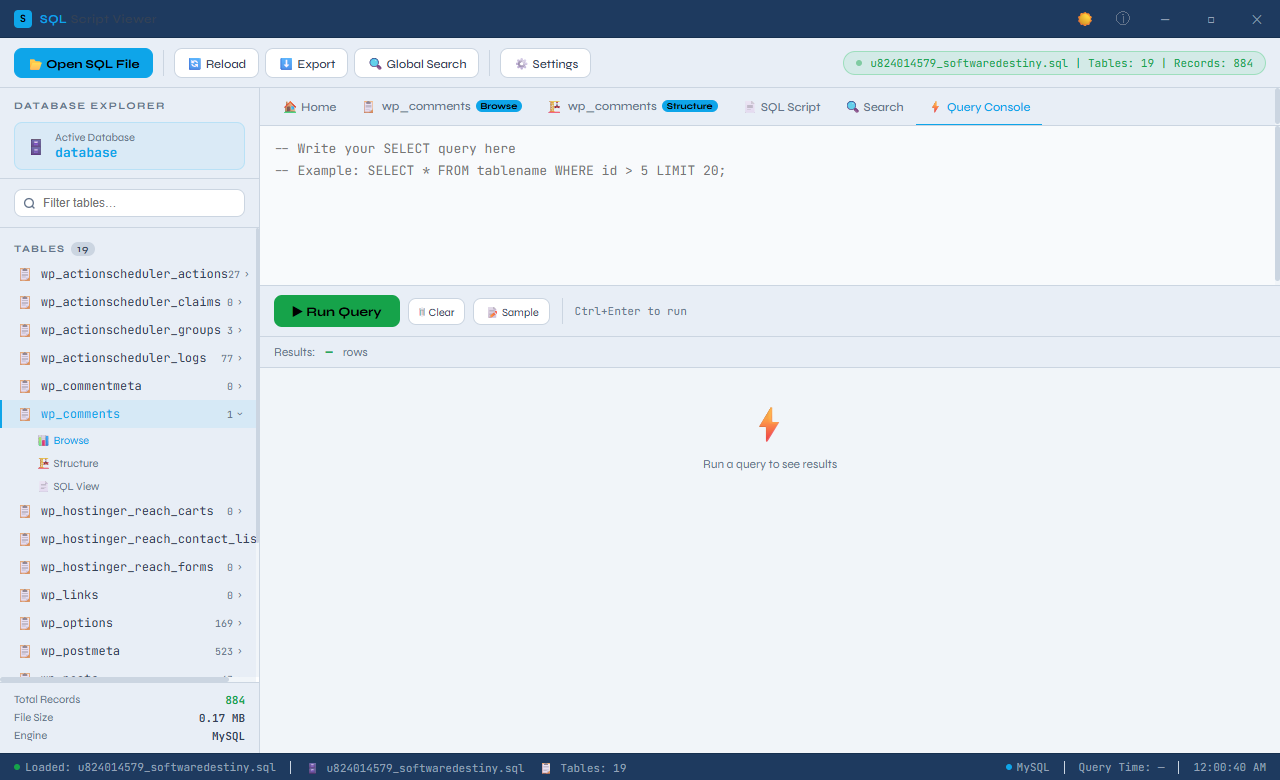
SQL Script Viewer’s Light Mode switches the interface to a white and light grey palette while preserving every feature available in Dark Mode. The syntax highlighting adapts to the lighter background — keywords appear in a deeper blue, strings in green, comments in grey — maintaining readability against the white surface. Light Mode is comfortable for use in well-lit offices and for users who prefer a brighter working environment. Switch between Dark and Light Mode at any time from the application settings.
Who Is SQL Script Viewer For?
- Developers working with SQLite databases — Open and inspect .db files from mobile apps, embedded software, desktop applications and web backends without setting up a development environment.
- Data analysts and business intelligence professionals — Quickly explore an unfamiliar SQLite database, understand its schema, and run ad-hoc queries to extract the data you need.
- Software testers and QA engineers — Verify database state after test runs by browsing tables and running queries directly against the test database file.
- Students learning SQL — Write and run SQL queries against a local database file without needing to install and configure a database server, lowering the barrier to practising real SQL.
- IT professionals receiving database exports — Open .sql script files to review schema migrations, data imports or backup scripts before executing them against a production database.
System Requirements
- Operating System: Windows 10 (64-bit) or Windows 11
- Processor: Any modern x64 processor
- RAM: 4 GB minimum
- Storage: 80 MB for the application
- Display: 1280 × 720 minimum
- Internet: Not required — fully offline
Frequently Asked Questions
What database file types does SQL Script Viewer support?
SQL Script Viewer opens SQLite database files (.db, .sqlite, .sqlite3, .s3db) and SQL script files (.sql). It does not connect to remote database servers — it is designed for local file-based databases only.
Can I modify data in the database through SQL Script Viewer?
The table data viewer is read-only — you cannot edit cell values directly in the grid. The query console accepts any valid SQL, including INSERT, UPDATE and DELETE, but these write operations require the database file to not be opened read-only by another process.
How large a database can SQL Script Viewer handle?
SQL Script Viewer has been tested with SQLite databases up to several gigabytes. The table data viewer uses pagination to handle large tables without loading all rows into memory simultaneously. The query console executes queries through the SQLite engine directly, so performance scales with the SQLite engine’s own capabilities.
Does it support SQLite encryption (SEE or SQLCipher)?
SQL Script Viewer opens standard, unencrypted SQLite databases. Encrypted SQLite databases created with SQLCipher or SQLite Encryption Extension require the encryption key and are not directly supported.
Open Any SQLite Database in Seconds — No Server Required
SQL Script Viewer closes the gap between having a database file and being able to actually read it. No server installation, no connection strings, no command-line interfaces — just open the file and start exploring. Whether you are verifying a test database, understanding an unfamiliar schema, or writing a quick query to extract specific data, SQL Script Viewer makes it immediate and visual.
Download SQL Script Viewer now — your first database session is free, no account required.
Download SQL Script Viewer
Open, browse and execute SQL script files on Windows without a full server